Search the Community
Showing results for tags 'modular'.
Found 24 results
-
Version 3.0.7
37,513 downloads
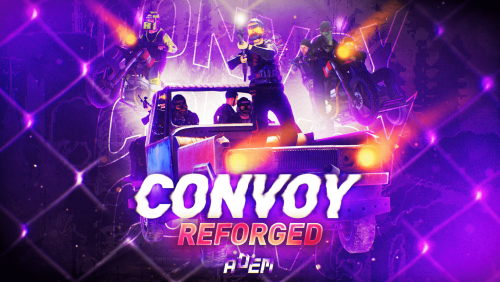
Set your server apart with a roaming mobile event that has nearly endless configuration options! Configure the loot truck as well as the Convoy of protection vehicles ranging from sedans, module cars, Bradley tanks, motorbikes, vendor trucks, to a patrol helicopter! The plugin runs on custom and procedural generated maps, can use custom routes or let the plugin find a random route based on your configuration. You can make yours an aggressive or a peaceful Convoy, who shoots first? You can set all kinds of parameters regarding the many pieces of the event, how to beat it, whether destroying the loot truck destroys the loot or not for example. There are many compatible plugins like TruePVE, GUIAnnouncements, Notify, DiscordMessages, and RustCord to name a few. The plugin has a built in UI that will give you important information about the event as you are inside it's zone. Check the map to see the location of the event as a marker and even see the timer on the event! All of the ground vehicles are driven and filled with NPCs. Every vehicle, the NPCs, and the loot as well as all timers can be configured to suit your server. A PvP zone can be created within the event area for those of you who use TruePVE to control damage on your servers. The limits are nearly endless! If you have some players on your server that you want to really send everything you have at, this is the plugin for you. Watch players crap their pants when they first encounter a full Convoy with multiple tanks and a Patrol Heli all attacking at once. Sit back and delight in their fear as all of the vehicles empty their occupants and NPCs swarm them mercilessly! Required Dependency (must install this free plugin) NpcSpawn – link is included and can be found in the ReadMe file included with download Chat commands (admin only) /convoystart - launches the event using a random preset based on your configuration /convoystart PresetName - add the name of a preset from the configuration to launch a specific preset /convoystop - stops the event /convoyroadblock - the event will not be held on the road where you are standing (clear the Blocked roads section of config when you change maps) /convoypathstart - stand at starting point and enter command to start recording a custom route /convoypathsave RoutePresetName - to save a custom route (enter anything you'd like in place of RoutePresetName) multiple routes can be added to one route preset, one will be selected at random in this case /convoypathcancel - to reset the route Console commands (RCON only) convoystart - launches the event using a random preset based on your configuration convoystart PresetName - add the name of a preset from the configuration to launch a specific preset convoystop - stops the event Plugin Config en – example of plugin configuration in English ru – example of plugin configuration in Russian API bool IsConvoyVehicle(BaseEntity entity) bool IsConvoyCrate(BaseEntity crate) bool IsConvoyHeli(BaseHelicopter baseHelicopter) bool IsConvoyNpc(ScientistNPC scientistNPC) Hooks void OnConvoyStart() - яalled when a convoy appears void OnConvoyStop() - яalled when a convoy disappears void OnPlayerEnterConvoy(BasePlayer player) - яalled when a player enters the event area void OnPlayerExitConvoy(BasePlayer player) - яalled when the player leaves the event area void OnConvoyEventWin(ulong userId) - called at the end of the event and informs about its winner void OnConvoyStartMoving(Vector3 convoyPosition) void OnConvoyStopMoving(Vector3 convoyPosition) void OnConvoyAttacked(BasePlayer player, Vector3 convoyPosition) Check out the rest of my work: Adem's Codefling Library You can reach out to me in Discord: Adem's Discord Profile Thanks to Jbird for writing, translation, & support: Jbird's Discord Profile Join the Mad Mappers Discord!$39.99 -
Version 1.9.0
9,957 downloads
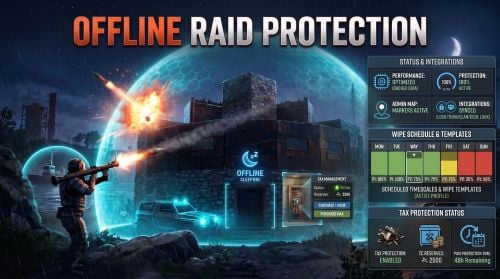
The Offline Raid Protection plugin is a comprehensive solution that reduces or completely prevents damage to player-owned bases, vehicles, and boats when their owners are offline. Offering unparalleled control, server owners can adjust the level of damage based on real-world hours or the amount of time a player has been offline. New in version 1.6.0, you can also set customized schedules and automated wipe phases. New in version 1.7.0, optional Tax Protection lets players maintain their Tool Cupboard protection by paying with a configurable in-game currency, such as Scrap. Designed for servers seeking meaningful offline or online protection, without sacrificing server performance, this plugin provides total control over damage scales, cooldowns, team behaviour, decaying bases/boats, rentable shops, apartments and more. Highlights Flexible Damage Scaling: Set damage scales based on real-world hours and/or offline time. A scale of 0.0 blocks all damage; a scale of 1.0 allows normal, vanilla-level damage; and values above 1.0 actively increase incoming damage. Scheduled Timescales: Temporarily override standard damage scales for specific date ranges. Perfect for custom weekend rates, holiday events, wipe-day protection, or planned balance changes. Wipe Templates: Automate your wipe cycle with reusable phases (e.g., more protection immediately post-wipe, scaling down over subsequent days). Assign a default template for every wipe, or queue a specific template for the next wipe only. Tax Protection: An optional upkeep-style system for Tool Cupboards. Configure the currency, hourly cost, maximum purchased hours, reserve limit, and unused-time refunds when a Tool Cupboard is destroyed. Tax Overlay: An optional in-game panel UI shown while an authorized player loots a Tool Cupboard. It displays active, paused, or inactive Tax Protection, remaining time, costs, reserves, total available protection, and purchase buttons. Status HUD: An optional, configurable on-screen HUD that displays a building's or boat's current protection status, protection percentage, remaining time, and penalty timers. Position and visibility rules are customizable. Game Tip Messages: Displays color-coded game-tip messages to attackers, optionally restricted to specific damage types (Melee, Ranged, Explosive, and None for everything else). Admin-Only Map Markers: Equip your admins with color-coded map markers for protected Tool Cupboards and boats. Markers feature dynamic protection-state circles, live boat tracking, and detailed hover tooltips showing authorized players. Marker colors, radius, transparency, and refresh rates are configurable. ORP DDraw: An in-game F1-console inspection tool for admins. It displays the current ORP state of nearby Tool Cupboards and protected boats, including protection percentage, remaining time, Tax Protection time, and authorized-player count. Team, Clan & Code Lock Integration: Protection intelligently accounts for teams or clans, and optionally Code Lock whitelists. Boat & Vehicle Protection: Optionally extend protection to modular boats, tugboats, and vehicles, including their relevant authorization paths. Apartment & Rentable Shop Support: Protects against master-key break-ins based on the actual rental owner, ignoring team or clan status for these specific entities. Anti-Abuse Penalties: Discourage players from exploiting protection by applying configurable penalties when they leave or disband teams. Grief TC Detection: Automatically identifies and excludes later-placed, overlapping Tool Cupboards from receiving protection. Admins can manually inspect and override these classifications. Defender Raid Restriction: Discourage defenders from stopping an ongoing raid by logging off. Qualifying explosive damage starts a timer that suspends protection if all tracked defenders disconnect. Requires the included DamageDeltaObserver plugin. Cache System: The plugin uses a caching system to optimize performance and keep the impact on the server to a bare minimum. Developer API: Exposes endpoints for other plugins to query protection scales, owner IDs, remaining time, and penalty states via Plugin.Call. Scheduled Timescales & Wipe Templates Your standard configuration acts as the baseline fallback when "Enable scheduled timescales" is true and a valid scheduled profile is active, its specific damage-scale tables take absolute precedence for that date range. Once the schedule expires (or if no profile is active), the plugin seamlessly reverts to your standard configuration. Wipe Templates are reusable blueprints, not live schedules. When the server detects a new save, the plugin checks for a queued template. If there is none, it uses your designated default template to automatically generate concrete, dated schedule profiles based on the template's phases. Then, the queued selection is cleared while the default template remains ready for future wipes. Configuration & Editing Carbon Users: Type /orp.schedule to open a powerful in-game Schedule and Wipe Template editor. Oxide Users (or Carbon without Admin UI modules): Schedules and templates can be easily edited manually within their dedicated .json data files. The Documentation section describes how to edit the JSON files in detail. Using /orp.schedule will instead report the current schedule state in the chat. Tax Protection Tax Protection is an optional upkeep-style system for Tool Cupboards. When enabled, players with the Tax Protection permission must maintain active paid protection time for eligible Tool Cupboards before the configured protection scales apply. Players without the Tax Protection permission continue to use the normal protection rules. Players can use `/orp.tax` to view their Tax Protection status and purchase protection time with the configured currency item. Currency stored inside the Tool Cupboard can also act as a reserve and automatically extend protection when eligible. Set the reserve limit to -1 to disable Tool Cupboard currency reserves while retaining manual Tax Protection purchases. Server owners can configure the currency, hourly cost, maximum purchased protection time, reserve limit, unused-time refunds, and the optional Tax Overlay. Defender Raid Restriction Defender Raid Restriction is an optional system that discourages players from stopping an ongoing raid by logging off. Tracking begins when at least one defender is online. When the configured threshold for qualifying explosive damage is reached, a restriction timer starts. If all tracked defenders disconnect, their applicable protection is suspended until the timer expires. Reaching the damage threshold again resets the timer. Reconnecting stops the restriction from suspending protection while a tracked defender remains online. The countdown continues, so disconnecting again can make the restriction effective again. The tracked group includes the owner and authorized players. Team and clan members are included when team protection sharing is enabled. Damage from trusted or related players does not count. Qualifying targets include non-twig building blocks, doors, modular boats, tugboats, and additional entities you have added. Explosive rifle ammunition also counts. Flexible Protection for Every Server Offline Raid Protection supports a variety of server types, including full PvP, hybrid, and PvE. You can configure protection for bases, boats, vehicles, shops, apartments, teams, clans, and more. It also works with other plugins, such as "Raidable Bases", allowing you to customize raid protection for your server without altering the rest of your gameplay. Built with performance in mind Offline Raid Protection is designed to minimize its impact on server performance, even on busy servers. Protection data is cached and recurring updates, such as status HUD and map marker refreshes, are processed in controlled batches. Temporary data is reused where appropriate to reduce unnecessary allocations. No other raid protection plugin is built with such a focus on efficient protection checks, caching, and controlled background work. This plugin is engineered to minimize server overhead and avoid unnecessary lag or FPS drops, even on large, active servers. Development is focused on Carbon, taking advantage of its modern runtime, optimized systems, and native modules to deliver the best possible performance. Carbon generally outperforms Oxide, ensuring that Offline Raid Protection maintains efficiency and responsiveness on demanding servers. Commands All command names can be changed in the configuration. /orp or /ao <Steam ID | full name> — Check a player's offline protection status. You can type the command without a name when looking at a player's structure /raidprot — Show Offline Raid Protection information /orp.tax [hours] — Show Tax Protection status or purchase protection time for the current Tool Cupboard area /orp.fill.onlinetimes — Fill all players offline times (Chat & Console command) /orp.test.offline <Steam ID | full name> <hours> — Change a player's offline time /orp.test.online <Steam ID | full name> — Change a player's offline time to the current time /orp.test.penalty <Steam ID | full name> <hours> — Change the duration of a player's penalty. A negative value or zero would disable the penalty /orp.test.grief — Display the detected Grief-TC status of the building you are looking at /orp.test.grief <true|false|none> — Force the Grief-TC status of the looked-at building /orp.test.grief <true|false|none> <TC network ID> [...] — Set the status for one or more Tool Cupboards by network ID /orp.schedule — Open the Carbon schedule/template editor when available; otherwise show scheduling information. /orp.schedule <true|false> — Enable or disable Scheduled Timescales (admin only). orp.update.permissions — Refresh the permission status for all players (Console command) orp.update.prefabs <true> — Updates the 'Prefabs to protect' list in the configuration. Overwrites the list with the 'true' argument (Console command) orp.dump.prefabs — Clears the 'Prefabs to protect' list in the configuration (Console command) orp.ddraw [range] — Display nearby Tool Cupboards and protected boats with their current ORP state (in-game F1 console, admin only; range: 10-1000 metres) orp.ddraw off — Disable your ORP DDraw display (in-game F1 console, admin only) orp.raidrestriction status — Shows observer status, tracked restrictions, remaining time, and connected defenders orp.raidrestriction clear <player | sourceID> — Clears restrictions for a player or raid source orp.raidrestriction clearall — Clears all tracked restrictions Permissions All permissions can be configured. offlineraidprotection.protect — Allows a player to be protected from raids offlineraidprotection.tax — Allows a player to manage Tax Protection through `/orp.tax` offlineraidprotection.check — Allows a player to check the offline protection status of other players offlineraidprotection.admin — Allows use of administrative commands, including schedule controls and ORP DDraw (which also requires server-admin status) offlineraidprotection.onlineprotect — Bypasses the normal online-status restriction for players with this permission, allowing the configured protection rules to protect them while online. This is separate from the normal protection and Tax Protection permissions. Use oxide.grant / oxide.revoke or carbon.grant / carbon.revoke to manage permissions, depending on the framework in use. Configuration The configuration is to a large extent self-explanatory. Raid Protection Options Only mitigate damage caused by players: Choose whether or not to only mitigate damage caused directly by players. Enable this to prevent players from causing base damage by baiting patrol helicopters, etc. Protect players that are online: Choose whether or not to protect the bases of the players who are online. Works when "Scale of damage depending on the current hour of the real day" is configured. Enable scheduled timescales: Enable this option to allow valid profiles in `ScheduledTimescale.json` to override the normal real-time and offline-time damage-scale tables during their configured date range. When disabled, the plugin always uses the normal configuration tables. This option also enables Wipe Template materialization on a new save. As an admin, use the command /orp.schedule true or /orp.schedule false to change it in-game. On Carbon with the required UI modules, `/orp.schedule` opens the editor; on Oxide or without those modules, edit the dedicated JSON files manually. Scale of damage depending on the current hour of the real day: Defines the protection levels based on the current hour of the real day. The key is the hour of the day (0-23), and the value is the protection scale (0 — 340282300000000000000000000000000000000). Example: "0": 0.0, "1": 0.0, "2": 0.0, "3": 0.0 This means that the protection level is 100% from midnight to 3am. Scale of damage depending on the offline time in hours: Defines the protection levels based on the time since the player went offline. The key is the number of hours since the player went offline, and the value is the protection scale (0 — 340282300000000000000000000000000000000). The value of the hours can also be a decimal number. Example: "12": 0.25, "24": 0.5, "48": 1.0, "96": 2.0 This means that 12 hours after the player goes offline, the protection level will be 75%. After 24 hours it will be 50% and after 48 hours it will be 0%. After 96 hours, the damage is increased by 100%. Cooldown in minutes: During this time, damage levels will remain vanilla. Raids are possible. Set this to a positive value to discourage defenders from interrupting raids by logging off. Scale of damage between the cooldown and the first configured time: During this time, the level of damage between the cooldown and the first configured time can be set to a specific value, such as 0.0 Online time to qualify for offline raid protection in minutes: Time to qualify for offline raid protection after a player connects Set this to a positive value to discourage players from quickly logging on and back off solely to reset protection. Protect all prefabs: Choose whether to protect all prefabs or only specific ones. This will protect anything in the TC range. Protect AI (animals, NPCs, Bradley and attack helicopters etc.) if 'Protect all Prefabs' is enabled: Choose whether or not to protect AI entities if "Protect all Prefabs" is enabled. Set to false to reduce hook times, and to avoid protecting wild animals that wander by offline bases. Protect livestock animals (cows and sheep): Allows cows and sheep to receive protection Protect modular and tug boats: Choose whether to protect modular boats and tugboats and their deployables. Checks wheel authorization list, plus optionally lock authorization lists. Protect vehicles: Choose whether to protect vehicles or not. Vehicle lock authorization always has priority. If you want to exclude certain vehicles from protection, add them to the blacklist. Tugboats and modular boats are separate from this. Protect twigs: Choose whether to protect twigs or not. Protect decaying buildings: Choose whether to protect buildings that are either decaying, or have at least 50% of building blocks below 50% health. Ignore decay if due solely to twig: Choose whether to ignore decay state caused solely due to the presence of twig building blocks combined with a lack of wood in the TC. Set to true to ensure raiders cannot disable protection by building twig onto an offline base. Protect decaying modular boats: Choose whether modular boats should remain protected while they are in a decaying state. Protect grief TCs: Choose whether Tool Cupboards detected as grief TCs should receive Raid Protection. True: Grief-TC detection is disabled and Tool Cupboards are protected normally. False: The plugin detects separately placed Tool Cupboards whose buildings overlap within the configured Grief privilege distance. A later-created Tool Cupboard can be classified as a grief TC and excluded from Raid Protection. Tool Cupboards are not classified as grief TCs when they share an owner, authorized player, or other configured player relationship such as teams, clans, or Code Lock whitelist players. The default is true. Set this to false only if you want ORP to detect and exclude grief TCs. Admins can use /orp.test.grief to inspect or override individual classifications. Grief privilege distance: Sets the maximum distance, in metres, between building blocks belonging to separate Tool Cupboard buildings for them to be considered overlapping during Grief-TC detection. The distance is measured between the bounds of the building blocks, not between the Tool Cupboards themselves. A larger value allows buildings farther apart to be considered overlapping; a smaller value requires them to be closer together. Only used when Protect grief TCs is set to false. Valid range: 0 to 512 metres. Default: 16 metres. Prefabs to protect: List of prefabs that will be protected. Make sure you remove the prefabs you don't want to protect, some of them are pointless. Prefabs blacklist: List of prefabs that will not be protected. Prefabs in the blacklist will always have priority to be unprotected. Protection multipliers by prefab: Add a prefab short name and a multiplier between 0.0 and 1.0. A value of 1.0 uses the normal configured protection level. A value of 0.5 applies half of the protection strength. A value of 0.0 disables damage mitigation for that prefab. Example: "autoturret_deployed": 0.5, "wall.external.high.stone": 0.75 This keeps the normal protection rules in place, but reduces their effect for the listed prefabs. Tax Protection Options Tax Protection is optional and disabled by default. When enabled, players with the Tax Protection permission must maintain active paid protection time for eligible Tool Cupboards. Enabled: Enables or disables the Tax Protection system. When enabled, players with the tax permission need active paid Tax Protection to receive Protection within their Tool Cupboard privilege area. Enable for modular boats: Choose whether Tax Protection should also apply to eligible modular boats with a mounted Tool Cupboard. Requires "Protect modular and tug boats" to be enabled. Currency item ID: Sets the item used as Tax Protection currency. (default is Scrap) Use the Rust item ID for the currency you want players to pay with. Cost per hour: Sets how many configured currency items are required to purchase one hour of Tax Protection. Refund unused tax protection on Tool Cupboard destruction: Choose whether unused paid Tax Protection is refunded when a Tool Cupboard is destroyed by a trusted player. True: Eligible unused paid time is refunded. False: No refund is created. Maximum tax currency reserves per Tool Cupboard: Sets the maximum amount of configured currency that can be stored in a Tool Cupboard as Tax Protection reserves. Set to 0 for unlimited reserves. Set to -1 to disable Tool Cupboard currency reserves entirely: currency can remain in the Tool Cupboard, but it is not capped or automatically converted into Tax Protection time. Maximum total purchased protection hours: Sets the maximum amount of Tax Protection time that can be purchased and held for one Tool Cupboard. Group size hourly cost scaling options: Optionally increase the Tax Protection hourly cost based on the number of authorized players. Enabled — Enables group-size-based hourly pricing. Players included in the base hourly cost — Sets how many authorized players are included in the normal hourly price. Additional players in the small group tier — Sets how many players use the small-group price increase. Hourly cost increase per additional small group player — Sets the percentage added for each additional player in the small-group tier. Hourly cost increase per player above the small group tier — Sets the percentage added for players beyond the small-group tier. Maximum hourly cost multiplier — Limits how high the hourly cost can increase. The adjusted hourly cost is used consistently for Tax Protection purchases, status information, the Tax Overlay, and Tool Cupboard reserves. Tax Overlay Options: Adds an optional in-game Tax Overlay when authorized players loot a Tool Cupboard. The overlay shows Tax Protection status, remaining paid time, hourly cost, cupboard currency reserves, reserve limit, and total available protection time. Enabled — When enabled, authorized players can purchase one hour or buy the maximum currently available Tax Protection time directly from the Tool Cupboard overlay. Anchor minimum / maximum — Sets the overlay’s screen anchor position. Use these values together with the offset settings to place the overlay where you want it displayed. Offset minimum / maximum — Sets the overlay’s size and position relative to its anchors. The default values place a compact Tax Management panel in the center of the screen. Apartment Complex Protection Options Protect apartments from break-ins: Whether to protect apartments from master key break-ins when Raid Protection is active. Protect apartment even when owner absent: Whether apartments with no owner inside should remain protected. True: Apartment protection applies regardless of owner's offline location. False: Apartment protection applies only when owner is offline inside of the apartment. Protect apartment even when rent due: Whether apartments with no upkeep remaining should remain protected. True: Apartment protection applies even in Rent Due state. False: Apartment protection does not apply in Rent Due state. Protect shops from break-ins: Whether to protect rentable shops from master key break-ins when Raid Protection is active. Protect only when damage scale below: Whether to limit apartment and/or shop break-in protection based on damage scale. Example: Set to 0.2 to protect only when damage scale is between 0 and 0.2 (i.e. when protection level is between 80% and 100%). Set to 1.0 or higher to apply break-in protection regardless of damage scale. Use damage scale as break-in success chance: Whether to make a random roll on each break-in attempt, with chance of success equal to damage scale (e.g. 25% chance of success at 75% protection level, 80% chance at 20% protection level, etc.). Only applies when apartment or shop is otherwise protected. Status HUD Options The Status HUD is optional and disabled by default. It provides players with a compact, configurable view of the protection state for the privilege area they are in. Enabled — Turns the Status HUD on or off. Anchor minimum / Anchor maximum — Sets the HUD anchor position using Unity screen coordinates. The default anchors place it at the top-right of the screen. Offset minimum / Offset maximum — Sets the HUD bounds in pixels relative to its anchors. Adjust these values to move or resize the panel without changing its anchor position. Refresh interval in seconds — Controls how often the HUD refreshes. A lower value updates it more frequently. Display inside trusted privilege — Choose whether the normal HUD is shown while the player is authorized on the relevant building or boat. Display only when protection is active — Hides the normal HUD whenever no active protection is being applied. Display after status command — Shows the HUD temporarily when a player uses the check status command. Status command display duration in seconds — Sets how long the command-triggered HUD remains visible. Show protection percentage — Displays the current protection percentage. Show remaining protection time — Displays the remaining time for the current protection scale when applicable. Show penalty timer — Displays a player’s active penalty timer when applicable. Map Marker Options Map markers are optional and disabled by default. Only players with the plugin’s admin permission can use them; regular players cannot. Enabled — Turns Tool Cupboard and boat markers on or off. Refresh interval in seconds — Controls how often marker state and labels are refreshed. Use a longer interval if immediate visual updates are not required. Enable boat live circle — Updates the map-radius circle for tugboats and modular boats as they move. Visual radius in metres — Sets the radius of each marker circle. Alpha — Sets circle transparency. "0" is fully transparent, and "1" is fully opaque. Protected color — The color used for 100% protected status. Partial protection color — Color used when only partial protection applies. Vulnerable color — Color used when normal or vulnerable status applies. Decaying color — Color used for decaying building status. Grief color — Color used for a detected or forced grief tool cupboard status. Outline color — Color used for the marker circle outline. Tooltip marker text max. players — Limits how many authorized player names are shown in a marker tooltip. Defender Raid Restriction Options Disabled by default. Requires the included DamageDeltaObserver plugin. Enabled — Turns Defender Raid Restriction on or off. Damage window in seconds — Sets the rolling time window in which the damage threshold must be reached. Minimum raid damage — Sets the qualifying health loss needed to start or refresh a restriction. Restriction minutes — Sets the restriction duration. Reaching the damage threshold again refreshes the timer. Defender notice cooldown in seconds — Sets the minimum time between restriction-extension notices. Notify defenders — Sends chat messages when a restriction starts, is extended, or remains active when a defender reconnects. Notify attackers — Shows a game tip when a raid restriction suspends protection. Explosive shortnames — Sets which explosive prefabs count toward the damage threshold. The default list is generated from the server’s available explosive prefabs. Use prefab shortnames rather than item shortnames. Explosive rifle ammunition counts separately. Additional raid entity prefabs — Add prefab shortnames for additional entities whose qualifying explosive damage should count toward Defender Raid Restriction. Timezone Options The fallback timezone is UTC if you leave it blank in the configuration, or if your configured timezone doesn't exist. The timezone identifiers are different for Windows and Linux. You can check the appendices to find your preferred timezone. Developer API Other Carbon/Oxide plugins can access ORP data through `Plugin.Call`. Available API methods: bool API_IsPlayerRaidRestricted(ulong playerID) long API_GetPlayerRaidRestrictionEndUtcTicks(ulong playerID) bool API_IsEntityRaidRestricted(BaseCombatEntity entity) long API_GetEntityRaidRestrictionEndUtcTicks(BaseCombatEntity entity) float API_GetEntityDamageScale(BaseCombatEntity entity, BasePlayer attacker) ulong API_GetEntityProtectionTargetID(BaseCombatEntity entity, BasePlayer attacker) float API_GetPlayerDamageScale(ulong playerID) long API_GetRemainingTimeTicks(ulong playerID) long API_GetPenaltyEndUtcTicks(ulong playerID) bool API_EnablePenalty(ulong playerID, float durationHours) bool API_DisablePenalty(ulong playerID) int API_EnablePenalties(ICollection<ulong> playerIDs, float durationHours) int API_DisablePenalties(ICollection<ulong> playerIDs) Return conventions: Damage-scale methods return -1f when no applicable ORP scale exists API_GetEntityProtectionTargetID returns 0UL when no target is available Time methods return 0L when no active value exists Bulk methods return the number of successfully processed known players Conclusion The Offline Raid Protection plugin provides a comprehensive solution for protecting players' structures and vehicles. This plugin is essential for any Rust server owner who wants to provide a fair and enjoyable gaming experience for their players. Windows_Timezones.txt Linux_Timezones.txt Prefabs.txtFree -
Version 1.2.5
1,648 downloads
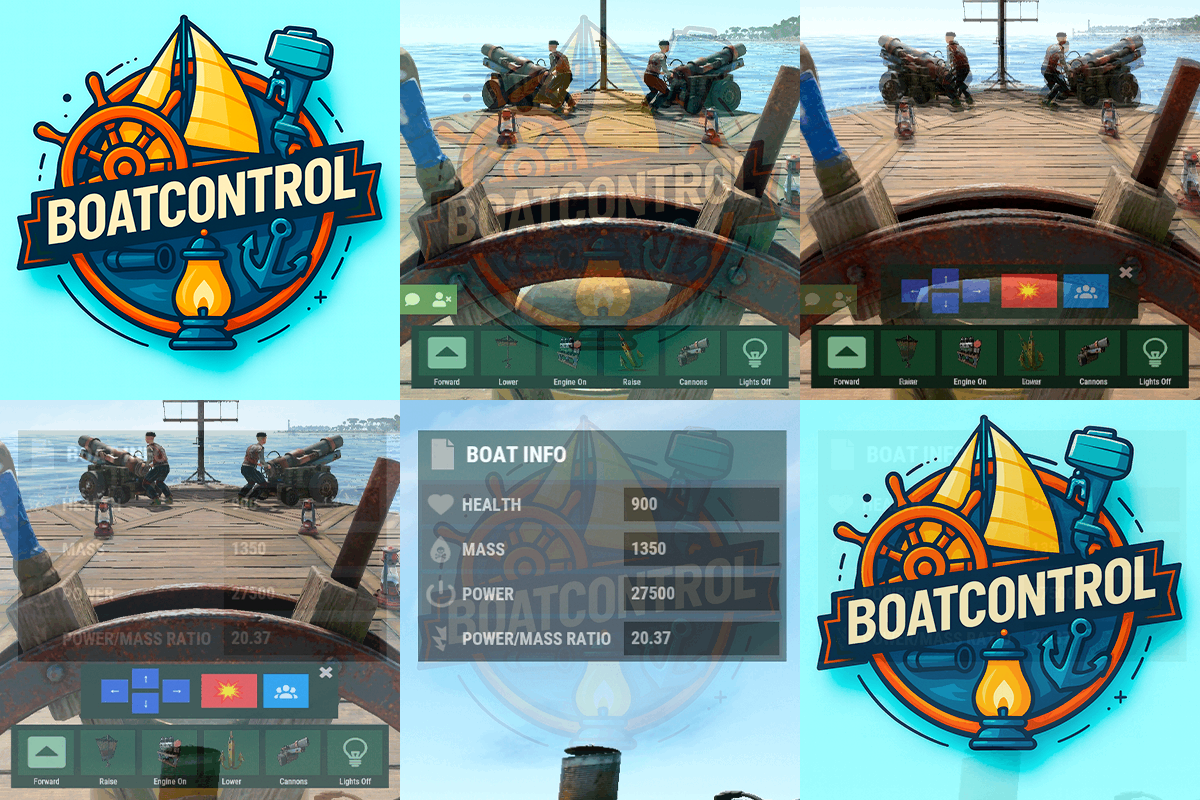
Rust / Server Plugins BoatControl Modular Boat ManagementRust Plugin Take the helm. Control the ship. Command the cannons. Bring navigation, cannons, lighting and boat management together in a clear interface at the helm. Manage sails and engines, upgrade performance, repair the boat and customize its setup with permission-controlled features. Helm controls Navigation, anchors and lighting Cannon crew Aim, reload and fire from the helm Boat progression Upgrades, repairs and customization 01 / Video demos See BoatControl in action Video demo Watch on YouTube Video Update 1.0.0 Watch on YouTube 02 / Helm & navigation One interface for the whole boat The control interface appears when a player with boatcontrol.use mounts a modular boat’s steering wheel. BoatControl helm control bar Raise or lower the sails and anchors. Start or stop the engines. Switch between forward and reverse navigation; engines and sails adjust accordingly. Use W and S to change direction when keyboard direction control is enabled. Hold R to open the boat’s radial menu when enabled, and release it to close the menu. Live boat information Display boat health, mass, power, power-to-mass ratio and speed in knots. Players can unlock and move the information window; its saved position is retained. Administrators can configure window colors, dimensions and placement, or disable the information window. Boat information and controls while steering 03 / Cannons & crew Coordinate your fire from the helm Reload cannons using cannon ammunition from the player’s inventory. A separate permission bypasses ammunition costs. Fire through the interface or left mouse click when enabled. Configure the firing cooldown, or bypass it through a permission. Aim cannons in configurable angle steps and select numbered crew groups to control which crew-operated cannons are targeted. Assign or remove NPC cannon crew through the interface. Configure crew names, health, outfits and skins, maximum crewed cannons, toggle cooldown and whether corpses are created. Configure whether cannons need a mounted operator before remote aiming and firing. Cannon control and crew interface boatcontrol.cannonuse controls access to BoatControl’s cannon interface. It does not disable manual, vanilla cannon use. Assign ammunition and cooldown bypasses carefully. 04 / Lighting Switch the boat’s lights together Toggle configured torches, lanterns, candle sets, jack-o’-lanterns and Chinese lanterns together from the boat controls. Configure supported item shortnames, the toggle cooldown and whether lights require fuel. Boat lighting controlled from the helm Optional fuel-free lighting applies to supported lights. It does not make boat engines operate without fuel. 05 / Boat editing Edit away from a fixed boat-building area Grant boatcontrol.edit to access boat editing from the controls. Configure a damage cooldown before editing and block editing inside safe zones when desired. Editing also requires a Boat Building Station item in the player inventory, a boat moving at no more than 2 m/s, and no other active station owned by that player. Boat editing through BoatControl Safe-zone restriction for boat editing Larger building stations Major update — new features in 1.2.0, with station resizing available from 1.2.3. Scale the boat-building station created by the edit option with Building Station Scale. This supports a larger construction area for custom boat builds. Expanded boat-building station For larger ships, adjust the game block-count limit separately if needed. Set a limit of 500 blocks with the following server variable: playerboat.maxblockcount 500 Safe-zone anchor protection Optionally prevent anchor activation inside safe zones. Anchor restriction inside safe zones Safe-zone anchor protection example 06 / Authorization See who can access the boat Open the list of authorized players from the helm. Grant the separate deleteauth permission to allow authorized users to revoke individual authorizations. Boat authorized-player list 07 / Sail configuration Upgrade thrust and customize sail size View all sails installed on the boat, including their health. Use configurable upgrade levels to change thrust. Starting with version 1.2.3, sail upgrades can also increase or decrease sail size according to your configured scale multiplier. Sail configuration and health Sail upgrade levels and costs Additional sail upgrade interface example Sails with different configured size multipliers Define the number of upgrade levels, display names and costs. Select resources, ServerRewards points or Economics money as the upgrade currency. 08 / Engine configuration Manage fuel, health and engine upgrades View installed engines with their health and current fuel. Refuel them from the player’s inventory through the refueling menu. Configure upgrade levels that improve engine power and reduce fuel consumption through an efficiency multiplier. Engine configuration and refueling Engine upgrade levels and costs Choose resources, ServerRewards points or Economics money for upgrade costs. Engine and sail upgrade levels are saved in the plugin’s data, and boatcontrol.upgrade.nocost can waive upgrade charges. Upgrades modify power and thrust, and the plugin adjusts boat drag for upgraded propulsion. Final speed still depends on the game’s boat physics; power multipliers do not guarantee an equal multiplier to maximum speed. 09 / Automatic repairs Repair using materials from the player’s inventory Configure repair costs per block/component and a cooldown after recent damage. Set repair frequency through permission profiles; a larger interval repairs more slowly. Repairs stop if new damage is received, the player runs out of materials or the player disconnects. Grant boatcontrol.repair.nocost to waive repair materials. Automatic boat repair system Boat health differs from ordinary building health. The repair system simulates repair points according to lost health, so the repair sound may come from a different point than the damaged component. 10 / Wallpaper & impact physics Customize the interior and naval combat BetterTC wallpapers With BetterTC 1.6.2 or later installed, BoatControl provides access to its automatic boat wallpaper placement interface. Grant boatcontrol.wallpaper to make this feature available. Automatic boat wallpaper placement through BetterTC Cannon impact physics Enable configurable force on boats hit by cannon damage. Adjust the impact force and enable diagnostic logging when needed. 11 / Permissions & access Choose what each player can control Permission Purpose boatcontrol.use Enable BoatControl when mounting the helm. boatcontrol.edit Access boat editing away from a fixed building area, subject to configured restrictions. boatcontrol.bypassAmmo Bypass cannon ammunition consumption. boatcontrol.bypasscannoncooldown Fire cannons without the configured cooldown. boatcontrol.cannonuse Access the cannon control interface; manual vanilla use remains available. boatcontrol.authlist View authorized players. boatcontrol.deleteauth Revoke individual boat authorizations. boatcontrol.sailconfig Open the sail configuration menu. boatcontrol.sailupgrade Upgrade sails using the configured levels. boatcontrol.engineconfig Open the engine configuration and refueling menus. boatcontrol.engineupgrade Upgrade engines using the configured levels. boatcontrol.upgrade.nocost Waive engine and sail upgrade costs. boatcontrol.wallpaper Access boat wallpapers through BetterTC 1.6.2 or later. boatcontrol.repair Access automatic boat repairs. boatcontrol.repair.nocost Repair without consuming materials. boatcontrol.vip Example profile in the repair-frequency configuration; configurable, not a boat speed-limit permission. Additional repair-frequency profile names are registered from the configuration. They adjust repair intervals, not the boat’s maximum speed. Normal use is through the CUI and keyboard controls; no chat command is required. The plugin also registers console actions used by its interface. Utility console action Purpose boatcontrol.resetuiposition Player console: reset your saved information-window position. boatcontrol.clearorphancrew Console: remove orphaned cannon crew. 12 / Requirements & configuration Configure the controls for your server Rust server using Oxide or Carbon. On Oxide, install ImageLibrary; Carbon uses its built-in Image Module. Install BetterTC 1.6.2 or later for automatic wallpapers. Install ServerRewards or Economics only when using their upgrade currencies. Optional Notify or UINotify integration supplies configured notifications; chat alerts are also configurable. Configure keyboard controls, cannon aiming and cooldowns, crew behavior, supported lights, impact physics, GUI, safe-zone restrictions, repairs, station scale and upgrade levels. The example below uses the supplied costs and profiles, with current keys and sail-scale options from BoatControl 1.2.5. It is an example, not a replacement for the configuration generated by your installed version. 13 / Configuration example Controls, costs and upgrade profiles { "Enable WASD Direction": true, "Enable Cannon Fire Key (Left Mouse Button)": true, "Cannon Aim Step (degrees per click)": 5.0, "Cannon Fire Cooldown": 5.0, "Cannon Crew": { "Enable": true, "Names": [ "Seaman", "Deckhand", "Bosun", "Gunner", "Quartermaster", "Navigator", "Sailor", "Crewman", "Mate", "Boatswain", "Cannoneer", "Buccaneer", "Mariner", "Sea Dog", "Old Salt" ], "Health": 100.0, "MaxCannons": 0, "Wear": { "burlap.shirt": 1380044819, "burlap.trousers": 1380047706, "burlap.shoes": 2215057317, "hat.boonie": 965553937 }, "RequireOperate": true, "ToggleCrewCooldown": 30.0, "NoCorpse": true }, "Lights": { "Light Toggle Cooldown": 1.0, "Require Fuel For Lights": false, "Light Items (shortnames)": [ "tunalight", "lantern", "torchholder", "largecandles", "smallcandles", "jackolantern.angry", "jackolantern.happy", "chineselantern", "chineselanternwhite" ] }, "Impact Force Physics": { "Enable Impact Physics": true, "Impact Force (default: 100, range: 50-500)": 100.0, "Enable Debug Logging": false }, "Alert Chat": true, "Alert Notify Plugin": false, "Notify: select what notification type to be used": { "error": 0, "info": 0 }, "Color Prefix Chat": "#f74d31", "GUI": { "GUI Windows Belt": { "BG Color Primary": "0.10 0.15 0.10 1", "BG Color Secundary": "0.2 0.30 0.2 0.80", "Button Active Color": "0.2 0.6 0.2 0.80", "Button Inactive Color": "0.2 0.30 0.2 0.80", "OffsetMin": "-200 15", "OffsetMax": "181 79", "AnchorMin": "0.5 0", "AnchorMax": "0.5 0" }, "GUI Windows Info": { "BG Color Primary": "0.10 0.10 0.10 0.8", "BG Color Secundary": "0.2 0.30 0.2 0.80", "Button Active Color": "0.2 0.6 0.2 0.80", "Button Inactive Color": "0.2 0.30 0.2 0.80", "OffsetMin": "-115 -100", "OffsetMax": "115 100", "AnchorMin": "0.902 0.8104", "AnchorMax": "0.902 0.8104" }, "GUI Windows Cannons Menu": { "BG Color Primary": "0.10 0.15 0.10 1", "BG Color Secundary": "0.2 0.30 0.2 0.80", "Button Active Color": "0.2 0.6 0.2 0.80", "Button Inactive Color": "0.2 0.30 0.2 0.80", "OffsetMin": "-140 85", "OffsetMax": "140 185", "AnchorMin": "0.5 0", "AnchorMax": "0.5 0" } }, "Show Info Window": true, "Boat Edit Damage Cooldown (seconds)": 30.0, "Block Anchor in Safe Zone": true, "Block Boat Edit in Safe Zone": true, "Config Version": "1.2.5", "Repair Cooldown After Recent Damage (seconds)": 30.0, "Cooldown Frequency Repair (larger number is slower)": { "boatcontrol.use": 2.0, "boatcontrol.vip": 1.0 }, "Repair Costs (ItemShortName: Amount per block/component)": { "lowgradefuel": 4, "wood": 75 }, "Engine Upgrades": { "Enable Engine Upgrades": true, "Upgrade Levels": [ { "Level": 1, "Display Name": "Tier 1", "Fuel Efficiency Multiplier (1.0 = normal, 0.5 = half fuel consumption)": 0.9, "Power Multiplier (1.0 = normal, 2.0 = double power)": 2.0, "Upgrade Cost": { "Resource Costs (ItemShortName: Amount)": { "scrap": 100, "lowgradefuel": 50 }, "ServerRewards Points": 0, "Economics Money": 0.0 } }, { "Level": 2, "Display Name": "Tier 2", "Fuel Efficiency Multiplier (1.0 = normal, 0.5 = half fuel consumption)": 0.8, "Power Multiplier (1.0 = normal, 2.0 = double power)": 4.0, "Upgrade Cost": { "Resource Costs (ItemShortName: Amount)": { "scrap": 250, "lowgradefuel": 100, "metal.fragments": 300 }, "ServerRewards Points": 0, "Economics Money": 0.0 } }, { "Level": 3, "Display Name": "Tier 3", "Fuel Efficiency Multiplier (1.0 = normal, 0.5 = half fuel consumption)": 0.65, "Power Multiplier (1.0 = normal, 2.0 = double power)": 8.0, "Upgrade Cost": { "Resource Costs (ItemShortName: Amount)": { "scrap": 500, "lowgradefuel": 200, "metal.fragments": 500, "metal.refined": 25 }, "ServerRewards Points": 0, "Economics Money": 0.0 } }, { "Level": 4, "Display Name": "Tier 4", "Fuel Efficiency Multiplier (1.0 = normal, 0.5 = half fuel consumption)": 0.65, "Power Multiplier (1.0 = normal, 2.0 = double power)": 16.0, "Upgrade Cost": { "Resource Costs (ItemShortName: Amount)": { "scrap": 1000, "lowgradefuel": 300, "metal.fragments": 1500, "metal.refined": 100 }, "ServerRewards Points": 0, "Economics Money": 0.0 } } ], "Currency Type (Resources, ServerRewards, Economics)": "Resources" }, "Sail Upgrades": { "Enable Sail Upgrades": true, "Upgrade Levels": [ { "Level": 1, "Display Name": "Tier 1", "Thrust Multiplier (1.0 = normal, 2.0 = double thrust)": 1.5, "Upgrade Cost": { "Resource Costs (ItemShortName: Amount)": { "scrap": 75, "cloth": 100 }, "ServerRewards Points": 10, "Economics Money": 0.0 }, "Scale Multiplier (1.0 = normal size, 1.5 = 50% bigger)": 1.2 }, { "Level": 2, "Display Name": "Tier 2", "Thrust Multiplier (1.0 = normal, 2.0 = double thrust)": 2.0, "Upgrade Cost": { "Resource Costs (ItemShortName: Amount)": { "scrap": 150, "cloth": 200, "leather": 50 }, "ServerRewards Points": 15, "Economics Money": 0.0 }, "Scale Multiplier (1.0 = normal size, 1.5 = 50% bigger)": 1.4 }, { "Level": 3, "Display Name": "Tier 3", "Thrust Multiplier (1.0 = normal, 2.0 = double thrust)": 2.5, "Upgrade Cost": { "Resource Costs (ItemShortName: Amount)": { "scrap": 300, "cloth": 300, "leather": 100, "metal.fragments": 200 }, "ServerRewards Points": 20, "Economics Money": 0.0 }, "Scale Multiplier (1.0 = normal size, 1.5 = 50% bigger)": 1.6 }, { "Level": 4, "Display Name": "Tier 4", "Thrust Multiplier (1.0 = normal, 2.0 = double thrust)": 3.0, "Upgrade Cost": { "Resource Costs (ItemShortName: Amount)": { "scrap": 600, "cloth": 500, "leather": 200, "metal.fragments": 500 }, "ServerRewards Points": 30, "Economics Money": 0.0 }, "Scale Multiplier (1.0 = normal size, 1.5 = 50% bigger)": 1.8 } ], "Currency Type (Resources, ServerRewards, Economics)": "ServerRewards" }, "Enable Boat Pie Menu Key (R)": true, "Building Station Scale (1.0 = normal, 2.0 = double size)": 1.0 } 14 / Current limitations Plan your boat setup around the game Engine efficiency is configurable; engines still require fuel. The plugin does not provide a supported increase to the maximum number of engines or sails. Larger construction stations are supported; the game’s separate block-count setting still applies. Final speed depends on boat physics and the installed game version. 15 / Try it & support Try the setup and share your ideas You can try the plugin on the RustSpain Staging test server when it is online. It is a test server, so availability is not guaranteed. connect staging.rustspain.com For questions, suggestions or assistance, contact ninco90 on Discord. Feature suggestions are also welcome in the product discussion.$15.00- 59 comments
- 6 reviews
-
- 11
-

-

-
- #boat
- #controller
- (and 8 more)
-
Version 1.1.5
1,428 downloads
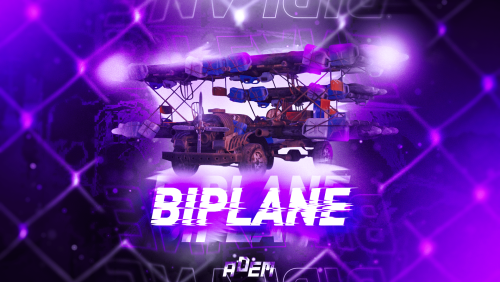
This plugin will add a biplane to your server! You can configure its spawn on any monuments, give it as an item, and also put it up for sale in a custom AirWolf store, which is included in the plugin. The biplane can shoot rockets and drop bombs! In the plugin, you can create various configurations of biplanes, in which you can change their speed and power, set the number of slots in the box, allow or prohibit firing rockets and bombing, etc. The biplane can be placed on a standard carlift, in which the engine can be replaced or the aircraft repaired. Сontrol W – thrust; Mouse – direction; A/D – cren axis; Left mouse button – rocket shot; Right mouse button – dropping the bomb; Chat commands: /biplanemonument – adds the monument you are on in the plugin config; /biplanemonumentpoint – adds a random spawn point to the monument you are on; /biplaneseller – sets the spawn point of the seller on the monument you are on; /biplanesellerpoint – sets the spawn point of the biplane after purchase on the monument you are on; /givebiplane <itempresetname> – give yourself a biplane item. /biplanecustomspawnpoint - adds a custom biplane spawn point in your position Console commands givebiplane <itempresetname> – give yourself a biplane item; givebiplane <itempresetname> <userid> – give a biplane to player. Plugin Config en – example of plugin configuration in English ru – example of plugin configuration in Russian My Discord: Adem#9554 Join the Mad Mappers Discord here! Check out more of my work here!$19.99 -
Version 1.6.3
82 downloads
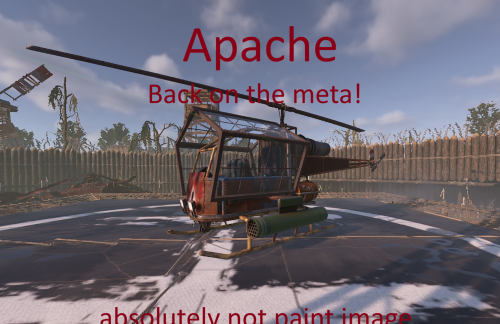
Apache (Attack Heli Rocket Selector + Armored Windows + Player Cooldown) The Apache plugin turns the Rust attack helicopter into a fully customizable, player-controlled combat platform with advanced weapon systems, smart rocket handling, and experimental features you won’t find anywhere else. Apache is a lightweight, server-friendly Rust plugin that upgrades the Attack Helicopter rocket pod into a configurable multi-ammo system with clean in-game controls and full balancing options. Players can cycle rocket types with the USE key (E) while piloting, and the helicopter will fire the selected rocket type as long as ammo is available. When a type runs out, Apache will announce “out of ammo” and automatically switch to the next available enabled type. Features Rocket type selector (Pilot only) Press E to cycle through enabled rocket types Shows chat feedback: selected type, remaining ammo, and cooldown Gunner support The gunner can also fire the rockets The gunner can aim the rockets using the built-in helicopter monitor Supported ammo types HV Basic Incendiary MLRS SAM Out-of-ammo intelligence Warns at 0 ammo Announces what rocket type will be used next Automatically switches to the next available enabled type Per-rocket balancing Separate cooldown, launch speed, and up-bias (trajectory lift) for each rocket type Configurable Helicopter HP Server owners can control how durable the Apache is by adjusting the helicopter's max health in the configuration. Alternating launch positions Uses Left/Right local offsets (configurable) so you can align firing to your pod locations Optional armored windows Toggle armored window on/off from config Permission system apache.admin → unlimited spawns + admin tools apache.player → cooldown-limited spawns Player spawn cooldown Configurable X hours per spawn for players with apache.player Stores cooldown data in a data file Admin reset /apache reset wipes cooldown data and starts fresh Works with /shop plugin You can use spawn.apache %steamid% Default Configuration Behavior (Important) On first run, Apache auto-generates the config with most rocket types disabled by default. Enabled by default: HV Disabled by default (must be enabled manually in the JSON if you want them): Basic MLRS SAM Incendiary This is intentional for safety/balance: the server owner enables only the rocket types they want by editing the .json configuration file. Commands F1 Console: spawn.apache Spawns an Apache for yourself (with admin permission without cooldown). spawn.apache <steamid|name> Spawns an Apache for a target player (admin only without cooldown). Chat commands: /apache Same behavior as spawn.apache (for players with cooldown configured in .json). /apache reset (admin only) Wipes stored cooldown data and resets all player spawn timers. Permissions apache.admin Admin usage: unlimited spawning, spawning for others, and reset command. apache.player Player usage: allows self-spawn with configurable cooldown. Configuration Apache generates a JSON config with: Enable/disable each rocket type (also blocks inserting disabled ammo into the pod) Armored windows on/offLeft & Right launch offsets (local heli space) Local offset axis reminder: X = left(-) / right(+) Y = up(+) Z = forward(+) Per-rocket: Cooldown (seconds) Launch speed Up bias (adds a small upward lift to trajectory) Notes / Compatibility Designed to be server-friendly: only affects plugin-spawned helicopters Works without requiring players to bind keys (uses E / USE) Your first configs: { "EnableArmoredWindows": true, "HelicopterMaxHealth (min: 850, max: 9999)": 850.0, "PlayerSpawnCooldownHours": 6.0, "HV": { "Enabled": true, "CooldownSeconds": 1.0, "LaunchSpeed": 65.0, "UpBias": 0.02 }, "Incendiary": { "Enabled": false, "CooldownSeconds": 1.0, "LaunchSpeed": 40.0, "UpBias": 0.02 }, "Basic": { "Enabled": false, "CooldownSeconds": 1.0, "LaunchSpeed": 40.0, "UpBias": 0.02 }, "MLRS": { "Enabled": false, "CooldownSeconds": 1.0, "LaunchSpeed": 70.0, "UpBias": 0.03 }, "SAM": { "Enabled": false, "CooldownSeconds": 0.8, "LaunchSpeed": 85.0, "UpBias": 0.02 }, "LeftOffsetLocal": { "x": -2.0, "y": -0.5, "z": 3.0 }, "RightOffsetLocal": { "x": 2.0, "y": -0.5, "z": 3.0 } }$24.00 -

Version 1.0.2
1,264 downloads
This plugin will allow players to open and close doors and gates by honking their horn. If the door is locked, players must have authorization on the lock in order for the door to be opened. IE if the player does not have the code entered into a codelock, or did not place the keylock on the door they are attempting to open, it won't open. Commands togglehorn - toggles the ability for the horn to open doors. Permissions horndoors.use - required to use this plugin horndoors.off - this permission is assigned when the players disable horn doors access with the toggle horn commandFree -

Version 1.0.1
3 downloads
Modular Sea Forts – Custom Ocean Monument This monument has been featured in multiple large community events hosted by Shephards Villa and The Rust Roleplayers, including Medieval Rust: Amada and the Jingle Jam event. Modular Sea Forts is a fully modular ocean monument designed to bring large-scale naval combat, exploration, and high-risk loot to your Rust server. Built with performance and flexibility in mind, this monument is perfect for the Naval Update, creating contested ocean hotspots for boats, submarines, and helicopters. MONUMENT OVERVIEW • 12 Modular Sea Forts – 10 standard sea fort modules – 2 buildable sea forts (players can build full bases on these) • ~1,000 objects per fort • Optimized using mostly cube-based geometry • Limited lighting to ensure performance and stability • 3 hard puzzles • Large amount of NPCs • High-tier loot progression • Designed for mid to late game content PERFORMANCE & STABILITY • Each fort is optimized at around 1,000 objects • Heavy use of simple cube geometry for better performance • Minimal and controlled lighting to reduce server and client load • Stable for long wipes and high-population servers MODULAR DESIGN All forts and bridges include snap points, allowing server owners to: • Create fully custom fort layouts • Connect forts using bridges of different sizes and designs • Build small installations or massive ocean fortresses • Change layouts every wipe for fresh gameplay BRIDGE SYSTEM • 14 unique bridge designs • Multiple sizes for flexible placement • Fully modular and snap-based DIFFICULTY & DEFENSE • SAM sites included to make air and naval assaults significantly harder • Heavy NPC presence for increased difficulty • Designed to be dangerous, rewarding, and highly contested INCLUDED FORT SECTIONS • Buildable Sections (1x / 2x) • Quarters (1x / 2x) • Storage (1x / 2x) • Office • Cafeteria • Communications • Satellite • Moonpool • Weathered variants BUILDABLE SEA FORTS The buildable forts are fully functional sea forts, not simple platforms. Players can: • Build and expand full bases • Defend strategic ocean locations • Control key naval routes • Create high-value PvP and raid hotspots RECOMMENDED USE • Designed as a replacement for Underwater Labs • Perfect for the Naval Update • Suitable for PvE, PvP, and hybrid servers • Ideal for customizable, wipe-friendly ocean gameplay$30.00- 1 review
-
- 6
-
-

-

-
-
- #naval
- #naval update
- (and 10 more)
-

Version 1.0.0
1 download
Crash Lobby – Modular Rust Lobby Bring your Rust server to life with Crash Lobby, a modular lobby inspired by the classic Crash Bash level selection. Designed for flexibility and performance, this prefab gives players a central hub where they can spawn, explore, and choose their next adventure. Built using the Rust edit socket system, you can customize and expand the layout to suit your server’s needs. Whether you’re running PvP arenas, mini-games, or roleplay events, Crash Lobby provides a professional and immersive entry point for your players. Features include: - Center island - 2 bridge types with both long and short versions (also includes end caps if you do not want a bridge) - A casino with a Big wheel, slots, blackjack, and poker - Picture frames to add your branding or instructions for players - Portals for the center island and some individual ones for the outer islands - A shop area - VIP door with a card reader, this blocks off the inside of the center island to none VIP players - 2 side islands, one with a big portal in the center and one without. Both have portal sockets around the edge$24.99 -
Version 1.1.0
16 downloads
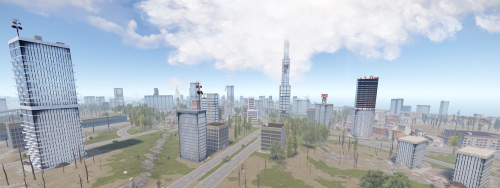
Modular Skyscrapers is a package created to help you create a wide variety of buildings quickly and without error. Each modular skyscraper has been carefully reduced to a low entity count to efficiently allow a large amount of buildings across any map without performance issues. Modular building materials can be quickly swapped out to further create variences in your maps without destructive workflows. Buildings: Skyscraper Modular A Skyscraper Modular B Skyscraper Modular C Skyscraper Modular D Skyscraper Modular E Skyscraper Modular F Skyscraper Modular G - Thin concrete skyscraper with single row of windows Skyscraper Modular H - Peaked topper with gold plating and pike Skyscraper Modular Midsection A - Concrete arch with thick windows Skyscraper Modular Midsection B - Concrete arch with thin windows Skyscraper Modular Midsection C - Double Concrete Arch Skyscraper Glass Modular F - Octagon Glass Building Skyscraper Glass Modular G - Large Circular Skyscraper Skyscraper Glass Modular H - Medium Circular Skyscraper Skyscraper Glass Modular I - Small Circular Skyscraper Skyscraper Glass Modular A Skyscraper Glass Modular B Skyscraper Glass Modular C Skyscraper Glass Modular D Skyscraper Glass Modular E Skyscraper Glass Modular Slanted A - Wide Slanted roof Skyscraper Glass Modular Slanted B - Slanted roof Skyscraper Glass Modular Triangle A - Sliced 'Skyscraper Glass Modular E' Skyscraper Glass Modular Triangle B - Half Sized 'Triangle 'A' Skyscraper Glass Modular Triangle C - Half Sized 'Triangle 'B' Skyscraper Glass Modular Triangle D - Half Sized 'Triangle 'C' Skyscraper Glass Modular Midsection A - Double Stacked Arched building midsection, more concrete Skyscraper Glass Modular Midsection B - Arched building midsection, more concrete Skyscraper Glass Modular Midsection C - Double Stacked Arched building midsection, more glass Skyscraper Glass Modular Midsection D - Double Stacked Arched building midsection, more glass Addons: Skyscraper Modular Addon A - Thick overhang with thick windows, 6 tall Skyscraper Modular Addon B - Medium Overhang with medium windows, 6 tall Skyscraper Modular Addon C - Medium Overhang with thin windows, 6 tall Skyscraper Modular Addon D - Thin overhang with thin windows, 6 tall Skyscraper Modular Addon E - Thin overhang with medium windows, 6 tall Skyscraper Modular Addon F - Thick overhang with thick windows, 2 tall Skyscraper Modular Addon G - Medium overhang with medium windows, 2 tall Skyscraper Modular Addon H - Small overhang with windows, 2 tall Skyscraper Modular Addon I - Thin overhang with thin windows, 2 tall Skyscraper Glass Modular Addon A - Stacked Two Level Sidepiece Skyscraper Glass Modular Addon B - Generic 'T' Styled emblem for buildings Balconies: Balcony A Balcony Concrete A$5.00 -
Version 1.0.1
17 downloads
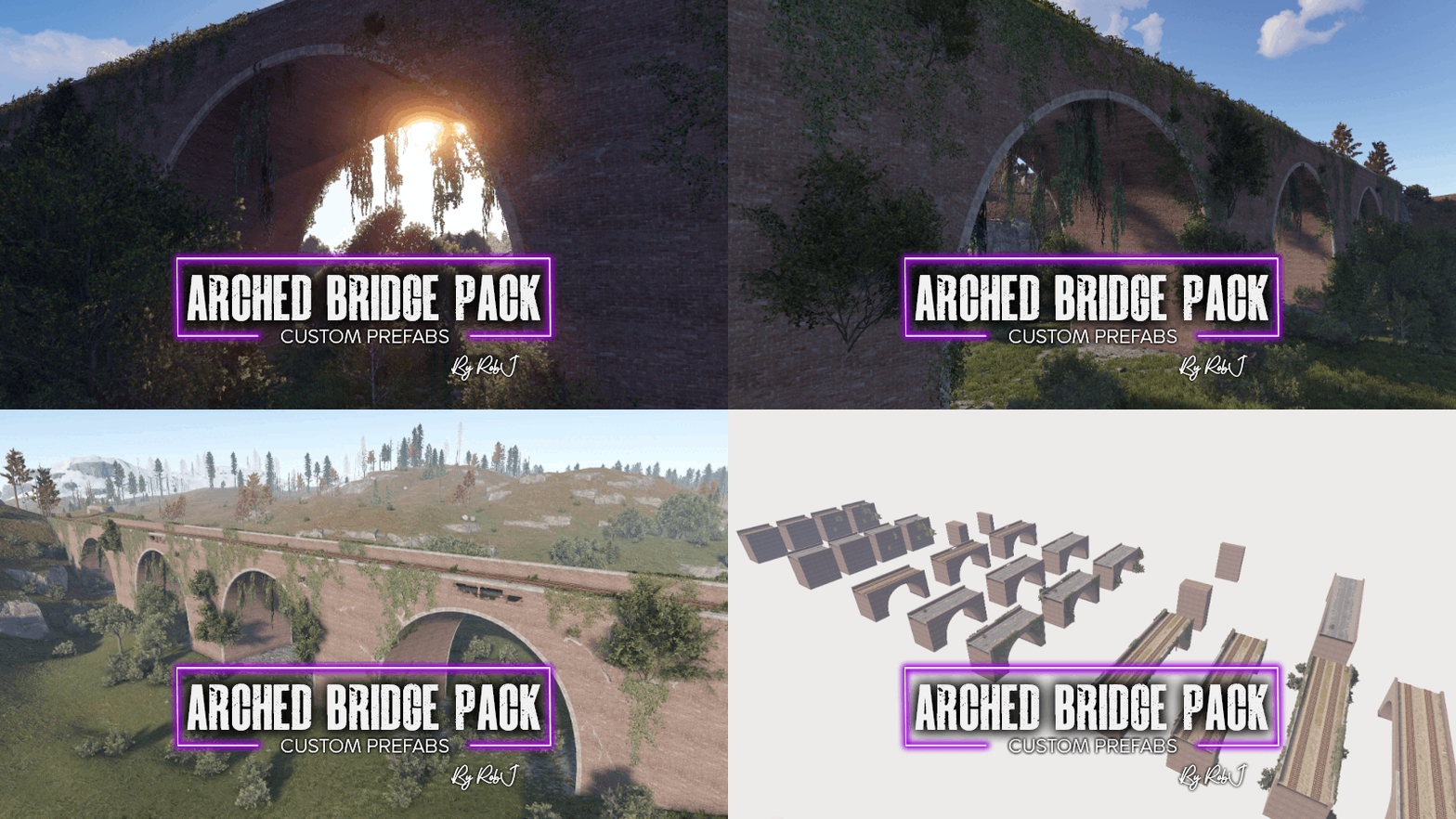
This is a set of modular arch bridge components, designed for easy assembly into various arched bridge configurations—whether for road or railway. Each piece can be snapped into place, allowing you to create diverse bridge designs for any map with ease. Large & Small Sizes avaliable for all Parts Railway ~ Start & Finish (Railway) Start & Finish Overgrowth Mild Start & Finish Overgrowth Medium Start & Finish Overgrowth Strong Double Arch (Railway) Double Arch Leg Extensions Double Arch Overgrowth Mild Double Arch Overgrowth Medium Double Arch Overgrowth Strong Main Arch (Railway) Main Arch Damaged Main Arch Under Repair Main Arch Leg Extensions Main Arch Overgrowth Mild 1 Main Arch Overgrowth Mild 2 Main Arch Overgrowth Medium 1 Main Arch Overgrowth Medium 2 Main Arch Overgrowth Strong 1 Main Arch Overgrowth Strong 2 Road ~ Start & Finish (Road) Start & Finish Overgrowth Mild Start & Finish Overgrowth Medium Start & Finish Overgrowth Strong Double Arch (Road) Double Arch Leg Extensions Double Arch Overgrowth Mild Double Arch Overgrowth Medium Double Arch Overgrowth Strong Main Arch (Road) Main Arch Damaged Main Arch Under Repair Main Arch Leg Extensions Main Arch Overgrowth Mild 1 Main Arch Overgrowth Mild 2 Main Arch Overgrowth Medium 1 Main Arch Overgrowth Medium 2 Main Arch Overgrowth Strong 1 Main Arch Overgrowth Strong 2 Help and Contact If you need to contact me discord is best: RobJ2210 For help/support my discord group is best: Join Rust Maps By RobJ Discord$19.99 -

Version 1.0.2
38 downloads
This is the arena lobby version 2, it comes with a bunch of different parts for you to customise to suit your needs. Quick and easy setup using Rust Edits socket system Features 8 rooms with up to 8 portal locations in each for a total of 64 possible portals 3 Lobby variations White, gloss black and matte black 18 Different portal colours 6 Border colours 23 premade game mode headings in 8 different colours Prefab Counts Base Lobby: 947 Text: 9-60 Portals: 17 Borders: 25$24.99 -

Version 1.0.3
23 downloads
A lobby with up to 49 teleporters for your events/arena server (Designed to work with the arena plugin) Each area has a sign to add a game mode and another above each portal for the map or event name/image You can change all of the colours to any of the 7 available with just a click and drag. There is a parkour course around the edge of the lobby leading to the area above the stage$24.99 -

Version 1.1.0
8 downloads
Created to make my rivers in The Jungle Map stand out - This package can be used in place of the current river system to create more dynamic river looks. Modular Pieces: 3 River Falls 2 River Shallows 2 River Ends 2 River Cave Starts 2 River Cave Ends 2 River Cave Middles Notes: -Intended use is in combination with the current river system. -Scalable but must not SKEW the prefab. Directons: -First build your river and set the splat/terrain/topology. -Next delete your river and place these along your previous river to create your new dynamic river.$5.00 -

Version 1.1.0
19 downloads
Modular Bridges is a package designed to give you full control of creating a wide variety of bridges that fit your needs wherever you might deem fit. Bridges: Bridge Two Lane Bridge Two Lane With Walkway Bridge Corner Two Lane With Walkways Bridge Divided With Walkway Bridge Four Lane With Walkways Bridge Suspension Brace Walkway Overpass Bridge Two Way With Rail - Railways will need to be drawn after the bridge is placed. Bridge Brace - Simple concrete quad pillar brace Bridge Brace Suspension - Fits under bridges, fitted for suspension lines Bridge Metal Brace Small - Single Beam metal pillar brace Bridge Metal Brace Large - Two pillar arch brace Bridge Two Lane With Walkway Mirrored - Flipped walkway corner for reverse builds Bridge Reinforced Beams Small - Single section metal beam Bridge Reinforced Beams - Quad section metal beam Bridge Rope End - End Piece for rope bridges Bridge Rope - Middle Piece for rope bridges Bridge Suspension Brace B - Tall A styled arch for suspension bridges, fits with suspension lines Bridge Suspension Brace - Tall Metal Arched Brace Bridge Suspension Spiral - Modern styled suspension brace Bridge Two Lane With Walkway Mirrored - Flipped version for reverse builds Bridge Two Lane With Walkway On Ramp - On ramp with merge lane for bridge entries Bridge Two Lane With Walkway On Ramp Mirrored - Flipped version for reverse builds Bridge Wooden A - Straight example bridge with 6 pieces Bridge Wooden Arched - Simple rounded arch wood bridge Bridge Wooden Brace A - Example bridge with middle brace Bridge Wooden Brace Middle A - Supported braced middle section for wood bridges Bridge Wooden Covered A - Peak cover roof added to example bridge Bridge Wooden Covered Center - Peaked cover roof middle section Bridge Wooden Covered Center Supported - Underside support beams added to peak roof Bridge Wooden Covered End - End piece for Peaked roof pieces Bridge Wooden End A - End piece for wooden bridges Bridge Wooden Middle A - Middle piece for wooden bridges, has supports Bridge Wooden Middle B - Middle piece for wooden bridges$5.00 -
Version 1.1.0
13 downloads
paBots RustMaps Module is a Python Discord bot module for the custom and FREE paBots Autoloader. It allows you to host your map manager Discord bot on your Pterodactyl panel and access it in ANY Discord server you choose. Included Features Integrated map generation – allows you to generate maps from RustMaps directly to your Discord server. Basic map preview feature – allows you to send map previews to a specified channel. Autowiper support – allows you to modify your auto wipers settings file and prepare your server for the next wipe. Comprehensive config – allowing you to modify almost every aspect of the module. Detailed setup instructions – provides you a detailed overview of how to set up the module and autoloader from start to finish. Self-hosted files – lets you run the bot on your high-powered servers. Full support – to help you fix or implement any desired feature. Commands /generate – Allows you to generate a map using one of your saved configs from RustMaps. Allows you to select config name, map size, seed, and if its for staging. /preview – Sends a simple Map Preview to a designated channel. /setnextwipe – (Requires an autowiper) Updates your autowiper's configuration to use a certain map. /show – Allows you to see the server names, monthly limit of generations, and config names. Disclaimers Requires RustMaps Subscription – You must have an ACTIVE RustMaps subscription for this to work. Limited to Pterodactyl – The support is limited to pterodactyl. Special Thanks Mr. Blue – Allowing me to use RustMaps' name and logo's within the bot. lencorp – Allowing me to add native integration with his autowiper.$6.00 -

Version 1.0.0
7 downloads
These modular pieces can be used to make a large variety of Aztec Ruin Designs. The modular pieces have been designed to fit together and stack on top of eachother quickly without fuss. 13 Modular Parts 1 "Aztec Evil Emblem" Now with sockets! Example Build:$5.00 -
Version 1.0.2
33 downloads
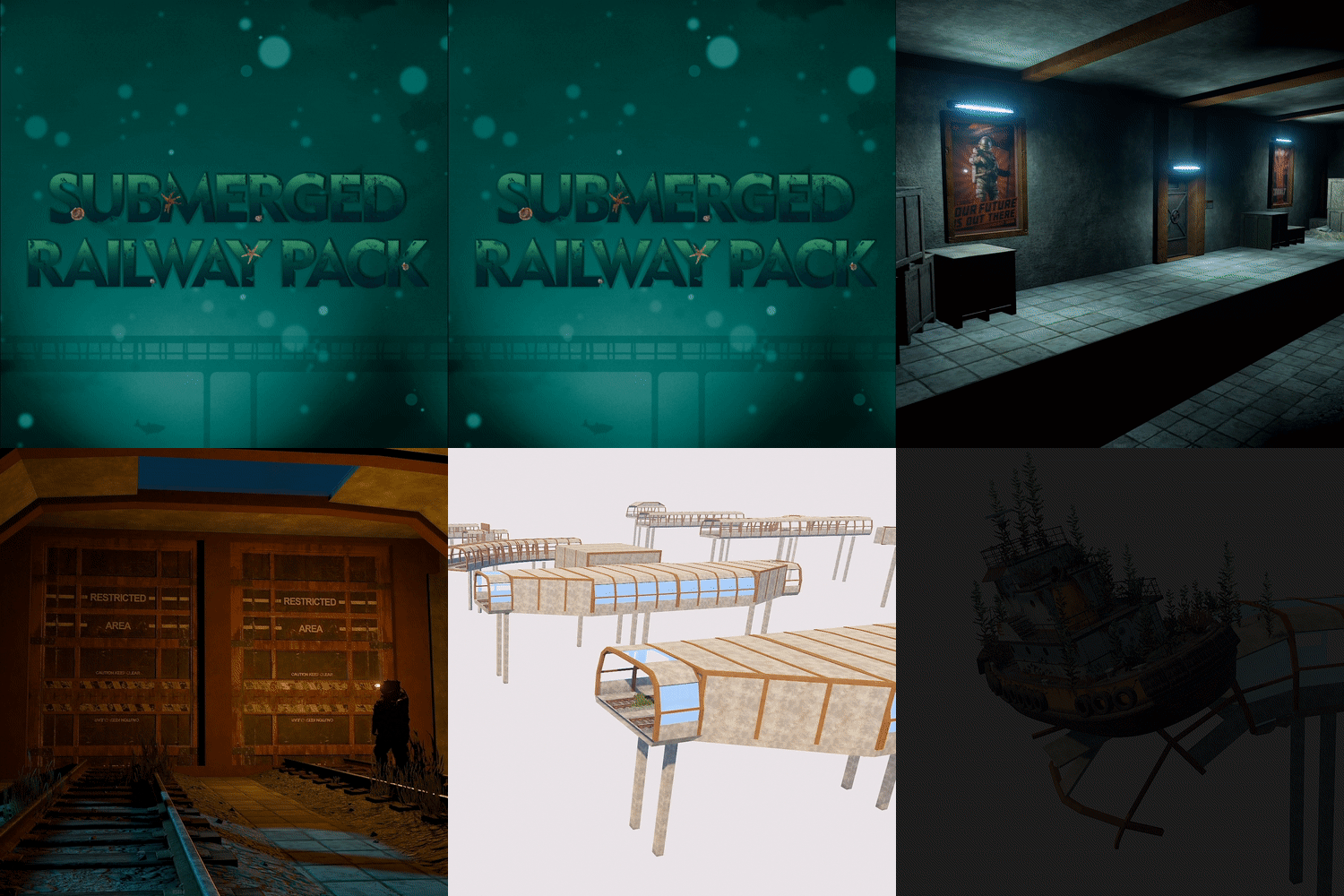
It is a large kit of underwater railway modular parts designed for you to easily add submerged railways to any map by simply snapping each part into place. Parts are available in twin railway lines. It took me so long to complete and I am pleased that it has finally been released. known issues: Sometimes a fish swims into the tunnel and you turn right to go left on the split track I will be adding more parts and snap-on decor packs to this in the coming weeks. Tunnels ~ UnderWater Moonpool 3x36 (Twin).prefab UnderWater Diver Access 3x 18 (Twin).prefab UnderWater 3x18 (Twin).prefab UnderWater 3x36 (Twin).prefab UnderWater 3x72 (Twin).prefab Underwater Bend 45 (Twin).prefab Underwater Smooth Incline Bottom (Twin).prefab Underwater Smooth Incline Top (Twin).prefab UnderWater Entrance 3x54 (Twin).prefab UnderWater 3x47 Siding (Twin).prefab UnderWater Split 3x72 (Twin).prefab UnderWater 3x47 Build Area (Twin).prefab UnderWater End 3x36 (Twin).prefab UnderWater Tunnel Ventilation 3x18 (Twin).prefab UnderWater Switch 3x54 (Twin).prefab UnderWater Blast Door Auto 3x18 (Twin).prefab UnderWater 3x216 (Twin).prefab UnderWater 3x144 (Twin).prefab UnderWater Entrance To Land (Twin).prefab UnderWater Legless 3x72 (Twin).prefab UnderWater Legless 3x18 (Twin).prefab UnderWater Legless 3x18 (Twin).prefab Snap-ons ~ Diver Access Gear Locker.prefab Tunnel NPC Guards.prefab Blastdoor Checkpoint Guards.prefab Build Zone Locomotive Spawn.prefab Build Zone Workcart Spawn.prefab Lights 2 3x18.prefab Build Zone S.prefab Build Zone L.prefab Build Zone M.prefab Repair Team End 3x36.prefab Hydraulic Seal Open.prefab Workcart Spawns End 3x36.prefab Sunken Tug End 3x36.prefab Sunken Tug+Loot End 3x36.prefab Leaks+Sparks End 3x36.prefab Hydraulic Seal Closed.prefab Backup Air Supply.prefab Overgrown Ocean Plants.prefab Moonpool Duo Sub Guard+loot 3x36.prefab Moonpool Duo Sub 3x36.prefab Moonpool Solo Sub Guard+loot 3x36.prefab Moonpool Solo Sub 3x36.prefab$38.99- 6 comments
-
- 7
-
-
-
- #railway
- #railway monument
- (and 10 more)
-

Version 1.0.2
9 downloads
Modular tunnels ready for you to decorate - with 25 modular sections offering a wide variety of player utility including 4 buildable sections, workbench 2, recycler & oil refinery. These sections can be joined using the rail track in their base - simply turn on sockets and string as many sections together as you need. Modular sections The current list of sections available in this pack. Some are `flipped` versions of other sections - these have been created in the same way and are NOT just negative scaled versions of the original. Service Tunnel - Buildable 1x3 41 objects Service Tunnel - Buildable 2x3 50 objects - added 1.0.2 Service Tunnel - Buildable 3x1 47 objects - added 1.0.1 Service Tunnel - Buildable 3x2 50 objects Service Tunnel - Corner Inside 55 objects Service Tunnel - Corner Outside 49 objects Service Tunnel - Crossover 35 objects Service Tunnel - Crossover Flipped 35 objects Service Tunnel - Emergency Step Up 25 objects Service Tunnel - End Collapsed 22 objects Service Tunnel - End Collapsed Flipped 24 objects Service Tunnel - End Room Right 71 objects Service Tunnel - Entrance Plain 64 objects Service Tunnel - Oil Refinery 61 objects Service Tunnel - Pipe Broken 23 objects Service Tunnel - Pipe Multiple 21 objects Service Tunnel - Pipe Reducer 22 objects Service Tunnel - Recycler 48 objects Service Tunnel - Security Door Left 52 objects Service Tunnel - Security Door Right 52 objects Service Tunnel - Shift Left 35 objects Service Tunnel - Shift Right 35 objects - added 1.0.1 Service Tunnel - Straight 13 objects Service Tunnel - Wide Walkway 30 objects Service Tunnel - Workbench 2 54 objects - added 1.0.1 NOTE: This is a standalone prefab with no splat or topology layers.$5.99 -

Version 1.0.0
7 downloads
A simple styled, straight, concrete rail bridge comprised of three single track sections; the central span and two bridge end pieces that you can connect to your existing rail network. Use the rail sockets to join as many central sections as you need to the bridge ends to create your bridge. The last image just shows the bridge with `no build cubes` visible. If you're interested in seeing these assets being created in RustEdit, please feel free to check out my YouTube video on Map Makers Muse. NOTE: This is a standalone prefab with no splat or topology layers.$2.69 -
Version 1.0.2
19 downloads
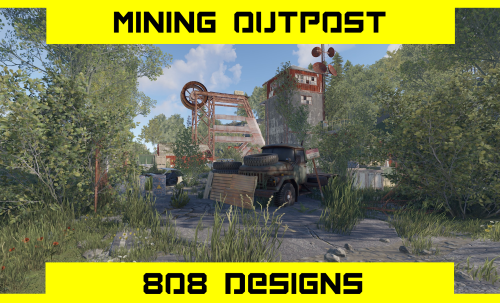
This is my Mining Outpost monument. I created this to change the way that you enter caves and to give players a more immersive way to farm Stone/Metal/Sulfur. This download contains three versions A small closed off mine that has 6 metal nodes An open cave and fully modular (Just enable sockets and easily build any cave system you like by using existing cave parts) A base building cave that contains 6 large cave pockets (Cave community?) Prefab Count: 699 Foreman's Office - 1x Fuse & Green Card Puzzle (Jackhammer Loot - 2-3hr Respawn) Foreman's Office - Tier 1 Gun Crate (1-2hr Respawn) Custom loot profiles & Junk Piles Height Splat Topology Alpha Note! You will need the latest versions of Oxide and Oxide.Ext.RustEdit.dll to use these on a map/server.$9.99 -
Version 1.0.0
13 downloads
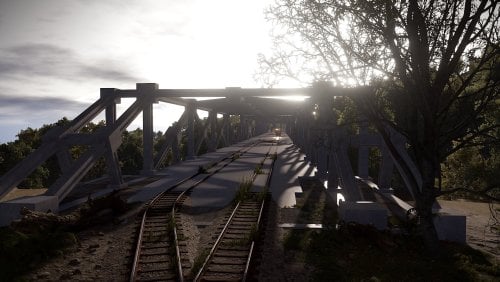
This is a pack of Bridges, with a total of 146 Prefabs. =2 color version (simple) ( 64 Prefabs) =2 Detail version (v2) ( 64 Prefabs) = Addons ( 22 Prefabs) ---------------------------------------- Bridges: 4x 31 Prefabs (124 Total) ========================================= 14 Bridge Parts ( 56 Total) 12 Connections Parts ( 48 Total) 3 Pillar Parts ( 12 Total) 2 Connection Fillers ( 8 Total) Addons: 22 Prefabs ========================================= 12 Train Tracks Parts; 7 Full 4 Half 1 Quarter 8 Road Parts; 2 Connections 2 Full 2 Half 2 Quarter 2 Pillar Blocks *All Prefabs got sockets* ----------------------------------------$19.99 -
Version 1.2
1,026 downloads
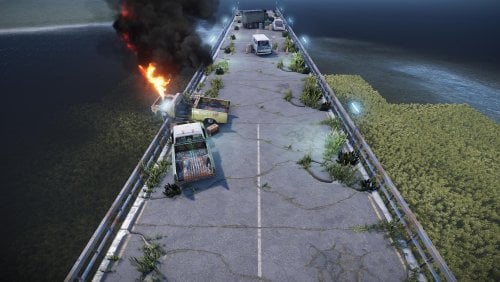
Just a simple but modular bridge with lights; perfect for any vehicle to travel across. The bridge can also be quite high, allowing space for boats to pass underneath. The prefab is completely modular and can be broken down / added to if you wish to add any vehicles, rocks or tunnels to make it a bit more "alive". There are also sockets at both points of the bridge to easily connect the roads for a longer bridge, or to connect to land. EDIT: this prefab has now been updated and acts more as a monument instead of a basic bridge. The new version includes; Abandoned vehicles A vehicle on fire Crate spawns Barrel Spawns Some other nice bitsFree -
Version 1.2.0
52 downloads
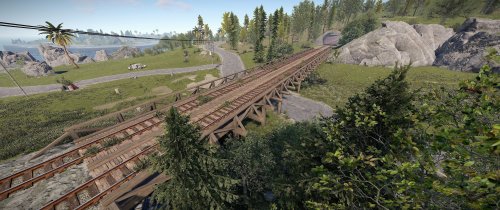
IMPORTANT: In August 1st, 2022, this creation will no longer be supported but It will available to purchase and download. This kit comes with two modular wooden bridges: A small and a large bridge. These two bridges are divided in 3 parts: Ramp A, Segment and Ramp B. All bridges commonly placed with at least one Ramp A and one Ramp B. The Segment part can can be duplicated as much as you need and then connected linking the sockets. These prefab don't require any plugins beside Oxide and RustEdit.dll. All parts have sockets. Pedestrian Bridge: Small Wooden Bridge - Ramp A (34 objects) Small Wooden Bridge - Segment (180 objects) Small Wooden Bridge - Ramp B (37 objects) Vehicle Bridge: Large Wooden Bridge - Ramp A (64 Objects) Large Wooden Bridge - Segment (304 objects) Large Wooden Bridge - Ramp B (65 Objects) Contact: Discord: https://discord.gg/XSykjZ6Nwt Steam: https://steamcommunity.com/groups/SKIROW Twitter: https://twitter.com/MadeBySKIROW$3.99 -
Version 2.0.3
17 downloads
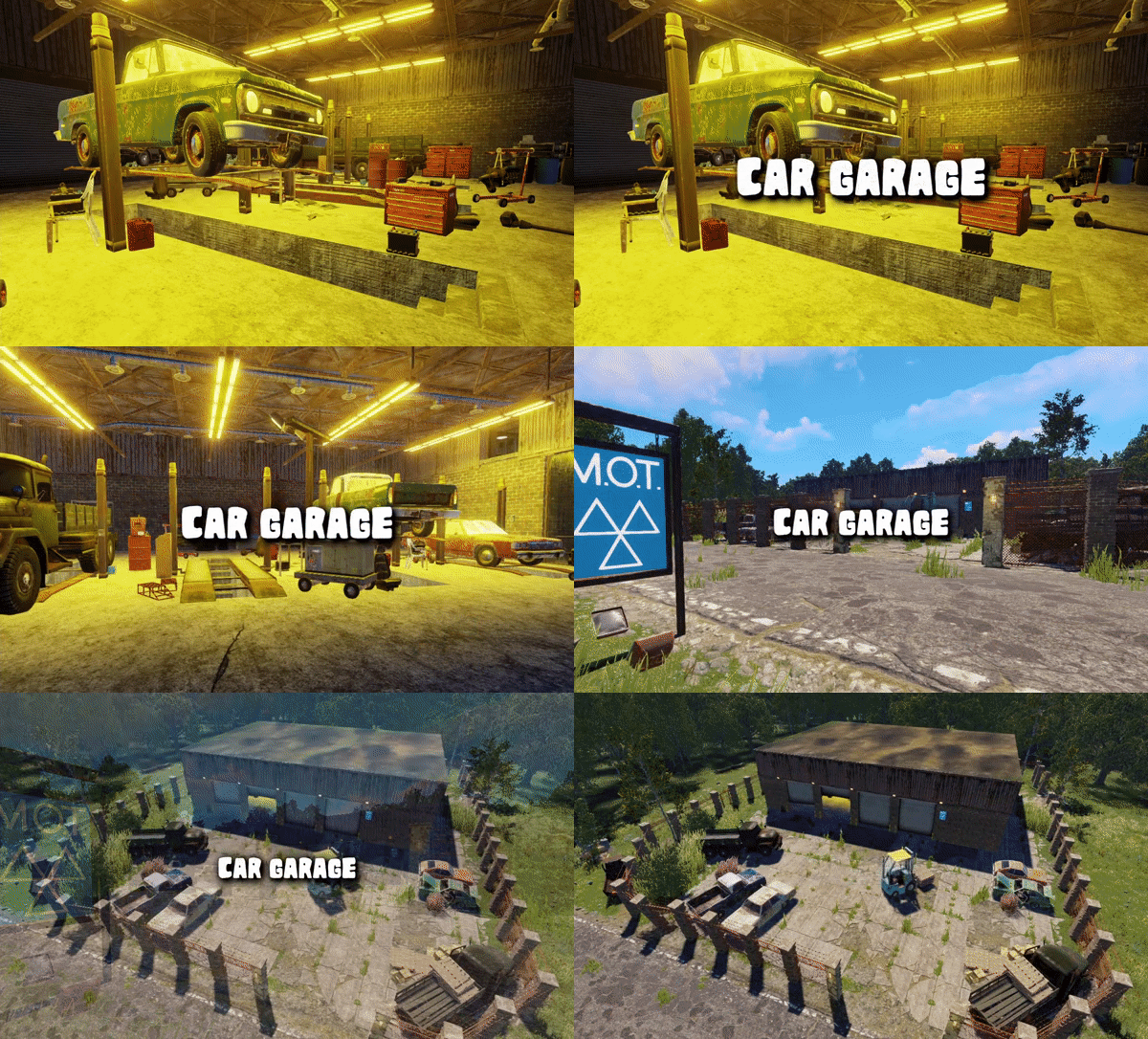
This monument is based on the real world MOT test (Ministry of Transport, or simply MOT) is an annual test of vehicle safety, road worthiness aspects and it carried out in garages across the UK. In this game version, you can find more car related loot than normal and also a working car ramp to modify your cars as well as a blue card puzzle with some nice loot and to top it off a red card spawn also now with a new addition hidden underground garage area with the owners project car. Includes MOT road sign prefab. Quick Start Extract the zip file into your RustEdit install folder. Start Rust Edit. Click on Prefabs at the top & open up your Prefab List. Under the Custom category you will now find RobJs Premium Prefabs. Double click on the prefab file and it will spawn it into the map for you. Drag it to the general area you want to place it and click on Snap To Terrain Apply the Height Mask, Topology Mask, and Splat Mask. Contact And Help If you need to contact me discord is best: RobJ2210#2553 For help/support my discord group is best: Join RustMaps Discord$8.99