Search the Community
Showing results for tags 'plugin rust'.
Found 16 results
-
Version 1.2.1
8 downloads
IQDeadBox is an event where finding a black box marks the beginning of a hunt and a battle for the chance to locate and claim the scientists' dropped cargo and seize a valuable reward! More About the Plugin: Everything begins with the destruction of the patrol helicopter. Among the wreckage, there is a chance to find a "Black Box", a device containing encrypted data about the location of a secret cargo drop. From this moment on, the hunt begins! Players will be fighting both for the loot and against each other. To uncover the secrets of the Black Box, players must find a special decoder, insert the device, and start the decryption process. But the information won't come for free: the process takes time, and the event will attract the attention of other players. Once decryption begins, a notification revealing the device's location will appear in chat, and a marker will appear on the map, indicating the event location. Other players can now track down those who reached the encrypted data first. Once decryption is complete, players will receive a COBALT CARD access card and a note containing coordinates that indicate the map grid where the cargo is located. All that's left is to reach the destination and claim the reward. However, this is not so easy for the access card holder. As long as the card remains in their possession, the entire server can see their movements and location on the map, and other players may try to take the card from them! Even after reaching the cargo, the challenge isn't over. It will be guarded by armed NPCs ready to defend it from anyone attempting to claim its contents. Players will have to fight their way through the guards and battle other players for the right to claim the loot! The container can hold everything needed for survival and progression: resources, weapons, ammunition, gear, explosives, and any other items. The container's contents are fully configurable, allowing you to customize the rewards yourself. The plugin features a simple configuration and is ready to use right out of the box. The only thing you may want to customize is the reward loot! Plugin Installation Guide: When you download the plugin, you will receive an archive containing the following file structure: oxide ├── plugins │ └── IQDeadBox.cs // Main plugin file │ └── data └── IQSystem └── IQDeadBox └── DecoderPositions.json // Computer coordinates file Please note: Extract the archive on your computer first, then upload the files to your server! Configuration { "How many seconds it takes to decrypt the Black Box": 300, "How long players have to collect the dropped cargo after the `Black Box` is decrypted [Seconds]": 1800, "`BlackBox` SkinID": 3785361977, "SkinID of the `COBALT CARD` crate keycard": 3793687557, "Chance for the `BlackBox` to drop when a patrol helicopter is destroyed": 10, "Note text after decrypting the `BlackBox` [{0} - grid square, do not remove it from the text]": "Scien... car... grid square {0} ..ad", "Chat plugin compatibility settings": { "SteamID used for the avatar": "0", "Chat prefix": "<color=#85D2FC>[SCIENTISTS]</color>\n" }, "Reward crate settings": { "Reward crate loot settings": { "Use custom loot list (true - yes/false - no)": true, "Maximum loot drops": 8, "List of loot drops": [ { "Drop chance": 30, "DisplayName (for custom items)": "", "Shortname": "keycard_green", "SkinID": 0, "Drop quantity setting": { "Minimum quantity": 1, "Maximum quantity": 1 } }, { "Drop chance": 86, "DisplayName (for custom items)": "", "Shortname": "ammo.pistol", "SkinID": 0, "Drop quantity setting": { "Minimum quantity": 25, "Maximum quantity": 93 } }, { "Drop chance": 63, "DisplayName (for custom items)": "", "Shortname": "ammo.shotgun", "SkinID": 0, "Drop quantity setting": { "Minimum quantity": 12, "Maximum quantity": 42 } }, { "Drop chance": 53, "DisplayName (for custom items)": "", "Shortname": "ammo.rifle", "SkinID": 0, "Drop quantity setting": { "Minimum quantity": 25, "Maximum quantity": 128 } }, { "Drop chance": 33, "DisplayName (for custom items)": "", "Shortname": "metal.refined", "SkinID": 0, "Drop quantity setting": { "Minimum quantity": 42, "Maximum quantity": 100 } }, { "Drop chance": 73, "DisplayName (for custom items)": "", "Shortname": "metal.fragments", "SkinID": 0, "Drop quantity setting": { "Minimum quantity": 700, "Maximum quantity": 3000 } }, { "Drop chance": 33, "DisplayName (for custom items)": "", "Shortname": "scrap", "SkinID": 0, "Drop quantity setting": { "Minimum quantity": 169, "Maximum quantity": 320 } }, { "Drop chance": 25, "DisplayName (for custom items)": "", "Shortname": "hoodie", "SkinID": 0, "Drop quantity setting": { "Minimum quantity": 1, "Maximum quantity": 1 } }, { "Drop chance": 20, "DisplayName (for custom items)": "", "Shortname": "roadsign.kilt", "SkinID": 0, "Drop quantity setting": { "Minimum quantity": 1, "Maximum quantity": 1 } }, { "Drop chance": 5, "DisplayName (for custom items)": "", "Shortname": "metal.facemask", "SkinID": 0, "Drop quantity setting": { "Minimum quantity": 1, "Maximum quantity": 1 } }, { "Drop chance": 20, "DisplayName (for custom items)": "", "Shortname": "pants", "SkinID": 0, "Drop quantity setting": { "Minimum quantity": 1, "Maximum quantity": 1 } }, { "Drop chance": 3, "DisplayName (for custom items)": "", "Shortname": "metal.plate.torso", "SkinID": 0, "Drop quantity setting": { "Minimum quantity": 1, "Maximum quantity": 1 } }, { "Drop chance": 20, "DisplayName (for custom items)": "", "Shortname": "coffeecan.helmet", "SkinID": 0, "Drop quantity setting": { "Minimum quantity": 1, "Maximum quantity": 1 } }, { "Drop chance": 21, "DisplayName (for custom items)": "", "Shortname": "roadsign.jacket", "SkinID": 0, "Drop quantity setting": { "Minimum quantity": 1, "Maximum quantity": 1 } }, { "Drop chance": 20, "DisplayName (for custom items)": "", "Shortname": "bucket.helmet", "SkinID": 0, "Drop quantity setting": { "Minimum quantity": 1, "Maximum quantity": 1 } }, { "Drop chance": 20, "DisplayName (for custom items)": "", "Shortname": "jackhammer", "SkinID": 0, "Drop quantity setting": { "Minimum quantity": 1, "Maximum quantity": 1 } }, { "Drop chance": 10, "DisplayName (for custom items)": "", "Shortname": "explosive.timed", "SkinID": 0, "Drop quantity setting": { "Minimum quantity": 1, "Maximum quantity": 1 } }, { "Drop chance": 8, "DisplayName (for custom items)": "", "Shortname": "supply.signal", "SkinID": 0, "Drop quantity setting": { "Minimum quantity": 1, "Maximum quantity": 1 } }, { "Drop chance": 4, "DisplayName (for custom items)": "", "Shortname": "military flamethrower", "SkinID": 0, "Drop quantity setting": { "Minimum quantity": 1, "Maximum quantity": 1 } }, { "Drop chance": 13, "DisplayName (for custom items)": "", "Shortname": "smg.mp5", "SkinID": 0, "Drop quantity setting": { "Minimum quantity": 1, "Maximum quantity": 1 } }, { "Drop chance": 12, "DisplayName (for custom items)": "", "Shortname": "pistol.m92", "SkinID": 0, "Drop quantity setting": { "Minimum quantity": 1, "Maximum quantity": 1 } }, { "Drop chance": 2, "DisplayName (for custom items)": "", "Shortname": "rifle.ak", "SkinID": 0, "Drop quantity setting": { "Minimum quantity": 1, "Maximum quantity": 1 } }, { "Drop chance": 11, "DisplayName (for custom items)": "", "Shortname": "rifle.m39", "SkinID": 0, "Drop quantity setting": { "Minimum quantity": 1, "Maximum quantity": 1 } }, { "Drop chance": 15, "DisplayName (for custom items)": "", "Shortname": "pistol.prototype17", "SkinID": 0, "Drop quantity setting": { "Minimum quantity": 1, "Maximum quantity": 1 } }, { "Drop chance": 29, "DisplayName (for custom items)": "", "Shortname": "grenade.f1", "SkinID": 0, "Drop quantity setting": { "Minimum quantity": 1, "Maximum quantity": 3 } }, { "Drop chance": 35, "DisplayName (for custom items)": "", "Shortname": "explosive.satchel", "SkinID": 0, "Drop quantity setting": { "Minimum quantity": 2, "Maximum quantity": 2 } }, { "Drop chance": 25, "DisplayName (for custom items)": "", "Shortname": "smg.thompson", "SkinID": 0, "Drop quantity setting": { "Minimum quantity": 1, "Maximum quantity": 1 } }, { "Drop chance": 25, "DisplayName (for custom items)": "", "Shortname": "smg.2", "SkinID": 0, "Drop quantity setting": { "Minimum quantity": 1, "Maximum quantity": 1 } }, { "Drop chance": 25, "DisplayName (for custom items)": "", "Shortname": "rifle.semiauto", "SkinID": 0, "Drop quantity setting": { "Minimum quantity": 1, "Maximum quantity": 1 } }, { "Drop chance": 12, "DisplayName (for custom items)": "", "Shortname": "shotgun.spas12", "SkinID": 0, "Drop quantity setting": { "Minimum quantity": 1, "Maximum quantity": 1 } } ] }, "Crate guard bots settings [requires the NpcSpawn plugin]": { "Spawn bots to guard the reward crate [true - yes/false - no]": false, "Number of guard bots": { "Minimum quantity": 3, "Maximum quantity": 6 }, "NPC settings": { "NPC health": 175.0, "Damage multiplier": 1.2, "Aim cone multiplier": 1.0, "Running speed": 7.5, "NPC clothing": [ { "Shortname": "roadsign.jacket", "SkinID": 2991830202, "Mods weapon": [] }, { "Shortname": "coffeecan.helmet", "SkinID": 2991835101, "Mods weapon": [] }, { "Shortname": "roadsign.kilt", "SkinID": 2991832819, "Mods weapon": [] }, { "Shortname": "hoodie", "SkinID": 2936196960, "Mods weapon": [] }, { "Shortname": "pants", "SkinID": 2936196259, "Mods weapon": [] }, { "Shortname": "shoes.boots", "SkinID": 2980941295, "Mods weapon": [] } ], "NPC weapon variation": [ { "Shortname": "smg.mp5", "SkinID": 2873774818, "Mods weapon": [ "weapon.mod.flashlight" ] } ], "Drop loot settings from NPC": { "Use custom loot list (true - yes/false - no)": false, "Maximum loot drops": 3, "List of loot drops": [ { "Drop chance": 1, "DisplayName (for custom items)": "", "Shortname": "smg.mp5", "SkinID": 2873774818, "Drop quantity setting": { "Minimum quantity": 1, "Maximum quantity": 1 } }, { "Drop chance": 52, "DisplayName (for custom items)": "", "Shortname": "ammo.pistol", "SkinID": 0, "Drop quantity setting": { "Minimum quantity": 15, "Maximum quantity": 60 } }, { "Drop chance": 12, "DisplayName (for custom items)": "", "Shortname": "metalpipe", "SkinID": 0, "Drop quantity setting": { "Minimum quantity": 3, "Maximum quantity": 5 } }, { "Drop chance": 10, "DisplayName (for custom items)": "", "Shortname": "sheetmetal", "SkinID": 0, "Drop quantity setting": { "Minimum quantity": 1, "Maximum quantity": 3 } }, { "Drop chance": 10, "DisplayName (for custom items)": "", "Shortname": "metalspring", "SkinID": 0, "Drop quantity setting": { "Minimum quantity": 1, "Maximum quantity": 5 } }, { "Drop chance": 10, "DisplayName (for custom items)": "", "Shortname": "sparkplug3", "SkinID": 0, "Drop quantity setting": { "Minimum quantity": 1, "Maximum quantity": 1 } }, { "Drop chance": 20, "DisplayName (for custom items)": "", "Shortname": "smgbody", "SkinID": 0, "Drop quantity setting": { "Minimum quantity": 1, "Maximum quantity": 1 } }, { "Drop chance": 35, "DisplayName (for custom items)": "", "Shortname": "syringe.medical", "SkinID": 0, "Drop quantity setting": { "Minimum quantity": 1, "Maximum quantity": 3 } }, { "Drop chance": 15, "DisplayName (for custom items)": "", "Shortname": "largemedkit", "SkinID": 0, "Drop quantity setting": { "Minimum quantity": 1, "Maximum quantity": 1 } }, { "Drop chance": 50, "DisplayName (for custom items)": "", "Shortname": "bandage", "SkinID": 0, "Drop quantity setting": { "Minimum quantity": 1, "Maximum quantity": 3 } }, { "Drop chance": 8, "DisplayName (for custom items)": "", "Shortname": "pickaxe", "SkinID": 0, "Drop quantity setting": { "Minimum quantity": 1, "Maximum quantity": 1 } }, { "Drop chance": 5, "DisplayName (for custom items)": "", "Shortname": "knife.combat", "SkinID": 0, "Drop quantity setting": { "Minimum quantity": 1, "Maximum quantity": 1 } }, { "Drop chance": 20, "DisplayName (for custom items)": "", "Shortname": "weapon.mod.simplesight", "SkinID": 0, "Drop quantity setting": { "Minimum quantity": 1, "Maximum quantity": 1 } }, { "Drop chance": 15, "DisplayName (for custom items)": "", "Shortname": "weapon.mod.silencer", "SkinID": 0, "Drop quantity setting": { "Minimum quantity": 1, "Maximum quantity": 1 } }, { "Drop chance": 15, "DisplayName (for custom items)": "", "Shortname": "roadsign.gloves", "SkinID": 0, "Drop quantity setting": { "Minimum quantity": 1, "Maximum quantity": 1 } }, { "Drop chance": 10, "DisplayName (for custom items)": "", "Shortname": "roadsign.kilt", "SkinID": 2991832819, "Drop quantity setting": { "Minimum quantity": 1, "Maximum quantity": 1 } }, { "Drop chance": 20, "DisplayName (for custom items)": "", "Shortname": "grenade.beancan", "SkinID": 0, "Drop quantity setting": { "Minimum quantity": 1, "Maximum quantity": 1 } }, { "Drop chance": 25, "DisplayName (for custom items)": "", "Shortname": "grenade.flashbang", "SkinID": 0, "Drop quantity setting": { "Minimum quantity": 1, "Maximum quantity": 1 } }, { "Drop chance": 25, "DisplayName (for custom items)": "", "Shortname": "grenade.f1", "SkinID": 0, "Drop quantity setting": { "Minimum quantity": 1, "Maximum quantity": 1 } }, { "Drop chance": 30, "DisplayName (for custom items)": "", "Shortname": "grenade.molotov", "SkinID": 0, "Drop quantity setting": { "Minimum quantity": 1, "Maximum quantity": 1 } } ] } } } }, "PVEMode plugin settings": { "Use the PVE mode of the plugin? [true/false] (PVEMode)": false, "Radius zone": 30.0, "The amount of damage that the player has to do to become the Event Owner": 500.0, "Damage coefficients for calculate to become the Event Owner": [ { "Type of target": "Npc", "Damage Multiplier": 1.0 }, { "Type of target": "Helicopter", "Damage Multiplier": 2.0 } ], "Can the non-owner of the event loot the crates? [true/false]": false, "Can the non-owner of the event loot NPC corpses? [true/false]": false, "Can the non-owner of the event deal damage to the NPC? [true/false]": false, "Can an Npc attack a non-owner of the event? [true/false]": false, "Allow the non-owner of the event to enter the event zone? [true/false]": false, "Allow a player who has an active cooldown of the Event Owner to enter the event zone? [true/false]": true, "The time that the Event Owner may not be inside the event zone [sec.]": 300, "The time until the end of Event Owner status when it is necessary to warn the player [sec.]": 60, "Prevent the actions of the RestoreUponDeath plugin in the event zone? [true/false]": true, "The time that the player can`t become the Event Owner, after the end of the event and the player was its owner [sec.]": 86400.0, "Darkening the dome (0 - disables the dome)": 1 } }$19.99 -
Version 1.9.0
9,953 downloads
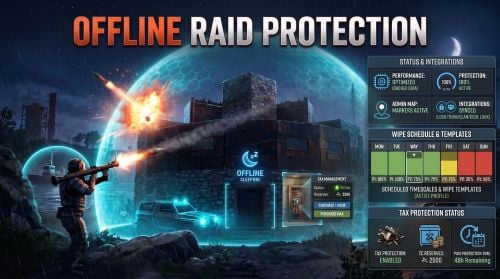
The Offline Raid Protection plugin is a comprehensive solution that reduces or completely prevents damage to player-owned bases, vehicles, and boats when their owners are offline. Offering unparalleled control, server owners can adjust the level of damage based on real-world hours or the amount of time a player has been offline. New in version 1.6.0, you can also set customized schedules and automated wipe phases. New in version 1.7.0, optional Tax Protection lets players maintain their Tool Cupboard protection by paying with a configurable in-game currency, such as Scrap. Designed for servers seeking meaningful offline or online protection, without sacrificing server performance, this plugin provides total control over damage scales, cooldowns, team behaviour, decaying bases/boats, rentable shops, apartments and more. Highlights Flexible Damage Scaling: Set damage scales based on real-world hours and/or offline time. A scale of 0.0 blocks all damage; a scale of 1.0 allows normal, vanilla-level damage; and values above 1.0 actively increase incoming damage. Scheduled Timescales: Temporarily override standard damage scales for specific date ranges. Perfect for custom weekend rates, holiday events, wipe-day protection, or planned balance changes. Wipe Templates: Automate your wipe cycle with reusable phases (e.g., more protection immediately post-wipe, scaling down over subsequent days). Assign a default template for every wipe, or queue a specific template for the next wipe only. Tax Protection: An optional upkeep-style system for Tool Cupboards. Configure the currency, hourly cost, maximum purchased hours, reserve limit, and unused-time refunds when a Tool Cupboard is destroyed. Tax Overlay: An optional in-game panel UI shown while an authorized player loots a Tool Cupboard. It displays active, paused, or inactive Tax Protection, remaining time, costs, reserves, total available protection, and purchase buttons. Status HUD: An optional, configurable on-screen HUD that displays a building's or boat's current protection status, protection percentage, remaining time, and penalty timers. Position and visibility rules are customizable. Game Tip Messages: Displays color-coded game-tip messages to attackers, optionally restricted to specific damage types (Melee, Ranged, Explosive, and None for everything else). Admin-Only Map Markers: Equip your admins with color-coded map markers for protected Tool Cupboards and boats. Markers feature dynamic protection-state circles, live boat tracking, and detailed hover tooltips showing authorized players. Marker colors, radius, transparency, and refresh rates are configurable. ORP DDraw: An in-game F1-console inspection tool for admins. It displays the current ORP state of nearby Tool Cupboards and protected boats, including protection percentage, remaining time, Tax Protection time, and authorized-player count. Team, Clan & Code Lock Integration: Protection intelligently accounts for teams or clans, and optionally Code Lock whitelists. Boat & Vehicle Protection: Optionally extend protection to modular boats, tugboats, and vehicles, including their relevant authorization paths. Apartment & Rentable Shop Support: Protects against master-key break-ins based on the actual rental owner, ignoring team or clan status for these specific entities. Anti-Abuse Penalties: Discourage players from exploiting protection by applying configurable penalties when they leave or disband teams. Grief TC Detection: Automatically identifies and excludes later-placed, overlapping Tool Cupboards from receiving protection. Admins can manually inspect and override these classifications. Defender Raid Restriction: Discourage defenders from stopping an ongoing raid by logging off. Qualifying explosive damage starts a timer that suspends protection if all tracked defenders disconnect. Requires the included DamageDeltaObserver plugin. Cache System: The plugin uses a caching system to optimize performance and keep the impact on the server to a bare minimum. Developer API: Exposes endpoints for other plugins to query protection scales, owner IDs, remaining time, and penalty states via Plugin.Call. Scheduled Timescales & Wipe Templates Your standard configuration acts as the baseline fallback when "Enable scheduled timescales" is true and a valid scheduled profile is active, its specific damage-scale tables take absolute precedence for that date range. Once the schedule expires (or if no profile is active), the plugin seamlessly reverts to your standard configuration. Wipe Templates are reusable blueprints, not live schedules. When the server detects a new save, the plugin checks for a queued template. If there is none, it uses your designated default template to automatically generate concrete, dated schedule profiles based on the template's phases. Then, the queued selection is cleared while the default template remains ready for future wipes. Configuration & Editing Carbon Users: Type /orp.schedule to open a powerful in-game Schedule and Wipe Template editor. Oxide Users (or Carbon without Admin UI modules): Schedules and templates can be easily edited manually within their dedicated .json data files. The Documentation section describes how to edit the JSON files in detail. Using /orp.schedule will instead report the current schedule state in the chat. Tax Protection Tax Protection is an optional upkeep-style system for Tool Cupboards. When enabled, players with the Tax Protection permission must maintain active paid protection time for eligible Tool Cupboards before the configured protection scales apply. Players without the Tax Protection permission continue to use the normal protection rules. Players can use `/orp.tax` to view their Tax Protection status and purchase protection time with the configured currency item. Currency stored inside the Tool Cupboard can also act as a reserve and automatically extend protection when eligible. Set the reserve limit to -1 to disable Tool Cupboard currency reserves while retaining manual Tax Protection purchases. Server owners can configure the currency, hourly cost, maximum purchased protection time, reserve limit, unused-time refunds, and the optional Tax Overlay. Defender Raid Restriction Defender Raid Restriction is an optional system that discourages players from stopping an ongoing raid by logging off. Tracking begins when at least one defender is online. When the configured threshold for qualifying explosive damage is reached, a restriction timer starts. If all tracked defenders disconnect, their applicable protection is suspended until the timer expires. Reaching the damage threshold again resets the timer. Reconnecting stops the restriction from suspending protection while a tracked defender remains online. The countdown continues, so disconnecting again can make the restriction effective again. The tracked group includes the owner and authorized players. Team and clan members are included when team protection sharing is enabled. Damage from trusted or related players does not count. Qualifying targets include non-twig building blocks, doors, modular boats, tugboats, and additional entities you have added. Explosive rifle ammunition also counts. Flexible Protection for Every Server Offline Raid Protection supports a variety of server types, including full PvP, hybrid, and PvE. You can configure protection for bases, boats, vehicles, shops, apartments, teams, clans, and more. It also works with other plugins, such as "Raidable Bases", allowing you to customize raid protection for your server without altering the rest of your gameplay. Built with performance in mind Offline Raid Protection is designed to minimize its impact on server performance, even on busy servers. Protection data is cached and recurring updates, such as status HUD and map marker refreshes, are processed in controlled batches. Temporary data is reused where appropriate to reduce unnecessary allocations. No other raid protection plugin is built with such a focus on efficient protection checks, caching, and controlled background work. This plugin is engineered to minimize server overhead and avoid unnecessary lag or FPS drops, even on large, active servers. Development is focused on Carbon, taking advantage of its modern runtime, optimized systems, and native modules to deliver the best possible performance. Carbon generally outperforms Oxide, ensuring that Offline Raid Protection maintains efficiency and responsiveness on demanding servers. Commands All command names can be changed in the configuration. /orp or /ao <Steam ID | full name> — Check a player's offline protection status. You can type the command without a name when looking at a player's structure /raidprot — Show Offline Raid Protection information /orp.tax [hours] — Show Tax Protection status or purchase protection time for the current Tool Cupboard area /orp.fill.onlinetimes — Fill all players offline times (Chat & Console command) /orp.test.offline <Steam ID | full name> <hours> — Change a player's offline time /orp.test.online <Steam ID | full name> — Change a player's offline time to the current time /orp.test.penalty <Steam ID | full name> <hours> — Change the duration of a player's penalty. A negative value or zero would disable the penalty /orp.test.grief — Display the detected Grief-TC status of the building you are looking at /orp.test.grief <true|false|none> — Force the Grief-TC status of the looked-at building /orp.test.grief <true|false|none> <TC network ID> [...] — Set the status for one or more Tool Cupboards by network ID /orp.schedule — Open the Carbon schedule/template editor when available; otherwise show scheduling information. /orp.schedule <true|false> — Enable or disable Scheduled Timescales (admin only). orp.update.permissions — Refresh the permission status for all players (Console command) orp.update.prefabs <true> — Updates the 'Prefabs to protect' list in the configuration. Overwrites the list with the 'true' argument (Console command) orp.dump.prefabs — Clears the 'Prefabs to protect' list in the configuration (Console command) orp.ddraw [range] — Display nearby Tool Cupboards and protected boats with their current ORP state (in-game F1 console, admin only; range: 10-1000 metres) orp.ddraw off — Disable your ORP DDraw display (in-game F1 console, admin only) orp.raidrestriction status — Shows observer status, tracked restrictions, remaining time, and connected defenders orp.raidrestriction clear <player | sourceID> — Clears restrictions for a player or raid source orp.raidrestriction clearall — Clears all tracked restrictions Permissions All permissions can be configured. offlineraidprotection.protect — Allows a player to be protected from raids offlineraidprotection.tax — Allows a player to manage Tax Protection through `/orp.tax` offlineraidprotection.check — Allows a player to check the offline protection status of other players offlineraidprotection.admin — Allows use of administrative commands, including schedule controls and ORP DDraw (which also requires server-admin status) offlineraidprotection.onlineprotect — Bypasses the normal online-status restriction for players with this permission, allowing the configured protection rules to protect them while online. This is separate from the normal protection and Tax Protection permissions. Use oxide.grant / oxide.revoke or carbon.grant / carbon.revoke to manage permissions, depending on the framework in use. Configuration The configuration is to a large extent self-explanatory. Raid Protection Options Only mitigate damage caused by players: Choose whether or not to only mitigate damage caused directly by players. Enable this to prevent players from causing base damage by baiting patrol helicopters, etc. Protect players that are online: Choose whether or not to protect the bases of the players who are online. Works when "Scale of damage depending on the current hour of the real day" is configured. Enable scheduled timescales: Enable this option to allow valid profiles in `ScheduledTimescale.json` to override the normal real-time and offline-time damage-scale tables during their configured date range. When disabled, the plugin always uses the normal configuration tables. This option also enables Wipe Template materialization on a new save. As an admin, use the command /orp.schedule true or /orp.schedule false to change it in-game. On Carbon with the required UI modules, `/orp.schedule` opens the editor; on Oxide or without those modules, edit the dedicated JSON files manually. Scale of damage depending on the current hour of the real day: Defines the protection levels based on the current hour of the real day. The key is the hour of the day (0-23), and the value is the protection scale (0 — 340282300000000000000000000000000000000). Example: "0": 0.0, "1": 0.0, "2": 0.0, "3": 0.0 This means that the protection level is 100% from midnight to 3am. Scale of damage depending on the offline time in hours: Defines the protection levels based on the time since the player went offline. The key is the number of hours since the player went offline, and the value is the protection scale (0 — 340282300000000000000000000000000000000). The value of the hours can also be a decimal number. Example: "12": 0.25, "24": 0.5, "48": 1.0, "96": 2.0 This means that 12 hours after the player goes offline, the protection level will be 75%. After 24 hours it will be 50% and after 48 hours it will be 0%. After 96 hours, the damage is increased by 100%. Cooldown in minutes: During this time, damage levels will remain vanilla. Raids are possible. Set this to a positive value to discourage defenders from interrupting raids by logging off. Scale of damage between the cooldown and the first configured time: During this time, the level of damage between the cooldown and the first configured time can be set to a specific value, such as 0.0 Online time to qualify for offline raid protection in minutes: Time to qualify for offline raid protection after a player connects Set this to a positive value to discourage players from quickly logging on and back off solely to reset protection. Protect all prefabs: Choose whether to protect all prefabs or only specific ones. This will protect anything in the TC range. Protect AI (animals, NPCs, Bradley and attack helicopters etc.) if 'Protect all Prefabs' is enabled: Choose whether or not to protect AI entities if "Protect all Prefabs" is enabled. Set to false to reduce hook times, and to avoid protecting wild animals that wander by offline bases. Protect livestock animals (cows and sheep): Allows cows and sheep to receive protection Protect modular and tug boats: Choose whether to protect modular boats and tugboats and their deployables. Checks wheel authorization list, plus optionally lock authorization lists. Protect vehicles: Choose whether to protect vehicles or not. Vehicle lock authorization always has priority. If you want to exclude certain vehicles from protection, add them to the blacklist. Tugboats and modular boats are separate from this. Protect twigs: Choose whether to protect twigs or not. Protect decaying buildings: Choose whether to protect buildings that are either decaying, or have at least 50% of building blocks below 50% health. Ignore decay if due solely to twig: Choose whether to ignore decay state caused solely due to the presence of twig building blocks combined with a lack of wood in the TC. Set to true to ensure raiders cannot disable protection by building twig onto an offline base. Protect decaying modular boats: Choose whether modular boats should remain protected while they are in a decaying state. Protect grief TCs: Choose whether Tool Cupboards detected as grief TCs should receive Raid Protection. True: Grief-TC detection is disabled and Tool Cupboards are protected normally. False: The plugin detects separately placed Tool Cupboards whose buildings overlap within the configured Grief privilege distance. A later-created Tool Cupboard can be classified as a grief TC and excluded from Raid Protection. Tool Cupboards are not classified as grief TCs when they share an owner, authorized player, or other configured player relationship such as teams, clans, or Code Lock whitelist players. The default is true. Set this to false only if you want ORP to detect and exclude grief TCs. Admins can use /orp.test.grief to inspect or override individual classifications. Grief privilege distance: Sets the maximum distance, in metres, between building blocks belonging to separate Tool Cupboard buildings for them to be considered overlapping during Grief-TC detection. The distance is measured between the bounds of the building blocks, not between the Tool Cupboards themselves. A larger value allows buildings farther apart to be considered overlapping; a smaller value requires them to be closer together. Only used when Protect grief TCs is set to false. Valid range: 0 to 512 metres. Default: 16 metres. Prefabs to protect: List of prefabs that will be protected. Make sure you remove the prefabs you don't want to protect, some of them are pointless. Prefabs blacklist: List of prefabs that will not be protected. Prefabs in the blacklist will always have priority to be unprotected. Protection multipliers by prefab: Add a prefab short name and a multiplier between 0.0 and 1.0. A value of 1.0 uses the normal configured protection level. A value of 0.5 applies half of the protection strength. A value of 0.0 disables damage mitigation for that prefab. Example: "autoturret_deployed": 0.5, "wall.external.high.stone": 0.75 This keeps the normal protection rules in place, but reduces their effect for the listed prefabs. Tax Protection Options Tax Protection is optional and disabled by default. When enabled, players with the Tax Protection permission must maintain active paid protection time for eligible Tool Cupboards. Enabled: Enables or disables the Tax Protection system. When enabled, players with the tax permission need active paid Tax Protection to receive Protection within their Tool Cupboard privilege area. Enable for modular boats: Choose whether Tax Protection should also apply to eligible modular boats with a mounted Tool Cupboard. Requires "Protect modular and tug boats" to be enabled. Currency item ID: Sets the item used as Tax Protection currency. (default is Scrap) Use the Rust item ID for the currency you want players to pay with. Cost per hour: Sets how many configured currency items are required to purchase one hour of Tax Protection. Refund unused tax protection on Tool Cupboard destruction: Choose whether unused paid Tax Protection is refunded when a Tool Cupboard is destroyed by a trusted player. True: Eligible unused paid time is refunded. False: No refund is created. Maximum tax currency reserves per Tool Cupboard: Sets the maximum amount of configured currency that can be stored in a Tool Cupboard as Tax Protection reserves. Set to 0 for unlimited reserves. Set to -1 to disable Tool Cupboard currency reserves entirely: currency can remain in the Tool Cupboard, but it is not capped or automatically converted into Tax Protection time. Maximum total purchased protection hours: Sets the maximum amount of Tax Protection time that can be purchased and held for one Tool Cupboard. Group size hourly cost scaling options: Optionally increase the Tax Protection hourly cost based on the number of authorized players. Enabled — Enables group-size-based hourly pricing. Players included in the base hourly cost — Sets how many authorized players are included in the normal hourly price. Additional players in the small group tier — Sets how many players use the small-group price increase. Hourly cost increase per additional small group player — Sets the percentage added for each additional player in the small-group tier. Hourly cost increase per player above the small group tier — Sets the percentage added for players beyond the small-group tier. Maximum hourly cost multiplier — Limits how high the hourly cost can increase. The adjusted hourly cost is used consistently for Tax Protection purchases, status information, the Tax Overlay, and Tool Cupboard reserves. Tax Overlay Options: Adds an optional in-game Tax Overlay when authorized players loot a Tool Cupboard. The overlay shows Tax Protection status, remaining paid time, hourly cost, cupboard currency reserves, reserve limit, and total available protection time. Enabled — When enabled, authorized players can purchase one hour or buy the maximum currently available Tax Protection time directly from the Tool Cupboard overlay. Anchor minimum / maximum — Sets the overlay’s screen anchor position. Use these values together with the offset settings to place the overlay where you want it displayed. Offset minimum / maximum — Sets the overlay’s size and position relative to its anchors. The default values place a compact Tax Management panel in the center of the screen. Apartment Complex Protection Options Protect apartments from break-ins: Whether to protect apartments from master key break-ins when Raid Protection is active. Protect apartment even when owner absent: Whether apartments with no owner inside should remain protected. True: Apartment protection applies regardless of owner's offline location. False: Apartment protection applies only when owner is offline inside of the apartment. Protect apartment even when rent due: Whether apartments with no upkeep remaining should remain protected. True: Apartment protection applies even in Rent Due state. False: Apartment protection does not apply in Rent Due state. Protect shops from break-ins: Whether to protect rentable shops from master key break-ins when Raid Protection is active. Protect only when damage scale below: Whether to limit apartment and/or shop break-in protection based on damage scale. Example: Set to 0.2 to protect only when damage scale is between 0 and 0.2 (i.e. when protection level is between 80% and 100%). Set to 1.0 or higher to apply break-in protection regardless of damage scale. Use damage scale as break-in success chance: Whether to make a random roll on each break-in attempt, with chance of success equal to damage scale (e.g. 25% chance of success at 75% protection level, 80% chance at 20% protection level, etc.). Only applies when apartment or shop is otherwise protected. Status HUD Options The Status HUD is optional and disabled by default. It provides players with a compact, configurable view of the protection state for the privilege area they are in. Enabled — Turns the Status HUD on or off. Anchor minimum / Anchor maximum — Sets the HUD anchor position using Unity screen coordinates. The default anchors place it at the top-right of the screen. Offset minimum / Offset maximum — Sets the HUD bounds in pixels relative to its anchors. Adjust these values to move or resize the panel without changing its anchor position. Refresh interval in seconds — Controls how often the HUD refreshes. A lower value updates it more frequently. Display inside trusted privilege — Choose whether the normal HUD is shown while the player is authorized on the relevant building or boat. Display only when protection is active — Hides the normal HUD whenever no active protection is being applied. Display after status command — Shows the HUD temporarily when a player uses the check status command. Status command display duration in seconds — Sets how long the command-triggered HUD remains visible. Show protection percentage — Displays the current protection percentage. Show remaining protection time — Displays the remaining time for the current protection scale when applicable. Show penalty timer — Displays a player’s active penalty timer when applicable. Map Marker Options Map markers are optional and disabled by default. Only players with the plugin’s admin permission can use them; regular players cannot. Enabled — Turns Tool Cupboard and boat markers on or off. Refresh interval in seconds — Controls how often marker state and labels are refreshed. Use a longer interval if immediate visual updates are not required. Enable boat live circle — Updates the map-radius circle for tugboats and modular boats as they move. Visual radius in metres — Sets the radius of each marker circle. Alpha — Sets circle transparency. "0" is fully transparent, and "1" is fully opaque. Protected color — The color used for 100% protected status. Partial protection color — Color used when only partial protection applies. Vulnerable color — Color used when normal or vulnerable status applies. Decaying color — Color used for decaying building status. Grief color — Color used for a detected or forced grief tool cupboard status. Outline color — Color used for the marker circle outline. Tooltip marker text max. players — Limits how many authorized player names are shown in a marker tooltip. Defender Raid Restriction Options Disabled by default. Requires the included DamageDeltaObserver plugin. Enabled — Turns Defender Raid Restriction on or off. Damage window in seconds — Sets the rolling time window in which the damage threshold must be reached. Minimum raid damage — Sets the qualifying health loss needed to start or refresh a restriction. Restriction minutes — Sets the restriction duration. Reaching the damage threshold again refreshes the timer. Defender notice cooldown in seconds — Sets the minimum time between restriction-extension notices. Notify defenders — Sends chat messages when a restriction starts, is extended, or remains active when a defender reconnects. Notify attackers — Shows a game tip when a raid restriction suspends protection. Explosive shortnames — Sets which explosive prefabs count toward the damage threshold. The default list is generated from the server’s available explosive prefabs. Use prefab shortnames rather than item shortnames. Explosive rifle ammunition counts separately. Additional raid entity prefabs — Add prefab shortnames for additional entities whose qualifying explosive damage should count toward Defender Raid Restriction. Timezone Options The fallback timezone is UTC if you leave it blank in the configuration, or if your configured timezone doesn't exist. The timezone identifiers are different for Windows and Linux. You can check the appendices to find your preferred timezone. Developer API Other Carbon/Oxide plugins can access ORP data through `Plugin.Call`. Available API methods: bool API_IsPlayerRaidRestricted(ulong playerID) long API_GetPlayerRaidRestrictionEndUtcTicks(ulong playerID) bool API_IsEntityRaidRestricted(BaseCombatEntity entity) long API_GetEntityRaidRestrictionEndUtcTicks(BaseCombatEntity entity) float API_GetEntityDamageScale(BaseCombatEntity entity, BasePlayer attacker) ulong API_GetEntityProtectionTargetID(BaseCombatEntity entity, BasePlayer attacker) float API_GetPlayerDamageScale(ulong playerID) long API_GetRemainingTimeTicks(ulong playerID) long API_GetPenaltyEndUtcTicks(ulong playerID) bool API_EnablePenalty(ulong playerID, float durationHours) bool API_DisablePenalty(ulong playerID) int API_EnablePenalties(ICollection<ulong> playerIDs, float durationHours) int API_DisablePenalties(ICollection<ulong> playerIDs) Return conventions: Damage-scale methods return -1f when no applicable ORP scale exists API_GetEntityProtectionTargetID returns 0UL when no target is available Time methods return 0L when no active value exists Bulk methods return the number of successfully processed known players Conclusion The Offline Raid Protection plugin provides a comprehensive solution for protecting players' structures and vehicles. This plugin is essential for any Rust server owner who wants to provide a fair and enjoyable gaming experience for their players. Windows_Timezones.txt Linux_Timezones.txt Prefabs.txtFree -
Version 1.2.11
792 downloads
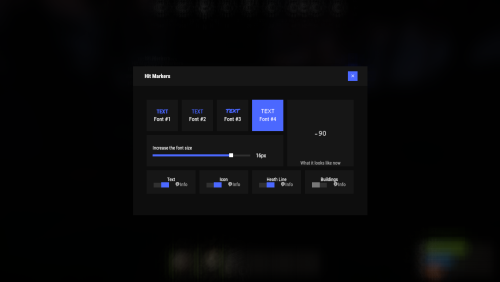
Each player picks the hit marker that suits them. Commands marker - open the UI Permissions You can set permission in config, for example: "Permission (ex: hitmarkers.use)": "hitmarkers.use", You can also set your own permission for each font and button. Config { "Commands": [ "marker", "hits" ], "Permission (ex: hitmarkers.use)": "", "Work with Notify?": true, "Fonts": { "0": { "Font": "robotocondensed-bold.ttf", "Permission (ex: hitmarkers.font)": "" }, "1": { "Font": "robotocondensed-regular.ttf", "Permission (ex: hitmarkers.font)": "" }, "2": { "Font": "permanentmarker.ttf", "Permission (ex: hitmarkers.font)": "" }, "3": { "Font": "droidsansmono.ttf", "Permission (ex: hitmarkers.font)": "" } }, "Min Font Size": 8, "Max Font Size": 18, "Buttons": [ { "Enabled": true, "Title": "Text", "Type": "Text", "Description": "<b>Damage numbers</b> will pop up in the center of the screen!", "Permission (ex: hitmarkers.text)": "hitmarkers.text" }, { "Enabled": true, "Title": "Icon", "Type": "Icon", "Description": "The familiar hit icon changes color after a <b>headshot!</b>", "Permission (ex: hitmarkers.text)": "hitmarkers.icon" }, { "Enabled": true, "Title": "Heath Line", "Type": "HealthLine", "Description": "A bar appears above the slots, showing the <b>remaining</b> health of the enemy", "Permission (ex: hitmarkers.text)": "hitmarkers.line" }, { "Enabled": true, "Title": "Buildings", "Type": "Buildings", "Description": "Displaying damage by buildings", "Permission (ex: hitmarkers.text)": "hitmarkers.buildings" } ], "Info Icon": "https://i.imgur.com/YIRjnIT.png", "Show damage to NPC": true, "Show damage to animals": false, "Marker removal time": 0.25, "Default Values": { "Font ID": 0, "Font Size": 14, "Text": true, "Icon": false, "Health Line": false, "Buildings": false } } Web Config Editor Manage the HitMarkers settings in our web config editor. You change the config in a browser form instead of editing files on the server by hand. P.S. The web config editor is open to members of the "HitMarkers" group in our Discord server. Join at https://discord.gg/mevent and ask for the group.$19.95 -
Version 1.4.0
6,573 downloads
The plugin adds a dungeon event to your server. Dungeons are bases with puzzles, NPC defenders, turrets and more. You can create your own dungeons of varying difficulty. Procedurally generated dungeons are also now available (currently only in test mode) You can build your own bases or modify existing ones: There are moving NPC guardians in the dungeons: There are puzzles with protective doors in the dungeons: In the dungeons there are secret notes with codes in boxes or on NPCs: Commands: dungbase_start - force start event dungbase_start <entrance name> <dungeon name> <X> <Y> <Z> - force an event to start using the specified entrance and dungeon at coordinates X Y Z (you can also specify the name of the entrance or dungeon <random>) dungbase_start <X> <Y> <Z> - force an event to start using a random entrance and dungeon at X Y Z coordinates. example: dungbase_start #dung#entrance1 #dung#dungeon1 122.3 5.2 872 dungbase_start random #dung#dungeon3 dungbase_stop <id|all> - force stop event dungbase_list - displays a list of current dungeons dungbase_addblack <radius> - add a zone where dungeon spawning is not allowed dungbase_start - force start event Command to launch procedurally generated dungeons: example: dungbase_start #dung#entrance1 procedural_hard - an event starts where the entrance is #dung#entrance1, and the dungeon is procedurally generated with the name of the tier hard dungbase_start random procedural_normal - an event starts where the entrance is randomly selected from a list of entrance names, and the dungeon is procedurally generated with the tier name normal dungbase_start random procedural_easy 100 6 84 - an event starts where the entrance is randomly selected from a list of entrance names, and a procedurally generated dungeon named easy is created at coordinates (100, 6, 84) Hooks: void DungeonBasesEventStarted() - // called when event starts void DungeonBasesEventEnded() - // called when event ends Configuration: { "Allow only the event owner (the one who entered the dungeon first) into the dungeon": true, "Allow owner's teammates to enter the dungeon": true, "Time before ownership is lost after leaving the server(in seconds)": 300, "Event marker on the map": true, "Event marker name": "Dungeon Base", "Event marker transparency(0-1)": 0.55, "Event marker radius": 0.5, "Event marker color.R(0-1)": 1.0, "Event marker color.G(0-1)": 0.0, "Event marker color.B(0-1)": 0.0, "Display event owner name on marker": true, "Display the time remaining until the end of the event on the marker": true, "Autostart event(disable if you want to trigger the event only manually)": true, "Calculate the time until the next event only after the previous one has finished": false, "Minimum time to event start(in seconds)": 3600, "Maximum time to event start(in seconds)": 7200, "Minimum event duration(in seconds)": 2000, "Maximum event duration(in seconds)": 3000, "Minimum number of online players to trigger an event": 1, "List of NPC names": [ "Dungeon NPC", "Dungeon Keeper", "Dungeon guard" ], "Dungeons list": [ "#dung#base1", "#dung#base2", "#dung#base3", "#dung#base4" ], "Entrances list": [ "#dung#entrance1", "#dung#entrance2", "#dung#entrance3", "#dung#entrance4" ], "Random order of choosing a dungeon from the list (if false, will be selected in turn)": true, "Random order of choosing the entrance to the dungeon from the list (if false, will be selected in turn)": true, "Change the time of day when entering the dungeon(from 0 to 23, if -1 - do not change the time)": 0.0, "How long before the end of the event does radiation start to affect players inside the dungeon": 180, "How long before the event ends will a warning message be displayed to players": 300, "How long after the event ends should the entrance be destroyed": 60, "Close the entrance and exit to the dungeon when the event time is over": true, "Will autoturrets attack NPCs": false, "Save event data (If true, the event will be saved and will continue even if you restart the server or plugin. Disable this if you get lag when saving)": true, "SteamID for chat message icon": 0 } Note: The plugin is guaranteed to work correctly with bases enabled. NPCs will not behave as standard, as they use different algorithms. Only one dungeon can spawn on the map at a time.$24.99 -
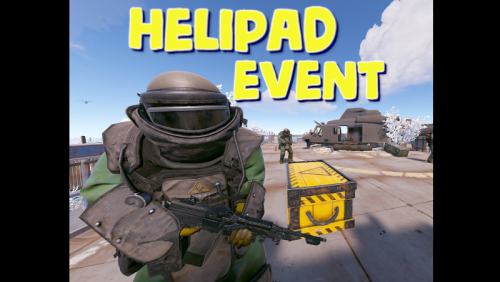
Version 1.1.6
2,748 downloads
Adds an event for the Lunchsite monument to your server. A crate with valuable loot will spawn on the helipad. The crate is protected by NPC guards and a patrol helicopter. The event is completely ready for use immediately after installation, you can flexibly configure it at your discretion Features: Easy to set up. Excellent customization options in the config You can customize the contents of the box: in the config file, set up a list of items that will be inside also you can use kits (you need Kits plugin), just set the name of the kit in the config file, you can use the list of kits and choose them randomly also you can use loot tables (you need SimpleLootTable plugin) You can customize the NPCs: you can set the health of the npc you can set NPC damage multiplier on players you can give kits for NPCs (you need a Kits plugin) Commands(admin only): hpestart - force the event to start hpestop - force stop the event Hooks: void LaunchSiteHelipadEventStarted() // called when the event starts { } void LaunchSiteHelipadEventEnded() // called when the event has ended { } Config file: { "Triggering an event by timer (disable if you want to trigger the event only manually)": true, "Minimum time to event start(in seconds)": 900, "Maximum time to event start(in seconds)": 10800, "PVE mode (A dome will be created inside which everyone except the owner and his teammates will be poisoned by radiation)": false, "Ownership time (after how long will the owner be removed if he leaves the dome or server)": 300, "Radius of the dome": 100, "Dome offset": { "x": 0.0, "y": 0.0, "z": 0.0 }, "Effect of radiation on players inside the dome, except owners": 10, "Dome color(0 - default, 1 - blue, 2 - green, 3 - purple, 4 - red)": 0, "Dome entry message": "You have entered the helipad event zone on the launch site", "Dome exit message": "You have exited the helipad event zone at the launch site", "Message about player's entry if he is not the owner of the event": "Leave this area immediately, you are not the owner of the event!", "Message about player leaving dome if he is the owner of the event": "If you do not return to the dome within 5 minutes, then you will no longer be the owner of this event!", "Box lifetime(in seconds)": 1800, "Time the box is closed(in seconds)": 900, "Box skin": 0, "End the event immediately after someone loots a crate": false, "NPCs lifetime(in seconds)": 3600, "NPCs amount(maximum 20)": 2, "NPCs type, 0 - tunneldweller; 1 - underwaterdweller; 2 - excavator; 3 - full_any; 4 - lr300; 5 - mp5; 6 - pistol; 7 - shotgun; 8 - heavy; 9 - junkpile_pistol; 10 - oilrig; 11 - patrol; 12 - peacekeeper; 13 - roam; 14 - roamtethered; 15 - bandit_guard; 16 - cargo; 17 - cargo_turret_any; 18 - cargo_turret_lr300; 19 - ch47_gunner": 8, "NPCs health(0 - default)": 0, "NPCs damage multiplier": 1.0, "List of kits for each NPC(requires Kits plugin)": [ "kit1", "kit2", "kit3" ], "List of displayNames for each NPC(for SimpleKillFeed/DeathNotes plugin)": [ "LaunchSite NPC1", "LaunchSite NPC2", "LaunchSite NPC3" ], "Give NPC names randomly from the list (if false, names will be assigned according to the list one by one)": true, "Event start message(if empty, no message will be displayed)": "The helipad event has started! Find the crate located on the helicopter pad at the Launch Site", "Message when box is unlocked(if empty, no message will be displayed)": "The crate on the helicopter pad at the Launch Site is unlocked", "Message that someone has looted the crate(if empty, no message will be displayed)": "Someone found the box on the helipad at the launch site first", "Spawns a helicopter right on the launchsite(if false, then the helicopter will arrive from afar in a few seconds)": false, "Patrol helicopter spawn chance (0 - 100%)": 50, "Helicopter patrol range": 150, "How long the helicopter will patrol the launchsite (in minutes)": 5, "Helicopter damage multiplier": 1.0, "Helicopter health": 10000.0, "Helicopter main rotor health": 900.0, "Helicopter tail rotor health": 500.0, "The patrol helicopter will not patrol the helipad if it has found a target": false, "Make helicopter fly away after end of patrol time": false, "Event marker on the map(will spawn a marker immediately after the start of the event)": false, "Event marker name": "LaunchSite helipad event", "Event marker lifetime(in seconds)": 3600, "Event marker transparency(0-1)": 0.75, "Event marker radius": 0.5, "Event marker color.R(0-1)": 1.0, "Event marker color.G(0-1)": 0.0, "Event marker color.B(0-1)": 0.0, "Use box kit(need a plugin Kits)": false, "Messages list - messages that players will see, depending on how much time (in seconds) is left before the box is opened": [ { "message": "The crate on the helicopter pad at the Launch Site will open in 15 minutes", "time": 900 }, { "message": "The crate on the helicopter pad at the Launch Site will open in 10 minutes", "time": 600 }, { "message": "The crate on the helicopter pad at the Launch Site will open in 5 minutes", "time": 300 }, { "message": "The crate on the helicopter pad at the Launch Site will open in 3 minutes", "time": 180 }, { "message": "The crate on the helicopter pad at the Launch Site will open in 1 minute", "time": 60 } ], "List of items in the box": [ { "shortname": "ammo.rocket.basic", "minAmount": 1, "maxAmount": 3, "skinID": 0 }, { "shortname": "explosive.timed", "minAmount": 1, "maxAmount": 3, "skinID": 0 }, { "shortname": "explosive.satchel", "minAmount": 5, "maxAmount": 10, "skinID": 0 }, { "shortname": "explosives", "minAmount": 40, "maxAmount": 100, "skinID": 0 }, { "shortname": "ammo.rifle.explosive", "minAmount": 64, "maxAmount": 128, "skinID": 0 }, { "shortname": "rocket.launcher", "minAmount": 1, "maxAmount": 1, "skinID": 0 } ], "Kit list": [ "111111111", "222222222", "333333333" ], "Use random kit(if false, then the first Kit in the list is always used": false, "Box simple loot table name(plugin SimpleLootTable is required)": "", "Minimum number of items in the box(plugin SimpleLootTable is required)": 1, "Maximum number of items in the box(plugin SimpleLootTable is required)": 3, "SteamID for chat message icon": 0, "Use Notify plugin for messages": false, "Notify message type": 0 }$15.99 -
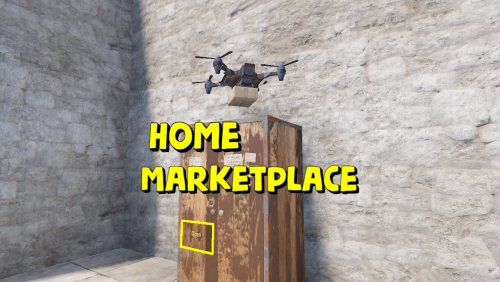
Version 1.1.4
322 downloads
Adds a marketplace terminal to each tool cupboard. This way, players can buy items without leaving home. The plugin is easy to install on your server; no additional settings are needed. You can also change the delivery fee (but the player must still have an additional 20 scrap in their inventory) This plugin uses the permission system Permissions: homeMarketplace.use - required to be able to use the marketplace To assign a permission, use: oxide.grant <user or group> <name or steam id> homeMarketplace.use To remove a permission, use: oxide.revoke <user or group> <name or steam id> homeMarketplace.use Config: { "Terminal offset": { "x": 0.42, "y": 0.68, "z": 0.3 }, "Delivery fee": 20 }$7.99 -

Version 1.0.2
32 downloads
New Plugin: Custom Raidable Bases (Raidable Bases Extension) Hello Rust Community! I'm JaaaaaThomas I'm excited to introduce my first plugin: an exclusive collection of custom raid bases designed to enhance your server's PVE/PVP experience! 37 bases This is just the beginning, but we are ready to bring a fresh breath of air to how players interact with the Raidable Bases plugin. What You Get with This Package This package is not a standalone plugin, but a Content Extension that adds a selection of unique, handcrafted, and optimized Raid Bases directly to your server. Key Features: New Bases, New Challenges: I've included an entirely new difficulty category (ClanBase), featuring smart layouts designed to test even the most experienced raiders. Custom Loot: The bases come with a revised loot scheme, specifically balanced for a clan-level experience. Optimization & Configuration: All bases are designed to work seamlessly with popular difficulty settings. Attention: Required Dependencies For this base pack to function, your server MUST have the following two plugins installed and working: [Oxide/uMod Plugin] Raidable Bases (The main event plugin). [Oxide/uMod Plugin] Copy Paste (Required to correctly import the base structures). Without these two plugins, the base pack will NOT work. Future Vision This is only the first step! In the future, we plan to expand the package by: Adding new difficulty categories (Solo, Duo, Mega-Base). Introducing unique puzzles and traps within the structures. Providing constant updates with new bases for every major wipe. Thank you so much for your support! I hope you enjoy the new bases. I wish you all a good game and successful raids! — Sincerely, JaaaaaThomas.$19.99 -
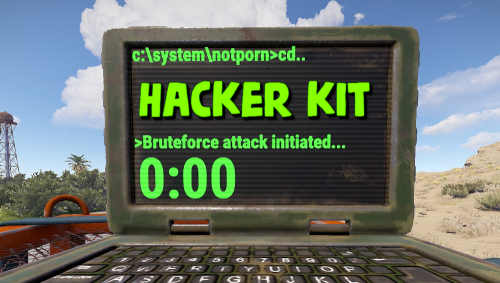
Version 1.0.3
103 downloads
Adds hacker kit to the server. Just pick up a geiger counter and use it to hack. Just get close to the crate and hold the left mouse button. This plugin uses a geiger counter. Since this is not an item that players can usually get through loot, it is perfect for this purpose. Just use a plugin like BetterLoot to insert a geiger counter into your loot tables and then any geiger counter picked up by the player can be used as a hacker kit. Permissions: hackerkit.use - required to use hacker kit To assign a permission, use: oxide.grant <user or group> <name or steam id> hackerkit.use To remove a permission, use: oxide.revoke <user or group> <name or steam id> hackerkit.use (or just use the permission manager plugin) Config file: { "Hack speed": 10, "Prohibition message": "You don't have permission to use hackerkit", "SFX prefab": "assets/prefabs/gamemodes/objects/capturepoint/effects/capturepoint_progress_beep.prefab" }$4.99 -
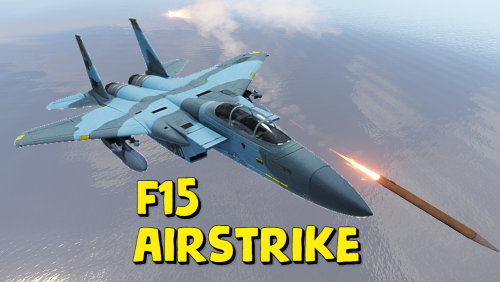
Version 1.2.0
915 downloads
Adds the ability to call an airstrike, the player throws a supply signal in the place where he wants to call an airstrike. This plugin uses the default supply signal, but the item skin must be 2982472774. Please use only default stack size for supply signal. This is the only way the plugin will work properly. Since this is not an item that players can usually get through loot, you can use a plugin like BetterLoot to insert a supply signal with skin 2982472774 into your loot tables, and then that player-picked item can be used as a signal to call an airstrike. There is also support for the plug-in HomingMissiles Commands (admin only): /GiveF15AirStrikeSignal <Player or steamID> <number of items> - give the player a supply airstrike signal /GiveF15AirStrikeSignalToAll <number of items> - give to all players a supply airstrike signal /adminCallF15 - causes an airstrike to a point with the player's coordinates Developer API: (void) CallF15AirStrike(Vector3 pos, BasePlayer player) - launch an airstrike on a point with coordinates pos, player - airstrike initiator(null can be specified) This plugin uses the permission system Permissions: f15AirStrike.use - required to use airstrike f15AirStrike.vip - for VIP permissions, the "Cooldown time for VIP” setting is available To assign a permission, use: oxide.grant <user or group> <name or steam id> f15AirStrike.use To remove a permission, use: oxide.revoke <user or group> <name or steam id> f15AirStrike.use Config: { "F15 flight altitude": 250.0, "Rockets speed": 150, "Attack radius": 150, "Damage scale (1 = 100%)": 1.0, "Rate of fire(number of shots per second)": 2.5, "Time to trigger a signal grenade": 3.0, "Cooldown time": 1.0, "Cooldown time for VIP": 1.0, "Supply signal display name": "SUPPLY SIGNAL F15", "Grenade throw force scaling": 1.0, "Damage to buildings": false, "Always deal damage to Raidable Bases": false, "Attack the initiator": true, "Attack the players": true, "Attack NPCs": true, "Attack the place where the signal supply was thrown (attacks only in the area, not aiming at players and NPCs)": false, "F15 will only attack at right angles above the center of the impact area (only for area targeting)": false, "Attack accuracy (used only when attacking in an area)": 30, "Use homing missiles(need HomingMissiles plugin)": false }$9.99 -

Version 1.2.2
1,187 downloads
Adds drones to your server. Drones can attack with grenades and shoot at players, you can destroy drones, they have loot. Drones spawn near monuments, also you can add custom spawn points. Features: Easy to set up. Excellent customization options in the config. You can customize the monuments where the drones will spawn. You can customize the contents of the drone in the config file: you can set up a list of items that will be inside you can choose drop chance (1 - 100%) you can choose skins for items You can also customize the health and respawn time of the drones. Commands(admin only): dreshowpoints - displays all spawn points on the map dreshowdrones - displays all drones on the map dreshowzone - displays nearby areas with drones drerespawndrones - respawn all drones on the map forcibly dreremovedrones - removes all drones from the map dre_removepoint - removes custom spawn point (you need to be close to it) dre_addpoint - adds a custom spawn point (at the place where you are). You can also enter the command with arguments: /dre_addpoint "name" "flightRadius" "use" Developer API: (void) DroneCustomSpawn(Vector3 position, int aggressiveness, int radius, int attackRange, int health, float speed, bool grenade, float grenDmg, bool light, string turWpn, float turDmg) Spawns a drone at the coordinates "position" aggressiveness - drone aggressiveness from 0 to 100 radius - flight radius attackRange - attack range health - drone health speed - drone speed (0.5 - 1 recommended) grenade - if "true", then the drone will attack with grenades grenDmg - grenade damage scale (0-1) light - if "true", then a spotlight will be added to the drone turWpn - short name of the weapon for the turret, if empty, the turret will not be added to the drone turDmg - turret damage scale (0-1) Hooks: void DroneEventDroneKill(BasePlayer player) - called when a drone is destroyed. BasePlayer player- is the last one to deal damage to the drone Config file: { "Minimum respawn time(in minutes)": 15, "Maximum respawn time(in minutes)": 30, "Drone health (hits amount)": 2, "Drone speed(0.5 - 1 recommended)": 0.7, "Grenade damage scale": 1.0, "Attack range": 40, "Drone aggressiveness, from 0 to 100 (the more, the more often the drone attacks)": 10, "Adds a searchlight for drones": false, "Adds a turret for drones": false, "Turret damage scale": 1.0, "Turret weapon short name": "pistol.revolver", "The drone will throw grenades at players": true, "Do not calculate collisions while the drone is just flying (set to true if you have problems with your server performance)": false, "Monument settings": [ { "name": "gas_station", "flightRadius": 15, "offset": { "x": 17.0, "y": 30.0, "z": 0.0 }, "use": true }, { "name": "supermarket", "flightRadius": 15, "offset": { "x": 0.0, "y": 15.0, "z": 0.0 }, "use": true }, { "name": "warehouse", "flightRadius": 15, "offset": { "x": -5.0, "y": 15.0, "z": 0.0 }, "use": true }, { "name": "water_treatment", "flightRadius": 15, "offset": { "x": -60.0, "y": 20.0, "z": 0.0 }, "use": true }, { "name": "junkyard", "flightRadius": 15, "offset": { "x": 0.0, "y": 15.0, "z": 0.0 }, "use": true }, { "name": "lighthouse", "flightRadius": 15, "offset": { "x": 0.0, "y": 35.0, "z": 40.0 }, "use": true }, { "name": "sphere_tank", "flightRadius": 15, "offset": { "x": 60.0, "y": 30.0, "z": 40.0 }, "use": true }, { "name": "harbor_1", "flightRadius": 15, "offset": { "x": 20.0, "y": 15.0, "z": 90.0 }, "use": true }, { "name": "harbor_2", "flightRadius": 15, "offset": { "x": -100.0, "y": 20.0, "z": -20.0 }, "use": true }, { "name": "desert_military_base", "flightRadius": 15, "offset": { "x": -15.0, "y": 20.0, "z": -5.0 }, "use": true }, { "name": "excavator", "flightRadius": 15, "offset": { "x": 65.0, "y": 20.0, "z": -10.0 }, "use": true }, { "name": "swamp", "flightRadius": 15, "offset": { "x": -10.0, "y": 30.0, "z": -15.0 }, "use": false }, { "name": "radtown_small", "flightRadius": 15, "offset": { "x": -5.0, "y": 30.0, "z": -5.0 }, "use": true }, { "name": "water_well", "flightRadius": 15, "offset": { "x": 0.0, "y": 30.0, "z": 0.0 }, "use": true }, { "name": "mining_quarry", "flightRadius": 15, "offset": { "x": 0.0, "y": 25.0, "z": 0.0 }, "use": false }, { "name": "satellite_dish", "flightRadius": 15, "offset": { "x": -40.0, "y": 25.0, "z": -20.0 }, "use": false }, { "name": "cave_small", "flightRadius": 15, "offset": { "x": 0.0, "y": 30.0, "z": 0.0 }, "use": false }, { "name": "cave_medium", "flightRadius": 15, "offset": { "x": 0.0, "y": 30.0, "z": 0.0 }, "use": false }, { "name": "cave_large", "flightRadius": 30, "offset": { "x": 0.0, "y": 35.0, "z": 0.0 }, "use": false }, { "name": "airfield", "flightRadius": 25, "offset": { "x": -75.0, "y": 20.0, "z": 0.0 }, "use": false }, { "name": "launch_site", "flightRadius": 15, "offset": { "x": 0.0, "y": 20.0, "z": 130.0 }, "use": false }, { "name": "powerplant", "flightRadius": 25, "offset": { "x": -75.0, "y": 20.0, "z": -40.0 }, "use": false }, { "name": "trainyard", "flightRadius": 15, "offset": { "x": -70.0, "y": 20.0, "z": 0.0 }, "use": false }, { "name": "arctic_research_base", "flightRadius": 25, "offset": { "x": 10.0, "y": 15.0, "z": -25.0 }, "use": true }, { "name": "ice_lake", "flightRadius": 15, "offset": { "x": 0.0, "y": 20.0, "z": 0.0 }, "use": false }, { "name": "military_tunnel", "flightRadius": 15, "offset": { "x": 20.0, "y": 25.0, "z": -15.0 }, "use": false }, { "name": "power_sub_big", "flightRadius": 10, "offset": { "x": 0.0, "y": 20.0, "z": 0.0 }, "use": false } ], "Custom spawn points settings": [ { "name": "point1", "flightRadius": 15, "position": { "x": 0.0, "y": 100.0, "z": 0.0 }, "use": false }, { "name": "point2", "flightRadius": 15, "position": { "x": 0.0, "y": 200.0, "z": 0.0 }, "use": false } ], "Drop items list": [ { "name": "metal.fragments", "dropChance": 100, "minAmount": 50.0, "maxAmount": 300, "skinID": 0 }, { "name": "metal.refined", "dropChance": 100, "minAmount": 5.0, "maxAmount": 10, "skinID": 0 }, { "name": "scrap", "dropChance": 100, "minAmount": 10.0, "maxAmount": 20, "skinID": 0 }, { "name": "techparts", "dropChance": 50, "minAmount": 1.0, "maxAmount": 2, "skinID": 0 } ] }$9.99 -
Version 1.1.2
142 downloads
Introducing the Walkie-Talkie Plugin: Seamlessly integrate real-time communication into your gaming experience! Stay connected with your teammates, strategize on-the-go, and coordinate your moves effortlessly with this immersive in-game communication tool. Whether you're navigating treacherous terrains or planning tactical maneuvers, the Walkie-Talkie keeps you in sync, enhancing teamwork and elevating your gaming adventure to a whole new level! Features: Gives players the ability to commiserate with each other, come up with strategies, and ambush each other. It is possible to create different variations of walkie-talkies for different distances. By default, 5 variations of walkie-talkies are given ready-made. Walkie-talkies can be both automatic and manual (in manual mode it is necessary to press LMB to hold the walkie-talkie, in automatic mode it is not required). Installation: Before installing the plugin, make sure you have the CustomItemDefinitions library installed. It is necessary for the plugin to work. Download it here. Put this plugin in the plugins folder How does a walkie-talkie work? Several players must have a walkie-talkie tuned to the same frequency in their inventory. To start talking into the walkie-talkie you need to take it in your hand, then press LMB (in case of manual walkie-talkie, for automatic walkie-talkie it is not required) and then press V button (if the microphone mode is enabled), that's it, now you can start talking. How do I get a walkie-talkie? Since each walkie-talkie has its own unique shortname and ItemId you can receive it like any other item. That is, you can give it out via the give or giveto command, or add it to the loot table or other ways via plugins.$10.00- 7 comments
- 2 reviews
-
- 3
-

-

-
- #custom item
- #walkie
- (and 4 more)
-

Version 1.2.1
182 downloads
PlayerPings is a convenient plugin that enhances communication and tactical gameplay for your players in Rust. It features a user-friendly interface and dynamic object type detection—whether it's ore, a building, or loot objects, each will have a unique marker. Players can choose their own marker color and toggle automatic object type detection on/off. The plugin has an adaptive interface and supports localization in multiple languages. Markers can be set through several options: Binding via console command - playerping.set Aiming + key use (E) Clicking mouse wheel To open the settings menu, use: /pingmenu To access usage, the playerpings.use permission needs to be granted. You can grant it via console command: oxide.grant <user or group> <name or steam id> playerpings.use Config Example { "Basic setup": { "Color(0-yellow,1-blue,2-green,3-red,4-purple,5-blue)": 3, "Maximum number of pings per player": 5, "Maximum distance": 300.0, "Ping display time": 3.0, "Enable ping metod Aiming + key use (E)": true, "Enable ping metod Center mouse wheel": true, "Delay between pings (seconds): 0.2 seconds as standard": 0.2, "Command to set ping": "playerping.set", "Menu Open Command": "pingmenu" }, }$9.99 -

Version 1.0.6
82 downloads
Allows you to place explosives inside the drone, this makes it a kamikaze drone. Just put a regular drone on the ground, you will see a small stash attached to it. Put explosives inside the small stash. Control it like a regular drone using a computer station and attack your enemies. Almost all types of explosives are supported, the plugin is ready to work right away. The plugin is also easy to configure. Config: { "Explosive list(short names of explosive items that can be placed in a drone)": [ "ammo.grenadelauncher.he", "ammo.grenadelauncher.smoke", "supply.signal", "ammo.rocket.mlrs", "explosive.timed", "ammo.rocket.basic", "ammo.rocket.hv", "ammo.rocket.fire", "grenade.smoke", "grenade.beancan", "explosive.satchel", "grenade.f1", "grenade.flashbang", "grenade.molotov", "surveycharge", "ammo.rocket.sam" ], "Sensitivity(if the drone is damaged by this amount, detonation will occur)": 5, "Prohibitory message": "You can't put this item here" }$9.99- 4 comments
-
- 1
-
-
- #oxide
- #oxiderust
- (and 15 more)
-

Version 1.0.2
32 downloads
Hassle free setup. Takes less then 10 minutes to install. Removing countless hours of work instantly. Whats included? + BETTER CHAT - v2.2.78 + TRADE - v1.2.44 + BETTER LOOT - v3.5.8 + AUTO AUTHORIZATION - v1.3.3 + QUICK SMELT - v5.1.5 + GATHER MANAGER - v2.2.78 + NO ESCAPE - v2.1.35 + CLANS - v0.2.6 + STACK SIZE CONTROLLER - v4.1.2 + ALWAYS DAY - v1.0.1 + SPAWN MINI - v2.5.0 + RECYCLER SPEED - v2.0.2 + NTELEPORTATION - v1.7.8 + VANISH - v1.8.0 + REMOVER v4.3.41 + MORE! Server Feautures: - 2X Gather Rates. - All loot tables are perfectly balanced. - Players can teleport with a simple command if they are not combat or raid blocked. - Users with admin permissions will be able to vanish and moderate other players. - Time set to Always Day. Can change to your liking. - Clans, Recycler speed, & Remover tool. - And so many more features..... Not all plugins have to be used. You can modify all plugins to your exact liking if you wish. All of the items above are modified for 2x server.$5.00 -

Version 1.0.0
83 downloads
500+ SKINS (INSTANT) This package includes a config file with access to 500+ skins for the free plugin: https://umod.org/plugins/skins Save yourself 10's of hours of compiling rust skins manually. No "SkinBox" needed. How to install: 1. Install free "Skins" plugin from umod. 2. Load plugin on server. "O.reload Skins". 3. Go to Oxide>Config and delete current configuration file for skins. 4. Unzip the 500+ Skins file. Upload the file to config folder. 5. Once again, reload the plugin. "O.reload Skins". 6. All done, Use /Skins to view usable skins.$5.00 -
I need one like UKN.GG sandbox is a plug-in used by the construction server. The function of the plug-in is to display the material cost required by the player's construction and the maintenance cost of the TC on the right side of the screen like UKN.GG SANDBOX. If you can complete this function, please contact me.If you can do it, I will pay for it