Quick Answer
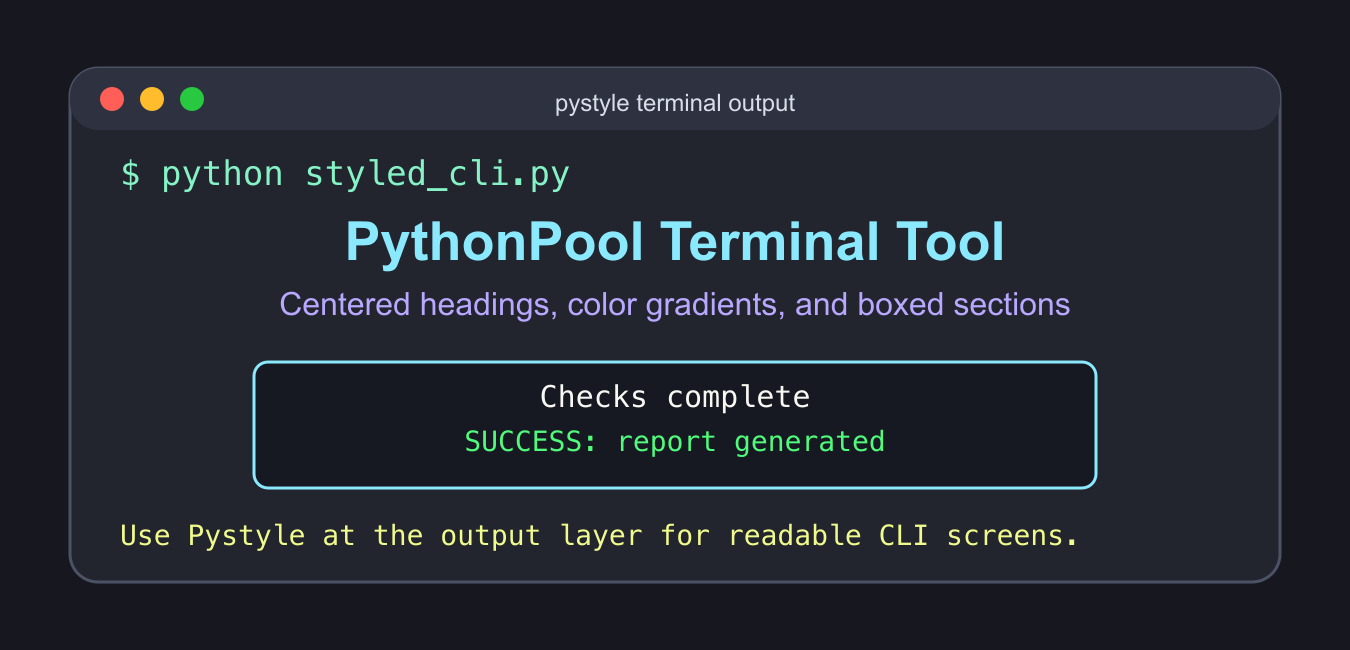
Install the pystyle package and import the helpers you need, such as Center, Colorate, Colors, and Box. Treat styling as presentation: keep the message readable without color, avoid slow write effects in logs, and verify the package’s current API before copying an example.
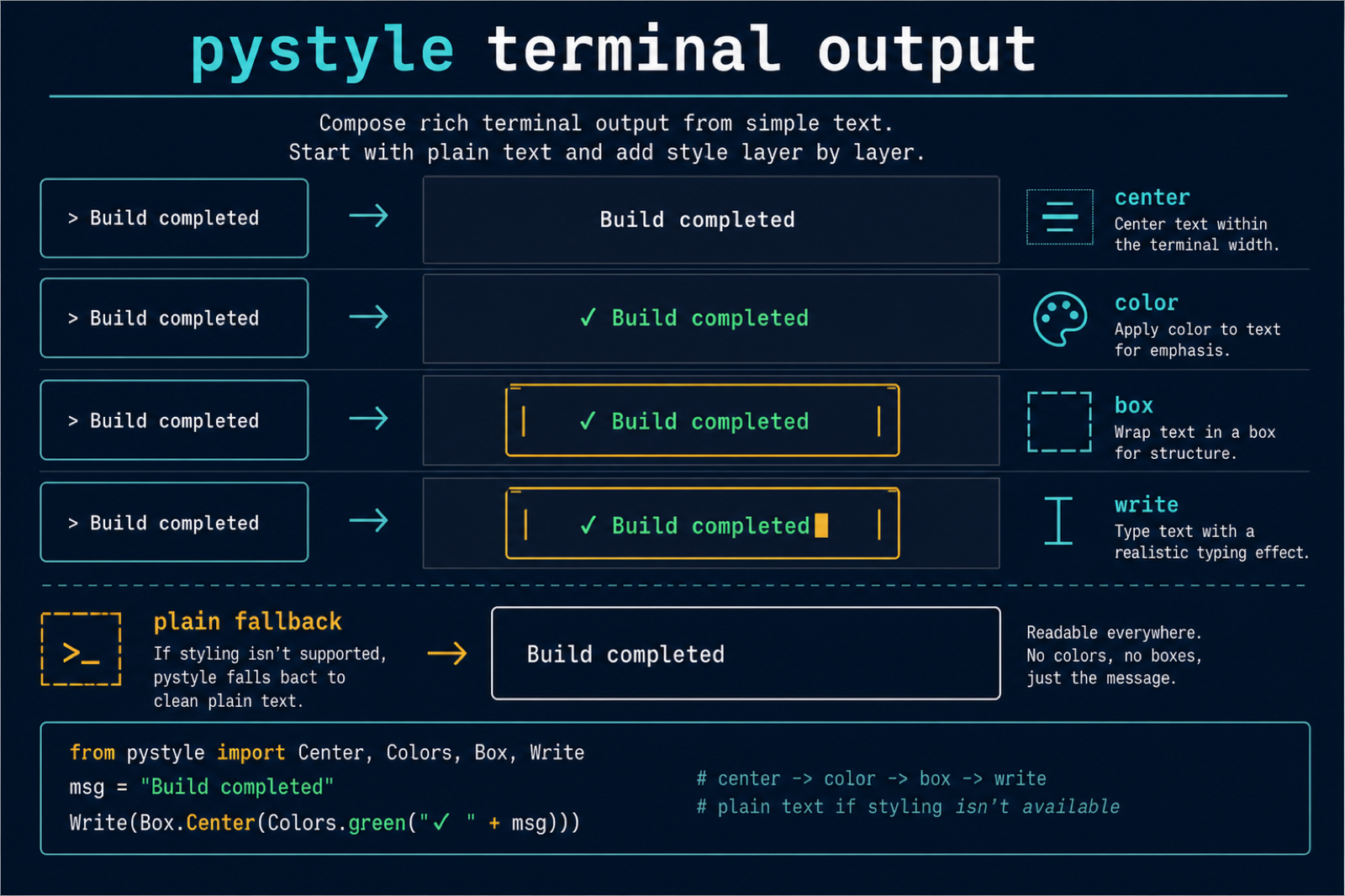
Pystyle is a Python package for creating styled terminal output. It helps you add colors, centered text, boxed sections, slow writing effects, and simple console screen controls to command-line tools.
Use Pystyle when the output is meant for a human reading a terminal. It is useful for small CLIs, demos, learning tools, local scripts, and menu screens where plain text is technically correct but hard to scan. The Pystyle package page is the best source for the current install command and package release details.
Keep styling separate from program logic. Your functions should still return normal strings, lists, numbers, or objects. Add Pystyle near the output layer, where the program is about to print a heading, status message, prompt, menu, or result.
Install And Import Pystyle
Install the package in your active environment, then import only the helpers you need. Most examples use Colors for palettes, Colorate for applying color, Center for alignment, and Box for terminal panels.
from pystyle import Box, Center, Colorate, Colors

title = "PythonPool Terminal Tool"
subtitle = "Styled output with Pystyle"

print(Colorate.Horizontal(Colors.blue_to_cyan, Center.XCenter(title)))
print(Colorate.Horizontal(Colors.green_to_blue, Center.XCenter(subtitle)))
print(Box.Lines("Ready"))
If this import fails, confirm that the package is installed for the same Python interpreter that runs the script. This is especially common when a machine has several Python versions or separate virtual environments.
Create Centered Headings
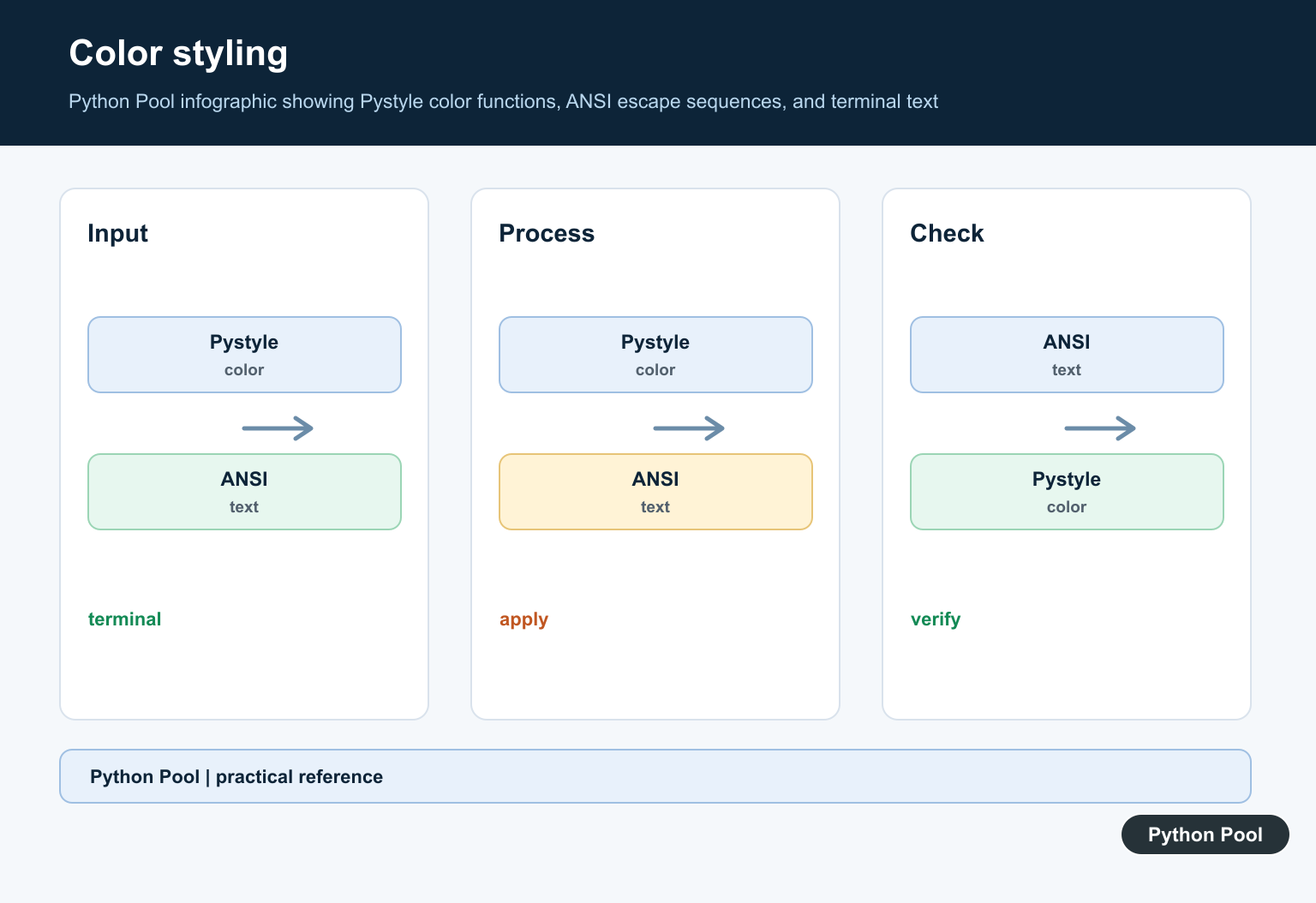
Centered headings make terminal screens easier to read when a script prints menus, setup steps, or summary output. Use centering for headings, not for every line.
from pystyle import Center, Colorate, Colors

heading = "Daily Data Check"
message = "3 files scanned successfully"

print(Colorate.Horizontal(Colors.purple_to_blue, Center.XCenter(heading)))
print(Center.XCenter(message))
Use short text for centered lines. Very long headings can wrap differently across terminal widths, which makes output harder to read.
Show Boxed Sections
Boxes are useful for grouping related information. They work well for menus, status summaries, and small result panels.
from pystyle import Box, Colorate, Colors

summary = """Checks complete
Passed: 12
Failed: 0"""

panel = Box.DoubleCube(summary)
print(Colorate.Vertical(Colors.green_to_cyan, panel))
A box should contain compact text. If the content is a long report, write the report normally and reserve the box for the title or final summary.
Print Colored Status Lines
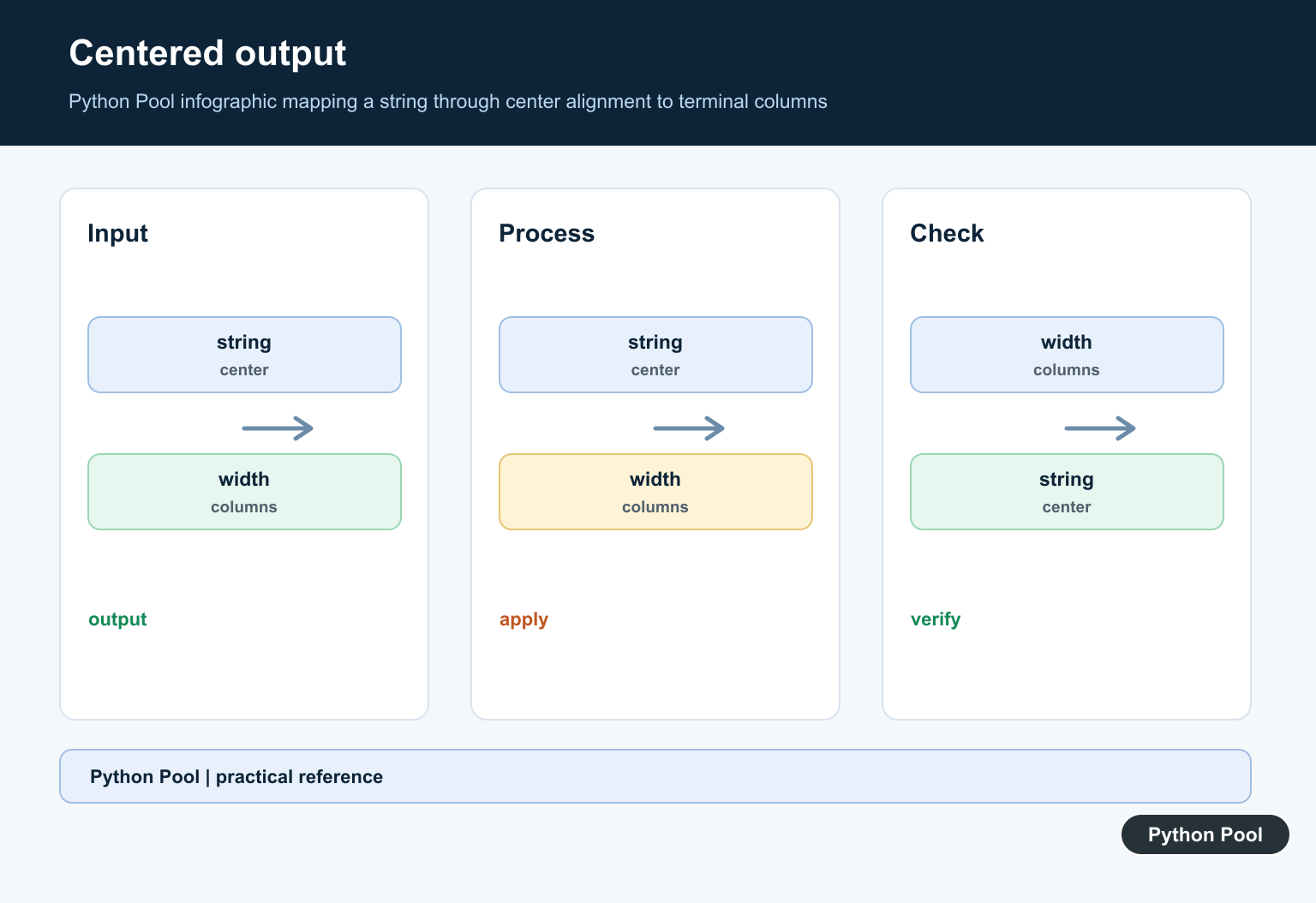
Colors help separate success, warning, and error messages. Keep the words clear so the message still works in terminals with limited color support.
from pystyle import Colorate, Colors

success = Colorate.Horizontal(Colors.green_to_cyan, "SUCCESS: backup completed")
warning = Colorate.Horizontal(Colors.yellow_to_red, "WARNING: retry scheduled")

print(success)
print(warning)
Do not rely on color alone for meaning. Prefixes such as SUCCESS, WARNING, and ERROR make logs easier to search and copy.
Add Write Effects Sparingly
Pystyle can print text gradually with Write.Print(). This can make demos feel polished, but it slows output and should not be used for logs or automated scripts.
from pystyle import Colors, Write

Write.Print(
    "Preparing the terminal report...\n",
    Colors.cyan_to_blue,
    interval=0.02,
)
Use a small interval and keep the line short. For production tools, make animated output optional so users can disable it in fast or non-interactive runs.
Clear The Screen And Set A Title
For local terminal tools, Pystyle can help prepare a clean screen before printing a menu. Screen control is best for interactive tools, not for scripts that write logs for later review.
from pystyle import Box, System

System.Clear()
System.Title("PythonPool CLI")

menu = """1. Run check
2. Show report
3. Exit"""

print(Box.Lines(menu))
Clearing the screen can hide useful previous output. If a command is meant for debugging, auditing, or continuous integration, prefer normal append-only output.
Use A Plain Text Fallback
Terminal styling should improve readability, not make the program depend on decoration. A simple wrapper lets your script keep working when Pystyle is not installed.
This approach is useful for shared scripts. Teammates who want the richer display can install Pystyle, while other users still get readable output. A plain text fallback also helps when output is redirected to a file, copied into an issue, or viewed in a terminal that does not handle color codes well. Terminal styling can make small demos more engaging; Pyjokes in Python: Programmer Jokes supplies safe programmer-joke output for that kind of example.
The fallback does not need to be complex. Keep one small formatting function near your output code. When styling is available, it can apply color or centering. When styling is unavailable, it can return the original message unchanged. That keeps the rest of the program free from repeated checks.
Best Practices
Use Pystyle at the display boundary. Build normal data first, format it into short strings, then apply color, boxes, or centering. This keeps the important parts of the program easy to test.
Avoid heavy styling in machine-readable output. If another program will parse the text, color codes and decorative boxes can create extra work. Provide a plain mode for logs, JSON output, cron jobs, and CI runs.
Be consistent with color choices. Use one color family for success, another for warnings, and a separate one for errors. If every line has a gradient, the important lines stop standing out. Style headings and status changes first, then leave routine output simple.
Also consider terminal width. A box that looks good on a wide desktop terminal can wrap awkwardly in a narrow pane. Short labels, compact summaries, and regular line breaks make Pystyle output easier to read across different screens.
The reliable pattern is simple: write the terminal message clearly, add one styling choice that helps the reader, and keep the original meaning visible even when colors are removed. That gives you a more readable CLI without turning output formatting into the main complexity of the script.
Compose Styled Output Without Hiding the Message
Use Pystyle to add presentation to a short terminal message, not to replace the message itself. Centering, color, and a box can be applied as separate steps.
from pystyle import Box, Center, Colorate, Colors

message = "Build completed"
styled = Colorate.Horizontal(
    Colors.green_to_cyan,
    Center.XCenter(message),
)
print(Box.Lines(styled))
Keep status text meaningful even when ANSI color is unsupported or output is redirected to a file. For CI logs, prefer plain text or a logging library with levels and timestamps.
Use Effects Sparingly and Keep a Fallback
Animated writing effects can make a demo feel polished but can slow scripts, complicate captured output, and make tests harder to read. Use them only for interactive terminal experiences.
try:
    from pystyle import Center, Colors, Colorate
    print(Colorate.Horizontal(Colors.blue_to_cyan, Center.XCenter("Ready")))
except ImportError:
    print("Ready")
Package APIs can change, so pin a tested dependency version for a project and link readers to the package documentation for the exact release being used.
Frequently Asked Questions
What is Pystyle used for in Python?
Pystyle is used to format terminal output with helpers for alignment, color, boxes, and optional writing effects.
How do I center text with Pystyle?
Use the Center helper from the installed Pystyle version, commonly Center.XCenter(text), and print the returned string.
Should I use Pystyle for application logs?
Keep logs readable without terminal styling. A logging library is usually better for timestamps, levels, files, and machine-readable output.
What if Pystyle is unavailable or color is unsupported?
Provide a plain-text fallback, pin a tested package version, and avoid making program correctness depend on terminal color or animation.
