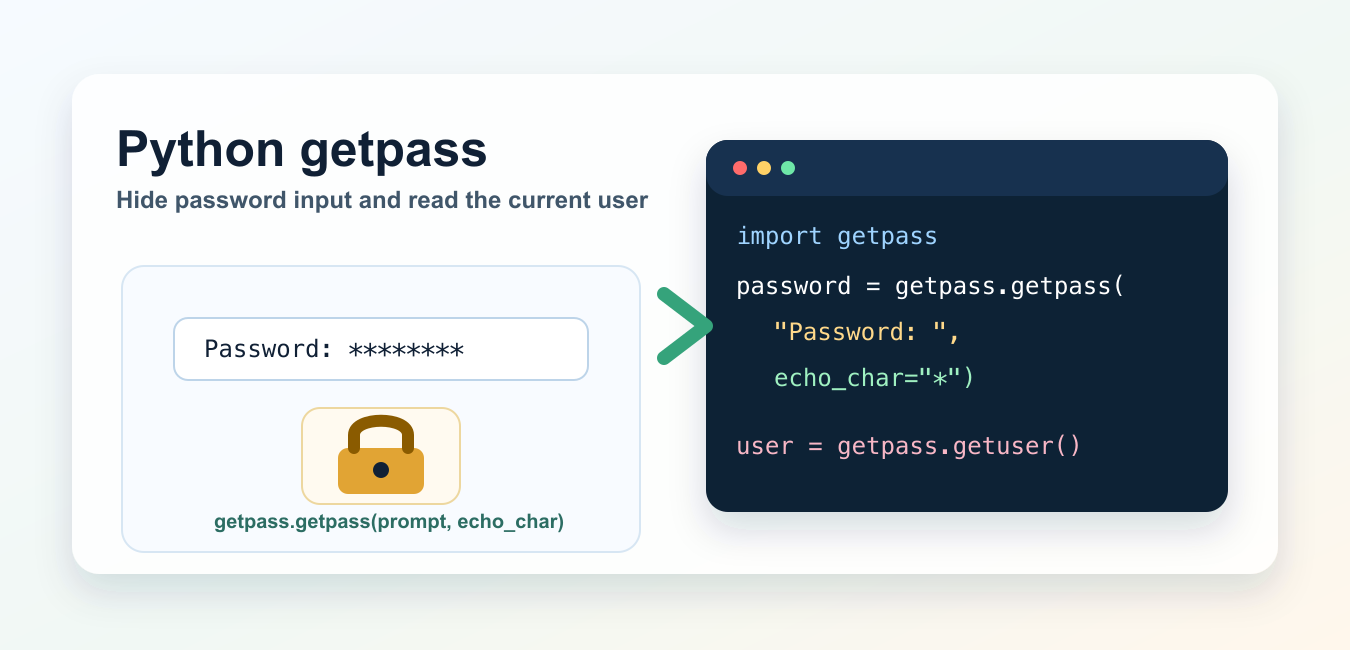
Quick answer: getpass reads a secret without echoing typed characters in a compatible terminal. That is only one part of credential safety: handle non-interactive environments explicitly, keep the secret’s lifetime narrow, and use a secret manager or protected injection for automation.
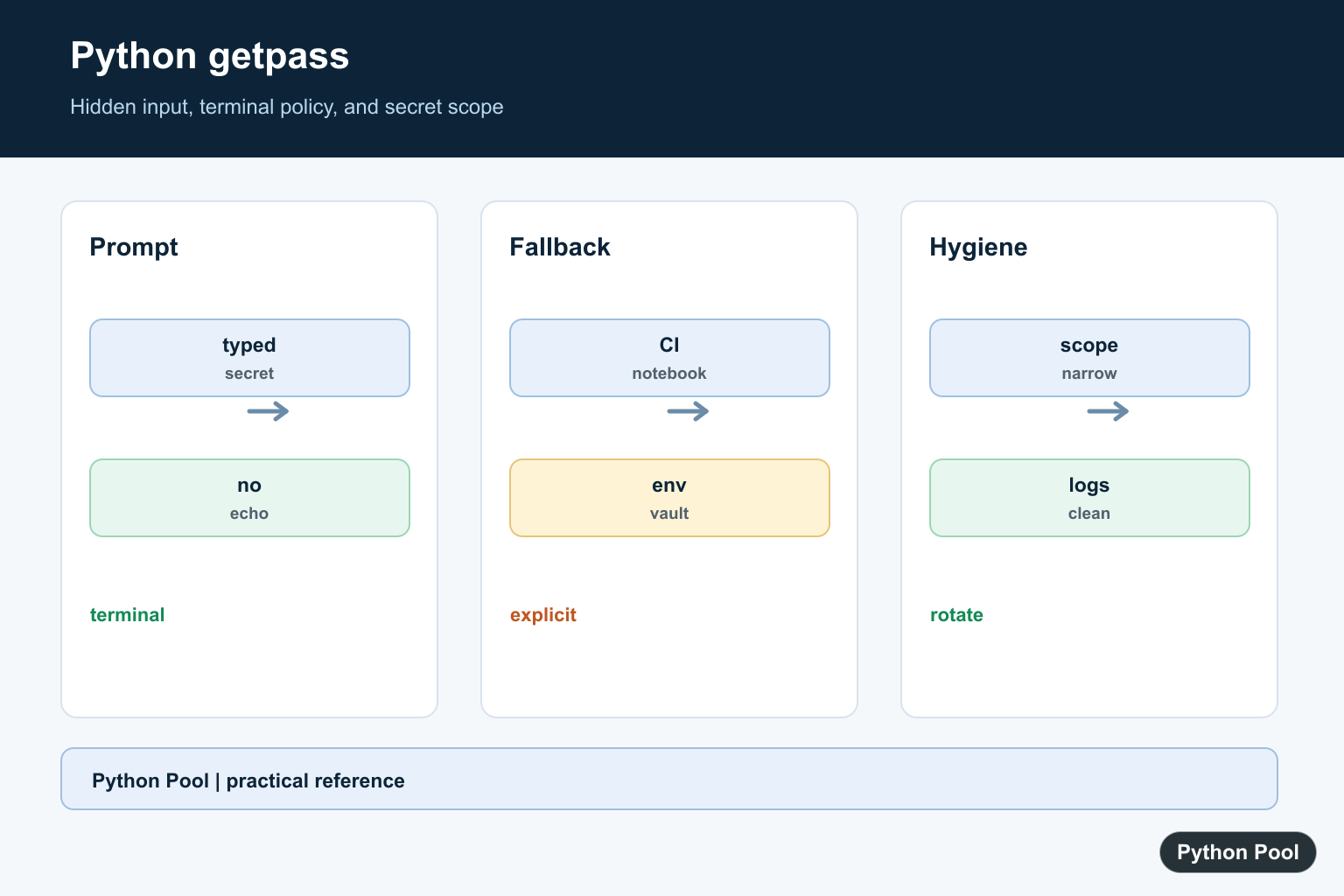
The Python getpass module reads sensitive input from the terminal without showing the typed characters. It is useful for command-line scripts that need a password, token, passphrase, or other secret that should not appear in terminal history or on the screen.
This guide covers getpass.getpass(), the new echo_char option in Python 3.14, getpass.getuser(), warning handling, and the cases where getpass is not enough by itself.
Basic getpass example
Import the module and call getpass.getpass(). By default, the prompt is Password: and the typed password is hidden.
import getpass

password = getpass.getpass("Password: ")
print(f"Received {len(password)} characters")
The function returns the password as a string. Do not print the password itself. If you need command-line control flow around the prompt, the Python exit guide shows how to return clear status codes from scripts.
Use a custom prompt
The prompt argument lets you show a more specific message.
import getpass

password = getpass.getpass(prompt="Account password: ")
print("Password captured without echo")
Keep the prompt short and avoid revealing sensitive context. For example, "Password: " or "API token: " is usually enough.
Show masked feedback with echo_char
Python 3.14 added echo_char. When it is set to a single printable ASCII character, Python shows that character for each typed character instead of hiding all input.
import getpass

password = getpass.getpass("Password: ", echo_char="*")
print(f"Received {len(password)} characters")
Use echo_char="*" when users need feedback that typing is being accepted. The password itself is still not displayed. If echo_char is None, which is the default, input remains hidden.
There is one important Unix note: when echo_char is enabled, the terminal may use noncanonical mode, so line-editing shortcuts such as Ctrl+U may not behave the way users expect.
Get the current user with getuser()
getpass.getuser() returns the current user’s login name. It checks common environment variables first and then falls back to the system password database where available.
import getpass

username = getpass.getuser()
print(username)
On the local Python 3.14 check for this update, getpass.getuser() returned the current macOS user. If your script also reads normal text input, see Python user input for conversion and validation patterns.
Handle GetPassWarning
If Python cannot turn off terminal echo, getpass() falls back to reading from sys.stdin and emits getpass.GetPassWarning. That means password input may be visible.
import getpass
import warnings

with warnings.catch_warnings(record=True) as caught:
    warnings.simplefilter("always", getpass.GetPassWarning)
    password = getpass.getpass("Password: ")

    insecure = any(
        isinstance(item.message, getpass.GetPassWarning)
        for item in caught
    )

if insecure:
    print("Warning: password input may have been echoed")
This matters in IDE consoles, notebooks, redirected input, and environments without a real terminal. The official docs also note that IDLE may read input from the terminal that launched IDLE rather than the IDLE window itself.
Do not store passwords in plain text
getpass hides input while the user types. It does not hash, encrypt, store, validate, or transmit the password securely. After reading the value, your program is responsible for safe handling. Hidden password input is useful for an interactive mail client; Python IMAP with imaplib: Read Email Safely adds IMAP over TLS, mailbox selection, message search, and safe credential handling.
For local files, avoid writing raw secrets to disk. If you need to store application settings, keep secrets separate from ordinary configuration. If you need to hash or compare values, review the Python MD5 guide for hashing basics, but use stronger password-specific hashing tools for real authentication systems.
getpass in scripts
A practical command-line script usually combines getpass(), input validation, and a clear exit code.
import getpass
import sys


def main():
    username = getpass.getuser()
    password = getpass.getpass(f"Password for {username}: ")

    if not password:
        print("Password is required")
        return 1

    print("Ready to continue")
    return 0


if __name__ == "__main__":
    sys.exit(main())
This structure keeps the program testable because main() returns a status code. If you are checking which interpreter supports echo_char, use the guide to checking your Python version.
Common getpass mistakes
Do not use input() for passwords, because the typed value is visible. Do not print the secret after reading it. Do not assume getpass works the same inside every IDE, notebook, or web console. For Flask or web apps, password input should be handled through HTML forms and server-side validation, not terminal prompts. See Flask image troubleshooting for a related reminder that web runtime behavior differs from terminal scripts.
If your script processes file paths or generated credentials, the guides to getting a filename from a path and appending strings in Python may also help.
Official references
The behavior described here follows the Python documentation for the getpass module, getpass.getpass(), getpass.getuser(), and GetPassWarning.
Conclusion
Use getpass.getpass() when a terminal script needs sensitive input without echoing it. In Python 3.14 and later, use echo_char="*" when users need masked feedback. Use getpass.getuser() for the current login name, and always treat the returned password string carefully after it enters your program.
Prompt Without Echo
getpass.getpass is appropriate for a human-operated terminal prompt. Do not include a secret in the prompt text or print the returned value while debugging.
import getpass

password = getpass.getpass("Password: ")
print("received", bool(password))
Handle Non-Interactive Jobs
Notebooks, redirected standard input, and CI jobs may not have a controlling terminal. Decide whether to fail, use a protected environment variable, or call a secret provider instead of hanging.
import os

secret = os.environ.get("APP_SECRET")
if not secret:
    raise RuntimeError("APP_SECRET must be provided for non-interactive execution")
print("secret loaded")
Keep Secret Scope Narrow
Pass the secret only to the operation that needs it and avoid global state, shell arguments, tracebacks, and logs. Clear references when the surrounding library permits it.
def authenticate(secret):
    if not secret:
        raise ValueError("empty secret")
    return True

print(authenticate("temporary-value"))
Choose A Storage Boundary
For repeated automation, use an operating-system secret store or managed secret service with access control and rotation. Environment variables are an injection mechanism, not automatically a secure vault.
source = "secret manager or protected environment"
if source.startswith("secret"):
    print("load through the approved boundary")
Python’s getpass documentation covers terminal behavior and fallback warnings. Related references include hashing boundaries, SSH credentials, and testing error paths.
For related credential boundaries, compare hashing limits, SSH credentials, and failure-path testing when handling secrets.
Frequently Asked Questions
What does Python getpass do?
It prompts for a password or secret without echoing the typed characters to a compatible terminal.
Does getpass work in every environment?
No. IDEs, notebooks, redirected input, and automated jobs may not provide a usable controlling terminal.
Should I store the returned password in a global variable?
Keep secret lifetime and scope as narrow as practical and avoid printing, tracing, or persisting it accidentally.
What should automation use instead of getpass?
Use a secret manager or protected environment injection with an explicit non-interactive failure policy.
