
Zapier is an online automation tool that connects Document360 with hundreds of third-party applications without requiring any code. It works by creating automated workflows called Zaps - each Zap consists of a trigger (an event in one app) and an action (something that happens automatically in another app as a result). Once you connect Document360 to Zapier using an API token, you can build workflows that move data between Document360 and the tools your team already uses, reducing manual work and keeping your knowledge base in sync with the rest of your stack.
When to use the Zapier extension
- You want to automate repetitive documentation tasks — for example, automatically creating a Document360 article draft when a new row is added to a Google Sheet, or when a form is submitted in Typeform.
- Your team uses project management tools like Asana, Trello, or monday.com and you want to trigger knowledge base updates when tasks reach a certain stage.
- You want to connect Document360 to CRM platforms like HubSpot, Zoho CRM, or Pipedrive to keep product documentation aligned with sales and support workflows.
- You need to automate notifications or content updates across tools like Gmail or Mailchimp when articles are published or updated in Document360.
Before you begin
- You must have an active Zapier account. If you don't have one, sign up at zapier.com.
- You must have an account in the third-party application you want to connect with Document360 through Zapier.
- If you are new to Zapier, check out Zapier's getting started guide to learn how to build workflows and automate tasks before setting up your first Zap.
How to generate the API token in Document360
The API token is what Zapier uses to authenticate and connect to your Document360 knowledge base.
- Navigate to Connections () > Extensions () in the left navigation bar of the Knowledge base portal.
- Under Team collaboration, on the Zapier extension tile, click Connect.
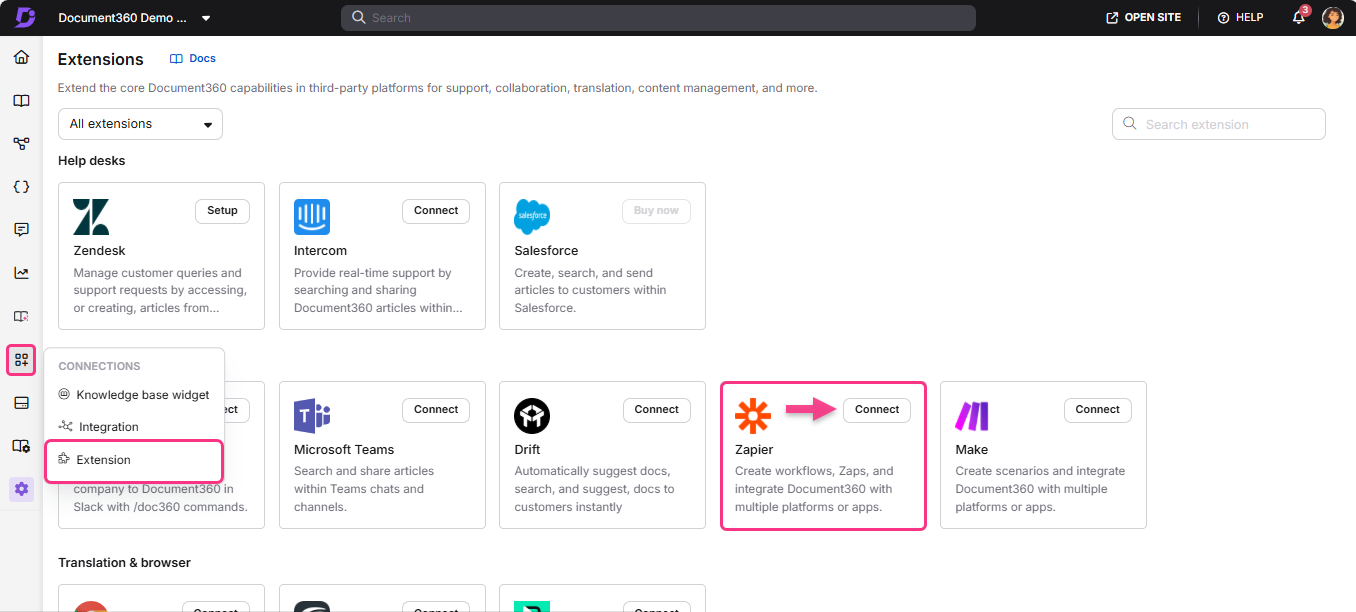
- A Zapier details popup appears with a generated token.
- Click the Copy icon to copy the token.
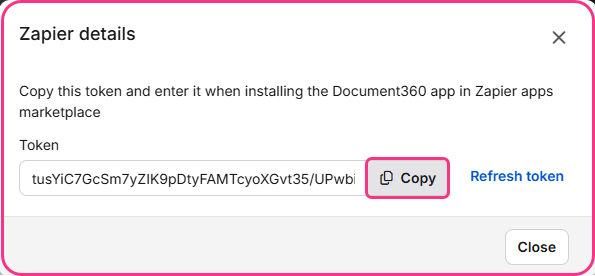
This API token is used to authenticate Document360 when building Zaps in Zapier. Keep it secure — treat it the same way you would a password.
Zapier use cases for Document360
Once you have the API token, you can build Zaps connecting Document360 to any of the following platforms. Each use case article walks through a specific Zap with step-by-step configuration:
Google Docs + Document360
Trigger Document360 actions from Google Docs events or sync content between the two platforms.
Learn more →Google Sheets + Document360
Create or update knowledge base articles automatically when rows are added or updated in Google Sheets.
Learn more →Google Drive + Document360
Automate workflows between Google Drive file events and Document360 article management.
Learn more →Trello + Document360
Trigger knowledge base updates when Trello cards are moved, created, or updated.
Learn more →GitHub + Document360
Connect GitHub events like pull requests or releases to documentation workflows in Document360.
Learn more →Confluence Server + Document360
Migrate or sync content between Confluence Server and your Document360 knowledge base.
Learn more →Zoho CRM + Document360
Automate documentation updates triggered by Zoho CRM events such as new contacts or deal stage changes.
Learn more →Pipedrive + Document360
Connect Pipedrive pipeline events to knowledge base workflows in Document360.
Learn more →HubSpot + Document360
Trigger Document360 article actions from HubSpot CRM events and form submissions.
Learn more →Asana + Document360
Automate knowledge base updates when Asana tasks are created, completed, or updated.
Learn more →monday.com + Document360
Connect monday.com board events to Document360 article creation and update workflows.
Learn more →Typeform + Document360
Use Typeform submissions as triggers to create or update articles in Document360 automatically.
Learn more →Document360 + Gmail
Send Gmail notifications or trigger email workflows from Document360 article events.
Learn more →Document360 + Mailchimp
Automate Mailchimp campaigns or subscriber list updates from Document360 article events.
Learn more →Best practices
- Generate the API token only when you are ready to start building your first Zap — the token is active immediately and grants access to your knowledge base as soon as it is created.
- Store the API token securely. If you suspect it has been compromised, return to Connections > Extensions and generate a new one — the old token will be invalidated.
- Test each Zap thoroughly in Zapier before turning it on. Use Zapier's built-in test step to verify that the trigger and action are working as expected with real data before the workflow runs automatically.
- Start with simple single-step Zaps (one trigger, one action) before building multi-step workflows. This makes it easier to identify which step is failing if something goes wrong.
- Name your Zaps clearly — for example, "Typeform submission → Create Document360 draft" — so your team can understand what each automation does without having to open it.
FAQ
What is a Zap?
A Zap is an automated workflow in Zapier that connects two or more apps. It consists of a trigger — an event in one app that starts the workflow — and one or more actions — tasks that Zapier performs automatically in another app when the trigger fires. For example, a Zapier trigger could be a new Typeform submission, and the action could be creating a draft article in Document360.
Can I connect more than one Document360 knowledge base to Zapier?
Yes. Each Document360 project generates its own API token. You can connect multiple knowledge bases to Zapier by generating a separate token for each project and using the appropriate token when setting up Zaps for that project.
What should I do if my Zap stops working?
First, check Zapier's task history for error messages — Zapier logs the reason for each failed task. Common causes include an expired or invalid API token, changes to the connected app's authentication, or a field in the trigger or action that no longer exists. If the API token has changed, update it in the Zapier connection settings for Document360.
