
Search the Community
Showing results for tags 'language'.
Found 7 results
-
Version 2.1.1
125 downloads
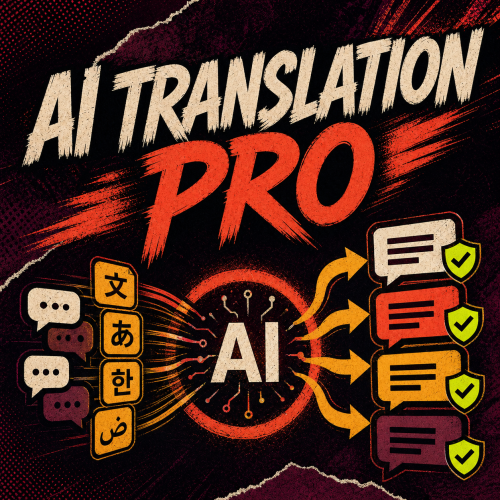
Translate Rust chat and plugin language files In-game chat. Players can read messages in the language they choose. Plugin language files. Translate several plugins at once and review the results before saving. Oxide and Carbon · Translation service billed separately Open the PimpMyRust configurator → Glass Cards Translate several plugins at once Pick the plugins and languages. For example, translate the welcome messages, alerts and menu labels from three plugins into French and German in one run. Preview the translations before replacing the files on your server. After an update. Find new or changed messages that still need translating. One plugin file translated into French and German Let players choose their language Players type /ait to choose their language, turn translation on or off, or show the original message alongside the translation. Global chat is supported. You can also enable translation for team, clan or local chat. Pick and customize one of the three menu templates in the PimpMyRust configurator. Field Radio Compact Console What will translation cost? Your translation provider bills for usage. These estimates use GPT-6 Luna from OpenAI. Example Estimated API cost (USD) One file into one language $0.0012 Ten files into three languages each $0.036 1,000 chat messages a day, one language $0.96 / 30 days 1,000 chat messages a day, three languages $2.88 / 30 days Files. 2,000 input and 2,000 output tokens per file and language. Chat. 120 input and 40 output tokens per translation. The three-language example assumes a higher daily request limit than the default. Estimates use standard rates and exclude tax, retries and extra reasoning tokens. GPT-6 Luna pricing → Configure and translate with PimpMyRust Configure AI Translation Pro → Edit AITranslationPro.json directly or change your settings in the PimpMyRust configurator. Download your files or sync them with a connected server. Choose your translation provider, such as OpenAI, DeepL or Gemini. You can use a different provider for chat and files. Translate from the Hub. Open a plugin’s language files and choose Translate with AI. You can review the result before applying it. This requires access to the Hub’s server tools and a server connected over SFTP and RCON with Pro running. Manual installation Extract the ZIP and merge its folders into oxide/ or carbon/. Load the included PimpMyCUI 1.4.0, then AITranslationPro. Keep the manifest and three layouts together in data/PimpMyCUI/plugin-pages/aitranslationpro/. Set your provider and its API key in config/AITranslationPro.json, then reload. Grant aitranslationpro.chat.use to the groups that can use translated chat and test /ait in game. PimpMyCUI renders the player menu. Chat and file translation work without the menu. To translate a file into French and German from the server console, run aitpro.translateplugin MyPlugin fr de. You can edit the JSON directly or use the optional PimpMyRust configurator. Installation and command guide → · Codefling support →$9.98 -
Version 1.0.5
116 downloads
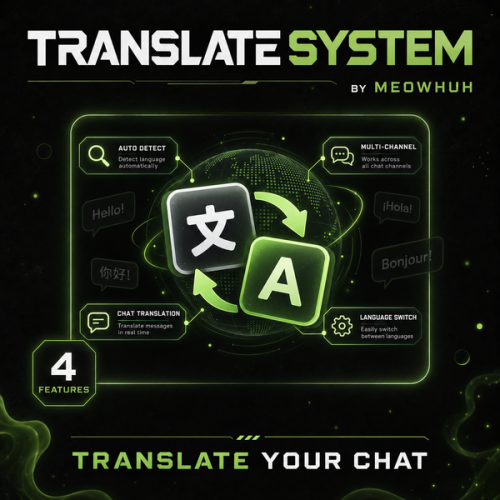
Automatic chat translation for Rust servers. Running an international Rust server should not mean players have to copy messages into external translators just to understand each other. TranslateSystem automatically translates chat messages into each player's selected language while keeping the normal Rust chat experience. Players can use their Rust client language automatically or choose their own language, while server owners can control chat channels, translation services, preserved Rust terms, caching, message filters, permissions, and request limits. Perfect for PvE, PvP, Vanilla+, modded, RPG/RP, international servers, or any server with players speaking different languages. Features Automatically translates chat messages separately for each player's language. Uses the player's Rust client language automatically or allows players to select their own language. Supports Global, Team, Local, Clan, and Card Game chat channels. Enable or disable translation separately for each supported chat channel. Supports MyMemory, Google Cloud Translation, Microsoft Translator, Yandex Cloud, LibreTranslate, and OpenAI. MyMemory is available as the default translation service and fallback if another configured provider fails. BetterChat and IQChat support while keeping their chat formatting. Players can enable or disable translations for themselves at any time. Optional permission requirement for receiving translations. Option to translate the sender's own messages. Option to show the original message underneath the translated message. Automatic source-language detection. Custom language selection for individual players. Preserved Rust terms prevent configured words such as TC, Oil Rig, Cargo, Bradley, AK, sulfur, HQM, Workbench, monument names, and other terms from being translated. Built-in translation cache reuses recent translations and reduces unnecessary API requests. Configurable cache lifetime and maximum stored translations. Message filters can ignore messages without letters, very short messages, and colon emoji codes such as :heartrock:. Optional per-player rate limiting. Configurable maximum simultaneous translation requests. Configurable API timeout, failed-request cooldown, and rate-limit cooldown. Optional server console chat logging. Configurable command aliases. Player translation settings and selected languages are saved automatically. English and Russian plugin messages included. Supported Languages TranslateSystem supports all 25 Rust client languages, allowing players to communicate across different languages without manually translating chat messages. Players can automatically use their Rust client language or manually select their preferred translation language. Language Language Code English en Russian ru German de French fr Spanish (Spain) es Spanish (Latin America) es-419 Italian it Turkish tr Arabic ar Czech cs Danish da Greek el Polish pl Ukrainian uk Japanese ja Korean ko Chinese (Simplified) zh-cn Chinese (Traditional) zh-tw Dutch nl Norwegian no Swedish sv Finnish fi Portuguese (Portugal) pt-pt Portuguese (Brazil) pt-br Vietnamese vi Tip Example: A German player can use /translate lang de to receive translated messages in German, while a Russian player can use /translate lang ru to receive messages in Russian. Players can also use /translate auto to automatically follow their Rust client language without selecting a language manually. Commands /translate - Shows your current translation status and available commands. /translate on - Enables automatic chat translations for yourself. /translate off - Disables automatic chat translations for yourself. /translate auto - Uses your Rust client language for translations. /translate lang <code> - Sets your translation language manually. /translate status - Shows whether translation is enabled and which language is currently being used. Command aliases are fully configurable. Command Examples /translate /translate on /translate off /translate auto /translate lang en /translate lang de /translate lang ru /translate lang fr /translate lang es-419 /translate lang zh-cn /translate status Note Language Selection Use /translate auto to automatically follow the player's Rust client language. Use /translate lang <code> to select a preferred language manually. Language preferences are saved automatically. Players can enable or disable translations whenever they want. Admin Command /translate stats - Shows the current translation cache size and active translation requests. Permissions translatesystem.use - Required to use TranslateSystem commands and receive translations when the permission requirement is enabled in the configuration. translatesystem.admin - Allows access to /translate stats. Tip Permission Settings By default, the permission requirement for receiving translations is disabled. Enable Require permission to receive translations in the configuration if you want to restrict translation functionality to selected players or permission groups. Translation Services TranslateSystem supports multiple translation providers, allowing server owners to select the service that best fits their server. Service Description MyMemory Default translation service without requiring your own API key. Google Google Cloud Translation using your API key. Microsoft Microsoft Translator using a subscription key and optional resource region. Yandex Yandex Cloud Translation using your API key. LibreTranslate Connect to a LibreTranslate server with optional API-key support. OpenAI OpenAI API translation with configurable API key, model, and token limit. MyMemory Available as the default translation service. Does not require server owners to configure their own translation API key. Can serve as a fallback when another configured translation provider fails. Google Supports Google Cloud Translation. Requires a Google Cloud Translation API key. Can be selected as the main translation provider. Microsoft Supports Microsoft Translator. Requires a Microsoft Translator subscription key. Supports an optional resource region. Yandex Supports Yandex Cloud Translation. Requires a Yandex Cloud service account API key. LibreTranslate Supports LibreTranslate servers. Configurable server address. Optional API key for servers requiring authentication. OpenAI Supports translation using the OpenAI API. Configurable API key. Configurable model. Configurable maximum completion token limit. Note Translation Service Notes MyMemory is the default translation service. Other translation providers require their respective API credentials or server settings. API request timeouts and cooldowns are configurable. Translation availability for specific language codes can depend on the selected provider. Chat Channels TranslateSystem supports multiple Rust chat channels, with separate configuration options for each channel. Chat Channel Description Global Translates messages sent in global chat. Team Translates messages between team members. Local Translates messages in nearby-player chat. Clan Translates supported clan chat messages. Card Games Translates messages in supported card game chat. Each supported chat channel can be enabled or disabled separately. Tip Example: Enable translation for Global, Team, and Clan chat while disabling translation for Local and Card Game chat. This allows server owners to control where automatic translation is applied. Preserved Rust Terms TranslateSystem allows server owners to configure words and phrases that should remain unchanged during translation. This is useful for preserving commonly used Rust terminology, weapon names, monument names, and abbreviations. Examples of preserved terms: Building and resources: TC, HQM, Workbench, scrap, sulfur. Weapons: AK, AK-47, LR, L96, M2, M249, MP5, SAR, DB, Tommy, Thompson. Monuments and events: Oil Rig, Large Oil, Small Oil, Cargo, Cargo Ship, Bradley, Outpost, Bandit Camp, Launch Site, Airfield, Dome, Train Yard, Power Plant, Military Tunnels. Tip Example: A player sends a message containing AK, TC, or Oil Rig. These configured terms remain unchanged in translated messages, helping players recognize familiar Rust terminology regardless of their selected language. Translation Cache & Request Controls TranslateSystem includes configurable caching and request controls to help manage translation API usage. Setting Description Translation Cache Reuses recently translated messages to avoid unnecessary translation requests. Cache Lifetime Controls how long cached translations are kept. Maximum Cached Translations Limits the number of translations stored in the cache. Maximum Simultaneous Requests Controls how many translation requests can run at the same time. API Timeout Sets the maximum time allowed for translation requests. Failed Request Cooldown Configures a delay after failed API requests. Rate Limit Cooldown Configures a delay when the translation provider reports rate limiting. Player Rate Limit Optionally limits how frequently individual players can submit messages for translation. Note Default Cache Settings Translation caching is enabled. Cached translations are kept for 60 minutes. Maximum cached translations: 5000. Maximum simultaneous translation requests: 1. These values can be changed in the configuration. Message Filters TranslateSystem includes optional message filters to reduce unnecessary translation requests. Skip messages that do not contain letters. Skip short messages below the configured minimum length. Skip colon emoji codes such as :heartrock:. Configure a minimum message length. Optionally limit translation requests per player. Configure the number of messages allowed within a specified time window. Tip Example: Set the minimum message length to 2 and enable the colon emoji code filter to avoid unnecessary translation processing for very short messages and messages such as :heartrock:. Example Configuration { "Commands": [ "translate" ], "[Chat] Require permission to receive translations": false, "[Chat] Translate sender's own message": false, "[Chat] Show original message under translation": false, "[Chat] Automatically detect the message language": true, "Chat Channels": { "[Chat] Global": true, "[Chat] Team": true, "[Chat] Local (nearby players)": true, "[Chat] Clan": true, "[Chat] Card games": true }, "Translation": { "[API] Selected service (choose MyMemory, LibreTranslate, Google, Microsoft, Yandex or OpenAI)": "MyMemory", "[OpenAI] API key": "", "[OpenAI] Model": "", "[OpenAI] Maximum completion tokens": 500, "[Google] Cloud Translation API key": "", "[Microsoft] Translator subscription key": "", "[Microsoft] Resource region (empty for global)": "", "[Yandex] Cloud service account API key": "", "[LibreTranslate] Server address": "", "[LibreTranslate] API key (if required)": "", "[API] Request timeout (seconds)": 10.0, "[API] Wait after a failed request (seconds)": 30.0, "[API] Wait after rate limit (seconds)": 300.0 }, "Message Filters": { "[Filter] Skip messages without letters": true, "[Filter] Skip colon emoji codes such as :heartrock:": true, "[Filter] Minimum message length (characters)": 2 }, "Cache": { "[Cache] Reuse recent translations": true, "[Cache] Keep translations for (minutes)": 60, "[Cache] Maximum saved translations": 5000 }, "Requests": { "[Requests] Maximum requests at the same time": 1 }, "Player Rate Limit": { "[Rate Limit] Limit messages per player": false, "[Rate Limit] Messages allowed per player": 8, "[Rate Limit] Count messages over this period (seconds)": 10.0 }, "[Chat] Log chat to server console": false, "[Chat] Words and Rust terms to leave untranslated": [ "TC", "Oil Rig", "Large Oil", "Small Oil", "Cargo", "Cargo Ship", "Bradley", "Bradley APC", "AK", "AK-47", "LR", "L96", "M2", "M249", "MP5", "SAR", "DB", "Tommy", "Thompson", "scrap", "sulfur", "HQM", "Workbench", "Outpost", "Bandit Camp", "Launch Site", "Airfield", "Dome", "Train Yard", "Power Plant", "Military Tunnels" ], "Config Version": { "Major": 1, "Minor": 0, "Patch": 1 } } Note Configuration Notes Commands: Configurable chat command aliases. Require Permission: Controls whether players need permission to receive translations. Translate Sender: Optionally translates the sender's own messages. Show Original: Displays the original message underneath the translated message. Language Detection: Automatically detects the source language of messages. Chat Channels: Controls translation separately for Global, Team, Local, Clan, and Card Game chat. Translation Service: Selects MyMemory, Google, Microsoft, Yandex, LibreTranslate, or OpenAI. API Settings: Configure service credentials, request timeouts, and cooldowns. Message Filters: Configure minimum message length, non-letter message filtering, and emoji code filtering. Cache: Configure translation caching, cache lifetime, and maximum cached translations. Requests: Controls the maximum number of simultaneous translation requests. Player Rate Limit: Optionally limits translation requests per player. Chat Logging: Enables or disables server console chat logging. Preserved Terms: Defines words and Rust terminology that should not be translated. Warning Important: Some translation services require valid API credentials and may have their own usage limits or costs. Check the selected provider's supported languages, pricing, and request limits before enabling it on a busy server. MyMemory is available as the default translation service without requiring your own API key. Why Choose TranslateSystem? Language differences can make communication difficult on Rust servers with players from different countries. TranslateSystem handles translation automatically for each player while still giving them control over whether translations are enabled and which language they want to use. With support for all 25 Rust client languages, multiple translation services, BetterChat and IQChat compatibility, configurable chat channels, preserved Rust terms, caching, message filters, and request controls, TranslateSystem makes it easier for players speaking different languages to communicate naturally in the same chat. Whether you run a small international server or a large multilingual community, TranslateSystem helps remove language barriers without requiring players to leave the game or use external translation tools$13.99- 3 reviews
-
- 3
-

-

-
- #translate
- #system
- (and 8 more)
-

Version 1.8.0
161 downloads
Smart Kill Log Features - Global Kill Log: Server-wide kill feed displayed to all connected players - Smooth Animations: Professional slide-in and slide-out effects with easing (FPS depends on the server) - Personal Notifications: Center-screen zoom notifications when you kill or down someone - Sound Effects: Audio feedback for kills and downs - Customizable Position: Display on left or right side of screen, adjustable vertical position - Opacity Fade: Older entries gradually fade out for cleaner visuals - NPC Support: Tracks kills involving NPCs (scientists, animals, etc.) - Multi-language Support: English, Japanese, Chinese , Russian, French - Custom Background Images: Fully customizable UI backgrounds via ImageLibrary Kill Log Display The kill log shows detailed information for each event: - Attacker name (gold color for players, white for NPCs) - Action type: killed (red), downed (blue), died (purple) - Victim name - Weapon used - Distance in meters Personal Notifications When you kill or down another player, a centered notification appears with: - Zoom-in animation effect - The victim's name highlighted - Action type (Killed/Downed) - Sound effect feedback Dependencies ImageLibrary (for custom background images) If ImageLibrary is not installed, the plugin works without background images. Commands /killlog Toggles the display of the kill log on/off. /killlog notif Toggles the display of kill notifications on/off. - These settings persist even after restarting the server. Configuration { "Kill Log Settings": { "Enabled": true, "Max Logs": 8, "Display Duration (seconds)": 10.0, "Position (Right or Left)": "Right", "Position Y (0.0-1.0, 0.5=center)": 0.83, "Font Size": 12, "Fade Opacity": true, "Show Weapon and Distance": true, "Show Player vs NPC Kills": true, "Show NPC vs Player Kills": true, "Show NPC vs NPC Kills": true, "Show Suicide Kills": true, "Show Critter Kills": false, "Animation FPS": 60.0 }, "Kill Notification Settings": { "Enabled": true, "Display Duration (seconds)": 1.5, "Position Y (0.0-1.0, 0.5=center)": 0.4, "Font Size": 14 }, "Image Settings": { "Kill Log Background Image URL (Right)": "https://www.dropbox.com/scl/fi/phjuyg4zcm3f0w4maaupi/.png?rlkey=woo4to4ree1taaly5z6euahup&st=a47ypflv&dl=1", "Kill Log Background Image URL (Left)": "https://www.dropbox.com/scl/fi/27x7nr9y77eoaq40ybvgb/.png?rlkey=392e8qmzgdmadu9812y1f1psm&st=0j6yvfyv&dl=1", "Kill Notification Background Image URL (Center)": "https://www.dropbox.com/scl/fi/y0j8alca59m7eqnluwhr0/.png?rlkey=u8mk5qajmr6oqnb41dulorpz5&st=9ocyqggb&dl=1" }, "Color Settings": { "Player Name Color (hex)": "#ffd700", "NPC Name Color (hex)": "#ffffff", "Weapon/Distance Color (hex)": "#f5f5f5", "Killed Action Color (hex)": "#f08080", "Downed Action Color (hex)": "#87cefa", "Died Action Color (hex)": "#dda0dd", "Notification Player Name Color (hex)": "#ff8c00", "Notification NPC Name Color (hex)": "#ff8c00", "Notification Action Text Color (hex)": "#EAE2DA" } } Kill Log Settings: Max Logs: Maximum number of entries displayed at once (default: Display Duration: How long each entry stays visible (default: 10 seconds) Position: Screen side for the kill log (Right or Left) Position Y: Vertical position (0.0 = bottom, 1.0 = top, 0.5 = center) Fade Opacity: Gradually fade older entries Show Settings : Display settings for NPC and player kill events Show Settings : Display settings for NPC and player kill events Animation FPS : This limits the animation frame rate. Even if the game frame rate on the client is 120fps, it will be limited to the set frame rate. Kill Notification Settings: - Display Duration: How long the center notification shows (default: 1.5 seconds) - Position Y: Vertical position for the notification Image Settings: - Provide URLs to custom PNG images for backgrounds - Separate images for left/right positioning and center notification Contact VOID / NINJA WORKS DISCORD : https://discord.gg/U8uxePjSyA MADE IN JAPAN$20.00 -
Language File { "RespawnCooldownFinished": "Respawn cooldown is over! You receieved {0}.", "GainedAmountMessage": "You killed {0} and received {1} from them.", "GainedAmountWithBonusMessage": "You killed {0} and received {1} from them + {2} bonus for your current risk level.", "StaticGainedAmountMessage": "You killed {0} and received {1}." }
-
Language File { "InvalidAmount": "Invalid amount.", "PlayerNotFound": "Unable to find player.", "AddBalUsage": "Usage: /addabal <amount> <player name> ", "AddBankUsage": "Usage: /addbank <amount> <player name> ", "RemoveBalUsage": "Usage: /removebal <amount> <player name>", "RemoveBankUsage": "Usage: /removebank <amount> <player name>", "BankDepoUsage": "Usage: /depo <amount> e.g. /depo 50 or /depo all", "BankWithdrawUsage": "Usage: /take <amount> e.g. /take 50 or /take all", "BankTransferUsage": "Usage: /send <amount> <player name> e.g. /send 50 <player name> or /send all <player name>", "BankBalance": "You have {0} in your wallet and {1} in your bank.", "WalletBalance": "You have {0} in your wallet. Use the command near your tool cupboard to check your bank balance.", "SuccessAddedToCurrentBalance": "Successfully added {0} to {1}'s current wallet balance. Their current wallet balance is {2}.", "SuccessAddedToBankBalance": "Successfully added {0} to {1}'s bank balance. Their current bank balance is {2}.", "SuccessRemovedFromCurrentBalance": "Successfully removed {0} from {1}'s current wallet balance. Their current wallet balance is {2}.", "SuccessRemovedFromBankBalance": "Successfully removed {0} from {1}'s bank balance. Their current bank balance is {2}.", "InsufficientDeposit": "You don't have enough to deposit that amount.", "InsufficientWithdraw": "You don't have enough in your bank to withdraw that amount.", "InsufficientTransfer": "You don't have enough in your bank to transfer that amount.", "DelayedInsufficientDeposit": "Your request to deposit from {0} seconds ago failed. You don't have enough to deposit that amount.", "DelayedInsufficientWithdraw": "Your request to withdraw from {0} seconds ago failed. You don't have enough in your bank to withdraw that amount.", "DelayedInsufficientTransfer": "Your request to transfer from {0} seconds ago failed. You don't have enough in your bank to transfer that amount.", "RequestToDeposit": "Your request to deposit {0} to your bank will be completed in {1} seconds.", "RequestToWithdraw": "Your request to withdraw {0} from your bank will be completed in {1} seconds.", "RequestToTransfer": "Your request to transfer {0} to {1} will be completed in {2} seconds.", "SuccessfulDeposit": "Successfully deposited {0} to bank.", "SuccessfulWithdraw": "Successfully withdrew {0} from bank.", "SuccessfulTransfer": "Successfully transferred {0} to {1}.", "DelayedSuccessfulDeposit": "Successfully deposited {0} to bank. (Requested {1} seconds ago).", "DelayedSuccessfulWithdraw": "Successfully withdrew {0} from bank. (Requested {1} seconds ago).", "DelayedSuccessfulTransfer": "Successfully transferred {0} to {1}. (Requested {2} seconds ago).", "DepositRequiresToolCupboard": "You must be within your tool cupboard range to deposit.", "WithdrawRequiresToolCupboard": "You must be within your tool cupboard range to withdraw.", "TransferRequiresToolCupboard": "You must be within your tool cupboard range to transfer.", "OpenBankGUIRequiresToolCupboard": "You are not inside of your tool cupboard range and will not be able to open your bank.", "BankStatusWelcomeMessage": "Hello {0}, welcome to the {1}. How can I help you today?", "BankStatusToolCupboardRangeMessage": "Warning: You are not inside of your tool cupboard range and will not be able to {0}.", "TransferReceived": "You received a transfer of {0} from {1}.", "TransferErrorSendToSelf": "You can not send a transfer to yourself.", "UnableToSendOfflineTransfer": "The player you tried sending a transfer to is offline.", "UnableToTransferDuringRaidBlock": "Unable to send transfer. You are raid blocked!", "AddToBankCommandUnavailable": "The /addbank command is unavailable when using the tool cupboard raiding feature. Use /addbal instead.", "RemoveFromBankCommandUnavailable": "The /removebank command is unavailable when using the tool cupboard raiding feature.", "RaidPayout": "You just raided a tool cupboard and found {0} inside!", "BankTitle": "TC Banking System" }
-
Language File { "GameEnded": "Monument Control is over!\nWinners:\n{0}", "GameEndedNoWinner": "Monument Control is over! There was no winner.", "CurrentLeaders": "Monument Control\nTime Remaining: {0} seconds\nLeaderboard:\n{1}", "MonumentControlStarted": "Monument Control has started!\nLocation: {0}\n1st Place Reward: ${1}", "MinigameCreated": "Monument Control minigame started at {0}", "MonumentRequiredError": "Error: You must specify a monument name. e.g. /control launch", "GameInProgressError": "Error: There is already a game in progress.", "MonumentNotFoundError": "Error: Unable to locate monument." }
-
Language File { "GameTitle": "DICE GAME", "BetSet": "Your bet has been set to ${0}", "InvalidBet": "Invalid bet amount", "WinBet": "You just won ${0}!", "LoseBet": "Bad luck!", "SetBet": "Your bet has been set to ${0}", "GameSettings": "{0} total numbers | {1} and over win", "OnCooldown": "You're on cooldown!", "InsufficientWithdraw": "You don't have enough money to bet that much", "EnterBetGUILabel": "Enter Bet", "RollButtonGUILabel": "Roll", "CloseButtonGUILabel": "Close" }