
Search the Community
Showing results for tags 'auto'.
-
Version 2.4.1
4,431 downloads
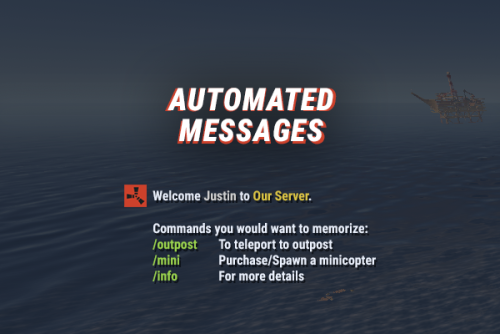
Automated chat messages based on chat keywords, advanced scheduling modes, or various other triggers. In addition to sending messages, the plugin can also automatically run server console commands when an action triggers. Admin UI — easy-to-use editor for complete setup Scheduling — Interval, Server Time, Game Time and Countdown modes Localization — localized replies for every language the game supports Targeting — send messages only to specific Groups or Permissions Player toggle — players can turn messages on/off if they don't find them useful Video Supported Triggers Scheduling & Chat — Timed · ChatCommand · AutoReply Connection — NewPlayerJoined · PlayerConnected · PlayerDisconnected Permissions & Groups — PermissionGranted · PermissionRevoked · AddedToGroup · RemovedFromGroup Gameplay — PlayerDead · CrateHacked Deep Sea — EnteredDeepSea · LeftDeepSea Zones — EnteredZone · LeftZone Monuments — EnteredMonument · LeftMonument Tip If what you need isn't listed here but still falls within the scope of the plugin, reach out to me. Commands Command Description Permission /am.edit Opens the Admin UI for complete setup automatedmessages.admin /tips Lets players toggle messages on/off (command name configurable) — Message Localization You can switch between languages in the Admin UI to set up localized replies for every language the game supports. See Config Settings below for how to add languages. Game Tips You can use Rust's native game tip UI to show specific messages instead of, or alongside, sending them to chat. Variables Variables can be included in message text to show additional info based on the trigger or player. The plugin also supports Placeholder API and its extensive list of variables. Variable Description {playername} Player name {playerid} Player Steam ID {playercountry} Player country {online} Number of players online {sleeping} Number of players sleeping {joining} Number of players joining {target} The target string associated with the triggered action {hacklocation} Location of the hacked crate (CrateHacked only) {wipetimeremaining} Time until wipe, like 2d 5h {wipetimeremaining:d} Days until wipe {wipetimeremaining:h} Hours until wipe (0–23) {wipetimeremaining:th} Total hours until wipe {countdown} Live time remaining (Countdown scheduling mode) {countdown:m} Minutes remaining (0–59) {countdown:s} Seconds remaining (0–59) {countdown:tm} Total minutes remaining {countdown:ts} Total seconds remaining Wipe time is based on Rust convar settings if a Missile Silo monument is present. Config Settings Note Only settings not available in the Admin UI are listed below. It's highly recommended to edit triggers and actions using /am.edit. Setting Description Replies Server Languages Languages your server will support (see list below) Default Server Language Fallback language if the player's client language has no available replies Warning You must have at least one reply in the Default Server Language for an action to work. Available Languages af Afrikaans · ar Arabic · ca Catalan · cs Czech · da Danish · de German · el Greek · en English · en-PT Pirate English · es-ES Spanish · fi Finnish · fr French · hu Hungarian · it Italian · ja Japanese · ko Korean · nl Dutch · no Norwegian · pl Polish · pt-PT Portuguese · pt-BR Portuguese (Brazil) · ro Romanian · ru Russian · sr Serbian · sv Swedish · tr Turkish · uk Ukrainian · vi Vietnamese · zh-CN Chinese (Simplified) · zh-TW Chinese (Traditional)$9.99 -
Version 1.2.8
2,742 downloads
The plugin allows players to automatically improve their buildings with just one button. Product Features Does not load your server Does not allow to improve the structure during the raid block Permission to use the plugin functions: Upgrade - "autobaseupgrade.upgrade” Repair - ""autobaseupgrade.repair" Plugin Config { "Upgrade cooldown (seconds)": { "autobaseugrade.default": 1.55, "autobaseugrade.vip": 0.55 }, "Cost Modifier for repairs": { "autobaseugrade.default": 1.5, "autobaseugrade.vip": 1.0 }, "Run upgrade effect": true, "AnchorMin": "0.56 0.8", "AnchorMax": "0.7 0.665", "OffsetMin": "293.746 57.215", "OffsetMax": "406.44 77.785" }$22.00 -
Version 1.0.5
116 downloads
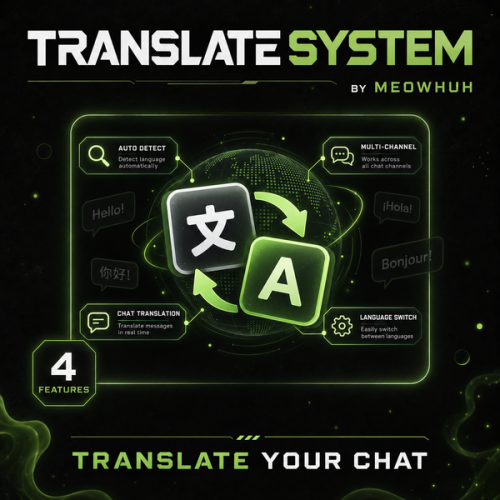
Automatic chat translation for Rust servers. Running an international Rust server should not mean players have to copy messages into external translators just to understand each other. TranslateSystem automatically translates chat messages into each player's selected language while keeping the normal Rust chat experience. Players can use their Rust client language automatically or choose their own language, while server owners can control chat channels, translation services, preserved Rust terms, caching, message filters, permissions, and request limits. Perfect for PvE, PvP, Vanilla+, modded, RPG/RP, international servers, or any server with players speaking different languages. Features Automatically translates chat messages separately for each player's language. Uses the player's Rust client language automatically or allows players to select their own language. Supports Global, Team, Local, Clan, and Card Game chat channels. Enable or disable translation separately for each supported chat channel. Supports MyMemory, Google Cloud Translation, Microsoft Translator, Yandex Cloud, LibreTranslate, and OpenAI. MyMemory is available as the default translation service and fallback if another configured provider fails. BetterChat and IQChat support while keeping their chat formatting. Players can enable or disable translations for themselves at any time. Optional permission requirement for receiving translations. Option to translate the sender's own messages. Option to show the original message underneath the translated message. Automatic source-language detection. Custom language selection for individual players. Preserved Rust terms prevent configured words such as TC, Oil Rig, Cargo, Bradley, AK, sulfur, HQM, Workbench, monument names, and other terms from being translated. Built-in translation cache reuses recent translations and reduces unnecessary API requests. Configurable cache lifetime and maximum stored translations. Message filters can ignore messages without letters, very short messages, and colon emoji codes such as :heartrock:. Optional per-player rate limiting. Configurable maximum simultaneous translation requests. Configurable API timeout, failed-request cooldown, and rate-limit cooldown. Optional server console chat logging. Configurable command aliases. Player translation settings and selected languages are saved automatically. English and Russian plugin messages included. Supported Languages TranslateSystem supports all 25 Rust client languages, allowing players to communicate across different languages without manually translating chat messages. Players can automatically use their Rust client language or manually select their preferred translation language. Language Language Code English en Russian ru German de French fr Spanish (Spain) es Spanish (Latin America) es-419 Italian it Turkish tr Arabic ar Czech cs Danish da Greek el Polish pl Ukrainian uk Japanese ja Korean ko Chinese (Simplified) zh-cn Chinese (Traditional) zh-tw Dutch nl Norwegian no Swedish sv Finnish fi Portuguese (Portugal) pt-pt Portuguese (Brazil) pt-br Vietnamese vi Tip Example: A German player can use /translate lang de to receive translated messages in German, while a Russian player can use /translate lang ru to receive messages in Russian. Players can also use /translate auto to automatically follow their Rust client language without selecting a language manually. Commands /translate - Shows your current translation status and available commands. /translate on - Enables automatic chat translations for yourself. /translate off - Disables automatic chat translations for yourself. /translate auto - Uses your Rust client language for translations. /translate lang <code> - Sets your translation language manually. /translate status - Shows whether translation is enabled and which language is currently being used. Command aliases are fully configurable. Command Examples /translate /translate on /translate off /translate auto /translate lang en /translate lang de /translate lang ru /translate lang fr /translate lang es-419 /translate lang zh-cn /translate status Note Language Selection Use /translate auto to automatically follow the player's Rust client language. Use /translate lang <code> to select a preferred language manually. Language preferences are saved automatically. Players can enable or disable translations whenever they want. Admin Command /translate stats - Shows the current translation cache size and active translation requests. Permissions translatesystem.use - Required to use TranslateSystem commands and receive translations when the permission requirement is enabled in the configuration. translatesystem.admin - Allows access to /translate stats. Tip Permission Settings By default, the permission requirement for receiving translations is disabled. Enable Require permission to receive translations in the configuration if you want to restrict translation functionality to selected players or permission groups. Translation Services TranslateSystem supports multiple translation providers, allowing server owners to select the service that best fits their server. Service Description MyMemory Default translation service without requiring your own API key. Google Google Cloud Translation using your API key. Microsoft Microsoft Translator using a subscription key and optional resource region. Yandex Yandex Cloud Translation using your API key. LibreTranslate Connect to a LibreTranslate server with optional API-key support. OpenAI OpenAI API translation with configurable API key, model, and token limit. MyMemory Available as the default translation service. Does not require server owners to configure their own translation API key. Can serve as a fallback when another configured translation provider fails. Google Supports Google Cloud Translation. Requires a Google Cloud Translation API key. Can be selected as the main translation provider. Microsoft Supports Microsoft Translator. Requires a Microsoft Translator subscription key. Supports an optional resource region. Yandex Supports Yandex Cloud Translation. Requires a Yandex Cloud service account API key. LibreTranslate Supports LibreTranslate servers. Configurable server address. Optional API key for servers requiring authentication. OpenAI Supports translation using the OpenAI API. Configurable API key. Configurable model. Configurable maximum completion token limit. Note Translation Service Notes MyMemory is the default translation service. Other translation providers require their respective API credentials or server settings. API request timeouts and cooldowns are configurable. Translation availability for specific language codes can depend on the selected provider. Chat Channels TranslateSystem supports multiple Rust chat channels, with separate configuration options for each channel. Chat Channel Description Global Translates messages sent in global chat. Team Translates messages between team members. Local Translates messages in nearby-player chat. Clan Translates supported clan chat messages. Card Games Translates messages in supported card game chat. Each supported chat channel can be enabled or disabled separately. Tip Example: Enable translation for Global, Team, and Clan chat while disabling translation for Local and Card Game chat. This allows server owners to control where automatic translation is applied. Preserved Rust Terms TranslateSystem allows server owners to configure words and phrases that should remain unchanged during translation. This is useful for preserving commonly used Rust terminology, weapon names, monument names, and abbreviations. Examples of preserved terms: Building and resources: TC, HQM, Workbench, scrap, sulfur. Weapons: AK, AK-47, LR, L96, M2, M249, MP5, SAR, DB, Tommy, Thompson. Monuments and events: Oil Rig, Large Oil, Small Oil, Cargo, Cargo Ship, Bradley, Outpost, Bandit Camp, Launch Site, Airfield, Dome, Train Yard, Power Plant, Military Tunnels. Tip Example: A player sends a message containing AK, TC, or Oil Rig. These configured terms remain unchanged in translated messages, helping players recognize familiar Rust terminology regardless of their selected language. Translation Cache & Request Controls TranslateSystem includes configurable caching and request controls to help manage translation API usage. Setting Description Translation Cache Reuses recently translated messages to avoid unnecessary translation requests. Cache Lifetime Controls how long cached translations are kept. Maximum Cached Translations Limits the number of translations stored in the cache. Maximum Simultaneous Requests Controls how many translation requests can run at the same time. API Timeout Sets the maximum time allowed for translation requests. Failed Request Cooldown Configures a delay after failed API requests. Rate Limit Cooldown Configures a delay when the translation provider reports rate limiting. Player Rate Limit Optionally limits how frequently individual players can submit messages for translation. Note Default Cache Settings Translation caching is enabled. Cached translations are kept for 60 minutes. Maximum cached translations: 5000. Maximum simultaneous translation requests: 1. These values can be changed in the configuration. Message Filters TranslateSystem includes optional message filters to reduce unnecessary translation requests. Skip messages that do not contain letters. Skip short messages below the configured minimum length. Skip colon emoji codes such as :heartrock:. Configure a minimum message length. Optionally limit translation requests per player. Configure the number of messages allowed within a specified time window. Tip Example: Set the minimum message length to 2 and enable the colon emoji code filter to avoid unnecessary translation processing for very short messages and messages such as :heartrock:. Example Configuration { "Commands": [ "translate" ], "[Chat] Require permission to receive translations": false, "[Chat] Translate sender's own message": false, "[Chat] Show original message under translation": false, "[Chat] Automatically detect the message language": true, "Chat Channels": { "[Chat] Global": true, "[Chat] Team": true, "[Chat] Local (nearby players)": true, "[Chat] Clan": true, "[Chat] Card games": true }, "Translation": { "[API] Selected service (choose MyMemory, LibreTranslate, Google, Microsoft, Yandex or OpenAI)": "MyMemory", "[OpenAI] API key": "", "[OpenAI] Model": "", "[OpenAI] Maximum completion tokens": 500, "[Google] Cloud Translation API key": "", "[Microsoft] Translator subscription key": "", "[Microsoft] Resource region (empty for global)": "", "[Yandex] Cloud service account API key": "", "[LibreTranslate] Server address": "", "[LibreTranslate] API key (if required)": "", "[API] Request timeout (seconds)": 10.0, "[API] Wait after a failed request (seconds)": 30.0, "[API] Wait after rate limit (seconds)": 300.0 }, "Message Filters": { "[Filter] Skip messages without letters": true, "[Filter] Skip colon emoji codes such as :heartrock:": true, "[Filter] Minimum message length (characters)": 2 }, "Cache": { "[Cache] Reuse recent translations": true, "[Cache] Keep translations for (minutes)": 60, "[Cache] Maximum saved translations": 5000 }, "Requests": { "[Requests] Maximum requests at the same time": 1 }, "Player Rate Limit": { "[Rate Limit] Limit messages per player": false, "[Rate Limit] Messages allowed per player": 8, "[Rate Limit] Count messages over this period (seconds)": 10.0 }, "[Chat] Log chat to server console": false, "[Chat] Words and Rust terms to leave untranslated": [ "TC", "Oil Rig", "Large Oil", "Small Oil", "Cargo", "Cargo Ship", "Bradley", "Bradley APC", "AK", "AK-47", "LR", "L96", "M2", "M249", "MP5", "SAR", "DB", "Tommy", "Thompson", "scrap", "sulfur", "HQM", "Workbench", "Outpost", "Bandit Camp", "Launch Site", "Airfield", "Dome", "Train Yard", "Power Plant", "Military Tunnels" ], "Config Version": { "Major": 1, "Minor": 0, "Patch": 1 } } Note Configuration Notes Commands: Configurable chat command aliases. Require Permission: Controls whether players need permission to receive translations. Translate Sender: Optionally translates the sender's own messages. Show Original: Displays the original message underneath the translated message. Language Detection: Automatically detects the source language of messages. Chat Channels: Controls translation separately for Global, Team, Local, Clan, and Card Game chat. Translation Service: Selects MyMemory, Google, Microsoft, Yandex, LibreTranslate, or OpenAI. API Settings: Configure service credentials, request timeouts, and cooldowns. Message Filters: Configure minimum message length, non-letter message filtering, and emoji code filtering. Cache: Configure translation caching, cache lifetime, and maximum cached translations. Requests: Controls the maximum number of simultaneous translation requests. Player Rate Limit: Optionally limits translation requests per player. Chat Logging: Enables or disables server console chat logging. Preserved Terms: Defines words and Rust terminology that should not be translated. Warning Important: Some translation services require valid API credentials and may have their own usage limits or costs. Check the selected provider's supported languages, pricing, and request limits before enabling it on a busy server. MyMemory is available as the default translation service without requiring your own API key. Why Choose TranslateSystem? Language differences can make communication difficult on Rust servers with players from different countries. TranslateSystem handles translation automatically for each player while still giving them control over whether translations are enabled and which language they want to use. With support for all 25 Rust client languages, multiple translation services, BetterChat and IQChat compatibility, configurable chat channels, preserved Rust terms, caching, message filters, and request controls, TranslateSystem makes it easier for players speaking different languages to communicate naturally in the same chat. Whether you run a small international server or a large multilingual community, TranslateSystem helps remove language barriers without requiring players to leave the game or use external translation tools$13.99- 3 reviews
-
- 3
-

-

-
- #translate
- #system
- (and 8 more)
-

Version 1.2.0
201 downloads
xPermissionManager A modern, intuitive, and powerful permission management tool for Rust servers. xPermissionManager provides a complete visual interface for managing user and group permissions directly ingame. No more console commands, guesswork, or digging through permission lists. Everything is organized, accessible, and easy to control through an straight forward UI. Whether you're adjusting a single permission, overseeing full group structures, or assigning temporary access, xPermissionManager gives server owners a fast and efficient possibility to do so. Plugin Preview (Video) Full Permission Control Grant or revoke any permission from groups or individual players. Timed Permission System Assign temporary permissions that automatically expire (e.g., 30m, 1h, 1d, 1w, custom durations). Timed Group Memberships Add players to groups for a limited time - Perfect for kits, VIP, special events or whatever. Comprehensive UI A clean and intuitive interface for browsing permissions, switching groups, managing users, and applying timed access. User & Group Browsing View all available groups, check individual player permissions, and toggle them instantly. Clear Feedback Every change is acknowledged with clear messages to help admins avoid mistakes. Language File Permission xpermissionmanager.use // Allows a player to open and use the xPermissionManager UI Chat Commands /xpm /xpmuser <name or steamID> /xpmtimed /xpmgroups /xpm [Opens the Permission Manager UI] PERMISSION OR ADMIN REQUIRED /xpmuser <name or steamID> [Opens the UI for managing a specific player’s permissions/groups] PERMISSION OR ADMIN REQUIRED /xpmtimed [Shows all active timed permissions for a player. Includes remaining duration and whether they came from a group] /xpmgroups [Shows all active timed group memberships for a player] Console Commands </> API$11.99- 2 comments
- 2 reviews
-
- 3
-

-
-
- #permission
- #manager
- (and 20 more)
-

Version 1.0.10
757 downloads
VirtualRecycler Plugin The VirtualRecycler Plugin, developed by M&B-Studios, is made for Rust server administrators and VIP players. It lets players recycle their surplus items in a virtual recycling machine. Features: Commands: Players open and use their virtual recycling machine with chat commands. Permissions: The plugin supports these permissions: virtualrecycler.use: Grants players permission to use the virtual recycling machine. virtualrecycler.admin: Gives admins instant recycling. virtualrecycler.vip: Gives VIP players a custom recycling speed. virtualrecycler.raidablebases: Allows players to open the VirtualRecycler only in the raidable bases Automatic Recycling: When a player opens their virtual recycling machine, the recycling process starts automatically. The recycling speed may vary depending on permissions. Ease of Use: The virtual recycling machine is simple to use, so players can recycle their surplus items quickly. Efficient Management: Each player can only use their own recycling machine. VirtualRecycler gives each player their own recycling machine that opens with a chat command. If you have any questions or problems, join my discord https://discord.gg/D2zTWCEnrN { "Commands": [ "vrec", "vr", "virtualrec", "vrecycler", "virtualrecycler" ], "DefaultPermission": "virtualrecycler.use", "DefaultSpeed": 1.0, "AutoStart": false, "PermissionSpeeds": { "virtualrecycler.admin": 0.1, "virtualrecycler.raidablebases": 0.5, "virtualrecycler.vip": 0.5 }, "StaticRecyclerSpeeds": { "virtualrecycler.static1": 1.0, "virtualrecycler.static2": 0.5, "virtualrecycler.vipstatic": 0.1 } } Web Config Editor Manage the VirtualRecycler settings in our web config editor. You change the config in a browser form instead of editing files on the server by hand. P.S. The web config editor is open to members of the "VirtualRecycler" group in our Discord server. Join at https://discord.gg/mevent and ask for the group.$11.95 -
Version 1.1.14
113 downloads
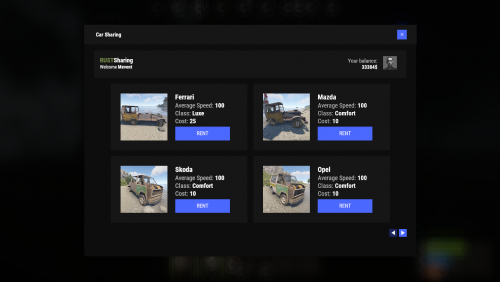
Players can rent a car and drive it anywhere on the map. You can also place bots that rent out cars. Commands share.ferrari [targetId] (give a Ferrari) share.mazda [targetId] (give a Mazda) share.skoda [targetId] (give a Skoda) share.opel [targetId] (give an Opel) Permissions You can set permission in config, for example: "Permission (example: carsharing.use)": "carsharing.use", Config { "Commands": [ "rent", "carsharing" ], "Permission (example: carsharing.use)": "", "Work with Notify?": true, "Economy": { "Type (Plugin/Item)": "Plugin", "Plugin name": "Economics", "Balance add hook": "Deposit", "Balance remove hook": "Withdraw", "Balance show hook": "Balance", "ShortName": "scrap", "Display Name (empty - default)": "", "Skin": 0 }, "Vehicle call item settings": { "Display Name": "RUSTSharing {carname}", "ShortName": "box.wooden.large", "Skin": 2591806406 }, "Cars": [ { "Permission (example: carsharing.vip)": "", "Command to give": "share.ferrari", "Image": "https://i.imgur.com/0GvWGOv.png", "Name": "Ferrari", "Cost per minute": 25.0, "Car class": "Luxe", "Average Speed": "100", "Modular Car Settings": { "CodeLock": true, "KeyLock": false, "Engine Parts Tier": 2, "Fresh Water Amount": 0, "Fuel Amount": 140, "Modules": [ "vehicle.1mod.engine", "vehicle.1mod.cockpit.armored", "vehicle.1mod.cockpit.armored" ] } }, { "Permission (example: carsharing.vip)": "", "Command to give": "share.mazda", "Image": "https://i.imgur.com/fAuuZIS.png", "Name": "Mazda", "Cost per minute": 10.0, "Car class": "Comfort", "Average Speed": "100", "Modular Car Settings": { "CodeLock": true, "KeyLock": false, "Engine Parts Tier": 2, "Fresh Water Amount": 0, "Fuel Amount": 140, "Modules": [ "vehicle.1mod.engine", "vehicle.1mod.cockpit.armored", "vehicle.1mod.cockpit.armored" ] } }, { "Permission (example: carsharing.vip)": "", "Command to give": "share.skoda", "Image": "https://i.imgur.com/u07yAdY.png", "Name": "Skoda", "Cost per minute": 10.0, "Car class": "Comfort", "Average Speed": "100", "Modular Car Settings": { "CodeLock": true, "KeyLock": false, "Engine Parts Tier": 2, "Fresh Water Amount": 0, "Fuel Amount": 140, "Modules": [ "vehicle.1mod.engine", "vehicle.1mod.cockpit.armored", "vehicle.1mod.cockpit.armored" ] } }, { "Permission (example: carsharing.vip)": "", "Command to give": "share.opel", "Image": "https://i.imgur.com/fEzJjIm.png", "Name": "Opel", "Cost per minute": 10.0, "Car class": "Comfort", "Average Speed": "100", "Modular Car Settings": { "CodeLock": true, "KeyLock": false, "Engine Parts Tier": 2, "Fresh Water Amount": 0, "Fuel Amount": 140, "Modules": [ "vehicle.1mod.engine", "vehicle.1mod.cockpit.armored", "vehicle.1mod.cockpit.armored" ] } } ], "Bots": { "8833355776": { "Car Classes (* - all)": [ "Comfort" ] }, "1317845641": { "Car Classes (* - all)": [ "Luxe", "Comfort" ] } } } VIDEO Web Config Editor Manage the CarSharing settings in our web config editor. You change the config in a browser form instead of editing files on the server by hand. P.S. The web config editor is open to members of the "CarSharing" group in our Discord server. Join at https://discord.gg/mevent and ask for the group.$19.95 -
Version 1.0.12
247 downloads
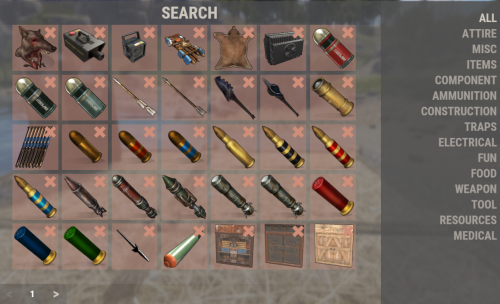
Plugin Description "Auto Recycler" is a Rust plugin with extra recycling features for players: automatic item recycling, a virtual recycler, and special recycling crates. With admin permission, you can set which items players cannot recycle automatically. Features Automatic Recycling: Players can set specific items for automatic recycling. These items will be recycled automatically when they enter their inventory. Virtual Recycler: Players can open a virtual recycler and recycle items from anywhere in the game. Recycling Crate: A special item that works as a portable recycler. Customizable Configuration: The config lets you exclude specific items from recycling or allow them. Permissions autorecycler.admin: Grants access to all admin functions of the plugin. autorecycler.autorec: Allows players to use automatic recycling. autorecycler.recvirtual: Provides access to the virtual recycler. autorecycler.characteristics: Allows modification of item characteristics related to recycling. autorecycler.recboxbuy: Enables the purchase of the Recbox. Chat Commands /ar: Allows players to use the automatic recycler. /vrec: Allows players to use a virtual recycler (configurable command). /recbox: Displays information about the costs of purchasing a Recbox. /recboxbuy: Allows players to buy a Recbox if they have the required resources. NEW /autorectoggle turns the AutoRecycler on and off Additional Information All features are available through the UI. The plugin saves player data, so automatic recycling settings carry over between sessions. In the configuration file, admins can change how the plugin behaves, including Recbox costs and the recycling properties of items. Note Make sure players have the right permissions to use the plugin's features. If you have any questions or problems, join my discord https://discord.gg/D2zTWCEnrN Web Config Editor Manage the AutoRecycler settings in our web config editor. You change the config in a browser form instead of editing files on the server by hand. P.S. The web config editor is open to members of the "AutoRecycler" group in our Discord server. Join at https://discord.gg/mevent and ask for the group.$21.95 -
Version 0.1.15
1,224 downloads
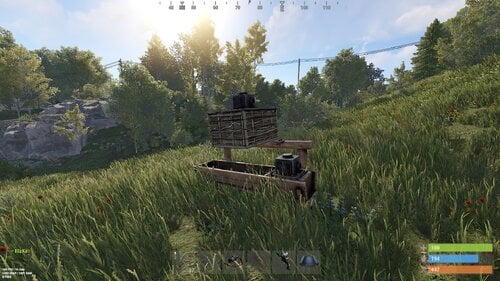
Allows automating the entire manure collection process and adds other useful features in this area, by adding Industial Adapters and BoxStorage to the HitchTrough and Composter. Also auto spliting dungs in the Composter container. Note: During plugin unloading, modified entities are not removed, to prevent the removal of pipes every time the plugin/server is restarted. To remove modifications from entities, you should use the "idung unload" command. industrialdung.admin - Provides unrestricted access to the plugin's functionality. This includes the ability to add/remove or clear modificated entities from other players. Note: In the configuration file, within the "Max ammount of modified entites per group" section, you can specify limits for any existing permission by simply listing its name. "Max amount of modified entites for each permission. Leave null or empty to recreate the default": { "industrialdung.default": { "HitchTroughs": 5, "Composters": 2, "DungMultiplier": 1.0 }, ... }, ... If you want to create a new permission, you can also include it in the list, but the name must begin with "industrialdung". { "Chat command": "idung", "Is it worth enabling GameTips for messages?": true, "Is it worth using Notify plugins for messages instead of the vanilla UI?": false, "Specify the regular message type for notify": 0, "Specify the warning message type for notify": 1, "List of language keys for creating language files": [ "en" ], "Is it worth ignoring Facepunch's rules regarding skins and DLCs?": false, "Is it worth removing modifications when permissions or groups are revoked if they exceed the limit?": true, "Is it worth adding auto-pickup for livestock dung?": true, "Use auto-splitting in the Composter?": true, "Item's short name for auto-splitting in the Composter. Leave the field empty to use the default": "horsedung", "AutoModify - Default value for new players": true, "Wood Storage Box Workshop Skin ID": 850379673, "The list of items(short name) available for the composter. Leave empty to use vanilla": [ "horsedung", "plantfiber" ], "Popup - Duration": 6.0, "Popup - Position AnchorMin": "0 0.9", "Popup - Position AnchorMax": "0.25 1", "Popup - Position OffsetMin": "20 0", "Popup - Position OffsetMax": "0 -30", "Popup - Icon Url": "https://gitlab.com/IIIaKa/images/-/raw/main/Misc/IndustrialDung_Offer.png", "Popup - Icon Color(Hex or RGBA)": "#CCE699", "Popup - Icon Transparency": 0.8, "Popup - Text Font(https://docs.oxidemod.com/guides/developers/basic-cui/basic-cui#fonts)": "RobotoCondensed-Bold.ttf", "Popup - Text Font Size": 14, "Popup - Text Font Color(Hex or RGBA)": "#FFFFFF", "Popup - Description Font": "RobotoCondensed-Regular.ttf", "Popup - Description Font Size": 12, "Popup - Description Font Color(Hex or RGBA)": "#FFFFFF", "Popup - Text FadeIn": 1.0, "Popup - Sound Prefab Name": "assets/bundled/prefabs/fx/invite_notice.prefab", "Max amount of modified entites for each permission. Leave null or empty to recreate the default": { "industrialdung.default": { "HitchTroughs": 5, "Composters": 2, "DungMultiplier": 1.0 }, "industrialdung.vip": { "HitchTroughs": 10, "Composters": 4, "DungMultiplier": 2.0 }, "realpve.default": { "HitchTroughs": 5, "Composters": 2, "DungMultiplier": 1.0 }, "realpve.vip": { "HitchTroughs": 15, "Composters": 6, "DungMultiplier": 2.0 } }, "Version": { "Major": 0, "Minor": 1, "Patch": 15 } } EN: { "PopupTitleHitch": "Modify this hitch trough?", "PopupTitileComposter": "Modify this composter?", "PopupDescription": "Click on the notification to confirm", "CmdNotAllowed": "You do not have permission to use this command!", "CmdPlayerNotFound": "Player '{0}' not found! You must provide the player's name or ID.", "CmdMultiplePlayers": "Multiple players found: {0}", "CmdEntityNotFound": "Entity not found! You must specify the entity ID or look directly at it.", "CmdEntityNotOwned": "This entity has no owner!", "CmdEntityNotOwner": "You are not the owner of this entity!", "CmdEntityNotModified": "This entity has no modifications!", "CmdAdmin": "Available admin commands:\n\n<color=#D1CBCB>/idung</color> <color=#D1AB9A>auto</color> - Toggle automatic modification of HitchTroughs and Composters\n<color=#D1CBCB>/idung</color> <color=#D1AB9A>add *entityID*(optional)</color> - Add modifications to HitchTroughs or Composters you are looking at or specified\n<color=#D1CBCB>/idung</color> <color=#D1AB9A>remove *entityID*(optional)</color> - Remove modifications from HitchTroughs or Composters you are looking at or specified\n<color=#D1CBCB>/idung</color> <color=#D1AB9A>clear</color> - Remove all modifications from your HitchTroughs and Composters\n<color=#D1CBCB>/idung</color> <color=#D1AB9A>clear *nameOrId*</color> - Remove all modifications from HitchTroughs and Composters of the specified player\n<color=#D1CBCB>/idung</color> <color=#D1AB9A>clear all</color> - Remove all modifications from HitchTroughs and Composters, from all players\n<color=#D1CBCB>/idung</color> <color=#D1AB9A>aclear</color> - Remove all modifications from HitchTroughs and Composters that were not saved in the data file for some reason\n<color=#D1CBCB>/idung</color> <color=#D1AB9A>unload</color> - Unload the plugin and removing all modifications from HitchTroughs and Composters without deleting them from the data file\n\n--------------------------------------------------", "CmdAdminClearTarget": "Successfully removed {1} modifications from HitchTroughs and Composters for player '{0}'!", "CmdAdminClear": "Successfully removed all modifications from HitchTroughs and Composters for all players!", "CmdAdminAclear": "Successfully removed all modifications from HitchTroughs and Composters that were not in the data file!", "CmdAdminUnload": "Plugin '{0}' has been successfully unloaded with the removal of all modifications from HitchTroughs and Composters, but without deleting from the data file!", "CmdMain": "Available commands:\n\n<color=#D1CBCB>/idung</color> <color=#D1AB9A>auto</color> - Toggle automatic modification of HitchTroughs and Composters\n<color=#D1CBCB>/idung</color> <color=#D1AB9A>add *entityID*(optional)</color> - Add modifications to HitchTroughs or Composters you are looking at or specified\n<color=#D1CBCB>/idung</color> <color=#D1AB9A>remove *entityID*(optional)</color> - Remove modifications from HitchTroughs or Composters you are looking at or specified\n<color=#D1CBCB>/idung</color> <color=#D1AB9A>clear</color> - Remove all modifications from your HitchTroughs and Composters\n\n--------------------------------------------------", "CmdAutoModifyEnabled": "Automatic entity modification is enabled!", "CmdAutoModifyDisabled": "Automatic entity modification is disabled!", "CmdLimitReached": "You cannot to modify this entity as you have reached your limit of {0}!", "CmdHitchTroughModified": "The hitch trough has been successfully modified!", "CmdComposterModified": "The composter has been successfully modified!", "CmdEntityRemoved": "Entity modifications have been successfully removed!", "CmdEntityClear": "All modifications of your entities have been successfully removed!" } RU: { "PopupTitleHitch": "Модифицировать данную кормушку?", "PopupTitileComposter": "Модифицировать данный компостер?", "PopupDescription": "Нажмите на уведомление для подтверждения", "CmdNotAllowed": "У вас недостаточно прав для использования этой команды!", "CmdPlayerNotFound": "Игрок '{0}' не найден! Вы должны указать имя или ID игрока.", "CmdMultiplePlayers": "Найдено несколько игроков: {0}", "CmdEntityNotFound": "Сущность не найдена! Вы должны указать ID сущности или смотреть прямо на нее.", "CmdEntityNotOwned": "У этой сущности нет владельца!", "CmdEntityNotOwner": "Вы не являетесь владельцем этой сущности!", "CmdEntityNotModified": "Данная сущность не имеет модификаций!", "CmdAdmin": "Доступные админ команды:\n\n<color=#D1CBCB>/idung</color> <color=#D1AB9A>auto</color> - Переключение автоматической модификации кормушек и компостеров\n<color=#D1CBCB>/idung</color> <color=#D1AB9A>add *айдиСущности*(опционально)</color> - Добавить модификации к кормушке или компостеру, на который вы смотрите или указали\n<color=#D1CBCB>/idung</color> <color=#D1AB9A>remove *айдиСущности*(опционально)</color> - Удалить модификации у кормушки или компостера, на который вы смотрите или указали\n<color=#D1CBCB>/idung</color> <color=#D1AB9A>clear</color> - Удалить все модификации у ваших кормушек и компостеров\n<color=#D1CBCB>/idung</color> <color=#D1AB9A>clear *имяИлиАйди*</color> - Удалить все модификации у кормушек и компостеров, указанного игрока\n<color=#D1CBCB>/idung</color> <color=#D1AB9A>clear all</color> - Удалить все модификации у кормушек и компостеров, всех игроков\n<color=#D1CBCB>/idung</color> <color=#D1AB9A>aclear</color> - Удалить все модификации у кормушек и компостеров, которые по некоторым причинам не попали в дата файл\n<color=#D1CBCB>/idung</color> <color=#D1AB9A>unload</color> - Выгрузить плагин с удалением модификаций у всех кормушек и комспостеров, без удаления из даты файла\n\n--------------------------------------------------", "CmdAdminClearTarget": "Успешно удалено {1} модификации у кормушек и компостеров, игрока '{0}'!", "CmdAdminClear": "Успешно удалены все модификации у кормушек и компостеров, всех игроков!", "CmdAdminAclear": "Успешно удалены все модификации у кормушек и компостеров, которых не было в дата файле!", "CmdAdminUnload": "Плагин '{0}' был успешно выгружен с удалением всех модификации у кормушек и компостеров, но без удаления из дата файла!", "CmdMain": "Доступные команды:\n\n<color=#D1CBCB>/idung</color> <color=#D1AB9A>auto</color> - Переключение автоматической модификации кормушек и компостеров\n<color=#D1CBCB>/idung</color> <color=#D1AB9A>add *айдиСущности*(опционально)</color> - Добавить модификации к кормушке или компостеру, на который вы смотрите или указали\n<color=#D1CBCB>/idung</color> <color=#D1AB9A>remove *айдиСущности*(опционально)</color> - Удалить модификации у кормушки или компостера, на который вы смотрите или указали\n<color=#D1CBCB>/idung</color> <color=#D1AB9A>clear</color> - Удалить все модификации у ваших кормушек и компостеров\n\n--------------------------------------------------", "CmdAutoModifyEnabled": "Автоматическая модификация сущностей включена!", "CmdAutoModifyDisabled": "Автоматическая модификация сущностей выключена!", "CmdLimitReached": "Вы не можете модифицировать данную сущность, так как вы превысили свой лимит в {0}!", "CmdHitchTroughModified": "Кормушка успешно модифицирована!", "CmdComposterModified": "Компостер успешно модифицирован!", "CmdEntityRemoved": "Модификации сущности успешно удалены!", "CmdEntityClear": "Все модификации ваших сущностей успешно удалены!" } auto - Toggle automatic modification of HitchTroughs and Composters; add *entityID*(optional) - Add modifications to HitchTroughs or Composters you are looking at or specified; remove *entityID*(optional) - Remove modifications from HitchTroughs or Composters you are looking at or specified; clear - Remove all modifications from your HitchTroughs and Composters; clear *nameOrId* - Remove all modifications from HitchTroughs and Composters of the specified player. Permission "industrialdung.admin" required; clear all - Remove all modifications from HitchTroughs and Composters, from all players. Permission "industrialdung.admin" required; aclear - Remove all modifications from HitchTroughs and Composters that were not saved in the data file for some reason. Permission "industrialdung.admin" required; unload - Unload the plugin and removing all modifications from HitchTroughs and Composters without deleting them from the data file. Permission "industrialdung.admin" required. Example: /idung auto /idung add /idung add *netID* /idung clear all$9.99- 76 comments
- 1 review
-
- 1
-
-
- #rust
- #industrial
- (and 25 more)
-
Version 1.0.0
33 downloads
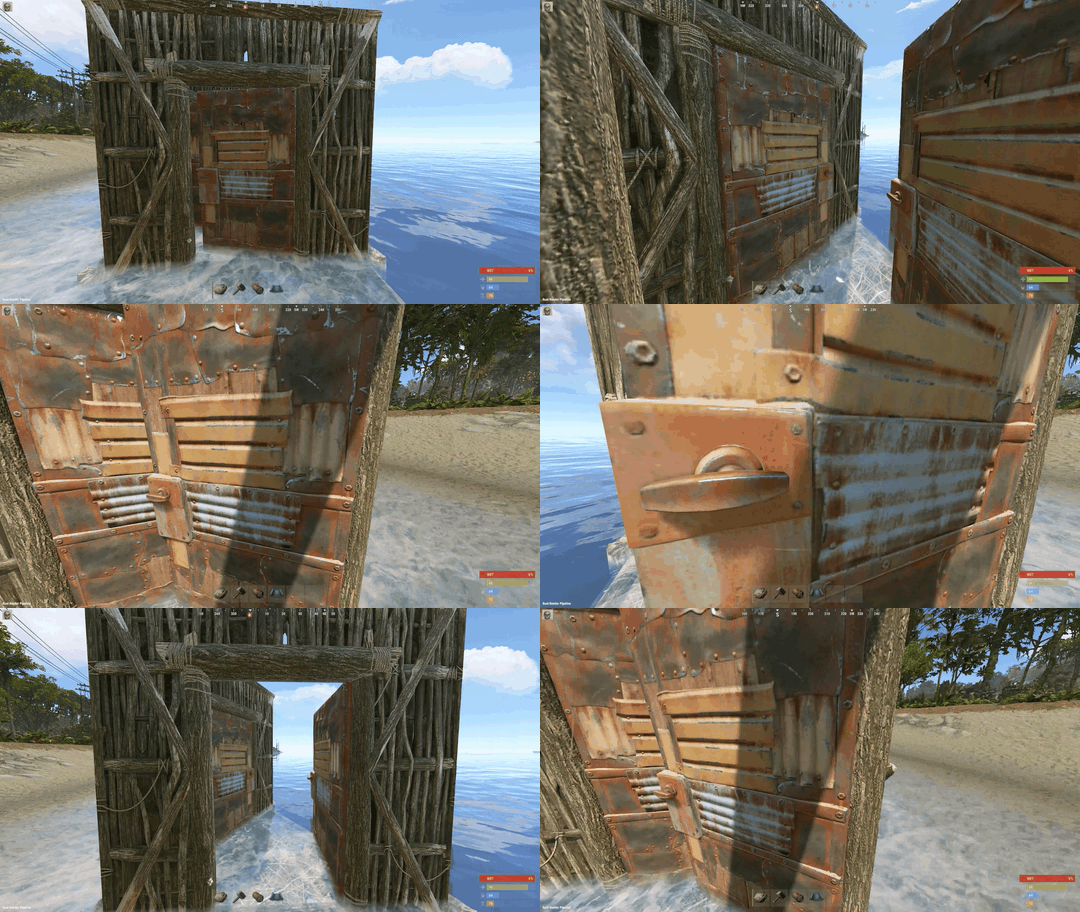
Airlock Buddy lets players connect two nearby doors into an airlock. When one door opens, the other closes. An optional timer also closes the door that was opened after a configured delay. The two features can be controlled independently for each door pair. Existing pairs and configuration files from v1.0.2 are retained. Installation Put AirlockBuddy.cs in oxide/plugins/ (or your Carbon plugins directory). Grant permissions in the server console: oxide.grant group default airlockbuddy.use Look at your first door and type /airlock 1. Look at your second door and type /airlock 2. using oxide.grant user STEAMID64 permission.name. Permissions airlockbuddy.use — create/remove your own door pairs, check status, and change their automation settings. airlockbuddy.toggle — check status and enable/disable automation on your own existing door pairs, without granting permission to create/remove pairs. airlockbuddy.admin — all commands, bypasses the ownership restriction. Rust admins also bypass permissions. Commands (look at either door in a pair) /airlock — show help /airlock 1 — select first door /airlock 2 — connect second door /airlock status — show status of selected pair /airlock auto off — disable all automatic closing for this pair (both the other-door interlock and timer) /airlock auto on — re-enable automatic closing for this pair /airlock timer off — disable only the timed close for this pair; opening one door still closes the other /airlock timer on — restore timed close for this pair (requires global delay above 0) /airlock remove — unlink the pair entirely Paired-door automatic behavior applies to whoever opens a door, not just the player who created the pair. Configuration The plugin creates/updates oxide/config/AirlockBuddy.json: { "Maximum distance between paired doors (meters)": 7.0, "Automatically close the opened door after (seconds, 0 to disable)": 5.0, "Require the player to own both doors (admins bypass)": true, "Enable all airlock automation globally": true, "Enable airlock automation for new pairs": true, "Enable delayed door closing for new pairs": true } Set Automatically close the opened door after (seconds, 0 to disable) to 0 to disable the timer for every pair. Set Enable all airlock automation globally to false to suspend automatic closing for every pair, without deleting saved links. Set Enable airlock automation for new pairs to false for new pairs to start in the disabled state. Set Enable delayed door closing for new pairs to false for new pairs to start with timed close off. After editing the configuration, reload the plugin from your server console: oxide.reload AirlockBuddy. Saved Data The plugin keeps pair links in oxide/data/AirlockBuddy.json across restarts. Pair settings are also saved. Data resets with a new map wipe or when the pair is removed. Upgrade from 1.0.2 Replace the existing AirlockBuddy.cs with this version. Older links that do not have mode settings will retain both of their previous behaviors by default. Make a backup of the data file before updating. https://youtu.be/0k7ro9jWNNIFree -

Version 1.1.8
69 downloads
xStackSize xStackSize gives you full control over item stack sizes on your Rust server. Globally and permission-based. Fine-tune your economy, balance progression, or create VIP advantages with flexible and performance-friendly stack management. Whether you want larger stacksize for QoL, custom stacksizes for specific groups/permission, or complete control over your servers stacking system. INFO: xStackSize supports multiple permissions at the same time. If a player has more than one stack permission, the plugin automatically applies the highest stack size based on your configuration. The highest value always wins - whether it's global or permission-based. Example: If global is set to x3 and a permission gives x1, the player will use x3 since it’s higher. (If he has that permission) Features Global stack size control Permission-based StackSizes (VIP / ranks / groups) Custom StackSize per item Custom StackSize for CUSTOM ITEMS Force Split/Merge changed StackSize INSTANT instead of waiting for players to move items manually Blacklist items Easy to configure Performance friendly designed Additionally supports Quarries, Excavator, Furnaces and Conveyors Permission-based StackSizes: You can use any permission name in the config, as long as it starts with xstacksize. Examples: xstacksize.pro, xstacksize.vip, xstacksize.premium etc.. You can create multiple stack-size permissions. Simply copy and paste a new permission block in the config and give it a different permission name. Various Constellations (Examples, for better understanding) Console Command xstacksize.refresh (Useful if you have AutoApplyStackSizeChange set to 'false') Force-applies current stack rules to existing items immediately. It recalculates limits and retroactively normalizes/merges stacks in player inventories and storage containers without requiring item movement. Config (Use value '0' for UNLIMITED) { /* AutoApplyStackSizeChange force splits/merge items instantly instead of waiting for players to move items manually. */ "AutoApplyStackSizeChange": true, "AllowUnstackableItemsToStack": false, "StackSizeMultipliers": { "Weapon": 1.0, "Construction": 1.0, "Items": 1.0, "Resources": 1.0, "Attire": 1.0, "Tool": 1.0, "Medical": 1.0, "Food": 1.0, "Ammunition": 1.0, "Traps": 1.0, "Misc": 1.0, "Component": 1.0, "Electrical": 1.0, "Fun": 1.0, "CustomItems": 1.0 }, "FixedItemStackSizes": { "wood": 0, "stones": 0 }, "PermissionFixedItemStackSizes": { "xstacksize.vip": { "wood": 5000, "wood:123456789": 100, "-2099697608:123456789": 200 } }, "PermissionStackSizeMultipliers": { "xstacksize.vip": { "Weapon": 1.0, "Construction": 1.0, "Items": 1.0, "Resources": 1.0, "Attire": 1.0, "Tool": 1.0, "Medical": 1.0, "Food": 1.0, "Ammunition": 1.0, "Traps": 1.0, "Misc": 1.0, "Component": 1.0, "Electrical": 1.0, "Fun": 1.0, "CustomItems": 1.0 } }, "BlacklistedItems": [ "pumpkin" ] }$15.99 -

Version 1.1.4
410 downloads
This is a simple tool to help you catch ESPer's. Unlike methods in the past requiring cheaters to fall for traps, this one will be watching without having to give them any bait! This plugin is still in "beta" and is offered at a reduced price for a limited time. Since 1.0.12, the embed now includes a radar image to show violations (red line): The above embed shows the culprit, with quick links to Steam, Battlemetrics, and ServerArmour. Along with each violation that caused the trigger, the consist of the violation id, the time it happened, and steamid and distance from the culprit. It is highly recommended to use along with ADR, although not required, but can easily eliminate false positives by having the option to watch the player from the demo. Commands /testesp - this will send a test embed to your configured webhook. Permissions espdetection.ignore Ignores specific players who are granted this permission. Config options explanation General Max distance to check The maximum to check if the player is ESPing. (default 150 outside, 100 inside) Check Interval How often should a player be checked (default 1 second) Ignore Players Idle Ignore players that haven't changed position (default 15 seconds) Only track players with active weapons Track players that have equipped weapons only. (default true) Auto Demo Record (only applicable if Auto Demo Record is installed) Record Length How long should the triggered recording be (default 10 minutes) Discord Webhook Where the logs & ADR recordings should be sent to Webhook Title Title of the embed Violations Probability % Which % probability should trigger a Discord embed and ADR recording. (default 40%) Samples How many samples should be kept in memory, to calculate the probability (default 20) Weapon Specific Configs These change characteristics of weapons Weapon Shortname Max distance to check This overrides the general setting for the weapon only Track if set to false, a player will be ignored if he has this weapon equipped. (default true) Attachment Specific Configs These change characteristics of attachments Attachment Shortname Add distance while aiming As the name suggests, it adds extra distance to the previous configs, useful for when aiming with an 8x or 16x Track if set to false, a player will be ignored if he has this weapon equipped. (default true) NOTE: if you are using ADR, a good command to use when reviewing the demos are `debug.culling 1`$25.00 -
Version 2.0.2
600 downloads
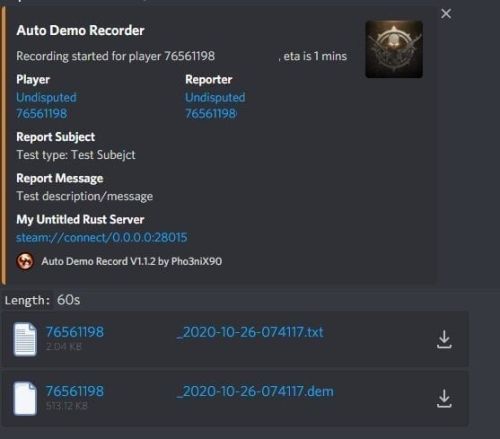
Records players automatically that have been reported X amount of times, with the ability to automatically upload the combat logs & Demo files to a discord webhook. Classic mode (default) `Rolling mode` = **Off** — same trusted behavior as earlier versions. Recording starts when a trigger fires (reports, flyhack, blacklist, API, console). No rolling buffer. v2 rolling incidents (opt-in) Enable **Rolling mode** (`AllPlayers` or `Blacklist`) to keep rotating demo chunks on disk. When a report threshold or API call opens an **incident**, the plugin bundles: - chunks from **before** the report (default 30 minutes), - continued capture **after** the report (default 15 minutes), - a **manifest** with markers and metadata, then uploads to **ServerArmour** (primary) and/or **Discord** (secondary). Existing servers upgrade safely: new config keys default to legacy behavior until you change them. Disk usage whilst recording: +- 1MB per 1 minute. Discord has an 8mb upload limit and 100mb for nitro. Chat Commands: /record - Chat: This will initiate a self-recording. Console Commands autodemorecord.record [steam64id] [minutes] - Console: Usefull to record a player on demand, or a schedule from another plugin. autodemorecord.blacklist add [steam64id] [recordingMinutes] [intervalMinutes] - Console: Add a player to the blacklist, which will record them for [recordingMinutes] every [intervalMinutes] autodemorecord.blacklist remove [steam64id] - Console: Removes a player from the blacklist. Permissions: Permission autodemorecord.record is required for a player to initiate a recording of themselves. Useful for streamers, to provide them with footage at wipe end, or tournaments. The recording length will be "Auto record for X minutes" Config explanations: "Auto record after X reports": Will start recording the player when these many reports have been received. "Only record when reports within X seconds": Only record when the number of reports above, are received in this timeframe. 0 to record always when the above value is reached. "Save/Load reports to datafile on reload": Useful when you aren't using the above config, if you do it might not be necessary to save data overhead. "Auto record for X minutes": the number of minutes the player should be recorded for. "Discord MSG Color": Color for the embed message, see here https://gist.github.com/thomasbnt/b6f455e2c7d743b796917fa3c205f812 "Discord Webhook": You discord webhook all information should be sent to. "Discord: Notify if recording is started": Should a message be sent to the discord webhook when the recording starts? "Discord: Include report with start message?": Should the player's report be added to the recording start message? "Discord: Notify if recording is stopped": Should a message be sent to the discord webhook when the recording ends? "Discord: Include report with end message?": Should the player's report be added to the recording end message? "Upload Combat Log to discord webhook?": Should the player's combat log be upload to the above discord webhook as a txt file? "Upload DEMO file to discord webhook?": Should the player's demo file be uploaded to the above discord webhook? "Split DEMO files for non nitro discord (8mb chunks)?": This will split files and upload multiple files to discord for non-nitro discord servers. If you have nitro with an upload limit of 100mb, then you can turn this off. "Discord Webhook - Self Record" All self-initiated recordings will post to this webhook, if not set it will go to the main one. "Record if FlyHacked in last X seconds" This will initiate a recording when a player rejoins the server after kicked for flyhacking. "Save recording to server?" If set to false, it will not save to the HDD, to save space. Make sure you have a webhook setup, otherwise it will still save as to not lose any demos. API: If you want to trigger a recording from your plugin, you can do the following: AutoDemoRecord.Call("API_StartRecording", BasePlayer player, string Reason, int LengthInMin); All suggestions welcomed!$19.99 -
Version 3.1.7
113 downloads
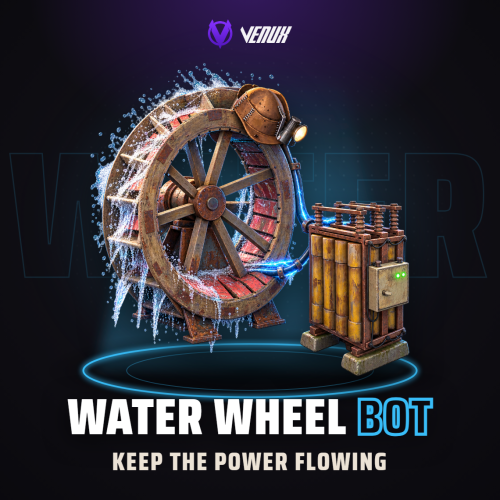
[ ! ] The zip contains a DLL extension that goes into RustDedicated_Data/Managed. Some hosts do not allow uploading DLLs - check with your host before buying. [ ! ] Water Wheel Bot lets your players hire an NPC worker who climbs into their water wheel and turns it for a paid shift, so the base keeps its power while they farm, raid or log off for the night. They pick a tier, walk or run and a shift length, and pay with scrap or your server's economy. Workers get tired as they work: feed them, let them eat from the boxes next to the wheel, boost them for extra power, extend the shift or let it renew on its own, and every few hires they level up and drain slower. Gear found in crates goes on the wheel itself, worker contracts pay for a hire, and in a river the worker's power adds to the current instead of replacing it. Everything happens in game: a hire window and a status window with the real water wheel turning inside them, a HUD next to your wheels with a tab for each one, a row in the vitals stack, and /worker for one window with your workers, your lifetime stats, a real map and the gear workshop. Eight languages are built in. Features of Water Wheel Bot An NPC worker who mounts the water wheel and powers it by hand for the whole shift, on dry land or in a river Three worker tiers (Novice, Standard and Veteran by default) with their own price, power, stamina drain and outfit, all editable Walk or Run: more power costs more and drains faster, and a worker hired to run can switch pace mid-shift Shift lengths from 30 minutes to 24 hours by default, each button showing what the longer shift saves Stamina: power drops when the worker is hungry and stops at zero. Feed the worker from your inventory in one click, or let them eat from your boxes near the wheel, with a favorite food that fills them up more Boost for extra power over a short time, with its own drain and cooldown, and extend a shift or let it renew itself when it ends Veterancy: every few hires your workers level up and drain slower Worker gear on each wheel: boots, bearings, a canteen and a headlamp in three tiers, found in crates and fitted with one click. The worker wears the boots and the headlamp Worker contracts: items that pay for a hire at their tier and shift length, found in crates, given by admins or sold in shops The river keeps working: in a river the worker's power is added to the current's, and the hire window shows both. Plugins that upgrade a water wheel, like Water Wheel Upgrades, make the worker stronger too A HUD next to your wheels in full or compact size. With several of your wheels close together it gets a tab for each one, a pager and a ping only you can see, and you can bind a key to flip through them. Each player can drag it anywhere on their own screen (/worker hud move) One row in the vitals stack for all your workers, which turns red when one runs low /worker opens one window with four tabs: WORKERS with quick actions, STATS with your lifetime numbers, MAP with your workers on the real world map, and WORKSHOP with the gear on each wheel Prorated refunds when you dismiss a worker early (two clicks, with the refund shown before you confirm) or when the wheel is destroyed Only the wheel's owner, their team and players authorized on its tool cupboard can hire on it or change its gear, so nobody can lock your wheel Scrap works out of the box, and six economy plugins are supported A VIP price, a free permission, a night power multiplier, map markers, worker chatter and a warning before the shift ends, each on its own switch The wheel turns and the water flows inside the windows, buttons light up on hover, and UI sounds are optional Rentals, stamina, gear and stats survive restarts Eight languages built in: English, Spanish, Brazilian Portuguese, Russian, Ukrainian, French, Italian and German, each player in their own Commands Hammer a water wheel - open the hire window, or the status window of its worker (a damaged wheel is repaired first, as usual) Talk to the worker - the status window /worker - the workers window /worker stats, /worker map, /worker workshop - open it on that tab /worker hud - switch the HUD between full and compact /worker hud move - drag the HUD anywhere on your screen, then press DONE (RESET puts it back in the corner). Each player's place is saved /worker list - your workers in chat /worker renew, /worker boost, /worker extend <n> - the same actions from chat; with several workers, /worker 2 boost wwb.hud.next, wwb.hud.prev - flip the HUD through your nearby wheels. Bind them in the F1 console with bind k wwb.hud.next Admin /worker give <player> <id | all> [amount] - give gear or contracts. Ids: boots1-3, bearings1-3, canteen1-3, lamp1-3, contract1-3 wwb.give <player> <id | all> [amount] - the same from the server console or RCON wwb.reimages - download the interface artwork again The chat command name is set in the config. Permissions waterwheelbot.use - hire workers and use /worker. Required: grant it to your default group waterwheelbot.free - hire, extend and renew at no cost waterwheelbot.vip - the VIP price (20% off by default) waterwheelbot.admin - control any worker, hire and fit gear on any water wheel, and give gear and contracts Included Currencies Scrap - works out of the box, taken from and paid into the player's inventory Economics - the Economics balance ServerRewards - reward points IQEconomic - the IQEconomic balance ShoppyStock - any shop currency, picked with ShoppyStock Shop Name BankSystem - the BankSystem balance MBCoins - the MBCoins balance You pick one in the config. Refunds and auto-renew go through the same wallet, and a failed payment never hires a worker. Worker Gear and Contracts Gear goes on a wheel, not on a player: four slots with three tiers each, and whoever works that wheel gets the bonus. The defaults: Work Boots - +10%, +20% and +35% power, worn by the worker Bearings - +5%, +10% and +15% power, and the wheel reaches full speed faster Canteen - 15%, 25% and 40% less stamina drain Headlamp - +20%, +40% and +70% power at night, worn by the worker A worker contract pays for one hire: Novice for 30 minutes, Standard for 1 hour or Veteran for 3 hours by default. Players find gear and contracts in crates (normal, tool and elite crates, supply drops, Bradley and patrol helicopter crates, and the locked crates of Chinook drops, oil rigs and ghost ships), each with a chance per tier you set per crate. Both are real items with their own name, skin and icon, so they stack, trade, fit in boxes and sell in shops like any other item. Showcase Every screen below is the plugin running in game Your workers on their wheels, and the HUD with a tab for each one Hire a worker: tier, pace, shift length and auto-renew The status window during a boost WORKERS: every worker you own, with quick actions WORKSHOP: the gear on each wheel MAP: your workers on the real world map STATS: your lifetime numbers A worker contract pays for the hire Out of stamina: feed the worker to get the wheel going The compact HUD Move the HUD anywhere on your screen with /worker hud move Video The trailer, recorded in game (click to play) Configuration Everything lives in oxide/config/WaterWheelBot.json: Economy - Scrap or the economy plugin, the currency symbol and the ShoppyStock shop name Power and stamina - power for Walk and Run, whether the river current adds to the worker, stamina drain, the low stamina threshold, the night power multiplier and pausing the timer while the worker starves Prices - the shift lengths (label, minutes, cost), the Run and VIP multipliers and the refund rate on dismissal Worker tiers - name, tagline, price, power, drain and outfit per tier, and the default tier Veterancy - hires per level, max level and the drain reduction per level Food - stamina per food item, the favorite food bonus, and auto-feed from boxes near the wheel Boost - power and drain multipliers, duration and cooldown Worker Gear and Worker Contracts - on or off, the base item, and every piece and contract with its name, skin, icon and stats Loot - on or off, and the chance per crate Rules - auto-renew, team control, who can hire on a wheel and the HUD radius Extras - the vitals row, map markers, chatter and gestures, UI sounds, the animated scenes, the personal ping, the expiry warning and the map zoom Look - the worker's name and clothing FAQ Q: Do I need an economy plugin? A: No. Scrap works out of the box. Economics, ServerRewards, IQEconomic, ShoppyStock, BankSystem and MBCoins work when they are installed and picked in the config. Q: Does the wheel need to be in water? A: No. The worker turns it by hand, like a player would. In a river the wheel keeps its water power and the worker's is added on top, and the hire window shows both. Q: Can someone hire a worker on my wheel and block it? A: No. By default only the wheel's owner, their team and players authorized on its tool cupboard can hire on it or change its gear. Admins can switch that off. Q: What happens on a restart, or if the wheel is destroyed? A: Rentals, stamina, gear and stats are saved and come back after a restart. The shift clock is real time, so it keeps running while the server is down. If the wheel is destroyed, the worker leaves, the owner gets the prorated refund and the gear drops on the ground. Q: Does it contact any external service? A: Only our image server. On its first start the plugin downloads its interface artwork, about 170 PNG images, from rust-cui.crashplugins.space and caches it, so later starts load it from disk. These are plain image downloads: nothing about your server or your players is sent. The world map in the MAP tab is rendered on your own server. No update check, no analytics, no license check. Q: I run 1.1.0. What changes when I update? A: Install the DLL from the zip, restart once and replace WaterWheelBot.cs. Your config migrates on load and keeps your prices, durations, power, stamina, food and clothing; gear, contracts and crate loot are added with their defaults, and workers on shift keep working. 3.0.0 no longer uses Oxide.Ext.AnimEngine.dll, so delete it unless another plugin needs it. The changelog and the README inside the zip have the details. Q: Can I translate it? A: Yes. Eight languages are built in and each player sees their own. For another one, copy oxide/lang/en/WaterWheelBot.json to oxide/lang/<code>/WaterWheelBot.json and translate it: every player facing text is there. Q: Does it work on Carbon? A: Yes. The extension goes into carbon/extensions instead of RustDedicated_Data/Managed, and everything else is the same. API / Hooks // API: WaterWheelBot?.Call<T>("Method", ...) // wheelNetId is the wheel's net.ID.Value, ownerId a SteamID64, both as ulong object API_HireBot(BasePlayer player, ulong wheelNetId, int durationIndex, bool isRunning, int tierIndex = -1, bool charge = true) // true, or an error string bool API_DismissBot(ulong wheelNetId, bool refund = true) Dictionary<string, object> API_GetBotInfo(ulong wheelNetId) // owner, mode, stamina, time left, power, energy, auto-renew, tier double API_GetTotalEnergyWh(ulong ownerId) int API_GetTotalHires(ulong ownerId) int API_GetVeterancyLevel(ulong ownerId) Item API_CreateGearItem(string id, int amount = 1) // a gear piece or a contract (boots1, contract2, ...), null if the id is unknown Questions, ideas or bug reports? Join our Discord.$14.99 -

Version 1.2.3
551 downloads
PurgeFX automates purge scheduling, notifications, and plugin control for Rust servers. Automated Scheduling Set purge start/end times by week of the month and day of the week Schedule server wipes with the same flexible rules when used with Server Wipe System or similar command based wipe system Time zone handling via configurable GMT offset Notifications Customizable chat messages with hex color support Discord webhook integration with start/end messages and optional @everyone mention Optional integration with Notify and SimpleStatus plugins for styled alerts and status displays Plugins & Audio Automatically unload/reload selected plugins during purge events Play sound prefabs or use external audio APIs when purge begins Commands & Permissions Console and chat commands for starting/ending purge (/startpurge, /endpurge) Command for players to check purge/wipe times (/purgetime) Admin control via permission: purgefx.purgecontrol Grant individually with: oxide.grant user <username> purgefx.purgecontrol Grant by group with: oxide.grant group admin purgefx.purgecontrol Player Experience Countdown timers with color-coded urgency (green, yellow, orange, red) Auto-display of upcoming purge/wipe times at configurable intervals Multilingual Support Built-in translations for English, French, German, Russian, Dutch, Polish, Japanese, Chinese (Simplified), Spanish, Portuguese Option to force override server language for all players$10.00 -

Version 1.0.3
63 downloads
xAutoDoors is a customizable Rust plugin that automatically closes doors after a set delay. Each player can individually enable/disable the feature and configure their own close delay time. Player preferences are saved, so settings persist after reconnects and server restarts. Features Per-player enable/disable toggle Per-player close delay (in seconds) Settings saved Configurable minimum and maximum delay Optional permission requirement Simple chat command system Default Configuration { "DefaultEnabled": true, "DefaultDelay": 3.0, "MinDelay": 0.2, "MaxDelay": 30.0, "RequirePermission": true } DefaultEnabled – whether AutoDoors is enabled for new players by default DefaultDelay – default close delay (seconds) MinDelay / MaxDelay – bounds for per-player delay RequirePermission – if true, only players with permission can use AutoDoors Permission xautodoors.use – Grants permission to use the plugin (only needed if RequirePermission = true) Chat Commands /ad — shows current status and delay /ad on — enable AutoDoors /ad off — disable AutoDoors /ad toggle — toggle AutoDoors on/off /ad time <seconds> — set close delay (clamped between min/max)$7.90 -

Version 2.4.1
15 downloads
PinataEvent Author: MEMUARE Version: 2.4.1 Game: Rust Type: Automated World Event Description PinataEvent is a fully automated global event system that spawns a special Pinata attached to a tree. Players must find and destroy the pinata to receive valuable loot. The event runs automatically every 3–4 hours (random) and also supports manual admin control. Core Features Fully automatic event system Random spawn interval (3–4 hours by default) Safe biome protection (no desert, snow, rocks, water, monuments) Automatic removal of old Pinata before new spawn Native Rust HUD notification (no UI plugins required) Sound effects around the Pinata Configurable loot system Admin-only commands Multi-language support (EN + RU) Commands /pinata.start Admin force start the event /pinata.tp Admin teleport to the active Pinata Configuration { "AutoStartEnabled": true, "AutoStartMinMinutes": 180.0, "AutoStartMaxMinutes": 240.0, "Loot": [ { "shortname": "sulfur", "min": 1000, "max": 1000, "chance": 100.0 }, { "shortname": "metal.fragments", "min": 500, "max": 500, "chance": 100.0 } ] } Added Console commands: pinata.start - Console command for event start pinata.stop - Console command for event stop Added Winner Detection System Automatically detects the player who destroyed the pinata Full API Hook support for other plugins OnPinataEventStarted OnPinataEventEnded OnPinataEventWinner(BasePlayer player) Safety & Stability Proper cleanup on plugin unload enableSaving = false for spawned entities$12.99 -

Version 1.0.0
11 downloads
xPenaltySystem is a moderation system for Rust servers. Staff can manage online and offline players, assign warning points, apply mutes or bans, and review complete activity histories. Create penalty rules that automatically trigger at configurable point thresholds and durations. Optional Discord logging keeps every staff action recorded outside the game. Fully UI driven Manage penalties through an clean UI. Dynamic Penalty Rules Automatically trigger warnings, timed mutes, and bans at configurable point thresholds. Online & Offline Players Search, review, and moderate any recorded player. Activity History Track every penalty, reason, recipient, and responsible staff member. Discord Logging Send all administrative activity directly to Discord. Permission xpenaltysystem.admin - Required to use the penalty system Chat Commands /xps - Requires the permission | ChatCommand is configurable in the config.$19.99 -

Version 0.1.4
63 downloads
Help your players skip the genetics grind with Auto Breeder — a smart planter that crossbreeds and propagates plant clones to achieve perfect genetics, all on its own. Features: Automated Crossbreeding • Set a target gene combination (Y, G, H, W, X) and the AutoBreeder will calculate the best crossbreeding recipe automatically. • Supports multi-generation recipes — creates intermediate clones when needed to reach the desired result. • Automatically plants seeds and takes clones. • Shows real-time status: calculating recipes, planting, cloning, waiting for growth and etc. Score-Based Breeding • Alternatively, crossbreed by genes quality score instead of exact gene targets. • Gene scoring: Y, G = 1 point; H = 0.5 points; W, X = 0. Max score is 6. • Set a minimum quality threshold and the AutoBreeder selects the best possible recipe from available clones. Clone Propagation • Select any clone from your storage and AutoBreeder will begin propagation. • Browse clones in a scrollable GUI — sorted by gene quality, showing genes and amount of clones. • Ideal for filling your farm with perfect genetics for further use. GUI & Notifications • Easy to use GUI panel opens when you loot the planter — select seeds, toggle modes, adjust targets. • Floating 3D text above the planter shows current mode and status in real time. • Chat notifications keep you informed — both 3D text and chat messages can be disabled or enabled. Fully Configurable • Make multiple AutoBreeder presets with separate permissions and settings. • Configure work interval, water update interval, storage scan radius, and more. • Set max AutoBreeder amount per player, enable/disable pickup, and toggle ideal plants conditions. • Automatic water saturation can keep plants in ideal conditions. See It in Action! Watch The Video Configuration: { "Auto Breeders setup": { "autobreeder.default": { "The name of the AutoBreeder to be selected through the command when spawning": "default", "Item": { "Item name": "Auto Breeder", "Item skin": 3693280509 }, "Keep ideal water amount in planter?": true, "Keep ideal conditions for plants in planter?": true, "Enable chat messages by default": true, "Enable 3D text by default": true, "Work interval (seconds)": 3.0, "Storage rescan interval (seconds)": 60.0, "Water update interval (seconds, if keep ideal water amount in planter enabled)": 10.0, "Storage scan radius": 30.0, "Max AutoBreeders per player (0 = unlimited)": 0, "Allow picking up": true } } }$14.90 -
Version 1.0.23
29 downloads
RCON Discord Giveaway Bot This bot is bound to blow your mind. The first of its kind, giveaways can now be automated through this Discord bot! You are probably asking yourself, how? Well, the process is simple. 1. You connect your server to the bot via RCON in the settings 2. Your players link their steam and discord accounts via Steamcord 3. Your players just start playing and they get tickets for playing! No more plugin running on the server with a timer, taking up valuable resources! 4. Define the giveaways within the bot, and set how often they run. 5. Players then enter tickets into the giveaway 6. Giveaway ends automatically, and winners can receive prizes in two ways: - **RCON Commands**: Players type `/claim` in discord and it will run a raw RCON command to the server the player chooses. It will check that the player is online first. - **Gift Cards**: Winners automatically receive a gift card code via DM that can be redeemed at your store (PayNow/Tebex supported). Gift cards are single-use and automatically sent as a beautiful embed with a link to your store. Sounds pretty good right? No more manually giving out VIP packages, Skill Tree XP, Economy Cash, or gift cards! Installation Instructions Here are a few ways you can install the discord bot. Host on a Panel This is probably the most common. You can find all sorts of different Python Discord Bot Hosts out there. Ranging from as little at $1.00/month to as high as $5/month. Note: DO NOT use the free bot hosting options. Most of them want you to join with Discord, and if you look at the permissions that their Discord application wants, its an absolute security nightmare. Host with ME! Yep that's right, you can host your bot with me for $1.00/month. Invoices are through Paypal. Just open a ticket in my discord and I can set you up. Run on a Windows or Linux machine Either OS you have to have python installed. You can find how to do that using the following documentation: Windows Python Installation Linux Python Installation Windows Youtube Installation Video Linux Youtube Installation Video Then you can run in either Windows or Linux the following command in a terminal ``` python3 DOWNLOAD_LOCATION/main.py ``` The download location will be called the "root directory" of the bot. So where ever the root directory is, whether thats in your Downloads folder or somewhere else, you have to just run that command plus the `main.py` to start the bot up. Definition of Directories This bot is big and complex. So I'm going to break down the directory structure for you so that you can ignore some things while focusing on others. The following directories have files in them that need configured: ``` ./configs ./giveaways ./servers ``` Everything else, do NOT edit. Commands There are absolutely no in-game commands. This bot is entirely run externally from your rust servers. So, all the following commands are in Discord only. Player Commands `/claim` - Allows a player to claim a prize that they have won `/link` - Links the player inside of the bots data. Pulls data from Steamcord when this is run. Players must "link" in discord as well as Steamcord. `/giveaway join <giveaway_id> <ticket_amount>` - Joins a giveaway with the specified ID and the specified ticket amount. `/ping` - Show bots latency Admin Commands `/load`, `/unload`, `/reload` - All of these are "Cog" commands. You can load, unload, or reload a set of slash commands. Try doing this before restarting your bot if something goes wrong. The available "cogs" are listed in the `./cogs` directory. `/giveaway start <giveaway_id>` - Manually starts a set giveaway. `/giveaway end <giveaway_id>` - Manually ends an active giveaway early. Winners will be chosen on the next check cycle. `/unlink <discord_id>` - Deletes the user from the bots data. This includes all tickets and giveaway tracking, etc. Its gone. Once its gone, its not coming back unless you have a backup. `/tickets (add|remove|set) <discord_id> <ticket_amount>` - Add's, Remove's, or Set's the users tickets to the specified amount. Configuration Files The configuration files are a little bit confusing I will admit, however I will try to document them here to the best of my ability. I'm going to work on a rewrite of all the configuration files here sometime soon. For now, if you have questions come to the discord, open a ticket. ### `./configs/settings.json` ```json { "Bot Settings": { "Bot Token": "BOT_TOKEN_HERE", "Command Prefix": ".", "Dev Guild ID": "1244715401368178860", "Bot Name": "RCON Discord Giveaway Bot", "Debug Level": "verbose", "Sync Commands Globally?": true, "Server Network Name": "", "Bot Manager Role IDs": [ 1245448558719799518 ], "Steamcord.io API Key": "API_KEY_HERE", "Linking Website URL": "STEAMCORD_LINKING_URL", "Giveaway Channel ID": "", "SimpleLink Enabled": true, "SimpleLink API URL": "https://link.yourdomain.com/api.php", "SimpleLink API Secret": "Secret", "Gift Cards Enabled?": true, "Gift Card Provider": "paynow", "Tebex Secret": "", "PayNow API Key": "", "PayNow Store ID": "", "PayNow API Base URL": "https://api.paynow.gg/v1", "PayNow Currency Hint": "GBP", "PayNow Balance Is Minor Units?": false, "Gift Card DM Template": "Congratulations! You won a giveaway prize!\n\n**Gift Card Code:** `{code}`\n**Amount:** {amount} {currency}\n\nYou can use this code at the store to claim your reward!\n\nNote: {note}", "Store URL": "https://store.example.com" } } ``` Gift Card Settings: - `Gift Cards Enabled?` - Set to `true` to enable gift card functionality - `Gift Card Provider` - Set to `"paynow"` or `"tebex"` depending on your store platform - `PayNow API Key` - Your PayNow API key (format: `APIKey TOKEN_HERE` or just the token) - `PayNow Store ID` - Your PayNow store ID - `PayNow API Base URL` - PayNow API base URL (default: `https://api.paynow.gg/v1`) - `PayNow Currency Hint` - Currency display hint (e.g., "GBP", "USD") - for display only - `Tebex Secret` - Your Tebex secret key (if using Tebex) - `Gift Card DM Template` - Template for gift card DM (now uses embeds, this field is kept for backwards compatibility) - `Store URL` - URL to your store where users can redeem gift cards (displayed as a clickable link in the embed) Some of these things are pretty obvious. Bot token, bot name, api keys, etc. Some of the things that aren't obvious are: `Dev Guild ID` - This variable is mandatory **IF** `Sync Commands Globally` is `false`. The variable will essentially "spawn" the bots slash commands in that guild. This is **ONLY** recommended for development. Setting it up this way and doing it live can result in unintended consequences. So, make sure that `Sync Commands Globally` is set to `true`, and you should (if you don't have a testing server) put your live discord server's guild ID in this field. TL;DR Set this to your testing discord's guild ID, or your main discord's guild id. Leave `Sync Commands Globally` alone. Change to `true` if needed. ## `./configs/scheduler.json` ```json { "Schedules": [ { "Hours In Between Giveaways": 0.05, "Winners Chosen Per Giveaway": 1, "Weights": { "100": [ "bronze", "shop-cash-1", "skill-tree-xp1", "better-build" ], "75": [ "silver", "shop-cash-2", "skill-tree-xp2" ], "50": [ "gold", "shop-cash-3", "skill-tree-xp3" ], "25": [ "diamond" ], "10": [ "platinum" ] }, "Last Schedule Run (DO NOT TOUCH)": 123456789 } ] } ``` The `Hours In Between Giveaways` can be a little deceiving. If I have a giveaway that is to be run every 48 hours, and I want to run the next giveaway 24 hours after that, then the `Hours In Between Giveaways` should be `72` and not `24`. I know thats confusing. Rewriting it will happen eventually but its an annoying rewrite so probably not soon TBH. The `Weights` are pretty easy too, the higher the number the more chance of it being chosen, lower number lower chance. The names inside each weights list are the same as the filenames in `./giveaway`, AKA `giveaway_id`'s. Easy right? ## `./giveaways/*.json` The reason it's `*.json` is because there can be an infinite number of combinations of giveaways you can put together. The file name is the `giveaway_id` for the `/giveaway start` command mentioned earlier. It is suggested to have at least 15-20 different types of giveaways so that it doesn't choose the same giveaway again. ```json { "Giveaway ID (DO NOT EDIT!)": "test", "Giveaway Enabled?": true, "Commands To Run": [ "say Bot made by Tired Dad's Rust Community" ], "Giveaway Length (Hours)": 0.05, "Number of Winners": 1, "Randomizer": 1.0, "Weight": 5.0, "Role To Tag On Start": 679128978534957096, "Use Gift Cards?": false, "Gift Card Amount": 10, "Gift Card Note": "Giveaway Prize - {giveaway_id}", "Gift Card Usable At (ISO8601)": "", "Gift Card Expires At (ISO8601)": "", "Embed": { "Title": "Test Giveaway", "Description": "*\"Whoa, hold up! This giveaways giving away… NOTHING! Thats right, zilch, zip, nada! But dont freak out, its just a test to keep the bot in tip-top shape! Think of it as a *totally tubular* tech workout. Youve got 1 hour to enter, but heres the kicker—its a ticket burner! Once you enter, those tickets are gone like last weeks mix tape. So if youre not down to say goodbye to those bad boys, no worries—just skip it! But hey, bot data doesnt gather itself, so thanks for helping out, tech warriors!\"*", "Embed Color": "#ff0000", "Conditions": [ "You must have at least 1 Ticket", "You must have linked your Discord and Steam Accounts", "You must be an active member in the community" ], "Small Icon": "https://i.imgur.com/HL8Qebp.png", "Large Icon": "https://i.imgur.com/SYnEa2q.png", "Footer": "{server_network_name} | Made with <3" }, "Active Giveaway IDs (DO NOT EDIT!)": [], "Past Giveaway IDs (DO NOT EDIT!)": [] } ``` `Giveaway Enabled` - set to false if you don't want it to be chosen during giveaway selection `Commands To Run` - A list of raw RCON console commands to be run when a player redeems the prize with the `/claim` command. **Note:** If `Use Gift Cards?` is enabled and gift card creation succeeds, RCON commands will NOT be executed. RCON commands are only used as a fallback if gift cards are disabled or creation fails. `Giveaway Length (Hours)` - How long the giveaway lasts in hours. `Role To Tag On Start` - The Discord Role ID of the role that you want to tag when a giveaway starts. Gift Card Fields (Optional): - `Use Gift Cards?` - Set to `true` to enable gift card rewards for this giveaway. When enabled, winners will automatically receive a gift card code via DM instead of (or as a fallback to) RCON commands. - `Gift Card Amount` - The amount for the gift card (in major currency units, e.g., 10.00 for $10.00, unless `PayNow Balance Is Minor Units?` is true) - `Gift Card Note` - Optional note for the gift card. Supports placeholders: `{giveaway_id}`, `{discord_id}`, `{discord_user}` - `Gift Card Usable At (ISO8601)` - Optional ISO8601 formatted date when the gift card becomes usable (e.g., `2024-01-01T00:00:00Z`). Leave empty for immediate use. - `Gift Card Expires At (ISO8601)` - Optional ISO8601 formatted expiration date (e.g., `2024-12-31T23:59:59Z`). Leave empty for no expiration. **Note:** Gift cards are automatically marked as single-use. Once the balance is depleted, they cannot be used again. Winners receive a beautiful embed DM with the gift card code and a clickable link to your store. Embed `Conditions`: These are the bulleted points in the embed that you can see on the example images on the Codefling Product Page. No Touchy Touchy ``` "Active Giveaway IDs (DO NOT EDIT!)": [], "Past Giveaway IDs (DO NOT EDIT!)": [] ``` The Choose Winners Process This final value will bias the winners of that giveaway to newer players or players with lower tickets. ``` Randomizer: A number between 0.0 and 1.0. Weight: A weight factor. If -1, no bias is applied. - Weight > 1.0: Bias toward higher values. - 0.0 < Weight < 1.0: Bias toward lower values. ``` Players with lower tickets: `Randomizer`: `0.25` `Weight`: `0.5` Players with higher tickets: `Randomizer`: `0.8` `Weight`: `1.75` Completely Random: `Randomizer`: `0.5` `Weight`: `-1` ## `./servers/*.json` Just like the `./giveaways` you are able to have infinite servers here as well. ```json { "Server Enabled?": true, "Server Name": "Tired Dad's Rust", "Server IP": "127.0.0.1", "RCON Port": 28118, "RCON Password": "some password here", "Seconds Between Tickets Given": 60, "Number of Tickets Given Per Cycle": 0.5 } ``` If you have questions about this pop in the discord. Things seem to be pretty easy to set up in this file.$13.99 -

Version 1.1.2
121 downloads
xAutoPurge - Automatically purges all entities owned by players which are inactive for X days. - xAutoPurge can retroactively detect and track players who haven’t connected to your server (Even before plugin was installed). - Config: PurgeOnlyToolCupboards - Only tool cupboards owned by inactive players are purged. InactiveDays - Defines when a players gets purged if not online for X days. (Default: 7 days) InactiveDaysByGroup - Defines when a players gets purged if in group X and not online for X days. (Default: 7 days) PurgeCheckIntervalSeconds - Defines how often it should be checked for inactive players. (Default: 1 hour) AnnouncePurge - Players can now be notified: "Optimizing server performance, brief lag may occur." LogToConsole - Defines if purging activities are getting logged to the console. (Default: true) ExcludedSteamIDs - Defines an exception list for specific SteamIDs, entered SteamIDs doesn't get purged. (Default: none) ResetDataOnWipe - Resets data on wipe automatically, so it doesn't happen that someone gets purged after wipe. (Default: true) SkipSharedBuildingPurge - Skip purging shared buildings/deployables where the inactive player owns part of the base, but another player also owns building blocks in the same building. It does not check the Rust team system. It checks ownership on building blocks by SteamID > Separate Buildings/Deployables will still be purged for the inactive player. DetailedPurgeLog - The plugin will create a detailed log file for each purge. It can include things like targeted SteamIDs, last seen times, purged entity counts, protected/shared buildings, and what was skipped. Default Config { "PurgeOnlyToolCupboards": false, "InactiveDays": 7, "InactiveDaysByGroup": { "default": 7, "vip": 14 }, "PurgeCheckIntervalSeconds": 3600, "AnnouncePurge": false, "LogToConsole": true, "ExcludedSteamIDs": [], "ResetDataOnWipe": true, "SkipSharedBuildingPurge": true, "DetailedPurgeLog": false } Console Commands purge.run [Triggers the purging immediately with its configurations] purge.player PLAYERNAME/STEAMID [Purges a specific player immediately (ignoring configuration) - Example usage: purge.player xNullPointer95] purge.retroactively - Scans the server database and detects all SteamIDs that have ever connected to your server, adds them to the xAutoPurge data file (if not already there), and sets their lastSeen value to the current date and time, so on next purge schedule they are deleted (depending on config 'InactiveDays'). Behaviour Matrix between "PurgeOnlyToolCupboards" & "SkipSharedBuildingPurge" Config$10.99 -

Version 1.0.4
669 downloads
ADR Watch – Watches all events related to banned players, to easily catch evaders. Triggers recordings When a player enters a code correctly on a banned player’s locks When a player auths/deauths or clears a banned players TC When a player deauths on a TC NOTE: Requires Auto Demo RecordFree -
Version 1.1.1
43 downloads
Description: Tired of manually looting every barrel and road sign in Rust? AutoLootMaster streamlines scavenging by automatically collecting loot into your inventory when you destroy barrels and road signs. With a clean, category-based UI, players can choose what to auto-pickup—components, fuel, crafting materials, weapon parts, and more. Plug & Play (No Permissions Required): AutoLootMaster is designed to work for all players by default—no group/permission setup needed. Default Behavior (Important): The UI works as a filter. If a player selects specific items, only those items will be auto-looted. If a player selects no items, AutoLootMaster will auto-loot everything (loot-all by default). It also includes a configurable pickup distance (default 3m) to prevent abuse and ensure looting only happens nearby. Lightweight, easy to set up, and compatible with most Rust servers. Key highlights: Automatic Pickup: Loot is added to your inventory upon destroying containers. Customizable Preferences: Per-player settings saved across sessions. Category System: Grouped items for quick selection. UI-Friendly: Select/deselect all, category toggles, and individual item buttons. Configurable Distance: Control pickup range (default 3m). Bonus Scrap Multiplier Support: Respects server scrap yield modifiers. Performance Optimized: Minimal impact on server resources. Video: Features: Auto-Loot from Containers: Automatically picks up items from barrels (loot_barrel_1/2, oil_barrel) and road signs (roadsign1-9) when destroyed by the player. Player-Specific Preferences: Each player can choose which items to auto-collect via a personal UI menu. Categorized Item Selection: Items grouped into categories like Crafting Materials, Fuel, Components, and Weapon Parts. Select/Deselect Options: Buttons for selecting/deselecting all items, entire categories, or individual items. Configurable Distance: Set a maximum distance (default 3m) for auto-pickup to ensure it’s only for nearby destructions. Data Persistence: Player preferences saved in a data file for reloads and wipes. Bonus Scrap Multiplier Support: Handles server modifiers for scrap yield automatically. Compact UI Design: Responsive and non-intrusive overlay menu accessible via chat command. Commands: /loot - Opens the AutoLootMaster UI menu for selecting pickup preferences. Configuration: The config file (AutoLootMaster.json) is auto-generated on first load. Example: json { "Auto Loot distance": 3.0 } Auto Loot distance: Maximum distance (in meters) from the player to the container for auto-pickup to trigger. Set to 0 to disable distance check (not recommended). Reload after changes: oxide.reload AutoLootMaster$4.99 -
Version 1.0.10
214 downloads
Skirmish is a plugin and prefab combo that generates paintball games on your server. The plugin automatically runs the event at a set interval (or consecutively with other games if using EventHelper to manage it), and allows for players to join from anywhere using the /skjoin chat command. The game randomly chooses between free-for-all and deathmatch game modes. Players are eliminated when they take enough hits and the last person/team standing is declared the winner(s). The package comes standard with 2 default arenas: Sewers and Warehouse. These can be placed anywhere under your map and do not require any manipulation other than drag and drop in RustEdit (just make sure they are under the terrain). Automatic running of games. No chat commands or setup is required as the plugin finds the arena's automatically when a server wipes. 2 Game mode types included: Free-For-All & Team Deathmatch. Configurable magazine capacity, team clothing and rewards. Supports setup for your own arenas with ease. 2 arenas included: Warehouse and Sewers. Uses EventHelper to manage players entering and exiting the arena. Strips their items and saves their stats on entry, then restores their items and stats when they leave. There are a number of chat commands that can be used to initiate, end, join, leave and setup a game. Command: skstart <optional: time override> <optional: arena name> Description: Manually starts the game. The time override parameter states how long the lobby will run for before the game begins. The arena name parameter allows you to select a specific arena to play in. Example: skstart 120 "Warehouse Arena" - would start a game in 120 seconds at the warehouse arena. Command: skend Description: Ends the current game of Skirmish and teleports players back to their start location. Example: skend - ends the game. No parameters required. Command: skcleardata Description: Clears all player reward data. Example: skcleardata - clears the data. No parameters required. Command: sksetlobby Description: Sets the lobby destination (where the players wait for the game to begin). This is only required if you AREN'T using the warehouse arena, as the warehouse arena automatically sets the lobby destination for you. Example: sksetlobby - Sets the lobby at your current position. No parameters required. Command: skprize Description: Used to redeem outstanding prizes for winning a game. Prizes accumulate for each win. Example: skprize - redeems the prize to the players inventory. No parameters required. Command: skjoin Description: Joins any active skirmish games that are running. Example: skjoin - performs a number of checks on the player then joins the lobby. No parameters required. Command: skleave Description: Leaves the current event and puts the player back where they were with all of their items/stats. Example: skleave - leaves the event. No parameters required. Command: sk Description: Displays a UI to start the game with. Allows for arena, mode and lobby delay to be selected. Example: sk- opens the ui This plugin allows for map developers to create arenas and ship them with support. Server owners can also create arenas out of existing structures using the same logic (although a fenced off area is recommended so players don't run off). You can follow this video tutorial for more information on adding support for your arenas. Rust prefabs list: https://www.corrosionhour.com/rust-prefab-list/ Template to ship with your map: https://pastebin.com/XGbwhHuC Example config: https://pastebin.com/1yiDjveu SkirmishSpawns plugin: https://drive.google.com/file/d/1e0kAA86AzKLTymF4-HUVHkojVKQBZe1x/view?usp=sharing skirmish.admin - required to start/stop a game and clear data. Required: EventHelper ImageLibrary Works with: NightVision A list of supported arenas will be listed here. If you would like to add support to your arenas, please pm me the link to the submission and I will add it to the list. Street Arena [Pookie/Telephone.deployed]$14.99 -
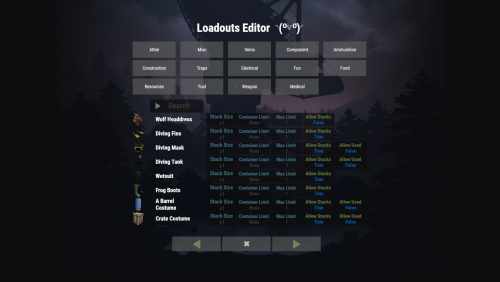
Version 1.0.0
45 downloads
Designed to bring some call of duty-like feel to your server's game-play experience. You can set up permission-based loadouts or simply grant them loadouts.spawn which will allow them to spawn randomly with 1 of 3 random pre-configured basic loadouts If you wish to allow them to make their loadouts simply grant them the loadouts.use permission! There is a fully functional UI Limit Editor for admins/staff to use to control and limit what players can and cannot save/make into a loadout. Supports Custom Ammo, Skins, Container type, Bullet count, fuel, water, snow weapons, attachments, slot positions, stacks, etc Permissions loadouts.spawn - is required to spawn with any config saved loadouts or player-created/saved loadouts loadouts.use - is for players to create their own loadouts, not required for players to receive random/perm-based loadouts. loadouts.manage - is for the admin/owner to set up the default config loadouts Player commands for loadouts.spawn /loadout list - shows the player all available loadouts that they have permissions for "if any" /loadout select name - sets loadout on next respawn only works for players that have multiple permission-based loadouts assigned Player commands for loadouts.use /loadout rewrite name - rewrites existing loadout /loadout create name - creates loadout /loadout select name - sets loadout on next respawn /loadout remove name - removes loadout /loadout list - shows the player all available/saved loadouts Admin commands for loadouts.manage /loadout setnew <number> - a new number that does not already exist as a loadout, creates a new config permission-based loadout /loadout delete <number> - deletes permission saved config loadout and removes from all players that had permission to use it /loadout set 1 - 1 through 5 sets the server permissions based config loadouts permission loadouts are only given to players who you give permission to & the last permission granted is the one they will get /loadout random 1 - numbers 1 through 3 "defaults" sets / overwrites the selected random given config loadout /loadout randomnew 1 - numbers 1 through 3 already exist by default creates/adds a new random config loadout to the list /loadout randomremove 1 - 1 through 3 already exist doing so removes random selected loadout from the config/available list /loadout wipe - wipes the whole data file for loadouts /loadout reset < name or ID > - resets a specified players data file back to defaults /loadout ban - bans all items in your inventories /loadout unban - unbans all items in your inventories UI Limits Editor Search Bar Commands /loadoutedit - opens the UI Limits Editor for player created/saved loadouts. set used true - true or false sets that whole category set stacks true - true or false sets that whole category Notes * Container Limits that = 0 || Max Limits that get set to 0, means that item cannot be saved to a loadout. * If you have questions or require help please feel free to add & message me directly on Discord @Khan#8615 * You can use the UI Editor without needing the ImageLibrary plugin installed set this config option to true & reload the plugin "Disable ImageLibrary Requirement / Images for UI Editor": false, * Shout Out to all my Beta Testers + JBird for sending his config over and allowing me to provide you all with his defaults out of the box. TODO LIST * Add Currency Systems / Limits / Cooldowns * Add Player UI Limits Viewer / Builder * Add ability for players to buy / gift / earn loadouts * Add Lang API Support for multi lang * Add Arena Support / Hooks / Ability to lock loadouts to prevent items from being taken out of inventory * Add more features Lang File { "perm": "Requires {0} permission", "argc": "Invalid arguments: /loadout create <name>", "arge": "Loadout by that name already exists.", "argm": "Max Loadout limit of {0} has been reached", "rewritten": "Loadout {0} was rewritten and set as next respawn", "rewrittennew": "Loadout {0} was rewritten and set as next respawn \n Because one or more of your saved loadout items exceeded the new server limits", "created": "Loadout {0} created and set as next respawn", "argis": "Invalid arguments: /loadout select <name>", "argni": "Loadout by that name {0} does not exists.", "argperms": "You do not have permission to use this loadout", "selected": "Loadout {0} set.", "arga": "Available saved loadouts \nDo /loadout select name\n{0}", "argre": "Invalid arguments: /loadout remove <name>", "removed": "Loadout {0} removed.", "deleted": "{0} Successfully removed from config and all players", "default": "Successfully Updated config loadout for {0}", "createdperm": "Successfully Created config loadout {0}", "invalidcreation": "Invalid Creation, /loadout set new <number>", "wiped": "Loadout data wiped.", "banned": "Loadouts has banned all items in your inventory", "unbanned": "Loadouts has unbanned all items in your inventory", "stacked": "Stacked items are not allowed to be saved in a loadout", "banneditem": "\n This item is banned {0}", "banneditemnew": "\n This item is now banned {0} and will be removed from your loadout", "stacknotallowed": "Item {0} is not allowed to be saved as a stack", "stacknotallowednew": "Item {0} is not allowed to be saved as a stack anymore and will be reduced from your loadout as 1", "stacknotallowednewlimit": "Item {0} is not allowed to be saved as a {1} stack anymore and \n will be reduced from your loadout to the new limit of {2}", "maxslot": "Max stacksize for {0} is {1}", "maxslots": "Max Slot Limit per container for {0} is {1} \n Used are not counted unless stacked", "maxitemlimit": "Maximum Item Limit for {0} is {1} \n You have {2}", "maxitemlimitnew": "New Maximum Item Limit for {0} is {1} \n You had {2} and will be reduced", "maxslotlimit": "Maximum Slot Limit for {0} is {1} \n You have {2}", "maxslotlimitnew": "New Maximum Slot Limit for {0} is {1} \n You have {2} and will be reduced", "zeroloadouts": "Zero Saved Loadouts found, Create one! \n /loadout create name", "pminvalidcreate": "Invalid syntax: Options are /loadout <create> <rewrite> <select> <remove> <list>", "pminvalidset": "Invalid syntax: Options are /loadout <setnew> <set> <delete> <random> <wipe> <ban> <unban>", "InvalidSearch": "Wrong input please do /loadout reset name or id", "playersfound": "Multiple players were found, please specify: {0}", "noplayersfound": "No players found with name or ID '{0}'", "resetplayer": "You have successfully reset {0}, {1} loadout data file!", "permgranted": "You have been granted {0} permission, loadout is now set for next respawn!", "permrevoked": "You have been removed from {0}! next default is now set", "permwiped": "You have been removed from loadouts.use! personal loadouts where cleared!", "wrong": "Invalid Selection {0} does not exist", "wrongrandom": "Invalid Selection random loadout {0} does not exist\n Available selection is {1}", "randomexist": "This random loadout {0} already exists please choose a different number", "randomcreated": "Successfully Written random loadout {digit} to the config!", "randomremoved": "Successfully Removed random loadout {digit} from the config!", "randomerror": "Please do /loadout randomnew <number that is not currently in use>", "randomerrordelete": "Please do /loadout randomremove <number that is currently in use>" } Config File { "Enable Console Logs": false, "Set Max Player Saved Loadouts": 3, "Enable Item Limits": true, "Chat Prefix": "<color=#32CD32>Loadouts</color>: ", "Sets global command prefix": "loadout", "Enable UI Editor": true, "Disable ImageLibrary Requirement / Images for UI Editor": false, "Sets GUI Editor command": "loadoutedit", "Sets Default Category to open": "Attire", "UI - Background Image Url": "https://i.imgur.com/DU7995V.jpg", "Sets any item to this image if image library does not have one for it.": "https://imgur.com/BPM9UR4.png", "UI - Text Settings": { "Loadout Editor Welcome Msg": "Loadouts Editor ◝(⁰■¿⁰)◞", "UI - Filter Label": "Search", "UI - Stack Size Label": "<color=#81d4fa>Stack Size</color>", "UI - Container Item Limit Label": "<color=#81d4fa>Container Limit</color>", "UI - Max Item Limit Label": "<color=#81d4fa>Max Limit</color>", "UI - Back Button Text": "◀", "UI - Forward Button Text": "▶", "UI - Close Label": "✖" }, "UI - Color Settings": { "UI - Display Name Text Color": "#FFFFFF", "UI - Text Color": "#FFFFFF", "UI - Search Text Color": "#bfbfbf", "UI - Input BackGround Color": "#0E0E10", "UI - Close Button Text Color": "#bfbfbf", "UI - Editable Input Field Color": "#728c44", "UI - Button Text Color": "#9ab36d", "UI - True/False Button Text Color": "#01579b", "UI - Forward & Backward Text Color": "#9ab36d" }, "Randomly Selected Given Loadouts": { "RandomList": { "1": [ { "Shortname": "arrow.wooden", "ItemID": -1234735557, "SkinID": 0, "Amount": 15, "Slot": 0, "IsWeapon": false, "Ammotype": 0, "AmmoAmount": 0, "Container": 2, "Mods": [] }, { "Shortname": "ammo.handmade.shell", "ItemID": 588596902, "SkinID": 0, "Amount": 82, "Slot": 1, "IsWeapon": false, "Ammotype": 0, "AmmoAmount": 0, "Container": 2, "Mods": [] }, { "Shortname": "ammo.rocket.smoke", "ItemID": -17123659, "SkinID": 0, "Amount": 1, "Slot": 3, "IsWeapon": false, "Ammotype": 0, "AmmoAmount": 0, "Container": 2, "Mods": [] }, { "Shortname": "ammo.rocket.fire", "ItemID": 1638322904, "SkinID": 0, "Amount": 1, "Slot": 4, "IsWeapon": false, "Ammotype": 0, "AmmoAmount": 0, "Container": 2, "Mods": [] }, { "Shortname": "ammo.rocket.hv", "ItemID": -1841918730, "SkinID": 0, "Amount": 1, "Slot": 5, "IsWeapon": false, "Ammotype": 0, "AmmoAmount": 0, "Container": 2, "Mods": [] }, { "Shortname": "ammo.rifle.explosive", "ItemID": -1321651331, "SkinID": 0, "Amount": 101, "Slot": 6, "IsWeapon": false, "Ammotype": 0, "AmmoAmount": 0, "Container": 2, "Mods": [] }, { "Shortname": "ammo.rifle", "ItemID": -1211166256, "SkinID": 0, "Amount": 70, "Slot": 7, "IsWeapon": false, "Ammotype": 0, "AmmoAmount": 0, "Container": 2, "Mods": [] }, { "Shortname": "ammo.rifle.hv", "ItemID": 1712070256, "SkinID": 0, "Amount": 100, "Slot": 8, "IsWeapon": false, "Ammotype": 0, "AmmoAmount": 0, "Container": 2, "Mods": [] }, { "Shortname": "ammo.rifle.incendiary", "ItemID": 605467368, "SkinID": 0, "Amount": 100, "Slot": 9, "IsWeapon": false, "Ammotype": 0, "AmmoAmount": 0, "Container": 2, "Mods": [] }, { "Shortname": "ammo.nailgun.nails", "ItemID": -2097376851, "SkinID": 0, "Amount": 84, "Slot": 2, "IsWeapon": false, "Ammotype": 0, "AmmoAmount": 0, "Container": 2, "Mods": [] }, { "Shortname": "crossbow", "ItemID": 1965232394, "SkinID": 0, "Amount": 1, "Slot": 0, "IsWeapon": true, "Ammotype": 0, "AmmoAmount": 0, "Container": 1, "Mods": [] }, { "Shortname": "stonehatchet", "ItemID": -1583967946, "SkinID": 0, "Amount": 1, "Slot": 1, "IsWeapon": false, "Ammotype": 0, "AmmoAmount": 0, "Container": 1, "Mods": [] }, { "Shortname": "stone.pickaxe", "ItemID": 171931394, "SkinID": 0, "Amount": 1, "Slot": 2, "IsWeapon": false, "Ammotype": 0, "AmmoAmount": 0, "Container": 1, "Mods": [] }, { "Shortname": "pistol.eoka", "ItemID": -75944661, "SkinID": 0, "Amount": 1, "Slot": 3, "IsWeapon": true, "Ammotype": 588596902, "AmmoAmount": 5, "Container": 1, "Mods": [] }, { "Shortname": "attire.hide.boots", "ItemID": 794356786, "SkinID": 0, "Amount": 1, "Slot": 4, "IsWeapon": false, "Ammotype": 0, "AmmoAmount": 0, "Container": 0, "Mods": [] }, { "Shortname": "pants.shorts", "ItemID": -1695367501, "SkinID": 0, "Amount": 1, "Slot": 5, "IsWeapon": false, "Ammotype": 0, "AmmoAmount": 0, "Container": 0, "Mods": [] }, { "Shortname": "tshirt", "ItemID": 223891266, "SkinID": 0, "Amount": 1, "Slot": 6, "IsWeapon": false, "Ammotype": 0, "AmmoAmount": 0, "Container": 0, "Mods": [] } ], "2": [ { "Shortname": "arrow.wooden", "ItemID": -1234735557, "SkinID": 0, "Amount": 15, "Slot": 0, "IsWeapon": false, "Ammotype": 0, "AmmoAmount": 0, "Container": 2, "Mods": [] }, { "Shortname": "crossbow", "ItemID": 1965232394, "SkinID": 0, "Amount": 1, "Slot": 0, "IsWeapon": true, "Ammotype": 0, "AmmoAmount": 0, "Container": 1, "Mods": [] }, { "Shortname": "stonehatchet", "ItemID": -1583967946, "SkinID": 0, "Amount": 1, "Slot": 1, "IsWeapon": false, "Ammotype": 0, "AmmoAmount": 0, "Container": 1, "Mods": [] }, { "Shortname": "stone.pickaxe", "ItemID": 171931394, "SkinID": 0, "Amount": 1, "Slot": 2, "IsWeapon": false, "Ammotype": 0, "AmmoAmount": 0, "Container": 1, "Mods": [] }, { "Shortname": "attire.hide.boots", "ItemID": 794356786, "SkinID": 0, "Amount": 1, "Slot": 4, "IsWeapon": false, "Ammotype": 0, "AmmoAmount": 0, "Container": 0, "Mods": [] }, { "Shortname": "pants.shorts", "ItemID": -1695367501, "SkinID": 0, "Amount": 1, "Slot": 5, "IsWeapon": false, "Ammotype": 0, "AmmoAmount": 0, "Container": 0, "Mods": [] }, { "Shortname": "tshirt", "ItemID": 223891266, "SkinID": 0, "Amount": 1, "Slot": 6, "IsWeapon": false, "Ammotype": 0, "AmmoAmount": 0, "Container": 0, "Mods": [] } ] } }, "Permission Based Loadouts": { "SetPermission": { "loadouts.1": [ { "Shortname": "hatchet", "ItemID": -1252059217, "SkinID": 0, "Amount": 1, "Slot": 0, "IsWeapon": false, "Ammotype": 0, "AmmoAmount": 0, "Container": 1, "Mods": [] }, { "Shortname": "pickaxe", "ItemID": -1302129395, "SkinID": 0, "Amount": 1, "Slot": 1, "IsWeapon": false, "Ammotype": 0, "AmmoAmount": 0, "Container": 1, "Mods": [] }, { "Shortname": "woodtea.pure", "ItemID": -557539629, "SkinID": 0, "Amount": 1, "Slot": 2, "IsWeapon": false, "Ammotype": 0, "AmmoAmount": 0, "Container": 1, "Mods": [] }, { "Shortname": "oretea.pure", "ItemID": 1729374708, "SkinID": 0, "Amount": 1, "Slot": 3, "IsWeapon": false, "Ammotype": 0, "AmmoAmount": 0, "Container": 1, "Mods": [] }, { "Shortname": "potato", "ItemID": -2086926071, "SkinID": 0, "Amount": 3, "Slot": 4, "IsWeapon": false, "Ammotype": 0, "AmmoAmount": 0, "Container": 1, "Mods": [] } ], "loadouts.2": [ { "Shortname": "arrow.hv", "ItemID": -1023065463, "SkinID": 0, "Amount": 12, "Slot": 0, "IsWeapon": false, "Ammotype": 0, "AmmoAmount": 0, "Container": 2, "Mods": [] }, { "Shortname": "fish.cooked", "ItemID": 1668129151, "SkinID": 0, "Amount": 5, "Slot": 1, "IsWeapon": false, "Ammotype": 0, "AmmoAmount": 0, "Container": 2, "Mods": [] }, { "Shortname": "bow.compound", "ItemID": 884424049, "SkinID": 0, "Amount": 1, "Slot": 0, "IsWeapon": true, "Ammotype": 0, "AmmoAmount": 0, "Container": 1, "Mods": [] }, { "Shortname": "hammer.salvaged", "ItemID": -1506397857, "SkinID": 0, "Amount": 1, "Slot": 1, "IsWeapon": false, "Ammotype": 0, "AmmoAmount": 0, "Container": 1, "Mods": [] }, { "Shortname": "tshirt", "ItemID": 223891266, "SkinID": 0, "Amount": 1, "Slot": 6, "IsWeapon": false, "Ammotype": 0, "AmmoAmount": 0, "Container": 0, "Mods": [] }, { "Shortname": "attire.hide.boots", "ItemID": 794356786, "SkinID": 0, "Amount": 1, "Slot": 5, "IsWeapon": false, "Ammotype": 0, "AmmoAmount": 0, "Container": 0, "Mods": [] }, { "Shortname": "pants.shorts", "ItemID": -1695367501, "SkinID": 0, "Amount": 1, "Slot": 4, "IsWeapon": false, "Ammotype": 0, "AmmoAmount": 0, "Container": 0, "Mods": [] } ] } } }$8.90 -

Version 1.1.4
1,823 downloads
Automatically adds monument cctv cameras to all placed computer stations. ISSUES: Requires default group to have autocctvstations.use If you are just installing you must enable the ones you want to have auto added. Then all players must pick-up & place back down their Computer Stations for them to apply. All newly placed Computer Stations will auto add them, this issue only affects previously placed ones. Permissions autocctvstations.admin - Is required to use the UI Editor. autocctvstations.use - Is now required for players to use this plugins features. Commands /cctvedit - Opens the UI Editor. Configuration { "Sets the CCTV Editor command": "cctvedit", "Text": { "CCTV Auto Station UI Editor": "CCTV Auto Station Editor ◝(⁰■¿⁰)◞", "UI - Back Button Text": "◀", "UI - Forward Button Text": "▶", "UI - Close Label": "✖" }, "Colors": { "UI - Button Toggle Color": "#9ab36d", "TextColor": { "Hex": "01579b", "A": 1.0 }, "ButtonBackGroundColor": { "Hex": "0E0E10", "A": 0.9 }, "ButtonGreenText": { "Hex": "9ab36d", "A": 0.431 }, "ButtonGrey": { "Hex": "bfbfbf", "A": 0.3 }, "ButtonGreyText": { "Hex": "bfbfbf", "A": 1.0 } }, "Cameras": { "OILRIG2L6D": false, "OILRIG2L6C": false, "OILRIG2L6B": false, "OILRIG2L6A": false, "OILRIG2EXHAUST": false, "OILRIG2HELI": false, "OILRIG2L5": false, "OILRIG2L4": false, "OILRIG2L3B": false, "OILRIG2L3A": false, "OILRIG2L1": false, "OILRIG2L2": false, "OILRIG2DOCK": false, "OILRIG1L4": false, "OILRIG1L3": false, "OILRIG1L2": false, "OILRIG1L1": false, "OILRIG1DOCK": false, "OILRIG1HELI": false, "LAB1178": false, "LAB1180": false, "LOCKERROOM1183": false, "LOCKERROOM1184": false, "CREWQUARTERS1207": false, "CAPTAINQUARTER1208": false, "AUXPOWER1233": false, "INFIRMARY1247": false, "LOCKERROOM1255": false, "LOCKERROOM1256": false, "CLASSIFIED1280": false, "CLASSIFIED1281": false, "HALLWAY1292": false, "LAB1302": false, "LAB1304": false, "INFIRMARY1318": false, "OPERATIONS1332": false, "SPECTRE1345": false, "SPECTRE1346": false, "HALLWAY1352": false, "AUXPOWER1371": false, "LOCKERROOM1376": false, "LOCKERROOM1377": false, "LOCKERROOM1383": false, "LOCKERROOM1384": false, "CANTINA1416": false, "LAB1439": false, "LAB1441": false, "CANTINA1469": false, "LOCKERROOM1477": false, "LOCKERROOM1478": false, "INFIRMARY1491": false, "CREWQUARTERS1516": false, "CAPTAINQUARTER1517": false, "CLASSIFIED1546": false, "CLASSIFIED1547": false, "LOCKERROOM1552": false, "LOCKERROOM1553": false, "BRIG1564": false, "HALLWAY1573": false, "OUTDOOR2124": false, "OUTDOOR2137": false, "DOMETOP": false, "DOME1": false, "AIRFIELDHELIPAD": false, "COMPOUNDSTREET": false, "COMPOUNDCRUDE": false, "COMPOUNDMUSIC": false, "COMPOUNDCHILL": false, "TOWNWEAPONS": false, "CASINO": false, "COMPOUND72628": false, "COMPOUND72629": false, "COMPOUND72645": false, "COMPOUND72694": false } }Free