Search the Community
Showing results for tags 'zone'.
-
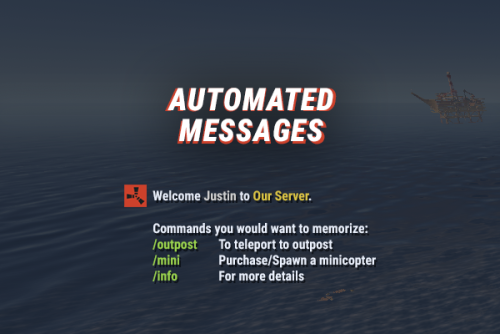
Version 2.4.1
4,431 downloads
Automated chat messages based on chat keywords, advanced scheduling modes, or various other triggers. In addition to sending messages, the plugin can also automatically run server console commands when an action triggers. Admin UI — easy-to-use editor for complete setup Scheduling — Interval, Server Time, Game Time and Countdown modes Localization — localized replies for every language the game supports Targeting — send messages only to specific Groups or Permissions Player toggle — players can turn messages on/off if they don't find them useful Video Supported Triggers Scheduling & Chat — Timed · ChatCommand · AutoReply Connection — NewPlayerJoined · PlayerConnected · PlayerDisconnected Permissions & Groups — PermissionGranted · PermissionRevoked · AddedToGroup · RemovedFromGroup Gameplay — PlayerDead · CrateHacked Deep Sea — EnteredDeepSea · LeftDeepSea Zones — EnteredZone · LeftZone Monuments — EnteredMonument · LeftMonument Tip If what you need isn't listed here but still falls within the scope of the plugin, reach out to me. Commands Command Description Permission /am.edit Opens the Admin UI for complete setup automatedmessages.admin /tips Lets players toggle messages on/off (command name configurable) — Message Localization You can switch between languages in the Admin UI to set up localized replies for every language the game supports. See Config Settings below for how to add languages. Game Tips You can use Rust's native game tip UI to show specific messages instead of, or alongside, sending them to chat. Variables Variables can be included in message text to show additional info based on the trigger or player. The plugin also supports Placeholder API and its extensive list of variables. Variable Description {playername} Player name {playerid} Player Steam ID {playercountry} Player country {online} Number of players online {sleeping} Number of players sleeping {joining} Number of players joining {target} The target string associated with the triggered action {hacklocation} Location of the hacked crate (CrateHacked only) {wipetimeremaining} Time until wipe, like 2d 5h {wipetimeremaining:d} Days until wipe {wipetimeremaining:h} Hours until wipe (0–23) {wipetimeremaining:th} Total hours until wipe {countdown} Live time remaining (Countdown scheduling mode) {countdown:m} Minutes remaining (0–59) {countdown:s} Seconds remaining (0–59) {countdown:tm} Total minutes remaining {countdown:ts} Total seconds remaining Wipe time is based on Rust convar settings if a Missile Silo monument is present. Config Settings Note Only settings not available in the Admin UI are listed below. It's highly recommended to edit triggers and actions using /am.edit. Setting Description Replies Server Languages Languages your server will support (see list below) Default Server Language Fallback language if the player's client language has no available replies Warning You must have at least one reply in the Default Server Language for an action to work. Available Languages af Afrikaans · ar Arabic · ca Catalan · cs Czech · da Danish · de German · el Greek · en English · en-PT Pirate English · es-ES Spanish · fi Finnish · fr French · hu Hungarian · it Italian · ja Japanese · ko Korean · nl Dutch · no Norwegian · pl Polish · pt-PT Portuguese · pt-BR Portuguese (Brazil) · ro Romanian · ru Russian · sr Serbian · sv Swedish · tr Turkish · uk Ukrainian · vi Vietnamese · zh-CN Chinese (Simplified) · zh-TW Chinese (Traditional)$9.99 -
Version 1.3.9
5,099 downloads
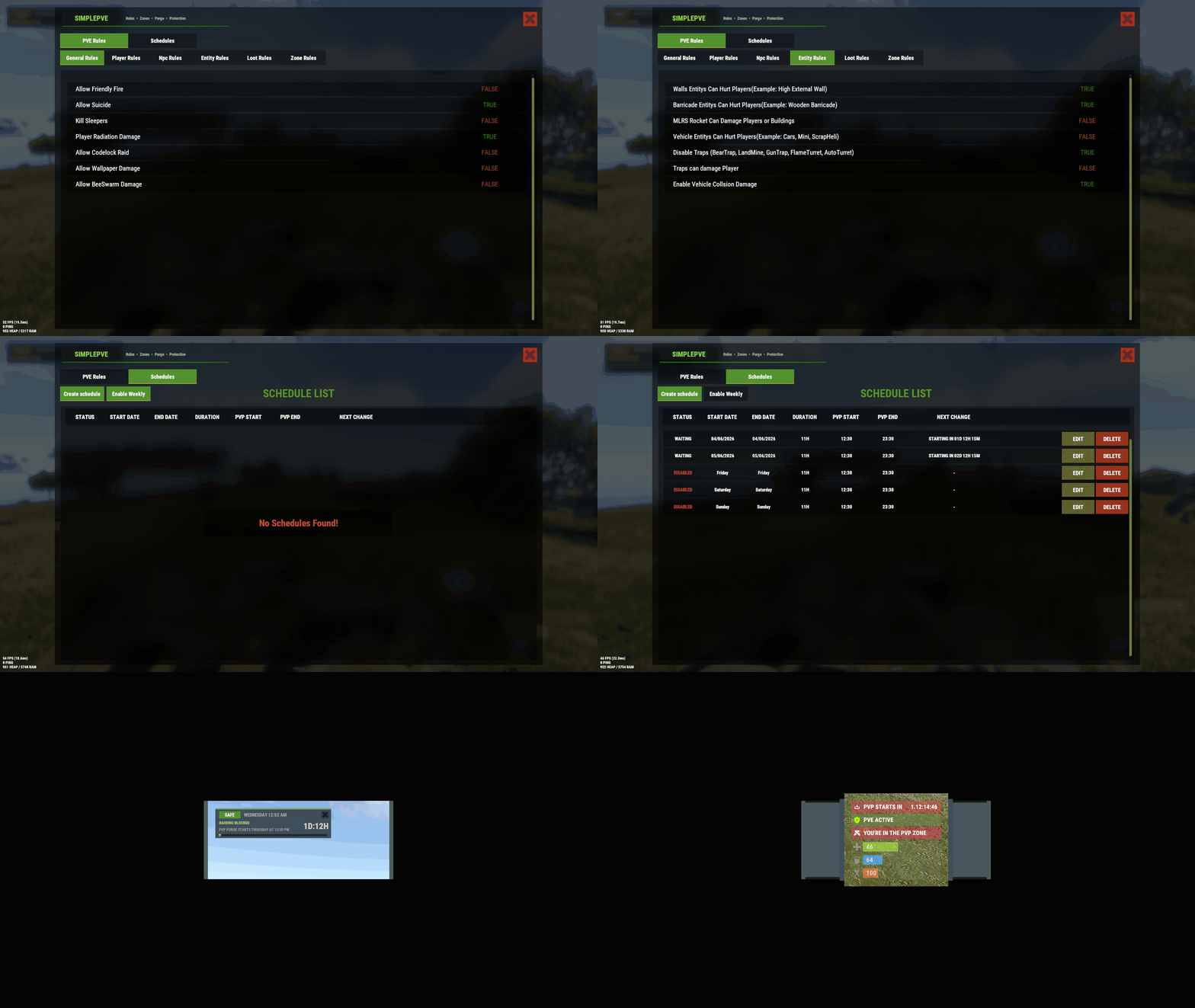
SimplePVE Simple, powerful PVE for Rust. Control every damage, raid, loot and protection rule from a clean in-game menu. Save rules as profiles and switch between them on a schedule. Run a full PVE server, weekend purges or a hybrid PVE/PVP server, all from one plugin. Tip No server.pve needed. SimplePVE handles everything itself. Keep server.pve false. Video Showcase Features Rules and profiles In-game rule manager (/sprules). Toggle every rule with one click, no config editing needed. Rule profiles. Save several rule sets (for example Normal PVE, Raid Weekend, Event Night), then duplicate, rename and switch them live. Easy rule categories. Damage, raiding, looting, NPCs, traps, vehicles, Deep Sea and Apartments. Debug mode (/spdebug). Shows exactly which rule blocked or allowed a hit. Schedules and purges Automatic PVE/PVP purges. PVP turns on and off by itself on your schedule. Weekly schedules. Pick days and times, like Friday 18:00 → Sunday 22:00 or weekends only. Dated schedules. For example January 1 → January 7, holiday events or wipe weekends. Priorities. Several schedules can overlap and the highest priority wins. Outside every schedule, your base profile runs. Run commands when a purge starts or ends. Master switch (/simplepve on|off). Pauses everything and turns the server vanilla in one command. Protection Loot protection. Corpses, backpacks, boxes and supply drops are protected from other players, with team access. Building, vehicle and boat protection. Separate rules for your own, your team's and other players' property. Vehicle auto-claim. Vehicles are claimed when you start the engine. You can also lock claimed vehicles to the owner and their team. Admin bypass permissions for loot and damage. Zones and events ZoneManager support. Create PVP zones inside your PVE server. Exclude zones from the global PVE rules. PVP delay when leaving a PVP zone. Nobody can escape a fight by stepping out. Works with many popular event plugins. HUD, status and notifications SimplePVE HUD. Shows the current mode, what's next, a live countdown and a progress bar. Green when safe, red during raid time. In-game HUD editor (/sp_change). Move it and save it without touching the config. Status UI for PVE/PVP, PVP zones, PVP delay, purge countdown and Deep Sea (via CustomVitalsManager). Discord embeds when a purge starts or ends, plus optional early warnings. In-game warnings before every schedule change. Chat, UI, Toastify or Notify for warning messages. Multi-language. Every message is in the lang file, sent in each player's language. Profile names can be translated too. How it works Rules. Open /sprules and set what players can and can't do. Profiles. Save those rules as a profile, and create more for different situations. Schedules. Tell SimplePVE when each profile (or full PVP) should run. Players see it. The HUD shows the current mode and counts down to the next change, with chat and Discord warnings ahead of time. Note Example setup: Base profile PVE all week. A weekly schedule switches to PVE OFF (full PVP and raiding) every Saturday 18:00 → Sunday 23:00. Players get a warning 30 minutes before, and Discord announces the purge. Rule categories Category What it controls General Friendly fire, suicide, sleepers, radiation, codelock raids, wallpaper, bee swarms, clan support Player Player vs player, animals, NPCs, vehicles, boats, buildings (own / team / others), twigs Deep Sea PVP and boat damage out in the Deep Sea NPC NPCs, animals, Patrol Heli, Bradley and SAM sites vs players and buildings Entity Walls, barricades, MLRS, vehicle collisions and all traps Loot Loot protection, team access, PVP-zone looting, supply drops, Deep Sea looting Zone ZoneManager integration and the PVP delay Apartment Apartment combat zones, master keys, break-ins, rental shops, basement bribes Commands Command Type Description /sprules Chat Open the menu for rules, profiles and schedules /simplepve Chat & Console Toggle SimplePVE on or off /simplepve on / /simplepve off Chat & Console Turn SimplePVE on, or turn it off (vanilla, schedules paused) /spdebug Chat & Console Debug mode: shows why damage was blocked or allowed /sp_change Chat Open the in-game HUD position editor /sp_hide Chat Hide or show the SimplePVE HUD (players, name set in the config) /spve.langkeys Chat & Console Create lang keys for your profile names so they can be translated /resetsprules Chat & Console Reset the rules to default Permissions Permission Allows simplepve.admin Using the admin commands and the /sprules menu simplepve.adminloot Looting other players' protected containers and using their claimed vehicles simplepve.admindamage Damaging any entity while PVE is on Hosting partner Game hosting perfected, that's Physgun. Join the thousands of server owners using Physgun to take their game server communities to the top. Get your server at Physgun Installation Upload SimplePVE.cs to oxide/plugins. Make sure server.pve is false. Grant yourself admin: oxide.grant user YourName simplepve.admin Type /sprules in game and set up your rules. (Optional) Create profiles and schedules in the same menu. (Optional) Set your timezone (see below) if you use schedules. Schedule timezone Schedules use UTC plus your offset in minutes. Set it in the config under Schedules Setting → UTC Time Difference. Your timezone Calculation Value UTC 60 × 0 0 United Kingdom (GMT+1, summer) 60 × 1 60 Central Europe (UTC+2) 60 × 2 120 Bangladesh (UTC+6) 60 × 6 360 US Eastern (UTC−4) 60 × −4 -240 US Pacific (UTC−7) 60 × −7 -420 Warning Schedules starting at the wrong time? Your UTC Time Difference doesn't match your timezone. Fix it and reload the plugin. Configuration Tip Translating: copy the lang file to another folder (for example oxide/lang/de/SimplePVE.json) and translate the values. Each player gets their own language. Run /spve.langkeys to add lang keys for your profile names too. FAQ Does SimplePVE need server.pve? No. Keep server.pve set to false. SimplePVE does all the protection itself. Where do I change the rules? Type /sprules in game (needs simplepve.admin). Every rule is a toggle, and changes save to the profile you're editing. What are profiles? A profile is a saved set of rules. Make one for normal PVE days and one for raid weekends, then switch them by hand or let a schedule switch them. Can I make automatic purges? Yes. Create a schedule in /sprules → Schedules, pick what it runs (a profile, PVE ON or PVE OFF) and when. Outside every schedule, your base profile runs. Weekly or date-based schedules? Both. A schedule's time windows can be weekly (days and times, or a day-to-day span) or dated (a date range, or a daily time inside a date range). When schedules overlap, the one with the highest priority wins. My schedules start at the wrong time. Your UTC Time Difference doesn't match your timezone. See Schedule timezone above. How do I turn PVE on or off by hand? /simplepve on or /simplepve off (needs simplepve.admin). Off makes the server vanilla and pauses all schedules until you turn it back on. Damage still happens in PVE mode. Why? Either one of your rules allows that damage, or another plugin changes damage too. Turn on /spdebug to see which rule decided each hit, and turn it off again when you're done. How does loot protection work? Players can't loot other players' corpses, backpacks, containers and called supply drops. Teammates can if you allow it. Admins with simplepve.adminloot can bypass it. Add entity short names to Loot Protection Excluded Entitys to keep them open to everyone (mailboxes and drop boxes by default). Can admins damage things while PVE is on? Yes, with the simplepve.admindamage permission. Does it support ZoneManager? Yes. ZoneManager zones can run PVP inside your PVE server, with an optional PVP delay when players leave. List zone IDs under Exclude Zone IDs From Rules to keep SimplePVE out of them completely. Can it post to Discord? Yes. It sends embeds when a purge starts or ends, and optional warnings a set number of minutes before. In-game warnings work without Discord too (Warn Players Before Schedule Change). Can I run commands when a purge starts or ends? Yes. Add them to Commands when PVP Purge Starts and Commands when PVP Purge Ends. The menu or HUD looks see-through. Keep UI - Use blur materials set to false. Blur is broken on Rust's new render pipeline. For developers Hooks and API void OnSPVEPurgeStarted() void OnSPVEPurgeEnded() TimeSpan GetPVPStartTimeRemaining() TimeSpan GetPVPEndTimeRemaining() bool IsServerPVE() bool IsStatusEnabled_API() bool AddToExcludeZone(string zoneId) bool RemoveFromExcludeZone(string zoneId) Override hooks. Return true or false to force the result and skip SimplePVE's own checks. Return null to let SimplePVE decide. object CanEntityTakeDamage(BaseCombatEntity entity, HitInfo hitInfo) // true = allow damage, false = block object CanEntityBeTargeted(BasePlayer player, BaseEntity entity) // true = allow targeting, false = block object CanEntityTrapTrigger(BaseTrap trap, BasePlayer player) // true = allow trigger, false = block Support Need help or found a bug? Open a support ticket on this page or join the Discord. Check out my other plugins$19.99 -

Version 1.1.6
72 downloads
Adds a zone capture event to the server. When a player gathers resources inside a captured zone, a commission is taken from them and goes into the "capture cupboard". Features: Markers on the map Spawn in crates/barrels Percentage setting with permissions Setting limits with permissions Bypass setting (for teammates, friends, clanmates, cupboard) Commands give.capturezone [target] [amount]: gives out a cupboard for capturing a zone Permissions capturezone.ignore: the player does not pay the resource tax Video Web Config Editor Manage the CaptureZone settings in our web config editor. You change the config in a browser form instead of editing files on the server by hand. P.S. The web config editor is open to members of the "CaptureZone" group in our Discord server. Join at https://discord.gg/mevent and ask for the group. Config { "Work with Notify?": true, "Zone Radius": 40.0, "Permission (ex: capturezone.use)": "", "Item Settings": { "DisplayName": "Zone Сapture", "ShortName": "cupboard.tool", "SkinID": 2767790029 }, "Marker": { "Enabled": true, "Display Name": "Zone by {owner}", "Radius": 0.3, "Refresh Rate": 3.0, "Duration": 0, "Color 1": "#EA9999", "Color 2": "#A73636FF" }, "Drop Settings": { "Enabled": true, "Drop Settings": [ { "Prefab name": "assets/bundled/prefabs/radtown/crate_normal.prefab", "Min amount": 1, "Max amount": 1, "Chance": 50.0 }, { "Prefab name": "assets/bundled/prefabs/radtown/loot_barrel_2.prefab", "Min amount": 1, "Max amount": 1, "Chance": 5.0 }, { "Prefab name": "assets/bundled/prefabs/radtown/loot_barrel_1.prefab", "Min amount": 1, "Max amount": 1, "Chance": 5.0 } ] }, "Notification during mining in the occupied territory": { "Enabled": true, "Cooldown": 5.0 }, "Percent Settings": { "Default": 20.0, "Permissions": { "capturezone.vip": 25.0, "capturezone.deluxe": 30.0 } }, "Limits Settings": { "Enabled": true, "Default": 3, "Permissions": { "capturezone.vip": 5, "capturezone.deluxe": 7 } }, "Bypass Settings": { "Teammates (Rust in-game system)": true, "Friends": true, "Clanmates": true, "Authorized in the cupboard": true } }$19.95 -
Version 2.0.1
181 downloads
Zones and areas Draw a zone where you stand — and let every plugin see it A safe area at the trader, an arena with damage on, a poisoned crater that drains health: you make each one in game, watch it as a sphere around you, and drag the radius until it fits. Other plugins read the same zones through a ZoneManager compatible API, so your event plugin knows exactly when a player walks in. 28 API methods 7 Zone hooks 11 Chat commands 0 Dependencies ✓Resize a zone while looking at it — the sphere follows every step you take ✓Three ready templates — safe, arena and event, one click each ✓Six effects inside a zone — healing, damage, radiation, speed, warmth, full stomach ✓Drop in for ZoneManager — same hook and method names, plugins work as they are ✓Nothing to edit by hand — menu, chat commands and live preview, config stays untouched 01 — Making zones Stand there, name it, done Walk to the spot, type one command or press one button, and the zone exists. No coordinates typed by hand, no server restart, no guessing what a radius of eighty actually covers. Edit it in the world A sphere is drawn around the zone with its name and current size. Buttons under it change the radius in steps of one and ten, drop the centre where you stand, save or roll back. Only you see it, and cancel restores the size and position you started with. The zone drawn around you while you change its radius, with the enter message players see Templates instead of seven fields Safe, arena and event come preconfigured. One button in the menu creates a zone from a template where you stand, and an existing zone takes a template with a single command. Templates live in the config, so your own presets sit next to them. A list that stays usable at thirty zones Search by name, type or id. Sort by name, type, radius or distance from you. Every row shows the type and the size and carries a teleport button, so checking a zone on the far side of the map takes one click. Every zone with its type and size, search, sorting and a teleport button on each row Copy what already works A tuned arena becomes the next arena with one command: the copy lands at your feet with every flag and effect carried over, ready to be renamed. 02 — What a zone does Rules and effects that hold inside the border Each zone decides who may hurt whom, and what happens to everyone standing in it. Both parts are switches in the same screen, applied the moment you press them. Damage rules per zone Players, player structures, NPCs and the patrol helicopter, four independent switches. A safe area at the trader and an arena two hundred metres away can hold opposite rules on the same map. Six effects on everyone inside Health per second, positive or negative · radiation · movement speed · bonus maximum health · warmth · hunger and thirst held full. A healing camp, a snow shelter, a radioactive pit or a sprint arena is one zone and no extra plugin. Admins in god mode are left alone. Players see where they are The zone type sits on screen in your colour, and entering or leaving pops a message you write yourself. Zones can also be drawn as a visible dome and marked on the map, both optional per zone. Overlapping zones behave Walk out of a small zone inside a bigger one and the plugin shows the one you are still standing in, instead of telling you that you left for the open world. One screen per zone: damage rules on top, effects underneath, applied the moment you press them 03 — For other plugins A ZoneManager replacement, not another island Hooks and methods carry the names ZoneManager uses, so a plugin written for it works here without waiting for its author. Zones are addressed by a readable id you choose, for example event_arena, instead of a random number. Events you can listen to OnEnterZone · OnExitZone · OnEntityEnterZone · OnEntityExitZone · OnZoneCreated · OnZoneUpdated · OnZoneErased Ask a zone anything Who is inside right now, players and entities separately, is this position or this player in a zone, which zones cover a point, name, type, radius, location and the whole field list. Twenty eight methods in total, with no allocation variants for the ones called every tick. Zones that clean themselves up An event plugin can raise a temporary zone for the length of a fight. It never touches the config and disappears the moment that plugin unloads, so a crashed event leaves no arena behind. Hooks Every id that crosses the API is a string: the readable id from the zone field Zone ID for other plugins, or the zone number when that field is empty. Both forms are accepted by every method. OnEnterZone (string zoneId, BasePlayer player) A real player walked in. OnExitZone (string zoneId, BasePlayer player) And walked out. OnEntityEnterZone (string zoneId, BaseEntity entity) An NPC, a vehicle or a dropped item entered. Players never come through here. OnEntityExitZone (string zoneId, BaseEntity entity) It left. OnZoneCreated (string zoneId) A zone was made, from the menu or through the API. OnZoneUpdated (string zoneId) A field or a flag changed. Editing never fires fake enter and exit events. OnZoneErased (string zoneId) The zone is gone. Ask a zone GetZoneIDs () → string[] Every zone id. GetZoneIDsNoAlloc(List<string> list) fills your own list instead of allocating. CheckZoneID (string zoneId) → object The id of the zone when it exists, null otherwise. The cheapest way to test an id. GetZoneName (string zoneId) → object The name, null when there is no such zone. GetZoneType (string zoneId) → object The type label, null when there is no such zone. GetZoneRadius (string zoneId) → object Radius in metres as a float, null when there is no such zone. GetZoneLocation (string zoneId) → Vector3 Centre of the zone, Vector3.zero when it does not exist. ZoneFieldList (string zoneId) → Dictionary<string, string> Every field of the zone as text: ID, name, type, color, radius, location, visible and the flags. Null when there is no such zone. ZoneFieldListRaw () → List<string> The names of the fields and flags a zone has, for building your own editor. IsPositionInZone (string zoneId, Vector3 position) → bool Is the point inside that zone. IsPositionInAnyZone (Vector3 position) → bool Is the point inside any zone at all. GetZonesAtPosition (Vector3 position, List<string> results) Adds the id of every zone covering the point to your list. GetPlayersInZone (string zoneId) → List<BasePlayer> Players inside right now, as a fresh list. GetPlayersInZoneNoAlloc(string zoneId, List<BasePlayer> list) fills yours. GetEntitiesInZone (string zoneId) → List<BaseEntity> NPCs, vehicles and dropped items inside. GetEntitiesInZoneNoAlloc(string zoneId, List<BaseEntity> list) fills yours. IsPlayerInZone (string zoneId, BasePlayer player) → bool Is the player inside right now. IsEntityInZone (string zoneId, BaseEntity entity) → bool Is the entity inside right now. GetPlayerZoneIDs (BasePlayer player) → string[] Every zone the player is standing in. GetEntityZoneIDs (BaseEntity entity) → string[] Every zone the entity is in. Flags Flag names are candamageplayers, candamagestructures, candamagenpc, candamagehelicopter and visible. Case does not matter. An unknown name writes a warning to the console and reads as false. HasFlag (string zoneId, string flag) → bool Is the flag on for that zone. PositionHasFlag (Vector3 position, string flag) → bool True when any zone covering the point has the flag on. PlayerHasFlag (BasePlayer player, string flag) → bool True when any zone the player stands in has the flag on. AddFlag (string zoneId, string flag) → bool Turns the flag on, saves a permanent zone to the config and fires OnZoneUpdated. RemoveFlag (string zoneId, string flag) → bool Turns it off the same way. Create and remove args is a flat list of field and value pairs: name, type, color, radius, visible and any of the flags. Booleans take true, false, 1 or 0. An unknown field or a radius that is not a number is skipped with a warning, the rest of the call still applies. CreateOrUpdateZone (string zoneId, string[] args, Vector3 position = default) → bool Creates the zone when the id is new and updates it otherwise, then writes it to the config. A readable id becomes the zone id other plugins see, a number becomes its zone number. The position moves the centre when given. CreateOrUpdateTemporaryZone (Plugin owner, string zoneId, string[] args, Vector3 position = default) → bool The same zone, but it lives in memory only: never written to the config and erased the moment the owner plugin unloads. Another plugin cannot update it, the call returns false. EraseZone (string zoneId) → bool Deletes the zone, false when there is none. Reliability Safe on a live server ✓Zones survive restarts and plugin reloads, and everyone standing inside is picked up again ✓Unloading removes every dome, marker and interface, leaving the map vanilla ✓Editing a zone does not fire fake enter and exit events at the plugins listening to it ✓The menu is behind a permission, so a random player cannot delete your safe zone ✓Detects TruePVE and steps aside instead of fighting it over damage ✓Works on Oxide and Carbon, no dependencies Commands Everything from chat /zmOpen the zone menu /zm create <name> [radius]New zone where you stand /zm edit <zone>Resize and move it in the world /zm radius <zone> <value>Set the radius by number /zm move <zone>Move the centre to you /zm copy <zone> [name]Copy it to your position /zm apply <zone> <template>Put a template on a zone /zm templatesList the presets /zm listAll zones with size and headcount /zm hereWhich zones cover your position /zm tp <zone>Teleport to a zone /zm remove <zone>Delete it A zone is addressed by its number, by the readable id you gave it for other plugins, or simply by its name. Permission managezone.useOpens the menu and the commands, admins have it by default Questions Before you buy Will my plugin that needs ZoneManager work with this? If it talks to zones through the usual hooks and methods, yes. The names are the same, so pointing it at ManageZone is enough. Only zones you create here exist, ZoneManager data is not imported. Do I need TruePVE or anything else? No. The plugin has no dependencies. If TruePVE is installed, ManageZone leaves damage decisions to it instead of overriding them. Are the zones round only? Yes, a zone is a sphere with a centre and a radius. Overlapping zones are handled correctly, so a large area with a smaller one inside works. What happens if I remove the plugin? Domes, map markers and the interface go away with it and the map is vanilla again. Your zones stay in the config, so putting the plugin back restores them. Can a moderator manage zones without full admin rights? Yes, grant managezone.use to the group and the menu opens for them. Does it work on Carbon? Yes, the same file runs on Oxide and Carbon.$12.99 -
Version 1.2.2
33 downloads
Allows you to restrict specific actions in TC areas to authorized players only. Permissions tczonerestriction.use - Use the plugin. tczonerestriction.bypass - bypass the restrictions Configuration { "Blocked Actions in Building Blocked Zone": { "Farming Trees": false, "Mining Ores": false, "Building": false, "Looting": false, "Crafting": false, "Collectible Pickup": false, "Dropped Items/Entities Pickup": false, "Damaging Entities": false, "Damaging Players": false, "Vehicles Interaction": false }, "Extended TC Radius (0 to use default TC range)": 0.0, "Deal Damage to Intruder": 0.0, "Notify TC Owner on Intrusion": false, "Notify Player When Blocked": true }$11.99 -
Version 1.3.15
1,791 downloads
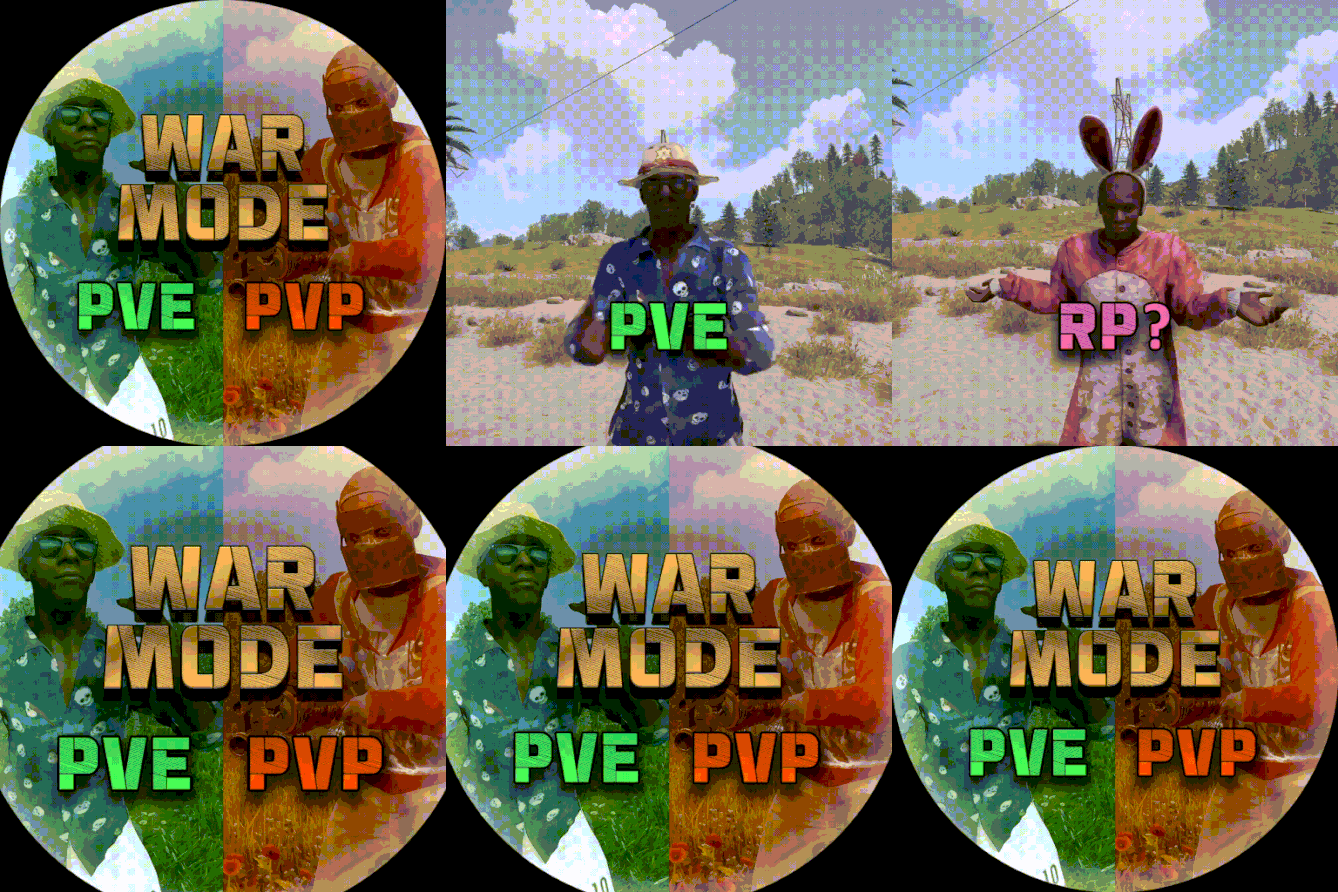
Allows both PVE and PVP players to exist on a server at the same time. PVE players will have certain configurable protections and restrictions. You can have players use a command to flag themselves as PVP/PVE or you can assign it to them when they first spawn. If you have ZoneManager you can also designate specific zones to force player's to be PVE or PVP. Plugin is also compatible with SimpleStatus. Note: Video is outdated, see documentation for a full list of new features! Documentation: A full readme including permissions, commands, and config options is available in this wiki site. Disclaimer: Like all of my plugins - this plugin is sold as is. I will be happy to take feature requests into consideration but make no guarantees about which ones get implemented. Please refer to the feature list before you make your purchase! Developer API: API Methods // Returns the mode of the given entity. Also takes into account if the entity is in a forced mode zone. string GetEntityMode(BaseEntity entity); // Returns the group name for the given mode. For example if given 'pve' will return 'warmodepve' string GetModeGroup(string modeId); // Returns the target type for a given entity. Target types are the category that an entity falls into. // For example, if given a BasePlayer entity, it will return 'players'. If given a horse entity is will // return 'horses'. string GetEntityTargetType(BaseEntity entity); Hooks - place these in your plugin and WarMode will call them. // Called when a player's mode has been updated or config changes have ocurred that may affect the mode. private void WarMode_PlayerModeUpdated(string userid, string modeId) // Used to override WarMode logic for taking damage. // If true/false is returned then WarMode logic will be skipped. Return null to continue WarMode logic. private object CanEntityTakeDamage(BaseCombatEntity target, HitInfo info) // Used to override WarMode logic for targeting. // If true/false is returned then WarMode logic will be skipped. Return null to continue WarMode logic. private object CanEntityBeTargeted(BasePlayer target, BaseEntity attacker, bool skipVendingCheck) // Used to override WarMode logic for triggering a trap. // If true/false is returned then WarMode logic will be skipped. Return null to continue WarMode logic. private object CanEntityTrapTrigger(BaseTrap trap, BasePlayer basePlayer) // Used to override WarMode logic for looting an entity. // If true/false is returned then WarMode logic will be skipped. Return null to continue WarMode logic. private object CanEntityLoot(BasePlayer looter, BaseEntity target, bool skipVendingCheck) FREE Extension Plugins: All extension plugins are optional, and included in the downloadable zip that WarMode comes in. War Mode Admin Panel Use the /warmode.config or /wmc command to open a panel that allows admins to update mode rules in game without having to reload the pluign. Requires the warmode.admin permission to use. I HIGHLY recommend you use this extension! War Mode Spawn UI Provides a UI that is shown to players when they first spawn that prompts them to choose whether they want to be PVP or PVE. Also supports custom modes. Localization and config options available. This can also be configured to appear when players use the /flag command. War Mode Rules UI Using the /rules command (which is configurable) players can see a list of what restrictions they have for their current mode. These ruling will update dynamically based on your config settings. War Mode Badges Customizable UI elements that will appear on the player's HUD to indicate what their current mode is.$24.99 -
Version 0.8.1
23 downloads
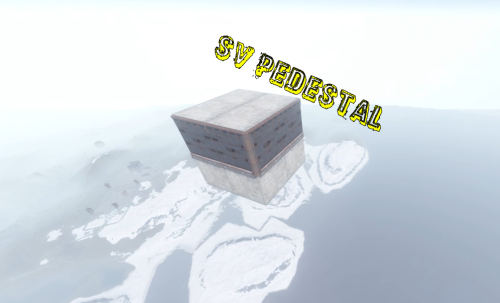
A great plugin for donation services! The plugin issues an access card to the secure zone of the server, after activating which, it is teleported to a small 2 * 2 database, where it can store its resources! 1. The base is created high in the sky (900 meters) in a random location 2. The base is completely invulnerable, it cannot be destroyed by other players from the ground! 3.The plugin does not depend on other plugins 4.The name of the map, the name of the sleeping bag, the height of the base construction and much more are configured! The database model is sewn into the code, it cannot be changed through the configuration file, pay attention to this when buying. The plugin supports English The plugin was created for my server, where I actively use it for donation services. PERMISSIONS: svpedestal.use OUTPUT COMMAND VIA THE CONSOLE: dropzone steamid CONFIG: { "Settings": { "Permission": "svpedestal.use", "Height spawn zone": 900.0, "SkinId Cards": 2560602174, "SkinId sleepbags": 1102195403, "ItemId": 609049394, "Name sleepbags": "Zone", "Chat Tag": "[SV_ZONE]", "Name Cards": "ZONE_CARD", "Font size": 16, "Building Grade": 4, "Time teleport": 10, "Effect teleport": "assets/prefabs/locks/keypad/effects/lock.code.denied.prefab" } }$5.00 -

Version 2.1.4
367 downloads
The Maze plugin adds intensive pvp combat within a maze environment. Players navigate through the maze, engaging in intense battles to eliminate opponents and be on top Key Features Easy to setup Automation of maze arena Includes Free 2 Maze Arena with pre-setuped arenas Door Animation Multiple arena setup Easy configurable Setup winning rewards Discord Webhook support Need help setting up the arena or customization? Knock me on Discord Commands Setup Commands /maze create <ArenaName> - Create a maze arena where you are standing /maze edit <ArenaName> - Select an arena to edit /maze radius <Number> - Change arena radius /maze wallradius <Number> - Change arena wall radius which is your arena walls radius from center /maze meshheight <Number> - Change arena mesh height is top and bottom from corner mesh /maze location - Change arena location to where you are standing /maze setcorner - Set corner location to where you are standing /maze showmesh - Show created mesh after setting corners /maze copywalls - Copy all the walls in the arena radius and store them /maze pastewalls - Copy all the walls in the arena radius and store them /maze setspawn - Set spawn postion for arena players to teleport /maze spawnclear - Clear all spawn points /maze adddoor - Place an arena door to your standing location /maze removedoor - Remove arena door to your standing location (Radius 5f) /maze cleandoors <ArenaName> - Remove all the arena doors from the arena /maze list - Show all arena and its settings /maze cleanarena - Clears the entire arena /maze delete/remove <ArenaName> - Remove or deletes an arena /maze start <ArenaName> - Starts a Maze(For Testing) Start Commands /maze_setup - Starts Automatic Maze setup if arena available also a console command /mazestart - Starts a random maze from the config if available /mazestart <ArenaName> - Starts the specific arena /mazestop - Stops the running maze event Permissions Maze.admin - To use all maze available commands Video Showcase Configuration { "Maze Automatic Event": false, "Maze Automatic Event Interval Minimum (In Seconds)": 3600, "Maze Automatic Event Interval Maximum (In Seconds)": 7200, "Maze Minimum player requires to starts Auto": 2, "Maze Automatic Event Random From List": [ "mazeareana", "maze2areana" ], "Maze Event Player Teleport Timer (In Seconds)": 15, "Maze Event Before Notification (In Seconds)": 300, "Maze Event Door Opening Notification (In Seconds)": 300, "Maze Event Door Closing In (In Seconds)": 600, "Maze Event Removing Walls Radius": 10, "Maze Event Shrink Amount": 3, "Maze Event Removing Walls Timer (In Seconds)": 15, "Show Kill Streak Messages": true, "Maze Event Door Prefab": "assets/content/structures/interactive_garage_door/sliding_blast_door.prefab", "Maze Walls Item List": [ "assets/prefabs/building/wall.external.high.stone/wall.external.high.stone.prefab", "assets/prefabs/misc/xmas/icewalls/wall.external.high.ice.prefab", "assets/prefabs/misc/xmas/icewalls/icewall.prefab", "assets/prefabs/deployable/barricades/brarricade.cover.wood_double.prefab" ], "Maze Event Blocked items": [ "grenade.beancan", "grenade.f1", "rock", "rocket.launcher", "ammo.rocket.basic", "ammo.rocket.smoke", "ammo.rocket.hv", "ammo.rocket.seeker", "ammo.rocket.fire", "explosive.satchel", "explosive.timed", "ammo.grenadelauncher.smoke", "ammo.grenadelauncher.buckshot", "ammo.grenadelauncher.he", "grenade.flashbang", "grenade.molotov", "multiplegrenadelauncher", "grenade.smoke" ], "Maze Event Blocked Commands": [ "kit", "trade", "remove", "tpa", "home", "shop", "clan" ], "Maze Map Marker Setting": { "Display Name": "Maze", "Marker Radius": 0.4, "Marker Transparency": 0.75, "Marker Color": "#FFFF00" }, "Maze Rewards": { "Give commmands rewards upon winning the event": true, "Rewards player with higest kill from winning clan": true, "Rewards upon winning({PLAYER})": [ "inventory.giveto {PLAYER} supply.signal 1" ], "Spawn loot boxes in the arena": true, "Loot boxes time in seconds": 300 }, "Maze Chat Setting": { "Chat Avatar Icon": 0, "Chat Prefix": "<color=#FFFF00>Maze</color> -> ", "Winner Message": [ "<color=#FFD700>Maze Results:</color>", "\n", "Winner -> <color=#FFFF00>{WinningClanName}</color>", "", "{PlayerStats}", "", "<color=#FFD700>Totals:</color> Kills: {ClanTotalKills}, Deaths: {ClanTotalDeaths}, KDR: {ClanTotalKDR}", "Damage: {ClanTotalDamage}, Headshots: {ClanTotalHeadshots}", "", "<color=#FFD700>Aggregate Maze Totals:</color>", "- Total Kills: <color=#FFD700>{TotalKills}</color>", "- Total Damage: <color=#FFD700>{TotalDamages}</color>", "- Number of Participants: <color=#FFD700>{Participents}</color>" ], "Participents Message": [ "<color=#FFD700>Personal Stats</color>", "Kills: <color=#FFD700>{Kills}</color>, Deaths: <color=#FFD700>{Deaths}</color>, KDR: <color=#FFD700>{KDR}</color>, Total Damage: <color=#FFD700>{Damages}</color>, HeadShots: <color=#FFD700>{Headshots}</color>", "Shooting Accuracy: <color=#FFD700>{Accuracy}%</color>, HeadShot Accuracy: <color=#FFD700>{HeadshotAccuracy}%</color>" ], "Maze Event Top Bar Message": [ "<size=25><color=#FFFF00><b>MAZE</b></color></size>", "<size=15><color=#FFFF00><b>{DYNAMIC_TIMER}</b></color></size>", "", "<size=15><color=#FFFF00>{TotalTeams}</color><b> TEAMS REMAINING</b></size>", "<size=15><color=#FFFF00>{TotalPlayers}</color><b> PLAYERS REMAINING</b></size>" ] }, "Discord Setting": { "Enable Discord Webhook": false, "Discord Webhook URL": "", "Discord Webhook Message": [ "**MAZE ARENA**", "", "**Details**", "Total Kills: `{TotalKills}`", "Total Teams: `{TotalTeams}`", "Total Players: `{Participents}`", "", "**Winners**", "**{WinnerClanName}**", " Kills: `{ClanKills}` Deaths: `{ClanDeaths}`", " Headshots: `{ClanHeadshots}` Damages: `{ClanDamages}`", "", "**Members**", "{MembersStats}" ] }, "Auto Maze Arena Setup": { "Start Maze Arena Setup": true, "Auto Arena Setup": { "AutoMaze1": { "Maze Center Item": "skullspikes.candles", "Maze Arena Locate Radius": 100.0, "Maze Arena Wall Radius": 40.0, "Maze Arena Mesh Top & Bottom Height": 50.0, "Maze Spawn Points Item": "woodbox_deployed", "Maze Door Item": "workbench1.deployed", "Maze Corner Item": "mailbox" } } } } API & Hooks OnMazeStarts(string ArenaName, DateTime timeNow) OnMazeWinnerAnnounce(HashSet<ulong> winnerList, DateTime timeNow) Support$40.00- 22 comments
- 2 reviews
-
- 2
-

-
- #maze
- #mazeevent
- (and 7 more)
-

Version 1.2.5
213 downloads
In Extraction, players will not feel alone on your server, despite its size of 3500. In Extraction, players will find all the official Rust Monuments. Extraction contains more than 300 construction zones, which are distributed across all the exits available on the map. In addition, these gigantic construction zones are equipped with electricity and water for each player. When an exit is activated, an alarm sounds to alert other players that a player is about to leave the surface to access an area designed for better player safety. - OFFER YOUR PLAYERS A BETTER PVP EXPERIENCE (Optional) Extraction includes a prefab “Extraction-NoBuild” to block construction on the map surface and force players to build in areas located inside the exits. Follow these steps to block construction on the surface: 1- Include “Extraction-NoBuild.prefab” in the RustEdit “CustomPrefabs” folder. 2- Open the map in RustEdit. 3- In the list of prefabs, find and include “Extraction-NoBuild” in the map. 4- Place “Extraction-NoBuild” at the coordinates: X:0,000 - Y:390,431 - Z:0,000 5- Save the changes you have made. - FEATURES Size: 3500. Objects: 81002. Map protection plugin included. Editable map: Yes Profile Better Npc: Yes. - CONTAINS ALL OFFICIAL MONUMENTS Apartment complex • Ziggurat temple • Jungle ruins • Radtown • Ferry Terminal • Nuclear missile silo • Large oil platform • Small oil platform • Submarine laboratories • Harbor • Large fishing villages • Fishing villages • Launch site • Satellite dish • The Dome • HQM Quarry • Stone quarry • Sulfur quarry • Arctic Research Base • Sewer Branch • Train yard • Junkyard • Abandoned military bases • Military tunnel • Caves • Large barns • Ranch • Bandit camp • Power plant • Swamp • Airfield • Giant excavation • Outpost • Lighthouse - CUSTOM MONUMENTS Five giant islands surround the map to support the Raidable Bases plugin. Over 300 construction areas equipped with electricity and water. Bunkers: Three types of mini-bunkers scattered throughout the map. Use grenades or explosives to open the door. Each bunker has its own color light to indicate its difficulty: green, blue, and red. Trees with safe zones: These trees are scattered throughout the jungle area. Climb the stairs and access these safe zones to recycle, shop, and more. Ammunition Tower: A giant tower where you will find ammunition and other resources inside. C4 Tower: A giant tower where you will find C4 explosives and other resources inside. Medical Tower: A giant tower where you will find medicine and other resources inside. The Arecibo Observatory: Also known as the National Astronomy and Ionosphere Center (NAIC) and formerly known as the Arecibo Ionosphere Observatory, is an observatory located in Barrio Esperanza, Arecibo, Puerto Rico, owned by the US National Science Foundation (NSF). Communications Center: Four giant towers where you will find all kinds of resources inside. Access from one tower to another via zip lines. Helicopter Tower: A classic but modern tower for shooting combat helicopters. This tower is equipped to meet all your needs. Train Stations: With a waiting room, loot, and NPCs, with secondary respawn on the railroad. Crocodile Lakes: Do you like crocodiles? Visit these locations to see them, but don't disturb the crocodiles. Green Exit: Access this exit using a button located in a booth. The waiting time at this exit is 5 minutes. After 5 minutes, the player will be able to access the construction area. Blue Exit: Access this exit using a blue card. The waiting time at this exit is 3 minutes. After 3 minutes, the player can access the construction area. Red Exit: Access to this exit is immediate and the player can access the construction area immediately. - TIPS Remove the “Extraction-NoBuild” prefab to allow players to build on the map surface. Have fun - SUPPORT: https://discord.gg/ASxJynGndj$49.90- 29 comments
- 4 reviews
-
- 3
-
-

-
- #extraction
- #extraction game
- (and 52 more)
-

Version 2.6.2
40 downloads
Description The Townhall plugin introduces a new level of realism to Rust by requiring players to own a plot of land before building. Players can claim land by setting up a mailbox. This can be done creatively, such as placing a vending machine in a safe zone or having an NPC distribute mailboxes in a town hall. Once a mailbox is placed, the plot of land is protected immediately: only the owner and the owner's Rust team may build inside the plot, everyone else is blocked. Building is also blocked everywhere outside of an owned plot, so a mailbox is the only way onto the map. Every plot owner gets a small management UI to rename their plot, control who gets ejected, manage a whitelist, and pick a color for the plot's visual boundary dome. Townhall enhances gameplay for RP servers and is versatile enough for PvE and mixed-variant servers. Dependencies Townhall requires two other plugins to be installed and loaded: - ZoneManager by k1lly0u - ZoneDomes by k1lly0u Townhall waits up to 30 seconds after startup for both plugins to load before it initializes. To limit your mailboxes on the server, you can use Entity Limit. Functions - Must own a plot of land (a placed mailbox) in order to build anywhere on the map - Only the plot owner and the owner's Rust team may build inside that plot, all other players are rejected - Plot boundaries are shown as a colored dome for a configurable duration - The plot boundary can be shown again at any time with the /myplot command - Owners can pick the dome color for their own plot from five colors (Standard, Red, Blue, Green, Purple) directly in the management UI, the change applies instantly if the dome is currently visible - Owners can rename their plot from the management UI - Owners can toggle ejecting non-whitelisted players from the plot - Owners can toggle ejecting sleeping players from the plot - Owners can add and remove players from a whitelist per plot - Plot size, dome duration and messages can all be set in the config - Optional mailbox pickup system: owners can pick their mailbox back up with a hammer, which removes the plot and returns the mailbox as an item - Mailboxes carried on death are safely returned to the player on respawn instead of being lost to the corpse Permissions townhall.myplotofland Chat Commands - /myplot shows the boundary dome of the nearest owned plot - /townhallhelp opens the plot management UI when standing near an owned plot - /mailboxpickup shows a short info message about the pickup feature (only available if mailbox pickup is enabled in the config) Config { "Show Zone Messages": true, "Mailbox Check Radius": 50.0, "Zone Dome Visibility Duration (seconds)": 60.0, "Zone Update Interval (seconds)": 300.0, "Default Zone Radius": 50.0, "UI Panel Color": "0.106 0.114 0.129 0.98", "UI Surface Color": "0.145 0.157 0.184 1.0", "UI Border Color": "0.204 0.224 0.263 1.0", "UI Button Color": "0.169 0.180 0.212 1.0", "UI Button Hover Color": "0.216 0.231 0.271 1.0", "UI Accent Color": "0.290 0.560 0.960 1.0", "UI Text Color": "0.902 0.922 0.949 1.0", "UI Muted Text Color": "0.549 0.580 0.639 1.0", "UI Danger Color": "0.859 0.361 0.380 1.0", "UI Default Position": "Center", "Enable Mailbox Pickup": true, "Require Ownership for Pickup": true, "Show Pickup Messages": true, "Enable Zone List Teleport": true } UI Default Position determines where the plot management UI appears on the screen by default. Players can cycle through the position using a button in the UI itself; this value is only the starting value. Possible values: Center Bottom Left Top Left Top Right Bottom Right Attention this plugin works and harmonizes perfectly with our MyHouse plugin load, run, enjoy$13.99 -
Version 0.1.9
436 downloads
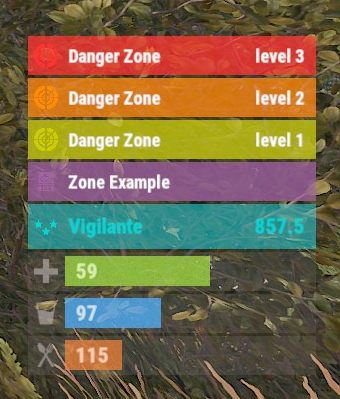
The plugin displays the current zone or monument to the player in the status bar. Depends on ZoneManager, MonumentsWatcher and AdvancedStatus plugins. P.S. The settings for each zone or monument are located in the "*SERVER*\oxide\data\ZoneStatus\" folder. The ability to display the player's current monument; The ability to automatically change monuments names when the player switches languages; The ability to display the player's current zone; The ability to enable or disable visibility for each of the zones; The ability to customize the style for each of the zones(in the data file); The ability to specify the order of the bar; The ability to change the height of the bar; The abillity to customize the color and transparency of the background; The ability to set a material for the background; The ability to switch between CuiRawImageComponent and CuiImageComponent for the image; The ability to get images from the local folder(*SERVER*\oxide\data\AdvancedStatus\Images); The abillity to set own image and customize the color and transparency of the image; The abillity to set sprite instead of the image; The ability to customize the color, size, font and outline of the text. { "Is it worth deleting all saved Bar configs upon detecting a Wipe?": false, "Is it worth deleting all saved Monument configs upon detecting a Wipe?": false, "Is it worth deleting all saved Zone configs upon detecting a Wipe?": false, "Is it worth deleting all unused Monuments during initialization?": false, "Is it worth deleting all unused Zones during initialization?": false, "The name of the zone which has no name": "No name zone", "Is it worth enabling the bar display for new monuments?": true, "Is it worth enabling the bar display for new zones?": true, "List of prefix IDs that will share the same settings. Leave null to recreate the default list": [ "cargoship", "deepsea_floatingcity", "deepsea_island_tropical", "ghostship", "desert_military_base_", "gas_station_1", "lighthouse", "station-", "supermarket_1", "swamp_", "underwater_lab_", "warehouse", "entrance_bunker_", "ice_lake_", "power_sub_small_", "power_sub_big_", "jungle_ruins_", "water_well_" ], "Wipe ID": null, "Version": { "Major": 0, "Minor": 1, "Patch": 9 } } In the "\data\ZoneStatus\" folder, there are three files: BarsConfig.json - stores status bar settings with their unique keys. MonumentsConfig.json - contains settings for monuments. ZonesConfig.json - contains settings for zones. [PluginReference] private Plugin ZoneStatus; There is 1 method: UpdateZoneSettings UpdateZoneSettings: Used to change bar settings for zones from ZoneManager. To call the UpdateZoneSettings method, you need to pass 3 parameters, 1 of which is optional: <string>zoneID - The Id of the zone; <object[]>args - Array of objects to update; <bool>redraw - Optional. Is it worth redrawing the status bars for players? Defaults to true. Note: It is not necessary to pass all parameters, but the indices are strictly tied to the parameters. object[] args = new object[] { true, //0. Display - Is it worth displaying the status bar for this zone? "#A064A0", //1. Background_Color - Primary HEX color of the status bar. 0.8f, //2. Background_Transparency - Opacity of the primary status bar color. "https://i.imgur.com/mn8reWg.png", //3. Image_Url - Url of the status bar icon. "ZoneStatus_Default", //4. Image_Local - Name of the local image for the status bar. Note: The image must exist.(Leave empty to use Image_Url). false, //5. Image_IsRawImage - True for multicolored images, false for monochromatic images. "#A064A0", //6. Image_Color - Color of the status bar icon. For Image_IsRawImage = false. 1f, //7. Image_Transparency - Opacity of the status bar icon. For Image_IsRawImage = false. "#FFFFFF", //8. Text_Color - Primary text color. "#FFFFFF" //9. SubText_Color - Subtext color. }; ZoneStatus?.Call("UpdateZoneSettings", zoneID, args, true); //Call the API method UpdateZoneSettings with all necessary arguments for updating. Example with incomplete parameters: object[] args = new object[] { null, //0. Display - Skip index 0, as it is reserved for Display. "#A064A0", //1. Background_Color - Primary HEX color of the status bar. 0.8f, //2. Background_Transparency - Opacity of the primary status bar color. null, //3. Image_Url - Skip index 3, as it is reserved for Image_Url. null, //4. Image_Local - Skip index 4, as it is reserved for Image_Local. false, //5. Image_IsRawImage - True for multicolored images, false for monochromatic images. "#A064A0", //6. Image_Color - Color of the status bar icon. For Image_IsRawImage = false. 1f //7. Image_Transparency - Opacity of the status bar icon. For Image_IsRawImage = false. }; ZoneStatus?.Call("UpdateZoneSettings", zoneID, args, true); //Call the API method UpdateZoneSettings with all necessary arguments for updating.$3.99 -
Version 1.6.0
1,201 downloads
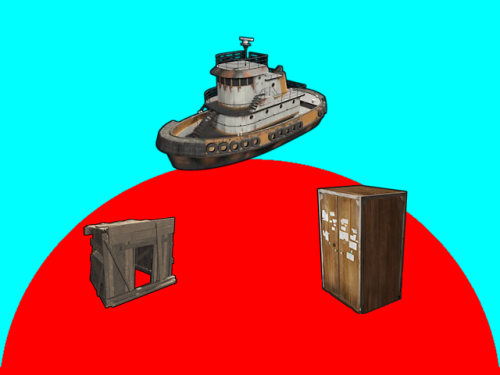
Introduction Automatically manages PVP zones for player bases, legacy shelters, tugboats, and modular boats. Background/Compatibility Player Base PVP Zones is meant for hybrid PVP servers that want to allow online raiding. It is meant to complement Dynamic PVP which only provides zones for monuments and events. Zone Manager is a hard requirement in order to implement moving zones for tugboats and modular boats, as it doesn't officially support this feature. A PVE mod is required to make this useful. I only tested with True PVE for various reasons. Others have reported success with SimplePVE. Features Manages its own Zone Manager zones and maps them as True PVE exclusion zones (Re)creates zones on plugin load and cleans them up on unload Provides tool cupboard based zones: Configurable creation & deletion delays Automatic resizing to always encompass the base as building blocks are added/destroyed, with configurable delay Configurable minimum total base and per-building-block buffer sizes Provides legacy shelter based zones: Configurable zone size Provides tugboat based zones: Configurable zone size Zone moves with the tugboat Provides modular boat based zones: Configurable zone size Zone moves with the modular boat Optional support for visible zone spheres: Configurable sphere darkness Optional support for language file based zone creation/deletion and entry/exit notifications Configurable PVP expiration delay on player exit from zones Optional support for toggling zones on and off via a permission-controlled command Zone Toggling Notes In order for players to toggle zones, they must have the `PlayerBasePvpZones.toggleZones` Oxide permission, or be in an Oxide group that has that permission. The `/pbpz toggle` command will attempt to toggle a zone if the player is doing one of the following: Looking at and authorized to a Tool Cupboard within interaction range Within building privilege of a Legacy Shelter Mounted to the steering wheel of a Tugboat Mounted to a steering wheel of a Modular Boat If a zone creation/deletion timer is in effect, toggling will cancel it; otherwise, PBPZ will act as if the associated entity (TC/shelter/tugboat) just (de)spawned, applying any appropriate delays. Besides standard zone creation/deletion delays, exploitation of the toggle feature can be discouraged by configuring timed toggle lockouts that are triggered by toggling and/or by damage being done to building blocks, Tool Cupboards, Shelters, Tugboats, or Modular Boats. Admins can bypass the standard creation/deletion delays by reloading the plugin after running the toggle command. Admins can also toggle Tool Cupboard zones for other players by temporarily authorizing on the TC, and of course anyone with permission can toggle the zone for any Tugboat or Modular Boat that they are able to mount. Admin toggling of other players' shelter zones is currently not supported (if someone really needs it, I can implement it). Permissions `PlayerBasePvpZones.toggleZones` controls whether a player/group can use the `/pbpz toggle` command Commands `/pbpz` in chat supports the following sub-commands: `/pbpz help` shows info on currently available sub-commands (if any) `/pbpz toggle` attempts to toggle a zone on or off Configuration Default configuration: { "Zone creation delay in seconds (excludes tugboat)": 60.0, "Zone creation delay notifications (owner only, excludes tugboat)": true, "Zone deletion delay in seconds": 300.0, "Zone deletion delay notifications (all players in zone)": true, "Zone creation/deletion notification prefix": "[PBPZ] ", "Zone exit PvP delay in seconds (0 for none)": 5.0, "Zone sphere darkness (0 to disable, maximum 10)": 0, "Zone entry/exit ZoneManager messages": true, "Zone TruePVE mappings ruleset name": "exclude", "Building settings": { "Building update check delay in seconds": 5.0, "Building zone overall minimum radius": 16.0, "Building zone per-block minimum radius": 16.0, "Building zone includes turret sight range": true }, "Modular boat settings": { "Modular boat zone radius": 32.0 }, "Shelter settings": { "Shelter zone radius": 8.0 }, "Tugboat settings": { "Tugboat force global rendering on/off when spheres enabled (null=skip)": null, "Tugboat force enable buoyancy when forcing global rendering": false, "Tugboat zone radius": 32.0 }, "Zone toggle settings": { "Zone toggle lockout seconds after damage": 60.0, "Zone toggle lockout seconds after toggle": 60.0 } } NOTE: The tugboat rendering options should be left at defaults. The options are provided for the case that you are running other plugins that force global networking/rendering for tugboats, which can cause spheres to disappear when a tugboat comes back into client render range.This plugin will automatically attempt to synchronize tugboat sphere networking with each tugboat's networking type when (re)creating the spheres. Developer API Supported API calls: bool IsUsingExcludePlayer() Returns whether True PVE 2.2.3+ ExcludePlayer() PVP delay API is being used. string OnPlayerBasePvpDelayQuery(ulong playerID) Provides the ability to query whether a player has an active PVP delay Returns the triggering zone ID if the referenced player has an active PVP delay Returns an empty string If no PVP delay is active Hooks: void OnPlayerBasePvpDelayStart(ulong playerID, string zoneID) Called when PVP exit delay is applied to a player as a result of their exiting a base zone playerID is the ID of the triggering player zoneID is the Zone Manager zone ID whose exit triggered the delay void OnPlayerBasePvpDelayStop(ulong playerID, string zoneID) Called when PVP exit delay expires from a player playerID is the ID of the triggering player zoneID is the Zone Manager zone ID whose exit triggered the delay Zone Manager / PVE Plugin Integration Direct Zone Manager API calls are used to maintain zones for all bases, and indirect True PVE API calls are used to map those zones to the configured True PVE ruleset (`exclude` by default). This will cause True PVE (or other PVE plugins that implement a compatible API) to treat them as PVP areas. Zone names are broken into categories in case you want other plugins to recognize them separately: `PlayerBasePVP:building` for building block bases `PlayerBasePVP:shelter` for legacy wood shelters `PlayerBasePVP:tugboat` for tugboats `PlayerBasePVP:modularboat` for modular boats Developer note: Zone IDs are `PlayerBasePVP:` followed by a unique identifier. Credits Thanks to the following folks for making this plugin possible: bmgjet (help with / code for tugboat sphere issues) CatMeat & Arainrr (moving Zone Manager zones code examples in Dynamic PVP) Karuza (help with unique entity identifiers & tugboat sphere issues) Kulltero (help with TC/building relationship) WhiteThunder (help with tugboat sphere issues) AFKBank and Mooselips whose bases I took screenshots of on my server during testingFree -
Version 1.0.3
96 downloads
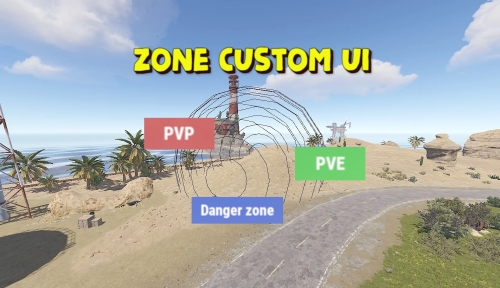
Displays the name of the zone the player is in. You can customize text, text color, background color, etc. This plugin takes information about zones from zonemanager, all information is saved in a config file, after which you can customize information about these zones, which will be displayed Commands: /rzinfo - update zone information Config file: { "Settings outside the zone": { "Id": "0", "Name": "Outside", "AnchorMin": "0.649 0.041", "AnchorMax": "0.695 0.081", "Color_Background": "0.1 0.1 0.8 0.8", "Color_Text": "1 1 1 1", "TextSize": "16", "TextPlaceHolder": "Outside" }, "Default settings for the new zone": { "Id": "0", "Name": "Default", "AnchorMin": "0.649 0.041", "AnchorMax": "0.695 0.081", "Color_Background": "0.1 0.8 0.1 0.8", "Color_Text": "1 1 1 1", "TextSize": "16", "TextPlaceHolder": "Default" }, "Zones list": [] }$3.99 -
Version 0.1.12
2,291 downloads
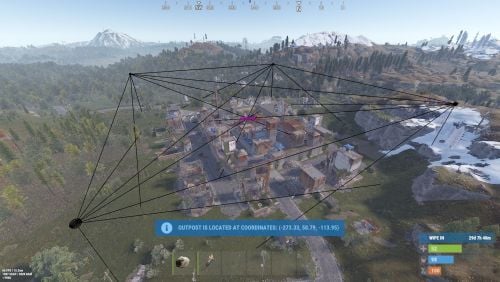
An API plugin which helps interact with players, NPCs, animals, and other entities inside monuments. More detailed information can be found in the GitHub repository.Free -
Version 1.0.5
23 downloads
Are you tired of manually placing trap sets and deployables every time you build your base? Introducing our groundbreaking Automatic Trap Spawning feature, boost your productivity today! Premium TrapsDeployable Pack Include: 25 Deployable Traps with traps include own skin id's to add easy to your shop/kits/rewards etc. Much more will be added soon! Config setting: Change Skin Id Enable Auto Light Amount of items spawn when use command Use Permissons and Spawn all Traps Permissions Commands: /givetraps More will be added soon { "Autoload Handmade Shells to Shotgun Traps?": true, "Amount of Handmade Shells Per Trap (If Autoloading is Enabled)": 5, "Enable Random AutoTurret Weapon Equipping?": true, "Weapons that will equip to spawned AutoTurrets? (Won't work with AutoTurrets as the base Trap item.)": [ "smg.2", "smg.mp5", "rifle.ak", "rifle.ak.ice", "rifle.ak.diver" ], "Skins For Large Wood Box": [ 3089535231, 2862225402, 3073574332 ], "Skins For Wood Storage Boxes": [ 2968107939, 2814554242, 3140274442 ], "Skins For Locker": [ 2827174228, 3045135608, 2192426772 ], "Skins For Sandbag Barricade": [ 809144507, 883540119, 2875673223 ], "Skins For Concrete Barricade": [ 791070521, 2979413501, 3048748658 ], "Skins For Sleeping Bag": [ 890544230, 1846072235, 3138426426 ], "Skins For Garage Door": [ 3141844850, 3122757150, 3041397918 ], "Skins For Reactive Target": [ 824001540, 1559278854, 867566835 ], "Amount of Each Trap that will be Spawned Upon Command": 5, "Auto Ignite Lanterns?": true } Displayname - Shortname - skinid Deathbed - bed- 3142209738 Deathwish - Throne -chair.icethrone - 3142209392 SWEEPER-S1 - autoturret - 3141114360 Bedroll Trap - sleepingbag - 3141151356 Elite Worker - EH1 workbench3 - 3141143055 Bench X-5 - box.repair.bench - 3141187587 Lockdown Locker - locker - 3141146704 JACK3D TURRET - autoturret - 3141190617 DISCOV3RY BENCH - research.table - 3141193852 Working Man Trap - box.wooden.large - 3141243339 Garage Trap wall.frame.garagedoor - 3141262381 Trapboxx box.wooden.large - 3141262270 T-3000 Lantern - electric.teslacoil - 3141260773 T-3000 Siren ectric.sirenlight - 3141469034 Cozy Sofa -sofa - 3141251865 SnapTrap - storage_barrel_c - 3141252178 SnapTrap - cupboard.tool - 3141641822 TrapRack - shelves - 3141645233 StackTrap - box.wooden - 3141642954 Quick Deploy - barricade.concrete - 3141643596 Oldtimer - rockingchair - 3142210610 Search Trap - searchlight - 3142210215 Triple Barrel - electric.pressurepad 3141263818 Reactive Trap - target.reactive - 3142605567 New Wall Turret - spinner.wheel 3147202210 Barrel with Dual Shotguns and Front Bear Trap Description Behold the Barrel of Doom, innocently resting before you, concealing an unforgiving surprise within. Two Shotguns lurk inside, primed and ready to launch a hail of destruction, while a cruel Bear Trap guards the barrel’s entrance, ensnaring any unsuspecting intruders in a swift and painful embrace. Sofa with Teddy Bear and Middle Trap Shotgun Description Lounge in comfort while your enemies sow their own demise on the Sofa, accompanied by an innocent Teddy Bear. Concealed within, a Middle Trap Shotgun activates with every unsuspecting visitor, turning relaxation into a horrifying spectacle of carnage. Stack of Four Small Boxes with Side Traps and Lanterns Description Ascend the tower of danger with the Stack of Four Small Boxes, each harboring insidious Side Traps and illuminated by sturdy lanterns. Ascend with caution, for each treacherous step holds the potential for entrapment, rendering even the most intrepid adventurers helpless before your ingenuity. Sentry Turret with Shotguns on Both Sides Description Establish an impenetrable fortress with the Sentry Turret, complemented by Shotguns on both sides. This stalwart defender relentlessly watches over your stronghold, ensuring that any trespasser foolish enough to test your defenses will meet a swift and explosive demise. Locker with Small Box, Lamp, and Dual Shotgun Traps Description The Locker exudes an air of mystery, concealing a Small Box, crowned by a vigilant lamp. Silent sentinels flank its sides, with Dual Shotgun Traps poised to unleash a symphony of destruction upon unsuspecting foes who dare to peer inside. Workbench with Side Traps, Lamp, and Storage Description Harness the power of strategic craftsmanship with the Workbench fortified by Side Traps, illuminated by a steadfast lamp, and boasting concealed storage beneath. Craft your deadliest weapons under the watchful gaze of its protective mechanisms, offering both practicality and lethal defense. Research Table with Large Box and Side Traps Description: The Research Table assumes a dual role as both a fountain of knowledge and an impregnable fortress, complete with a concealed Large Box, Side Traps lying in wait, and Hidden Shotguns ready to defend your valuable research with lethal precision. Lantern with Tesla Coil [T 3000-lantaren] Description: The Lantern becomes an instrument of both illumination and unrelenting electrical defense with the installation of a Tesla Coil. Cast a luminous glow upon your surroundings while simultaneously ensuring that any who dare disturb the peace are met with a shocking, electrifying welcome. Orange Alarm Light with Tesla Coil Description: The Orange Alarm Light stands as a beacon of warning, paired with the pulsating power of a Tesla Coil. Its vivid hue serves as a visual testament to the imminent danger that lies in wait for any who dare to challenge your stronghold, delivering a relentless surge of electricity as a reminder of your unyielding power. Pumpkin on a Sentry Turret Description Amidst the haunting darkness, a foreboding Pumpkin sits atop a Sentry Turret, serving as an ominous warning to all who approach. Beware, for this Jack-o-Lantern harbors within it the formidable power of defense, ready to incinerate all who dare to challenge it. Tool Cupboard with Side Shotgun Traps Description Safeguard your territory with the Tool Cupboard fortified by Side Shotgun Traps, a testament to your commitment of absolute control and ruthless defense. This impenetrable bastion ensures that any who challenge your claim will face a relentless barrage of projectiles, quickly reducing them to naught but ashes. Sleeping Bag with Bear Trap Description Unleash a truly sinister surprise with the Sleeping Bag harboring a hidden Bear Trap beneath its seemingly innocent exterior. Like a predator in wait, this unassuming trap conceals its razor-sharp teeth, striking fear into the hearts of those who dare disturb your slumber. Large Box with Shotgun Trap Description The Large Box, shrouded in secrecy, conceals the promise of grand treasures. However, lurking beneath lies a Shotgun Trap, ready to thwart the greed of unscrupulous pilferers with a powerful blast that shatters illusions of easy plunder. Repair Bench with Box, and Hidden Shotgun on both side Description The Repair Bench assumes a dual role as both a sanctuary for mending and a formidable stronghold, featuring a concealed Box, Side Traps lying in wait, and a Hidden Shotgun ready to defend your valuable tools and supplies with lethal precision. Garage Door with Upside Down Shotgun Trap Description As the Garage Door opens, an Upside Down Shotgun Trap awaits, striking fear into the hearts of those foolish enough to breach your fortress. This deadly contraption inverts expectations, ensnaring intruders with an onslaught of piercing lead from above. Concrete Wall with Dual Turrets, Sandbags for Cover Description Construct an impregnable barrier with the Concrete Wall, its surface bristling with Dual Turrets installed with ruthless precision on either side. Offering an additional layer of protection, sandbags provide cover from incoming fire, turning this structure into an impenetrable fortress that strikes fear into the hearts of any who dare challenge it. (bewerkt) Ice Throne with Shotguns on Both Sides Description Rule the frozen wasteland from the Ice Throne, bedecked with Shotguns on both sides. Commanding awe and fear, this icy seat promises a chilling demise to any who dare challenge your supremacy, as they unwittingly succumb to the deadly embrace of its icy guardians. Pressure pad of Traps with Lamp: Description Enter the ominous territory guarded by a menacing Cluster of Traps. Three traps stand united, poised to ensnare intruders, as a foreboding lamp casts an eerie glow upon their malevolent presence. Tread carefully or face their merciless consequences. Searchlight with Twin Turrets Description Illuminate the battlefield and assert your dominance with the Searchlight equipped with Twin Turrets. This ingenious creation combines light and firepower, providing a watchful eye on both sides, ensuring no enemy goes unnoticed or unchallenged. Bed with Shotguns on Each Side Description Rest in the embrace of security with the Bed fortified by Shotguns on each side. Intruders will find themselves caught between a rock and a hard place, as they unknowingly enter your domain, only to be greeted by a hail of bullets from both ends. Swinging Chair with Shotgun on Each Side Description Sit back and witness the carnage unfold from the Swinging Chair, armed with a Shotgun on each side. Deceptively innocuous, this chair leaves its victims no chance for escape, delivering a symphony of destruction upon those who underestimate its deadly intent. Shotgun Trap Behind Reactive Target Description Harness the element of surprise with the Shotgun Trap cunningly concealed behind a reactive target. Set the stage for chaos as the target responds to the touch of an intruder, triggering the hidden shotgun to unleash a relentless barrage of destruction. None shall evade its lethal embrace once the trap is sprung. Box with Flamethrower Turrets on Each Side and Weapon Rack: - Description: Unleash a symphony of devastation with the Box crowned by Flamethrower Turrets on either side. Accompanied by a Weapon Rack, spawning instruments of destruction, this display of firepower raises the stakes and leaves assailants trapped in a relentless inferno of chaos. .Rack with Double Large Boxes and Side Shotgun Traps: - Description: Bask in the glory of organization and fortification with the Rack adorned with Double Large Boxes, flanked on both sides by deadly Shotgun Traps. This display of lethal efficiency combines storage capacity with a deadly defense, ensuring that any would-be thieves are met with a barrage of shotgun shells from every angle. New WAll Turret! Made By @Wrecks & TrapBox Dor info or faster help join our discord ! Discord:TrapBox https://discord.gg/RSuXWDsEVc$35.00 -
Version 1.0.12
233 downloads
XPrison - prison for your server. - Optimization of the interface for different monitor resolutions. - Storing player data in - oxide/data/XDataSystem/XPrison - There is a lang ru/en/uk/es. - Sound effects when interacting with the menu. - Ability to create a prison using the CopyPaste plugin or a custom prefab created in RustEdit. [ To use a prefab as a prison, you need to specify its coordinates in the config ] [ The prison is protected from any kind of damage. ] - Adjustment of attires for the prisoner. - Setting nicknames for prisoners. [ Random prefix with nickname in chat ] - Setting allowed console and chat commands. [ The rest will be blocked ] - Radio tuning for prisoners. [Detailed settings in the spoiler] - The ability to send the player to life or temporary imprisonment. - Two options for serving a temporary sentence: Online. [ The player needs to spend his entire term online in prison ] By date (offline). [ The player will be released after the specified time. He can go offline and wait offline for the end of the term ] - The ability to add prisoners even if they have never been on the server or on the date. [ A file with the prisoner's data will be automatically created ] - The ability to block slots with clothes. [ To prevent the prisoner from taking off his uniform ] - Automatic release of prisoners at the end of the term. - Block damage to prisoners. - As spawners for prisoners, the - "Tesla Coil" is used. [ If there are no spawners, then the prisoners will spawn around the map, but will not be able to farm and deal damage. There will be appropriate warnings in the server console ] - As a spawner for admins is used - "Press Plate". - "Igniter" is used as spawners for visitors. - Various chat notifications. [ Sending to the prisonand release. The duration of the term. ] - An admin or a player with a permit is not subject to various prison restrictions. - The ability to teleport a prisoner to prison (clear his inventory). [ Or kill the prisoner and he will respawn in prison ] - Ability to teleport prisoner from prison to Outpost or Bandit Camp (clear his inventory) [ Or kill the prisoner and he will respawn on the beach ] - If a prisoner is teleported to and from prison, without clearing his inventory, then you can arrange a quest for them: If you survive in prison, you can save your loot, as well as the loot that you got from other prisoners in prison. - Mini game. The prisoner can press buttons and reduce his time of detention. [ Useful for prisoners who are serving time online ] - Mini game 2. The prisoner can recycle items inside the zone and reduce his time of imprisonment. - Ability to automatically spawn entities(stone, barrels, etc.) inside the prison. [ When the player breaks them, they will appear automatically after N seconds. ] - Ability to link a prison to a monument. [ Just set it up once and it's automatic from there! ] Important! There must already be a building on the monument! And also all elements of the prison OwnerID must be 100001. You can spawn buildings on monuments with the plugin - MonumentAddons You can get the prison file for the CopyPaste plugin from the developer after purchase. -> Overview - YouTube <- Permissions xprison.admin - access to admin functionality. [ Not required for admin player ] xprison.visitor - access to visiting the prison for ordinary players. xprison.prisonposset - access to the /prisonposset command. Commands /zonaloc - find out your coordinates and the coordinates of the prison. /zonaloc1 - get coordinates relative to the monument. [ To link the prison to the monument. ] /tpzona - teleport to the prison. [ For Administrators/Visitors ] /zona - check the length of the term. /zonamenu - open the prisoner management menu. /prisonposset false/true - change the prison coordinates in the configuration. ( The player current coordinates are used. false/true - reload the plugin after changing the coordinates. ) /entspawn cfg-key sec - spawn an entity inside the prison with an appearance interval. /entkill - delete a custom entity. [ You have to look at it. ] cmd_prisoner add <SteamID [ 76561100000000000 ]> <Life imprisonment [ True / False ]> <Term duration [ 3600 ]> <Option to serve time [ True - online / False - by date (possibly offline.) ]> - send to the player's zone. ( Regardless of online player or offline ) cmd_prisoner remove <SteamID [ 76561100000000000 ]> false 0 - release the prisoner. ( Regardless of online player or offline ) [ You can, for example, give the opportunity to redeem yourself through the store ] API bool API_IsOnlinePrisoner(ulong userID) - return TRUE/FALSE if the online player is a prisoner. void API_AddOnlinePrisoner(BasePlayer prisoner, bool life - Life imprisonment [ True / False ], int duration - Term duration [ 3600 ]) - send an online player to the zone. void API_RemoveOnlinePrisoner(BasePlayer prisoner) - free online prisoner. bool API_IsOfflinePrisoner(ulong userID) - return TRUE/FALSE if the offline player is a prisoner. void API_AddOfflinePrisoner(BasePlayer prisoner, bool life - Life imprisonment [ True / False ], int duration - Term duration [ 3600 ]) - send an offline player to the zone. void API_RemoveOfflinePrisoner(ulong userID) - free offline prisoner. string API_GetOnlinePrisonerPrefix(BasePlayer player) - return the prisoner's online prefix. Config { "General settings": { "Profile SteamID for custom avatar": 0, "List of allowed console commands on the prison": [ "global.respawn" ], "List of allowed chat commands in the prison": [ "zona" ] }, "Settings prison": { "Prison location coordinates": { "x": 1000.0, "y": 700.0, "z": 0.0 }, "Prison file name for the CopyPaste plugin": "zona606", "Diameter from the point you specify to search for prison structures, spawners, and more": 35.0, "Automatically turn on the boombox after the prison spawns": true, "Use the CopyPaste plugin for the prison [ True - CopyPaste | False - the prison location point you specified, you can use a custom prefab or build the prison manually ]": true, "Allow regular players to visit the prison": false, "Allow ordinary players to visit the prison only with an empty inventory": true }, "Prisoner settings": { "Lock the clothing slots": true, "Lock the slots on the belt": false, "Lock inventory slots": false, "Lock clothing items - [ Player will not be able to discard them ]": true, "Use a nickname prefix for the prisoner - [ Set to False if the prefix should be disabled or the prefix is used by a third party chat plugin ]": true, "Link to prisoner lock screen image": "https://i.imgur.com/SZoYTLt.png", "Layer UI lock screen image - [ Overlay | Hud ]": "Hud", "Use screen lock": false, "Do not kill the prisoner when he enters the prison, but simply teleporting": false, "When a prisoner is teleported to prison, clear his inventory": false, "Do not kill the prisoner when he is released from prison, but simply teleporting to the Outpost or Bandit Camp": false, "When a prisoner teleports out of prison, clear his inventory": false, "[ Mini-game ] Allow prisoners to shorten their time by pressing buttons inside the prison": true, "[ Mini-game ] For pressing one button, how many seconds to reduce the term of imprisonment": 1, "[ Mini-game 2 ] Allow inmates to reduce their incarceration time by recycling items inside the prison": true, "[ Mini-game 2 ] List of items and number of seconds": { "rock": 1 }, "List of prisoner's attires [ Shortname - SkinID ]": { "burlap.headwrap": 2655848185, "burlap.shirt": 2655843517, "burlap.trousers": 2655838948 }, "List of prisoner nicknames": [ "Schellen", "Schilten", "Espadas", "Bastos", "Oros", "Denari", "Rosen", "Copas", "Herz", "Eichel", "Kule", "Laub", "Zelený", "Grün" ] } }$34.99 -
Version 1.2.9
3,329 downloads
This plugin does not have its own functionality This plugin is only used as an API for other plugins Creates a configurable PVE mode out of compatible events and plugins Supported Plugins AirEvent HarborEvent WaterEvent Satellite Dish Event Power Plant Event JunkyardEvent Defendable Bases BossMonster BetterNpc Convoy API void EventAddPveMode(string shortname, JObject configJson, Vector3 position, float radius, HashSet<uint> crates, HashSet<uint> scientists, HashSet<uint> tanks, HashSet<ulong> owners, BasePlayer owner) Creates a PVE event mode shortname – name of event configJson – PVE mode configuration (more details below in the description) position – event position on the map radius – radius of the event zone crates – list of all event crates (including locked crates) scientists – list of all NPCs active during event tanks – list of all Bradley events owners – list of all event owners (this parameter is necessary if you need to create an event zone several times) owner – event owner (this parameter is required if you need to run an event with the owner) void EventRemovePveMode(string shortname, bool addCooldownOwners) Removes PVE mode for the event shortname – name of event addCooldownOwners – should there be a cooldown for all event owners if this parameter is active in the PVE mode configuration? (this parameter is necessary if you need to create an event zone several times and issue a cooldown only in the last iteration) void EventAddCrates(string shortname, HashSet<uint> crates) Adds crates to the event if active in PVE mode shortname – name of event crates – list of event crates to be added (including locked crates) void EventAddScientists(string shortname, HashSet<uint> scientists) Adds NPCs to the event if active in PVE mode shortname – name of event scientists – list of added event NPCs to be added void EventAddTanks(string shortname, HashSet<uint> tanks) Adds Bradley to the event if active in PVE mode shortname – name of event tanks – list of added Bradleys event to be added HashSet<ulong> GetEventOwners(string shortname) Returns a list of SteamID for all of the Event Owners during the operation of an event shortname – name of event ulong GetEventOwner(string shortname) Returns the SteamID of the current Event Owner (if there is no Event Owner, it returns 0) shortname – name of event void SetEventOwner(string shortname, ulong owner) Sets the current Event Owner shortname – name of event owner – SteamID of the player HashSet<string> GetEventsPlayer(ulong id) Returns a list of event zones where the player is located id - SteamID of the player Dictionary<string, double> GetTimesPlayer(ulong id) Returns a list of events and the time when the player participated in the event the last time id - SteamID of the player PVE Mode Configuration float Damage – The amount of damage that the player has to do to become the Event Owner HashSet<ScaleDamageConfig> ScaleDamage – Damage coefficients for calculation to become the Event Owner bool LootCrate – Can other players and teams loot the crates if not Event Owner or their team? [true/false] bool HackCrate – Can other players and teams hack locked crates if not Event Owner or their team? [true/false] bool LootNpc – Can other players and teams loot NPC corpses if not Event Owner or their team? [true/false] bool DamageNpc – Can other players and teams deal damage to the NPC if not Event Owner or their team? [true/false] bool DamageTank – Can other players and teams do damage to Bradley if not Event Owner or their team? [true/false] bool TargetNpc – Can an Npc attack other players and teams if not Event Owner or their team? [true/false] bool TargetTank – Can Bradley attack other players and teams if not Event Owner or their team? [true/false] bool CanEnter – Allow other players and teams to enter the Event Zone if not Event Owner or their team? [true/false] bool CanEnterCooldownPlayer – Allow a player who has an active cooldown as the Event Owner to enter the event zone? [true/false] int TimeExitOwner – The time that the Event Owner can leave the Event Zone and retain title [sec.] int AlertTime – The Warning time until Event Owner status will end [sec.] bool RestoreUponDeath – Prevent RestoreUponDeath plugin from functioning in the Event Zone? (Player will drop gun and inventory when in Event Zone) [true/false] double CooldownOwner – Cooldown timer for Event Owner until they can achieve the title again, after the end of an event where the player was its owner [sec.] int Darkening – Darkening of the dome (0 – disables the dome) Example: JObject config = new JObject { ["Damage"] = 500f, ["ScaleDamage"] = new JArray { new JObject { ["Type"] = "NPC", ["Scale"] = 1f }, new JObject { ["Type"] = "Bradley", ["Scale"] = 2f } }, ["LootCrate"] = false, ["HackCrate"] = false, ["LootNpc"] = false, ["DamageNpc"] = false, ["DamageTank"] = false, ["TargetNpc"] = false, ["TargetTank"] = false, ["CanEnter"] = false, ["CanEnterCooldownPlayer"] = true, ["TimeExitOwner"] = 300, ["AlertTime"] = 60, ["RestoreUponDeath"] = true, ["CooldownOwner"] = 86400, ["Darkening"] = 12 }; Chat commands EventsTime - shows the player a list of how much time has passed since participating in the event the last time Console commands (RCON only) ClearTimePveMode {steamid} - clears the list of the time when the player with SteamID ({steamid}) participated in the event the last time My Discord: KpucTaJl#8923 Join the Mad Mappers Discord here! Check out more of my work here!$15.00 -
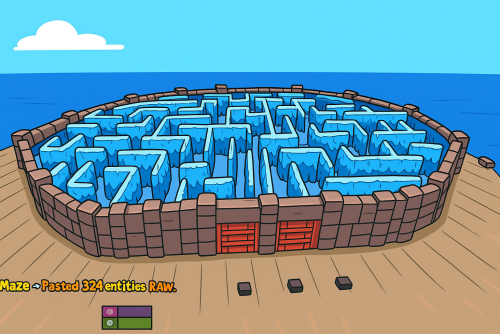
Version 1.0.4
81 downloads
What's Maze Spawnable? The Maze spawnable plugin adds intensive pvp combat within a maze environment. Players navigate through the maze, engaging in intense battles to eliminate opponents and be the last man standing. Spawnable Maze Arena (No need for RustEdit to spawn the arena in the map) A Spawnable Maze Arena is included with the plugin for free Support for Both Solo & Team maze Configuration options for the maze Multiple arena setup Automatic schedule setup Setup winning rewards Spawns all the dead player's loot after the maze ends (Winner takes all) Discord Webhook Notification Just plug and play Commands Start & Stop Commands: /mazestart <ArenaName> - Starts the arena if it is available. /mazestop - Force stops the arena if it’s running (be cautious). Maze Admin Commands: /maze_admin create <ArenaName> - Creates a new arena with the specified name. /maze_admin edit <ArenaName> - Starts editing the specified arena. /maze_admin list - Shows all available arenas from data. /maze_admin remove <ArenaName> - Removes the arena from data. /maze_admin stopedit - Stops editing the current arena. /maze_admin copyarena <radius> - Copies entities around your position within the given radius to the selected arena. /maze_admin pastecopyraw - Pastes the copied arena data at your current position. /maze_admin pasterawclear - Clears all pasted entities from the world. /maze_admin drawarena_on - Draws the visual debug markers and outlines of the current arena. /maze_admin drawarena_off - Stops drawing the arena visualization. /maze_admin radius <value> - Sets the main arena radius (for visualization and bounds). /maze_admin wallradius <value> - Sets the wall radius around the arena center. /maze_admin meshheight <value> - Sets the vertical mesh height used for visualization and structure height. Permissions - MazeSpawnable.admin - Required to Start maze or editing arena Configuration Video Showcase Support$25.00 -
Version 1.0.7
129 downloads
This is a plugin designed for servers that want to set up an area for RP purposes! With this plugin you can set Zones/plots up for players to be able top purchase them though the buy menu. You will also be able to set an amount of time before the Buyer is evicted from being offline too long so other can purchase that land who are active! You can also set up the cost of each plot of land. If a player tries to build in a plot of land they will not be able to as the zone will auto delete anything they attempt to build instantly. FAQ: How do I set up the zones? - Currently the only way to set up the zones is to use zone manager and put the zone id in the Data file of the Plugin. Example below Does Server Rewards work with this? - Yes! as of 10/7/2021 Server rewards support has been added Commands: /buyzone - Brings up the buyzone GUI When in the Buyzone menu. when you hit show in map a red circle with appear on your map for 15 seconds after clicking the button Admin Commands: /UI_ZONESELL EXIT "STEAMID" - Force evicts player. Example Video: Example Config: ZoneSell { "The number of days for the player to be evicted": 5, "Zone Settings": { "1": { "Cost of the zone": 3500, "Zone image": "https://i.imgur.com/XIWhXKP.jpg", "Zone descriptions": "Large 1 - $3500" }, "2": { "Cost of the zone": 3500, "Zone image": "https://i.imgur.com/XIWhXKP.jpg", "Zone descriptions": "Large 2 - $3500" }, "3": { "Cost of the zone": 3500, "Zone image": "https://i.imgur.com/XIWhXKP.jpg", "Zone descriptions": "Large 3 - $3500" }, "4": { "Cost of the zone": 3500, "Zone image": "https://i.imgur.com/XIWhXKP.jpg", "Zone descriptions": "Large 4 - $3500" }, "5": { "Cost of the zone": 3500, "Zone image": "https://i.imgur.com/XIWhXKP.jpg", "Zone descriptions": "Large 5 - $3500" }, "6": { "Cost of the zone": 3500, "Zone image": "https://i.imgur.com/XIWhXKP.jpg", "Zone descriptions": "Large 6 - $3500" }, "7": { "Cost of the zone": 3500, "Zone image": "https://i.imgur.com/XIWhXKP.jpg", "Zone descriptions": "Large 7 - $3500" }, "8": { "Cost of the zone": 3500, "Zone image": "https://i.imgur.com/XIWhXKP.jpg", "Zone descriptions": "Large 8 - $3500" }, "9": { "Cost of the zone": 3500, "Zone image": "https://i.imgur.com/XIWhXKP.jpg", "Zone descriptions": "Large 9 - $3500" } } } Example config: Zonemanager { "definitions": [ { "Name": "Large 1", "Radius": 20, "Radiation": 0, "Comfort": 0, "Temperature": 0, "SafeZone": false, "Location": "119.2166 23.62214 152.51", "Size": "22 22 22", "Rotation": "0 0 0", "Id": "1", "ParentID": null, "EnterMessage": null, "LeaveMessage": null, "Permission": null, "EjectSpawns": null, "Enabled": true, "Flags": "None" }, { "Name": "Large 2", "Radius": 20, "Radiation": 0, "Comfort": 0, "Temperature": 0, "SafeZone": false, "Location": "154.3679 23.62212 152.4911", "Size": "22 22 22", "Rotation": "0 0 0", "Id": "2", "ParentID": null, "EnterMessage": null, "LeaveMessage": null, "Permission": null, "EjectSpawns": null, "Enabled": true, "Flags": "None" }, { "Name": "Large 3", "Radius": 20, "Radiation": 0, "Comfort": 0, "Temperature": 0, "SafeZone": false, "Location": "189.7382 23.62219 152.3189", "Size": "22 22 22", "Rotation": "0 0 0", "Id": "3", "ParentID": null, "EnterMessage": null, "LeaveMessage": null, "Permission": null, "EjectSpawns": null, "Enabled": true, "Flags": "None" }, { "Name": "Large 4", "Radius": 20, "Radiation": 0, "Comfort": 0, "Temperature": 0, "SafeZone": false, "Location": "189.4252 23.62212 117.2129", "Size": "22 22 22", "Rotation": "0 0 0", "Id": "4", "ParentID": null, "EnterMessage": null, "LeaveMessage": null, "Permission": null, "EjectSpawns": null, "Enabled": true, "Flags": "None" }, Checkout Cashr's Other plugins! https://codefling.com/cashr Todo: Add a way to add zones easier.$18.00 -
Version 0.1.0
24 downloads
What is it? Zone Command Blocker is a tool which prevents using specific commands (in data folder) in specific zones Permissions: zonecommandblocker.bypass - None of your command will be blocked in any zone zonecommandblocker.clear - Access for the /zcb.clear command Commands: /zcb.clear - Clears/wipes the data folder which contains zones with saved permissions etc.. Features: Zone Command Blocker will make your life easy and will on load take all zones and add them into it's data file where you can just add blocked commands Multiple blocked commands - Supports multiple blocked commands for specific zone Data file: Data of all reports and staff's statistics are being saved into a data file. Path: Your_Server\oxide\data\ZoneCommandBlocker\ZoneCommandBlocker.json Localization: { "CommandBlocked": "This command cannot be used in zones!", "DataFileClear": "Cleared data folder" }$4.99 -
Version 1.0.1
33 downloads
Give your professional players another reason to excel with this volcano. - To access the volcano you will have to overcome the oil ring to get to the main box, activate the elevator with a button that will give you access to the elevator door. - As you go down to the volcano via the elevator, you can equip yourself and take some anti-radiation pills, you will need them. - Inside the volcano you will have to choose wisely the way to activate the door using a fuse and a red card, be careful, the access to this mechanism is dangerous, remember you are in a volcano, the ground is lava!!!!$12.90 -
Version 1.0.2
52 downloads
Create epic player vs. player battles with this original arena. Arena Dome is fully compatible with Zone Manager and Event Manager. Arena Dome contains NPCs, loot, walls for players to cover their backs, and several towers for players to shoot from above.$7.66 -

Version 1.1.0
338 downloads
This plugin automatically displays active PVP zones on your server map in real-time. Perfect for enhancing your players' gaming experience during airdrops and special events. Key Features Automatic PVP zone display Markers appear instantly during events Perfect synchronization with airdrops and events Automatic marker removal when events end Performance and simplicity Lightweight plugin that doesn't impact server performance No configuration needed - works immediately Compatible with your existing plugins Benefits for your players Clear visibility of active combat zones Better strategic planning for PVP actions Reduced frustration from invisible zones More professional and modern interface Requirements This plugin requires the following dependencies to work: Marker Manager Modified : https://codefling.com/plugins/marker-manager-modified Zone Manager : https://umod.org/plugins/zone-manager Dynamic PVP : https://umod.org/plugins/dynamic-pvp Console Commands The plugin provides two console commands for administrators: ampz.reload Reloads the plugin configuration without restarting the server. Description: Allows you to apply configuration changes in real-time ampz.status Displays current plugin statistics. Information displayed: Active zone markers count Cached zones count Timer interval OnlyDynamicPvp mode status Installation Installation is simple: download the plugin and place it in your plugins folder. It works automatically without additional configuration. Important: Don't forget to properly configure Dynamic PVP so that zones are detected and displayed on the map.$11.99 -

Version 1.0.306
62 downloads
Teleport sleepers to a random position within a range of coordinates Choose between 3 types of target areas - Circle, Square, Zone [Features] ✯ Can manually set Min/Max range for (X,Y,Z) teleport location (square area) ✯ Can set radius range for teleport location (circle area) ✯ Can set Zone ID for teleport location (Zone Manager Required) ✯ Can use Zone radius for teleport location (Zone Manager Required) ✯ Can Set auto height option so players spawn at ground level ✯ Option to adjust offset height above ground ✯ Can set to auto scan/teleport sleepers on plugin loading or player disconnect ✯ Chat/Console command to scan/teleport sleepers ✯ Option to ignore players within authorized TC range ✯ Chat command to show your current (X,Y,Z) location ✯ Option to teleport players back to previous location on reconnect ✯ Chat command to return all sleepers to previous location [Commands] - Default Chat/Console Commands All commands require server admin permissions [Chat] ✯ /scansleepers - scans for sleepers outside of coordinates and teleports them ✯ /scansleepers true - scan all sleepers and force teleports them ✯ /returnsleepers - returns all sleepers to their old location ✯ /scanme - posts your current (X,Y,Z) location in chat and console ✯ /marker <#> - Set marker (#) to your current location (1 - 4 required) ✯ /marker save - Saves current settings and markers ✯ /marker show - Lists all 4 (X,Y,Z) markers in chat ✯ /marker range - Lists current min/max (X,Y,Z) settings for teleport ✯ /marker update - Generates min/max (X,Y,Z) values from markers 1 - 4 if available ✯ /stsetting <setting> <value> - changes the selected setting to the value you enter [Settings] on - enables sleeper teleporter (no value needed) off - disables sleeper teleporter (no value needed) debug - requires value (on/off) - turns on/off debug mode for troubleshooting save - saves settings/markers (no value needed) kill - requires value (on/off) - If on this will kill sleepers outside of TC range instead of teleporting them kill delay - requires value (#) - sets the delay in seconds before a sleeper is killed disconnect - requires value (on/off) - turns on/off teleport player on disconnect reconnect - requires value (on/off) - turns on/off teleport player back on reconnect autoheight - requires value (on/off) - let the plugin determain height by terrain excludeadmins - requires value (on/off) - excludes admins from being teleported or killed height - requires value (#) - adds x value to the height when teleporting tcblock - requires value (on/off) - blocks players within auth TC range from being teleported tcrange - requires value (#) - sets TC range players must be within from being teleported areatype - requires value (circle/square) - sets the target area to use radius or all 4 markers radius - requires value (#) - sets the target area radius around marker #1 retry - requires value (#) - sets the teleport retry limit when target location is blocked or invalid zone - requires values: [Zone Manage Options] * on/off - set teleport location to use ZoneManager * id - requires value (#) - sets the zone id to use from zone manager * radius - requires value (on/off) - on use zone radius or off use config radius [Console:] ✯ scansleepers - scans for sleepers outside of coordinates and teleports them ✯ scansleepers true - scan for sleepers and force teleports them NOTES: * If using circle area type only marker 1 will be used and radius must be set * If using square area type you must set all 4 markers * Report all issues or bugs in our discord Sleeper Teleporter Setup Instructions: You must have server admin auth to use commands. These instructions are shown using the default commands, if you change the chat commands the prefix will be that command. Choose the area type for teleport location you want to use. A) Square B) Circle C) Use Zone Manager Depending on your chosen area type you must follow the correct setup for the location to work properly. There are other options you can use for all area types: /stsetting tcblock on/off - blocks players within auth TC range from being teleported /stsetting disconnect on/off - teleport player to area when they disconnect /stsetting reconnect on/off - teleport player back to last location when reconnecting Area Type Options & Setup: A) Square: 1. Set the area type to square by typing "/stsetting areatype square" in chat 2. Stand in each corner 1 at a time and type the "/marker 1-4" commands for each corner. The order does not matter 3. Once all 4 markers are set then use chat command "/marker update" to allow the system to generate the min/max location values 4. Then save all current markers and settings by typing "/marker save" in chat 5. Now you must define the limits in the square area. Set the height to auto/random & height adjustment /stsetting autoheight on/off - on will detect terrain height and place player on the ground, off will use random height from the 4 markers /stsetting height # - adds x to the height to make sure players do not spawn in foundations B) Circle: 1. Set the area type to circle by typing "/stsetting areatype circle" in chat 2. Stand in the center of the area you want to use and type "/marker 1" in chat 3. Set the radius of the location "/stsetting radius #" - change # to the value you want 4. Now you must define the limits in the circle area. Set the height to auto, adjusted, or random /stsetting autoheight on/off - turn on/off auto height /stsetting height # - adds x to the height to make sure players do not spawn in foundations C) Use Zone Manager: 1. Set the area type to circle by typing "/stsetting areatype circle" in chat 2. Set use zone manager to on - "/stsetting zone on" 3. Set the zone ID for the zone to use "/stsetting zone id #" replace # with the zone ID 4. Set to use zone radius or config radius "/stsetting zone radius on/off" if off will use the radius defined using "/stsetting radius #" Config: Example only { "Settings": { "chatscansleepers": "scansleepers", "chatreturn": "returnsleepers", "chatmylocation": "scanme", "chatmarker": "marker", "chatsetting": "stsetting", "areatype": "circle", "enable": true, "moveonload": false, "moveonconnect": false, "moveondisconnect": true, "radius": 4.0, "x_min": 116, "x_max": 123, "y_min": 21, "y_max": 21, "z_min": 318, "z_max": 326, "autoheight": false, "aboveground": 1, "ignoretcplayers": true, "retry": 5 }, "Markers": { "marker1": { "x": 120.221924, "y": 21.3408051, "z": 322.4336 }, "marker2": { "x": 121.245216, "y": 21.3484211, "z": 326.7593 }, "marker3": { "x": 116.610687, "y": 21.348423, "z": 325.452423 }, "marker4": { "x": 123.968338, "y": 21.348423, "z": 320.143555 } }, "ZoneManager": { "usezone": true, "zoneID": "66592319", "usezoneradius": false } } Language: { "st_001": "My Position: {0}\n X: {1}\n Y: {2}\n Z: {3}\n", "st_002": "{0} has been moved to {1}", "st_003": "Missing marker number - /marker (#)", "st_004": "Marker #{0} has been set for {1}", "st_005": "Marker Locations:\n #1 = {0} \n #2 = {1} \n #3 = {2} \n #4 = {3}", "st_006": "Location Range:\n X = {0} - {1} \n Y = {2} - {3} \n Z = {4} - {5}", "st_007": "Missing Marker: #{0}", "st_008": "Setting/Markers Saved", "st_009": "Sleeper Teleporter is now {0}", "st_010": "Teleport player on {0} is now {1}", "st_011": "missing setting/values - /stsetting <setting> <value>", "st_012": "Auto Height is now {0}", "st_013": "Height adjustment is now {0}", "st_014": "TC Block is now {0}", "st_015": "Teleport Area Type is now {0}", "st_016": "Teleport Area Radius is now {0}", "st_017": "Teleport Retry limit is now {0}", "st_018": "Use Zone Manager is now {0}", "st_019": "Zone ID is now {0}", "st_020": "Zone radius is now {0}" }$2.99 -
Version 1.0.1
28 downloads
Legendary battlefield, Arena-Monument inspired by the Legendary game Mortal Kombat. Dive into the abyss of doom, a combat Arena forged in the shadows of nightmares inspired by the legendary Mortal Kombat. Wage a brutal battle where your soul is the price. Face hordes of ruthless zombies and relentless warriors. Fire consumes, you traps lurks and towers rise like twisted giants won tower lies ruined under a blanket of rubble. A reminder of the relentless doom reclaim your destiny, spill blood in the arena to achieve glory, prepare to plunge into the darkness in this battlefield, a descent into the depths of terror where only the darkest warriors will find immortality. - INCLUDES • Parkour • Traps • Ziplines • NPCs • Zombies • Towers • Loots • Hackable crates • Flags • Catapults • Siege Towers • Battering Ram • Ballistas • Mortal Kombat logotype - TIPS • You can also use this Arena as a monument for your server. • Use this image for the flags:$14.90- 5 comments
- 1 review
-
- 6
-
-
-
- #mortalkombat
- #mortal kombat
- (and 70 more)