Search the Community
Showing results for tags 'time'.
-
Version 0.1.27
9,897 downloads
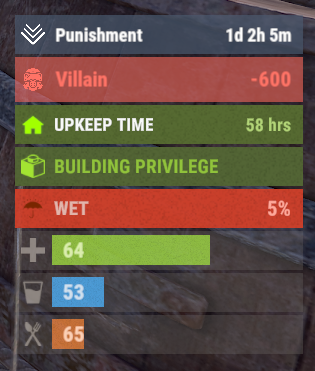
A useful API plugin that mimics in-game status bars and allows the addition of custom ones. Note: AdvancedStatus does not display any bars on its own. This is done by other plugins that work with it. An example plugin demonstrating interaction with AdvancedStatus. The ability to specify the frequency of calculating the number of bars; The ability to specify the order of the bar; The ability to change the height of the bar; The abillity to customize the color and transparency of the background; The ability to set a material for the background; The ability to switch between CuiRawImageComponent and CuiImageComponent for the image; The ability to get images from the local folder(*SERVER*\oxide\data\AdvancedStatus\Images); The abillity to set own image and customize the color and transparency of the image; The abillity to set sprite instead of the image; The ability to specify custom text; The ability to customize the color, size and font of the text; No need to pass all parameters; No need to manually delete your bar when unloading your plugin. advancedstatus.admin - Grants access to the chat command(by default /bar). { "Chat command": "bar", "Is it worth enabling console notifications for the successful loading of local images?": false, "Interval(in seconds) for counting in-game status bars": 0.5, "Interval(in seconds) for counting Building Privileges status bars. Note: Calculating Building Privileges is resource-intensive": 1.0, "Is it worth counting Vehicle Privilege? Useful if you don't have a Tugboat or PlayerBoat": true, "Is it worth counting Entity Privilege? Useful if you don't have a Legacy Shelter": true, "Ui layer for displaying bars. For button bars, it is recommended to use the 'Hud' layer(https://docs.oxidemod.com/guides/developers/basic-cui/basic-cui#layers)": "Under", "Is it worth displaying bar components left to right?": true, "Vertical spacing between bars": 2, "The height of the bar by default": 26, "The background color of the bar by default": "#505F75", "The background transparency of the bar by default": 0.7, "The background material of the bar by default, leave empty to disable": "", "The image of the bar by default": "AdvancedStatus_Default", "The color of the bar image by default": "#6B7E95", "The transparency of the bar image by default": 1.0, "The outline color of the bar image by default": "#000000", "The outline transparency of the bar image by default": 1.0, "The outline distance of the bar image by default. Example '0.75 0.75'": "", "The size of the bar text by default": 12, "The color of the bar text by default": "#FFFFFF", "The transparency of the bar text by default": 1.0, "The font of the bar text by default(https://docs.oxidemod.com/guides/developers/basic-cui/basic-cui#fonts)": "RobotoCondensed-Bold.ttf", "The horizontal offset of the bar text by default": 0, "The outline color of the bar text by default": "#000000", "The outline transparency of the bar text by default": 1.0, "The outline distance of the bar text by default": "", "The size of the bar subtext by default": 12, "The color of the bar subtext by default": "#FFFFFF", "The transparency of the bar subtext by default": 1.0, "The font of the bar subtext by default": "RobotoCondensed-Bold.ttf", "The outline color of the bar subtext by default": "#000000", "The outline transparency of the bar subtext by default": 1.0, "The outline distance of the bar subtext by default": "", "The color of the bar progress by default": "#89B840", "The transparency of the bar progress by default": 0.7, "The OffsetMin of the bar progress by default": "25 2.5", "The OffsetMax of the bar progress by default": "-3.5 -3.5", "Version": { "Major": 0, "Minor": 1, "Patch": 27 } } EN: { "MsgDays": "d", "MsgHours": "h", "MsgMinutes": "m", "MsgSeconds": "s" } RU: { "MsgDays": "д", "MsgHours": "ч", "MsgMinutes": "м", "MsgSeconds": "я" } images reload *ImageName* - Reloads the specified image from the image folder; all - Reloads all local images from the image folder. Example: /bar images reload all Note: To access the commands, the player must be an admin(console or owner) or have the advancedstatus.admin permission. OnAdvancedStatusLoaded: Called after the AdvancedStatus plugin is fully loaded and ready. OnPlayerGainedBuildingPrivilege: Called after the player enters their building privilege. OnPlayerLostBuildingPrivilege: Called after the player exits their building privilege. void OnAdvancedStatusLoaded() { Puts("The AdvancedStatus plugin is loaded and ready to go!"); } void OnPlayerGainedBuildingPrivilege(BasePlayer player) { Puts($"{player.displayName} entered the authorized building privilege zone."); } void OnPlayerLostBuildingPrivilege(BasePlayer player) { Puts($"{player.displayName} exited the authorized building privilege zone."); } [PluginReference] private Plugin AdvancedStatus; There are 15 methods: IsReady CreateBar UpdateContent DeleteBar DeleteCategory DeleteAllBars GetTotalClientBars GetTotalPlayerBars LoadImages LoadImage CopyImage DeleteImages DeleteImage BarExists InBuildingPrivilege There are 5 types of bar: Default - A simple bar that displays the provided information. Does not update the value of SubText by itself; Timed - Similar to the default bar, but it automatically disappears after the specified time in the TimeStamp parameter; TimeCounter - The SubText shows the remaining time until TimeStamp. Also automatically removed upon expiration of the TimeStamp; TimeProgress - Similar to the Timed bar, but additionally features an automatically filling progress bar; TimeProgressCounter - Similar to the TimeCounter bar, but additionally features an automatically filling progress bar. IsReady: Used to check if the AdvancedStatus plugin is loaded and ready to work. The IsReady method returns true if it is ready, or null if it is not. (bool)AdvancedStatus?.Call("IsReady");//Calling the IsReady method. If the result is not null(bool true), the plugin is ready. CreateBar: Used to create a bar or update bar values for a player. To call the CreateBar method, you need to pass 2 parameters. The first one is BasePlayer or <ulong>playerID. The second one is a dictionary with the parameters you need. In the CreateBar method, all parameters are optional, except for two: Id; Plugin. Parameters not specified when creating a new bar will use the values set in the AdvancedStatus plugin's configuration file. Parameters not specified during bar update will retain the values they had before the update. Note: The plugin does not update values automatically, you need to manually send new values. Dictionary<string, object> parameters = new Dictionary<string, object> { { "Id", "AdvancedStatusDemo_1" }, //<string>Unique identifier for the bar in your plugin. ***This is a required field. { "BarType", "Default" }, //<string>Type of the bar. There are 4 types: Default, Timed, TimeCounter and TimeProgress. { "Plugin", "AdvancedStatusDemo" }, //<string>Name of your plugin. ***This is a required field. { "Category", "Default" }, //<string>Internal plugin category of the bar. { "Order", 10 }, //<int>The position of your bar relative to others. Order is determined by increasing values(ASC). { "Height", 26 }, //<int>The height of your bar. A standard bar is 26 pixels. { "Main_Color", "#505F75" }, //<string>HTML Hex color of the bar background. { "Main_Transparency", 0.7f }, //<float>Transparency of the bar background. { "Main_Material", "assets/content/ui/uibackgroundblur.mat" }, //<string>Material of the bar background(empty to disable). { "Image", "scrap" }, //<string>Name of the image saved in the ImageLibrary or a direct link to the image if ImageLibrary is not used. { "Image_Local", "AdvancedStatusDemo_Scrap" }, //<string>The name of the image file(without its extension) located in *SERVER*\data\AdvancedStatus\Images. Leave empty to use Image. { "Image_Sprite", "" }, //<string>Sprite image of the bar. Leave empty to use Image_Local or Image. { "Is_RawImage", true }, //<bool>Which type of image will be used? True - CuiRawImageComponent. False - CuiImageComponent. { "Image_Color", "#6B7E95" }, //<string>HTML Hex color of the bar image. { "Image_Transparency", 1.0f }, //<float>Transparency of the image. { "Text", "Scrap" }, //<string>Main text. { "Text_Size", 12 }, //<int>Size of the main text. { "Text_Color", "#FFFFFF" }, //<string>HTML Hex color of the main text. { "Text_Font", "RobotoCondensed-Bold.ttf" }, //<string>Font of the main text. { "Text_Offset_Horizontal", 0 }, //<int>Horizontal offset for the main text. { "SubText", "35" }, //<string>Sub text. { "SubText_Size", 12 }, //<int>Size of the sub text. { "SubText_Color", "#FFFFFF" }, //<string>HTML Hex color of the sub text. { "SubText_Font", "RobotoCondensed-Bold.ttf" }, //<string>Font of the sub text. { "TimeStampStart", Network.TimeEx.currentTimestamp }, //<double>Responsible for specifying the start point of the time reference and 0% for TimeProgress and TimeProgressCounter bars. Used if the bar type is Timed, TimeCounter, TimeProgress or TimeProgressCounter. { "TimeStamp", Network.TimeEx.currentTimestamp + 6 }, //<double>Specifies the end time point after which the bar will be destroyed and 100% for TimeProgress and TimeProgressCounter bars. Used if the bar type is Timed, TimeCounter, TimeProgress or TimeProgressCounter. { "TimeStampDestroy", Network.TimeEx.currentTimestamp + 3 }, //<double>If TimeStampDestroy is specified and it is less than TimeStamp, the bar will be destroyed by TimeStampDestroy. Used if the bar type is Timed, TimeCounter, TimeProgress or TimeProgressCounter. { "Progress", (float)35 / 100f }, //<float>Progress. From 0.0 to 1.0. { "Progress_Reverse", false }, //<bool>Progress reverse. A value of false means that the progress will increase. Used if the bar type is TimeProgress or TimeProgressCounter. { "Progress_Color", "#89B840" }, //<string>Progress color. { "Progress_Transparency", 1f }, //<float>Progress transparency. { "Progress_OffsetMin", "25 2.5" }, //<string>Progress OffsetMin: "*left* *bottom*". { "Progress_OffsetMax", "-3.5 -3.5" }, //<string>Progress OffsetMax: "*right* *top*". { "Command", "kit" } //<string>If the field is not empty, the bar becomes clickable, and the specified command is executed upon clicking. Note: the command must be covalence. }; AdvancedStatus?.Call("CreateBar", player.userID.Get(), parameters); //Calling the CreateBar method with the passing of BasePlayer/playerID and a dictionary containing the required parameters. UpdateContent: Used to update only the content of an existing status bar. To call the UpdateContent method, you need to pass 2 parameters. The first one is BasePlayer or <ulong>playerID. The second one is a dictionary with the parameters you need. In the UpdateBar method, all parameters are optional, except for two: Id; Plugin. var parameters = new Dictionary<string, object> { { "Id", "MyID" }, //<string>Unique identifier for the bar in your plugin. ***This is a required field. { "Plugin", Name }, //<string>Name of your plugin. ***This is a required field. { "Text", "MyText" }, //<string>Main text. { "SubText", "MyText" }, //<string>Sub text. { "Progress", (float)amount / 100f }, //<float>Progress. From 0.0 to 1.0. }; AdvancedStatus?.Call("UpdateContent", player.userID.Get(), parameters); //Calling the UpdateContent method with the passing of BasePlayer/playerID and a dictionary containing the required parameters. DeleteBar: Used to remove the bar for a player. There are two methods for removing a bar by ID: with specifying a particular player; To call this method, you need to pass 3 parameters. The first one is BasePlayer or <ulong>playerID. The second one is Id of your bar and the third one is name of your plugin. without specifying a particular player (which removes it for all players) To call this method, you need to pass 2 parameters. The first one is Id of your bar and the second one is name of your plugin. AdvancedStatus?.Call("DeleteBar", player.userID.Get(), barID, Name); //Calling the DeleteBar method with the passing of BasePlayer/playerID, ID of the bar and the name of your plugin. AdvancedStatus?.Call("DeleteBar", barID, Name); //Calling the DeleteBar method with the passing of ID of the bar and the name of your plugin. If you try to delete a bar that doesn't exist, nothing bad will happen. So feel free to delete the bar without checking its existence. P.S. When unloading your plugin, there is no need to manually delete bars for players, AdvancedStatus will handle it automatically. DeleteCategory: Used to remove all bars associated with the plugin's category. To call the DeleteCategory method, you need to pass 2 parameters. The first one is category and the second one is name of your plugin. AdvancedStatus?.Call("DeleteCategory", "Default", Name);//Calling the DeleteCategory method by passing the category and name of your plugin DeleteAllBars: Used to remove all bars associated with the plugin. To call the DeleteAllBars method, you need to pass only 1 parameter. It is name of your plugin. AdvancedStatus?.Call("DeleteAllBars", Name);//Calling the DeleteAllBars method, passing the name of your plugin GetTotalClientBars: Used to get the number of client bars for the player. To call the GetTotalClientBars method, you need to pass only 1 parameter. It is BasePlayer or <ulong>playerID. (int)AdvancedStatus?.Call("GetTotalClientBars", player.userID.Get());//Calling the GetTotalClientBars method, passing the name of BasePlayer/playerID GetTotalPlayerBars: Used to get the number of active custom bars for the player. To call the GetTotalPlayerBars method, you need to pass only 1 parameter. It is BasePlayer or <ulong>playerID. (int)AdvancedStatus?.Call("GetTotalPlayerBars", player.userID.Get());//Calling the GetTotalPlayerBars method, passing the name of BasePlayer/playerID LoadImages: Used to check if the local images specified in the list are loaded. If any of the images are not loaded but their files exist in the images folder, the plugin will load them. To call the LoadImages method, you need to pass only 2 parameters. The first one is the <List<string>>list of image's name and the second one(optional) is <bool>force, which, if set to true, will force reload the image even if it already exists. AdvancedStatus?.Call("LoadImages", list, false);//Calling the LoadImages method, passing a list of image names LoadImage: Used to check if the local image is loaded. If the file is not loaded and exists in the images folder, the plugin will load it. To call the LoadImage method, you need to pass 2 parameters. The first one is the <string>image's name and the second one(optional) is <bool>force, which, if set to true, will force reload the image even if it already exists. AdvancedStatus?.Call("LoadImage", imgName, false);//Calling the LoadImage method, passing an image's name CopyImage: Used to create and load a copy of an existing image. To call the CopyImage method, you need to pass 3 parameters. The first parameter is the <string>source image's name, the second parameter is the <string>new image's name and the third one(optional) is <bool>force, which, if set to true, will force copy and reload the image even if it already exists. AdvancedStatus?.Call("CopyImage", "ZoneStatus_Default", "ZoneStatus_NewZone", false);//Calling CopyImage, passing the source image name and the new image name. DeleteImages: Used to delete a list of images and their files. To call the DeleteImages method, you need to pass 2 parameters. The first one is the <List<string>>list of image's name and the second one(optional) parameter is <bool>deleteFile, which, if set to true, will delete image's file too. AdvancedStatus?.Call("DeleteImages", list, true);//Calling DeleteImages, passing a list of image names. DeleteImage: Used for removing the image and the image file. To call the DeleteImage method, you need to pass 2 parameters. The first parameter is the <string>image's name and the second one(optional) parameter is <bool>deleteFile, which, if set to true, will delete image's file too. AdvancedStatus?.Call("DeleteImage", "ZoneStatus_NewZone", true);//Calling DeleteImage, passing the image name. BarExists: Used to check if the specified bar exists. To call the BarExists method, you need to pass 3 parameters. The first one is BasePlayer or <ulong>playerID. The second one is Id of your bar. And the third one is name of your plugin. (bool)AdvancedStatus?.Call("BarExists", player.userID.Get(), barID, Name);//Calling the BarExists method with the passing of BasePlayer/playerID, ID of the bar and name of your plugin. InBuildingPrivilege: Used to check if the player has authorized building privileges. To call the InBuildingPrivilege method, you need to pass BasePlayer or <ulong>playerID. (bool)AdvancedStatus?.Call("InBuildingPrivilege", player.userID.Get());//Checking if the player has Building Privilege.$1.99 -
Version 1.9.14
58 downloads
A simple in-game clock and weather forecast for Rust. Nebulous Time gives players an easy way to check the current in-game time and see what weather is coming next, all with a single chat command. Instead of guessing how much daylight is left or waiting for the weather to change, players can quickly check the conditions without opening the console. Features In-Game Clock — Displays the current Rust server time in an easy-to-read 12-hour format with AM/PM. Current Weather — Shows the current weather state reported by Rust's climate system. Upcoming Weather — Displays the next scheduled weather state so players can prepare for changing conditions. Automatic Updates — Refreshes weather information every 20 seconds. Clean Chat Output — Uses simple, color-coded formatting that's easy to read without cluttering chat. Built-In Weather Detection — Reads Rust's native climate system without requiring another weather plugin. Graceful Fallbacks — If weather information isn't available on a particular server build, the plugin displays a clear message rather than reporting incorrect conditions. Lightweight Design — No database, external API, or additional plugin dependencies. Chat Command /time Displays the current in-game time, current weather, and upcoming weather. No additional commands are necessary. Example Chat Output TIME & WEATHER In-game time: 3:42 PM Current weather: Clear Upcoming weather: Light rain The values above are examples. Actual results reflect your server's current conditions. Weather Conditions Nebulous Time recognizes and displays readable names for Rust's weather presets, including: Clear Overcast Light rain Heavy rain Storm Fog Dust Other weather preset names can also be displayed when available. How It Works Nebulous Time reads the server's in-game clock directly from Rust's day/night system. For weather information, it accesses Rust's native climate component to retrieve the active weather target and the next scheduled weather preset. Weather information is refreshed automatically every 20 seconds, so players receive recently updated conditions whenever they use /time. Note: Upcoming weather refers to the next scheduled weather state, not an estimated time until that weather begins. Weather information depends on the climate data available in the installed Rust server build. Installation Download NebulousTime.cs. Upload it to your server's oxide/plugins directory. Allow Oxide/uMod to compile and load the plugin. Type /time in-game to check the time and weather. No additional setup is required. Compatibility & Dependencies Game: Rust (PC) Framework: Oxide/uMod Additional Plugin Dependencies: None External APIs: None Database: Not required Configuration: No configuration required Why Use Nebulous Time? Nebulous Time is useful for players planning a trip, preparing for nighttime, or checking the weather before heading out. It provides a small quality-of-life improvement without changing Rust's weather, day/night cycle, or gameplay balance. One command. Current time. Current weather. Upcoming weather. NOTE: A lot of AI was used in the creation of this pluginFree -
Version 1.3.9
5,099 downloads
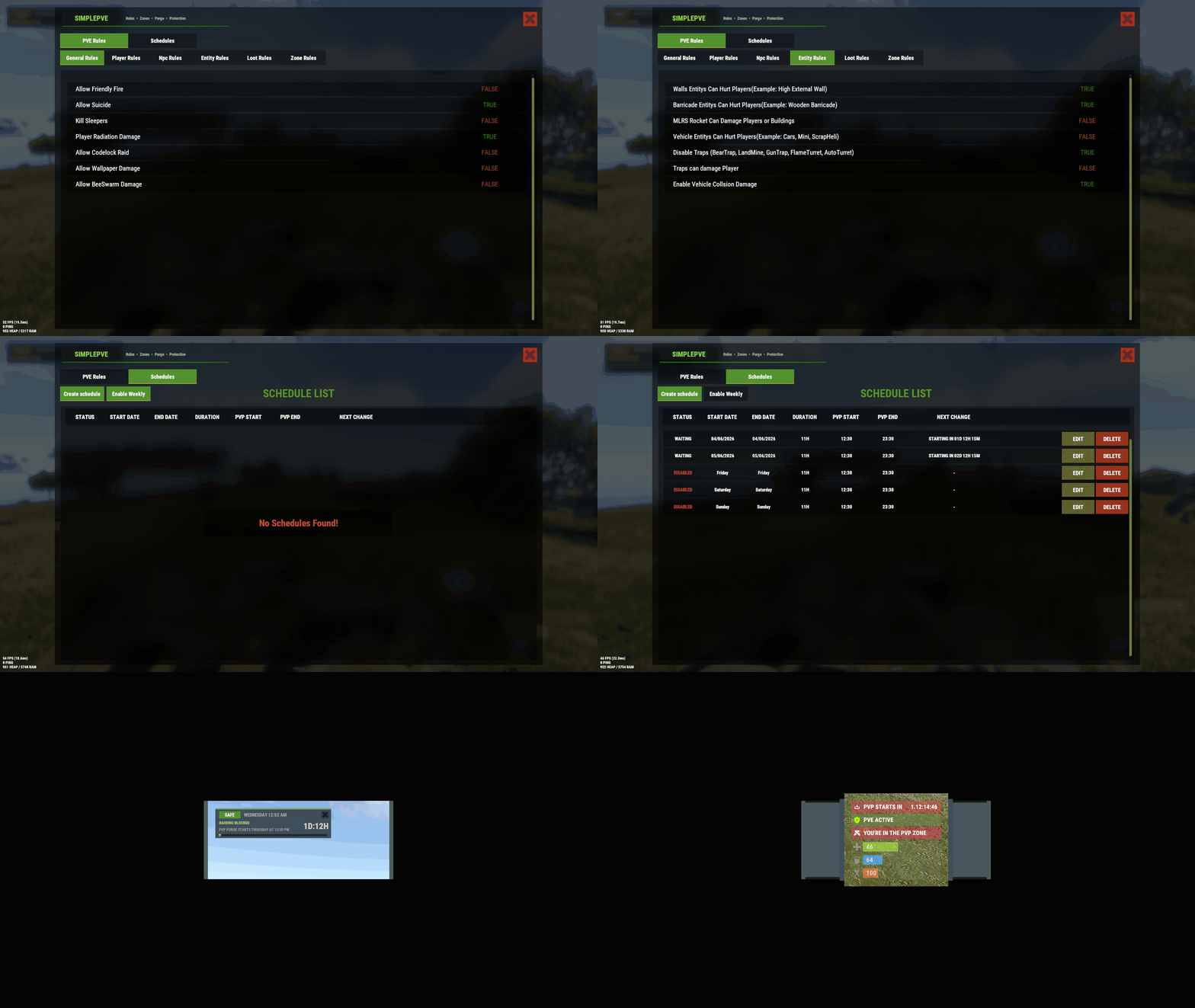
SimplePVE Simple, powerful PVE for Rust. Control every damage, raid, loot and protection rule from a clean in-game menu. Save rules as profiles and switch between them on a schedule. Run a full PVE server, weekend purges or a hybrid PVE/PVP server, all from one plugin. Tip No server.pve needed. SimplePVE handles everything itself. Keep server.pve false. Video Showcase Features Rules and profiles In-game rule manager (/sprules). Toggle every rule with one click, no config editing needed. Rule profiles. Save several rule sets (for example Normal PVE, Raid Weekend, Event Night), then duplicate, rename and switch them live. Easy rule categories. Damage, raiding, looting, NPCs, traps, vehicles, Deep Sea and Apartments. Debug mode (/spdebug). Shows exactly which rule blocked or allowed a hit. Schedules and purges Automatic PVE/PVP purges. PVP turns on and off by itself on your schedule. Weekly schedules. Pick days and times, like Friday 18:00 → Sunday 22:00 or weekends only. Dated schedules. For example January 1 → January 7, holiday events or wipe weekends. Priorities. Several schedules can overlap and the highest priority wins. Outside every schedule, your base profile runs. Run commands when a purge starts or ends. Master switch (/simplepve on|off). Pauses everything and turns the server vanilla in one command. Protection Loot protection. Corpses, backpacks, boxes and supply drops are protected from other players, with team access. Building, vehicle and boat protection. Separate rules for your own, your team's and other players' property. Vehicle auto-claim. Vehicles are claimed when you start the engine. You can also lock claimed vehicles to the owner and their team. Admin bypass permissions for loot and damage. Zones and events ZoneManager support. Create PVP zones inside your PVE server. Exclude zones from the global PVE rules. PVP delay when leaving a PVP zone. Nobody can escape a fight by stepping out. Works with many popular event plugins. HUD, status and notifications SimplePVE HUD. Shows the current mode, what's next, a live countdown and a progress bar. Green when safe, red during raid time. In-game HUD editor (/sp_change). Move it and save it without touching the config. Status UI for PVE/PVP, PVP zones, PVP delay, purge countdown and Deep Sea (via CustomVitalsManager). Discord embeds when a purge starts or ends, plus optional early warnings. In-game warnings before every schedule change. Chat, UI, Toastify or Notify for warning messages. Multi-language. Every message is in the lang file, sent in each player's language. Profile names can be translated too. How it works Rules. Open /sprules and set what players can and can't do. Profiles. Save those rules as a profile, and create more for different situations. Schedules. Tell SimplePVE when each profile (or full PVP) should run. Players see it. The HUD shows the current mode and counts down to the next change, with chat and Discord warnings ahead of time. Note Example setup: Base profile PVE all week. A weekly schedule switches to PVE OFF (full PVP and raiding) every Saturday 18:00 → Sunday 23:00. Players get a warning 30 minutes before, and Discord announces the purge. Rule categories Category What it controls General Friendly fire, suicide, sleepers, radiation, codelock raids, wallpaper, bee swarms, clan support Player Player vs player, animals, NPCs, vehicles, boats, buildings (own / team / others), twigs Deep Sea PVP and boat damage out in the Deep Sea NPC NPCs, animals, Patrol Heli, Bradley and SAM sites vs players and buildings Entity Walls, barricades, MLRS, vehicle collisions and all traps Loot Loot protection, team access, PVP-zone looting, supply drops, Deep Sea looting Zone ZoneManager integration and the PVP delay Apartment Apartment combat zones, master keys, break-ins, rental shops, basement bribes Commands Command Type Description /sprules Chat Open the menu for rules, profiles and schedules /simplepve Chat & Console Toggle SimplePVE on or off /simplepve on / /simplepve off Chat & Console Turn SimplePVE on, or turn it off (vanilla, schedules paused) /spdebug Chat & Console Debug mode: shows why damage was blocked or allowed /sp_change Chat Open the in-game HUD position editor /sp_hide Chat Hide or show the SimplePVE HUD (players, name set in the config) /spve.langkeys Chat & Console Create lang keys for your profile names so they can be translated /resetsprules Chat & Console Reset the rules to default Permissions Permission Allows simplepve.admin Using the admin commands and the /sprules menu simplepve.adminloot Looting other players' protected containers and using their claimed vehicles simplepve.admindamage Damaging any entity while PVE is on Hosting partner Game hosting perfected, that's Physgun. Join the thousands of server owners using Physgun to take their game server communities to the top. Get your server at Physgun Installation Upload SimplePVE.cs to oxide/plugins. Make sure server.pve is false. Grant yourself admin: oxide.grant user YourName simplepve.admin Type /sprules in game and set up your rules. (Optional) Create profiles and schedules in the same menu. (Optional) Set your timezone (see below) if you use schedules. Schedule timezone Schedules use UTC plus your offset in minutes. Set it in the config under Schedules Setting → UTC Time Difference. Your timezone Calculation Value UTC 60 × 0 0 United Kingdom (GMT+1, summer) 60 × 1 60 Central Europe (UTC+2) 60 × 2 120 Bangladesh (UTC+6) 60 × 6 360 US Eastern (UTC−4) 60 × −4 -240 US Pacific (UTC−7) 60 × −7 -420 Warning Schedules starting at the wrong time? Your UTC Time Difference doesn't match your timezone. Fix it and reload the plugin. Configuration Tip Translating: copy the lang file to another folder (for example oxide/lang/de/SimplePVE.json) and translate the values. Each player gets their own language. Run /spve.langkeys to add lang keys for your profile names too. FAQ Does SimplePVE need server.pve? No. Keep server.pve set to false. SimplePVE does all the protection itself. Where do I change the rules? Type /sprules in game (needs simplepve.admin). Every rule is a toggle, and changes save to the profile you're editing. What are profiles? A profile is a saved set of rules. Make one for normal PVE days and one for raid weekends, then switch them by hand or let a schedule switch them. Can I make automatic purges? Yes. Create a schedule in /sprules → Schedules, pick what it runs (a profile, PVE ON or PVE OFF) and when. Outside every schedule, your base profile runs. Weekly or date-based schedules? Both. A schedule's time windows can be weekly (days and times, or a day-to-day span) or dated (a date range, or a daily time inside a date range). When schedules overlap, the one with the highest priority wins. My schedules start at the wrong time. Your UTC Time Difference doesn't match your timezone. See Schedule timezone above. How do I turn PVE on or off by hand? /simplepve on or /simplepve off (needs simplepve.admin). Off makes the server vanilla and pauses all schedules until you turn it back on. Damage still happens in PVE mode. Why? Either one of your rules allows that damage, or another plugin changes damage too. Turn on /spdebug to see which rule decided each hit, and turn it off again when you're done. How does loot protection work? Players can't loot other players' corpses, backpacks, containers and called supply drops. Teammates can if you allow it. Admins with simplepve.adminloot can bypass it. Add entity short names to Loot Protection Excluded Entitys to keep them open to everyone (mailboxes and drop boxes by default). Can admins damage things while PVE is on? Yes, with the simplepve.admindamage permission. Does it support ZoneManager? Yes. ZoneManager zones can run PVP inside your PVE server, with an optional PVP delay when players leave. List zone IDs under Exclude Zone IDs From Rules to keep SimplePVE out of them completely. Can it post to Discord? Yes. It sends embeds when a purge starts or ends, and optional warnings a set number of minutes before. In-game warnings work without Discord too (Warn Players Before Schedule Change). Can I run commands when a purge starts or ends? Yes. Add them to Commands when PVP Purge Starts and Commands when PVP Purge Ends. The menu or HUD looks see-through. Keep UI - Use blur materials set to false. Blur is broken on Rust's new render pipeline. For developers Hooks and API void OnSPVEPurgeStarted() void OnSPVEPurgeEnded() TimeSpan GetPVPStartTimeRemaining() TimeSpan GetPVPEndTimeRemaining() bool IsServerPVE() bool IsStatusEnabled_API() bool AddToExcludeZone(string zoneId) bool RemoveFromExcludeZone(string zoneId) Override hooks. Return true or false to force the result and skip SimplePVE's own checks. Return null to let SimplePVE decide. object CanEntityTakeDamage(BaseCombatEntity entity, HitInfo hitInfo) // true = allow damage, false = block object CanEntityBeTargeted(BasePlayer player, BaseEntity entity) // true = allow targeting, false = block object CanEntityTrapTrigger(BaseTrap trap, BasePlayer player) // true = allow trigger, false = block Support Need help or found a bug? Open a support ticket on this page or join the Discord. Check out my other plugins$19.99 -
Version 3.2.1
3,337 downloads
Weather & time control Own the sky: from a GUI, not a config file Vanilla weather is a coin flip you don't get to influence. This plugin shuts it off and hands you the whole sky: build your own presets, tune every value with plain-English names, chain them on a schedule, or mirror the real weather of any city on Earth. Edit presets in-game and set up night-skip votes with an automatic popup for players. 33 Tunable parameters 24 Schedulable hours 6 Presets preloaded 0 Dependencies ✓Every parameter named in plain English: no cryptic engine values ✓Real lightning strikes: not just thunder sounds ✓Live weather synced from any real location on Earth ✓Separate day and night length: plus a popup UI for night-skip votes ✓Personal weather: let chosen players pick their own sky while the server weather stays for everyone else Video See it in action 01: Presets Weather presets you actually control All six vanilla presets are imported automatically on first load, so you start from a working base instead of a blank slate. From there, nothing is off limits. Everything is a dial Rain, wind, thunder, rainbow and ocean wave height · cloud coverage, size, opacity and scattering · fog density · atmosphere brightness and contrast, day and night separately · full volumetric cloud control Named in plain English "Waves in the sea" instead of "OceanScale" · "Fog density" · "Sun glow size". No guessing what a value does before you drag it. Real lightning, not a sound effect Any preset with Thunder above 0.05 fires actual strike effects for every online player, across three intensity tiers, with frequency scaling off the Thunder value. ✓Smooth transitions: set a transition time per preset and weather eases in over seconds or minutes instead of snapping ✓Weighted random: make Storm rare and Clear common with a single number ✓Duration per preset: when one ends, the next rolls automatically 02: Time Time and nights on your terms Set long days, short nights, or no nights at all. You can also let players decide through a scheduled vote. Day and night length, separately A 45-minute day with a 10-minute night is one number each. Sunrise and sunset hours are configurable, and /setday and /setnight change time instantly. Skip nights automatically One toggle and nights are skipped the moment they start. Ideal for PvP servers and low-population wipes. Skip-night voting UI A panel appears in the top-right corner when a scheduled vote starts. It shows the required percentage and a Vote to Skip button. Players can press Tab to click it, use /nskip or your configured chat command, or close the panel without voting. Your voting rules Set the vote time, duration, required percentage and maximum consecutive skipped nights. The panel closes after a player votes or when the poll ends. Players who wake up during an active poll see it too. Start and result chat messages and the notification sound are configurable. 03: Automation Automation that runs the sky for you Set it once and never touch it again: either on a schedule you design, or synced to the real world. Rust-time schedule Assign presets to any of the 24 in-game hours. A preset holds until the next scheduled one, so filling three slots already covers a whole day. No two days alike Put several presets in one slot: "Storm,Dust": and one is picked at random by weight every time that hour comes around. Real-world weather sync Give it coordinates and an OpenWeatherMap key and your server mirrors the live weather of that location, rechecked every in-game hour. Map each real condition: Clear, Rain, Snow, Thunderstorm, Fog: to whichever preset you like. 04: Personal weather Personal weather for the players you choose Give a group its own sky. Anyone with the permission sets weather for themselves alone, while everyone else keeps whatever the server is running. A natural VIP perk that costs the rest of your players nothing. Their own sky, on command /myweather opens a small menu. The player picks a preset and it applies to them alone, instantly, on top of whatever the server weather is. You pick what they can choose Limit the menu to a handful of presets in the config, or leave it open to all of them. Only the presets you allow ever show up. One click back to normal A Server Weather button drops them back to the shared sky at any time, and their choice is remembered across reconnects and restarts. Reliability Built to be left alone ✓Weather survives restarts: the active preset and how long it has been running are saved, so a reboot doesn't reset the sky to a random state ✓Active preset is highlighted in the UI: you always know what's running ✓Optional console announcement whenever a new preset starts ✓Clean unload: vanilla weather chances are restored exactly as they were Commands Three admin commands, two for players Admin commands require the weather.use permission. Personal weather requires weather.personal. /wsetupOpen the setup UI /setdaySet time to day /setnightSet time to night /nskipVote to skip the night: configurable, open to all players /myweatherOpen the personal weather menu: needs weather.personal Hooks & API For plugin developers string API_GetCurrentWeatherPreset() Returns the name of the active preset void OnNewPresetStart(string presetName) Called when a new preset begins Questions Before you buy I scheduled a preset at hour 3, but hours 4–9 are empty. What happens?A preset runs until the next scheduled one. Set Rain at 4 and Dust at 9 and you get rain from 4 to 9, then dust from 9 until hour 4 comes back around. Can I put more than one preset on the same hour?Yes: comma-separated, like "Storm,Dust". One is chosen at random each time, weighted by each preset's chance. How do I know which preset is currently active?Open the UI: every preset is listed and the active one is highlighted. A preset you've only selected to edit is not. What happens when the current preset ends?A new one starts at random, weighted by the chance value you gave each preset. Does the weather reset when the server restarts?No. The active preset and its elapsed time are saved, so the sky picks up where it left off. Can players set their own weather?Yes, if you grant them the weather.personal permission. They open /myweather and pick from the presets you allow, and it applies to them alone while everyone else keeps the server weather. How do I enable the voting panel?Set Enable in SkipNight Setup to true and keep Use time control enabled. The panel opens automatically with each scheduled poll. Voting is open to all players and needs no extra permission. Do I need an API key?Only for real-world weather sync. Everything else works out of the box, and a free OpenWeatherMap key is enough.$14.99 -
Version 3.0.0
196 downloads
Video : Features : - Randomized loot respawn intervals, configurable for each monument. Example: { "Monuments": { "ferry terminal": { "Allowed Groups": [ "red", "blue", "green", "crate", "barrel", "elite", "diesel", "loot_barrel" ], "Respawn Max Time": 600, "Respawn Min Time": 300 }, "fishing village": { "Allowed Groups": [ "red", "blue", "green", "crate", "barrel", "elite", "diesel", "loot_barrel" ], "Respawn Max Time": 600, "Respawn Min Time": 300 } } } - Default respawn time is set between 30-60 minutes but can be fully adjusted through the configuration. - Automatically removes monuments that no longer exist after a server wipe, keeping the configuration clean and up-to-date. Supported Crates [ Not only the containers shown below , almost every container in the game is now supported! ]: Supported Monuments : All Game Monuments Additional Settings : { "General": { "Enable When Player Dont Finish Looting Containers Will Drop Loot On Ground": true } }$19.99 -
Version 3.6.0
15,914 downloads
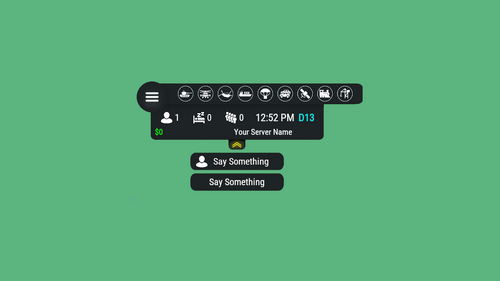
Server HUD · Rust · Oxide · CARBON Your chat is «is heli up?» twelve times an hour Put the answer on screen. Online count, clock, grid square, balance, and a live bar of every event running — Bradley, heli, cargo, airdrop, both oil rigs. Nine events out of the box, set up entirely from a panel in game. How it goes From install to the event you added yourself MINUTE ONE Install and it's on screen It doesn't wait for the next wipe to be useful Install mid-wipe and the heli that's already flying is on the bar. ImageLibrary is the only other plugin you need. Nine events on by default. Bradley, Patrol Heli, CH47, Cargo Ship, Airdrop, Harbor cargo, both Oil Rigs, Deep Sea. Rigs turn red while the crate is being hacked. Players see the fight starting from across the map. Icons are just URLs. Fetched and cached for you. First install reloads once to pick them up — expected, not a fault. No file to edit first. Defaults draw a finished HUD with your server name in it. FROM THEN ON Every player, every day The numbers your chat keeps asking for Updated as they change. A player standing still costs you nothing. K12 or X:-1204 Z:842 Grid square or raw coordinates. Your choice, your colour. Online, sleeping, queue. Admins can be left out of the count. Clock in each player's own format. 12- or 24-hour from their game language, or force one. Two balances, side by side. Economics, ServerRewards or ShoppyStock. Only what's live. One switch hides idle events instead of showing a wall of grey. Info messages on rotation. A random line from your list, any corner, any width. IN THE WAY The player decides Four states, and the choice is remembered Your logo is the button: full panel → events only → hidden. One command removes it entirely. Still set that way after a reconnect. Streamers keep coordinates off camera. One permission drops the position readout. CCTV and drones get a clean screen. Hides on mount, back on dismount, switchable. Any corner, any scale. Pixel offsets, one scale value, and a toggle to show it over the inventory. MONTHS LATER All of it, from in game The config file is optional One command opens an admin panel over every setting there is. Change it, it saves, everyone online sees it. Events from other plugins. A name, an icon, and the hooks it fires. Convoy, Sputnik, Armored Train and Harbor come pre-filled. Adding one rewrites a marked block in the plugin file and reloads it. A drop-down of command buttons. Any chat or console command, own icon, own permission, closes itself after use. Updates don't reset your settings. New events land with defaults; a section you deleted comes back. Or edit the file. Auto reload picks it up the moment you save. The look See it running, then make it yours Every icon is a URL in the config. Take a pack, or draw your own from the blank template. Free custom HUD icons Free Custom HUD icons Paid Server HUD custom icon pack Paid While you're not looking Built to be left alone ✓ A typo in the config won't take the HUD down — it falls back to defaults and says so ✓ Switching a counter off stops the work behind it, not just the display ✓ An economy you enabled but never installed shows 0, and the HUD carries on ✓ Unloading clears every panel off every screen — nothing stuck until relog Reference One chat command, five words after it Setup is admins only. Menu buttons take whatever permission you name in the config. Chat /h Show the command list Chat /h open Full panel — counters, clock, position, balance, events Chat /h events Event bar only Chat /h hide Hide the panels, keep the logo button Chat /h close Remove it entirely Chat /h setup Settings panel — admins only Perm hud.streamer Hides the position readout from whoever holds it Hook object CanHudChangeState(BasePlayer player, string currentState, string nextState) Fires before a state change. Return non-null to stop it. API string API_PlayerHudState(string playerId) Returns full, events, hidden or closed for a player. Straight answers Asked before buying Can players turn it off? Full panel, event bar only, or gone entirely — their choice, and it survives a reconnect. Do I have to edit the config file? No, the in-game panel covers all of it. If you prefer a text editor, auto reload picks the file up as you save. I stream — my coordinates are on screen. Grant yourself the streamer permission. The position readout goes, everything else stays. Can I add an event from another plugin? Yes — name it, give it an icon, and name the hooks it fires. Most plugins list those in their own description. What if I run no economy plugin? Leave it off and the HUD closes the gap. Enable it without the plugin and you get a 0, not a broken HUD. Does it block CCTV and drones? It hides itself in a Computer Station and comes back on dismount. One toggle if you'd rather it stayed. 9 events out of the box 4 states, chosen per player 2 economy balances at once 1 dependency — ImageLibrary$14.99 -
Version 2.0.0
52 downloads
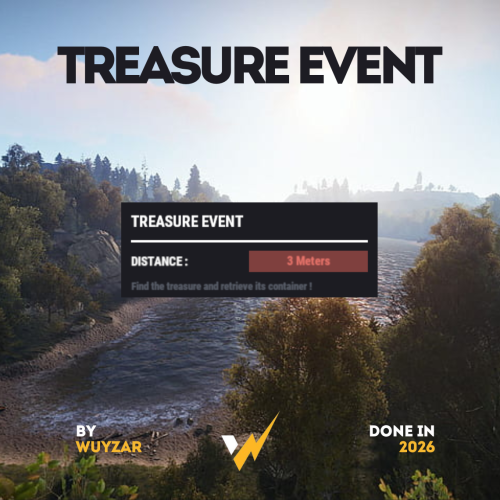
TreasureEvent.cs Description : - This plugin offers a complete treasure hunt event system for your Rust server, with real-time distance tracking and customizable loot rewards. Settings : - HUD colors - Event duration (in F1 commands) - Server message (true/false) - Items (customize everything you want in the treasure, even the skins of the items) Server message = true (you need the ServerMessage.cs plugin, https://codefling.com/plugins/server-message) Server message = false (these messages will appear in the global chat, replacing the UI) F1 Commands : - t.start <x> <z> <time> (the treasure appear in a specific location) - t.stop Permissions : - ownerid <steamID/user> WuyZar's Discord : https://discord.gg/NVwRcQwGwh$11.50 -
Version 0.1.10
1,360 downloads
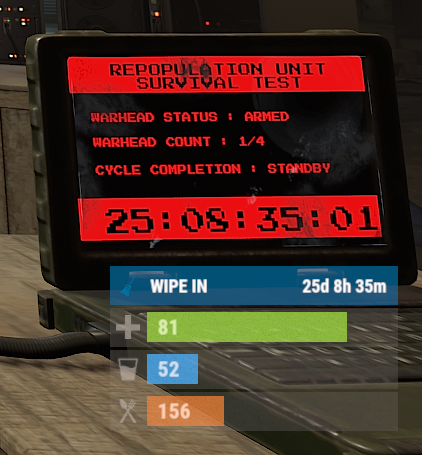
The plugin displays the time until the next wipe in the status bar. Depends on AdvancedStatus plugin. The ability to display the remaining time until the wipe: If there are N days left. Configurable in the configuration file; If player is in a safe zone or building privilege zone; The option to choose between a server wipe and a manually specified wipe; The ability to automatically generate language files for different languages(filled in English); The ability to customize the status bar for each of wipes; The ability to specify the order of the bar; The ability to change the height of the bar; The abillity to customize the color and transparency of the background; The ability to set a material for the background; The ability to switch between CuiRawImageComponent and CuiImageComponent for the image; The ability to get images from the local folder(*SERVER*\oxide\data\AdvancedStatus\Images); The abillity to set own image and customize the color and transparency of the image; The abillity to set sprite instead of the image; The ability to customize the color, size, font and outline of the text. wipestatus.admin - Provides the ability to set custom date of wipe. { "Chat command": "wipe", "Is it worth enabling GameTips for messages?": true, "List of language keys for creating language files": [ "en" ], "Is it worth displaying the wipe timer only when players in the safe zone or building privilege?": false, "The number of days before the wipe when the status bar will start to display. A value of 0 enables constant display": 0, "Bar settings key for a vanilla wipe": "_default", "Custom wipe dates list. Format: yyyy-MM-dd HH:mm. Example: 2025-12-25 13:30": {}, "List of status bar settings. Leave empty or null to recreate the default list": { "_default": { "Progress_Main_Color(Hex or RGBA)": "1 1 1 0.15", "Progress_Main_Transparency": 0.15, "BarType(TimeProgressCounter or TimeCounter)": "TimeCounter", "Order": 10, "Height": 26, "Main_Color(Hex or RGBA)": "#0370A4", "Main_Transparency": 0.7, "Main_Material(empty to disable)": "", "Image_Url": "https://i.imgur.com/FKrFYN5.png", "Image_Local(Leave empty to use Image_Url)": "WipeStatus_Default", "Image_Sprite(Leave empty to use Image_Local or Image_Url)": "", "Image_IsRawImage": false, "Image_Color(Hex or RGBA)": "#0370A4", "Image_Transparency": 1.0, "Is it worth enabling an outline for the image?": false, "Image_Outline_Color(Hex or RGBA)": "0.1 0.3 0.8 0.9", "Image_Outline_Transparency": 1.0, "Image_Outline_Distance": "0.75 0.75", "TextKey": "Bar_default", "Text_Size": 12, "Text_Color(Hex or RGBA)": "#FFFFFF", "Text_Font(https://umod.org/guides/rust/basic-concepts-of-gui#fonts)": "RobotoCondensed-Bold.ttf", "Text_Offset_Horizontal": 0, "Is it worth enabling an outline for the text?": false, "Text_Outline_Color(Hex or RGBA)": "#000000", "Text_Outline_Transparency": 1.0, "Text_Outline_Distance": "0.75 0.75", "SubText_Size": 12, "SubText_Color(Hex or RGBA)": "#FFFFFF", "SubText_Font": "RobotoCondensed-Bold.ttf", "Is it worth enabling an outline for the sub text?": false, "SubText_Outline_Color(Hex or RGBA)": "0.5 0.6 0.7 0.5", "SubText_Outline_Transparency": 1.0, "SubText_Outline_Distance": "0.75 0.75", "Progress_Reverse": false, "Progress_Color(Hex or RGBA)": "#0370A4", "Progress_Transparency": 0.7, "Progress_OffsetMin": "0 0", "Progress_OffsetMax": "0 0" } }, "Version": { "Major": 0, "Minor": 1, "Patch": 10 } } EN: { "CmdMainAdmin": "Available admin commands:\n\n<color=#D1CBCB>/wipe</color> <color=#D1AB9A>bar</color> <color=#D1CBCB>*booleanValue*(optional)</color> - Toggle the wipe bar display\n<color=#D1CBCB>/wipe</color> <color=#D1AB9A>time</color> - Current time based on server's timezone\n<color=#D1CBCB>/wipe</color> <color=#D1AB9A>add</color> <color=#D1CBCB>*wipeDate* *barId*(optional) *numericValue*(optional) *numericValue*(optional)</color> - Add a custom wipe date. Optionally, you can specify the style of the status bar, interval/spacing between wipes, and the number of intervals. Date format: yyyy-MM-dd HH:mm\n<color=#D1CBCB>/wipe</color> <color=#D1AB9A>add bar</color> <color=#D1CBCB>*wipeDate* *barID*(optional) *newBarId*(optional) *targetBarId*(optional)</color> - Add new status bar settings. Optionally, specify the ID of an existing bar to copy from\n<color=#D1CBCB>/wipe</color> <color=#D1AB9A>update</color> <color=#D1CBCB>*wipeDate* *newBarId*</color> - Update the status bar settings key for the specified custom wipe date. Use 'vanilla' instead of a wipe date to select the vanilla wipe\n<color=#D1CBCB>/wipe</color> <color=#D1AB9A>clear</color> - Clear all custom wipe dates\n\n--------------------------------------------------", "CmdMain": "Available commands:\n\n<color=#D1CBCB>/wipe</color> <color=#D1AB9A>bar</color> <color=#D1CBCB>*booleanValue*</color>(optional) - Toggle the wipe bar display\n\n--------------------------------------------------", "CmdServerTime": "Current real server time: '{0}'", "CmdNewDateAdded": "The new date '{0}' has been successfully added!", "CmdNewDateRangeAdded": "The list of dates was successfully added!", "CmdNewDateAddFailed": "Invalid format or the date is earlier than the current one. Example: '{0}'", "CmdUpdateFailed": "Failed to add/update status bar settings for '{0}'!", "CmdClearDates": "Custom dates list has been successfully cleared!", "CmdBarEnabled": "Displaying the wipe bar is enabled!", "CmdBarDisabled": "Displaying the wipe bar is disabled!", "Bar_default": "WIPE IN" } RU: { "CmdMainAdmin": "Доступные админ команды:\n\n<color=#D1CBCB>/wipe</color> <color=#D1AB9A>bar</color> <color=#D1CBCB>*булевоеЗначение*(опционально)</color> - Переключение отображения вайп бара\n<color=#D1CBCB>/wipe</color> <color=#D1AB9A>time</color> - Текущее время по часовому поясу сервера\n<color=#D1CBCB>/wipe</color> <color=#D1AB9A>add</color> <color=#D1CBCB>*датаВайпа* *айдиБара*(опционально) *числовоеЗначение*(опционально) *числовоеЗначение*(опционально)</color> - Добавление кастомной даты вайпа. Опционально можно указать стиль статус бара, интервал/отступ между вайпами и кол-во интервалов. Формат даты: yyyy-MM-dd HH:mm\n<color=#D1CBCB>/wipe</color> <color=#D1AB9A>add bar</color> <color=#D1CBCB>*айдиНовогоБара* *айдиЦелевогоБара*(опционально)</color> - Добавление новых настроек статус бара. Опционально можно указать айди исходного статус бара для копирования\n<color=#D1CBCB>/wipe</color> <color=#D1AB9A>update</color> <color=#D1CBCB>*датаВайпа* *новоеАйдиБара*</color> - Обновление ключа настроек статус бара для указанной даты вайпа. Используйте 'vanilla' вместо даты вайпа для выбора ванильного вайпа\n<color=#D1CBCB>/wipe</color> <color=#D1AB9A>clear</color> - Очистка всех кастомных дат вайпа\n\n--------------------------------------------------", "CmdMain": "Доступные команды:\n\n<color=#D1CBCB>/wipe</color> <color=#D1AB9A>bar</color> <color=#D1CBCB>*булевоеЗначение*</color>(опционально) - Переключение отображения вайп бара\n\n--------------------------------------------------", "CmdServerTime": "Текущее реальное серверное время: '{0}'", "CmdNewDateAdded": "Новая дата '{0}' успешно добавлена!", "CmdNewDateRangeAdded": "Список дат был успешно добавлен!", "CmdNewDateAddFailed": "Не верный формат или дата меньше текущей. Пример: '{0}'", "CmdUpdateFailed": "Не удалось добавить/обновить настройки статус бара для '{0}'!", "CmdClearDates": "Список дат был успешно очищен!", "CmdBarEnabled": "Отображение вайп бара включено!", "CmdBarDisabled": "Отображение вайп бара выключено!", "Bar_default": "ВАЙП ЧЕРЕЗ" } bar *booleanValue*(optional) - Toggle wipe bar visibility; time - Current time based on server's timezone. Permission "wipestatus.admin" required; add *wipeDate* *barID*(optional) *numberValue*(optional) *numberValue*(optional) - Add a custom wipe date. Optionally, you can specify the style of the status bar, interval/spacing between wipes, and the number of intervals. Date format: yyyy-MM-dd HH:mm. Permission "wipestatus.admin" required; add bar *wipeDate* *barID*(optional) *newBarId*(optional) *targetBarId*(optional) - Add new status bar settings. Optionally, specify the ID of an existing bar to copy from. Permission "wipestatus.admin" required; update *wipeDate* *newBarId* - Update the status bar settings key for the specified custom wipe date. Use 'vanilla' instead of a wipe date to select the vanilla wipe. Permission "wipestatus.admin" required; clear - Clear all custom wipe dates. Permission "wipestatus.admin" required. Example: /wipe add "2023-12-28 15:16" /wipe add bar "test" "_default" /wipe add "2024-07-16 19:00" "test" 7 20 - Starting from the date 2024-07-16 19:00, 7 days will be added 20 times, with "test" status bar style. /wipe update "vanilla" "test" /wipe update "2025-12-25 13:30" "test"$3.99 -
Version 1.0.6
543 downloads
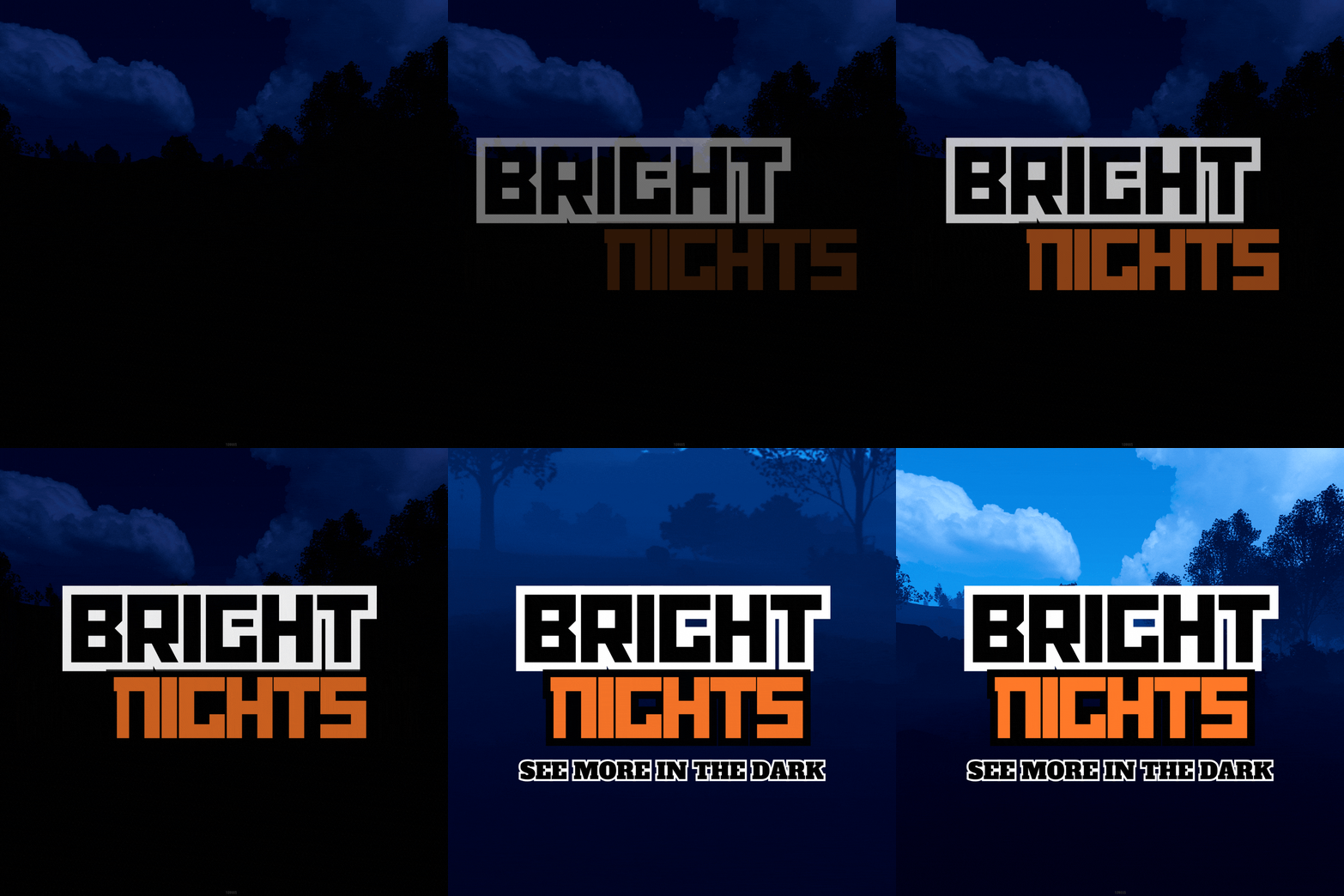
Bright Nights is the plugin every player has been waiting for. Make your nights brighter and actually playable! Enhanced gameplay with brighter nights Customizable night time brightness Smooth transitions between night and day cycles Lightweight high performance plugin Inverted Night (Option) - make nights as bright as day Saves your players from having to eat too many carrots Bright Nights brings exciting new visuals to the game allowing your players to make the most of night time game play. Inverted nights brings a whole new meaning to bright nights. Inverted nights adds a sun to the night cycle to create a daylight like play style, while maintaining a dark skybox. This option can be enabled via the config. /Settime - allows you to set the ingame time (good for testing settings) Args - Hours (24h) example: 7.5 will be 7:30 am or 0 will be midnight - Sunset - goes to sunset time - Sunrise - goes to sunrise time brightnights.admin - Allows use of the /settime command Does bright nights effect rust events ? Bright Nights does not change any of the date time settings for rust so timed events will run as per normal. Can I adjust the brightness? Yes! Brightnights has a config file which allows for the adjustment of brightness and transition settings. Is the plugin hard to set up? Bright nights is a drag and drop plugin, with no additional set up required.$14.99- 20 comments
- 4 reviews
-
- 5
-

-
- #brightnights
- #bright nights
- (and 28 more)
-

Version 0.1.8.1
1,887 downloads
Useful plugin for managing temporary permissions, temporary groups and temporary permissions for groups. This is done through chat commands, built-in Oxide commands, and API methods. Note: The dates is in UTC format. The ability to grant players temporary permissions by specifying either the number of seconds, an exact expiration date or until the wipe occurs; The ability to add players to temporary groups by specifying either the number of seconds, an exact expiration date or until the wipe occurs; The ability to grant groups temporary permissions by specifying either the number of seconds, an exact expiration date or until the wipe occurs; The ability to revoke temporary permissions from players and groups prematurely; The ability to remove players from groups prematurely; The ability to perform all the above actions using existing and familiar console commands(e.g., o.grant), simply by adding the number of seconds, the expiration date or the word "wipe" at the end; The ability to perform all the above actions using a chat command (by default /tperm); The ability to perform all the above actions using API methods; The ability to remove all temporary permissions and groups upon wipe detection. temporarypermissions.admin - Grants access to the admin command(by default /tperm). { "Chat command": "myperm", "Chat admin command": "tperm", "Is it worth enabling GameTips for messages?": true, "List of language keys for creating language files": [ "en" ], "Is it worth saving logs to a file?": true, "Is it worth using console logging?": true, "Interval in seconds for expiration check": 1.0, "Interval in seconds for checking the presence of temporary permissions and temporary groups. A value of 0 disables the check": 600.0, "Is it worth restoring removed temporary permissions and temporary groups if the timer hasn't expired? There are cases where removal cannot be tracked in the usual way": true, "Is it worth revoking temporary permissions and temporary groups when unloading the plugin, without removing them from the data file?": true, "Is it worth revoking temporary permissions and temporary groups that haven't expired yet upon detecting a wipe?": false, "Custom wipe date(detected only during initialization). Only required if you're experiencing issues with the Wipe ID. Leave empty to use the Wipe ID. Example: 2025-06-25 13:00": "", "Wipe ID": null, "Version": { "Major": 0, "Minor": 1, "Patch": 8 } } EN: { "CmdAdmin": "Available admin commands:\n\n<color=#D1CBCB>/tperm</color> <color=#D1AB9A>grant user *nameOrId* realpve.vip wipe</color> - Grants or extends the specified permission for the specified player until the end of the current wipe\n<color=#D1CBCB>/tperm</color> <color=#D1AB9A>grant user *nameOrId* realpve.vip *intValue* *boolValue*(optional)</color> - Grants or extends the specified permission for the specified player for the given number of seconds\n<color=#D1CBCB>/tperm</color> <color=#D1AB9A>grant user *nameOrId* realpve.vip *expirationDate* *assignmentDate*(optional)</color> - Grants or extends the specified permission for the specified player until the given date\n<color=#D1CBCB>/tperm</color> <color=#D1AB9A>grant group *groupName* realpve.vip wipe</color> - Grants or extends the specified permission for the specified group until the end of the current wipe\n<color=#D1CBCB>/tperm</color> <color=#D1AB9A>grant group *groupName* realpve.vip *intValue* *boolValue*(optional)</color> - Grants or extends the specified permission for the specified group for the given number of seconds\n<color=#D1CBCB>/tperm</color> <color=#D1AB9A>grant group *groupName* realpve.vip *expirationDate* *assignmentDate*(optional)</color> - Grants or extends the specified permission for the specified group until the given date\n<color=#D1CBCB>/tperm</color> <color=#D1AB9A>revoke user *nameOrId* realpve.vip</color> - Revokes the specified permission from the specified player\n<color=#D1CBCB>/tperm</color> <color=#D1AB9A>revoke group *groupName* realpve.vip</color> - Revokes the specified permission from the specified group\n<color=#D1CBCB>/tperm</color> <color=#D1AB9A>add *nameOrId* *groupName* wipe</color> - Adds or extends the specified player's membership in the specified group until the end of the current wipe\n<color=#D1CBCB>/tperm</color> <color=#D1AB9A>add *nameOrId* *groupName* *intValue* *boolValue*(optional)</color> - Adds or extends the specified player's membership in the specified group for the given number of seconds\n<color=#D1CBCB>/tperm</color> <color=#D1AB9A>add *nameOrId* *groupName* *expirationDate* *assignmentDate*(optional)</color> - Adds or extends the specified player's membership in the specified group until the given date\n<color=#D1CBCB>/tperm</color> <color=#D1AB9A>remove *nameOrId* *groupName*</color> - Removes the specified player from the specified group\n<color=#D1CBCB>/tperm</color> <color=#D1AB9A>wipe *wipeDate*</color> - Set a custom wipe date. Used in case of issues with the Wipe ID. Format: yyyy-MM-dd HH:mm\n<color=#D1CBCB>/tperm</color> <color=#D1AB9A>wipe reset</color> - Reset the custom wipe date\n\n<color=#D1CBCB>Optional values:</color>\n*boolValue* - If false(default) and an existing permission or group membership has not expired, the specified time will be added to the existing time. Otherwise, including when true, the specified time will be counted from the current time\n*assignmentDate* - If the assignment date is not specified and there is no existing permission or group membership, the assignment date will be set to the current time. If the assignment date is specified, it will be applied regardless of existing permissions or group memberships\n\n--------------------------------------------------", "CmdPermissionNotFound": "Permission '{0}' not found!", "CmdPlayerNotFound": "Player '{0}' not found! You must provide the player's name or ID.", "CmdMultiplePlayers": "Multiple players found for '{0}': {1}", "CmdGroupNotFound": "Group '{0}' not found!", "CmdGrantWrongFormat": "Incorrect command format! Example: /tperm grant user/group *nameOrId* realpve.vip *secondsOrDateTime*", "CmdRevokeWrongFormat": "Incorrect command format! Example: /tperm revoke user/group *nameOrId* realpve.vip", "CmdUserGroupWrongFormat": "Incorrect command format! Example: /tperm group add/remove *nameOrId* *groupName*", "CmdUserGranted": "Permission '{0}' granted to player '{1}'.", "CmdGroupGranted": "Permission '{0}' granted to group '{1}'.", "CmdUserGroupAdded": "Player '{0}' has been added to group '{1}'.", "CmdUserRevoked": "Permission '{0}' has been revoked for player '{1}'.", "CmdGroupRevoked": "Permission '{0}' has been revoked for group '{1}'.", "CmdUserGroupRemoved": "Player '{0}' has been removed from group '{1}'.", "CmdWipeNew": "New wipe date successfully set to '{0}'. The wipe will take effect only after the plugin is loaded following this date.", "CmdWipeReset": "The custom wipe date has been reset. The wipe is now determined by the Wipe ID.", "CmdWipeFailed": "The specified date '{0}' has an invalid format(yyyy-MM-dd HH:mm) or has already passed. Example: '{1}'.", "CmdCheckNoActive": "You have no active temporary permissions or temporary groups!", "CmdCheckTargetNoActive": "Player '{0}' has no active temporary permissions or temporary groups!", "CmdCheckPermissions": "<color=#D1AB9A>You have {0} temporary permissions(time in UTC):</color>\n{1}", "CmdCheckGroups": "<color=#D1AB9A>You have {0} temporary groups(time in UTC):</color>\n{1}", "CmdCheckTargetPermissions": "<color=#D1AB9A>Player '{2}' has {0} temporary permissions(time in UTC):</color>\n{1}", "CmdCheckTargetGroups": "<color=#D1AB9A>Player '{2}' has {0} temporary groups(time in UTC):</color>\n{1}", "CmdCheckFormatPermissions": "'{0}' - {1}({2})", "CmdCheckFormatGroups": "'{0}' - {1}({2})", "CmdUntilWipe": "Until Wipe" } RU: { "CmdAdmin": "Доступные админ команды:\n\n<color=#D1CBCB>/tperm</color> <color=#D1AB9A>grant user *имяИлиАйди* realpve.vip wipe</color> - Выдать или продлить указанный пермишен указанному игроку до конца текущего вайпа\n<color=#D1CBCB>/tperm</color> <color=#D1AB9A>grant user *имяИлиАйди* realpve.vip *числовоеЗначение* *булевоеЗначение*(опционально)</color> - Выдать или продлить указанный пермишен указанному игроку на указанное количество секунд\n<color=#D1CBCB>/tperm</color> <color=#D1AB9A>grant user *имяИлиАйди* realpve.vip *датаИстечения* *датаНазначения*(опционально)</color> - Выдать или продлить указанный пермишен указанному игроку до указанной даты\n<color=#D1CBCB>/tperm</color> <color=#D1AB9A>grant group *имяГруппы* realpve.vip wipe</color> - Выдать или продлить указанный пермишен указанной группе до конца текущего вайпа\n<color=#D1CBCB>/tperm</color> <color=#D1AB9A>grant group *имяГруппы* realpve.vip *числовоеЗначение* *булевоеЗначение*(опционально)</color> - Выдать или продлить указанный пермишен указанной группе на указанное количество секунд\n<color=#D1CBCB>/tperm</color> <color=#D1AB9A>grant group *имяГруппы* realpve.vip *датаИстечения* *датаНазначения*(опционально)</color> - Выдать или продлить указанный пермишен указанной группе до указанной даты\n<color=#D1CBCB>/tperm</color> <color=#D1AB9A>revoke user *имяИлиАйди* realpve.vip</color> - Снять указанный пермишен у указанного игрока\n<color=#D1CBCB>/tperm</color> <color=#D1AB9A>revoke group *имяГруппы* realpve.vip</color> - Снять указанный пермишен у указанной группы\n<color=#D1CBCB>/tperm</color> <color=#D1AB9A>add *имяИлиАйди* *имяГруппы* wipe</color> - Добавить или продлить пребывание в указанной группе указанному игроку до конца текущего вайпа\n<color=#D1CBCB>/tperm</color> <color=#D1AB9A>add *имяИлиАйди* *имяГруппы* *числовоеЗначение* *булевоеЗначение*(опционально)</color> - Добавить или продлить пребывание в указанной группе указанному игроку на указанное количество секунд\n<color=#D1CBCB>/tperm</color> <color=#D1AB9A>add *имяИлиАйди* *имяГруппы* *датаИстечения* *датаНазначения*(опционально)</color> - Добавить или продлить пребывание в указанной группе указанному игроку до указанной даты\n<color=#D1CBCB>/tperm</color> <color=#D1AB9A>remove *имяИлиАйди* *имяГруппы*</color> - Отменить пребывание в указанной группе указанному игроку\n<color=#D1CBCB>/tperm</color> <color=#D1AB9A>wipe *датаВайпа*</color> - Установка кастомной даты вайпа. Используется при проблемах с Wipe ID. Формат: yyyy-MM-dd HH:mm\n<color=#D1CBCB>/tperm</color> <color=#D1AB9A>wipe reset</color> - Сброс кастомной даты вайпа\n\n<color=#D1CBCB>Опциональные значения:</color>\n*булевоеЗначение* - Если false(по умолчанию) и существующий пермишен или группа не истекли, указанное время будет добавлено к существующему времени. В противном случае, в т.ч. при true, указанное время будет отсчитываться от текущего времени\n*датаНазначения* - Если дата назначения не указана и нет существующего пермишена или группы, дата назначения будет равна текущей. Если дата назначения указана, то вне зависимости от существования пермишенов или групп, присвоится указанная дата\n\n--------------------------------------------------", "CmdPermissionNotFound": "Пермишен '{0}' не найден!", "CmdPlayerNotFound": "Игрок '{0}' не найден! Вы должны указать имя или ID игрока.", "CmdMultiplePlayers": "По значению '{0}' найдено несколько игроков: {1}", "CmdGroupNotFound": "Группа '{0}' не найдена!", "CmdGrantWrongFormat": "Не верный формат команды! Пример: /tperm grant user/group *имяИлиАйди* realpve.vip *секундыИлиДата*", "CmdRevokeWrongFormat": "Не верный формат команды! Пример: /tperm revoke user/group *имяИлиАйди* realpve.vip", "CmdUserGroupWrongFormat": "Не верный формат команды! Пример: /tperm group add/remove *имяИлиАйди* *имяГруппы*", "CmdUserGranted": "Пермишен '{0}' выдан игроку '{1}'.", "CmdGroupGranted": "Пермишен '{0}' выдан группе '{1}'.", "CmdUserGroupAdded": "Игрок '{0}' был добавлен в группу '{1}'.", "CmdUserRevoked": "Пермишен '{0}' был удален для игрока '{1}'.", "CmdGroupRevoked": "Пермишен '{0}' был удален для группы '{1}'.", "CmdUserGroupRemoved": "Игрок '{0}' был удален из группы '{1}'.", "CmdWipeNew": "Новая дата вайпа успешно установлена на '{0}'. Вайп вступит в силу только при загрузке плагина после этой даты.", "CmdWipeReset": "Кастомная дата вайпа была сброшена. Вайп снова определяется по Wipe ID.", "CmdWipeFailed": "Указанная дата '{0}' имеет неверный формат(yyyy-MM-dd HH:mm) или уже прошла. Пример: '{1}'.", "CmdCheckFormatGroups": "'{0}' - {1}({2})", "CmdCheckNoActive": "У вас нет активных временных пермишенов или временных групп!", "CmdCheckTargetNoActive": "У игрока '{0}' нет активных временных пермишенов или временных групп!", "CmdCheckPermissions": "<color=#D1AB9A>У вас есть {0} временных пермишенов(время по UTC):</color>\n{1}", "CmdCheckGroups": "<color=#D1AB9A>У вас есть {0} временных групп(время по UTC):</color>\n{1}", "CmdCheckTargetPermissions": "<color=#D1AB9A>У игрока '{2}' есть {0} временных пермишенов(время по UTC):</color>\n{1}", "CmdCheckTargetGroups": "<color=#D1AB9A>У игрока '{2}' есть {0} временных групп(время по UTC):</color>\n{1}", "CmdCheckFormatPermissions": "'{0}' - {1}({2})", "CmdUntilWipe": "До вайпа" } /myperm - Displays a list of all your temporary permissions and temporary groups; /myperm *NameOrId* - Displays a list of all temporary permissions and temporary groups of the specified player. Permission "temporarypermissions.admin" required. Admin commands(/tperm). Permission "temporarypermissions.admin" required: grant - Grants a temporary permission to a player or group. user *NameOrId* realpve.vip wipe - Grants a temporary permission to a player until the next wipe by specifying the player's name or Id, the permission name and the word "wipe"; *NameOrId* realpve.vip 3600 true/false - Grants a temporary permission to a player by specifying the player's name or Id, the permission name, the number of seconds and true/false(optional). If false(default) and an existing permission has not expired, the specified time will be added to the existing time. Otherwise, including when true, the specified time will be counted from the current time; *NameOrId* realpve.vip "2024-08-19 17:57" "2024-08-19 16:57" - Grants a temporary permission to a player by specifying the player's name or Id, the permission name, the expiration date and the assigned date(optional). If the assignment date is not specified and there is no existing permission, the assignment date will be set to the current time. If the assignment date is specified, it will be applied regardless of existing permissions. group *GroupName* realpve.vip wipe - Grants a temporary permission to a group until the next wipe by specifying the group's name, the permission name and the word "wipe"; *GroupName* realpve.vip 3600 true/false - Grants a temporary permission to a group by specifying the group's name, the permission name, the number of seconds, and true/false(optional). If false(default) and an existing group membership has not expired, the specified time will be added to the existing time. Otherwise, including when true, the specified time will be counted from the current time; *GroupName* realpve.vip "2024-08-19 17:57" "2024-08-19 16:57" - Grants a temporary permission to a group by specifying the group's name, the permission name, the expiration date and the assigned date(optional). If the assignment date is not specified and there is no existing group membership, the assignment date will be set to the current time. If the assignment date is specified, it will be applied regardless of existing group memberships. revoke - Revokes a temporary permission from a player or group. user *NameOrId* realpve.vip - Revokes a temporary permission from a player by specifying the player's name or Id and the permission name; group *GroupName* realpve.vip - Revokes a temporary permission from a group by specifying the group's name and the permission name. add - Temporary addition of a player to a group. *NameOrId* *GroupName* wipe - Temporary addition of a player to a group until the next wipe by specifying the player's name or Id, the group name and the word "wipe"; *NameOrId* *GroupName* 3600 true/false - Temporary addition of a player to a group by specifying the player's name or Id, the group name, the number of seconds, and true/false(optional). If true, the specified seconds will count from the current moment, otherwise(default), they will be added to the existing time; *NameOrId* *GroupName* "2024-08-19 17:57" "2024-08-19 16:57" - Temporary addition of a player to a group by specifying the player's name or Id, the group name, the expiration date and the assigned date(optional). If not specified, the assigned date will default to the current date, otherwise, it will be set to the provided date. remove *NameOrId* *GroupName* - Removal of a player from a temporary group by specifying the player's name or Id and the group name. wipe - Setting a custom wipe date. Used if you're experiencing issues with using the Wipe ID. *wipeDate* - Set a custom wipe date(yyyy-MM-dd HH:mm). Used in case of issues with the Wipe ID; reset - Reset the custom wipe date. Example: /tperm grant user iiiaka realpve.vip wipe /tperm grant user iiiaka realpve.vip 3600 true /tperm grant user iiiaka realpve.vip "2024-08-19 17:57" "2024-08-19 16:57" /tperm wipe "2025-06-25 13:00" Note: To access the commands, the player must be an admin(console or owner) or have the temporarypermissions.admin permission. P.S. Templates for the commands above can also be used with existing console commands. For example: o.grant user iiiaka realpve.vip 3600 true All developer documentation can be found in the GitHub repository.Free -

Version 2.0.9
1,971 downloads
Introducing Total Control – The Ultimate Rust Server Admin Tool Total Control is a powerful full GUI admin plugin for Rust servers. Whether you run hardcore PvP or relaxed PvE, Total Control gives you complete live control over every major system directly in-game, with zero config files or reloading after changes. Dynamic Schedule System: •Plan your entire wipe and let the plugin do the work for you. •Create up to 5 scheduled sets (plus the default) Automatically change gather rates, stack sizes, smelting, rewards, PvE/PvP mode, raid protection, and more at exact dates and times. •Use real-world time or server time. •Enable only the pages you want for each set everything else stays on your default settings. •Run your server exactly how you want. Gather Rates & Stack Sizes: •Full control over every item (ore, plants, crates, quarries, excavator, etc.) Quick multiplier buttons or type exact values. •Category multipliers with individual item overrides. •Add or remove any item instantly with chat commands. Smelting & Cooking: •Adjust speed, charcoal output, fuel usage, and resource output for every furnace type. •Full control over the Mixing Table and Cooking Workbench. Rewards System: •Reward players for gathering, killing animals/NPCs/players, destroying barrels, emptying crates, Bradley/Heli loot, and playtime. •Support for Scrap, Economics, and ServerRewards (use any or all three) Optional UI Notify integration with custom message styles. Settings Page: •Auto or voted night skip. Time freeze, custom day/night lengths, and server date. •PvE/PvP mode switching (manual or timed). •Full raid protection (manual or timed). •Offline raid protection (with adjustable cooldown timer). •Option to disable shotgun traps, flame turrets, auto turrets, and SAM sites. Any admin with the correct permission can open the Total Control GUI with /tc and modify everything, without requiring data file access or plugin reload. Ideal for administrators worldwide. Permissions & Commands: Permission: TotalControl.OpenGui Chat Commands: /tc Open the GUI /addgather <shortname> /removegather <shortname> Add/Remove items to GatherRates page. /addstack <shortname> /removestack <shortname> Add/Remove items to StackSize page. /addreward <shortname or prefab> /removereward <shortname or prefab> Add/Remove items to Rewards page. /raid help /raid list List all excluded prefabs from Raid Protection. /raid include <shortname | itemID | prefabID> /raid exclude <shortname | itemID | prefabID> Add/Remove items to or from Raid Protection. /raid include <building.grade prefabID> /raid exclude <building.grade prefabID> Add/Remove Building blocks to or from Raid Protection. (Shortnames list: https://www.corrosionhour.com/rust-item-list) Join the Community Stay up to date, get support, make suggestions, report bugs, or promote your server. https://discord.gg/AkwHUs8Qma$29.99 -
Version 1.0.0
50 downloads
ServerPeriods.cs Description : - This plugin offers a complete periodic event system for your Rust server, allowing you to create structured game phases with customizable restrictions. Each period can independently control PvP, raiding, gathering, and building permissions, providing a dynamic gameplay experience. It includes a persistent, real-time user interface displaying the current period name and remaining time, with an automatic "Next Period" indicator, and the execution of custom server commands for each period. Settings : - HUD colors - Custom periods (name/perms/time/commands) F1 Commands : - p.start (to start the periods) - p.stop (to stop the periods) - p.next (to move on to the next period) - p.prev (to move on to the previous period) Permissions : - ownerid <steamID/user> WuyZar's Discord : https://discord.gg/NVwRcQwGwh Chat messages : Game interface :$11.50- 4 comments
-
- 2
-
-

-
- #event
- #tournament
- (and 17 more)
-
Version 1.0.1
210 downloads
PlayerDuel.cs Description : - This plugin allows players to duel 1v1 in a dedicated arena. After the fight, you respawn with your original inventory and stats; the arena automatically regenerates between each duel. Settings : - HUD colors - Warmup Time - Fight Time - Request Time F1 Commands (ADMIN) : - pd.spawn1 (To set spawn player 1) - pd.spawn2 (To set spawn player 2) - pd.zone <radius> (To define the zone, arena's auto-clear. - pd.kit <name> (To crate kit) - pd.kits (To see kits list) - pd.deletekit <name> (To remove kit) - pd.test (To test the duel) - pd.stop (To stop a duel) Chat Commands : - /duel <name> <kit> - /duel accept - /duel refuse - /duel (To see kits and commands) Permissions : - ownerid <steamID/user> WuyZar's Discord : https://discord.gg/NVwRcQwGwh Test video : Rust 2026-03-28 18-03-26 - Trim.mp4 Game interface :$11.50 -
Version 2.4.0
327 downloads
Provides timed/manual/disabled unlocking of workbenches. Introduction This plugin will allows the server owner to lock out any or all workbenches from being crafted until specified amounts of time have elapsed since start of wipe, or indefinitely / until manually unlocked. Also optionally supports blocking research of locked workbenches so that players can't then replicate them via industrial crafters. Supports the following notification method(s) on craft/research failure: Chat (up to once every 5 seconds), sound, toast. Tutorial Island players are exempted from lockouts, as completing that requires crafting a Level 1 Workbench. Important This plugin is based on "Timed Workbench" by DizzasTeR, but is a significant overhaul. The two plugins cannot coexist in a single server installation. The plugin will detect map wipes and will automatically refresh the workbench locks. To facilitate other forms of wiping, the server owner/maintainer may manually invoke the `twwipe` command. Permissions * `timedworkbenchunlock.skiplock` — Enables bypass for all blocking checks * `timedworkbenchunlock.admin` — Gives access to **all** commands below * `timedworkbenchunlock.broadcast` — Gives access to the `twbroadcast` command * `timedworkbenchunlock.info` — Gives access to the `twinfo` command * `timedworkbenchunlock.modify` — Gives access to the `twmodify` command * `timedworkbenchunlock.reload` — Gives access to `twreload` command * `timedworkbenchunlock.reset` — Gives access to `twreset` command * `timedworkbenchunlock.wipe` — Gives access to `twwipe` command Note: No permissions are granted automatically. Commands * `twbroadcast <value>` — Configure global status broadcast period to the specified number of seconds, or specify a non-positive number to disable * `twinfo` — Prints elapsed time since wipe, and unlock status and times for each workbench tier * `twmodify <tier> <value>` — Configure lockout for the given workbench tier, where a negative value is indefinite lockout, zero is unlocked, and a positive value is the number of seconds to unlock after start of wipe * `twreload` — Reload the config file to pick up manual changes while the server is running * `twreset` — Resets config to the default settings (**be careful with this!**) * `twwipe` — Resets the last wipe timestamp to the current time, effectively restarting the lockout timers Configuration Example config file: { "Block crafting of locked workbench(es)": true, "Block deploying of locked workbench(es)": true, "Block researching of locked workbench(es)": true, "Report blocking via chat message": false, "Report blocking via sound effect": true, "Report blocking via toast message": true, "Global status broadcast interval in seconds (0 to disable)": 300, "Time that current wipe started (UTC)": "2026-08-07T19:59:52.1442827Z", "Workbench unlock times (seconds from start of wipe, or 0 for unlocked, or -1 for permanently locked)": [ 86400, 172800, 259200 ] } Except for detailed tweaks to wipe time, all of the config settings are modifiable via ingame comands. Credits * DizzasTeR for the original "Timed Workbench" plugin on which this is based * Umod.org documentation/forums/discord * Other plugins as examples of best practices and Oxide API usage * MrBlue for being patient with me lol * misticos for detailed feedbackFree -

Version 1.0.4
177 downloads
Change the speed, fuel time and resource gained from all quarries and the giant excavator with a simple config. Works with GatherManager. Console commands (admin only): qc.data - Displays in chat the values for each of the quarries qc.reload - Reloads all quarries Config: You can easily configure each quarry type separately: Fuel time - How long does a diesel last (in seconds) Resource tickrate - How often resources are added to the output container (in seconds) Amount of resources - Total amount of resources from each diesel. A value of 1000 means it makes the same amount as vanilla. Changing this value to 2000 means it makes 2 times as much as vanilla, or 500 means half as much as vanilla. (example: in vanilla 1 diesel = 50 hqm at the HQM quarry. Setting the value to 2000 gives you 100 hqm for each diesel, and a value of 500 gives 25 hqm for each diesel. Note: Any GatherManager multipliers are multiplied on top of this setting Excavator fuel time - How long a diesel last for the giant excavator (in seconds) Excavator resource tickrate - How often resources are added to the output container for the giant excavator (in seconds) Excavator resource multiplier - Multiplies the output resource with this value. Note: This multiplier and GatherManager multiplier will stack (if "Use excavator settings if GatherManager exists" is set to true) Use excavator settings if GatherManager exists - If GatherManager is loaded (or reloaded) and this setting is true, it will override GatherManager excavator settings. Note: GatherManager still modifies the output as normal Default config (vanilla values): { "Config version": "1.0.4", "Stone Quarry": { "Fuel time per diesel (seconds)": 120.0, "Resource tickrate (seconds)": 5.0, "Amount of resources per diesel (1000 = vanilla)": 1000.0 }, "Sulfur Quarry": { "Fuel time per diesel (seconds)": 120.0, "Resource tickrate (seconds)": 5.0, "Amount of resources per diesel (1000 = vanilla)": 1000.0 }, "High quality metal Quarry": { "Fuel time per diesel (seconds)": 120.0, "Resource tickrate (seconds)": 5.0, "Amount of resources per diesel (1000 = vanilla)": 1000.0 }, "Pumpjack": { "Fuel time per diesel (seconds)": 120.0, "Resource tickrate (seconds)": 5.0, "Amount of resources per diesel (1000 = vanilla)": 1000.0 }, "Excavator": { "Excavator fuel time per diesel (seconds)": 120.0, "Excavator resource tickrate": 3.0, "Excavator resource multiplier": { "Stone": 1.0, "Sulfur": 1.0, "Metal fragments": 1.0, "High quality metal": 1.0 } }, "Personal Quarry": { "Enabled": false, "Fuel time per diesel (seconds)": 120.0, "Resource tickrate (seconds)": 5.0 }, "Use excavator settings if GatherManager exists": true } Useful convar: excavatorsignalcomputer.chargeneededforsupplies - Time until it's possible to call a supplydrop at the excavator. Default value 600 (seconds)$7.99- 14 comments
- 2 reviews
-
- 1
-
-
- #quarry
- #controller
- (and 7 more)
-
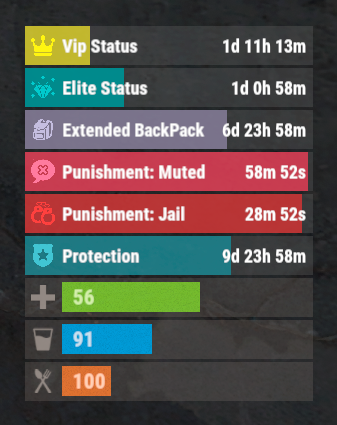
Version 0.1.4
439 downloads
The plugin that displays temporary permissions and groups in the status bar. Depends on AdvancedStatus plugin. The ability to display temporary and permanent permissions; The ability to display temporary and permanent groups; The ability to display temporary and permanent permissions from groups; The ability to automatically generate language files for different languages(filled in English); The ability to customize the bar for each permission and group; The ability to choose between bar types(TimeCounter and TimeProgressCounter); The ability to specify the order of the bar; The ability to change the height of the bar; The abillity to customize the color and transparency of the background; The ability to set a material for the background; The ability to switch between CuiRawImageComponent and CuiImageComponent for the image; The ability to get images from the local folder(*SERVER*\oxide\data\AdvancedStatus\Images); The abillity to set own image and customize the color and transparency of the image; The abillity to set sprite instead of the image; The ability to customize the color, size, font and outline of the text. { "Chat command": "pstatus", "Is it worth enabling GameTips for messages?": true, "List of language keys for creating language files": [ "en" ], "Is it worth clearing saved settings for permissions and groups upon detecting a wipe?": false, "Is it worth displaying the status bar only when players are in the safe zone or have building privilege?": false, "Default display mode for new permissions(Disabled, Temporary, UntilWipe, Permanent, All)": "Temporary, UntilWipe", "Default display mode for new groups(Disabled, Temporary, UntilWipe, Permanent, All)": "Temporary, UntilWipe", "Wipe ID": null, "Version": { "Major": 0, "Minor": 1, "Patch": 4 } } P.S. The default status bar configuration can be adjusted in *SERVER*\oxide\data\PermissionsStatus\BarsConfig.json under the key "_default". EN: { "CmdFailed": "The entered command is incorrect! Try '/{0} display'", "CmdDisplayEnabled": "Displaying the bar is enabled!", "CmdDisplayDisabled": "Displaying the bar is disabled!", "BarUntilWipe": "Until wipe", "BarPermanent": "Permanent" } RU: { "CmdFailed": "Введена не верная команда! Попробуйте '/{0} display'", "CmdDisplayEnabled": "Отображение бара включено!", "CmdDisplayDisabled": "Отображение бара выключено!", "BarUntilWipe": "До вайпа", "BarPermanent": "Постоянный" } The language file is generated during the plugin initialization process. Additionally, when creating a new permission or group, a key for it will be automatically added. Note: You can also specify in the configuration file the generation of language files for other languages besides en and ru. In the "\data\PermissionsStatus\" folder, there are three files: BarsConfig.json - stores status bar settings with their unique keys. GroupsConfig.json - contains settings for groups. PermissionsConfig.json - contains settings for permissions.$9.99 -

Version 1.0.1
8 downloads
xFreezeTime xFreezeTime freezes the in-game server time at a configurable hour. It allows admins to enable/disable time freezing, set a custom frozen hour, or instantly lock the current world time using console commands. The plugin automatically applies settings on server startup. Additionally, you can configure events to run at custom intervals, so events like CH47, cargo, or supply drops are not skipped when day/night progression is disabled. You can use any console commands for each configured event trigger. Permissions xfreezetime.admin - Use any console command. xfreezetime.checkevents - Check event triggers and its remaining time for next trigger. Console Commands xfreezetime - See all available console commands and which permission is required to execute xfreezetime.set <0-24> - Sets the frozen in-game time to a specific hour (e.g. 12, 18.5, 6) xfreezetime.now - Captures the current time and freezes the world at that exact hour xfreezetime.toggle - Toggle the freezing time (Enabled = Freezed Time) xfreezetime.activeevents - List all enabled event triggers + remaining time for next trigger Config { "Enabled": true, "FreezeHour": 12.0, "AnnounceTriggeredEvents": false, "AnnounceMessage": "<color=#e3f542>» Event Triggered:</color> {event}", "LogTriggeredEvents": true, "EventTriggers": [ { "Name": "CargoShip", "Enabled": false, "Command": "cargo.start", "IntervalMinutes": 60.0 }, { "Name": "PatrolHelicopter", "Enabled": false, "Command": "event.run heli", "IntervalMinutes": 100.0 }, { "Name": "CH47", "Enabled": false, "Command": "event.run chinook", "IntervalMinutes": 80.0 }, { "Name": "Airdrop", "Enabled": false, "Command": "supply.call", "IntervalMinutes": 30.0 } ] }$7.90 -
Version 1.0.2
94 downloads
Records playtime, with option to separately record AFK time. Includes a reward system to give players points/money/cash for time played or by referring other players to your server. You can also create custom permissions to give VIP players point multipliers either by using the commands or by simply adding in more config options manually. Features: Discord Logging with a simple discord webhook. Last wipe data saving. Currencies. Afk & active tracking. Permissions. Multipliers. UI Leader Board. Cmds. Recommended Rust Settings Due to ImageLibary's cache avatar feature being broke I have coded in my own method to manually have ImageLibrary cache them.. For rust you will need ImageLibrary installed for the avatar images to work. Enable the Avatar Image Patch": true , And throw in your steam API Key " ", Permissions playtimerewards.admin -- Allows players to use ptr command Chat Commands /playtime -- Displays your name and your playtime /playtime Khan -- Display the playtime for the specified player /playtime top -- Display the top 10 play times in chat /playtime lastwipe -- Displays the last time the data was wiped /pt -- Brings up the Rust only UI Leader Board System Admin Commands playtimerewards.admin -- Requires the admin permissions to use /ptr add vip 10 -- Adds a new custom permission with multiplier value /ptr remove vip -- Removes a custom permission /ptr list -- Shows all available permissions Note: Permissions will automatically be prefixed with playtimerewards. Reward System The reward system can be used to issue currency to players based on their playtime. It has 2 reward style plugins to handle them. Permission System The permission system is there to give VIP players a multiplier for the rewards they are issued. The amount of points will be the default amount set in the config, multiplied by the number you set in the permission. For example, if you create a permission called "playtimerewards.vip" with a value of 1.5, and the amount of points is 5 (default amount), the user will get 7.5 points when issued a reward for playtime Referral System The referral system is simple. PlayerA invites PlayerB to the server. For the reward to be Deposited PlayerB simply has to type '/refer PlayerA'. Once he/she has done this PlayerA will be given points for inviting a player and PlayerB will be given points for joining from a referral Referred Player B Joined Server, Deposit Amount": 3, Referral Invite Sent Deposit Amount, After player B has joined is": 5, Once PlayerB has registered his/her referral they can never use the system again, however they can invite as many players as they want to claim referral rewards Developer API double? FetchPlayTime(string playerid) // Returns double playtime in seconds, or null if no data found double? FetchAfkTime(string playerid) // Returns double AFK time in seconds, or null if no data found int? FetchReferral(string playerid) // Returns int number of referrals, or null if no data found Configuration The settings and options can be configured in the PlayTimeRewards file under the config directory. The use of an editor and validator is recommended to avoid formatting issues and syntax errors. { { "1. Don't Edit This": { "LastWipe": "2021-05-29 19:05:14Z", "WasWiped": false, "WipeTime": "2021-05-29 19:05:14Z" }, "2. Discord Settings": { "1. Enable Discord Logging": false, "2. Discord Web Hook Url": "", "3. Embed Message Color": "#483D8B", "4. Include Plugin Image Name in discord messages": true, "5. Discord Plugin Image": "https://assets.umod.org/images/icons/plugin/60b0e6d6c8900.png", "6. Discord Plugin Name": "PlayTimeRewards" }, "3. Track Settings": { "1. Sets the Save Interval Timer": 15, "2. Enable Afk Time Tracking": true, "3. Enable Avatar Image Patch": true, "4. Avatar Image Patch Requires Steam API Key": "", "5. Ignore Specified Oxide Groups from getting rewards": [ "admin" ] }, "4. Reward Settings": { "1. Enable Rewards": true, "2. Use ServerRewards": false, "3. Use Economics": true, "4. Use Cash System": false, "Cash System Currency": "$", "5. Enable Referrals": true, "6. Enable Earning By Referrals": true, "7. Send Deposit Response": true, "8. PlayTime Deposit Timer": 3600, "9. PlayTime Deposit Amount": 5, "10. Referred Player Joined Deposit Amount": 3, "11. Referral Invite Sent Deposit Amount": 5 }, "5. Permission Multipliers": { "Multiplyer": 1.0, "SetPermission": "" } } Localization The default messages are in the PlayTimeRewards file under the lang/en directory. To add support for another language, create a new language folder (e.g. de for German) if not already created, copy the default language file to the new folder and then customize the messages. { "mia": "Unable to find player number or name {0} \n Try there display-name instead.", "playeraccepted": "Your referral has been accepted", "playerread": "{0} has acknowledged a referral from you", "playeraccepteddeposit": "Your referral has been accepted and you have received {0} points", "playeracceptedplayersreferaldeposit": "{0} has acknowledged a referral from you and you have received {1} points", "self": "You can not refer yourself!", "alreadydid": "You have already acknowledged a referral", "refsyntax": "/refer <playername> - Acknowledge a referral from <playername>", "permmultiplier": "permission | multiplier", "notaperm": "The permission {0} does not exist", "permremoved": "You have successfully removed the permission {0}", "missingvalue": "You must enter a multiplier", "alreadyperm": "The permission '{0}' already exists", "permadded": "You have successfully created a new reward multiplier. Permission: {0}, Multiplier {1}", "ptr": "Create custom permissions with reward multipliers for VIP players", "add": "/ptr add <permissionname> <multiplier> - Adds a new reward multiplier", "remove": "/ptr remove <permissionname> - Removes reward multiplier", "list": "/ptr list - List available permissions and their multipliers", "list1": "Permission {0}, multiplier {1} \n", "typo": "Unable to get your playtime", "natime": "Unable to get that players playtime", "sr": "RP", "economics": "Coins", "cash": "Cash", "cashsystem": "custom", "deposit": "{0} {1} have been deposited to your account!", "toptime": "Top Playtimes: ", "topscore": "You can see the top scoring playtimes by typing \n \"/playtime top (optional:number 1, 22, etc)\"", "lastwipe": "{0} Last wipe was {1}" }$14.99- 4 comments
- 1 review
-
- 3
-

-
-
- #play time rewards
- #play
- (and 9 more)
-

Version 1.2.10
1,178 downloads
Description : This plugin allows you to have a graphical interface on your servers which will then give you information on the number of players, my not only that, all that in real time Editor : https://hud-panel.the-bandit.ovh/ Requires : ImageLibrary Compatible : TimedPermissions Economics TruePVE ServerRewards ZoneManager BuildCost UI Panel function : An ON/OFF button on the panel. A store button/Kits/Info/... An online player counter. An sleeping player counter. An player counter. A clock that gives the time of the match. A dial that gives the player balance. A dial that gives PVP/PVE information. A dial that indicates the time of a leave. A dial that displays your messages. A counter that gives the distance between you and your point. A dial that shows the player’s position on the map in real time. A dial that gives the server’s fps. An icon for the cargo plane event. An icon for freight events. An icon for ch47 events. An icon for attack helicopter events. An icon for tank events. An icon for your custom events via ( hook). Time format : file : /oxide/lang/en/HUDPanel.json for 12h format "Time_Format": "hh:mm tt", for 24h format "Time_Format": "HH:mm", https://www.c-sharpcorner.com/blogs/date-and-time-format-in-c-sharp-programming1 Themes : HUD BASIC CUBE TRIANGLE Icon ID : Contents : - HUDPanel.cs Install : rust\oxide\plugins\HUDPanel.cs Config : rust\oxide\config\HUDPanel.json { "Scan current map events on reload": true, "Chat command to show/disappear the HUDPanel": "h", "Anti Freeze Server Fps Limit": 15, "Change the overall size of the HUD Panel (30 - 100) Default 48": 48, "Width between icon": 18, "Change the sound of the On/Off button": "assets/prefabs/locks/keypad/effects/lock.code.lock.prefab", "Type the coordinate ( X: 1000 | Z: 1000 : 0 ), ( map : A1 : 1 ), ( Auto : 2 )": 2, "List Messages": { "Messages": { "On/Off (true/false)": true, "How long until the next message": 10, "Messages": [ "Messages 1", "Messages 2", "Messages 3" ], "The order the icon should place": 0, "Change text alignment": 4, "Text size": 11, "Text fonts ( 0 - 3 )": 0, "Color Text ( HEX )": "#ffffff", "The position on the screen that the icon should be ( LeftTop, CenterTop, RightTop, LeftBottom, CenterBottom, RightBottom)": "CenterTop", "Swich On": { "Themes ( HUD - BASIC - CUBE - TRIANGLE )": "HUD", "Color 1": "#000000", "Color 2": "#3f51b5", "Color 3": null, "Color Icon": "#ffffff", "Opacity 1": 0.3, "Opacity 2": 1.0, "Opacity 3": 0.0, "Opacity icon": 1.0, "Enlarge icon": 2.1, "Icon ID": "Messages", "URL Custom": null }, "Swich OFF": null, "Position of text in the logo": "20 0 -1 0", "Width BAR SIZE : 1 - 15": 8 } }, "Timed Permissions: Edit 'vip_*' ( Permissions / Groups )": { "vip_1": { "On/Off (true/false)": true, "Reload delay": 5, "Commands (leave blank to disable)": null, "The order the icon should place": 0, "Change text alignment": 4, "Text size": 11, "Text fonts ( 0 - 3 )": 0, "Color Text ( HEX )": "#ffffff", "The position on the screen that the icon should be ( LeftTop, CenterTop, RightTop, LeftBottom, CenterBottom, RightBottom)": "CenterTop", "Swich On": { "Themes ( HUD - BASIC - CUBE - TRIANGLE )": "HUD", "Color 1": "#000000", "Color 2": "#ff9800", "Color 3": null, "Color Icon": "#ffffff", "Opacity 1": 0.3, "Opacity 2": 1.0, "Opacity 3": 0.0, "Opacity icon": 1.0, "Enlarge icon": 1.5, "Icon ID": "Vip_3", "URL Custom": null }, "Swich OFF": null, "Position of text in the logo": "20 0 -1 0", "Width BAR SIZE : 1 - 15": 7 }, "demo": { "On/Off (true/false)": true, "Reload delay": 5, "Commands (leave blank to disable)": null, "The order the icon should place": 0, "Change text alignment": 4, "Text size": 11, "Text fonts ( 0 - 3 )": 0, "Color Text ( HEX )": "#ffffff", "The position on the screen that the icon should be ( LeftTop, CenterTop, RightTop, LeftBottom, CenterBottom, RightBottom)": "CenterBottom", "Swich On": { "Themes ( HUD - BASIC - CUBE - TRIANGLE )": "HUD", "Color 1": "#000000", "Color 2": "#ff9800", "Color 3": null, "Color Icon": "#ffffff", "Opacity 1": 0.3, "Opacity 2": 1.0, "Opacity 3": 0.0, "Opacity icon": 1.0, "Enlarge icon": 1.5, "Icon ID": "Vip_1", "URL Custom": null }, "Swich OFF": null, "Position of text in the logo": "20 0 -2 0", "Width BAR SIZE : 1 - 15": 7 } }, "Custom events": { "Sputnik": { "On/Off (true/false)": true, "The order the icon should place": 5, "The position on the screen that the icon should be ( LeftTop, CenterTop, RightTop, LeftBottom, CenterBottom, RightBottom)": "RightTop", "On Event start ( Hook )": "OnSputnikEventStart", "On Event End ( Hook )": "OnSputnikEventStop", "Swich On": { "Themes ( HUD - BASIC - CUBE - TRIANGLE )": "HUD", "Color 1": "#000000", "Color 2": "#ff8100", "Color 3": "#ffffff", "Color Icon": "#ffffff", "Opacity 1": 0.4, "Opacity 2": 1.0, "Opacity 3": 0.0, "Opacity icon": 1.0, "Enlarge icon": 1.6, "Icon ID": "Sputnik", "URL Custom": null }, "Swich OFF": { "Themes ( HUD - BASIC - CUBE - TRIANGLE )": "HUD", "Color 1": "#000000", "Color 2": "#000000", "Color 3": "#ffffff", "Color Icon": "#ffffff", "Opacity 1": 0.3, "Opacity 2": 0.0, "Opacity 3": 0.1, "Opacity icon": 1.0, "Enlarge icon": 1.6, "Icon ID": "Sputnik", "URL Custom": null }, "Width BAR SIZE : 1 - 15": 1 }, "Convoy": { "On/Off (true/false)": true, "The order the icon should place": 6, "The position on the screen that the icon should be ( LeftTop, CenterTop, RightTop, LeftBottom, CenterBottom, RightBottom)": "RightTop", "On Event start ( Hook )": "OnConvoyStart", "On Event End ( Hook )": "OnConvoyEnd", "Swich On": { "Themes ( HUD - BASIC - CUBE - TRIANGLE )": "HUD", "Color 1": "#000000", "Color 2": "#ff8100", "Color 3": "#ffffff", "Color Icon": "#ffffff", "Opacity 1": 0.4, "Opacity 2": 1.0, "Opacity 3": 0.0, "Opacity icon": 1.0, "Enlarge icon": 1.6, "Icon ID": "Convoy", "URL Custom": null }, "Swich OFF": { "Themes ( HUD - BASIC - CUBE - TRIANGLE )": "HUD", "Color 1": "#000000", "Color 2": "#000000", "Color 3": "#ffffff", "Color Icon": "#ffffff", "Opacity 1": 0.3, "Opacity 2": 0.0, "Opacity 3": 0.1, "Opacity icon": 1.0, "Enlarge icon": 1.6, "Icon ID": "Convoy", "URL Custom": null }, "Width BAR SIZE : 1 - 15": 1 }, "ArmoredTrain": { "On/Off (true/false)": true, "The order the icon should place": 7, "The position on the screen that the icon should be ( LeftTop, CenterTop, RightTop, LeftBottom, CenterBottom, RightBottom)": "RightTop", "On Event start ( Hook )": "OnArmoredTrainEventStart", "On Event End ( Hook )": "OnArmoredTrainEventStop", "Swich On": { "Themes ( HUD - BASIC - CUBE - TRIANGLE )": "HUD", "Color 1": "#000000", "Color 2": "#ff8100", "Color 3": "#ffffff", "Color Icon": "#ffffff", "Opacity 1": 0.4, "Opacity 2": 1.0, "Opacity 3": 0.0, "Opacity icon": 1.0, "Enlarge icon": 1.6, "Icon ID": "Train", "URL Custom": null }, "Swich OFF": { "Themes ( HUD - BASIC - CUBE - TRIANGLE )": "HUD", "Color 1": "#000000", "Color 2": "#000000", "Color 3": "#ffffff", "Color Icon": "#ffffff", "Opacity 1": 0.3, "Opacity 2": 0.0, "Opacity 3": 0.1, "Opacity icon": 1.0, "Enlarge icon": 1.6, "Icon ID": "Train", "URL Custom": null }, "Width BAR SIZE : 1 - 15": 1 }, "Harbor": { "On/Off (true/false)": true, "The order the icon should place": 8, "The position on the screen that the icon should be ( LeftTop, CenterTop, RightTop, LeftBottom, CenterBottom, RightBottom)": "RightTop", "On Event start ( Hook )": "OnHarborEventStart", "On Event End ( Hook )": "OnHarborEventEnd", "Swich On": { "Themes ( HUD - BASIC - CUBE - TRIANGLE )": "HUD", "Color 1": "#000000", "Color 2": "#ff8100", "Color 3": "#ffffff", "Color Icon": "#ffffff", "Opacity 1": 0.4, "Opacity 2": 1.0, "Opacity 3": 0.0, "Opacity icon": 1.0, "Enlarge icon": 2.0, "Icon ID": "Harbor", "URL Custom": null }, "Swich OFF": { "Themes ( HUD - BASIC - CUBE - TRIANGLE )": "HUD", "Color 1": "#000000", "Color 2": "#000000", "Color 3": "#ffffff", "Color Icon": "#ffffff", "Opacity 1": 0.3, "Opacity 2": 0.0, "Opacity 3": 0.1, "Opacity icon": 1.0, "Enlarge icon": 2.0, "Icon ID": "Harbor", "URL Custom": null }, "Width BAR SIZE : 1 - 15": 1 } }, "Default events": { "Patrol": { "On/Off (true/false)": true, "Change text alignment": 4, "Text size": 11, "Text fonts ( 0 - 3 )": 0, "Color Text ( HEX )": "#ffffff", "Position of text in the logo": "20 0 -1 0", "The order the icon should place": 2, "The position on the screen that the icon should be ( LeftTop, CenterTop, RightTop, LeftBottom, CenterBottom, RightBottom)": "RightTop", "On Event start ( Hook )": null, "On Event End ( Hook )": null, "Swich On": { "Themes ( HUD - BASIC - CUBE - TRIANGLE )": "HUD", "Color 1": "#000000", "Color 2": "#ff0000", "Color 3": "#ffffff", "Color Icon": "#ffffff", "Opacity 1": 0.3, "Opacity 2": 1.0, "Opacity 3": 0.0, "Opacity icon": 1.0, "Enlarge icon": 1.6, "Icon ID": "Patrol", "URL Custom": null }, "Swich OFF": { "Themes ( HUD - BASIC - CUBE - TRIANGLE )": "HUD", "Color 1": "#000000", "Color 2": "#ff0000", "Color 3": "#ffffff", "Color Icon": "#ffffff", "Opacity 1": 0.3, "Opacity 2": 0.0, "Opacity 3": 0.1, "Opacity icon": 1.0, "Enlarge icon": 1.6, "Icon ID": "Patrol", "URL Custom": null }, "Width BAR SIZE : 1 - 15": 1 }, "Ch47": { "On/Off (true/false)": true, "Change text alignment": 4, "Text size": 11, "Text fonts ( 0 - 3 )": 0, "Color Text ( HEX )": "#ffffff", "Position of text in the logo": "20 0 -1 0", "The order the icon should place": 3, "The position on the screen that the icon should be ( LeftTop, CenterTop, RightTop, LeftBottom, CenterBottom, RightBottom)": "RightTop", "On Event start ( Hook )": null, "On Event End ( Hook )": null, "Swich On": { "Themes ( HUD - BASIC - CUBE - TRIANGLE )": "HUD", "Color 1": "#000000", "Color 2": "#ff0000", "Color 3": "#ffffff", "Color Icon": "#ffffff", "Opacity 1": 0.3, "Opacity 2": 1.0, "Opacity 3": 0.0, "Opacity icon": 1.0, "Enlarge icon": 1.8, "Icon ID": "Ch-47", "URL Custom": null }, "Swich OFF": { "Themes ( HUD - BASIC - CUBE - TRIANGLE )": "HUD", "Color 1": "#000000", "Color 2": "#ff0000", "Color 3": "#ffffff", "Color Icon": "#ffffff", "Opacity 1": 0.3, "Opacity 2": 0.0, "Opacity 3": 0.1, "Opacity icon": 1.0, "Enlarge icon": 1.8, "Icon ID": "Ch-47", "URL Custom": null }, "Width BAR SIZE : 1 - 15": 1 }, "Plane": { "On/Off (true/false)": true, "Change text alignment": 4, "Text size": 11, "Text fonts ( 0 - 3 )": 0, "Color Text ( HEX )": "#ffffff", "Position of text in the logo": "20 0 -1 0", "The order the icon should place": 10, "The position on the screen that the icon should be ( LeftTop, CenterTop, RightTop, LeftBottom, CenterBottom, RightBottom)": "RightTop", "On Event start ( Hook )": null, "On Event End ( Hook )": null, "Swich On": { "Themes ( HUD - BASIC - CUBE - TRIANGLE )": "HUD", "Color 1": "#000000", "Color 2": "#007f00", "Color 3": "#ffffff", "Color Icon": "#ffffff", "Opacity 1": 0.3, "Opacity 2": 1.0, "Opacity 3": 0.0, "Opacity icon": 1.0, "Enlarge icon": 1.8, "Icon ID": "Plane", "URL Custom": null }, "Swich OFF": { "Themes ( HUD - BASIC - CUBE - TRIANGLE )": "HUD", "Color 1": "#000000", "Color 2": "#ff0000", "Color 3": "#ffffff", "Color Icon": "#ffffff", "Opacity 1": 0.3, "Opacity 2": 0.0, "Opacity 3": 0.1, "Opacity icon": 1.0, "Enlarge icon": 1.8, "Icon ID": "Plane", "URL Custom": null }, "Width BAR SIZE : 1 - 15": 2 }, "Cargo": { "On/Off (true/false)": true, "Change text alignment": 4, "Text size": 11, "Text fonts ( 0 - 3 )": 0, "Color Text ( HEX )": "#ffffff", "Position of text in the logo": "20 0 -1 0", "The order the icon should place": 4, "The position on the screen that the icon should be ( LeftTop, CenterTop, RightTop, LeftBottom, CenterBottom, RightBottom)": "RightTop", "On Event start ( Hook )": null, "On Event End ( Hook )": null, "Swich On": { "Themes ( HUD - BASIC - CUBE - TRIANGLE )": "HUD", "Color 1": "#000000", "Color 2": "#007f00", "Color 3": "#ffffff", "Color Icon": "#ffffff", "Opacity 1": 0.3, "Opacity 2": 1.0, "Opacity 3": 0.0, "Opacity icon": 1.0, "Enlarge icon": 1.5, "Icon ID": "Cargo", "URL Custom": null }, "Swich OFF": { "Themes ( HUD - BASIC - CUBE - TRIANGLE )": "HUD", "Color 1": "#000000", "Color 2": "#ff0000", "Color 3": "#ffffff", "Color Icon": "#ffffff", "Opacity 1": 0.3, "Opacity 2": 0.0, "Opacity 3": 0.1, "Opacity icon": 1.0, "Enlarge icon": 1.5, "Icon ID": "Cargo", "URL Custom": null }, "Width BAR SIZE : 1 - 15": 1 }, "BradleyAPC": { "On/Off (true/false)": true, "Change text alignment": 4, "Text size": 11, "Text fonts ( 0 - 3 )": 0, "Color Text ( HEX )": "#ffffff", "Position of text in the logo": "20 0 -1 0", "The order the icon should place": 1, "The position on the screen that the icon should be ( LeftTop, CenterTop, RightTop, LeftBottom, CenterBottom, RightBottom)": "RightTop", "On Event start ( Hook )": null, "On Event End ( Hook )": null, "Swich On": { "Themes ( HUD - BASIC - CUBE - TRIANGLE )": "HUD", "Color 1": "#000000", "Color 2": "#ff0000", "Color 3": "#ffffff", "Color Icon": "#ffffff", "Opacity 1": 0.4, "Opacity 2": 1.0, "Opacity 3": 0.0, "Opacity icon": 1.0, "Enlarge icon": 1.4, "Icon ID": "BradleyAPC", "URL Custom": null }, "Swich OFF": { "Themes ( HUD - BASIC - CUBE - TRIANGLE )": "HUD", "Color 1": "#000000", "Color 2": "#ff0000", "Color 3": "#ffffff", "Color Icon": "#ffffff", "Opacity 1": 0.3, "Opacity 2": 0.0, "Opacity 3": 0.1, "Opacity icon": 1.0, "Enlarge icon": 1.4, "Icon ID": "BradleyAPC", "URL Custom": null }, "Width BAR SIZE : 1 - 15": 1 } }, "Information frame": { "Power": { "On/Off (true/false)": true, "Reload delay": 0, "Commands (leave blank to disable)": null, "The order the icon should place": 1, "Change text alignment": 4, "Text size": 11, "Text fonts ( 0 - 3 )": 0, "Color Text ( HEX )": "#ffffff", "The position on the screen that the icon should be ( LeftTop, CenterTop, RightTop, LeftBottom, CenterBottom, RightBottom)": "LeftTop", "Position of text in the logo": "0 0 0 0", "Swich On": { "Themes ( HUD - BASIC - CUBE - TRIANGLE )": "HUD", "Color 1": "#000000", "Color 2": "#007f00", "Color 3": null, "Color Icon": "#ffffff", "Opacity 1": 0.3, "Opacity 2": 1.0, "Opacity 3": 0.0, "Opacity icon": 1.0, "Enlarge icon": 1.8, "Icon ID": "Power", "URL Custom": null }, "Swich OFF": { "Themes ( HUD - BASIC - CUBE - TRIANGLE )": "HUD", "Color 1": "#000000", "Color 2": "#ff0000", "Color 3": null, "Color Icon": "#ffffff", "Opacity 1": 0.3, "Opacity 2": 1.0, "Opacity 3": 0.0, "Opacity icon": 1.0, "Enlarge icon": 1.8, "Icon ID": "Power", "URL Custom": null }, "Width BAR SIZE : 1 - 15": 1 }, "Players": { "On/Off (true/false)": true, "Reload delay": 1, "Commands (leave blank to disable)": null, "The order the icon should place": 2, "Change text alignment": 4, "Text size": 11, "Text fonts ( 0 - 3 )": 0, "Color Text ( HEX )": "#ffffff", "The position on the screen that the icon should be ( LeftTop, CenterTop, RightTop, LeftBottom, CenterBottom, RightBottom)": "LeftTop", "Position of text in the logo": "20 0 -1 0", "Swich On": { "Themes ( HUD - BASIC - CUBE - TRIANGLE )": "HUD", "Color 1": "#000000", "Color 2": "#3d3d44", "Color 3": null, "Color Icon": "#ffffff", "Opacity 1": 0.3, "Opacity 2": 1.0, "Opacity 3": 0.0, "Opacity icon": 1.0, "Enlarge icon": 1.8, "Icon ID": "Players", "URL Custom": null }, "Swich OFF": null, "Width BAR SIZE : 1 - 15": 3 }, "Sleep": { "On/Off (true/false)": true, "Reload delay": 2, "Commands (leave blank to disable)": null, "The order the icon should place": 3, "Change text alignment": 4, "Text size": 11, "Text fonts ( 0 - 3 )": 0, "Color Text ( HEX )": "#ffffff", "The position on the screen that the icon should be ( LeftTop, CenterTop, RightTop, LeftBottom, CenterBottom, RightBottom)": "LeftTop", "Position of text in the logo": "20 0 -1 0", "Swich On": { "Themes ( HUD - BASIC - CUBE - TRIANGLE )": "HUD", "Color 1": "#000000", "Color 2": "#ff8100", "Color 3": null, "Color Icon": "#ffffff", "Opacity 1": 0.3, "Opacity 2": 1.0, "Opacity 3": 0.0, "Opacity icon": 1.0, "Enlarge icon": 1.8, "Icon ID": "Sleep", "URL Custom": null }, "Swich OFF": null, "Width BAR SIZE : 1 - 15": 2 }, "Joining": { "On/Off (true/false)": true, "Reload delay": 1, "Commands (leave blank to disable)": null, "The order the icon should place": 4, "Change text alignment": 4, "Text size": 11, "Text fonts ( 0 - 3 )": 0, "Color Text ( HEX )": "#ffffff", "The position on the screen that the icon should be ( LeftTop, CenterTop, RightTop, LeftBottom, CenterBottom, RightBottom)": "LeftTop", "Position of text in the logo": "20 0 -1 0", "Swich On": { "Themes ( HUD - BASIC - CUBE - TRIANGLE )": "HUD", "Color 1": "#000000", "Color 2": "#ff0000", "Color 3": null, "Color Icon": "#ffffff", "Opacity 1": 0.3, "Opacity 2": 1.0, "Opacity 3": 0.0, "Opacity icon": 1.0, "Enlarge icon": 1.8, "Icon ID": "Joining", "URL Custom": null }, "Swich OFF": null, "Width BAR SIZE : 1 - 15": 2 }, "Times": { "On/Off (true/false)": true, "Reload delay": 5, "Commands (leave blank to disable)": null, "The order the icon should place": 5, "Change text alignment": 4, "Text size": 11, "Text fonts ( 0 - 3 )": 0, "Color Text ( HEX )": "#ffffff", "The position on the screen that the icon should be ( LeftTop, CenterTop, RightTop, LeftBottom, CenterBottom, RightBottom)": "LeftTop", "Position of text in the logo": "20 0 -1 0", "Swich On": { "Themes ( HUD - BASIC - CUBE - TRIANGLE )": "HUD", "Color 1": "#000000", "Color 2": "#00a7c2", "Color 3": null, "Color Icon": "#ffffff", "Opacity 1": 0.3, "Opacity 2": 1.0, "Opacity 3": 0.0, "Opacity icon": 1.0, "Enlarge icon": 1.8, "Icon ID": "Times", "URL Custom": null }, "Swich OFF": null, "Width BAR SIZE : 1 - 15": 2 }, "ServerRewards": { "On/Off (true/false)": true, "Reload delay": 3, "Commands (leave blank to disable)": null, "The order the icon should place": 1, "Change text alignment": 4, "Text size": 11, "Text fonts ( 0 - 3 )": 0, "Color Text ( HEX )": "#ffffff", "The position on the screen that the icon should be ( LeftTop, CenterTop, RightTop, LeftBottom, CenterBottom, RightBottom)": "RightBottom", "Position of text in the logo": "20 0 -1 0", "Swich On": { "Themes ( HUD - BASIC - CUBE - TRIANGLE )": "HUD", "Color 1": "#000000", "Color 2": "#ff5722", "Color 3": null, "Color Icon": "#ffffff", "Opacity 1": 0.3, "Opacity 2": 1.0, "Opacity 3": 0.0, "Opacity icon": 1.0, "Enlarge icon": 1.8, "Icon ID": "ServerRewards", "URL Custom": null }, "Swich OFF": null, "Width BAR SIZE : 1 - 15": 5 }, "Economics": { "On/Off (true/false)": true, "Reload delay": 0, "Commands (leave blank to disable)": null, "The order the icon should place": 6, "Change text alignment": 4, "Text size": 11, "Text fonts ( 0 - 3 )": 0, "Color Text ( HEX )": "#ffffff", "The position on the screen that the icon should be ( LeftTop, CenterTop, RightTop, LeftBottom, CenterBottom, RightBottom)": "LeftTop", "Position of text in the logo": "20 0 -1 0", "Swich On": { "Themes ( HUD - BASIC - CUBE - TRIANGLE )": "HUD", "Color 1": "#000000", "Color 2": "#007f00", "Color 3": null, "Color Icon": "#ffffff", "Opacity 1": 0.3, "Opacity 2": 1.0, "Opacity 3": 0.0, "Opacity icon": 1.0, "Enlarge icon": 1.8, "Icon ID": "Economics", "URL Custom": null }, "Swich OFF": null, "Width BAR SIZE : 1 - 15": 5 }, "FPS": { "On/Off (true/false)": true, "Reload delay": 1, "Commands (leave blank to disable)": null, "The order the icon should place": 2, "Change text alignment": 4, "Text size": 11, "Text fonts ( 0 - 3 )": 0, "Color Text ( HEX )": "#ffffff", "The position on the screen that the icon should be ( LeftTop, CenterTop, RightTop, LeftBottom, CenterBottom, RightBottom)": "LeftBottom", "Position of text in the logo": "20 0 -1 0", "Swich On": { "Themes ( HUD - BASIC - CUBE - TRIANGLE )": "HUD", "Color 1": "#000000", "Color 2": "#ff0066", "Color 3": null, "Color Icon": "#ffffff", "Opacity 1": 0.3, "Opacity 2": 1.0, "Opacity 3": 0.0, "Opacity icon": 1.0, "Enlarge icon": 1.8, "Icon ID": "FPS", "URL Custom": null }, "Swich OFF": null, "Width BAR SIZE : 1 - 15": 2 }, "PvpPve": { "On/Off (true/false)": true, "Reload delay": 10, "Commands (leave blank to disable)": null, "The order the icon should place": 1, "Change text alignment": 4, "Text size": 11, "Text fonts ( 0 - 3 )": 0, "Color Text ( HEX )": "#ffffff", "The position on the screen that the icon should be ( LeftTop, CenterTop, RightTop, LeftBottom, CenterBottom, RightBottom)": "LeftBottom", "Position of text in the logo": "20 0 -1 0", "Swich On": { "Themes ( HUD - BASIC - CUBE - TRIANGLE )": "HUD", "Color 1": "#000000", "Color 2": "#ff0066", "Color 3": null, "Color Icon": "#ffffff", "Opacity 1": 0.3, "Opacity 2": 1.0, "Opacity 3": 0.0, "Opacity icon": 1.0, "Enlarge icon": 1.8, "Icon ID": "PvpPve", "URL Custom": null }, "Swich OFF": null, "Width BAR SIZE : 1 - 15": 3 }, "Coordinate": { "On/Off (true/false)": false, "Reload delay": 3, "Commands (leave blank to disable)": null, "The order the icon should place": 5, "Change text alignment": 4, "Text size": 11, "Text fonts ( 0 - 3 )": 0, "Color Text ( HEX )": "#ffffff", "The position on the screen that the icon should be ( LeftTop, CenterTop, RightTop, LeftBottom, CenterBottom, RightBottom)": "RightTop", "Position of text in the logo": "20 0 -1 0", "Swich On": { "Themes ( HUD - BASIC - CUBE - TRIANGLE )": "HUD", "Color 1": "#000000", "Color 2": "#006bc3", "Color 3": null, "Color Icon": "#ffffff", "Opacity 1": 0.3, "Opacity 2": 1.0, "Opacity 3": 0.0, "Opacity icon": 1.0, "Enlarge icon": 1.8, "Icon ID": "Coordinate", "URL Custom": null }, "Swich OFF": null, "Width BAR SIZE : 1 - 15": 6 }, "MarkerPos": { "On/Off (true/false)": true, "Reload delay": 1, "Commands (leave blank to disable)": null, "The order the icon should place": 2, "Change text alignment": 4, "Text size": 11, "Text fonts ( 0 - 3 )": 0, "Color Text ( HEX )": "#ffffff", "The position on the screen that the icon should be ( LeftTop, CenterTop, RightTop, LeftBottom, CenterBottom, RightBottom)": "RightBottom", "Position of text in the logo": "20 0 -1 0", "Swich On": { "Themes ( HUD - BASIC - CUBE - TRIANGLE )": "HUD", "Color 1": "#000000", "Color 2": "#feab00", "Color 3": null, "Color Icon": "#ffffff", "Opacity 1": 0.3, "Opacity 2": 1.0, "Opacity 3": 0.0, "Opacity icon": 1.0, "Enlarge icon": 1.8, "Icon ID": "MarkerPos", "URL Custom": null }, "Swich OFF": null, "Width BAR SIZE : 1 - 15": 2 } }, "Button Custom": { "Shop": { "On/Off (true/false)": true, "Commands (leave blank to disable)": "shop", "The order the icon should place": 6, "Text size": 11, "Text fonts ( 0 - 3 )": 0, "Color Text ( HEX )": "#ffffff", "Position of text in the logo": "20 0 -1 0", "Change text alignment": 4, "The position on the screen that the icon should be ( LeftTop, CenterTop, RightTop, LeftBottom, CenterBottom, RightBottom)": "CenterBottom", "Swich On": { "Themes ( HUD - BASIC - CUBE - TRIANGLE )": "HUD", "Color 1": "#000000", "Color 2": "#000000", "Color 3": "#ffffff", "Color Icon": "#ffffff", "Opacity 1": 0.4, "Opacity 2": 0.4, "Opacity 3": 1.0, "Opacity icon": 0.9, "Enlarge icon": 1.7, "Icon ID": "Shop", "URL Custom": null }, "Swich OFF": null, "Width BAR SIZE : 1 - 15": 2 }, "Kits": { "On/Off (true/false)": true, "Commands (leave blank to disable)": "chat.say /kit", "The order the icon should place": 6, "Text size": 11, "Text fonts ( 0 - 3 )": 0, "Color Text ( HEX )": "#ffffff", "Position of text in the logo": "20 0 -1 0", "Change text alignment": 4, "The position on the screen that the icon should be ( LeftTop, CenterTop, RightTop, LeftBottom, CenterBottom, RightBottom)": "CenterBottom", "Swich On": { "Themes ( HUD - BASIC - CUBE - TRIANGLE )": "HUD", "Color 1": "#000000", "Color 2": "#000000", "Color 3": "#ffffff", "Color Icon": "#ffffff", "Opacity 1": 0.4, "Opacity 2": 0.4, "Opacity 3": 1.0, "Opacity icon": 0.9, "Enlarge icon": 1.7, "Icon ID": "Kits", "URL Custom": null }, "Swich OFF": null, "Width BAR SIZE : 1 - 15": 2 }, "Info": { "On/Off (true/false)": true, "Commands (leave blank to disable)": "chat.say /info", "The order the icon should place": 6, "Text size": 11, "Text fonts ( 0 - 3 )": 0, "Color Text ( HEX )": "#ffffff", "Position of text in the logo": "20 0 -1 0", "Change text alignment": 4, "The position on the screen that the icon should be ( LeftTop, CenterTop, RightTop, LeftBottom, CenterBottom, RightBottom)": "CenterBottom", "Swich On": { "Themes ( HUD - BASIC - CUBE - TRIANGLE )": "HUD", "Color 1": "#000000", "Color 2": "#000000", "Color 3": "#ffffff", "Color Icon": "#ffffff", "Opacity 1": 0.4, "Opacity 2": 0.4, "Opacity 3": 1.0, "Opacity icon": 0.9, "Enlarge icon": 1.9, "Icon ID": "Info", "URL Custom": null }, "Swich OFF": null, "Width BAR SIZE : 1 - 15": 1 } } }$12.99 -
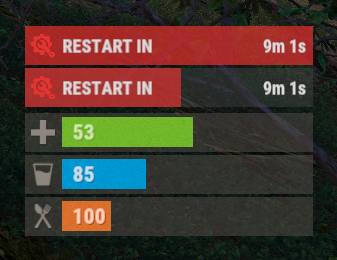
Version 0.1.1
152 downloads
The plugin displays the time until restart in the status bar. Depends on AdvancedStatus plugin. The ability to to add and modify any restart plugins; The ability to automatically generate code for restart hooks; The ability to automatically generate language files for different languages(filled in English); The ability to choose between bar types(TimeCounter and TimeProgressCounter); The ability to specify the order of the bar; The ability to change the height of the bar; The abillity to customize the color and transparency of the background; The ability to set a material for the background; The ability to switch between CuiRawImageComponent and CuiImageComponent for the image; The ability to get images from the local folder(*SERVER*\oxide\data\AdvancedStatus\Images); The abillity to set own image and customize the color and transparency of the image; The abillity to set sprite instead of the image; The ability to customize the color, size, font and outline of the text. { "Is it worth generating restart hooks? 0 - disabled, 1 - one-time activation, 2 - always enabled": 2, "List of language keys for creating language files": [ "en" ], "The type of the bar(TimeProgressCounter or TimeCounter)": "TimeCounter", "The height of the bar": 26, "The display order of the bar": 10, "The background color of the bar(HEX or RGBA)": "#E5423F", "The background transparency of the bar": 0.7, "The background material of the bar, leave empty to disable": "", "The URL of the bar image": "https://i.imgur.com/rAiHloW.png", "The local image of the bar, leave empty to use URL": "RestartStatus_Default", "The sprite image of the bar, leave empty to use local or URL": "", "Is it worth using a raw image for the bar?": false, "The color of the bar image(HEX or RGBA)": "#E5423F", "The transparency of the bar image": 1.0, "The outline color of the bar image(HEX or RGBA)": "0.1 0.3 0.8 0.9", "The outline transparency of the bar image": 1.0, "The outline distance of the bar image, leave empty to disable. Example '0.75 0.75'": "", "The size of the bar text": 12, "The color of the bar text(HEX or RGBA)": "#FFFFFF", "The transparency of the bar text": 1.0, "The font of the bar text(https://umod.org/guides/rust/basic-concepts-of-gui#fonts)": "RobotoCondensed-Bold.ttf", "The horizontal offset of the bar text": 0, "The outline color of the bar text(HEX or RGBA)": "#000000", "The outline transparency of the bar text": 1.0, "The outline distance of the bar text, leave empty to disable": "", "The size of the bar subtext": 12, "The color of the bar subtext(HEX or RGBA)": "#FFFFFF", "The transparency of the bar subtext": 1.0, "The font of the bar subtext": "RobotoCondensed-Bold.ttf", "The outline color of the bar subtext(HEX or RGBA)": "0.5 0.6 0.7 0.5", "The outline transparency of the bar subtext": 1.0, "The outline distance of the bar subtext, leave empty to disable": "", "The background color of the progress bar(HEX or RGBA)": "1 1 1 0.15", "The background transparency of the progress bar": 0.15, "Is it worth making the progress reversible?": true, "The color of the bar progress(HEX or RGBA)": "#E5423F", "The transparency of the bar progress": 0.7, "The OffsetMin of the bar progress": "0 0", "The OffsetMax of the bar progress": "0 0", "The list of restart hooks. Note: After modifying hooks, do not forget to toggle hook generation": [ { "Hook triggered at the start of a restart": "OnSmoothRestartInit", "Argument position containing the number of seconds until restart(counting from 0)": 0, "Hook triggered at the cancellation of a restart": "OnSmoothRestartCancelled" }, { "Hook triggered at the start of a restart": "OnRestartScheduled", "Argument position containing the number of seconds until restart(counting from 0)": 0, "Hook triggered at the cancellation of a restart": "OnRestartCancelled" } ], "Version": { "Major": 0, "Minor": 1, "Patch": 1 } } EN: { "BarText": "RESTART IN" } RU: { "BarText": "РЕСТАРТ ЧЕРЕЗ" }$3.99 -
Version 1.1.1
255 downloads
SAVE 13% WHEN BUYING THE BUNDLE This plugin will allow you to run console commands at any given schedule. The syntax was inspired on the Unix's crontab format but ported to json for easy of use. Below you'll find some examples.. but sky is the limit. +------------- minute (0 - 59) | +------------- hour (0 - 23) | | +------------- day of the month (1 - 31) | | | +------------- month (1 - 12) | | | | +------------- day of the week (0 - 6) (Sunday to Saturday); | | | | | | | | | | | | | | | * * * * * <command to execute> { "Minute": "*", "Hour": "*", "Day": "*", "Month": "*", "DoW": "*", "Command": "ai.sleepwakestats" } New features "@forced" and "!forced" to be used on the Command field as conditionals: /* * > minute = 15, hour = 19, DoW = 4, command = @forced restart 60 * > minute = 15, hour = 12, DoW = 4, command = !forced restart 900 * > The special keys "@forced" and "!forced" will allow you to execute commands * > only of forced wipe days or only on non forced wipe days. This example will * > restart the server every thursday at 12:15 except forced wipe days were it * > will only execute at 19:15. */ New features "@wipe" and "!wipe" to be used on the Command field as conditionals: /* * > minute = @restart, command = @wipe my_command * > minute = @restart, command = !wipe my_other_command * > The special keys "@wipe" and "!wipe" will allow you to execute commands * > only if the map was wiped. This example will execute my_command on server * > restart if the map was wiped otherwise will execute my_other_command. */ Execute the command "ai.sleepwakestats" every 3m: { "Minute": "*/3", "Hour": "*", "Day": "*", "Month": "*", "DoW": "*", "Command": "ai.sleepwakestats" }, Execute the command "status" at 15m of every hour: { "Minute": "15", "Hour": "*", "Day": "*", "Month": "*", "DoW": "*", "Command": "status" }, Restart the server every day at 6:45: { "Minute": "45", "Hour": "6", "Day": "*", "Month": "*", "DoW": "4", "Command": "restart 60" }, Have a specific plugin running only during the weekends: { "Minute": "0", "Hour": "0", "Day": "*", "Month": "*", "DoW": "6", "Command": "oxide.load MyWeekEndPlugin" }, { "Minute": "0", "Hour": "0", "Day": "*", "Month": "*", "DoW": "1", "Command": "oxide.unload MyWeekEndPlugin" } Execute the command "oxide.version" every Tuesday between 10:15 to 10:25: { "Minute": "15-25", "Hour": "10", "Day": "*", "Month": "*", "DoW": "3", "Command": "oxide.version" } Sets the fps limit to 30 at every server restart: { "Minute": "@restart", "Hour": "*", "Day": "*", "Month": "*", "DoW": "*", "Command": "fps.limit 30" } Keeps the plugin MyWeekEndPlugin unloaded during weekend restarts: { "Minute": "@restart", "Hour": "*", "Day": "*", "Month": "*", "DoW": "1", "Command": "oxide.unload MyWeekEndPlugin" }, { "Minute": "@restart", "Hour": "*", "Day": "*", "Month": "*", "DoW": "6", "Command": "oxide.unload MyWeekEndPlugin" }$4.99 -
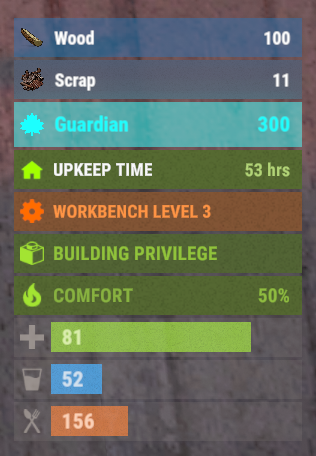
Version 0.1.4
818 downloads
This plugin demonstrates the integration with the AdvancedStatus plugin. It displays the amount of a specific item in the player's inventory in the status bar. In this case, it's Scrap, to track a different item, replace the itemID value on line 47 with the ID of the desired item. This plugin can be downloaded by plugin developers as a reference to understanding how to work with the AdvancedStatus and by server owners to easily display desired items in the status bar.Free -
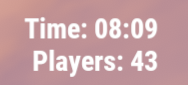
Version 1.0.0
550 downloads
This plugin adds an extremely simple (non-invasive) ingame hud to the top right of your screen. /showhud - enable/disable the ingame hud (client-side, will only affect player that runs the command) I plan on updating and adding to this over time so feel free to make suggestions!Free -
Version 2.0
9 downloads
Time Check automatically outputs the ingame time as well as real-time minutes until next day/night. Set interval via config file (default every 30m)$1.99 -
Version 1.3.1
1,130 downloads
This is a dead simple, non-intrusive, HUD based clock which shows in-game time. This plugin has little to none performance impact, even when shorter nights are enabled on the server. No configuration required.Free