
Search the Community
Showing results for tags 'transfer'.
Found 5 results
-
Version 2.2.1
3,384 downloads
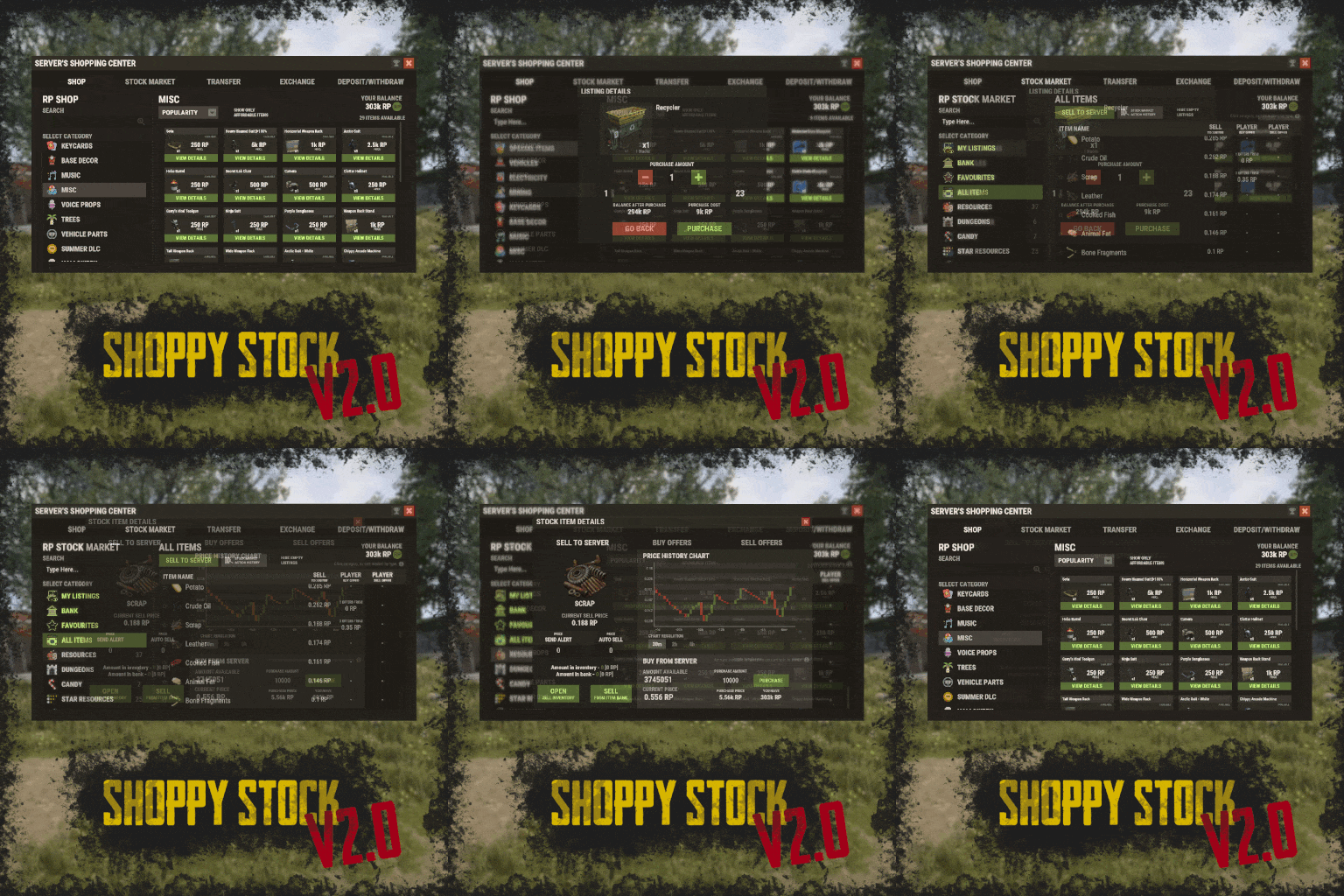
RUST Plugin Test Server TEST MY PLUGINS THERE! connect play.thepitereq.ovh:28050 Shoppy Stock is a powerful and versatile economy system designed to enrich your Rust server with shops, stock markets, transfers, exchanges, and deposit features. This plugin makes it easy to create multiple shops with unique currencies, set up dynamic stock markets with item listings, and manage a fully customizable server selling center—plus many more advanced options. Plugin package (zip) contains: ShoppyStock plugin ShoppyConverter plugin (Converts 1.x config to 2.0 config) Global Includes over 17 detailed Rust-themed GUI windows. Optimized for performance—actions are lightweight and won’t burden your server. Highly expandable, limited only by your imagination. Fully customizable popup messages through the PopUp API. Comprehensive command and API support for currency management. Full language support for all messages and items. Supports NoEscape integration. Complete UI color customization. NPC interaction support for shops and stock markets. Page memory feature remembers your position in the shop when reopened. Deposit and withdraw currencies to and from items. Currency exchange between different types. Built-in currency leaderboard. Shops Create multiple shops, each using different currencies. Easily import your old currency from other economy plugins. Organize items into categories with custom icons for seamless browsing. Unified search bar across all categories. Buy exactly the amount of items you need. Full custom item support. If currency is item-based, allow deposits into the shop as virtual currency and withdrawals back to items. Granular permission system configurable for each action. Daily or wipe purchase limits. Purchase cooldowns. Configurable discount system. Random offer rotations with customizable listings. Progressive pricing — prices can increase by set values or multipliers on each purchase. Stock Market Create multiple markets with different currencies. Favorite items tab for quick access. Automatic listing of all vanilla Rust items with blacklist support. Multiple sorting options for better market management. Buy and sell request creation. Configurable server sell price history. Permission-based limits on how many listings each player can create. Listings can be canceled, refunded, or returned to the market at no cost. Customizable taxes on market actions. Support for extra item info like durability and plant genes. Timed price rolls to adjust prices at set hours. Demand-based pricing that adjusts based on item popularity (DiscordCore required for messages). Advanced selling center with a price calculator using over 15 variables (e.g., amount sold, online player count). Stock Market Broker system—players can store or refund items, set alert prices, and even auto-sell resources while offline. Custom categories and full custom item support. Web API support for price checks or integration into server tools (requires web server). Statistics module for fine-tuning your economy. Timed listings with configurable availability durations. Ability to buy back resources sold to the market. Listing taxes based on listing time. Dynamic price history graphs. Individual configuration for server buy/sell offers per item. Generation of historical price data. Transfer Send currencies to other players, whether they’re online or offline. Configurable transfer limits and taxes. The following core permission is static and cannot be changed. However, the configuration files include hundreds of customizable permissions covering nearly every action. shoppystock.admin - Grants full access to admin commands and management tools. All commands can be fully customized in the configuration. Below are the default commands included with the plugin: /shop or /s — Opens the main Shoppy Stock interface. /adminshop — Opens the admin shop management panel. (Available in version 2.1) /deposit — Opens the currency deposit inventory. /mshop or /goldshop — Opens a specific shop. /market — Opens the stock market interface for a specific currency (defaults to “money”). /sell — Opens the sell inventory to sell items directly to the server (defaults to “money”). /list — Opens the interface to list a new item on the stock market (defaults to “money”). /bank — Opens the bank interface for a specific stock market (defaults to “money”). /stockcode <code> — Displays a private listing using a code shared by the listing owner. updateprices — Console command showing details on rolling or updating item prices in the stock market. Shoppy Stock is packed with powerful features, and configuring everything the first time can feel overwhelming. This guide provides a quick walkthrough to help you get started and understand key parts of the plugin. Optional Supported Currency Plugins Economics ServerRewards BankSystem IQEconomic Moving from V1 to V2. Shoppy Stock V2 has been almost completely rewritten from scratch, reusing less than 10% of the old code. The new configuration is redesigned to be more intuitive and feature-rich. To help you migrate, use the provided ShoppyConverter, which can convert about 95% of your old configs and data files to the new format. After converting, always review your new configs carefully — V2 includes dozens of new options that won’t automatically adjust to your preferred settings. How to convert: Place ShoppyConverter.cs in your plugins folder. Follow console instructions to move files to the required location. Run the conversion command as instructed. Once converted, place the new files in the correct folders as indicated. Configuration Files The plugin’s extensive features are divided across several files and folders: /config/ShoppyStock.json Main config containing default settings for currencies, shops, stock markets, and global options. /data/ShoppyStock/playersData.json Stores global plugin data and player currencies. /data/ShoppyStock/Shops/Configs/<shopName>.json Shop configs, including available categories and items. /data/ShoppyStock/Shops/Statistics/ Data on daily limits, unique purchases, and more. /data/ShoppyStock/StockMarkets/Configs/<stockName>.json Stock market configs. /data/ShoppyStock/StockMarkets/Listings/ Player buy and sell offers. /data/ShoppyStock/StockMarkets/PlayerData/ Alert data, favorites, banked items, etc. /data/ShoppyStock/StockMarkets/PriceCache/ Historical price data and current server sell prices. /data/ShoppyStock/StockMarkets/Statistics/ Data on items sold to the server and total currency earned. Main Config Highlights Web API You can use the Web API to show market prices on your website. Requires web hosting with PHP support. Download apiupdate.php by CLICKING HERE. Place it in the directory set by your “Web Price API - Link” config. Make sure it has permission to create api.html. The generated file will be accessible at <Web Price API - Link>/api.html. Server-Selling Items → Default Sell Amount Calculation (DSAC) DSAC helps define the average number of items sold in a period, based on your server’s player activity. The period is an one price roll time. Example: a PvE x10 server with ~20–30 players might set wood’s DSAC to 1,800,000 — based on my some calculations, but adjust based on your own stats and server needs. Always Run Timer on Hour Minute Controls when the plugin rolls stock prices. For example: Values: 0, 30, 60 → rolls at x:00 or x:30. Values: 0, 20, 40, 60 → rolls at x:00, x:20, or x:40. Stock Market - Default Categories By default, the stock market includes these categories: Favourites MyListings Bank AllItems Use these codenames in your configs to customize display order. Stock Market Item Text Info Display Method If your server supports item.text, you can toggle this option to show listed item text info. Currently plugin supports two ways of displaying data. You can enable them based on the config number: 0 - Disabled 1 - Reads raw item.text field and shows on screen 2- Reads item.text as Dictionary<string, string> and supports key translation, currently experimental. If your plugin works on item.text info and any of the solutions above doesn't fit you, feel free to message me to create another implementation! Items - Custom Detail Info (skinId: languageKey) You can add custom info tags in listings (similar to showing tool condition or clone genes). For example, tag certain items as “Upgrade Ingredients.” Redeem Inventory Name Make sure to create a storage with this name in RedeemStorageAPI — otherwise, items from certain actions could disappear, and errors may occur. Generating Shop Config With All Vanilla Items To automatically add all vanilla RUST items to a shop: In /config/ShoppyStock.json, set Generate Config With All Default RUST Items to true in the desired shop section. Delete the existing shop config file in /data/ShoppyStock/Shops/Configs/. Reload the plugin—this will generate a new config containing all default items. Shop Data Config Highlights Shop Items - Commands Supports few types of dynamic variables in commands: {userId} → buyer’s Steam ID {userName} → buyer’s nickname {userPosX}, {userPosY}, {userPosZ} → buyer’s coordinates A collection of answers to common questions about demand systems, price multipliers, stock market trends, and developer API. Multiplier Events & Demand System Q: How does the demand system work? What is “weight”? A: The demand system uses “Multiplier Events” defined in the main config. Each event has a weight that determines its chance to be chosen during a price roll. How often demands appear is configured in your stock market file at: /data/ShoppyStock/StockMarket/Configs/<shopName>.json. Make sure names in the main config and stock market config match exactly. Q: How do “minimal” and “maximal” work? A: These define a range for random price multipliers. Example: if minimal is 1.4 and maximal is 1.8, and the original price is 1.4, the final rolled multiplier might be ~1.685 → final price becomes ≈ 2.359. If the random roll goes above max or below min, it’s clamped to min/max. Stock Market - Timestamps & Trends Q: What are timestamps used for? A: The plugin stores historical price data which appears in charts for players with the correct permission. Tip: set a reasonable timestamp retention value even if you don't plan to show players now—this lets you start collecting useful data early. Data Folder, Stock Market Config Q: Blocked Multiplier Listing Keys A: Certain items you want excluded from permission price multipliers. Price Calculator Q: Price Change - Price Fluctuation Percentage A: Adds random small price changes to keep the market realistic when no other events run. Q: Price Change - Same Price Actions Min/Max A: Controls how many rolls prices must go up or down in sequence, making trends look more natural. Q: Price Change - Chances To Increment Based On Current Price Percentage A: It's the chance to run the action listed above. It's made in "<price percentage>": <price increase chance (percentage)> format. It's made to make prices go higher more easily when they are low and harder when they are high. Q: Price Drop - Amount Sell Values Penalty Multiplier A: When many items are sold fast, price roll becomes negative × penalty multiplier, making it drop quicker. Q: Price Drop - Amount Sold Max Price Penalty A: If a huge amount of an item (e.g., 10000% of DSAC) is sold, price is locked to e.g., 25% of original value for a period (e.g., 24 price rolls). Q: Price Increase - DSAC Not Achieved A: When item demand is too low (<100% DSAC sold), price increases faster to encourage farming, e.g., by x1.5. Q: Default Sell Amount Calculation - Players Online Multiplier A: Automatically scales DSAC based on current player count (checked each price roll). Useful if online population varies greatly. Q: Price Multipliers - Minimal Time Distance Between Events A: Sets a cooldown between multiplier events to avoid price spikes. Q: Price Multipliers - Chance To Appear Based On Sold Amount A: Lets multipliers trigger more often when few or many items are sold. Q: Price Multiplier Events A: Defines how many price rolls the price-increase/decrease event should last. Server Sell Items Q: What is the price parent system? A: Lets you set base items (e.g., Metal Ore) and refined items (e.g., Metal Fragments) so that fragments always stay more valuable than ore by a set difference, encouraging refining. int GetCurrencyAmount(string shopName, BasePlayer player) - Returns player's balance rounded down to integeer. If not found returns 0. int GetCurrencyAmount(string shopName, ulong userId) - Returns player's balance rounded down to integeer. If not found returns 0. float GetCurrencyAmountFloat(string shopName, BasePlayer player) - Returns player's balance. If not found returns 0. float GetCurrencyAmountFloat(string shopName, ulong userId) - Returns player's balance. If not found returns 0. bool TakeCurrency(string shopName, BasePlayer player, int amount) - Takes player currency. Returns true if taken and false if not. bool TakeCurrency(string shopName, BasePlayer player, float amount) - Takes player currency. Returns true if taken and false if not. bool TakeCurrency(string shopName, ulong userId, int amount) - Takes player currency. Returns true if taken and false if not. bool TakeCurrency(string shopName, ulong userId, float amount) - Takes player currency. Returns true if taken and false if not. void GiveCurrency(string shopName, ulong sellerId, int amount) - Gives player currency. void GiveCurrency(string shopName, ulong sellerId, float amount) - Gives player currency. string FormatCurrency(string shopName, BasePlayer player) - Returns player's formatted balance. Video Configuration Contains all configuration files shown on video. My private configuration created for my purposes. Note: many custom item features won’t work directly on your server—they're specific to the author’s private setup. Example Configuration.zip Default Main Config CLICK HERE! Default Shop Data Config CLICK HERE! Default Stock Market Data Config CLICK HERE!$49.99 -
Version 2.2.8
3,696 downloads
Bank System adds a bank to your server. Players get a card and a balance, transfer money to each other and use ATMs that other players own and profit from. Every deposit, withdrawal and transfer lands in a history the player opens from the bank window. The interface ships in seven templates, so it works as a fullscreen menu or inside any ServerPanel version, and the balance can be the plugin's own or come from Economics, ServerRewards or another economy plugin. Features Bank card with balance, transaction history and gather history in one window. Cards can be created automatically on first open and expire after a set number of days. Transfers between players: pick someone from the list or type a card number. The list can show everyone or only players who are online. Player-owned ATMs. A player buys an ATM, places it and earns the deposit and withdrawal fees other players pay at it. ATMs break during operations and are repaired with items you choose, priced per 1% of condition. A permission can lower the breakage chance for a group. Two fee modes: take the fee out of the amount the player entered, or charge it on top. ATMs at monuments through the built-in spawn settings or MonumentAddons. Pay players for gathering, picking up collectibles, looting crates and kills. Set a price per shortname or prefab; the money goes to the balance or into the player's hands as banknotes. Banknotes as an item, with a configurable drop from crates. Seven UI templates: fullscreen Old Style and New Rust, ServerPanel V1, V2 and V4, and both ATM styles. Each template is a JSON file in the data folder, so the look is editable without touching the code. Your own balance or a third-party one: Economics, ServerRewards and any plugin with add, remove and show hooks. Balances convert from Economics and ServerRewards with one command. Works with HumanNPC, Notify/UINotify and LangAPI. Offline image mode for when image hosts rate-limit you. Auto wipe for players, logs and ATMs, each on its own switch. Commands bank: open the bank. The command names come from Commands in the config. ATM command: opens the ATM window from chat. The list Commands to open ATM menu is empty by default; add a name such as atm to enable it. Permission to open ATM menu via command gates it. bank.givenote [targetId] [amount]: give banknotes to a player. bank.giveatm [targetId] [amount]: give ATMs to a player. bank.setbalance [targetId] [amount]: set a player's balance. bank.deposit [targetId] [amount]: add money to a player's balance. bank.withdraw [targetId] [amount]: take money from a player's balance. bank.transfer [playerId] [targetId] [amount]: move money from one player to another. bank.wipe: remove every ATM from the plugin data. Wiping players and logs on a new save is set in Wipe Settings. bank.convert.economics: import balances from Economics. bank.convert.serverrewards: import balances from ServerRewards. bank.template <interface_type> <template>: switch the UI template. Server console only. Without arguments it prints the list below. The choice is saved to the config (Fullscreen style (OldStyle/NewRust) and Template) and applied at once. Parameters: <interface_type>: fullscreen for the standalone window, inmenu for the ServerPanel page. <template> for fullscreen: old or new. <template> for inmenu: v1, v2, v4 or auto. With auto the plugin reads the template version from the ServerPanel category it is placed in. Examples: bank.template fullscreen old: sets the fullscreen UI to the old style template. bank.template fullscreen new: sets the fullscreen UI to the new Rust template. bank.template inmenu v1: sets the in-menu UI to the ServerPanel V1 template. bank.template inmenu v2: sets the in-menu UI to the ServerPanel V2 template. bank.template inmenu v4: sets the in-menu UI to the ServerPanel V4 template. bank.template inmenu auto: picks the in-menu template from the ServerPanel category. The admin commands above (bank.givenote through bank.convert.serverrewards) run from the server console or from a player with admin rights. Permissions banksystem.use: access to the bank. The name is whatever you put in Permission (example: banksystem.use); leave it empty and the bank is open to everyone. ATM command permission: the value of Permission to open ATM menu via command. Players without it can still use a placed ATM; only the chat command is gated. Breakage permissions: Breakage percentage during operation maps a permission to a breakage percent. Give a group its own permission and a lower percent to make their ATMs break less often. Showcase Fullscreen templates Template OLD STYLE Template NEW RUST In-menu templates (ServerPanel) Template V1 Template V2 Template V4 ATM Template OLD STYLE Template NEW RUST The ATM follows the fullscreen style: Fullscreen style (OldStyle/NewRust) in the config picks both the bank window and the ATM look. TEST SERVER Join our test server and try the features yourself. Copy the IP address below to connect. connect 155.103.86.38:28015 Web Config Editor Manage the BankSystem settings in our web config editor. You change the config in a browser form instead of editing files on the server by hand. P.S. The web config editor is open to members of the "BankSystem" group in our Discord server. Join at https://discord.gg/mevent and ask for the group. FAQ Q: Where can I see an example of a config? A: Config Q: How do I switch the template? A: From the server console: bank.template fullscreen old, bank.template fullscreen new, bank.template inmenu v1, v2, v4 or auto. Run bank.template with no arguments to print the list. The Showcase above shows what each one looks like. Q: Where are the templates and how do I change the look? A: Each template is a JSON file in oxide/data/BankSystem/Templates/ (carbon/data/BankSystem/Templates/ on Carbon): OldStyle.json, NewRust.json, V1.json, V2.json, V4.json, AtmOldStyle.json and AtmNewRust.json. Edit colors, sizes, fonts and positions there and reload the plugin. Delete a file and the plugin writes the default one back on the next load. Q: I updated from 1.4.x. Where did my interface settings go? A: Version 2.0.0 moved every interface setting out of the config and into the template files above. Your old config is saved to data/BankSystem/Backups/; open it next to the new template file and carry your colors and sizes over by hand. Q: How do I add Bank System to ServerPanel? A: Create a new category in ServerPanel with these settings: "Type": "Plugin", "Plugin Name": "BankSystem", "Plugin Hook": "API_OpenPlugin" Then run bank.template inmenu auto and the bank page takes the template version of that category. Q: How do ATM fees work? A: ATM Settings sets the minimum, maximum, default and step for the deposit and withdrawal fees; the ATM owner picks the exact percent with a slider in the Manage screen. Deduct the fee from the entered amount? chooses between two modes: with true a player who enters 100 gets 100 minus the fee, with false the player pays 100 plus the fee. Q: How do I use Economics or ServerRewards as the balance? A: In Economy Settings set Use own economic system? to false and fill in the plugin name and its hooks. Economics: "Economy Settings": { "Use own economic system?": false, "Plugin name": "Economics", "Balance add hook": "Deposit", "Balance remove hook": "Withdraw", "Balance show hook": "Balance" } ServerRewards: "Economy Settings": { "Use own economic system?": false, "Plugin name": "ServerRewards", "Balance add hook": "AddPoints", "Balance remove hook": "TakePoints", "Balance show hook": "CheckPoints" } Q: How do I spawn an ATM at a monument using BankSystem and MonumentAddons? A: Follow these steps to auto-spawn an ATM at your monuments: Go to a Monument: Position yourself at a monument where you want the ATM to appear (e.g., near a vending machine location). Spawn a Vending Machine: Run the following command to spawn a vending machine using MonumentAddons: /maspawn vendingmachine.deployed Convert It to an ATM: Immediately change the vending machine's skin to the ATM design by running: /maskin 2551771822 Confirm that 2551771822 matches the ATM skin ID configured in your BankSystem settings. Your ATM is now installed at the monument and will automatically respawn during wipes or map changes. Q: I see black images with Rust logo or get error 429 when loading images. What should I do? A: These issues come from failed image downloads. The plugin passes images to ImageLibrary but does not download them itself. Error 429 usually means an image host such as Imgur is rate-limiting you (see HTTP 429 documentation for details). To fix it, enable Offline Image Mode, which uses local images instead: Enable the mode in config: Open "oxide/config/BankSystem.json" (or "carbon/config/BankSystem.json" for Carbon) Set "Enable Offline Image Mode": true Set up the images: Create folder "TheMevent" in "oxide/data" (or "carbon/data" for Carbon) Download PluginsStorage (click "CODE" → "Download ZIP") Extract the ZIP and copy all contents to the "TheMevent" folder Reload the plugin: Type o.reload BankSystem (Oxide) or c.reload BankSystem (Carbon) Note: If you want to add your own custom images, place them in the "TheMevent" folder and reference them with the "TheMevent/" prefix. For example: "TheMevent/Icon1.png", "TheMevent/MyCustomIcon.jpg", etc. Q: How do I fix RUSTNote stack splitting issues? A: Find "Enable item split control? (if there are errors with stack plugins - it is worth turning off)" in the config and set it to false. Hooks and API Hooks: private object CanPlayerCreateCard(BasePlayer player) private void OnPlayerCreatedCard(BasePlayer player) private void OnBalanceChanged(ulong member, int amount) API methods: private string API_OpenPlugin(BasePlayer player) private bool HasCard(BasePlayer player) private bool HasCard(ulong member) private int Balance(BasePlayer player) private int Balance(string member) private int Balance(ulong member) private bool Deposit(BasePlayer player, int amount) private bool Deposit(string member, int amount) private bool Deposit(ulong member, int amount) private bool Withdraw(BasePlayer player, int amount) private bool Withdraw(string member, int amount) private bool Withdraw(ulong member, int amount) private bool Transfer(BasePlayer member, BasePlayer target, int amount) private bool Transfer(string member, string target, int amount) private bool Transfer(ulong member, ulong target, int amount) private int API_BankSystemBalance(BasePlayer player) private int API_BankSystemBalance(string member) private int API_BankSystemBalance(ulong member) private bool API_BankSystemDeposit(BasePlayer player, int amount) private bool API_BankSystemDeposit(string member, int amount) private bool API_BankSystemDeposit(ulong member, int amount) private bool API_BankSystemWithdraw(BasePlayer player, int amount) private bool API_BankSystemWithdraw(string member, int amount) private bool API_BankSystemWithdraw(ulong member, int amount) private bool API_BankSystemTransfer(BasePlayer member, BasePlayer target, int amount) private bool API_BankSystemTransfer(string member, string target, int amount) private bool API_BankSystemTransfer(ulong member, ulong target, int amount)$29.95 -

Version 1.1.8
69 downloads
xStackSize xStackSize gives you full control over item stack sizes on your Rust server. Globally and permission-based. Fine-tune your economy, balance progression, or create VIP advantages with flexible and performance-friendly stack management. Whether you want larger stacksize for QoL, custom stacksizes for specific groups/permission, or complete control over your servers stacking system. INFO: xStackSize supports multiple permissions at the same time. If a player has more than one stack permission, the plugin automatically applies the highest stack size based on your configuration. The highest value always wins - whether it's global or permission-based. Example: If global is set to x3 and a permission gives x1, the player will use x3 since it’s higher. (If he has that permission) Features Global stack size control Permission-based StackSizes (VIP / ranks / groups) Custom StackSize per item Custom StackSize for CUSTOM ITEMS Force Split/Merge changed StackSize INSTANT instead of waiting for players to move items manually Blacklist items Easy to configure Performance friendly designed Additionally supports Quarries, Excavator, Furnaces and Conveyors Permission-based StackSizes: You can use any permission name in the config, as long as it starts with xstacksize. Examples: xstacksize.pro, xstacksize.vip, xstacksize.premium etc.. You can create multiple stack-size permissions. Simply copy and paste a new permission block in the config and give it a different permission name. Various Constellations (Examples, for better understanding) Console Command xstacksize.refresh (Useful if you have AutoApplyStackSizeChange set to 'false') Force-applies current stack rules to existing items immediately. It recalculates limits and retroactively normalizes/merges stacks in player inventories and storage containers without requiring item movement. Config (Use value '0' for UNLIMITED) { /* AutoApplyStackSizeChange force splits/merge items instantly instead of waiting for players to move items manually. */ "AutoApplyStackSizeChange": true, "AllowUnstackableItemsToStack": false, "StackSizeMultipliers": { "Weapon": 1.0, "Construction": 1.0, "Items": 1.0, "Resources": 1.0, "Attire": 1.0, "Tool": 1.0, "Medical": 1.0, "Food": 1.0, "Ammunition": 1.0, "Traps": 1.0, "Misc": 1.0, "Component": 1.0, "Electrical": 1.0, "Fun": 1.0, "CustomItems": 1.0 }, "FixedItemStackSizes": { "wood": 0, "stones": 0 }, "PermissionFixedItemStackSizes": { "xstacksize.vip": { "wood": 5000, "wood:123456789": 100, "-2099697608:123456789": 200 } }, "PermissionStackSizeMultipliers": { "xstacksize.vip": { "Weapon": 1.0, "Construction": 1.0, "Items": 1.0, "Resources": 1.0, "Attire": 1.0, "Tool": 1.0, "Medical": 1.0, "Food": 1.0, "Ammunition": 1.0, "Traps": 1.0, "Misc": 1.0, "Component": 1.0, "Electrical": 1.0, "Fun": 1.0, "CustomItems": 1.0 } }, "BlacklistedItems": [ "pumpkin" ] }$15.99 -

Version 1.0.3
19 downloads
xScrapBag xScrapBag adds a virtual scrap storage system to your Rust server, allowing players to automatically store, manage, and transfer scrap without clogging their inventory. Features Automatic Scrap Storage Scrap picked up by players is automatically stored in their Scrap Bag Optional player chat notification when scrap is stored Prevents scrap from filling inventory slots Manual Deposit & Withdraw Deposit scrap from inventory into the Scrap Bag Withdraw stored scrap back into inventory Player-to-Player Scrap Transfer Transfer stored scrap to other online players via UI Persistent Data Storage Scrap balances are saved automatically Death Handling Option to reset stored scrap on death Or keep scrap safe after death - your choice. Plugin Preview Chat Commands /scrapbag /xsb /* Both chat commands will open the scrapbag UI */ Permission xscrapbag.use Config { "PermissionUse": "xscrapbag.use", "ResetStoredScrapOnDeath": false, "StoreScrapAutomatically": true, "StoreScrapAutomaticallyPlayerMessage": true }$9.99 -
Version 1.1.7
108 downloads
Make life easier for the players on your server, this plugin allows you to craft items if there is a vault nearby with the right resources, and you can easily move items from one vault to another. Features: When you want to craft an item and you don't have enough resources but there is a craft store that has enough resources, they will be moved to your crafting inventory Three resource movement modes Basic transfer - By hitting one vault with Hammer and then the other one in transfer all items from the 1st to the 2nd vault. My transfer - transferring items from all available storages in the area (radius in the config) into your inventory and vice versa Advance transfer - move from any available storage within the radius to any other Commands: (You need to hold the hammer in your hands to use it) Press "R" - for open the UI change transfer mode. Press "RMB" - for open the UI transfer menu. Permissions: "inventoryhelper.all" - allow you use full functionality "inventoryhelper.swap" - allows you to swap the contents "inventoryhelper.pull" - allows you to get items from containers when he try to craft something "inventoryhelper.basictransfer" - allows you to transfer items between containers "inventoryhelper.mytransfer" - allows you to trasfer all your items to the container "inventoryhelper.adtransfer" - allows you to transfer items between continaser with UI Config: { "Pull request cooldown": 3.0, "Use UI messages": true, "Use Chat messages": true, "UI message duration": 3.0, "Storage pull|search radius": 18.5 } Lang: { "CH_CPBB": "<color=#ff0a0a>You can't pull resources in Building Block zone.</color>", "CH_PCD": "<color=#ff0a0a>Pull cooldown {0}s</color>", "CH_PMR": "<color=#ff0a0a>Not enough resources for pull:</color>{0}", "CH_PRC": "<color=#beff7f>Resources pulled for {0} craft. ({1} items pulled)</color>", "CH_SS": "<color=#ff0a0a>This is the same storage</color>", "CH_STFA": "<color=#ff0a0a>The storage is too far away</color>", "CH_SSL": "<color=#ffff00>Select a storage location where you want to move items</color>", "CH_SISEMPTY": "<color=#ff0a0a>The storage is empty</color>", "CH_FULLINV": "<color=#ff0a0a>There's not enough room in your inventory</color>", "CH_FULLSTORAGE": "<color=#ff0a0a>There's not enough room in the storage</color>", "CH_TRASFITEMS": "<color=#beff7f>{0} items trasfered from {1} to {2}</color>", "CH_NOTAVALIBLE": "<color=#ff0a0a>The storage isn't avalible</color>", "CH_PERM": "<color=#ff0a0a>You don't have enough permission</color>" }$8.88