Search the Community
Showing results for tags 'inventory'.
Found 19 results
-

Version 1.7.2
166 downloads
Repair All allows you to easily repair all items in a container at the same time. Repair your entire storage locker, or an entire storage box full of broken shit with the click of a single button. Repair All works with any container, including your Backpacks plugin pages, or a backpack you throw on the ground. For those of you using SkillTree, it also works with the repair perks from the Build Craft Tree. Several permissions available for VIP groups including free repairs, no BPs, and full durability repairs! FEATURES Effortless Integration: Repair All works right out of the box with no extra plugins or external files needed. Seamless Compatibility: Integration with SortButton, Backpacks, and SkillTree. Smart Resource Management: Pull resources needed for repairs directly from your inventory, your backpack, or even the storage box you're repairing from! Universal Container Support: Whether it's a large wooden box, a small box, barrels, or baskets, Repair All handles them all with ease. Locker Love: Your precious locker contents? Fully repair with a single click. Roaming Goodness: Away from your base? No problem! Just drop your backpack on the ground and repair your essentials right there. Big thanks to Luffy Rust for all the help testing, and providing feedback. You guys are awesome! CONSOLE COMMANDS: repairall.blacklist <add/remove/show> [shortname|itemID] [skinID] PERMISSIONS repairall.use Required for players to use RepairAll. repairall.admin Required for managing item blacklist. repairall.use.item Allows repair of individual items. repairall.use.roam can repair outside of TC auth range. repairall.no.roam.cost no additional resource cost while outside of TC Auth range. repairall.no.add.cost Exempts player from additional resource cost. repairall.no.dura.loss Items repaired with RepairAll won't take durability loss. repairall.no.resources Allows players to make repairs without consuming resources. repairall.no.blueprints Allows repairs without having BPs. repairall.full.condition Repair items to full condition and durability. CONFIGURATION Repair Button Only If enabled, only the repair button will be shown in the UI. Default Cost % This defaults to the game's default resource cost for repairs. Additional Cost % Set the additional resource cost for repair. Additional Roaming Repair Cost %: defaults 25% Durability Loss %: Set the default loss to durability on repair. SortButton Use Permission: default: "sortbutton.use". Backpacks Use Permission: default: "backpacks.use". Backpacks Retrieve Permission: default: "backpacks.retrieve". Backpacks Gather Permission: default: "backpacks.gather". DEFAULT CONFIGURATION { "Repair Button Only": false, "Default Cost %": 20, "Additional Repair Costs %": 10, "Additional Roaming Repair Costs %": 25, "Durability Loss %": 20, "SortButton Use Permission": "sortbutton.use", "Backpacks Use Permission": "backpacks.use", "Backpacks Retrieve Permission": "backpacks.retrieve", "Backpacks Gather Permission": "backpacks.gather" }$9.00- 21 comments
- 3 reviews
-
- 2
-

-
- #inventory
- #items
- (and 5 more)
-
Version 3.2.1
139 downloads
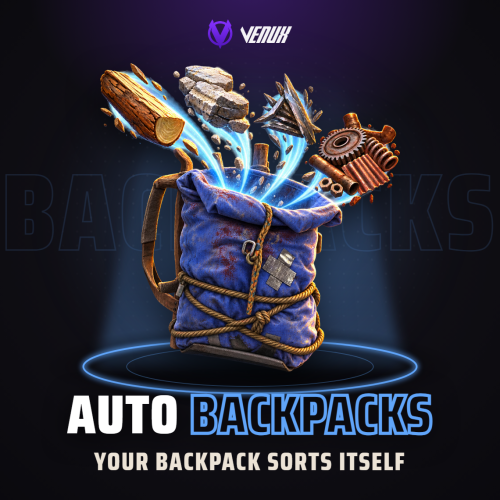
[ ✓ ] Works on any host. [ ✓ ] The plugin needs the free CrashExtensions library. Can't upload DLLs on your host? No problem: the zip includes a small installer plugin. Drop it in your plugins folder, run crashext.install, restart once, and you're done. Auto Backpacks keeps Rust's wearable backpacks organised without players having to open anything. What does not fit the main inventory slips into the backpack they are wearing, priority items go to the belt, the items they never want moved stay where they are, and the backpack sorts itself by category. Permission tiers then add room on top of the small and large backpack: up to 8 tiers and 60 slots, with a separate size for each backpack. Bonus slot permissions stack on top of any tier, so you can give everyone who joins your Discord +4 slots whatever their rank. When a player loses a tier, the extra items land in a drop bag at their feet instead of vanishing. Players run everything from one in-game window, redesigned in 3.0 (Backpack, Settings, My Items and Capacity Tiers), with a compact HUD that shows used and free slots. Owners get an admin editor, so nobody has to edit the config file. Works on Needs Languages Capacity Oxide and Carbon CrashExtensions 1.12.6+ (1.12.12 included) 8 built in up to 8 tiers, 60 slots, bonus slots Jump to: Features · Screenshots · Trailer · Capacity tiers · Commands · Permissions · Install · Configuration · Test server · FAQ Features For players Auto move. An item that reaches a full inventory (gathered, looted, crafted or handed out by a kit) goes into the worn backpack instead of the floor. Priority items. By default wood, stones, metal ore, cloth and leather go to a free belt slot first. Owners can send them to the top of the backpack instead, or keep them in the inventory. Never-move items. Keycards stay where they are by default, and every player can add their own items to either list (24 per list) from a searchable picker with category filters. Smart sort. When a player finishes looting a box or a body with a full inventory, up to 10 items move into the backpack. Category sorting. The backpack keeps itself sorted by category, and one button (or /ab sort) sorts it on demand. Split stacks merge. When the same item sits half in the inventory and half in the backpack, the backpack half joins the inventory stack, so the slot frees up and crafting, building and reloading still see it. Capacity HUD. A compact widget left of the belt (right of it while in a team) shows the backpack, the slots used and the extra slots. Its colour changes at 40, 70 and 90 percent, and it pulses red once when the backpack becomes full. Settings per player. Every feature can be switched off from the Settings tab, and notices can come as a toast, in chat, as a game tip or not at all. For server owners Capacity tiers. Up to 8 tiers and 60 slots, with separate sizes for the large and the small backpack. The highest tier a player has wins, and a tier whose permission belongs to another plugin (a VIP plugin, for example) works as it is. Bonus slots. Permissions that add slots on top of whatever tier a player has, and add up with each other (60 at most). The default gives autobackpacks.bonus.discord +4, ready for your Discord link plugin, and players see their bonus on their own tier card. Drop bags. With the default settings, items above a player's capacity (a lost tier, or a dropped backpack holding extra items) go into drop bags at their feet. They last 30 minutes and hold 30 items each, up to 5 bags per drop. Admin editor. /ab admin edits the general settings, the tiers, the server item lists, the drop bags and the notifications in game, and a dialog gives an online player a tier. Changes apply at once. Next-tier panel. Players see every tier, their own and how to get the next one: a chat message or a server console command that you set, such as one that opens your store. 8 languages. English, German, Spanish, French, Italian, Portuguese (Brazil), Russian and Ukrainian are built in, and each player sees the language of their own game. NCP support. With NCP (Notification Center Pro) loaded, notices can go through it instead of the plugin's own toast. Screenshots Every screen below is Auto Backpacks running in Rust. Backpack and capacity Settings My items Capacity tiers Searchable item picker Admin editor Player without a backpack In-game HUD Trailer The Auto Backpacks 3.0 trailer (click to play, 55 seconds) Capacity tiers Tier Permission Large backpack Small backpack Default none (everyone) 28 12 Small autobackpacks.capacity.small 34 18 Medium autobackpacks.capacity.medium 40 24 Large autobackpacks.capacity.large 46 30 Extra autobackpacks.capacity.extra 52 36 Ultimate autobackpacks.capacity.ultimate 58 42 How tiers work: the highest tier a player has wins. Rename them, resize them or add your own in the admin editor, up to 8 tiers and 60 slots. Slots above Rust's own 28 and 12 show in blue in the Backpack tab. Bonus slots: list a permission and a number of slots under "Bonus slots" in the config, and everyone with that permission gets those slots on top of their tier, on both backpacks. A player with Ultimate (58) and the +4 Discord bonus gets 60, the cap. Commands Command What it does /ab Open the window /ab backpack, /ab settings, /ab items, /ab tiers Open it on that tab /ab star Add the item in your hand to your priority list /ab never Add the item in your hand to your never-move list /ab sort or /ab organize Sort your backpack by category /ab auto Turn auto move on or off /ab cap or /ab capacity Show your backpack's slots in chat Admin Command What it does /ab admin Open the admin editor (needs autobackpacks.admin) autobackpack.reload Server console: re-read the config file. A broken file is kept as a copy and the running settings stay autobackpack.updatecapacity Server console: apply the capacity tiers to every online player now The chat command can be renamed in the config. The HUD widget opens the window too, and players can bind a key from their F1 console: bind b autobackpacks.open Permissions Permission What it unlocks autobackpacks.use Required for everything below. Without it a player keeps the vanilla backpack autobackpacks.ui The /ab window autobackpacks.automove What does not fit the inventory goes into the backpack autobackpacks.smartsort After looting a box or a body, a full inventory moves into the backpack autobackpacks.priority Priority items and the personal priority list autobackpacks.categorysort The backpack keeps itself sorted by category autobackpacks.organize The sort button and /ab sort autobackpacks.admin The admin editor and tier grants. Staff only autobackpacks.bonus.discord The default bonus: +4 slots on top of any tier (add your own bonuses in the config) The tier permissions (autobackpacks.capacity.*) are in the table above and are configurable. A feature a player has no permission for shows as VIP ONLY on its card in the Settings tab, so permissions double as a natural VIP upsell. A typical setup gives everyone the basics and keeps the extras for your VIPs: oxide.grant group default autobackpacks.use oxide.grant group default autobackpacks.ui oxide.grant group default autobackpacks.automove oxide.grant group default autobackpacks.smartsort oxide.grant group default autobackpacks.categorysort oxide.grant group default autobackpacks.organize oxide.grant group vip autobackpacks.priority oxide.grant group vip autobackpacks.capacity.medium oxide.grant group discord autobackpacks.bonus.discord Install Install the extension, once per server. Stop the server, copy Oxide.Ext.CrashExtensions.dll into RustDedicated_Data/Managed (Carbon: carbon/extensions) and start it again. The console prints Loaded extension CrashExtensions with its version. An older copy of the DLL is simply overwritten: it is one shared file for all our plugins. Install the plugin. Copy AutoBackpacks.cs into oxide/plugins (Carbon: carbon/plugins). It compiles on its own and creates its config, data and language files. Grant the permissions above, give yourself autobackpacks.admin and open /ab admin to tune everything else in game. Plugin does not compile? The extension is missing or too old: check the folder and restart again. On a hosting panel, upload the DLL with the file manager or SFTP, and keep a copy in case the panel resets that folder on an update. Host doesn't allow DLL uploads? Put CrashExtInstaller.cs from the zip in your plugins folder and run crashext.install once in the server console: it downloads the extension from GitHub, checks it and puts it in place. Updating from 3.0? Just replace AutoBackpacks.cs. Your config and data stay, and the new options (Bonus slots, Merge split stacks) are added with their defaults. A tier whose permission name is invalid in the config now applies to nobody until you fix it. Updating from 2.x? Install the extension and restart once, then replace AutoBackpacks.cs. Your config moves to the 3.0 layout on the first load (the old file is kept as oxide/config/AutoBackpacks.v2-backup.json), every player's switches and lists carry over, and nobody loses slots on that load. Back up your config and data first. Configuration Everything lives in oxide/config/AutoBackpacks.json, and the admin editor changes the same settings in game. Each player's switches and lists are stored in oxide/data/AutoBackpacks_Users.json. Config sections (click to expand) Test server Available on the new Meowcraft test server. Try AutoBackpacks before you buy: join and type /ab in chat. client.connect 91.229.114.54:28015 FAQ Q: Does this create a separate virtual backpack? A: No. It works with the small and large backpack items players wear, and it never gives anyone a backpack. Q: Do players need every permission? A: No. Grant autobackpacks.use and only the features you want. The window needs autobackpacks.ui, and autobackpacks.admin stays with your staff. Q: How much capacity can I configure? A: Up to 8 tiers and 60 slots. Each tier has its own large and small backpack size, and the shipped Ultimate tier is 58 / 42. Q: Can I give extra slots for joining Discord or boosting? A: Yes. Grant autobackpacks.bonus.discord (+4 by default) to the group your Discord link plugin uses, or add your own bonus permissions in the config. Bonuses add up and stack on any tier, up to 60 slots. Q: Does a tier upgrade charge an economy plugin? A: No payment flow is built in. The next-tier button shows a message or runs a server console command that you set, so it can point at your store or your VIP plugin. Q: What happens when a player loses a tier? A: With the default settings, items above the new capacity move into drop bags at their feet. When you update from 2.x, backpacks are not shrunk on the load that migrates the config. Q: Do I need NCP? A: No. NCP is optional, and without it the plugin shows its own toast. Q: My host doesn't allow DLL uploads. Can I still use it? A: Yes. CrashExtInstaller.cs in the zip installs the extension with one console command, crashext.install. Q: Does it contact any outside service? A: Only to download its icons, buttons and art (54 small images) once from cdn.crashplugins.space, which your server then caches. Nothing about your server or your players is sent. Q: Does it work on Carbon? A: Yes. The extension goes into carbon/extensions instead of RustDedicated_Data/Managed, and everything else is the same. Q: How do I translate it? A: Eight languages are built in. Edit oxide/lang/<language>/AutoBackpacks.json, or copy the English file to a new language folder and translate its values. Questions, ideas or bug reports? Use the Support tab of this file or join our Discord.$12.99- 10 comments
-
- 1
-
-
- #backpack
- #backpacks
- (and 8 more)
-
Version 1.0.0
138 downloads
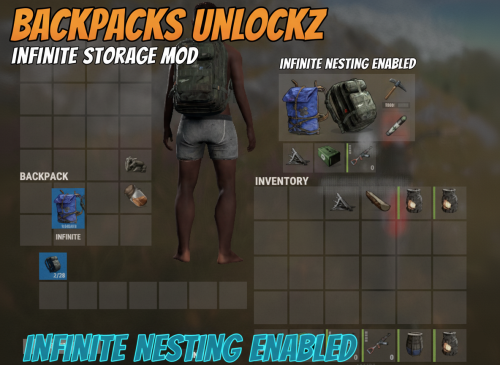
Enjoy free storage of backpacks either in a box or in the player's inventory, You can put the Large and Small backpacks with their contents (not just empty) into the player's Inventory and Storage Boxes! You can only open the contents of the bag if the player is wearing it! Config { "Is it allowed to put a backpack in a backpack? (If true = infinity)": false } With the "false" setting, you can prevent endless packing with the backpack. I guarantee the functionality of the plugin as described. However, I cannot take responsibility for conflicts or issues arising from incompatibility with third-party plugins or themes. Please take this into account before purchasing. I will list all known compatibility details in the product description.$5.00 -
Version 1.0.1
32 downloads
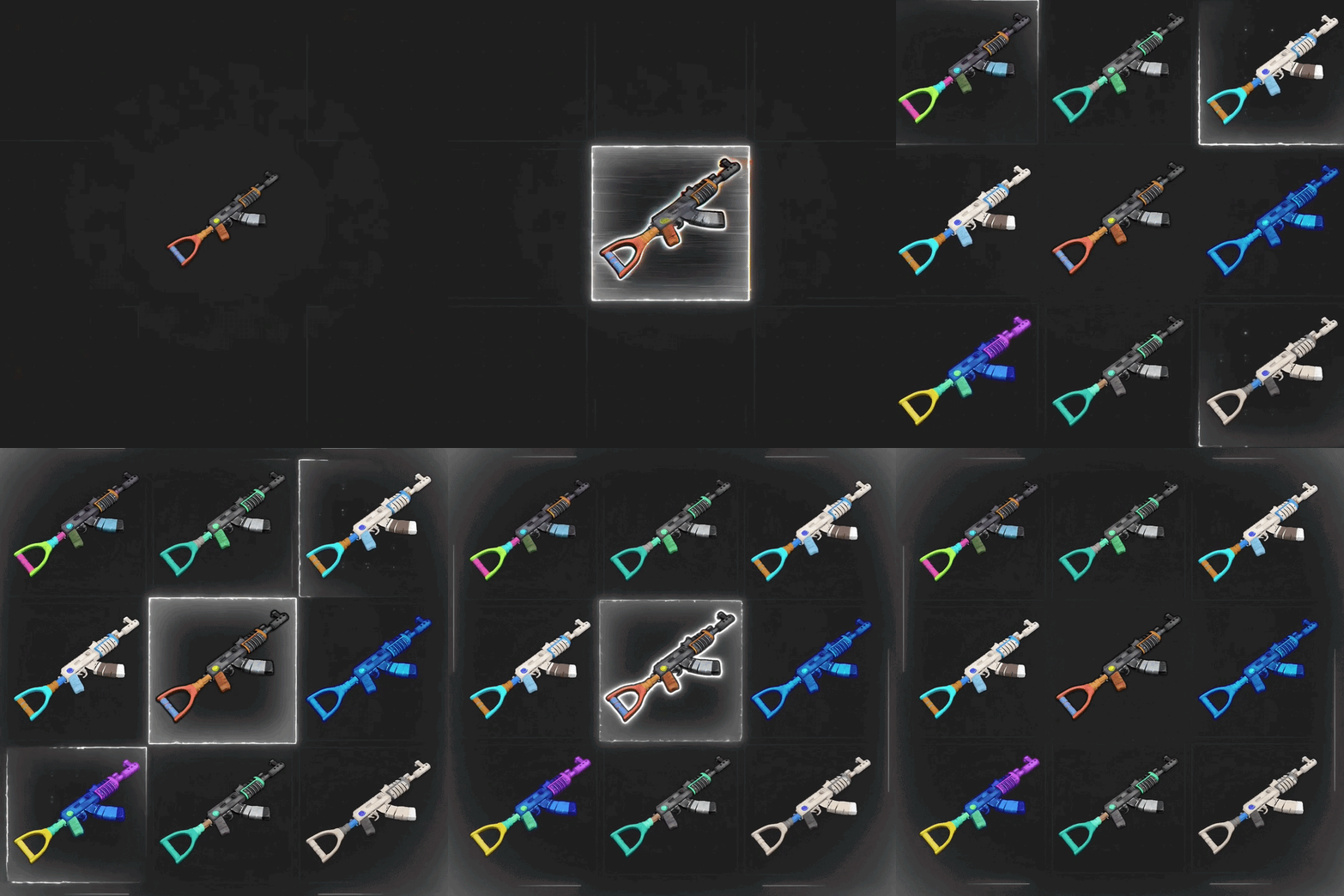
Custom & animated item icons, rendered server-side Give any item on your server a custom or animated icon — rendered server-side, streamed to players, no client mods needed. DynamicItemIcon repaints the icons of any item — vanilla items pulled from the CDN, Workshop skins fetched straight from Steam, or your own PNG files — and animates them right on the server. Effects, presets, keyframe clips and per-frame rendering all run off-thread, so your TPS won't feel it. 22 effects 11 presets 30+ API methods 25 commands zero config Features Any icon, any source Vanilla items · Workshop skins by ID · your own PNG files Every icon streams to players as a server-side sprite — nothing to install on the client. Effect chain language Chain effects with commas, tune each with named args: fx=glitch:3,neon:0x00ffcc From invert to pixelsort — 22 built-in effects, stacks compose freely. 11 ready presets corrupted · cursed · retro · golden · frozen · cartoon · vhs · cyber · void · holo · inferno One name — a tuned stack of effects. Mix presets into chains as building blocks. Keyframe clips Author animations as keyframe timelines: Per-key effect clips · frame indices · 5 easing types · loop / once / ping-pong Persistent bindings A bound animation rests on its frame 0 — players see the animated icon immediately on relog, dedup per session. Warm cache Frame-0 icons regenerate instantly at wipe/recompile — no cold stutter. Cache invalidation tracks code edits via IL-signature + MVID. Compositing Stack layers from item, skin or crc sources. 5 blend modes — over · add · multiply · screen · subtract — plus per-layer fx and opacity. CustomItemDefinitions support Overrides sprites for custom items out of the box. Batch export di.batchfx <png> runs any PNG through all 22 effects and 11 presets in one shot. 34 PNG files written to disk — preview every look before you bind. Targeted export & hue recolors di.exportfx rifle.ak hueshift:60 hueshift:120 — each fx argument lands as its own PNG file. one command → many variants for icon packs and skin shops. Wipe-safe OnNewSave clears state, icons restore at next boot. Atomic writes · debounced saves · data files stay clean. Installation Drop DynamicItemIcon.cs into your plugins/ folder. Get a GSLT token (required for Workshop skin sources): log in at steamcommunity.com/dev/managegameservers, create a token for App ID 252490 (Rust). Add it to your launch script: +server.login_token <YOUR_TOKEN> Restart the server. The token is read once at Steam login — a hot reload will not pick up a newly added launch argument. Start adding icons: di.skin <workshopId> to preview a Workshop skin, di.fx rifle.ak invert to test an effect. Steam auth fallback: token missing or invalid → the plugin still boots with a warning, server stays on anonymous login; Workshop fetching degrades gracefully to the vanilla icon. Vanilla icons and your own PNGs work without any token. For developers 30+ API methods, all callable from other plugins: Fetch & process: API_GetSkinIcon, API_GetItemIcon, API_ProcessSkinIcon, API_ProcessItemIcon, API_ProcessItem Composite: API_CompositeIcon, API_CompositeItem Animate: API_AnimateItem, API_PlayClip, API_BindClip, API_BindAnimation, API_UnbindAnimation, API_StopAnimation, API_StopAllAnimations Author clips: API_RecordClip (×2 variants), API_DeleteClip Register effects/presets: API_RegisterEffect (×2, owned), API_RegisterPreset (×2) Query: API_GetCRC, API_GetStoredIcons, API_ListEffects, API_ListPresets, API_ListClips, API_ListAnimations Admin commands 25 console commands under di.*: Items & skins: di.item, di.skin, di.fx, di.skinfx, di.processitem, di.compose Registry: di.effects, di.icons Animations: di.animate, di.animbind*, di.animstop, di.animlist, di.warmbind Clips: di.cliprecord, di.cliprecordkeys, di.clipplay, di.clipbind, di.cliplist, di.clipshow, di.clipdelete Exports: di.batchfx <png> — every effect, di.exportfx <png> <fx...> — targeted variants Permissions dynamicitemicon.admin — grants the full di.* command set. Configuration Deliberately minimal: one config option. Zero-config by design — everything interesting is done over the API and commands. Data lives under data/DynamicItemIcon/: processed/, vanilla/, skinned/, batch/ and export/. Compatibility & limits Source fetches time out and fall back to the vanilla icon — a failed download never bricks your items. Effect owners pause/resume cleanly: owner plugin unloads → its bound animations keep playing from cache. Max 1024 animation frames per clip; client preload throttled (≈40 PNG/s) so relogs don't spike players. FAQ Do players need to install anything? No — icons are server-rendered PNGs streamed through Rust's native icon pipeline. Will it break my server without the Steam token? No — falls back to anonymous login with a warning; only Workshop fetching degrades. What happens after a wipe? Bindings clear on the new save, cached icons restore automatically at boot. Does it lag the server? Frame generation and PNG encoding run on the thread pool; the main thread only decodes the source once. Can other plugins add effects? Yes — API_RegisterEffect accepts their own delegates; ownership tracking handles their reloads. Support & credits Written by 0xF. Join https://discord.gg/8nztXhvgDe for support and updates.$10.00-
- 3
-
-
- #custom icons
- #animated icons
- (and 10 more)
-
Version 1.1.2
390 downloads
Need a robust foundation for creating custom Rust entities and prefabs from your own plugins? ServerPrefabs is a powerful library plugin for Oxide/uMod and Carbon that lets plugin developers register custom server-side prefabs and entities, with support for custom networking, persistent save/load, built-in inventories, and runtime scaling. What Is ServerPrefabs? ServerPrefabs is not a standalone gameplay plugin — it’s a developer library. It does nothing on its own. Instead, other plugins use its API to define, register, and manage their own custom prefabs and entities on the server. If you’re building advanced Rust systems with custom deployables, persistent world objects, or specialized networked entities, ServerPrefabs provides the core framework you need. Core Features Custom Server-Side Prefab Registration: Create and register fully custom prefabs directly from your plugin. Once registered, they become usable and spawnable by the game. Custom Entity Component Support: Attach your own BaseEntity-derived component to a prefab and define custom entity logic exactly how your plugin needs it. Persistent Save / Load System: Custom entity save data is written to: oxide/data/ServerPrefabs/<prefab>.sav Custom Network Serialization: Provide your own network save behavior so clients receive the exact entity state they need. Arbitrary Per-Entity Data Storage: Implement stream-based save/load methods for custom entity state and plugin-specific data. Built-In Inventory Component: Use EntityInventory for a built-in, network-replicated item container with configurable capacity and optional handler callbacks. Runtime Scaling Support: Use Scaler to persist and replicate transform scale for custom entities. Lightweight Stub Entities: Use StubEntity for lightweight, non-saving entities with RPC and save event hooks, plus a helper factory for cloning visuals and bounds from a base prefab. Per-Entity Behavior Flags: Opt into special behaviors such as disabling disk saving or excluding entities from spawn command lists via CustomFlags. Public API The main entry point is: ServerPrefabs.For(plugin) This returns a per-plugin context you can use to create and register prefabs. Example usage: var prefab = ServerPrefabs.For(this) .CreatePrefab("my_thing") .AddEntityComponent<MyEntity>(clientPrefabId) .Register(); This workflow allows a consumer plugin to: Create a custom prefab Attach a custom BaseEntity component Register it with the game Make it available for spawning and runtime use Bundles Use CreateBundle() to group multiple prefabs so they are registered and loaded together as one save batch. This is ideal when one custom entity references, depends on, or is parented to an entity from another prefab. Registers all prefabs first Preloads all save files in one batch Spawns all bundled entities in a single pass You can also add an existing prefab with bundle.Add(prefab). If one prefab fails to register or load, the rest of the bundle will still continue. var bundle = ServerPrefabs.For(this).CreateBundle(); bundle.CreatePrefab("station").AddEntityComponent<StationEntity>(stationClientId); bundle.CreatePrefab("module").AddEntityComponent<ModuleEntity>(moduleClientId); bundle.Register(); Extension Interfaces ICustomPrefab Calls OnCustomPrefabRegistered() once the prefab is registered. ICustomEntity Calls OnCustomEntityRegistered() when the custom entity is registered. ICustomEntity.SaveForNetwork Lets you customize the network proto sent to clients. ICustomEntity.SaveData Adds Save(Stream) and Load(Stream) support for arbitrary per-entity data. Entity Flags Optional behaviors are controlled through the EntityFlags CustomFlags property on ICustomEntity. By default, the value is EntityFlags.None, so you only override it when special behavior is needed. The property is named CustomFlags specifically to avoid colliding with BaseEntity.Flags. Example: class MyEntity : BaseEntity, ServerPrefabs.ICustomEntity { public void OnCustomEntityRegistered() { } public ServerPrefabs.EntityFlags CustomFlags => ServerPrefabs.EntityFlags.DisableSaving | ServerPrefabs.EntityFlags.NoSpawnCommand; } Available flags: EntityFlags.None No special behavior. EntityFlags.DisableSaving Excludes the entity from disk saving by setting enableSaving = false. EntityFlags.NoSpawnCommand Prevents the entity from being added to the spawnable-entity command list. Included Components EntityInventory A built-in, network-replicated item container. Set Capacity and optionally assign an EntityInventory.IHandler with callbacks such as: OnCreated OnInventoryDirty OnItemAddedOrRemoved ItemFilter Scaler Persists and replicates entity transform scale. StubEntity A lightweight, non-saving entity with onRpcMessage and onSave events, plus a StubEntity.Create<T>(...) factory for cloning visuals and bounds from a base prefab. Installation Drop ServerPrefabs.cs into: oxide/plugins/ or carbon/plugins/ The server will compile and load it automatically. On first load, a config file is generated. Dependent plugins can reference it via: [PluginReference] Plugin ServerPrefabs; or the static API Configuration Configuration file: oxide/config/ServerPrefabs.json Allow outdated saves Default: false Allows loading .sav files written by a different Rust save protocol version. Enable debug logging Default: false Enables verbose [ServerPrefabs] [DEBUG] log output for troubleshooting. Safe Config Recovery: If the config becomes invalid or unreadable, it is automatically backed up as ServerPrefabs.json.bak. A new default config is then generated, so a broken manual edit won’t silently destroy your settings. Compatibility Notes ServerPrefabs uses Harmony IL transpilers against Rust internals, specifically: SaveRestore.Load SaveRestore.WriteEntities Because these patches rely on specific internal instruction patterns, a Rust update can break compatibility. After a force wipe or game update, check the server console during load for errors like: Phase 1 failed! Phase 2 failed! Phase 3 failed! or other patch-related errors If those appear, the plugin likely needs to be updated to match the current Rust version. Why Use ServerPrefabs? Create advanced custom entities directly from your plugin Add server-side prefabs with persistent save/load support Customize network behavior for non-standard entities Use built-in inventory and scaling systems instead of building your own Control save and spawn-list behavior with simple entity flags Perfect for framework plugins, deployables, machines, automation systems, and persistent world objects ServerPrefabs is a core utility library for Rust plugin developers who want deeper control over custom entities and prefab-based systems. One library. Custom prefabs. Persistent entities. A powerful base for advanced Rust modding.Free -

Version 1.37.13
1,280 downloads
Creates quests/missions that players complete to get rewards (currency, items, etc.). Players spend the currency they receive to open cases. The interface is nice and user-friendly. Features: Beautiful user interface Logging of purchases and balance top-ups (to the console and to a file) Versatility (can work with various economy plugins) Performance (plugin is faster than existing competitors) Interesting idea Any text in the interface can be customized Preview Commands addfirstcurrency {userid} {amount} (give the player the first currency) addsecondcurrency {userid} {amount} (give the player a second currency) battlepass.wipedata (clear player progress) pass (open interface) battlepass.migrate (migrate to PlayerDatabase) battlepass.convert.128 (convert from 1.28.0) Item Types Item Command Plugin Mission Types Gather Kill Craft Look Build Upgrade Fishing LootCrate Swipe RaidableBases RecycleItem HackCrate PurchaseFromNpc ArcticBaseEvent GasStationEvent SputnikEvent ShipwreckEvent HarborEvent JunkyardEvent SatDishEvent WaterEvent AirEvent PowerPlantEvent ArmoredTrainEvent ConvoyEvent SurvivalArena KillBoss Web Config Editor Manage the Battlepass settings in our web config editor. You change the config in a browser form instead of editing files on the server by hand. P.S. The web config editor is open to members of the "Battlepass" group in our Discord server. Join at https://discord.gg/mevent and ask for the group. FAQ How to use multiple NPCs in one mission Loot Hackable Crates (config example) Default Config$21.95 -

Version 1.0.1
16 downloads
CratesLoadouts is an advanced plugin that introduces a seamless loadout system to your server. It significantly improves your players' Quality of Life by making inventory management faster, easier, and much more convenient. Plugin is well optimized, works fast and smooth with UI and some audio effects. Preview Video: https://youtu.be/3rQIcMlCUn4 Player Commands /cratesltoggle — Enables or disables the loadout UI when opening containers. Configuration You can find the configuration file in your server's directory at: oxide(or carbon)/config/CratesLoadouts.json. { "Default player loadouts limit": 5, "Loadouts group limits perms": { "cratesloadouts.vip": 15, "cratesloadouts.svip": 30, "cratesloadouts.sponsor": 50, "cratesloadouts.admin": 999 }, "Allowed Containers (ShortPrefabNames - https://github.com/Trickyyy/Rust/blob/master/Prefabs.md)": [ "box.wooden.large", "woodbox_deployed", "coffinstorage", "small_stash_deployed" ] } Default player loadouts limit - sets limit of loadouts for all players Loadouts group limits perms - here you can create new perms with specified limit Allowed Containers - list of containers where the UI shows Permissions cratesloadouts.use - permission to use the UI cratesloadouts.group - read config sectionFree -
Version 1.0.6
323 downloads
Combined Storage lets players connect multiple storage containers so they function as one large inventory. Includes automatic item sorting, search functionality, and filtering to keep storage clean and efficient. Readme Link - Click Here for Instruction and Documentation Highly recommend reading the FAQ section! All Your Items - In One Place Link multiple containers so they all share a single organized inventory. Automatic Sorting Items are automatically sorted as they are inserted, no manual effort required. Search Functionality Quickly find any item across all linked containers using a fast, built-in search bar. Simple Setup Simply press Link in a container to hook it up with the rest of them in your base. Unique View for Each Player Each player sees their own automatically sorted and filtered view of the shared inventory based on their preferences, without affecting anyone else.$24.99- 19 comments
- 4 reviews
-
- 4
-

-
- #inventory
- #storage
- (and 20 more)
-
Version 2.0.1
158 downloads
Everyday Rust administration, in one command toolkit. Admin Essentials brings player moderation, teleportation, inventory tools, and server controls together for Rust servers running Oxide or Carbon. Respond to player reports, inspect inventories, teleport around the map, and manage your server through chat commands. Individual permissions let you choose which tools each staff member can access, while configurable logging helps you keep track of command use. Features Player moderation — kick, ban, unban, and spectate players. Teleportation — travel to players, coordinates, or map markers, move other players, and return to a saved location. Inventory tools — give items, apply skins and custom item names, repair equipment, clear inventories, and inspect player inventories. Player controls — heal players, toggle god mode, and enable creative mode. Server controls — change the server time, set your personal time of day, clear weather, and reload plugins. Player information — check player details, status, vital stats, and flags with permission-controlled WhoIs results. Communication — send private messages, reply to players, and configure welcome, goodbye, and recurring server messages. Command logging — configure console/RCON logging, Discord webhook logging, or both. Customisation — change command names, chat presentation, language messages, and supported UI settings. Commands The commands below use their default names. Command names can be changed in the configuration. Enter commands in chat with /. Arguments shown in <angle brackets> are required; arguments in [square brackets] are optional. Do not type the brackets. For commands with an optional [player], leaving it out targets yourself. Teleportation Command Description /goto <player> Teleport yourself to a player. /goto <x> <y> <z> Teleport yourself to coordinates. /goto <player> <target> Teleport one player to another player. /goto <player> <x> <y> <z> Teleport a player to coordinates. /tpm Toggle teleporting to newly placed map markers. Use it again to disable. /back Return to your last saved location, such as a previous teleport location or saved death location. Map marker removal after teleporting can be enabled or disabled in the configuration. Moderation Command Description /kick <player> [reason] Kick a player, optionally supplying a reason. /ban <player> [duration] [reason] Ban a player. The default duration is one day. Supply a duration before adding a custom reason. /unban <player> Remove a ban from a player the plugin can find. /spectate <player> Spectate a player. Use the on-screen end-spectating button to finish. Ban durations use a number followed by a unit: s for seconds, m for minutes, h for hours, d for days, or y for years. Examples: /kick PlayerName Please read the server rules /ban PlayerName 12h Repeated rule violations /ban PlayerName 7d Player Controls Command Description /heal [player] Restore health and vital stats for yourself or another player. /kill [player] Kill yourself or another player. /god [player] Toggle god mode for yourself or another player. /creative [player] Toggle creative mode for yourself or another player. /creativeall Toggle creative mode for all players. Inventory and Items Command Description /give <player> <item> [amount] [skinId] [name] Give an item to a player, with optional quantity, skin ID, and custom name. /clear [player] Empty your inventory or another player's inventory. /repair [player] Repair your held item or another player's held item. /repairall [player] Repair items in your inventory or another player's inventory. /viewinv <player> Open a player's inventory to inspect or move items. /trash Open your personal trash container. Use its Delete button to dispose of the contents. For /give, use an item short name or item ID. Optional arguments are positional: include an amount before a skin ID, and both before a custom name. Examples: /give PlayerName wood 1000 /give PlayerName rifle.ak 1 /give PlayerName rifle.ak 1 0 "Event Reward" Closing the trash container without pressing Delete returns its contents to you. Server Controls Command Description /time <hour> Set the server's time of day using a whole-number hour. /admintime [hour] Set your personal time of day. Omit the hour, or use -1, to restore normal server time. /clearweather Clear the server's weather effects. /reload [plugin] Reload a named plugin. With no name, reload AdminEssentials. For example, /time 12 sets the server time to noon, while /admintime 12 changes your personal view of the time. Communication and Information Command Description /pm <player> <message> Send a private message to a player. /r <message> Reply to the last player who sent you a private message. /whois [player] Display information about yourself or another player. Available sections depend on your permissions. /players Display the online player list. /essentials Display the in-game command help. Permissions Grant permissions individually to build the right set of tools for each staff role. Teleportation and Moderation Permission Allows adminessentials.goto Player and coordinate teleportation. adminessentials.tpm Map marker teleporting. adminessentials.back Returning to a saved location. adminessentials.kick Kicking players. adminessentials.ban Banning players. adminessentials.unban Unbanning players. adminessentials.spectate Spectating players. Player and Inventory Controls Permission Allows adminessentials.heal Healing players. adminessentials.kill Killing players. adminessentials.god Toggling god mode. adminessentials.creative Toggling creative mode for an individual player. adminessentials.creativeall Toggling creative mode for all players. adminessentials.give Giving items. adminessentials.clear Clearing inventories. adminessentials.repair Repairing held items. adminessentials.repairall Repairing inventory items. adminessentials.viewinv Viewing player inventories. adminessentials.trash Using the trash container. Server Controls and Communication Permission Allows adminessentials.time Changing the server time. adminessentials.admintime Setting personal time of day. adminessentials.clearweather Clearing weather. adminessentials.reload Reloading plugins. adminessentials.pm Using /pm and /r. adminessentials.players Viewing the online player list. adminessentials.help Using /essentials. WhoIs Information WhoIs has separate permissions for each information category. Grant one or more to control which sections a staff member can see. Permission Information shown adminessentials.whois.info Player name, Steam ID, and position. adminessentials.whois.status Connected, dead, sleeping, and wounded status. adminessentials.whois.stats Health, calories, hydration, temperature, radiation, bleeding, and wetness. adminessentials.whois.flags Admin, creative, developer, flying, and god mode flags. Configuration Commands and Chat Customise command names to suit your server. Enable or disable the chat prefix and change its text. Set the chat icon. Choose the online player list layout. Enable or disable removal of teleport markers after use. Optionally broadcast kicks, bans, and unbans. Logging Each command has logging settings for: Server console/RCON. Discord webhooks. Both destinations. Use a global Discord webhook or override it for individual commands. Discord logging requires a configured webhook URL. Automated Messages Welcome messages: Send a greeting to joining players or broadcast it to the server. Goodbye messages: Announce player departures. Recurring messages: Cycle through configured server messages at a chosen interval. Set the interval to 0 to disable them. Welcome messages support {PlayerName} and {ServerName} placeholders. Interface Settings Customise the trash container's slot count and button, the creative mode indicator, and the position and colour of the end-spectating button. Language Support Command responses, help text, and syntax messages use language files and can be customised or translated. Keep numbered placeholders such as {0} and {1} intact when editing messages. Automated announcements and some interface text are edited separately in the configuration. Getting Started Install AdminEssentials.cs in your server's plugin folder. Let the plugin generate its configuration and language files. Grant your staff the permissions they need. Review the command names, automated messages, and logging settings. Use /essentials to view command help after granting adminessentials.help. If another plugin uses the same command name, change the Admin Essentials command in its configuration. More tools for your server: Browse plugins by Bubbafett$19.99- 15 comments
- 1 review
-
- 2
-
-
-
- #admin tools
- #admin
- (and 12 more)
-
Version 1.4.17
353 downloads
Still using those old Restore Upon Death & Metabolism plugins? Well with death modifier you won't need those! For a price $ players can auto revive right where they left off inventory an all! Included with unlimited permissions, blacklist system, container limits, currency support & more! NOTES: 1. This plugin as of 1.2.0 now supports carbon. 2. Does not work while in vanish. 3. Does not work with the plugin on umod called Corpse Location 4. Toggling god mode on while at death screen will break the plugin for you. Features * Black List & Black list chat command for ban / unban of items. * Permission support ( requires a perm to use ). * Specified Containers via perms. * Charge Economics & Economics debt or Server-Rewards RP. * Respawns player at same location they died at. * Ability to control Metabolism on respawn. * Ability to allow players to set there own bed/bag spawn points. * If you don't have a permission it doesn't apply to you. * Currency response msg to player if it fails. * Help/info command. * If multiple permissions assigned it will default to first one in the config list they have. * You can create as many permissions as you want simply copy / paste the examples in the config to make more & edit. * Toggle on/off modes for players. * Capable of saving everything, including backpacks etc. Commands Note: Running these commands bans & unbans everything in your whole inventory ( wear, belt, main ) /bl ban perm perm2 etc ( Specify which perms are allowed to bypass the item ban ) Admin Perm Needed. ( deathmodifier.admin ) /bl unban ( Removes all banned items in your inventory ) Admin Perm Needed. ( deathmodifier.admin ) /di ( Shows the players what their current permission settings are in chat ) /dt ( allows players to toggle off or on the auto revive system ) Note: This will reset to being on when you re-connect back to the server or reload the plugin or do a reboot. Config { "Sets black-list command": [ "dmbl", "bl" ], "Sets help-info command": [ "deathinfo", "di" ], "Sets toggle command": [ "deathtoggle", "dt" ], "Kill Corpse when player uses a Death Modifier Respawn Option": true, "Sets how long until player's corpse De-Spawns, Default 300f (5-min), this affects how long they can AFK at death screen to use there respawn options.": 300.0, "Permissions": { "vip": { "Respawn Settings": { "Random Respawn or Spawn at Death Location, true = random": false, "Seconds for how long after respawn until you can take damage, 0 = disabled": 0, "Sets Respawn with death modifier cooldown in seconds, 0 = disabled": 0 }, "Sets allowed containers, Main = 0 | Belt = 1 | Wear = 2 | All = 3": [ 3 ], "Currency Settings": { "Sets default currency, 0 = disabled, 1 = Economics, 2 = ServerRewards": 0, "Sets price": 15.0, "Sets Increment penalty to apply only when they purchase a revive instead of adding for each death.": false, "Sets Increment penalty for quick repeated use, 0 = disabled": 5.0, "Resets Cost Increment after x seconds, 0 = disabled": 1800 }, "Sets Respawned Metabolism Level's": { "Enable Metabolism Modifications": true, "Sets Current Health: 0 = Random Health Level": 0.0, "Sets Max Health Level": 100.0, "Sets Current Water Hydration Level": 250.0, "Sets Max Water Hydration Level": 250.0, "Sets Current Hunger Level": 500.0, "Sets Max Hunger Level": 500.0 }, "Sets Allowed Respawn Options": { "SleepingBag": true, "Bed": false, "BeachTowel": false, "Camper": true }, "No Respawn Cool Downs": { "SleepingBag": true, "Bed": false, "BeachTowel": false, "Camper": false } }, "basic": { "Respawn Settings": { "Random Respawn or Spawn at Death Location, true = random": false, "Seconds for how long after respawn until you can take damage, 0 = disabled": 0, "Sets Respawn with death modifier cooldown in seconds, 0 = disabled": 0 }, "Sets allowed containers, Main = 0 | Belt = 1 | Wear = 2 | All = 3": [ 0, 2 ], "Currency Settings": { "Sets default currency, 0 = disabled, 1 = Economics, 2 = ServerRewards": 0, "Sets price": 15.0, "Sets Increment penalty to apply only when they purchase a revive instead of adding for each death.": false, "Sets Increment penalty for quick repeated use, 0 = disabled": 5.0, "Resets Cost Increment after x seconds, 0 = disabled": 1800 }, "Sets Respawned Metabolism Level's": { "Enable Metabolism Modifications": true, "Sets Current Health: 0 = Random Health Level": 0.0, "Sets Max Health Level": 100.0, "Sets Current Water Hydration Level": 250.0, "Sets Max Water Hydration Level": 250.0, "Sets Current Hunger Level": 500.0, "Sets Max Hunger Level": 500.0 }, "Sets Allowed Respawn Options": { "SleepingBag": false, "Bed": false, "BeachTowel": false, "Camper": false }, "No Respawn Cool Downs": { "SleepingBag": false, "Bed": false, "BeachTowel": false, "Camper": false } } }, "Black Listed Items with Skins and Permission bypass, use Commands to setup & update": {} }$24.99 -
Version 1.8.17
656 downloads
Transform your Rust server's storage experience with intelligent automation, overflow chains, and PvP-safe raid protection. Why SmartSorter? For Players: Stop manually sorting hundreds of items after raids, monuments and roams Never lose loot to overflowing boxes again Create custom filter categories for your skinned gear sets Set up once, automate forever For Server Owners: Reduce player frustration and improve retention Performance-optimized for high-pop servers PvP-friendly with raid/combat blocking Admin-defined custom item categories for skinned items Zero dependencies - works out of the box What Makes It Unique? Drop Box Automation Mark any container as a "Drop Box" - toss items in and watch them automatically route to nearby filtered containers. No manual sorting needed. Sorting Chains (Overflow System) Link unlimited containers together. When one fills up, items automatically overflow to the next in the chain. Perfect for massive loot rooms. Custom Item Categories Admins define custom categories for skinned items like "Raid Gear", "VIP Kits", or "Event Loot". Players filter containers by these categories just like vanilla ones. Category definitions persist across wipes while templates let players reapply setups instantly. Raid & Combat Protection Full integration with RaidBlock, NoEscape, and CombatBlock - prevent sorting abuse during raids with granular control over what gets disabled. Essential for PvP servers. Defense Auto-Fill One-click filling of turrets, SAM sites, flame turrets, and shotgun traps. Set your preferred ammo/fuel amounts once and forget it. Smart Template System Save filter configurations as templates, load them onto any container, and share setups across your base in seconds. Core Features Automatic Sorting Drop Box system for hands-free organization Category and item-specific filters (granular control) Custom item categories for skinned items (admin-defined) Works with 50+ container types Intelligent handling of furnaces, refineries, recyclers, and vending machines Smart routing with sorting chains Manual Control Tools Send Near - Distribute inventory to nearby filtered containers within radius Send to Box - Fill the specific container you're looting Dump All - Empty your entire inventory instantly Loot All - Grab everything from a container (supports backpacks!) In-Container Sort - Organize by name or category with one click Inventory and backpack Sorting Sorting Chains (Overflow System) Link unlimited containers for automatic overflow routing Visual chain inspection with in-game colored lines and spheres Cycle detection prevents infinite loops Per-player chain ownership Configurable visualization duration and appearance Custom Item Categories 🏷 Admins create categories via /sscustomcat (e.g. "Custom Currency", "Custom Fuel", "Event Items") Add specific skinned items by skin ID and display name Players access custom categories through the "Custom" button in the filter panel Toggle entire categories or individual items on/off Custom button reflects active state (green when filtering, gray when inactive) Category definitions stored in config and persist across wipes Per-container selections included in template save/load Defense Management Auto-fill Auto Turrets, SAM Sites, Flame Turrets, Shotgun Traps Customizable ammo/fuel amounts per defense type Radius-based batch filling Automatic weapon mounting for turrets Per-player preferences saved Raid & Combat Protection Integrates with RaidBlock, NoEscape, and CombatBlock Granular control - disable specific features during raids/combat Optional chat notifications when actions are blocked Essential for PvP servers - prevents sorting abuse Template System Save filter configurations by name Load templates onto any container instantly Share setups between boxes Per-player template ownership with admin override Easy template management (delete, rename) Player Preferences Toggle auto-opening of filter panels (/ssautofilters) Minimize UI to compact button mode Per-player defense ammo/fuel settings Settings persist across sessions Visual Interface Dynamic context-aware UI (changes based on container type) Built-in help system with full-color image guides Fully customizable layouts, colors, and button positions Responsive design adapts to 1-column or 2-column layout ImageLibrary support for item icons Technical Specifications Supported Containers (50+) Storage boxes, large boxes, coffins, barrels, fridges, lockers, tool cupboards, vending machines, furnaces (all types), refineries, recyclers, BBQs, campfires, lanterns, mannequins, drop boxes, wall cabinets, beehives, chicken coops, composters, cauldrons, stashes, and all defense entities. Performance Optimized Configurable processing intervals Batch processing limits (MaxDirtyBoxesPerTick) Optimization mode for high-population servers Efficient memory pooling throughout Automatic cleanup of deleted container data Framework Compatible Full support for uMod/Oxide Native Carbon framework support No external dependencies required Works out of the box Safety Features Wall-check system (prevent looting through walls) Building privilege requirement Configurable item blacklist/whitelist Automatic cleanup of old container data (configurable grace period) Permission-based access control Configuration Highlights 1000+ Customization Options UI Customization: Every color, position, size, and text label Button Layouts: 4 preset layouts (Default, DropBox, Awaiting, HasChain) Timing: Sort delays, cooldowns, debounce intervals Distances: Default radius, visualization settings Category Overrides: Reclassify any item into any category Custom Items: Define skinned item categories with skin ID and display name Furnace/Refinery: Custom fuel and smeltable item lists Support & Updates Documentation: Built-in visual help system Active Development: Regular updates and improvements Bug Reports: Fast response on CodeFling Feature Requests: Always welcome What's Included Plugin file (.cs) Default configuration Built-in help system with images Full permissions setup 50+ container support Custom item categories system Raid/combat block integration Template system Performance optimization Extensive customization options Perfect For: Large Base Builders - Automate loot rooms with chains PvP Servers - Raid block integration prevents abuse High-Pop Servers - Performance optimized Casual Servers - Quality of life improvement Modded Servers - Works with custom items PLAYER COMMANDS /ss or /smartsorter Opens the visual help guide UI /sshelp Opens the visual help guide UI (same as /ss) /sscommands Shows a list of all available chat commands /sstoggle Shows or hides the SmartSorter UI completely /ssremovechains Removes ALL sorting chains you own /ssautofilters [on|off] Toggles whether the filters panel auto-opens when looting filtered containers /ssrefresh Refreshes the UI if it gets stuck or doesn't display properly /ssshowchains Visually displays your sorting chains for 15 seconds using colored lines and spheres /ssdefense Opens the defense configuration panel to set ammo/fuel amounts for turrets and traps ADMIN COMMANDS /sscustomcat Opens the custom item category admin UI /ssdebug on|off Enables or disables debug logging in console /ssreloadconfig Reloads the configuration file from disk /ssclearfilters <containerID> Clears all filters on a specific container by NetworkID /ssconfig [setting] [value] Opens the config UI, or sets a specific config value ━━━━━━━━━━━━━━━━━━━━━━━━━━━━━━━━━ smartsorter.use - Required for all features smartsorter.admin - Admin commands and config access ━━━━━━━━━━━━━━━━━━━━━━━━━━━━━━━━━ DEPENDENCIES None required. Optional ImageLibrary support for enhanced item icons. ━━━━━━━━━━━━━━━━━━━━━━━━━━━━━━━━━ Give your players the gift of time. Install Smart Sorter today.$24.99- 143 comments
- 6 reviews
-
- 2
-
-
- #sorting
- #auto-sort
- (and 67 more)
-

Version 2.0.7
784 downloads
Admin Tools is an all-in-one plugin designed to make your job as a server owner/admin easier. This plugin has a wide range of features and commands that allow you to control your server easily, both in-game and via Discord. It also adds custom quality of life features exclusive to this plugin! ★ Inventory Viewing System - View an NPC or player's inventory in Discord and in-game ★ Multi-Server Support - Allows you to manage multiple Rust servers from a single bot ★ Custom Combatlog System - View a player's combatlog in Discord and in-game ★ Backpack Viewing System - View a player's backpack (uMod plugin) in Discord ★ Custom ID System - Get the ID of players on your server quick and easy, copy directly from chat ★ Warn System - Inform players of their wrongdoings and keep track of them (Warn Visuals: UI, Chat, Chat + Toast/Gametip) ★ Watchlist System - Lets you put suspicious players on a list for you to monitor, logs in-game and to discord ★ Server Command System - Reload/load/unload plugins and other console commands in Discord and in-game ★ F7 Report Logging System - Log F7 reports to discord with their combat log attached (if enabled) ★ and more! (Rest of features below) Please note, the Permissions UI Shown on screen towards the start of this video is FROM CARBON, NOT THE PLUGIN Please note, the Permissions UI Shown on screen towards the start of this video is FROM CARBON, NOT THE PLUGIN (Changed/Exclusive): * Timestamps for video in video's description - Make sure to up video quality if watching from this site. * Timestamps for video in video's description - Make sure to up video quality if watching from this site. ★ Permission System - Grant/revoke permissions to groups and players from Discord and in-game ★ Minecraft Creative System - While enabled, hold middle click to get the item you're looking at ★ Rename System - Rename the players who think they are funny (toggle in config) ★ Tempban System - Tempban players with no database required ★ Unique ID System - Find players even when they have the same or similar names -- Thanks to nivex ★ Kill, Wound, Revive & Respawn System - Kill, wound (down), revive and respawn players from Discord and in-game ★ Team Viewing System - View a player's team members from Discord and in-game Q: Does this plugin have a GUI or do its commands use GUI? A: No. The only UI in-game for this plugin is the warning screens. Please do not purchase this plugin thinking it has GUI for its commands, they are ALL commands entered into chat, Discord, or RCON. There are however, 'modals' for Discord, but nothing GUI based for within the game other than the warning screens displayed when '/warn'ing a user (which can be configured by the user). Q: How do I set up the bot? A: Set Up Instructions - If you miss any permissions, can always add them to the Admin Tools role in discord after you invite the bot. Q: Does this plugin link players to Rust? A: No. You can use the free plugin DiscordCore by MJSU if you would like to link your players. Q: Does this plugin log kills/PMs/F1 Spawn/chat? A: No. Admin Tools only logs the following if enabled: F7 Reports, Bans, commands from this plugin, and players who are watchlisted. You can always view a player's combatlog from discord though. You can use the free logging plugins DiscordLogger by MONoH or DiscordChat by MJSU depending on your goal. However, personally, I recommend against using logging functionality that would be occurring very frequently due to Discord's rate limiting. Though, DIscordLogger is made in a way that combines messages if possible to prevent limiting. Q: Can this log to multiple Discord servers? A: YES. All you need to put for logging to multiple servers is the channel ID you want to log to in the list of channel IDs in the config. Q: Does this plugin ONLY work with Discord Extension 3.0.0+? A: YES. You need to download the 3.0.0+ version from GitHub, it is linked at the top (and right here) as a required dependency. Any version prior to 3.0.0 will not work with this plugin, but any version 3.0.0 and later will. Q: Will this work on a shared hosting server? A: Yes, BUT you will not be able to take advantage of the threading done within the plugin. It should still work fine, but when you're on a shared host, you may only have access to a single core/thread (not positive on which) and as a result the threading I am doing in the plugin will just be ran on the main thread. As a result some of the discord functionality (ie: image generation) may affect the server as its now running on the main thread (what the server uses to run the game on) instead of a separate thread which would normally not affect the server. The image generation stuff (backpack and inventory) is normally pretty quick depending on number of items and pictures being used/sent, and can be between 100-250ms to generate on my server, however that was while no players were on. Q: How do I fix this error Response Code: Forbidden Discord Error Code: 50001 Discord Error: Missing Access ? A: All you need to fix this issue is MFA/2FA on the account used to create the bot. This issue is caused by Discord requiring your account to have either MFA or 2FA due to the bot being in a Community Discord server. After you add 2FA/MFA this error will go away. Q: Renaming isn't working, how do I fix this? A: The issue is likely that you don't have it enabled in the config, make sure to enable it in the config, its above the warning options and the discord API options. Q: My commands aren't appearing, how do I fix this? A: You can do the following in an attempt to try and force the bot to update its commands: Discord > Server Settings > Integrations > Admin Tools Bot > Toggle one of the checkboxes it shows in either Roles & Members or Channels > Save > Undo toggle > Save again. Q: Does this work with Rustcord? A: Yes, however you need this version here by MJSU as it has been updated to work with DiscordExtension 3.0.0+ versions. Q: How do I set up Multi-Server Support? A: Do as follows: Enable the bool (true/false) config option for multi-server system. Fill and keep the list of servers order the same if possible between configs (not required, but recommended). Use the /server command in discord to swap to the server you want to start listening to/sending commands to. On first use of command, it will error in all but one server console (tries to reply to a message more than once), that is expected and doesn't do that after that first command. It is used to set it up. If you want the activity information to change when swapping servers, make sure to enable that functionality in the config. Special thanks to Nivex for both creating and allowing me to use the method used to generate unique IDs for players. For support, please make a support ticket or join the Cobalt Studios Discord.$29.99 -
Version 1.1.7
108 downloads
Make life easier for the players on your server, this plugin allows you to craft items if there is a vault nearby with the right resources, and you can easily move items from one vault to another. Features: When you want to craft an item and you don't have enough resources but there is a craft store that has enough resources, they will be moved to your crafting inventory Three resource movement modes Basic transfer - By hitting one vault with Hammer and then the other one in transfer all items from the 1st to the 2nd vault. My transfer - transferring items from all available storages in the area (radius in the config) into your inventory and vice versa Advance transfer - move from any available storage within the radius to any other Commands: (You need to hold the hammer in your hands to use it) Press "R" - for open the UI change transfer mode. Press "RMB" - for open the UI transfer menu. Permissions: "inventoryhelper.all" - allow you use full functionality "inventoryhelper.swap" - allows you to swap the contents "inventoryhelper.pull" - allows you to get items from containers when he try to craft something "inventoryhelper.basictransfer" - allows you to transfer items between containers "inventoryhelper.mytransfer" - allows you to trasfer all your items to the container "inventoryhelper.adtransfer" - allows you to transfer items between continaser with UI Config: { "Pull request cooldown": 3.0, "Use UI messages": true, "Use Chat messages": true, "UI message duration": 3.0, "Storage pull|search radius": 18.5 } Lang: { "CH_CPBB": "<color=#ff0a0a>You can't pull resources in Building Block zone.</color>", "CH_PCD": "<color=#ff0a0a>Pull cooldown {0}s</color>", "CH_PMR": "<color=#ff0a0a>Not enough resources for pull:</color>{0}", "CH_PRC": "<color=#beff7f>Resources pulled for {0} craft. ({1} items pulled)</color>", "CH_SS": "<color=#ff0a0a>This is the same storage</color>", "CH_STFA": "<color=#ff0a0a>The storage is too far away</color>", "CH_SSL": "<color=#ffff00>Select a storage location where you want to move items</color>", "CH_SISEMPTY": "<color=#ff0a0a>The storage is empty</color>", "CH_FULLINV": "<color=#ff0a0a>There's not enough room in your inventory</color>", "CH_FULLSTORAGE": "<color=#ff0a0a>There's not enough room in the storage</color>", "CH_TRASFITEMS": "<color=#beff7f>{0} items trasfered from {1} to {2}</color>", "CH_NOTAVALIBLE": "<color=#ff0a0a>The storage isn't avalible</color>", "CH_PERM": "<color=#ff0a0a>You don't have enough permission</color>" }$8.88 -

Version 1.3.5
255 downloads
Reduce the decay damage by tick; Upgrade the authorizations limit; Upgrade the building grade limit; Upgrade the storage capacity of the cupboard; Unlock some deployable items; Upgrade the stack size limit of the cupboard; Set a default building grade for the server; Modify the default decay; Keep the cupboard attributes when remove; Make your server fun ^u^ The plugin has a unique permission, which allows the player to use the cupboard upgrade: tclevels.use F.A.Q How many items can be blocked? and which? You can block unlimited items and all items must be deployable or they will not be blocked. Which area will be checked when I place my cupboard? The entire privilege area will be checked. But you can also disable checks in the configuration file. Could it cause conflict with any plugin? Yes, but i am providing an API for the plugin so that other developers can integrate with it, so if there is a conflict, just go to the developer's plugin support and ask them to integrate it. Also if it is possible for me to integrate it from my plugin, i will do so without any problem.$20.00 -
Version 1.2.4
1,971 downloads
RUST Plugin Test Server TEST MY PLUGINS THERE! connect play.thepitereq.ovh:28050 Redeem Storage API enables you to consolidate all your plugin item sources into a single inventory. This means you can condense multiple storage containers into one and eliminate the need for free space in your inventory. Please note that this plugin doesn't have any standalone functionality; it requires another plugin that utilizes this API. Move your all plugin item rewards/outputs to one storage. You can create multiple custom redeem inventories. Each storage have their own data file, so it's easy to clear only certain inventories on wipes. RUST themed UI. Supports almost infinite amount of items. void AddItem(ulong userId, string name, Item item, bool popUp = false) - Moves the previously created item to the desired redeem inventory of the player. createredeemitem <storageName> <userId> <shortname> [amount] [skinId] [itemName] [popup (true/false)] - Console command for generating redeem items, optional way rather than using an API. { "Redeem Commands": [ "redeem", "red" ], "PopUp API Preset": "Legacy", "Redeem Storage Item Reminder (in seconds, 0 to disable)": 600, "Redeem Inventories": { "default": { "Default Redeem Inventory (only one)": true, "PopUp Message (configurable in lang file)": false, "Redeem Only In Safezone": true, "Redeem Only If Authed": true, "Allow When No Cupboard (works is option above is true)": false, "Drop Overflow Items Onto Ground (true = drop, false = delete)": true }, "shop": { "Default Redeem Inventory (only one)": false, "PopUp Message (configurable in lang file)": true, "Redeem Only In Safezone": false, "Redeem Only If Authed": false, "Allow When No Cupboard (works is option above is true)": false, "Drop Overflow Items Onto Ground (true = drop, false = delete)": true } } }Free -
Version 1.0.0
7 downloads
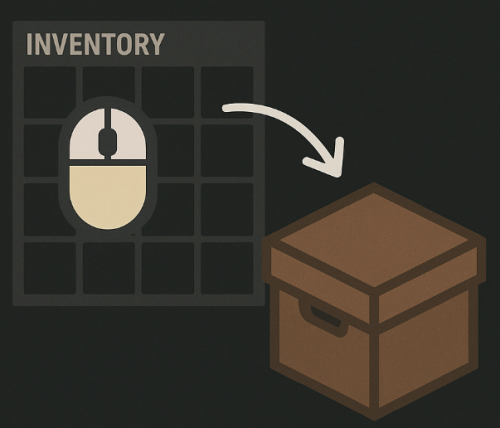
Hold the middle mouse button to deposit items from the inventory and backpack into a container If you need any additional functionality from the plugin, I'm waiting for feedback.$7.00 -

Version 2.1.4
60 downloads
Create custom backpacks with varying capacities and properties Save on Death - Allow players to keep backpacks on death Item blacklist - Blacklist items from being placed in the backpack Lootspawns - Add custom backpacks to any loot spawn Admin Commands: /cb.give 'Backpack-Name' 'Player-Name/ID' - With this command, administrators or players with the appropriate permission can give a specific backpack to another player. Admin Commands: cbackpacks.give - allows the use of the cb.give command { "RemoveDefaultBackpacks": true, "Backpacks": { "rucksack": { "Shortname": "largebackpack", "SaveContentsOnDeath": true, "Capacity": 8, "ItemBlackList": [ "rifle.ak", "sulfur.ore", "lmg.m249" ] } }, "Command Names": { "give": "cb.give" }, "LootSpawns": { "assets/bundled/prefabs/radtown/crate_basic.prefab": { "rucksack": 100.0 } } } Credit to M&B Studios the original author of this plugin.$9.99 -
Version 1.0.1
960 downloads
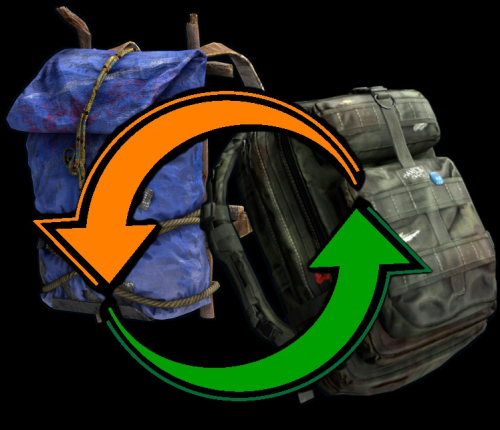
Allows you to drag and drop a large or small backpack with enough space onto a pre-existing backpack. Currently rust makes you remove all items from your backpack before you can upgrade to a large pack one. Backpack Swap allows you to drag a backpack onto another one to swap it out. As long as you have enough space in your new backpack to hold all the items the backpacks will switch. This means if you have a large backpack with 5 items you can switch to a small backpack or if you have a small backpack at any capacity you can switch to a large.Free -
Version 1.0.0
20 downloads
Set a weight on each item per category, if the player reaches the weight limit, he will no longer be able to run. Permissions inventoryweight.bypass - You can bypass the weight of the inventory Config$9.99- 4 comments
-
- 1
-
-
- #inventory
- #pve
- (and 7 more)