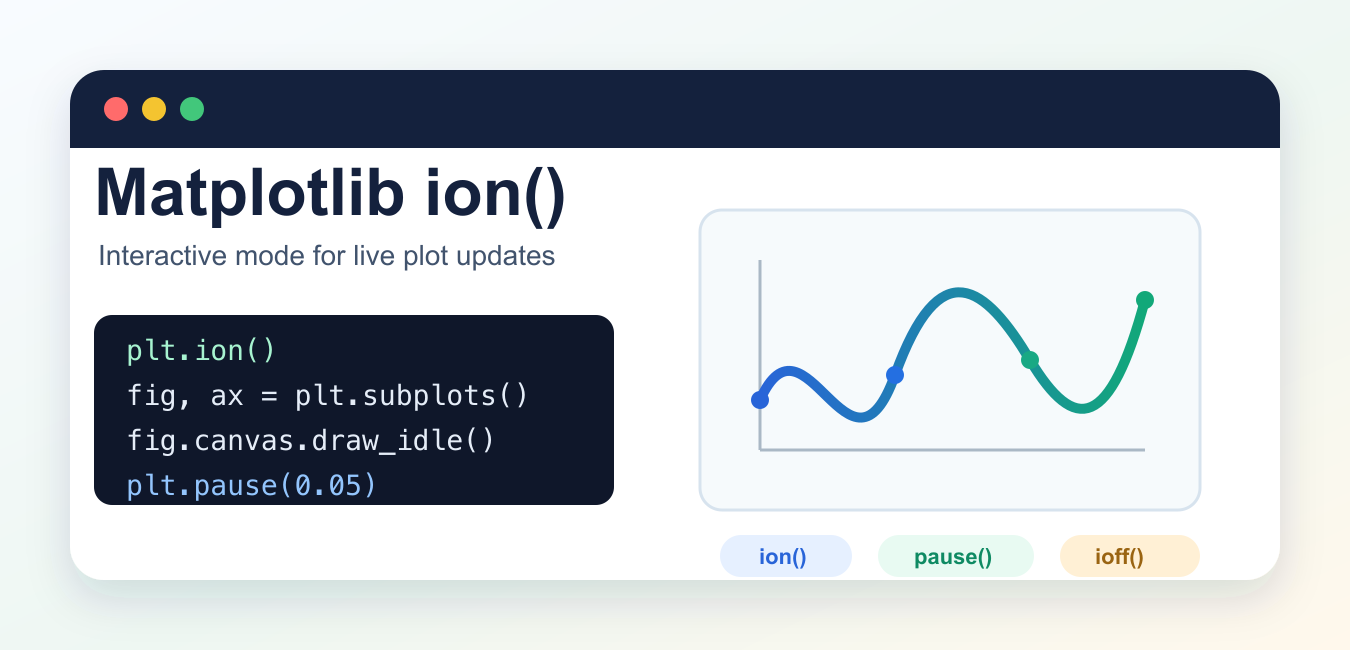
Quick answer: plt.ion() enables Matplotlib interactive mode. It changes when figures appear and redraw, but it does not by itself make a loop responsive. For simple live updates, update an existing artist and call plt.pause() so the GUI event loop can process redraws and input. Use plt.ioff() or a context manager when the script should return to normal blocking behavior.
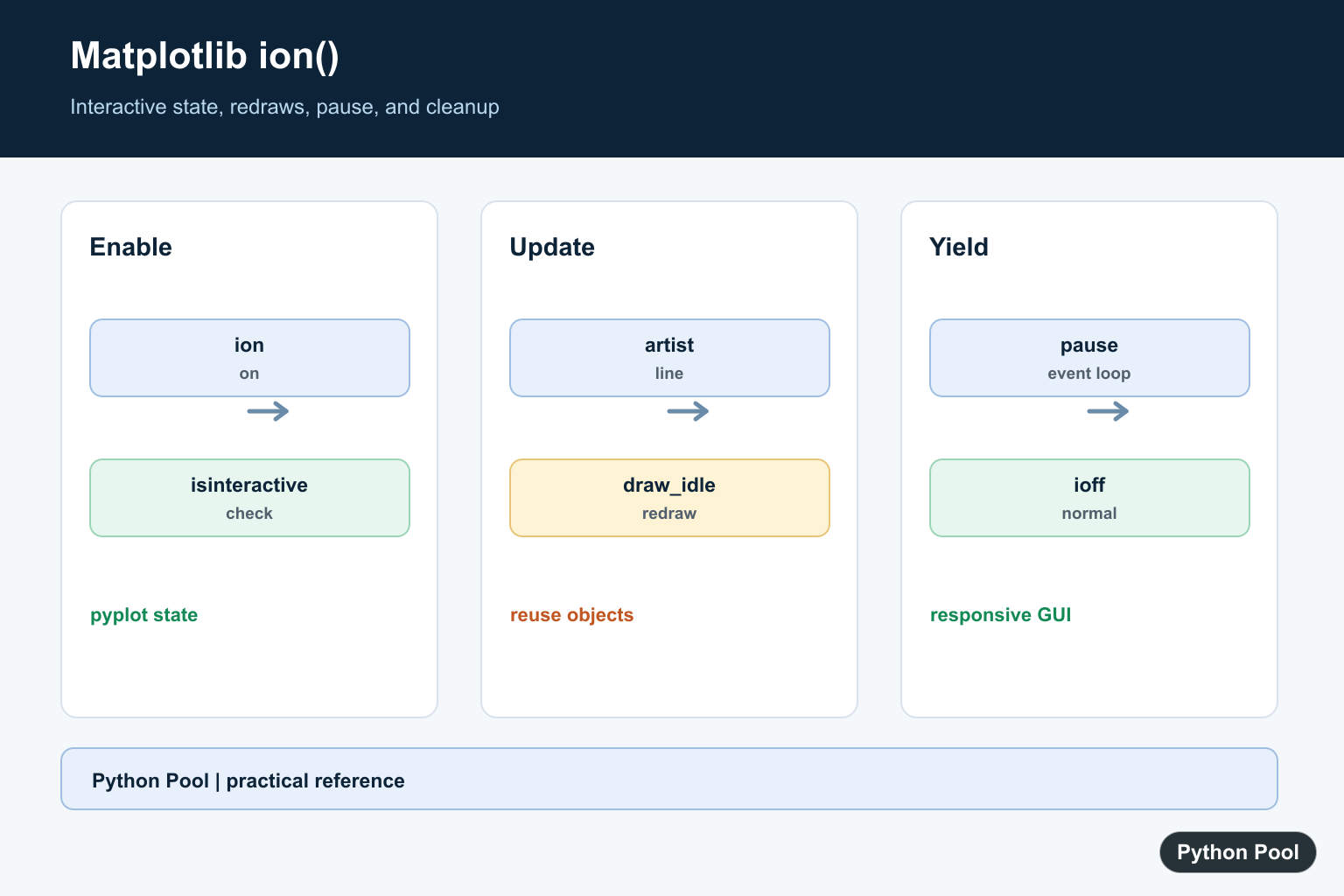
matplotlib.pyplot.ion() turns on Matplotlib interactive mode. In interactive mode, figures are shown immediately, changes can redraw without waiting for a final blocking plt.show(), and short GUI event-loop pauses let a script update a plot while it is still running.
Use ion() when you are building a figure step by step in a Python shell, debugging a plot in IPython, or updating a figure from a loop. Use ioff() when you want the normal script behavior where figures are displayed only when you explicitly ask for them.
Quick Syntax
import matplotlib.pyplot as plt

plt.ion()
print(plt.isinteractive())  # True
The call does not create a plot by itself. It changes pyplot’s interactive state. The next figures and redraws follow that state.
ion(), ioff(), and isinteractive()
| Function | Purpose |
|---|---|
plt.ion() |
Enable interactive mode. |
plt.ioff() |
Disable interactive mode. |
plt.isinteractive() |
Return whether interactive mode is currently enabled. |
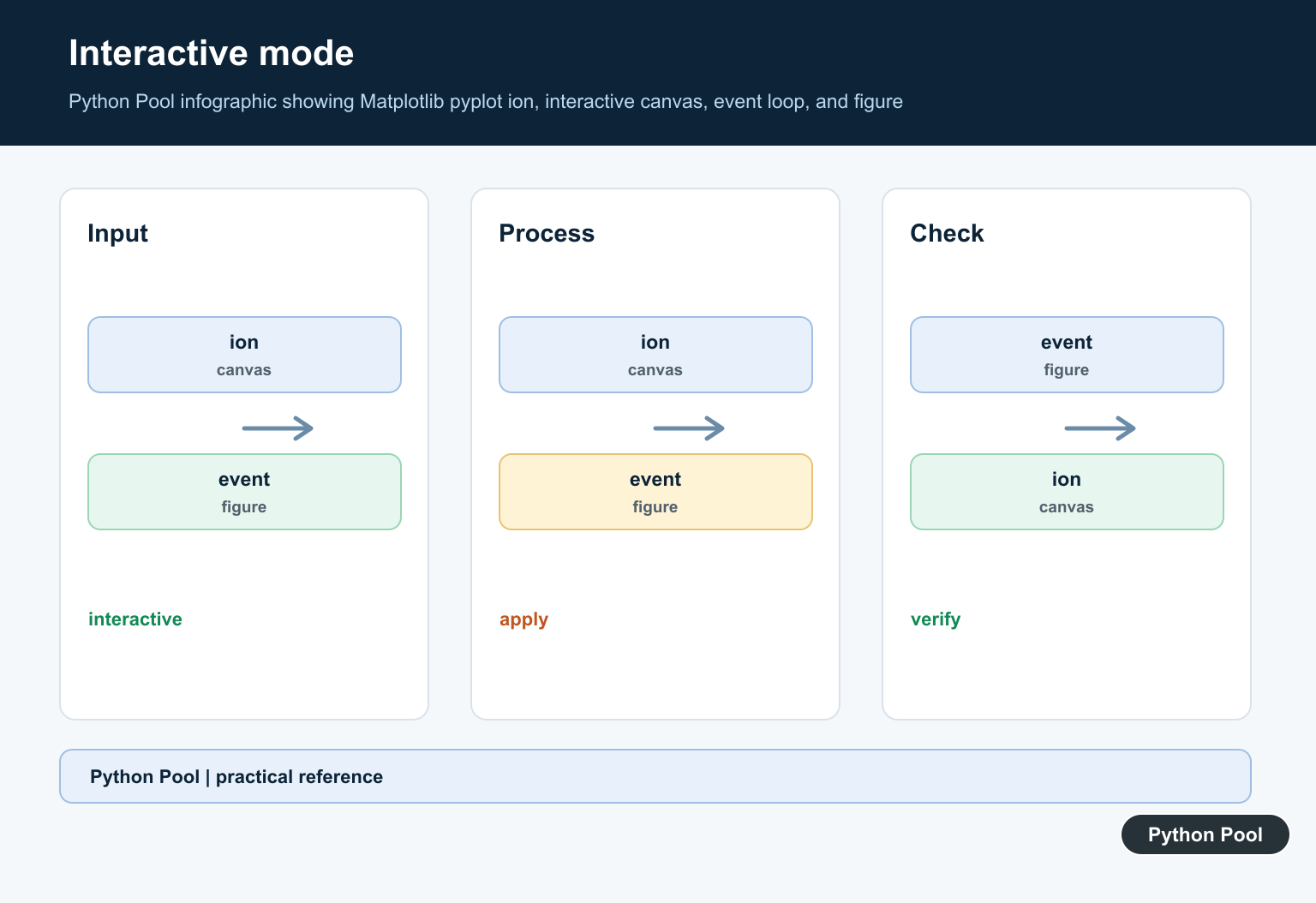
According to the current Matplotlib behavior, interactive mode shows newly created figures immediately, redraws figures on change, and makes plt.show() non-blocking by default. In non-interactive mode, figure changes are not reflected until explicitly requested, and plt.show() blocks by default.
Live Plot Update Example
The common mistake is turning on ion() and then using time.sleep() inside a loop. That can freeze the window because the GUI event loop does not get time to process redraws and input events. Use plt.pause() for simple live updates.
import numpy as np
import matplotlib.pyplot as plt

plt.ion()

fig, ax = plt.subplots()
x = np.linspace(0, 2 * np.pi, 200)
line, = ax.plot(x, np.sin(x))
ax.set_ylim(-1.2, 1.2)

for n in range(50):
    y = np.sin(x + n * 0.15)
    line.set_ydata(y)
    fig.canvas.draw_idle()
    plt.pause(0.05)

plt.ioff()
plt.show()
Here, set_ydata() changes the plotted line, draw_idle() schedules a redraw, and pause() briefly runs the GUI event loop. The final plt.ioff() and plt.show() keep the completed figure open in a normal blocking window when the script ends. Interactive mode keeps figures responsive, while Matplotlib Slider: Interactive Controls for Plots adds a Slider widget that changes plot values from user input.
Using ion() as a Context Manager
Modern Matplotlib also lets you use ion() as a context manager. This is useful when you want interactive behavior for only a small part of a program.
import matplotlib.pyplot as plt

plt.ioff()

with plt.ion():
    fig, ax = plt.subplots()
    ax.plot([1, 2, 3], [1, 4, 9])
    plt.pause(1)

print(plt.isinteractive())  # False again
The reverse pattern works with ioff() when the surrounding session is interactive but one section should not display figures immediately.
import matplotlib.pyplot as plt

plt.ion()

with plt.ioff():
    fig, ax = plt.subplots()
    ax.plot([1, 2, 3], [3, 2, 1])

plt.show()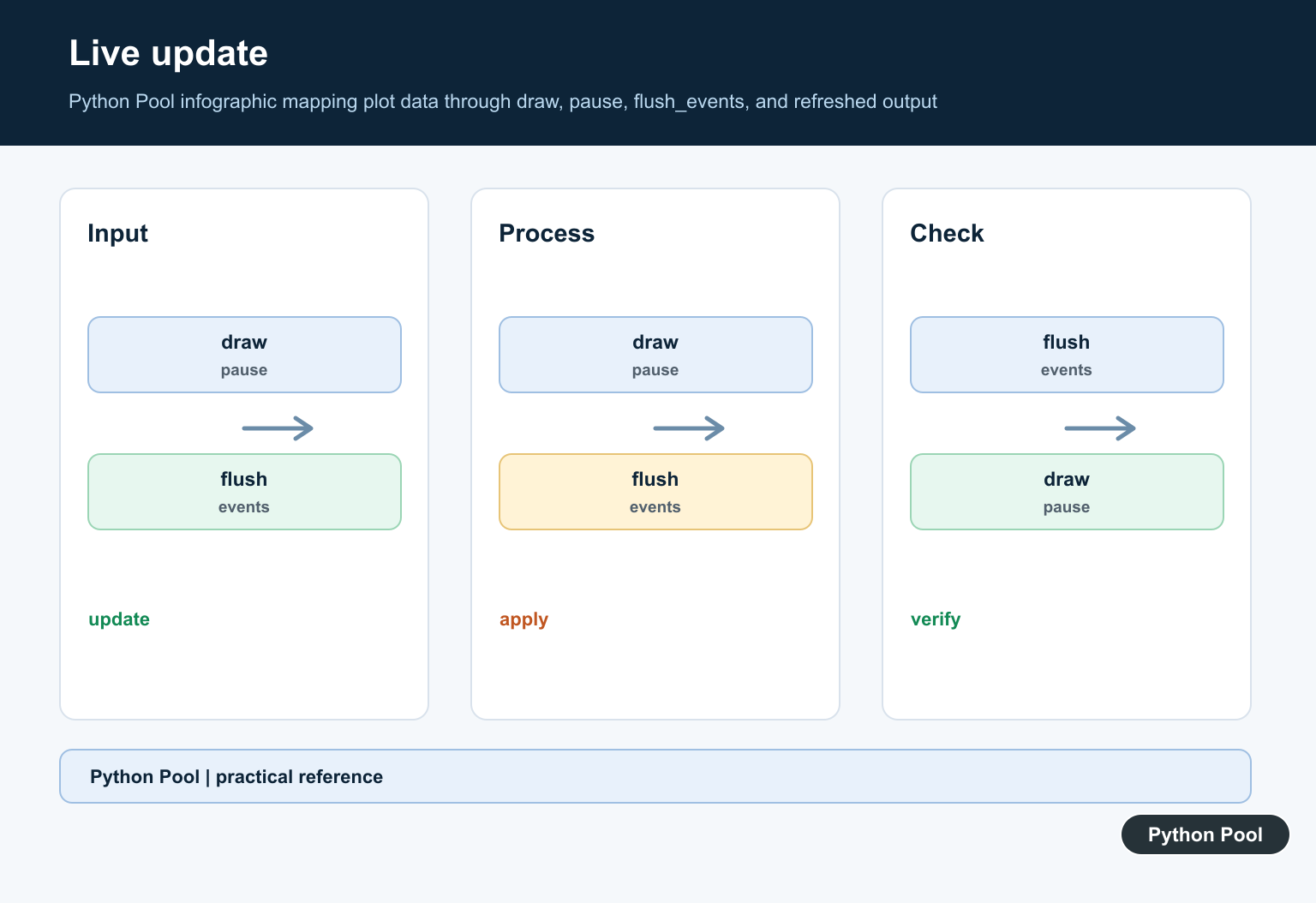
Why Matplotlib ion() Can Appear to Freeze
If a plot window appears but does not update, check these points first:
- Use a GUI backend. Interactive windows need a backend that can display a GUI. A headless server or static backend cannot become interactive just because
ion()is enabled. - Use
plt.pause()in simple loops. It updates the active figure and runs the GUI event loop for the requested interval. - Prefer
draw_idle()over repeated forced draws.draw_idle()schedules a redraw when the GUI is ready, which is usually more efficient than forcingdraw()repeatedly. - Use
flush_events()for long-running work. If a loop does heavy computation, callfig.canvas.flush_events()periodically so the window remains responsive. - Remember notebooks behave differently. Jupyter backends, inline output, IPython hooks, and desktop GUI windows do not all update in the same way.
ion() vs show(block=False) vs pause()
plt.ion() sets the global pyplot interactive state. plt.show(block=False) can show figures without blocking at that point in the code, but it does not replace the need to keep the GUI event loop alive. plt.pause(interval) is often the practical tool for simple script loops because it both displays pending updates and gives the GUI a short chance to respond.
For real animations, prefer Matplotlib’s animation tools rather than manually managing every redraw. Manual ion() loops are best for debugging, demonstrations, quick dashboards, and lightweight live updates.
Related Matplotlib Guides
After you understand interactive mode, these Python Pool guides are useful next steps: Matplotlib gca() for working with current axes, Matplotlib ylim() for controlling the y-axis, drawing circles in Matplotlib, and Matplotlib arrows for annotations and direction markers.
Official References
- Matplotlib pyplot.ion documentation
- Matplotlib pyplot.ioff documentation
- Matplotlib pyplot.isinteractive documentation
- Matplotlib pyplot.pause documentation
- Matplotlib interactive figures guide
Conclusion
plt.ion() is the switch for Matplotlib interactive mode. Pair it with plt.isinteractive() when checking state, plt.ioff() when you want to restore non-interactive behavior, and plt.pause() or canvas event-loop methods when a running script needs to keep a figure responsive.
Inspect The Interactive State
Interactive mode is pyplot state, so check it when a notebook or shell behaves differently from a script. ion() enables it, ioff() disables it, and isinteractive() tells you which state is active.
import matplotlib.pyplot as plt

plt.ioff()
print(plt.isinteractive())
plt.ion()
print(plt.isinteractive())
plt.ioff()
Update An Existing Artist
Create a line once and change its data rather than creating a new figure on every loop iteration. Reusing artists limits memory growth and makes the update path easier to control.
import numpy as np
import matplotlib.pyplot as plt

plt.ion()
fig, ax = plt.subplots()
line, = ax.plot([], [])
ax.set(xlim=(0, 10), ylim=(-1, 1))

for end in np.linspace(1, 10, 10):
    x = np.linspace(0, end, 100)
    line.set_data(x, np.sin(x))
    fig.canvas.draw_idle()
    plt.pause(0.05)

plt.ioff()
Prefer pause Over time.sleep
time.sleep() stops the Python thread but does not guarantee that the GUI event loop gets time to process window events. pause() combines a short wait with event-loop processing when a figure is active, which is why it is the practical choice for a small live-update loop.
import time
import matplotlib.pyplot as plt

# time.sleep(0.1) delays Python but may leave the window unresponsive.
plt.ion()
fig, ax = plt.subplots()
for step in range(5):
    ax.clear()
    ax.plot([0, step + 1], [0, step + 1])
    ax.set_xlim(0, 6)
    ax.set_ylim(0, 6)
    plt.pause(0.1)
plt.ioff()
Use A Temporary Interactive Context
For a short interactive section, Matplotlib supports using ion() as a context manager. Keep the scope small so the surrounding code has an explicit and predictable plotting mode.
import matplotlib.pyplot as plt

plt.ioff()
with plt.ion():
    fig, ax = plt.subplots()
    ax.plot([1, 2, 3], [1, 4, 9])
    plt.pause(0.05)

print(plt.isinteractive())
The official pyplot.ion() documentation covers enabling interactive mode and its context-manager behavior. isinteractive() describes the redraw and blocking differences, while pause() explains GUI event-loop processing. Related references include savefig() and gca().
For related interactive plotting workflows, compare saving figures, getting the current Axes, and interactive sliders when deciding how a plot should update.
Frequently Asked Questions
What does Matplotlib ion() do?
plt.ion() enables interactive mode so figures can appear and redraw during plotting instead of waiting for a final blocking show().
Why should I use plt.pause() in a live plot loop?
plt.pause() runs the GUI event loop for an interval, allowing the figure to redraw and process input while the script continues.
How do I check whether interactive mode is enabled?
Call plt.isinteractive(), which returns the current pyplot interactive state.
How do I turn interactive mode off?
Call plt.ioff() or use it as a context manager when you want a temporary normal plotting state.

Update plot with draw() and Matplotlib ion() freeze plot initially but don’t refresh the graph. Have you got an idea. Thanks.
This is because your main execution is running before your plot is shown. Use plt.pause(time) to wait for the plot to refresh. Moreover, make sure you supply new data above plt.pause() method.
Example –
import numpy as npimport matplotlib.pyplot as plt
plt.ion()
plt.axis([0, 10, 0, 1])
for i in range(10):
y = np.random.random()
plt.scatter(i, y)
plt.pause(0.05)
plt.show(block=False)
plt.pause(100)
Edit: Probably discus comment formatting removes the indentation of for blocks. 3 lines after the for loop in code are indented.
Unfortunately. It doesn’t work. Only an empty plot.
Can you email me your code at [email protected]?