Search the Community
Showing results for tags 'info'.
-
Version 1.4.7
5,096 downloads
Manage your Rust server easier and more efficiently with the AdminMenu plugin. Track players, interact with them, edit their data and permissions, as well as change server convars and manage plugins. Features: Menu retains its state after closing, you won't lose everything you did before. Ability to fully translate the menu into any language. Large range of permissions for each action, will allow you to flexibly customize the admin menu for each group of administrators. Quick menu that allows you to perform quick actions Full list of players with the ability to filter by online, offline, admins and moderators. Also has a frame of different colors depending on the level of authorization. Wide range of information and actions for the selected player. Editing convars with search. Has a complete list of editable convars with descriptions for some of them. Extensive issue menu by category, with easy management of name, skin and amount (manual, +1, +100, +1000, +10000). Plugin management menu. It is possible to reload, unload or load a plugin easily and quickly. Updates occur in real time. Ability to create your own custom buttons that execute several commands Quick Start: You install the plugin in the plugins folder. Give yourself the adminmenu.fullaccess permission. Commands, use one of your choice, one for the player and one for the admin group: o.grant user [name or steamid] adminmenu.fullaccess o.grant group admin adminmenu.fullaccess Press the X button (swap seat button) or type adminmenu in the console. Enjoy Useful stuff: You can quickly open a player in the admin menu. To do this, point at the player and press X. You don't have to hover over the player exactly, you will be able to open players within a certain radius of the place you are looking at. CUSTOM BUTTONS Custom buttons are buttons that when pressed will execute commands on behalf of the administrator, commands can be several, below will be the details. At the moment, custom buttons can be created in two places: in the quick menu and in the menu when selecting a player. These places are separated in the config. Button Fields: "Execution as server" - Call the command on behalf of the server, not the administrator "Label" - Text that will be on the button, for each such inscription creates a field in the lang file, accordingly you can translate this text into several languages. "Commands" - Array of commands that will be executed on behalf of the administrator. Chat commands require a special entry, see examples. "Permission"- permission to display and use the button. You need to write the permission that will be after "adminmenu.". Example: if you enter the permission "test" the permission will be adminmenu.test "Position" - The location for the button, the first number is responsible for the row number, the second for the position within the row, starts from 0.There are limits of locations, if you have gone beyond the limit - the button will not be displayed. Common Tags: {adminUID} - administrator's id. {position} - administrator coordinates (underfoot) {view_position} - the position where the administrator is looking (can be used for spawning or something similar) {view_direction_forward} - forward view direction of the administrator {view_direction_backward} - the direction the administrator is looking backwards {view_direction_left} - direction of the administrator’s view to the left {view_direction_right} - administrator’s view direction to the right Tags for target only: {steamid}, {steamID}, {userID}, {STEAMID}, {USERID} - mean the same thing, namely the id of the selected player. {target_position} - target coordinates (underfoot) Example of commands: chat.say \"/{chat command}\" vanish ban {steamID} teleport {steamID} {adminUID} More information about the grant menu: The grant menu includes the full list of items including hidden items as well as custom items created by the CustomItemDefinitions library. The menu can be accessed from the navigation or from the menu of the selected player. When issuing itself has categories. Search works in any registry by any part of the name or short name. Has a page system at any stage. More information about the buttons in the Quick Menu: [Teleport to 0 0 0] - Teleport to coordinates 0 0 0. Requires adminmenu.quickmenu.teleportto000 permission [Teleport to Deathpoint] - Teleport to your deathpoint. Requires adminmenu.quickmenu.teleporttodeath permission [Teleport to Spawn point] - Teleport to a random spawn point. Requires adminmenu.quickmenu.teleporttospawnpoint permission [Kill Self] - Kill Self, kills even when immortal. Does not require permission. [Heal Self] - Fully heal yourself. Requires adminmenu.quickmenu.healself permission [Call Heli] - Call Helicopter to yourself (arrives in time). Requires adminmenu.quickmenu.helicall permission [Spawn Bradley] - Spawn bradley on yourself. Requires adminmenu.quickmenu.spawnbradley permission More information about the buttons in the menu of the selected player: [Teleport Self To] - Teleport yourself to the selected player. Requires adminmenu.userinfo.teleportselfto permission [Teleport To Self] - Teleport the selected player to yourself. Requires adminmenu.userinfo.teleporttoself permission [Teleport To Auth] - Teleportation to random authorization (TC). Requires adminmenu.userinfo.teleporttoauth permission [Teleport to Deathpoint] - Teleportation to a player's deathpoint. Requires adminmenu.userinfo.teleporttodeath permission [Heal] - Full healing, including metabolism. Requires adminmenu.userinfo.fullheal permission [Heal 50%] - Half healing. Requires adminmenu.userinfo.halfheal permission. [View Inventory] - View and edit player's inventory. Requires adminmenu.userinfo.viewinv permission [Strip Inventory] - Clear player's inventory. Requires adminmenu.userinfo.stripinventory permission [Unlock Blueprints] - Unlock all Blueprints. Requires adminmenu.userinfo.unlockblueprints permission [Revoke Blueprints] - Reset all Blueprints. Requires adminmenu.userinfo.revokeblueprints permission. [Kill] - Kill a player. Requires adminmenu.userinfo.kill permission [Kick] - Kick a player. Requires adminmenu.userinfo.kick permission [Ban] - Ban a player. Requires adminmenu.userinfo.ban permission More information about the buttons in the menu of the selected group: [Remove Group] - Remove group, has confirmation. Requires adminmenu.groupinfo.removegroup permission [Clone Group] - Clone group with the ability to copy users. Requires adminmenu.groupinfo.clonegroup permission Permissions: adminmenu.use - Ability to use admin menu with basic set. Open tab quick menu (each button has its own permission, without permissions is present only kill yourself button) and the list of players. adminmenu.fullaccess - Full access to all functions without the need for each permission, includes also adminmenu.use. It is recommended to give only to the main administrators. adminmenu.quickmenu.teleportto000 - Access to the button in the quick menu, teleportation to coordinates 0 0 0 0. adminmenu.quickmenu.teleporttodeath - Access to the button in the quick menu, teleportation to the point of your death. adminmenu.quickmenu.teleporttospawnpoint - Access to the button in the quick menu, teleportation to a random spawn point. adminmenu.quickmenu.healself - Access button in quickmenu, heal yourself completely. adminmenu.quickmenu.helicall - Access to the button in the quick menu, call a helicopter to yourself (arrives in time). adminmenu.quickmenu.spawnbradley - Access button in quickmenu, spawn bradley. adminmenu.userinfo.teleportselfto - Access to the button in the menu of the selected player, teleportation to the selected player. adminmenu.userinfo.teleporttoself - Access to the button in the menu of the selected player, teleport the selected player to himself. adminmenu.userinfo.teleporttoauth - Access to the button in the menu of the selected player, teleportation to random authorization (TC). adminmenu.userinfo.teleporttodeath - Access to the button in the menu of the selected player, teleportation to the place of death of the player. adminmenu.userinfo.fullheal - Access to the button in the menu of the selected player, full healing, including metabolism. adminmenu.userinfo.halfheal - Access to the button in the menu of the selected player, half healing. adminmenu.userinfo.viewinv - Access to the button in the selected player's menu, view and edit the player's inventory. adminmenu.userinfo.stripinventory - Access to the button in the menu of the selected player, clear the player's inventory. adminmenu.userinfo.unlockblueprints - Access the button in the menu of the selected player, unlock all drafts. adminmenu.userinfo.revokeblueprints - Access to the button in the menu of the selected player, reset all drafts. adminmenu.userinfo.kill - Access the button in the selected player's menu to kill the player. adminmenu.userinfo.kick - Access the button in the selected player's menu to kick the player. adminmenu.userinfo.ban - Access to the button in the menu of the selected player, ban the player. adminmenu.groupinfo.removegroup - Access to the button in the menu of the selected group, the ability to remove the group. adminmenu.groupinfo.clonegroup - Access to the button in the menu of the selected group, the ability to clone the group. adminmenu.convars - View and edit convars. adminmenu.permissionmanager - View and edit permissions in groups, player groups, create, delete and clone groups (requires additional permissions from these buttons). adminmenu.pluginmanager - Access to plugin management, reloading, unloading, loading plugins. adminmenu.give - Access to give resources, as well as yourself and the selected player.$30.00 -

Version 2.0.14
7,729 downloads
ServerPanel adds a player information menu to your server, where you can both share important and useful information with your players and integrate your plugins into it! Features User-Friendly Interface: Intuitive GUI for easy navigation and interaction. Economy Integration: Supports various economy plugins for seamless financial management. Dynamic Menu Categories: Organize functionalities into customizable categories for better user experience. Extensive Configuration Options: Almost every aspect of the plugin can be customized, including messages, colors, sizes, fonts, tion. Auto-Open Menu: Automatically displays the menu upon player connection, configurable per server settings. Block Settings: Control access to the menu during building, raiding, or combat situations to enhance gameplay balance. Multiple Economy Head Fields: Display various economic metrics such as balance, server rewards, and bank information. Permission Management: Fine-tune permissions for different user roles to control access to features. Localization Support: Easily translate and customize all messages for different languages. Performance Optimized: Designed to minimize server lag while providing rich functionality. Customizable Hooks: Integrate with existing economy systems using customizable hooks for adding, removing, and displaying balances. Editor Position Change: Admins can now change editor positions with a simple click, choosing between left, center, or right alignments. Command Enhancements: Commands are now processed with multiple arguments separated by "|", enabling bulk command processing. Commands /info – open menu /sp.install (or) /welcome.install – open installer menu sp.migrations – console command for updating plugin data structure when upgrading to new versions. Automatically creates backups before making changes. sp.migrations list – shows available migrations and whether they need to run sp.migrations run <version> – runs specific migration (e.g., "1.3.0") sp.migrations run <version> force – forces migration even if not detected as needed Permissions serverpanel.edit – allows players to edit the plugin settings and open the edit menu serverpanelinstaller.admin - required to access the plugin installation functions Video Showcase Templates Template V1 Template V2 Template V3 Template V5 Editor Installer TEST SERVER Join our test server to view and experience all our unique features yourself! Copy the IP Address below to start playing! connect 194.147.90.239:28015 Update Fields ServerPanel supports dynamic update fields that can be used in your templates to display real-time information. These fields are automatically updated and can be used in text components, headers, and other interface elements. Player Information {online_players} – Number of currently online players {sleeping_players} – Number of sleeping players {all_players} – Total number of players (online + sleeping) {max_players} – Maximum server capacity {player_kills} – Player's kill count (requires KillRecords, Statistics, or UltimateLeaderboard) {player_deaths} – Player's death count (requires KillRecords, Statistics, or UltimateLeaderboard) {player_username} – Player's display name {player_avatar} – Player's Steam ID for avatar display Economy {economy_economics} – Economics plugin balance {economy_server_rewards} – ServerRewards points {economy_bank_system} – BankSystem balance Note: Economy fields are fully customizable in "oxide/config/ServerPanel.json" under "Economy Header Fields". You can add support for any economy plugin by configuring the appropriate hooks (Add, Balance, Remove). Custom keys can be created and used in templates just like the default ones. Server Information {server_name} – Server hostname {server_description} – Server description {server_url} – Server website URL {server_headerimage} – Server header image URL {server_fps} – Current server FPS {server_entities} – Number of entities on server {seed} – World seed {worldsize} – World size {ip} – Server IP address {port} – Server port {server_time} – Current server time (YYYY-MM-DD HH:MM:SS) {tod_time} – Time of day (24-hour format) {realtime} – Server uptime in seconds {map_size} – Map size in meters {map_url} – Custom map URL {save_interval} – Auto-save interval {pve} – PvE mode status (true/false) Player Stats {player_health} – Current health {player_maxhealth} – Maximum health {player_calories} – Calorie level {player_hydration} – Hydration level {player_radiation} – Radiation poisoning level {player_comfort} – Comfort level {player_bleeding} – Bleeding amount {player_temperature} – Body temperature {player_wetness} – Wetness level {player_oxygen} – Oxygen level {player_poison} – Poison level {player_heartrate} – Heart rate Player Position {player_position_x} – X coordinate {player_position_y} – Y coordinate (height) {player_position_z} – Z coordinate {player_rotation} – Player rotation (degrees) Player Connection {player_ping} – Connection time in seconds {player_ip} – Player's IP address {player_auth_level} – Authorization level (0=Player, 1=Moderator, 2=Admin) {player_steam_id} – Steam ID {player_connected_time} – Connection start time {player_idle_time} – Idle time (HH:MM:SS) Player States {player_sleeping} – Is sleeping (true/false) {player_wounded} – Is wounded (true/false) {player_dead} – Is dead (true/false) {player_building_blocked} – Is building blocked (true/false) {player_safe_zone} – Is in safe zone (true/false) {player_swimming} – Is swimming (true/false) {player_on_ground} – Is on ground (true/false) {player_flying} – Is flying (true/false) {player_admin} – Is admin (true/false) {player_developer} – Is developer (true/false) Network & Performance {network_in} – Network input (currently shows 0) {network_out} – Network output (currently shows 0) {fps} – Server FPS {memory} – Memory allocations {collections} – Garbage collections count Usage Example: You can use these fields in any text component like: "Welcome {player_username}! Server has {online_players}/{max_players} players online." API Documentation for Developers ServerPanel provides an API for plugin developers to integrate their plugins into the menu system. Required Methods API_OpenPlugin(BasePlayer player) - Main integration method that returns CuiElementContainer OnServerPanelClosed(BasePlayer player) - Called when panel closes (cleanup) OnServerPanelCategoryPage(BasePlayer player, int category, int page) - Called when category changes (cleanup) OnReceiveCategoryInfo(int categoryID) - Receives your category ID Integration Example [PluginReference] private Plugin ServerPanel; private int _serverPanelCategoryID = -1; private void OnServerInitialized() { ServerPanel?.Call("API_OnServerPanelProcessCategory", Name); } private void OnReceiveCategoryInfo(int categoryID) { _serverPanelCategoryID = categoryID; } private void OnServerPanelCategoryPage(BasePlayer player, int category, int page) { // Cleanup when player switches categories } private CuiElementContainer API_OpenPlugin(BasePlayer player) { var container = new CuiElementContainer(); // Create base panels (required structure) container.Add(new CuiPanel() { RectTransform = {AnchorMin = "0 0", AnchorMax = "1 1"}, Image = {Color = "0 0 0 0"} }, "UI.Server.Panel.Content", "UI.Server.Panel.Content.Plugin", "UI.Server.Panel.Content.Plugin"); container.Add(new CuiPanel() { RectTransform = {AnchorMin = "0 0", AnchorMax = "1 1"}, Image = {Color = "0 0 0 0"} }, "UI.Server.Panel.Content.Plugin", "YourPlugin.Background", "YourPlugin.Background"); // Add your plugin's UI elements here container.Add(new CuiLabel { RectTransform = {AnchorMin = "0.1 0.8", AnchorMax = "0.9 0.9"}, Text = {Text = "Your Plugin Interface", FontSize = 16, Align = TextAnchor.MiddleCenter, Color = "1 1 1 1"} }, "YourPlugin.Background", "YourPlugin.Title"); // Add buttons, panels, etc. using "YourPlugin.Background" as parent return container; } private void OnServerPanelClosed(BasePlayer player) { // Cleanup when panel closes } Header Update Fields API_OnServerPanelAddHeaderUpdateField(Plugin plugin, string updateKey, Func<BasePlayer, string> updateFunction) - Registers a per-player string provider for a header placeholder. Returns true on success. API_OnServerPanelRemoveHeaderUpdateField(Plugin plugin, string updateKey = null) - Unregisters a specific updateKey for your plugin, or all keys for your plugin when updateKey is null. Returns true on success. Usage Example [PluginReference] private Plugin ServerPanel; private void OnServerInitialized() { // Register a dynamic header field for each player ServerPanel?.Call("API_OnServerPanelAddHeaderUpdateField", this, "{player_kdr}", (Func<BasePlayer, string>)(player => GetKdr(player))); } private string GetKdr(BasePlayer player) { // Compute and return the value to display in the header for this player return "1.23"; } Using in UI: Place your key (e.g., {player_kdr}) directly in Header Field texts. The value will be updated per player using your function. FAQ Q: Why can't I open the menu? A: Make sure that the plugin is installed and activated on your server. If the problem persists, contact the server administrator. Q: How do I enable Expert Mode? (disables automatic template updates) A: In the data file "Template.json", turn on the "Use an expert mod?" option: "Use an expert mod?": true, P.S. "Template.json” is located in the "oxide/data/ServerPanel" directory (if you use Oxide) or in the "carbon/data/ServerPanel" directory (if you use Carbon) Q: I see black images with Rust logo or get error 429 when loading images. What should I do? A: These issues occur when there are problems downloading images from the internet. To fix this, enable Offline Image Mode which will use local images instead: Enable the mode in config: Open "oxide/config/ServerPanel.json" (or "carbon/config/ServerPanel.json" for Carbon) Set "Enable Offline Image Mode": true Set up the images: Create folder "TheMevent" in "oxide/data" (or "carbon/data" for Carbon) Download PluginsStorage (click "CODE" → "Download ZIP") Extract the ZIP and copy all contents to the "TheMevent" folder Reload the plugin: Type o.reload ServerPanel (Oxide) or c.reload ServerPanel (Carbon) Note: If using a hosting service, you may need to use their file manager or FTP to upload the files. Q: Does ServerPanel work only with Mevent's plugins? A: Currently, ServerPanel integrates seamlessly with Mevent's plugins (Shop, Kits, Daily Rewards, etc.). However, other developers can use the provided API to integrate their plugins into the menu system. The plugin system is designed to be extensible for third-party integrations. Q: Why do integrated plugins (Shop, Kits) have different window sizes? A: Different plugins may use different templates for integration. Make sure all your integrated plugins use the same template version (V1, V2, etc.) that matches your ServerPanel template. Update the template in each plugin to ensure consistent sizing. Q: The panel displays differently for different players. How can I make it show the same on everyone's screen? A: This issue occurs when players have different UI scale settings. To fix this and ensure consistent display for all players: Open the "Template.json" file located in "oxide/data/ServerPanel" (or "carbon/data/ServerPanel" for Carbon) Find the "Parent (Overlay/Hud)" setting in the "Background" section Change the value from "Overlay" to "OverlayNonScaled" Save the file and restart your server or reload the plugin Q: How can I change the video displayed in the ServerPanel interface to my own custom video? A: Yes, you can replace the default video with your own! You need to find and modify the command: serverpanel_broadcastvideo [your_video_url] Replace [your_video_url] with the direct link to your video. For best compatibility, we recommend hosting your video on imgur.com. Q: My custom images are not loading or show as blank/question marks. What image hosting should I use? A: For custom images, we recommend using imgbb.com for image hosting. Avoid Imgur and services without direct access to the image. For the most reliable experience, use Offline Image Mode with local images instead. Q: How can I make plugin UIs open outside of the ServerPanel menu instead of inside categories? A: You can configure buttons to execute chat commands that open plugin UIs independently. To do this: In your button configuration, set "Chat Button": true Set the "Commands" field to "chat.say /command" (replace "command" with the actual plugin command) Example: To open the Cases plugin outside the menu: "Chat Button": true "Commands": "chat.say /cases" This will execute the command as if the player typed it in chat, opening the plugin's interface independently rather than within the ServerPanel menu. Q: Text in V4 template is shifting or sliding out of place. How can I fix this? A: This issue occurs when text width isn't properly configured. ServerPanel provides "TITLE LOCALIZATION" settings to control text width for categories and pages: Open the ServerPanel editor (click the "ADMIN MODE" button to open the edit menu) Select the category or page you want to edit (click to "EDIT CATEGORY" or "EDIT PAGE" button) In the editor, find the "TITLE LOCALIZATION" section For each language (en, ru, etc.), you'll see three columns: LANGUAGE - The language code TEXT - The localized text content WIDTH (px) - The width setting in pixels Adjust the "WIDTH (px)" value to match your text length. Longer text requires larger width values Save your changes and test in-game Tip: Start with a width value around 100-150 pixels for short text, and increase it for longer titles. You can adjust this value until the text displays correctly without shifting.$40.00- 153 comments
- 44 reviews
-
- 17
-

-

-

-
- #serverpanel
- #info
- (and 32 more)
-
Version 3.3.7
13,048 downloads
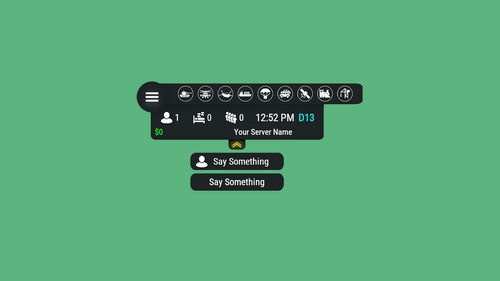
Features: You can add any plugin event in the UI (if it has hooks, usually specified in the plugin description) Has ingame UI menu for configure your Hud The time format is adjusted to the player (depending on his language in the game), it checks which time format is used for this language You can also enable an additional menu that opens on the arrow. You can add various buttons to this menu, for example, to open a store, your server menu, etc. Almost all elements are customizable [for example: visibility of each element, Logo, Icons, Color e.t.c (check config down below)] Commands: /h setup - open UI for ingame config /h - show all Server Hud UI commands /h open - open Server Hud UI /h events - open Events Bar /h close - close Server Hud UI /h hide - hide Server Hud UI Q&A: Q: Where i can find a base icon for creating my events icons? A: Take a base icon below this message and using f.e photoshop for create you personal event icon! Q: Where i can find a ready to use icons? A: Here some links to ready to use icons packs(1 free, 2 paid): https://codefling.com/customizations/free-custom-hud-icons https://codefling.com/customizations/custom-hud-icons-paid https://codefling.com/customizations/server-hud-custom-icon-pack API: string API_PlayerHudState(string id) CanHudChangeState(BasePlayer player, string currentState, strint nextState) Config: { "Auto reload [If you change the config and save the file the plugin will reload itself]": true, "Main setup": { "Overall layer [you will see the hud in your inventory]": false, "Size ALL [0% - inf]": 100, "Logo [HUD interact button]": "https://media.discordapp.net/attachments/335512864548847617/1134455399756607549/logo.png", "Events background opacity [0% - 100%]": 100, "Background opacity [0% - 100%]": 100, "Position": { "Align [TopLeft | TopRight | BottomLeft | BottomRight": "TopLeft", "Left | Right - offset": 40, "Top | Bottom - offset": 25 }, "Server name": "Your Server Name", "Active players": { "Icon": "https://cdn.discordapp.com/attachments/335512864548847617/1134455395813965934/active.png", "Color": "#fff", "Enable": true }, "Sleep players": { "Icon": "https://cdn.discordapp.com/attachments/335512864548847617/1134455395138670652/sleep.png", "Color": "#fff", "Enable": true }, "Queue players": { "Icon": "https://cdn.discordapp.com/attachments/335512864548847617/1134455393972654171/line.png", "Color": "#fff", "Enable": true }, "Time": true, "Player position [hide permisson - hud.streamer]": { "Enable": true, "true - grid | false - x,z coordinates": true, "Color": "cyan" }, "Economy plugin [Economics | ServerRewards]": { "Currency": "$", "Value color": "#10ff10", "Enable": true }, "Info messages": { "Update interval [in seconds]": 60, "Align [BottomCenter | TopCenter | TopRight]": "BottomCenter", "Width [in px]": 260, "Offset [top | bottom]": 0, "Offset [right]": 15, "Outline color": "#000", "Overall [you will see messages in your invenotory]": true, "Enable": true, "Messages": [ "Welcome to Your Server Name", "Good luck" ] }, "Additional menu": { "Auto close timer [seconds | 0 - disable]": 60, "Auto close after command use": true, "Open/Close button color": "yellow", "Commands background opacity [0% - 100%]": 100, "Enable": true, "Commands": [ { "Background image": "https://media.discordapp.net/attachments/335512864548847617/1134455392420761671/command.png", "Icon [optional]": "https://media.discordapp.net/attachments/335512864548847617/1134455395813965934/active.png", "Command": "chat.say Hello there", "Text": "Say Something", "Outline color": "#000", "Is Console": true }, { "Background image": "https://media.discordapp.net/attachments/335512864548847617/1134455392420761671/command.png", "Icon [optional]": "", "Command": "/shop", "Text": "Say Something", "Outline color": "#000", "Is Console": false } ] } }, "Base Events": [ { "Name": "Bradley", "Active color": "#10ff10", "Icon": "https://media.discordapp.net/attachments/335512864548847617/1134455316654850049/bradley.png", "Color": "#fff", "Enable": true }, { "Name": "PatrolHeli", "Active color": "#10ff10", "Icon": "https://media.discordapp.net/attachments/335512864548847617/1134455315073597530/heli.png", "Color": "#fff", "Enable": true }, { "Name": "CH47", "Active color": "#10ff10", "Icon": "https://media.discordapp.net/attachments/335512864548847617/1134455317485342803/ch47.png", "Color": "#fff", "Enable": true }, { "Name": "Cargo", "Active color": "#10ff10", "Icon": "https://media.discordapp.net/attachments/335512864548847617/1134455317086879794/cargo.png", "Color": "#fff", "Enable": true }, { "Name": "AirDrop", "Active color": "#10ff10", "Icon": "https://cdn.discordapp.com/attachments/335512864548847617/1134455316143161374/airdrop.png", "Color": "#fff", "Enable": true } ], "Custom Events": [ { "Hook OnEventStart": "OnConvoyStart", "Hook OnEventStop": "OnConvoyStop", "Name": "Convoy", "Active color": "#10ff10", "Icon": "https://media.discordapp.net/attachments/335512864548847617/1134455318030598154/convoy.png", "Color": "#fff", "Enable": false }, { "Hook OnEventStart": "OnSputnikEventStart", "Hook OnEventStop": "OnSputnikEventStop", "Name": "Sputnik", "Active color": "#10ff10", "Icon": "https://cdn.discordapp.com/attachments/335512864548847617/1134455315488854016/sputnik.png", "Color": "#fff", "Enable": false }, { "Hook OnEventStart": "OnArmoredTrainEventStart", "Hook OnEventStop": "OnArmoredTrainEventStop", "Name": "ArmoredTrain", "Active color": "#10ff10", "Icon": "https://cdn.discordapp.com/attachments/335512864548847617/1134455315841155173/train.png", "Color": "#fff", "Enable": false }, { "Hook OnEventStart": "OnHarborEventStart", "Hook OnEventStop": "OnHarborEventEnd", "Name": "Harbor", "Active color": "#10ff10", "Icon": "https://cdn.discordapp.com/attachments/335512864548847617/1134455318332592219/harbor.png", "Color": "#fff", "Enable": false } ] }$14.99- 605 comments
- 35 reviews
-
- 42
-
-
-
-

-
- #hud
- #interface
- (and 6 more)
-

Version 1.2.19
1,406 downloads
Displays data about the players in the team: Togglable UI Show Teammates Health Show Teammates Active Item Show Teammates Square Position Show if teammate is dead/wounded Not loading players icons Check your file ImageLibrary.json, you must enter your steam api key and set "Avatars - Store player avatars": true Try reload ImageLibrary How to make the plugin work for all players Use the command - o.grant group default teaminfo.use At what angle are offsets considered Offsets are counted from the left bottom angel Permission for use: teaminfo.use Commands: /teaminfo - open/close the TeamInfo UI. Config: { "Offset from left angle": 5, "Offset from bottom": 150, "Enable visible player position": true, "Name permission": "teaminfo.use" } ✵ In this plugin will appear: The player's ability to put a label in the world Displaying the compass value of a player in a team$5.99 -
Version 2.1.5
2,338 downloads
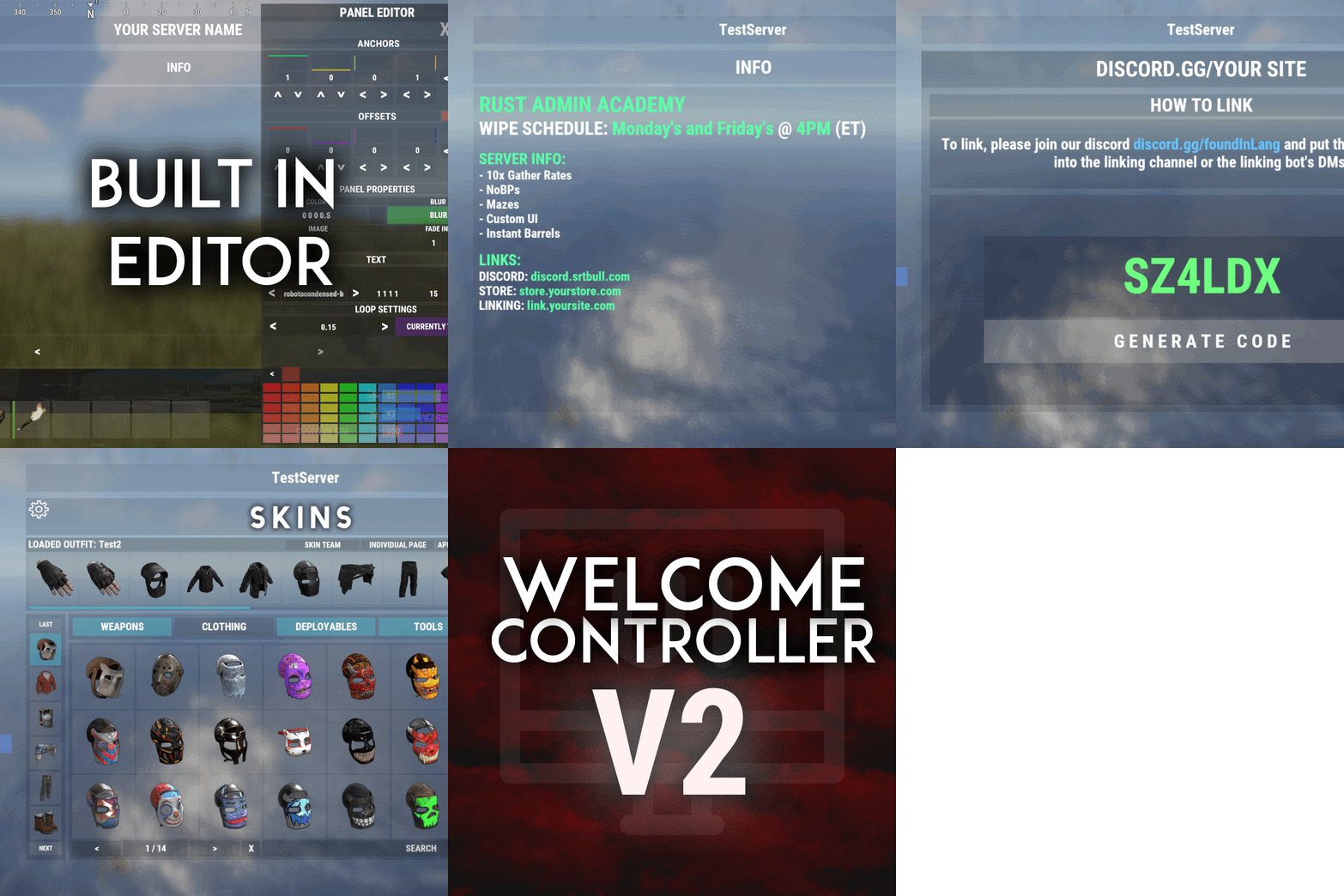
Welcome "UI" controller is a multi-function info panel! - Supports multiple plugins to be directly integrated. Linked in the optional dependencies! - Add permissions to access different pages - Optionally, you can set a page that has a permission to not show on the button list at all or you can set it to show a no permission page (You can make it say whatever you want) - Change the layout of the buttons - Add images to each button - Add multiple commands to access each page - Edit, add, and delete your info panels and or integrated plugins directly from the editor UI. - Apply a color theme INSTANTLY to ALL your integrated plugins with one simple click! - Running a command auto loads you into the correct page on the info panel, even if it's an addon. - Create infinite tabs for different pages. - You can do really anything you can think of! - In game editor for all your UI needs. - Add new panels - Clone panels - Change load orders of panels - Change the look in every way of a panel - Add an image and or text to ANY panel you want to - Easily move the UI with buttons or input numbers within the UI - When you're reading this, there might be even more themes available! - Images are pictures of the "Original" theme and show some of the optional addons and built in editor. ADMIN PERMISSION: welcomecontroller.admin Editor page: /welcomeedit Theme Selector: /welcomethemes Support? Questions? Comments? Concerns? Message me in my Discord! https://discord.gg/ZsRgCUNv2x DEVELOPER API's AND HOOKS API -> bool IsUsingPlugin(string pluginName) HOOKS -> void OnWCRequestedUIPanel(BasePlayer player, string panelName, string neededPlugin) - This is called when an addon is trying to be accessed for WelcomeController. - Make sure you do a simple check that the needed plugin is the plugin you're working in. - I recommend making the plugin name that you check for, the name of the CS file. - If neededPlugin == yourPlugin, open your UI, attach it to "panelName".$29.99 -
Version 1.5.50
4,162 downloads
Introducing UltimateLeaderboard, the most advanced and comprehensive leaderboard system designed for Rust servers! Elevate your server competitive spirit by tracking an extensive range of player statistics—everything from kills and deaths to resources gathered, items crafted, structures built, and more. Featuring a sleek, customizable user interface and seamless integration with popular plugins, UltimateLeaderboard is the perfect addition to engage your players and showcase their achievements. Features of Ultimate Leaderboard Track a wide variety of player statistics, including kills, deaths, resources gathered, items crafted, structures built, and more. Fully customizable leaderboard—choose which stats to display and tailor it to your server unique style. Intuitive and visually appealing user interface for players to view their stats and compare rankings. Seamless integration with plugins like ServerPanel for enhanced displays, and Notify/UINotify for in-game alerts. Flexible data storage options: choose between JSON, SQLite, or MySQL to suit your server needs. Two reward systems: post-wipe awards that give actual items, kits, and money to top players when they connect, plus an optional companion plugin UltimateLeaderboardTop for real-time privilege management based on current rankings. Custom Titles system that automatically displays achievement-based chat titles for top performers (requires BetterChat plugin). Optimized for high performance, ensuring smooth operation even with large player bases and extensive data. Configurable templates. Optional real-time database updates for integrations (e.g., Discord Bot). Showcase Fullscreen Template ServerPanel V1 (V1.1) ServerPanel V2 Video Overview Commands /leaderboard or /stats - Opens the leaderboard interface for players to view stats and rankings. /leaderboard <steamid> - Opens another player's profile (requires ultimateleaderboard.profile permission). /leaderboard.hide - Allows players to hide themselves from the leaderboard (requires ultimateleaderboard.hide.self permission). leaderboard.manage hide <steamid> - Console command to hide a player from the leaderboard (server console only). leaderboard.wipe - Console command to reset all leaderboard data (server console only). leaderboard.migrate <migration_id> - Console command to perform database migrations (server console only). Available: — leaderboard.migrate 1 adds HiddenFromLeaderboard column to PlayerStats table (upgrade from v1.1.7 to v1.1.8) — leaderboard.migrate 2 migrates BodyHits data to the new format (upgrade to v1.5.10) leaderboard.find.short.prefab <search_term> - Console command to search for prefabs containing the specified search term (server console only). Useful for finding correct prefab names for configuration. leaderboard.manage - Console command to manage player statistics (server console only). Use leaderboard.manage help for detailed usage information. Permissions ultimateleaderboard.use - grants players access to leaderboard commands and interface. ultimateleaderboard.profile - allows players to view other players' profiles using the leaderboard command. ultimateleaderboard.hide.self - allows players to hide themselves from the leaderboard using the /leaderboard.hide command. Web Config Editor Easily manage your UltimateLeaderboard settings with our web-based configuration editor. This tool allows you to adjust plugin configurations through a user-friendly interface, eliminating the need to manually edit files on your server. P.S. To access the web config editor, you must be part of the "UltimateLeaderboard" group in our Discord server. Join us at https://discord.gg/mevent and request the group to get started. FAQ Q: How do I install UltimateLeaderboard? A: Download the UltimateLeaderboard.cs file, place it in your oxide/plugins directory, and restart your server or reload the plugin using the Oxide command oxide.reload UltimateLeaderboard. Q: Can I choose which statistics to track and display? A: Yes! The plugin allows you to customize tracked statistics and leaderboard displays via the configuration file. You can enable or disable specific stats like kills, resources, or events to suit your server. Q: What data storage options are available? A: UltimateLeaderboard supports JSON, SQLite, and MySQL. You can select your preferred storage method in the config file, offering flexibility for small or large servers. Q: How do I set up the awards system? A: In the configuration file, define award categories (e.g., most kills, top gatherer) and their criteria. The plugin will automatically track and assign awards to top players based on your settings. Q: Where can I configure the UI? A: UI is now template-driven. Use configurable templates stored at oxide/data/UltimateLeaderboard/Templates. Q: What happens to the data on a server wipe? A: By default, data wipes with a new save file, but you can disable this in the config (Wipe data on new save) to persist stats across wipes if desired. Q: How do I add UltimateLeaderboard to the ServerPanel menu? A: Follow these simple steps: 1. Open ServerPanel menu in-game and click "+ADD CATEGORY" button 2. Set these exact parameters: Type: Plugin Plugin Name: UltimateLeaderboard Plugin Hook: API_OpenPlugin 3. Click "SAVE" button to create the category Q: I see black images with Rust logo or get error 429 when loading images. What should I do? A: These issues occur when there are problems downloading images from the internet. The UltimateLeaderboard plugin sends images to ImageLibrary but is not responsible for the downloading process itself. Error 429 typically occurs due to rate limits imposed by image hosting services like Imgur (see HTTP 429 documentation for more details). To fix this, enable Offline Image Mode which will use local images instead: Enable the mode in config: Open "oxide/config/UltimateLeaderboard.json" (or "carbon/config/UltimateLeaderboard.json" for Carbon) Set "Enable Offline Image Mode": true Set up the images: Create folder "TheMevent" in "oxide/data" (or "carbon/data" for Carbon) Download PluginsStorage (click "CODE" → "Download ZIP") Extract the ZIP and copy all contents to the "TheMevent" folder Reload the plugin: Type o.reload UltimateLeaderboard (Oxide) or c.reload UltimateLeaderboard (Carbon) Note: If you want to add your own custom images, place them in the "TheMevent" folder and reference them with the "TheMevent/" prefix. For example: "TheMevent/Icon1.png", "TheMevent/MyCustomIcon.jpg", etc. Q: What's the difference between UltimateLeaderboard awards and UltimateLeaderboardTop? A: UltimateLeaderboardTop is a companion plugin that automatically manages player privileges based on leaderboard positions. Main Plugin Awards: Gives actual rewards (kits, money, commands) to top players after wipe - rewards are given once when player connects. UltimateLeaderboardTop: Continuously manages privileges (VIP groups, permissions) as players enter/exit top positions in real-time. To display awards in UI while using UltimateLeaderboardTop: Configure awards in UltimateLeaderboard config Configure awards in UltimateLeaderboardTop config Set "Automatically give rewards after the wipe": false Q: Can UltimateLeaderboardTop give items/kits to players? A: No, UltimateLeaderboardTop is designed only for reversible actions (permissions, groups, etc.). Since items can't be taken back from players when they leave top positions, item rewards are not supported. Use the main plugin's awards system for item rewards instead. Q: How do I configure rewards for top players? A: There are two reward systems available: UltimateLeaderboard Awards (Post-Wipe Rewards): Configure in the main plugin's config file under "Awards Settings": Set award categories (e.g., "Most Kills", "Top Gatherer") Define criteria: loot type, prefab, and minimum amount required Set rewards: commands to execute (give items, kits, money, etc.) Awards are given once when top players connect after a wipe UltimateLeaderboardTop (Real-time Privileges): Configure in UltimateLeaderboardTop.json: Set leaderboard types to monitor (kills, points, playtime, etc.) Define top positions (1st, 2nd, 3rd, etc.) Configure "Enter place commands" (given when player reaches position) Configure "Exit place commands" (executed when player loses position) Use for permissions, groups, temporary privileges Example UltimateLeaderboardTop configuration: { "Loot type": "Kill", "Prefab": "kills", "Places settings": { "1": { "Enter place commands": ["o.usergroup add %steamid% vip"], "Exit place commands": ["o.usergroup remove %steamid% vip"] } } } Q: What are Custom Titles and how do they work? A: Custom Titles automatically display achievement-based titles in chat for top players. For example, top killers get "[Killer]" title, top builders get "[Builder]" title, etc. Requires BetterChat plugin to work. Titles are updated automatically based on leaderboard positions and can be configured with priority system and limits. Q: Why don't I see my statistics updated immediately on the leaderboard? A: The leaderboard is cached and refreshes periodically (configurable interval) to minimize server load and ensure optimal performance. This means statistics may take a few minutes to appear on the leaderboard after the action is performed. The caching system helps maintain smooth server operation even with large player bases and extensive statistics tracking. Q: How can I track multiple similar items or entities with one statistic? A: You can combine multiple prefabs using the pipe symbol | in the prefab field. For example, to track all types of scientists as one "NPC Kills" statistic, use: npc_tunneldweller|npc_underwaterdweller|scientistnpc_arena|scientistnpc_bradley. This is useful for grouping similar items, resources, or entities into a single tracked category. Q: How do I find the correct prefab names for items, entities, or events? A: There are several ways to find prefab names: In-game console command: Use leaderboard.find.short.prefab <search_term> in the server console to search for prefabs containing your search term. For example: leaderboard.find.short.prefab scientist will show all prefabs containing "scientist". F1 console spawn command: In-game, open F1 console and use the spawn command to see available entity prefabs. Type spawn followed by part of the name to see matching options. Item shortnames: For items, use their shortname (e.g., "stones", "metal.ore", "wood"). You can find these by examining items in your inventory or using item-related commands. Plugin documentation: Check the "Custom Prefabs" and "Available Loot Types" sections in this plugin's description for comprehensive lists of supported prefabs and loot types. Q: How can I output the sum of all values by type of statistics (for example, all kills, all loot collected)? A: Use the prefab total_sum for the desired LootType. For example, to show the total number of all player kills, specify the LootType Kill and the prefab total_sum in the column or block settings. It works for any type: Kill, Gather, Craft, Event, and others. Q: How does the leaderboard scoring system work? A: The leaderboard uses a points-based scoring system. Points are earned from in-game actions, and each action has: Loot Type - The category of action (e.g., Kill, Gather, Construction, Craft, Event) Prefab/Short Name - The specific item or entity (e.g., "kills", "stones", "helicopter", "supply_drop") Score Value - The points awarded for this action (configured in Loot Settings) When a player performs an action: The plugin looks up the score for that action type + prefab combination Multiplies the score by the action value (usually 1 per action) Adds it to the player's total Points Example scores (from config): Player kills: +1.0 point per kill Deaths: -1.0 point per death Gathering stone: +0.1 point per stone Supply drop looted: +3.0 points Bradley crate: +5.0 points Helicopter kill: +15.0 points Bradley kill: +10.0 points How to become top player: Perform actions that have scores configured in Loot Settings Accumulate the most total Points The leaderboard ranks players by their Points value (or other tracked stats) Q: What award types are available and how do I configure them? A: UltimateLeaderboard supports 8 award types: Command - Execute console commands. Supports %steamid% placeholder. Use | to separate multiple commands. Example: "Command (%steamid%)": "inventory.giveto %steamid% rifle.ak 1|oxide.usergroup add %steamid% vip" Kit - Give kits from Kits plugin. Requires Kits plugin to be loaded. Example: "Type": "Kit", "Kit Name": "vip_starter" ServerRewards - Add reward points. Requires ServerRewards plugin. Example: "Type": "ServerRewards", "Amount": 1000 Economics - Deposit money via Economics plugin. Example: "Type": "Economics", "Amount": 5000 BankSystem - Deposit money to player's bank account. Example: "Type": "BankSystem", "Amount": 2500 GameStores - Add balance via GameStoresRUST plugin. Example: "Type": "GameStores", "Amount": 100 MoscowOVH - Add balance via RustStore plugin (Moscow OVH integration). Example: "Type": "MoscowOVH", "Amount": 50 Custom Prefabs UltimateLeaderboard supports advanced custom prefabs for granular statistics tracking and display: total_play_time - Total playtime (in seconds) current_playtime - Current session duration kdr - Kill/Death ratio points - Internal points system longest_kill_distance - Longest kill distance record total_hits - Total player hits total_resources - Total resources gathered total_items_crafted - Items crafted events_won - Event victories structures_built - Structures built upgrades_performed - Building upgrades name/nickname - Player display name formatted_total_playtime - Human-readable playtime (Xd Xh Xm) kd - K/D formatted as "Kills/Deaths" favorite_resource - Most gathered resource favorite_crafted_item - Most crafted item favorite_event - Most won event favorite_building_material - Preferred building material favorite_weapon - Most used weapon total_quests_completed - Total completed quests total_sum - Sum of all values for the selected LootType. For example, using total_sum with LootType Kill will show the total number of all kills for the player (across all kill categories). Works for any LootType: Kill, Gather, Craft, Event, etc. Available Loot Types None Construction Medical Event Available prefabs: Convoy Sputnik Caravan GasStationEvent AirEvent SatDishEvent Triangulation WaterEvent HarborEvent FerryTerminalEvent ArcticBaseEvent JunkyardEvent SupermarketEvent PowerPlantEvent ArmoredTrainEvent SurvivalArena KillBoss PaintballTeam PaintballFFA GunGame ZombieInfection TugboatPirates SpaceEvent AbandonedBase DungeonEvent FlyingCargoEvent AirfieldEvent Gather Kill Available custom prefabs: helisignals_{skin} - Tracks helicopter kills from HeliSignals (e.g., "helisignals_2920175997") bradleydrops_{skin} - Tracks bradley kills from BradleyDrops (e.g., "bradleydrops_2905355269") roadbradley_{profile} - Tracks bradley kills from RoadBradley (e.g., "roadbradley_easy") helicopter - Tracks helicopter kills Custom NPC support: horde_npc - For NPCs from ZombieHorde plugin raidbase_npc - For NPCs from Raidable Bases plugin For NPCs from NpcSpawn use NPC name as key (BossMonster, BetterNpc, NPCs from events, etc.) Other entity prefabs can be found in-game by using the "spawn" command in the F1 console Consume Raid Death Available custom prefabs: Custom NPC support: horde_npc - For NPCs from ZombieHorde plugin raidbase_npc - For NPCs from Raidable Bases plugin For NPCs from NpcSpawn use NPC name as key (BossMonster, BetterNpc, NPCs from events, etc.) Craft Crate LootItems Fishing Puzzle Available prefabs: keycard_1 keycard_2 keycard_3 Custom Upgrade ShotFired ExplosiveUsed RecycleItem BodyHits WeaponUsed RaidableBases Available prefabs: easy medium hard expert nightmare Economy Available prefabs: ShoppyStock Economics IQEconomic Quest EconomyBalance Available prefabs: Economics ServerRewards BankSystem IQEconomic Gambling Available prefabs: BlackjackDeposit BlackjackWon SlotDeposit SlotWon PockerDeposit PockerWon WheelDeposit WheelWon SkillTree Available prefabs: xp - Experience points earned level - Skill tree level reached Trivia MixingTable API for Developers UltimateLeaderboard provides a comprehensive API for developers to integrate with other plugins and extend functionality: Methods JArray API_GetUltimateLeaderboardUsers(int offset, int limit, int? columnIndex = null) - Get leaderboard users with pagination float API_GetPlayerStat(ulong playerId, string lootType, string shortname) - Get specific player statistic bool API_IsHiddenFromLeaderboard(ulong playerId) - Check if player is hidden from leaderboard void API_OnItemGather(ulong player, string shortname, int amount) - Add gather statistics for a player void API_OnEventWin(ulong userID, string eventName, int amount = 1) - Record event wins for a player Hooks void OnUltimateLeaderboardContent(BasePlayer player, string categoryType, CuiElementContainer container) - Called when displaying custom category content void OnUltimateLeaderboardCached() - Called when leaderboard data is cached and ready$45.00- 44 comments
- 20 reviews
-
- 9
-
-
-
- #ultimateleaderboard
- #leaderboard
- (and 20 more)
-
Version 2.0.3
69 downloads
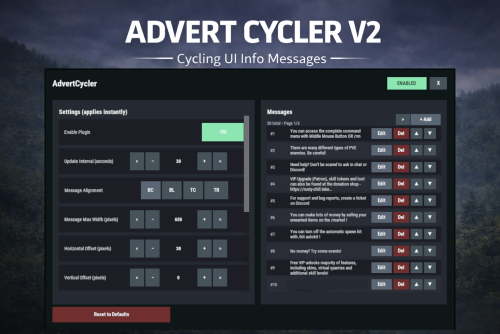
AdvertCycler lets you create a rotating list of on-screen info messages (“adverts”) that display to players without spamming chat. It’s a clean, unobtrusive alternative to chat-based announcers, and the positioning is designed to remain consistent across different screen resolutions and UI scale settings. Messages cycle on a configurable timer, either in order or randomly. You can fine-tune how the message looks and where it appears using: Preset alignment modes (Bottom Center / Bottom Left / Top Center / Top Right) Horizontal + Vertical offsets (with small/big nudge controls for precise positioning) Max text line width Font size Optional text outline with configurable color (quick-pick color swatches in the UI) Admin UI (Instant Apply) AdvertCycler includes a built-in admin UI for live editing and previewing changes in real time: Toggle the plugin on/off Adjust interval, alignment, offsets, width, and font settings Enable/disable outline and pick outline color Choose whether the advert displays on Overlay or Hud Manage the message list: Add / Edit / Delete Reorder messages (move up/down) Paging for large lists All changes apply instantly, so you can visually tune placement and style while in-game. Permissions advertcycler.admin - Grants access to the admin UI and allows editing of all AdvertCycler settings and messages. advertcycler.view - players/groups with this permission will be shown the advert messages. Chat Command /adverts - opens the editor UI Config Example { "AdvertCycler": { "Enable Plugin": true, /Can disable globally from config if needed for whatever reason. "Update Interval (seconds)": 30, /How often the message should change "Message Alignment (BottomCenter/BottomLeft/TopCenter/TopRight)": "BottomLeft", /Base position where the messages should appear "Message Max Width (pixels)": 300, /Maximum line width for text. Anything beyond carries on new line "Vertical Offset (pixels)": 10, /Fine Up and Down adjustment of text position "Horizontal Offset (pixels)": 2, /Fine Left and Right adjustment of text position "Enable Text Outline": true, /Enable or disable text outline "Text Outline Color (HEX)": "#000000", /Color of text outline. Black by default. "Font Size (pixels)": 12, /Text font size "Display as Overlay": true, /Displaying the messages as overlay will allow them to be seen on top of other in game hud screens such as inventory "Randomize Messages": false, /Messages can be displayed at random "Message List": [ "For server info, type <color=#30FEDE>/info</color> in chat.", "There are many different types of PVE enemies. Be careful!" ] } } HTML can be used in messages to modify color in full or partially, example: For server info, type <color=#30FEDE>/info</color> in chat.$7.99 -
Version 4.3.6
15,915 downloads
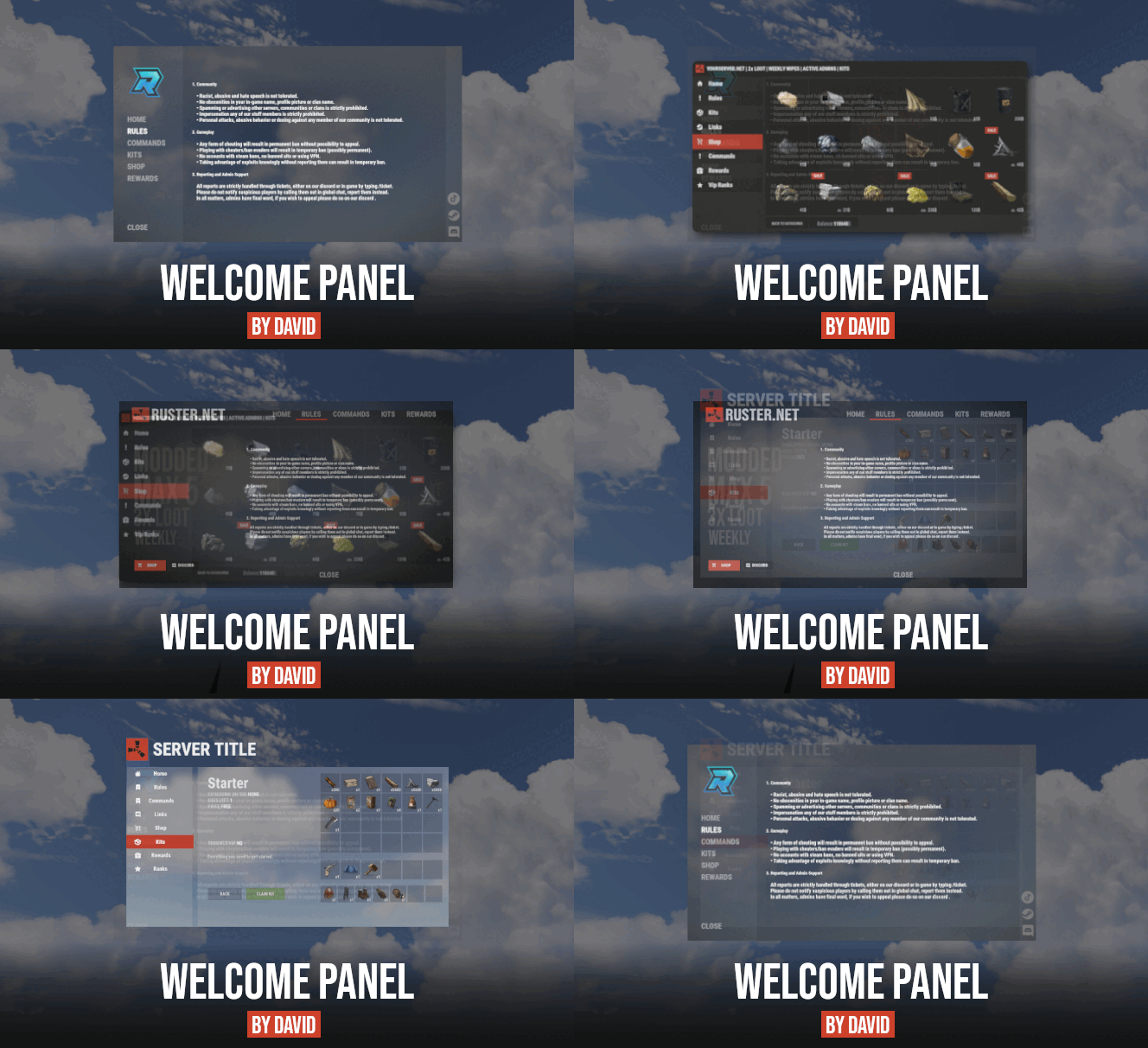
Site In case you having issues with plugin feel free to open support ticket on site here. I will usually respond within 24 hours not including weekends. Discord I'm also available at my discord server where I provide support for my customers. You can also find small community here and get answers for your questions. Invite link here. Documentation To find out what can be customized within config file please refer to full plugin documentation here. Any questions prior to purchasing forward into DM here or into ticket at my discord. Default configs available as template with plugin. Screenshots bellow showcasing configurations created by customers. These are not available with the plugin but I decided to post them here since it's good demonstration of how customizable this plugin is. BOOBLEJ Tide Neighigh Paul Leunal17 BOOBLEJ How to start using plugin? Simply drop WelcomePanelLite.cs file into your plugin folder. After successfully loading plugin you can use default command /info in game. Configuration is handled in config file (oxide/config/WelcomePanelLite.json). How hard is to get this plugin all set up? It's fairly simple. Plugin comes with default configuration which showcases everything you need to know regarding text, styling and changing images. How hard it is to customize your own layout? When it comes to changing color or images it's simple, any inexperienced user can do it however if you want to customize positions of UI or add extra tab buttons, it requires understanding of "ui anchors". Anchors are not that complicated but it takes hour or two to fully understand it. For more info check documentation. Can I add multiple pages into WelcomePanel? Yes, you can add unlimited amount of pages. Can I add images into WelcomePanel? Yes, you can add image to any panel and you can set background for each tab What image sizes I should use? This is different for each panel across different templates. Basically images parented to any panel are stretched to its size. Best approach is to take screenshot of the panel and try to fit image size into that prior to uploading it. How to add addons? Each text tab has addon option at bottom, just type in plugin name. List of available addons can be found at the top of the plugin description, listed as "Works with".$16.99 -
Version 1.1.2
46 downloads
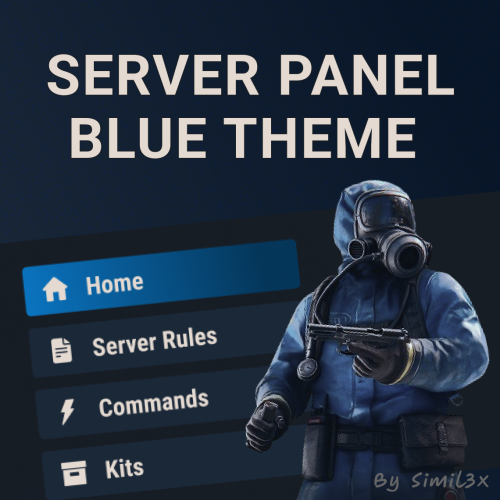
Blue Theme for Server Panel by Simil3x Transform your server interface with a modern look using this clean blue-themed UI for the Server Panel plugin. Designed to enhance clarity and usability while keeping all core features intact. What's Included: ● Ready-to-use JSON configuration - no coding required ● Complete visual redesign of the Server Panel UI ● Calm blue color palette with improved contrast ● Streamlined layout with consistent spacing and alignment ● Enhanced readability for commands and settings Installation: 1. Make sure you have the latest version of the Server Panel plugin installed. 2, Use the /sp.install command and install the V5 template. 3, Download the theme archive. 4, Extract the contents of the archive into your oxide folder. 5, Reload Server Panel plugin Done - your new interface is live! Why Choose This Theme? This isn't just a recolor - it’s a full UI refresh. Every element, from headers to buttons, was rebuilt with usability and clean aesthetics in mind. Whether you're managing kits, commands, or player stats, this layout makes interactions smoother and more intuitive. You can modify content without touching JSON files, plugin includes an intuitive in-game editor. Looking for custom plugin design? Need something completely unique? I offer full-service UI design for any Rust plugin. From initial concept and Figma prototypes to final game-ready implementation - professional custom interfaces tailored to your needs. Contact me: Discord: Simil3x Telegram: @Simil3x_dm Compatible with the latest version of the Server Panel plugin. Easy installation, instant results.$16.99 -
Version 1.2.8
1,075 downloads
Description : This plugin allows you to have a graphical interface on your servers which will then give you information on the number of players, my not only that, all that in real time Editor : https://hud-panel.the-bandit.ovh/ Requires : ImageLibrary Compatible : TimedPermissions Economics TruePVE ServerRewards ZoneManager BuildCost UI Panel function : An ON/OFF button on the panel. A store button/Kits/Info/... An online player counter. An sleeping player counter. An player counter. A clock that gives the time of the match. A dial that gives the player balance. A dial that gives PVP/PVE information. A dial that indicates the time of a leave. A dial that displays your messages. A counter that gives the distance between you and your point. A dial that shows the player’s position on the map in real time. A dial that gives the server’s fps. An icon for the cargo plane event. An icon for freight events. An icon for ch47 events. An icon for attack helicopter events. An icon for tank events. An icon for your custom events via ( hook). Time format : file : /oxide/lang/en/HUDPanel.json for 12h format "Time_Format": "hh:mm tt", for 24h format "Time_Format": "HH:mm", https://www.c-sharpcorner.com/blogs/date-and-time-format-in-c-sharp-programming1 Themes : HUD BASIC CUBE TRIANGLE Icon ID : Contents : - HUDPanel.cs Install : rust\oxide\plugins\HUDPanel.cs Config : rust\oxide\config\HUDPanel.json { "Scan current map events on reload": true, "Chat command to show/disappear the HUDPanel": "h", "Anti Freeze Server Fps Limit": 15, "Change the overall size of the HUD Panel (30 - 100) Default 48": 48, "Width between icon": 18, "Change the sound of the On/Off button": "assets/prefabs/locks/keypad/effects/lock.code.lock.prefab", "Type the coordinate ( X: 1000 | Z: 1000 : 0 ), ( map : A1 : 1 ), ( Auto : 2 )": 2, "List Messages": { "Messages": { "On/Off (true/false)": true, "How long until the next message": 10, "Messages": [ "Messages 1", "Messages 2", "Messages 3" ], "The order the icon should place": 0, "Change text alignment": 4, "Text size": 11, "Text fonts ( 0 - 3 )": 0, "Color Text ( HEX )": "#ffffff", "The position on the screen that the icon should be ( LeftTop, CenterTop, RightTop, LeftBottom, CenterBottom, RightBottom)": "CenterTop", "Swich On": { "Themes ( HUD - BASIC - CUBE - TRIANGLE )": "HUD", "Color 1": "#000000", "Color 2": "#3f51b5", "Color 3": null, "Color Icon": "#ffffff", "Opacity 1": 0.3, "Opacity 2": 1.0, "Opacity 3": 0.0, "Opacity icon": 1.0, "Enlarge icon": 2.1, "Icon ID": "Messages", "URL Custom": null }, "Swich OFF": null, "Position of text in the logo": "20 0 -1 0", "Width BAR SIZE : 1 - 15": 8 } }, "Timed Permissions: Edit 'vip_*' ( Permissions / Groups )": { "vip_1": { "On/Off (true/false)": true, "Reload delay": 5, "Commands (leave blank to disable)": null, "The order the icon should place": 0, "Change text alignment": 4, "Text size": 11, "Text fonts ( 0 - 3 )": 0, "Color Text ( HEX )": "#ffffff", "The position on the screen that the icon should be ( LeftTop, CenterTop, RightTop, LeftBottom, CenterBottom, RightBottom)": "CenterTop", "Swich On": { "Themes ( HUD - BASIC - CUBE - TRIANGLE )": "HUD", "Color 1": "#000000", "Color 2": "#ff9800", "Color 3": null, "Color Icon": "#ffffff", "Opacity 1": 0.3, "Opacity 2": 1.0, "Opacity 3": 0.0, "Opacity icon": 1.0, "Enlarge icon": 1.5, "Icon ID": "Vip_3", "URL Custom": null }, "Swich OFF": null, "Position of text in the logo": "20 0 -1 0", "Width BAR SIZE : 1 - 15": 7 }, "demo": { "On/Off (true/false)": true, "Reload delay": 5, "Commands (leave blank to disable)": null, "The order the icon should place": 0, "Change text alignment": 4, "Text size": 11, "Text fonts ( 0 - 3 )": 0, "Color Text ( HEX )": "#ffffff", "The position on the screen that the icon should be ( LeftTop, CenterTop, RightTop, LeftBottom, CenterBottom, RightBottom)": "CenterBottom", "Swich On": { "Themes ( HUD - BASIC - CUBE - TRIANGLE )": "HUD", "Color 1": "#000000", "Color 2": "#ff9800", "Color 3": null, "Color Icon": "#ffffff", "Opacity 1": 0.3, "Opacity 2": 1.0, "Opacity 3": 0.0, "Opacity icon": 1.0, "Enlarge icon": 1.5, "Icon ID": "Vip_1", "URL Custom": null }, "Swich OFF": null, "Position of text in the logo": "20 0 -2 0", "Width BAR SIZE : 1 - 15": 7 } }, "Custom events": { "Sputnik": { "On/Off (true/false)": true, "The order the icon should place": 5, "The position on the screen that the icon should be ( LeftTop, CenterTop, RightTop, LeftBottom, CenterBottom, RightBottom)": "RightTop", "On Event start ( Hook )": "OnSputnikEventStart", "On Event End ( Hook )": "OnSputnikEventStop", "Swich On": { "Themes ( HUD - BASIC - CUBE - TRIANGLE )": "HUD", "Color 1": "#000000", "Color 2": "#ff8100", "Color 3": "#ffffff", "Color Icon": "#ffffff", "Opacity 1": 0.4, "Opacity 2": 1.0, "Opacity 3": 0.0, "Opacity icon": 1.0, "Enlarge icon": 1.6, "Icon ID": "Sputnik", "URL Custom": null }, "Swich OFF": { "Themes ( HUD - BASIC - CUBE - TRIANGLE )": "HUD", "Color 1": "#000000", "Color 2": "#000000", "Color 3": "#ffffff", "Color Icon": "#ffffff", "Opacity 1": 0.3, "Opacity 2": 0.0, "Opacity 3": 0.1, "Opacity icon": 1.0, "Enlarge icon": 1.6, "Icon ID": "Sputnik", "URL Custom": null }, "Width BAR SIZE : 1 - 15": 1 }, "Convoy": { "On/Off (true/false)": true, "The order the icon should place": 6, "The position on the screen that the icon should be ( LeftTop, CenterTop, RightTop, LeftBottom, CenterBottom, RightBottom)": "RightTop", "On Event start ( Hook )": "OnConvoyStart", "On Event End ( Hook )": "OnConvoyEnd", "Swich On": { "Themes ( HUD - BASIC - CUBE - TRIANGLE )": "HUD", "Color 1": "#000000", "Color 2": "#ff8100", "Color 3": "#ffffff", "Color Icon": "#ffffff", "Opacity 1": 0.4, "Opacity 2": 1.0, "Opacity 3": 0.0, "Opacity icon": 1.0, "Enlarge icon": 1.6, "Icon ID": "Convoy", "URL Custom": null }, "Swich OFF": { "Themes ( HUD - BASIC - CUBE - TRIANGLE )": "HUD", "Color 1": "#000000", "Color 2": "#000000", "Color 3": "#ffffff", "Color Icon": "#ffffff", "Opacity 1": 0.3, "Opacity 2": 0.0, "Opacity 3": 0.1, "Opacity icon": 1.0, "Enlarge icon": 1.6, "Icon ID": "Convoy", "URL Custom": null }, "Width BAR SIZE : 1 - 15": 1 }, "ArmoredTrain": { "On/Off (true/false)": true, "The order the icon should place": 7, "The position on the screen that the icon should be ( LeftTop, CenterTop, RightTop, LeftBottom, CenterBottom, RightBottom)": "RightTop", "On Event start ( Hook )": "OnArmoredTrainEventStart", "On Event End ( Hook )": "OnArmoredTrainEventStop", "Swich On": { "Themes ( HUD - BASIC - CUBE - TRIANGLE )": "HUD", "Color 1": "#000000", "Color 2": "#ff8100", "Color 3": "#ffffff", "Color Icon": "#ffffff", "Opacity 1": 0.4, "Opacity 2": 1.0, "Opacity 3": 0.0, "Opacity icon": 1.0, "Enlarge icon": 1.6, "Icon ID": "Train", "URL Custom": null }, "Swich OFF": { "Themes ( HUD - BASIC - CUBE - TRIANGLE )": "HUD", "Color 1": "#000000", "Color 2": "#000000", "Color 3": "#ffffff", "Color Icon": "#ffffff", "Opacity 1": 0.3, "Opacity 2": 0.0, "Opacity 3": 0.1, "Opacity icon": 1.0, "Enlarge icon": 1.6, "Icon ID": "Train", "URL Custom": null }, "Width BAR SIZE : 1 - 15": 1 }, "Harbor": { "On/Off (true/false)": true, "The order the icon should place": 8, "The position on the screen that the icon should be ( LeftTop, CenterTop, RightTop, LeftBottom, CenterBottom, RightBottom)": "RightTop", "On Event start ( Hook )": "OnHarborEventStart", "On Event End ( Hook )": "OnHarborEventEnd", "Swich On": { "Themes ( HUD - BASIC - CUBE - TRIANGLE )": "HUD", "Color 1": "#000000", "Color 2": "#ff8100", "Color 3": "#ffffff", "Color Icon": "#ffffff", "Opacity 1": 0.4, "Opacity 2": 1.0, "Opacity 3": 0.0, "Opacity icon": 1.0, "Enlarge icon": 2.0, "Icon ID": "Harbor", "URL Custom": null }, "Swich OFF": { "Themes ( HUD - BASIC - CUBE - TRIANGLE )": "HUD", "Color 1": "#000000", "Color 2": "#000000", "Color 3": "#ffffff", "Color Icon": "#ffffff", "Opacity 1": 0.3, "Opacity 2": 0.0, "Opacity 3": 0.1, "Opacity icon": 1.0, "Enlarge icon": 2.0, "Icon ID": "Harbor", "URL Custom": null }, "Width BAR SIZE : 1 - 15": 1 } }, "Default events": { "Patrol": { "On/Off (true/false)": true, "Change text alignment": 4, "Text size": 11, "Text fonts ( 0 - 3 )": 0, "Color Text ( HEX )": "#ffffff", "Position of text in the logo": "20 0 -1 0", "The order the icon should place": 2, "The position on the screen that the icon should be ( LeftTop, CenterTop, RightTop, LeftBottom, CenterBottom, RightBottom)": "RightTop", "On Event start ( Hook )": null, "On Event End ( Hook )": null, "Swich On": { "Themes ( HUD - BASIC - CUBE - TRIANGLE )": "HUD", "Color 1": "#000000", "Color 2": "#ff0000", "Color 3": "#ffffff", "Color Icon": "#ffffff", "Opacity 1": 0.3, "Opacity 2": 1.0, "Opacity 3": 0.0, "Opacity icon": 1.0, "Enlarge icon": 1.6, "Icon ID": "Patrol", "URL Custom": null }, "Swich OFF": { "Themes ( HUD - BASIC - CUBE - TRIANGLE )": "HUD", "Color 1": "#000000", "Color 2": "#ff0000", "Color 3": "#ffffff", "Color Icon": "#ffffff", "Opacity 1": 0.3, "Opacity 2": 0.0, "Opacity 3": 0.1, "Opacity icon": 1.0, "Enlarge icon": 1.6, "Icon ID": "Patrol", "URL Custom": null }, "Width BAR SIZE : 1 - 15": 1 }, "Ch47": { "On/Off (true/false)": true, "Change text alignment": 4, "Text size": 11, "Text fonts ( 0 - 3 )": 0, "Color Text ( HEX )": "#ffffff", "Position of text in the logo": "20 0 -1 0", "The order the icon should place": 3, "The position on the screen that the icon should be ( LeftTop, CenterTop, RightTop, LeftBottom, CenterBottom, RightBottom)": "RightTop", "On Event start ( Hook )": null, "On Event End ( Hook )": null, "Swich On": { "Themes ( HUD - BASIC - CUBE - TRIANGLE )": "HUD", "Color 1": "#000000", "Color 2": "#ff0000", "Color 3": "#ffffff", "Color Icon": "#ffffff", "Opacity 1": 0.3, "Opacity 2": 1.0, "Opacity 3": 0.0, "Opacity icon": 1.0, "Enlarge icon": 1.8, "Icon ID": "Ch-47", "URL Custom": null }, "Swich OFF": { "Themes ( HUD - BASIC - CUBE - TRIANGLE )": "HUD", "Color 1": "#000000", "Color 2": "#ff0000", "Color 3": "#ffffff", "Color Icon": "#ffffff", "Opacity 1": 0.3, "Opacity 2": 0.0, "Opacity 3": 0.1, "Opacity icon": 1.0, "Enlarge icon": 1.8, "Icon ID": "Ch-47", "URL Custom": null }, "Width BAR SIZE : 1 - 15": 1 }, "Plane": { "On/Off (true/false)": true, "Change text alignment": 4, "Text size": 11, "Text fonts ( 0 - 3 )": 0, "Color Text ( HEX )": "#ffffff", "Position of text in the logo": "20 0 -1 0", "The order the icon should place": 10, "The position on the screen that the icon should be ( LeftTop, CenterTop, RightTop, LeftBottom, CenterBottom, RightBottom)": "RightTop", "On Event start ( Hook )": null, "On Event End ( Hook )": null, "Swich On": { "Themes ( HUD - BASIC - CUBE - TRIANGLE )": "HUD", "Color 1": "#000000", "Color 2": "#007f00", "Color 3": "#ffffff", "Color Icon": "#ffffff", "Opacity 1": 0.3, "Opacity 2": 1.0, "Opacity 3": 0.0, "Opacity icon": 1.0, "Enlarge icon": 1.8, "Icon ID": "Plane", "URL Custom": null }, "Swich OFF": { "Themes ( HUD - BASIC - CUBE - TRIANGLE )": "HUD", "Color 1": "#000000", "Color 2": "#ff0000", "Color 3": "#ffffff", "Color Icon": "#ffffff", "Opacity 1": 0.3, "Opacity 2": 0.0, "Opacity 3": 0.1, "Opacity icon": 1.0, "Enlarge icon": 1.8, "Icon ID": "Plane", "URL Custom": null }, "Width BAR SIZE : 1 - 15": 2 }, "Cargo": { "On/Off (true/false)": true, "Change text alignment": 4, "Text size": 11, "Text fonts ( 0 - 3 )": 0, "Color Text ( HEX )": "#ffffff", "Position of text in the logo": "20 0 -1 0", "The order the icon should place": 4, "The position on the screen that the icon should be ( LeftTop, CenterTop, RightTop, LeftBottom, CenterBottom, RightBottom)": "RightTop", "On Event start ( Hook )": null, "On Event End ( Hook )": null, "Swich On": { "Themes ( HUD - BASIC - CUBE - TRIANGLE )": "HUD", "Color 1": "#000000", "Color 2": "#007f00", "Color 3": "#ffffff", "Color Icon": "#ffffff", "Opacity 1": 0.3, "Opacity 2": 1.0, "Opacity 3": 0.0, "Opacity icon": 1.0, "Enlarge icon": 1.5, "Icon ID": "Cargo", "URL Custom": null }, "Swich OFF": { "Themes ( HUD - BASIC - CUBE - TRIANGLE )": "HUD", "Color 1": "#000000", "Color 2": "#ff0000", "Color 3": "#ffffff", "Color Icon": "#ffffff", "Opacity 1": 0.3, "Opacity 2": 0.0, "Opacity 3": 0.1, "Opacity icon": 1.0, "Enlarge icon": 1.5, "Icon ID": "Cargo", "URL Custom": null }, "Width BAR SIZE : 1 - 15": 1 }, "BradleyAPC": { "On/Off (true/false)": true, "Change text alignment": 4, "Text size": 11, "Text fonts ( 0 - 3 )": 0, "Color Text ( HEX )": "#ffffff", "Position of text in the logo": "20 0 -1 0", "The order the icon should place": 1, "The position on the screen that the icon should be ( LeftTop, CenterTop, RightTop, LeftBottom, CenterBottom, RightBottom)": "RightTop", "On Event start ( Hook )": null, "On Event End ( Hook )": null, "Swich On": { "Themes ( HUD - BASIC - CUBE - TRIANGLE )": "HUD", "Color 1": "#000000", "Color 2": "#ff0000", "Color 3": "#ffffff", "Color Icon": "#ffffff", "Opacity 1": 0.4, "Opacity 2": 1.0, "Opacity 3": 0.0, "Opacity icon": 1.0, "Enlarge icon": 1.4, "Icon ID": "BradleyAPC", "URL Custom": null }, "Swich OFF": { "Themes ( HUD - BASIC - CUBE - TRIANGLE )": "HUD", "Color 1": "#000000", "Color 2": "#ff0000", "Color 3": "#ffffff", "Color Icon": "#ffffff", "Opacity 1": 0.3, "Opacity 2": 0.0, "Opacity 3": 0.1, "Opacity icon": 1.0, "Enlarge icon": 1.4, "Icon ID": "BradleyAPC", "URL Custom": null }, "Width BAR SIZE : 1 - 15": 1 } }, "Information frame": { "Power": { "On/Off (true/false)": true, "Reload delay": 0, "Commands (leave blank to disable)": null, "The order the icon should place": 1, "Change text alignment": 4, "Text size": 11, "Text fonts ( 0 - 3 )": 0, "Color Text ( HEX )": "#ffffff", "The position on the screen that the icon should be ( LeftTop, CenterTop, RightTop, LeftBottom, CenterBottom, RightBottom)": "LeftTop", "Position of text in the logo": "0 0 0 0", "Swich On": { "Themes ( HUD - BASIC - CUBE - TRIANGLE )": "HUD", "Color 1": "#000000", "Color 2": "#007f00", "Color 3": null, "Color Icon": "#ffffff", "Opacity 1": 0.3, "Opacity 2": 1.0, "Opacity 3": 0.0, "Opacity icon": 1.0, "Enlarge icon": 1.8, "Icon ID": "Power", "URL Custom": null }, "Swich OFF": { "Themes ( HUD - BASIC - CUBE - TRIANGLE )": "HUD", "Color 1": "#000000", "Color 2": "#ff0000", "Color 3": null, "Color Icon": "#ffffff", "Opacity 1": 0.3, "Opacity 2": 1.0, "Opacity 3": 0.0, "Opacity icon": 1.0, "Enlarge icon": 1.8, "Icon ID": "Power", "URL Custom": null }, "Width BAR SIZE : 1 - 15": 1 }, "Players": { "On/Off (true/false)": true, "Reload delay": 1, "Commands (leave blank to disable)": null, "The order the icon should place": 2, "Change text alignment": 4, "Text size": 11, "Text fonts ( 0 - 3 )": 0, "Color Text ( HEX )": "#ffffff", "The position on the screen that the icon should be ( LeftTop, CenterTop, RightTop, LeftBottom, CenterBottom, RightBottom)": "LeftTop", "Position of text in the logo": "20 0 -1 0", "Swich On": { "Themes ( HUD - BASIC - CUBE - TRIANGLE )": "HUD", "Color 1": "#000000", "Color 2": "#3d3d44", "Color 3": null, "Color Icon": "#ffffff", "Opacity 1": 0.3, "Opacity 2": 1.0, "Opacity 3": 0.0, "Opacity icon": 1.0, "Enlarge icon": 1.8, "Icon ID": "Players", "URL Custom": null }, "Swich OFF": null, "Width BAR SIZE : 1 - 15": 3 }, "Sleep": { "On/Off (true/false)": true, "Reload delay": 2, "Commands (leave blank to disable)": null, "The order the icon should place": 3, "Change text alignment": 4, "Text size": 11, "Text fonts ( 0 - 3 )": 0, "Color Text ( HEX )": "#ffffff", "The position on the screen that the icon should be ( LeftTop, CenterTop, RightTop, LeftBottom, CenterBottom, RightBottom)": "LeftTop", "Position of text in the logo": "20 0 -1 0", "Swich On": { "Themes ( HUD - BASIC - CUBE - TRIANGLE )": "HUD", "Color 1": "#000000", "Color 2": "#ff8100", "Color 3": null, "Color Icon": "#ffffff", "Opacity 1": 0.3, "Opacity 2": 1.0, "Opacity 3": 0.0, "Opacity icon": 1.0, "Enlarge icon": 1.8, "Icon ID": "Sleep", "URL Custom": null }, "Swich OFF": null, "Width BAR SIZE : 1 - 15": 2 }, "Joining": { "On/Off (true/false)": true, "Reload delay": 1, "Commands (leave blank to disable)": null, "The order the icon should place": 4, "Change text alignment": 4, "Text size": 11, "Text fonts ( 0 - 3 )": 0, "Color Text ( HEX )": "#ffffff", "The position on the screen that the icon should be ( LeftTop, CenterTop, RightTop, LeftBottom, CenterBottom, RightBottom)": "LeftTop", "Position of text in the logo": "20 0 -1 0", "Swich On": { "Themes ( HUD - BASIC - CUBE - TRIANGLE )": "HUD", "Color 1": "#000000", "Color 2": "#ff0000", "Color 3": null, "Color Icon": "#ffffff", "Opacity 1": 0.3, "Opacity 2": 1.0, "Opacity 3": 0.0, "Opacity icon": 1.0, "Enlarge icon": 1.8, "Icon ID": "Joining", "URL Custom": null }, "Swich OFF": null, "Width BAR SIZE : 1 - 15": 2 }, "Times": { "On/Off (true/false)": true, "Reload delay": 5, "Commands (leave blank to disable)": null, "The order the icon should place": 5, "Change text alignment": 4, "Text size": 11, "Text fonts ( 0 - 3 )": 0, "Color Text ( HEX )": "#ffffff", "The position on the screen that the icon should be ( LeftTop, CenterTop, RightTop, LeftBottom, CenterBottom, RightBottom)": "LeftTop", "Position of text in the logo": "20 0 -1 0", "Swich On": { "Themes ( HUD - BASIC - CUBE - TRIANGLE )": "HUD", "Color 1": "#000000", "Color 2": "#00a7c2", "Color 3": null, "Color Icon": "#ffffff", "Opacity 1": 0.3, "Opacity 2": 1.0, "Opacity 3": 0.0, "Opacity icon": 1.0, "Enlarge icon": 1.8, "Icon ID": "Times", "URL Custom": null }, "Swich OFF": null, "Width BAR SIZE : 1 - 15": 2 }, "ServerRewards": { "On/Off (true/false)": true, "Reload delay": 3, "Commands (leave blank to disable)": null, "The order the icon should place": 1, "Change text alignment": 4, "Text size": 11, "Text fonts ( 0 - 3 )": 0, "Color Text ( HEX )": "#ffffff", "The position on the screen that the icon should be ( LeftTop, CenterTop, RightTop, LeftBottom, CenterBottom, RightBottom)": "RightBottom", "Position of text in the logo": "20 0 -1 0", "Swich On": { "Themes ( HUD - BASIC - CUBE - TRIANGLE )": "HUD", "Color 1": "#000000", "Color 2": "#ff5722", "Color 3": null, "Color Icon": "#ffffff", "Opacity 1": 0.3, "Opacity 2": 1.0, "Opacity 3": 0.0, "Opacity icon": 1.0, "Enlarge icon": 1.8, "Icon ID": "ServerRewards", "URL Custom": null }, "Swich OFF": null, "Width BAR SIZE : 1 - 15": 5 }, "Economics": { "On/Off (true/false)": true, "Reload delay": 0, "Commands (leave blank to disable)": null, "The order the icon should place": 6, "Change text alignment": 4, "Text size": 11, "Text fonts ( 0 - 3 )": 0, "Color Text ( HEX )": "#ffffff", "The position on the screen that the icon should be ( LeftTop, CenterTop, RightTop, LeftBottom, CenterBottom, RightBottom)": "LeftTop", "Position of text in the logo": "20 0 -1 0", "Swich On": { "Themes ( HUD - BASIC - CUBE - TRIANGLE )": "HUD", "Color 1": "#000000", "Color 2": "#007f00", "Color 3": null, "Color Icon": "#ffffff", "Opacity 1": 0.3, "Opacity 2": 1.0, "Opacity 3": 0.0, "Opacity icon": 1.0, "Enlarge icon": 1.8, "Icon ID": "Economics", "URL Custom": null }, "Swich OFF": null, "Width BAR SIZE : 1 - 15": 5 }, "FPS": { "On/Off (true/false)": true, "Reload delay": 1, "Commands (leave blank to disable)": null, "The order the icon should place": 2, "Change text alignment": 4, "Text size": 11, "Text fonts ( 0 - 3 )": 0, "Color Text ( HEX )": "#ffffff", "The position on the screen that the icon should be ( LeftTop, CenterTop, RightTop, LeftBottom, CenterBottom, RightBottom)": "LeftBottom", "Position of text in the logo": "20 0 -1 0", "Swich On": { "Themes ( HUD - BASIC - CUBE - TRIANGLE )": "HUD", "Color 1": "#000000", "Color 2": "#ff0066", "Color 3": null, "Color Icon": "#ffffff", "Opacity 1": 0.3, "Opacity 2": 1.0, "Opacity 3": 0.0, "Opacity icon": 1.0, "Enlarge icon": 1.8, "Icon ID": "FPS", "URL Custom": null }, "Swich OFF": null, "Width BAR SIZE : 1 - 15": 2 }, "PvpPve": { "On/Off (true/false)": true, "Reload delay": 10, "Commands (leave blank to disable)": null, "The order the icon should place": 1, "Change text alignment": 4, "Text size": 11, "Text fonts ( 0 - 3 )": 0, "Color Text ( HEX )": "#ffffff", "The position on the screen that the icon should be ( LeftTop, CenterTop, RightTop, LeftBottom, CenterBottom, RightBottom)": "LeftBottom", "Position of text in the logo": "20 0 -1 0", "Swich On": { "Themes ( HUD - BASIC - CUBE - TRIANGLE )": "HUD", "Color 1": "#000000", "Color 2": "#ff0066", "Color 3": null, "Color Icon": "#ffffff", "Opacity 1": 0.3, "Opacity 2": 1.0, "Opacity 3": 0.0, "Opacity icon": 1.0, "Enlarge icon": 1.8, "Icon ID": "PvpPve", "URL Custom": null }, "Swich OFF": null, "Width BAR SIZE : 1 - 15": 3 }, "Coordinate": { "On/Off (true/false)": false, "Reload delay": 3, "Commands (leave blank to disable)": null, "The order the icon should place": 5, "Change text alignment": 4, "Text size": 11, "Text fonts ( 0 - 3 )": 0, "Color Text ( HEX )": "#ffffff", "The position on the screen that the icon should be ( LeftTop, CenterTop, RightTop, LeftBottom, CenterBottom, RightBottom)": "RightTop", "Position of text in the logo": "20 0 -1 0", "Swich On": { "Themes ( HUD - BASIC - CUBE - TRIANGLE )": "HUD", "Color 1": "#000000", "Color 2": "#006bc3", "Color 3": null, "Color Icon": "#ffffff", "Opacity 1": 0.3, "Opacity 2": 1.0, "Opacity 3": 0.0, "Opacity icon": 1.0, "Enlarge icon": 1.8, "Icon ID": "Coordinate", "URL Custom": null }, "Swich OFF": null, "Width BAR SIZE : 1 - 15": 6 }, "MarkerPos": { "On/Off (true/false)": true, "Reload delay": 1, "Commands (leave blank to disable)": null, "The order the icon should place": 2, "Change text alignment": 4, "Text size": 11, "Text fonts ( 0 - 3 )": 0, "Color Text ( HEX )": "#ffffff", "The position on the screen that the icon should be ( LeftTop, CenterTop, RightTop, LeftBottom, CenterBottom, RightBottom)": "RightBottom", "Position of text in the logo": "20 0 -1 0", "Swich On": { "Themes ( HUD - BASIC - CUBE - TRIANGLE )": "HUD", "Color 1": "#000000", "Color 2": "#feab00", "Color 3": null, "Color Icon": "#ffffff", "Opacity 1": 0.3, "Opacity 2": 1.0, "Opacity 3": 0.0, "Opacity icon": 1.0, "Enlarge icon": 1.8, "Icon ID": "MarkerPos", "URL Custom": null }, "Swich OFF": null, "Width BAR SIZE : 1 - 15": 2 } }, "Button Custom": { "Shop": { "On/Off (true/false)": true, "Commands (leave blank to disable)": "shop", "The order the icon should place": 6, "Text size": 11, "Text fonts ( 0 - 3 )": 0, "Color Text ( HEX )": "#ffffff", "Position of text in the logo": "20 0 -1 0", "Change text alignment": 4, "The position on the screen that the icon should be ( LeftTop, CenterTop, RightTop, LeftBottom, CenterBottom, RightBottom)": "CenterBottom", "Swich On": { "Themes ( HUD - BASIC - CUBE - TRIANGLE )": "HUD", "Color 1": "#000000", "Color 2": "#000000", "Color 3": "#ffffff", "Color Icon": "#ffffff", "Opacity 1": 0.4, "Opacity 2": 0.4, "Opacity 3": 1.0, "Opacity icon": 0.9, "Enlarge icon": 1.7, "Icon ID": "Shop", "URL Custom": null }, "Swich OFF": null, "Width BAR SIZE : 1 - 15": 2 }, "Kits": { "On/Off (true/false)": true, "Commands (leave blank to disable)": "chat.say /kit", "The order the icon should place": 6, "Text size": 11, "Text fonts ( 0 - 3 )": 0, "Color Text ( HEX )": "#ffffff", "Position of text in the logo": "20 0 -1 0", "Change text alignment": 4, "The position on the screen that the icon should be ( LeftTop, CenterTop, RightTop, LeftBottom, CenterBottom, RightBottom)": "CenterBottom", "Swich On": { "Themes ( HUD - BASIC - CUBE - TRIANGLE )": "HUD", "Color 1": "#000000", "Color 2": "#000000", "Color 3": "#ffffff", "Color Icon": "#ffffff", "Opacity 1": 0.4, "Opacity 2": 0.4, "Opacity 3": 1.0, "Opacity icon": 0.9, "Enlarge icon": 1.7, "Icon ID": "Kits", "URL Custom": null }, "Swich OFF": null, "Width BAR SIZE : 1 - 15": 2 }, "Info": { "On/Off (true/false)": true, "Commands (leave blank to disable)": "chat.say /info", "The order the icon should place": 6, "Text size": 11, "Text fonts ( 0 - 3 )": 0, "Color Text ( HEX )": "#ffffff", "Position of text in the logo": "20 0 -1 0", "Change text alignment": 4, "The position on the screen that the icon should be ( LeftTop, CenterTop, RightTop, LeftBottom, CenterBottom, RightBottom)": "CenterBottom", "Swich On": { "Themes ( HUD - BASIC - CUBE - TRIANGLE )": "HUD", "Color 1": "#000000", "Color 2": "#000000", "Color 3": "#ffffff", "Color Icon": "#ffffff", "Opacity 1": 0.4, "Opacity 2": 0.4, "Opacity 3": 1.0, "Opacity icon": 0.9, "Enlarge icon": 1.9, "Icon ID": "Info", "URL Custom": null }, "Swich OFF": null, "Width BAR SIZE : 1 - 15": 1 } } }$12.99 -
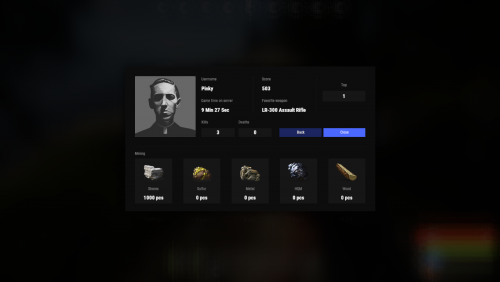
Version 1.1.5
1,004 downloads
Beautiful display of player statistics and player ratings. Features: Beautiful user interface Customization (all interface you can set up in configuration) Performance Commands stats open statistics interface stats [steamId] open statistics interface leaderboard open leaderboard interface Permissions statistics.use open statistics interface statistics.hide hides player from leaderboard FAQ: Q: Where can I see an example of a config? A: Config Q: What should I do if I get the error "You do not have permission to use this command!"? A: To solve this problem, you need to grant the "statistics.use" permission to your players. For example, granting this permission to the "default" group is done with the following command: oxide.grant group default statistics.use$19.95- 56 comments
- 3 reviews
-
- 4
-
-
- #statistics
- #leaderboard
- (and 12 more)
-
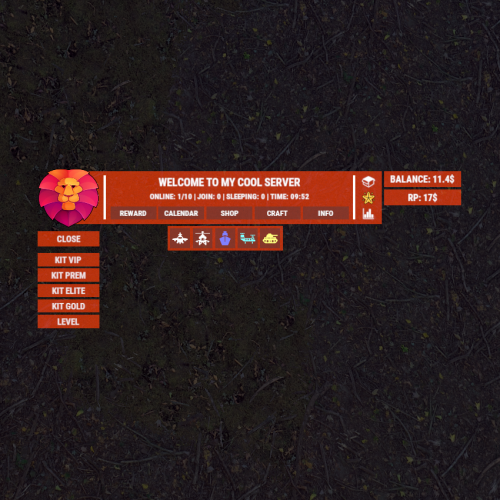
Version 1.1.14
408 downloads
XMenu - beautiful menu for your server. - Optimization of the interface for different monitor resolutions. - There is a lang ru/en/uk/es. - Sound effects when interacting with the menu. - Refresh the information in the menu [ Refresh only the open menu ]. - Customize menu colors. - Customize menu buttons. - Shift menu for active missions. - Information display [ Online | Sleepers | Joins | Time ]. - Display of events [ Airplane, Helicopter, Ship, Chinook, Tank ]. - Displaying information of other plugins [ For example: balance of the in-game store or economy ]. - Dropdown menu with additional buttons. - The ability to completely remove the menu/logo from the screen on command. - The ability to display player coordinates/grid. -> Overview - YouTube <- Permissions xmenu.usecmd - access to the use of a command that removes the menu/logo from the screen. Commands /uimenu on/off - completely remove the menu/logo from the screen. Menu mirror reflection. [ Upper right corner of the screen ] Config: ---------------------------------- "Settings logo": { "Link to the logo image": "https://i.ibb.co/DKnnQw0/Hh7W3hz.png", "Logo color": "1 1 1 1", "Logo material": "assets/icons/greyout.mat", "Logo - AnchorMin": "1 1", "Logo - AnchorMax": "1 1", "Logo - OffsetMin": "-80 -78", "Logo - OffsetMax": "-10 -8", "Move logo - OffsetMin": "-80 -178", "Move logo - OffsetMax": "-10 -108" }, "Settings menu": { "Menu color": "1 0.27 0 0.5", "Menu material": "assets/icons/greyout.mat", "Button color": "0.217 0.221 0.209 0.75", "Button text color": "1 1 1 1", "Side line color": "1 1 1 1", "Button text size": 9, "Close the menu after pressing one of the buttons": false, "Move the menu/logo when the mission is active": false, "Menu - AnchorMin": "1 1", "Menu - AnchorMax": "1 1", "Menu - OffsetMin": "-400 -72.5", "Menu - OffsetMax": "-45 -12.5", "Move menu - OffsetMin": "-400 -172.5", "Move menu - OffsetMax": "-45 -112.5", "Plugin info - AnchorMin": "1 1", "Plugin info - AnchorMax": "1 1", "Plugin info - OffsetMin": "-445 -60", "Plugin info - OffsetMax": "-357.5 0", "Events - AnchorMin": "0 1", "Events - AnchorMax": "0 1", "Events - OffsetMin": "112.25 -90", "Events - OffsetMax": "242.75 -62.5", "Coordinates - AnchorMin": "1 0", "Coordinates - AnchorMax": "1 0", "Coordinates - OffsetMin": "-355 -29.5", "Coordinates - OffsetMax": "-244.75 -2", "Grid - AnchorMin": "1 0", "Grid - AnchorMax": "1 0", "Grid - OffsetMin": "-110.5 -29.5", "Grid - OffsetMax": "-83 -2" }, Plugin code: ---------------------------------- 676 - AnchorMin = "1 1", AnchorMax = "1 1", OffsetMin = "-42.5 -55", OffsetMax = "-40 -5" 682 - AnchorMin = "1 1", AnchorMax = "1 1", OffsetMin = "-325 -55", OffsetMax = "-322.5 -5" 694 - AnchorMin = "0.5 0.5", AnchorMax = "0.5 0.5", OffsetMin = $"{offset - 5} -25", OffsetMax = $"{offset + 47} -10" 715 - AnchorMin = "0.5 0.5", AnchorMax = "0.5 0.5", OffsetMin = $"-170 {offset - 14.25}", OffsetMax = $"-155 {offset + 0.75}" 728 - AnchorMin = "0.5 0.5", AnchorMax = "0.5 0.5", OffsetMin = $"-170 {offset - 14.25}", OffsetMax = $"-155 {offset + 0.75}" 803 - AnchorMin = "1 1", AnchorMax = "1 1", OffsetMin = "-318 -40", OffsetMax = "-47.5 -5" Example of setting information for other plugins. "Configuring information for other plugins. [ Hooks with parameter type - player(BasePlayer) | userID(ulong) ]": [ { "Plugin name": "XShop", "Method name(API)": "API_GetBalance", "Hook parameter type - [ player | userID ]": "player" }, { "Plugin name": "XLevels", "Method name(API)": "API_GetLevel", "Hook parameter type - [ player | userID ]": "player" }, { "Plugin name": "IQEconomic", "Method name(API)": "API_GET_BALANCE", "Hook parameter type - [ player | userID ]": "userID" }, { "Plugin name": "Economics", "Method name(API)": "Balance", "Hook parameter type - [ player | userID ]": "userID" }, { "Plugin name": "ServerRewards", "Method name(API)": "CheckPoints", "Hook parameter type - [ player | userID ]": "userID" } ] Config { "General settings": { "Open menu after connection": false, "Display information of other plugins": false, "Show events": true, "Show grid": true, "Show coordinates": true, "Update menu [ Only the open menu is updated ]": false, "Update information of other plugins [ Updates only when the menu is open ]": false, "Open menu refresh interval": 12.5, "Fake online from the plugin - [ Default - 0 | IQFakeActive - 1 | FGS - 2] - ( Displayed only in the panel and nowhere else )": 0, "Time format - [ HH:mm - 24:00 | hh:mm tt - 12:00 ]": "HH:mm" }, "Settings logo": { "Link to the logo image": "https://i.ibb.co/DKnnQw0/Hh7W3hz.png", "Logo color": "1 1 1 1", "Logo material": "assets/icons/greyout.mat", "Logo - AnchorMin": "0 1", "Logo - AnchorMax": "0 1", "Logo - OffsetMin": "10 -78", "Logo - OffsetMax": "80 -8", "Move logo - OffsetMin": "10 -178", "Move logo - OffsetMax": "80 -108" }, "Settings menu": { "Menu color": "1 0.27 0 0.5", "Menu material": "assets/icons/greyout.mat", "Button color": "0.217 0.221 0.209 0.75", "Button text color": "1 1 1 1", "Side line color": "1 1 1 1", "Button text size": 9, "Close the menu after pressing one of the buttons": false, "Move the menu/logo when the mission is active": false, "Menu - AnchorMin": "0 1", "Menu - AnchorMax": "0 1", "Menu - OffsetMin": "45 -72.5", "Menu - OffsetMax": "400 -12.5", "Move menu - OffsetMin": "45 -172.5", "Move menu - OffsetMax": "400 -112.5", "Plugin info - AnchorMin": "0 1", "Plugin info - AnchorMax": "0 1", "Plugin info - OffsetMin": "357.5 -60", "Plugin info - OffsetMax": "445 0", "Events - AnchorMin": "0 1", "Events - AnchorMax": "0 1", "Events - OffsetMin": "112.25 -90", "Events - OffsetMax": "242.75 -62.5", "Coordinates - AnchorMin": "0 0", "Coordinates - AnchorMax": "0 0", "Coordinates - OffsetMin": "244.75 -29.5", "Coordinates - OffsetMax": "355 -2", "Grid - AnchorMin": "0 0", "Grid - AnchorMax": "0 0", "Grid - OffsetMin": "83 -29.5", "Grid - OffsetMax": "110.5 -2" }, "Settings buttons [ Key_text | Command ] - [ Text setting in oxide/lang ]": { "REWARD": "chat.say /reward", "CALENDAR": "chat.say /calendar", "SHOP": "chat.say /s", "CRAFT": "chat.say /craft", "INFO": "chat.say /info" }, "Dropdown buttons - [ Key_text | Command ] - [ Text setting in oxide/lang ]": { "KIT_VIP": "chat.say /kit vip", "KIT_PREM": "chat.say /kit premium", "KIT_ELITE": "chat.say /kit elite", "KIT_GOLD": "chat.say /kit gold", "LEVEL": "chat.say /level" }, "Settings additional buttons": [ { "Command": "store", "Link to image from internet": "", "Link to icon from the game": "assets/icons/open.png" }, { "Command": "chat.say /s", "Link to image from internet": "https://i.ibb.co/ykDPJ4B/GRZseo8.png", "Link to icon from the game": "assets/icons/community_servers.png" }, { "Command": "chat.say /stats", "Link to image from internet": "", "Link to icon from the game": "assets/icons/market.png" } ], "Settings events": { "Event menu color": "1 0.27 0 0.5", "Event menu material": "assets/icons/greyout.mat", "Event icons background color": "0.217 0.221 0.209 0.75", "Setting up event icons": { "CargoPlane": { "Link to event image": "https://i.ibb.co/m6Fvdn1/01.png", "Active event color": "1 0.5 0.5 1", "Inactive event color": "1 1 1 1" }, "BaseHelicopter": { "Link to event image": "https://i.ibb.co/Sf0w95T/03.png", "Active event color": "1 0.5 1 1", "Inactive event color": "1 1 1 1" }, "CargoShip": { "Link to event image": "https://i.ibb.co/LvRq2X3/02.png", "Active event color": "0.5 0.5 1 1", "Inactive event color": "1 1 1 1" }, "CH47Helicopter": { "Link to event image": "https://i.ibb.co/DCcp6Td/04.png", "Active event color": "0.5 1 1 1", "Inactive event color": "1 1 1 1" }, "BradleyAPC": { "Link to event image": "https://i.ibb.co/5L6qYR4/05.png", "Active event color": "1 1 0.5 1", "Inactive event color": "1 1 1 1" } } }, "Configuring information for other plugins. [ Hooks with parameter type - player(BasePlayer) | userID(ulong) ]": [ { "Plugin name": "XShop", "Method name(API)": "API_GetBalance", "Hook parameter type - [ player | userID ]": "player" }, { "Plugin name": "XLevels", "Method name(API)": "API_GetLevel", "Hook parameter type - [ player | userID ]": "player" } ] }$10.49- 48 comments
- 2 reviews
-
- 4
-
-
- #panel
- #infopanel
- (and 7 more)
-
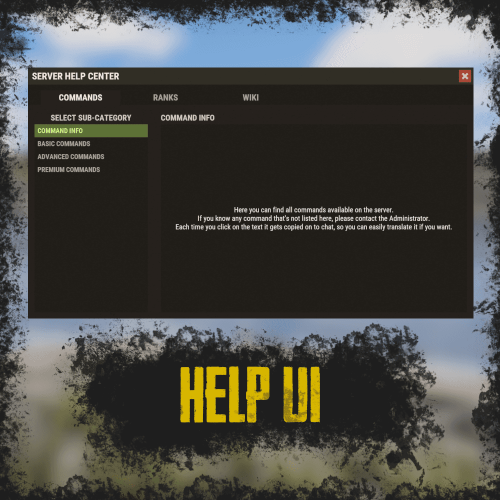
Version 1.0.4
124 downloads
RUST Plugin Test Server TEST MY PLUGINS THERE! connect play.thepitereq.ovh:28050 Help UI lets you create unlimited help pages with ease, allowing players to navigate them effortlessly. All wrapped in a sleek RUST-themed interface with smooth, seamless UI updates. High quality RUST-themed UI. Up to 5 main categories. Almost infinite sub-category limit. Scrollable informations, when clicked printed on chat for easy copy-paste. Full language support. The Commands section values, are the redirect values of the page configurations below. So for example if default config contains "wiki": "wikipedia Page1" it means, that plugin will register command /wiki that will open an Page1 page on wikipedia category. All commands are configured in main config by default you have command like /help, but every command can be edited! { "Commands": { "help": "", "helppage": "", "wiki": "wikipedia Page1" }, "Pages": { "commands": { "Page1": { "Font Size": 15, "Center": false, "Increase Height Value": 0 } }, "ranks": { "Page1": { "Font Size": 15, "Center": false, "Increase Height Value": 0 } }, "wikipedia": { "Page1": { "Font Size": 15, "Center": false, "Increase Height Value": 0 }, "Page2": { "Font Size": 15, "Center": false, "Increase Height Value": 0 } } } }$9.99 -
Version 1.0.5
245 downloads
Extremely easy and dynamic Calendar system for your server! In just a few seconds you could inform players about the next few months of wipes, events, etc! FEATURES - Built in editor - Auto schedule events and wipe info - Click one button to add the next needed month - Auto generates the new month if you forget to - Page with all months listed - Schedule based on week day - Schedule based on x amount of days - Built in legend editor to alter your legends - Built in day editor if you just want to edit one day at a time - Support for Welcome Controller - Add images on specific days - Add larger images within the info of that day - Editable commands - All UI colors are easily editable - Full lang file - ETC!!**** EXTRA INFO ADMIN PERMISSION: calendarcontroller.admin Default commands: /calendar & /wipe Support? Questions? Comments? Concerns? Message me in my Discord! https://discord.gg/RVePam7pd7$19.99 -
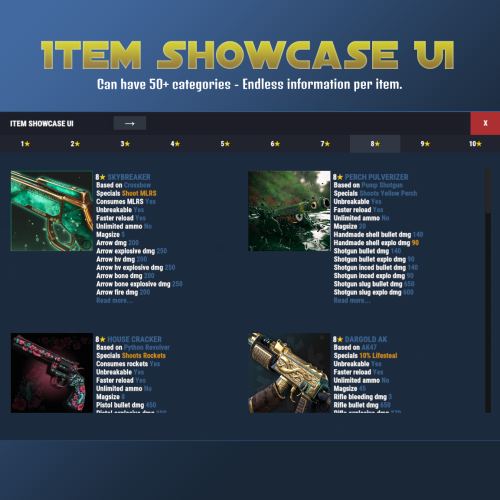
Version 1.2.2
16 downloads
Browse and showcase your custom items in-game with categories, search and themed UI. Features • Unlimited categories • Color formatted text (<color> tags supported) • Search by name, shortname or skin ID • Item images via ImageLibrary (shortname or URL) • Designed for modded servers with custom items Admin Command /additem <category> • Registers the item you are currently holding • Works with exact category name from config • Also works if you type the category without color tags • Example: 1<color=#FFD700>★</color> can be added using /additem 1★ • Automatically sets shortname, SkinID (0 if none) and the lowest available unique ID How to open ItemShowcaseUI Use /items Optional Dependency ImageLibrary - only required for item images Example of adding more categories and different colors to both UI and info text. Endless Info text Easy to find items with searchbar Data Example { "Id": 1, "DisplayName": "<color=#FF66CC>Bubblegum Armor</color>", "Category": "<color=#FFD700>ARMOR</color>", "Shortname": "metal.plate.torso", "SkinID": 0, "Url": null, "Description": [ "Colored text example", "Gold, cyan and lime colors supported" ], "Drops": [ "Elite Crate", "Dungeon Boss" ] } Config Example { "General": { "Browser Title": "Custom Item Browser", "Categories": [ "<color=#FFD700>ARMOR</color>", "<color=#FFD700>WEAPONS</color>", "<color=#FFD700>CONSUMABLE</color>" ] }, "Override UI Theme (None, Blue, Teal, Purple, Green, Yellow, Orange, Red, Pink, Swamp, Oak)": "None" }$14.99 -
Version 1.0.2
27 downloads
MLRS Green Theme for Server Panel by Simil3x Turn your Rust server interface into a tactical command terminal! This UI is inspired by the in-game MLRS system and classic DOS-style aesthetics. ⚙ Features ● Ready-to-use JSON configuration - no coding required ● Complete visual redesign of the Server Panel UI ● Authentic MLRS/DOS-style layout with terminal-like visuals ● Displays player name, SteamID, coordinates, and players count ● Server info panel with wipe schedule and color highlights ● Fast navigation tabs: Home, Server Binds, Rules, Commands ● Interactive Discord and website links (easy to copy) ● Scalable layout with multi-page support Installation 1. Download the provided .zip archive 2. Extract its contents into your server’s oxide folder 3. Restart the plugin Done - your new interface is now active! 🛠 Editable Without Coding Easily customize content in-game with the Server Panel’s intuitive editor - no need to modify JSON files manually. Need a Custom UI? Looking for a completely unique design? I offer full-service UI development for Rust plugins - from concept and Figma prototypes to game-ready implementation. Contact Discord: Simil3x Telegram: @Simil3x_dm ✔ Compatibility Fully compatible with the latest version of the Server Panel plugin. Easy setup - instant results. After purchase, contact me on Discord or Telegram to insert your server name into the template.$16.99 -
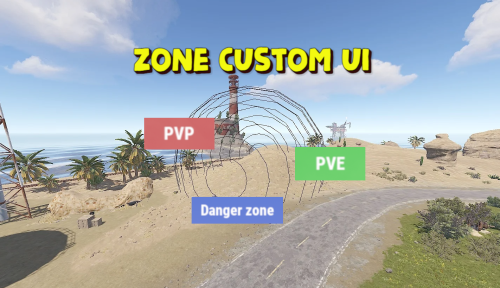
Version 1.0.3
88 downloads
Displays the name of the zone the player is in. You can customize text, text color, background color, etc. This plugin takes information about zones from zonemanager, all information is saved in a config file, after which you can customize information about these zones, which will be displayed Commands: /rzinfo - update zone information Config file: { "Settings outside the zone": { "Id": "0", "Name": "Outside", "AnchorMin": "0.649 0.041", "AnchorMax": "0.695 0.081", "Color_Background": "0.1 0.1 0.8 0.8", "Color_Text": "1 1 1 1", "TextSize": "16", "TextPlaceHolder": "Outside" }, "Default settings for the new zone": { "Id": "0", "Name": "Default", "AnchorMin": "0.649 0.041", "AnchorMax": "0.695 0.081", "Color_Background": "0.1 0.8 0.1 0.8", "Color_Text": "1 1 1 1", "TextSize": "16", "TextPlaceHolder": "Default" }, "Zones list": [] }$4.99 -

Version 1.2.0
80 downloads
If you have much custom items, and players always ask you "What is it?" or "What I can do with that?" - this plugin for you ! Features Scanning the player's inventory and the storage that the player loot Description, information about the item You can set skinId or itemId for scaning Tagging system Command to show all custom items from config Adding your containers for scanning (read the config carefully) Styles of interface Detailed configuration MultiLang support Command /items - show all custom items from config For admins /ii - get active item (name|skinId) and add to config ii.convert.lang - convert items info from config to lang Styles (config option 'Interface style') StyleA StyleB Suggest your ideas for improving the plugin Video Config v1.1.0 { "Lootable containers for scaning, use only containers without block(grey) slots and and where the number of slots is a multiple of 6 (6, 12, 18, 24)": { "coffinstorage": 48, "box.wooden.large": 48, "woodbox_deployed": 18, "storage_barrel_b": 48, "storage_barrel_c": 48, "fridge.deployed": 48, "dropbox.deployed": 12, "small_stash_deployed": 6 }, "All items menu command": "items", "Permission to open UI with all items": "itemsinfo.items", "Interface style": "StyleB", "Items info settings (key - skinId)": { "2365330645": { "Item name": "Gather gloves", "Search item by skinId(false) or ItemId(true)": false, "Item description": [ "<size=18>Gloves up your gather</size>", "You need to put this on" ], "Item info": [ "<size=20>Bonus</size>", "• <color=#387338>Stones +50%</color>", "• <color=#387338>Metal +30%</color>", "• <color=#387338>Sulfur +20%</color>" ], "Item tags": [ 3, 4 ] }, "2852472024": { "Item name": "Ticket", "Search item by skinId(false) or ItemId(true)": false, "Item description": [ "<size=18>Ticket for take super loot</size>", "you can change it for some loot" ], "Item info": [ "<size=20>Commands</size>", "<color=#FFCC00>/ticket</color> - Server's shop" ], "Item tags": [ 1 ] }, "3000086667": { "Item name": "Kibble", "Search item by skinId(false) or ItemId(true)": false, "Item description": [ "<size=18>Kibble for animals</size>", "Find wild animal and drop near" ], "Item info": [ "<size=20>Effects</size>", "• Tame animal", "• Kill and gather x10" ], "Item tags": [ 1, 2 ] } }, "Tags settings": [ { "Tag size": 45.0, "Tag color": "#34753B", "Tag text": "Event", "Tag text color": "#6FAC76", "Tag id": 1 }, { "Tag size": 65.0, "Tag color": "#1C34AC", "Tag text": "Economy", "Tag text color": "#57A2F9", "Tag id": 2 }, { "Tag size": 55.0, "Tag color": "#932214", "Tag text": "Custom", "Tag text color": "#E44530", "Tag id": 3 }, { "Tag size": 110.0, "Tag color": "#9D9D9D", "Tag text": "Unbreakable", "Tag text color": "#FFF4F4", "Tag id": 4 } ], "UI settings": { "Inventory Image Icon": "https://i.ibb.co/TMxWBHJ2/scan.png", "Image for scan item": "https://i.ibb.co/zVwhtYGS/search.png", "Button ? settings": { "AnchorMin": "0.5 0", "AnchorMax": "0.5 0", "OffsetMin": "189 18", "OffsetMax": "249 78" } }, "Config version": { "Major": 1, "Minor": 1, "Patch": 0 } }$13.50 -
Version 1.0.0
16 downloads
WelcomeMessage.cs Description : - This plugin allows you to display a welcome message on players' screens when they arrive on the server. They can also click a button to execute a command, such as opening a menu. Settings : - HUD colors - Display time (20s) - Welcome text (Welcome <player> !) - Button text (INFO) -Button command (say.chat /info) F1 Commands : - wm.test (to test the UI. Only admin) Permissions : - oxide.grant user <steamID/user> welcomemessage.use WuyZar's Discord : https://discord.gg/NVwRcQwGwh Game interface :$4.50 -
.thumb.gif.3c9c0e18006368d634273095544fb983.gif)
Version 1.2.1
1,287 downloads
Enhance your Rust server with the HUD Info Panel System, a highly customizable HUD interface that empowers players to tailor their gaming experience. Display critical server stats and ongoing events with a sleek, user-friendly design, and enjoy seamless integration with other plugins via a robust API. With extensive customization options, this plugin adapts to any play style! Features of HUD Info Panel System Fully customizable HUD panels with drag-and-drop positioning Real-time tracking of 24+ server events and entities Built-in economics display (supports Economics/ServerRewards) Custom button system with image/command binding Dynamic event icons with color customization Multi-anchor positioning (UpperLeft/UpperRight) Automatic panel hiding system Optimized for performance Showcase Commands /panel hide - hide panel /panel show - show panel Permissions The plugin registers various permissions for different features and settings. Ensure players have the necessary permissions to access specific customization options. Panel Anchors UpperLeft UpperRight API The plugin provides an API method to notify it of custom event statuses. Here's an example of how to use it in another plugin: public class EmptyPlugin : RustPlugin { [PluginReference] private Plugin PanelSystem; private void OnServerInitialized() { EventChangeStatus("UserNotify", true); } private void Unload() { EventChangeStatus("UserNotify", false); } private void EventChangeStatus(string key, bool spawned) { PanelSystem.Call("OnEventChangeStatus", key, spawned); } } And the corresponding configuration in PanelSystem: { "Enabled": true, "Image": "https://i.imgur.com/asflpJe.png", "Permission": "", "Type": 7, "Panel Settings": { "Enabled": true, "Permission": "", "Switch": true, "Color": true, "Size": true }, "Size Settings": { "Sizes": [ { "Size": 25.0, "Lang Key": "sizeBig", "Permission": "" }, { "Size": 20.0, "Lang Key": "sizeMedium", "Permission": "" }, { "Size": 15.0, "Lang Key": "sizeSmall", "Permission": "" } ], "Default Size (index)": 0 }, "Color Settings": { "Default Active Color ID": 0, "Default Inactive Color ID": 2 }, "Key (MUST BE UNIQUE)": "UserNotify" } Available Panel Types The HUD Info Panel System supports a diverse set of panel types to display various server stats and events: Online Sleepers Time CH47 Helicopter Bradley Airdrop Economics Custom CargoShip Button WipeBlock Convoy ArmoredTrain Sputnik SpaceEvent AirEvent ArcticBaseEvent GasStationEvent ShipwreckEvent HarborEvent JunkyardEvent SatDishEvent WaterEvent PowerPlantEvent KillBoss TravellingVendor Caravan DungeonEvents FAQ Q: How do I make the buttons hide when I click on the logo? A: In the logo settings, specify the command to hide the buttons (panelsystem.buttons). Example: https://pastebin.com/Ksggh718$21.95 -
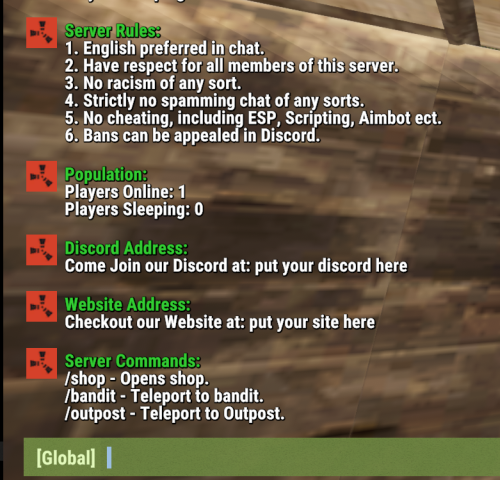
Version 1.4.0
3,416 downloads
Easy to configure, minimalistic solution for your server to provide basic details such as your Discord link, rules and server pop. Default Commands: - /pop - Displays server pop, including separate counts for loading, queued, sleeping and currently online. - /discord - Provides your discord link. - /rules - posts the rules as specified in the config. - /website - Provides your website link. - /commands - Lists your server commands (listed in config) - /untilwipe - Provides the next wipe scheduled and the time remaining. Default Config: { "Next Wipe Scheduled (YYYY-MM-DD HH:mm:ss):": "2025-07-31T08:00:00", "Rules Prefix:": "<color=#32CD32>Server Rules: </color>", "Discord Prefix:": "<color=#32CD32>Discord Address: </color>", "Website Prefix:": "<color=#32CD32>Website Address: </color>", "Population Prefix:": "<color=#32CD32>Population: </color>", "Server Commands Prefix:": "<color=#32CD32>Server Commands: </color>", "Change Commands": { "Commands list:": "commands", "Amount of commands per page:": 15, "Rules:": "rules", "Discord:": "discord", "Website:": "website", "Population:": "pop", "Wipe:": "untilwipe" }, "Rules list:": [ "1. English preferred in chat.", "2. Have respect for all members of this server.", "3. No racism of any sort.", "4. Strictly no spamming chat of any sorts.", "5. No cheating, including ESP, Scripting, Aimbot ect.", "6. Bans can be appealed in Discord." ], "Server Commands:": [ "/shop - Opens shop.", "/bandit - Teleport to bandit.", "/outpost - Teleport to Outpost.", "/rules - Displays server rules.", "/commands - Displays server chat commands", "/discord - Displays Discord invite address.", "/website - Displays server website.", "/pop - Current server population", "/untilwipe - Displays next wipe details." ], "Discord Address:": "Come Join our Discord at: ", "Website Address:": "Checkout our Website at: " } Default Lang: { "ReportOnline": "Players Online: ", "ReportSleeping": "Players Sleeping: ", "ReportJoining": "Players Joining: ", "ReportQueued": "Players Queued: " }Free -
Version 1.0.4
187 downloads
Hud Controller is a very simple Hud system. It can do a ton of things, all listed below! Why should you choose Hud Controller? Having a unique server is very important when you choose to have a hud on your server, players see that 24/7. So, you want a good-looking, unique hud menu that stands out to players. With Hud Controller, you can do that, and much more, with ease. FEATURES - Built in UI editor - Add panels, change colors, change fonts, delete panels, change images, EVERYTHING IS EDITABLE! - Dynamic custom events - Normal rust events - Quick command buttons - Display RP or Economics - Display server time - Display player grid - Display players - ETC* Text fields can accept the following placeholders {serverName} {configServerName} {maxPlayers} {onlinePlayers} {joiningPlayers} {queuedPlayers} {totalPlayers} {playerGrid} {serverTime} {playerCurrency} Support? Questions? Comments? Concerns? Message me in my Discord! https://discord.gg/RVePam7pd7$19.99 -
Version 6.1.0
633 downloads
Description: A powerful yet easy-to-use plugin that displays your Rust server's live status in any Discord channel via a simple and efficient Webhook. Keep your community updated with a professional-looking status panel that requires minimal setup. Features: Live Status Updates: Displays your server name, current player count, and online/offline status in a clean embed. No Spam: Creates a single message that is continuously edited with the latest information, keeping your channel clean. Offline Notifications: Automatically updates the status to "Offline" when the server shuts down gracefully. One-Click Connect: Includes a fully configurable connect link to help players join your server instantly. Highly Customizable: Almost every aspect can be changed via the configuration file. Lightweight & Efficient: Uses webhooks directly, requiring no other plugins or dependencies. Cross-Compatible: Works flawlessly on both Oxide and Carbon frameworks. Configuration & Setup: Create a Webhook in your desired Discord channel (Server Settings -> Integrations -> Webhooks). Copy the Webhook URL and paste it into the "Discord Webhook URL" field in the plugin's config file. (Optional) To get a permanent message that edits itself, run the plugin once, let it post a message, then copy that message's ID into the "Discord Message ID" field in the config. Important Note on the Direct Connect URL: For the "Connect" link to work reliably in Discord, it is highly recommended to use a URL shortening service like TinyURL. Discord may not correctly display links that start with steam://. Example: Take your full Steam connect link: steam://run/252490//+connect 5.9.98.61:28015 Go to the website https://tinyurl.com/ and paste your link to create a short URL. It will give you a new link, for example: https://tinyurl.com/muyxtj7k Copy this new https:// link and paste it into the "Direct Connect URL" field in the configuration file.Free -
Version 1.0.0
498 downloads
ServerMessage.cs Description : - This plugin allows you to send beautiful messages to all players' screens for a certain time. Settings : - HUD colors F1 Commands : - sm <message> <time> Permissions : - ownerid <steamID/user> WuyZar's Discord : https://discord.gg/NVwRcQwGwh Game interface :$3.50 -

Version 1.0.5
3,718 downloads
Simple set of CUI info pages for Rust servers. InfoScreens offers multi-page, and multi-subpage,information viewable by command and also automatically presented when a user joins the server. Permission infoscreens.show - Enables ability to show info screens to other players. ChatCommand /infoscreen with permission : /infoscreen <playername> /infoscreen <playername <pagename> ConsoleCommand ISWipe – This clears InfoScreens' record of players who have joined the server. Configuration Global. PermaUIButton = false; Creates a permanent 'I' button at screen top right. SideNav = false; - Toggles navigation between top and side. OnlyShowOnce = false; - If true, info is only shown automatically on first-join. NeverAutoShow = false; - Never display automatically on first-join. NumberOfPages = 4; - Automatically creates nav and config entries on reload. GuiTransparency = 0.95; ButtonColour = "0,100,0,1"; ButtonColourSelected = "0,200,0,1"; CommandAlias = "is"; - Alternative, customisable, chat command. Colours accept RGBA – maximums 255/255/255/1 Per-Page. VisibleTo - "default,somegroup" Makes a page only visible to the listed groups. This is comma separated, with no spaces. Each page, by default, has three elements. Two are text and one is image. Each element has the following options. Text Elements Only. "Content": "Some Text Here", - use \n line break for multi-line "FontSize": 16, "FontColour": "255,255,255,1", "AlignTopMiddleBottom": "top/middle/botton", "AlignLeftMiddleRight": "left/middle/right", Image Elements Only "URL": "https://...", All Elements "GoBehindNav": false, "ShowOnSubPages": "0", "PosBottomToTop": "0.0,1.0", "PosLeftToRight": "0.0,1.0" Usage Info. The 'Pos...' entries are on a scale 0-1. Examples. "PosLeftToRight": "0.0,1.0” is full width, left to right. "PosLeftToRight": "0.0,0.5” is half width, left to centre. "PosBottomToTop": "0.0,1.0 is full height, bottom to top "PosBottomToTop": "0.5,1.0" is half height, centre to top Additional elements can be added by copying/pasting/editing name. 'ShowOnSubPages' can be altered and will automatically create next/previous buttons. For example, you could have a background image with "ShowOnSubPages": "0,1,2", then have three content elements showing on "0”, "1”, "2” respectively. This will give three sub-pages with different content and the same background, under one nav-heading.Free
.thumb.png.ccf8a947948c9eb1445ad21a7931247b.png)