Search the Community
Showing results for tags 'tool'.
-
Version 1.0.0
3 downloads
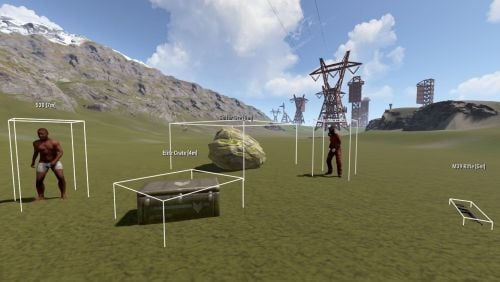
AdminUltimateVision is a powerful ESP (Extra Sensory Perception) plugin designed for Rust server administrators. This plugin provides real-time visualization of various entities on the server, making server management and monitoring significantly easier. With its intuitive interface and customizable settings, administrators can quickly locate players, NPCs, loot containers, dropped items, ores, and corpses within a specified range. Key Features Entity Visualization Players: Track all online players with their names and distances NPCs: Monitor scientists, bandits, peacekeepers, and other NPCs Animals: Visualize bears, wolves, boars, stags, chickens, horses, and other wildlife Loot Containers: Locate crates, barrels, elite crates, airdrops, toolboxes, and bags Dropped Items: Find items dropped by players on the ground Ores: Discover sulfur ore, metal ore, and stone ore deposits Corpses: Track player corpses with their original player names User Interface Clean, compact menu design that doesn't obstruct gameplay Toggle buttons for each entity category Real-time distance display (optional) 3D bounding boxes around entities (optional) Adjustable render distance (50m - 500m) Easy-to-use reset function Customizable Settings Render Distance: Adjust from 50 to 500 meters in 25m increments Box Display: Toggle 3D wireframe boxes around entities Distance Display: Show/hide distance information in labels Category Filtering: Enable/disable specific entity types Performance Optimization: Efficient update system to minimize server impact Commands Chat Commands /atool - Opens the main AdminUltimateVision interface /avision - Alternative command to open the interface Console Commands (Automatic) The plugin automatically handles all console commands through the UI. No manual console input required. How to Use 1. Opening the Interface Type /atool or /avision in chat The compact menu will appear on the right side of your screen 2. Configuring Entity Types Click on any category button to toggle visibility: PLAYERS - Show/hide online players NPC - Show/hide NPCs and animals LOOT - Show/hide loot containers ITEMS - Show/hide dropped items ORES - Show/hide ore deposits CORPSES - Show/hide player corpses 3. Adjusting Display Options BOXES - Toggle 3D wireframe boxes around entities DISTANCE - Toggle distance information in entity labels 4. Setting Render Distance Use + and - buttons to adjust render distance Range: 50m to 500m (increments of 25m) Higher distances may impact performance 5. Resetting Settings Click RESET to restore default settings Click CLOSE to close the interface Tips and Best Practices Performance Tips Start Small: Begin with a lower render distance (100-150m) and increase as needed Selective Viewing: Only enable categories you currently need to reduce visual clutter Regular Resets: Use the reset function if the interface becomes unresponsive Usage Scenarios Player Monitoring: Track player movements and locations during events Loot Management: Locate and manage loot spawns across the map Resource Tracking: Find ore deposits for base planning Cleanup Operations: Locate and remove abandoned items and corpses Event Management: Monitor NPC spawns during server events Troubleshooting Nothing Visible: Ensure at least one category is enabled and render distance is appropriate Performance Issues: Reduce render distance or disable unnecessary categories UI Not Responding: Use the reset function or restart the plugin Advanced Usage Combine Categories: Enable multiple categories for comprehensive area monitoring Distance Optimization: Adjust render distance based on your current task Box Visualization: Use boxes for precise entity location and size reference Configuration The plugin includes several configurable options in the config file: { "DefaultRenderDistance": 150.0, "MaxRenderDistance": 500.0, "MinRenderDistance": 50.0, "UpdateRate": 0.05, "EnableBoxes": true, "EnableDistanceDisplay": true } Permissions Admin Only: This plugin requires admin privileges to use Automatically checks for admin status before allowing access Compatibility Rust Version: Compatible with current Rust builds Server Impact: Minimal performance impact with optimized update system Client Side: No client-side modifications required AdminUltimateVision.json$1.99 -
Version 1.4.7
5,096 downloads
Manage your Rust server easier and more efficiently with the AdminMenu plugin. Track players, interact with them, edit their data and permissions, as well as change server convars and manage plugins. Features: Menu retains its state after closing, you won't lose everything you did before. Ability to fully translate the menu into any language. Large range of permissions for each action, will allow you to flexibly customize the admin menu for each group of administrators. Quick menu that allows you to perform quick actions Full list of players with the ability to filter by online, offline, admins and moderators. Also has a frame of different colors depending on the level of authorization. Wide range of information and actions for the selected player. Editing convars with search. Has a complete list of editable convars with descriptions for some of them. Extensive issue menu by category, with easy management of name, skin and amount (manual, +1, +100, +1000, +10000). Plugin management menu. It is possible to reload, unload or load a plugin easily and quickly. Updates occur in real time. Ability to create your own custom buttons that execute several commands Quick Start: You install the plugin in the plugins folder. Give yourself the adminmenu.fullaccess permission. Commands, use one of your choice, one for the player and one for the admin group: o.grant user [name or steamid] adminmenu.fullaccess o.grant group admin adminmenu.fullaccess Press the X button (swap seat button) or type adminmenu in the console. Enjoy Useful stuff: You can quickly open a player in the admin menu. To do this, point at the player and press X. You don't have to hover over the player exactly, you will be able to open players within a certain radius of the place you are looking at. CUSTOM BUTTONS Custom buttons are buttons that when pressed will execute commands on behalf of the administrator, commands can be several, below will be the details. At the moment, custom buttons can be created in two places: in the quick menu and in the menu when selecting a player. These places are separated in the config. Button Fields: "Execution as server" - Call the command on behalf of the server, not the administrator "Label" - Text that will be on the button, for each such inscription creates a field in the lang file, accordingly you can translate this text into several languages. "Commands" - Array of commands that will be executed on behalf of the administrator. Chat commands require a special entry, see examples. "Permission"- permission to display and use the button. You need to write the permission that will be after "adminmenu.". Example: if you enter the permission "test" the permission will be adminmenu.test "Position" - The location for the button, the first number is responsible for the row number, the second for the position within the row, starts from 0.There are limits of locations, if you have gone beyond the limit - the button will not be displayed. Common Tags: {adminUID} - administrator's id. {position} - administrator coordinates (underfoot) {view_position} - the position where the administrator is looking (can be used for spawning or something similar) {view_direction_forward} - forward view direction of the administrator {view_direction_backward} - the direction the administrator is looking backwards {view_direction_left} - direction of the administrator’s view to the left {view_direction_right} - administrator’s view direction to the right Tags for target only: {steamid}, {steamID}, {userID}, {STEAMID}, {USERID} - mean the same thing, namely the id of the selected player. {target_position} - target coordinates (underfoot) Example of commands: chat.say \"/{chat command}\" vanish ban {steamID} teleport {steamID} {adminUID} More information about the grant menu: The grant menu includes the full list of items including hidden items as well as custom items created by the CustomItemDefinitions library. The menu can be accessed from the navigation or from the menu of the selected player. When issuing itself has categories. Search works in any registry by any part of the name or short name. Has a page system at any stage. More information about the buttons in the Quick Menu: [Teleport to 0 0 0] - Teleport to coordinates 0 0 0. Requires adminmenu.quickmenu.teleportto000 permission [Teleport to Deathpoint] - Teleport to your deathpoint. Requires adminmenu.quickmenu.teleporttodeath permission [Teleport to Spawn point] - Teleport to a random spawn point. Requires adminmenu.quickmenu.teleporttospawnpoint permission [Kill Self] - Kill Self, kills even when immortal. Does not require permission. [Heal Self] - Fully heal yourself. Requires adminmenu.quickmenu.healself permission [Call Heli] - Call Helicopter to yourself (arrives in time). Requires adminmenu.quickmenu.helicall permission [Spawn Bradley] - Spawn bradley on yourself. Requires adminmenu.quickmenu.spawnbradley permission More information about the buttons in the menu of the selected player: [Teleport Self To] - Teleport yourself to the selected player. Requires adminmenu.userinfo.teleportselfto permission [Teleport To Self] - Teleport the selected player to yourself. Requires adminmenu.userinfo.teleporttoself permission [Teleport To Auth] - Teleportation to random authorization (TC). Requires adminmenu.userinfo.teleporttoauth permission [Teleport to Deathpoint] - Teleportation to a player's deathpoint. Requires adminmenu.userinfo.teleporttodeath permission [Heal] - Full healing, including metabolism. Requires adminmenu.userinfo.fullheal permission [Heal 50%] - Half healing. Requires adminmenu.userinfo.halfheal permission. [View Inventory] - View and edit player's inventory. Requires adminmenu.userinfo.viewinv permission [Strip Inventory] - Clear player's inventory. Requires adminmenu.userinfo.stripinventory permission [Unlock Blueprints] - Unlock all Blueprints. Requires adminmenu.userinfo.unlockblueprints permission [Revoke Blueprints] - Reset all Blueprints. Requires adminmenu.userinfo.revokeblueprints permission. [Kill] - Kill a player. Requires adminmenu.userinfo.kill permission [Kick] - Kick a player. Requires adminmenu.userinfo.kick permission [Ban] - Ban a player. Requires adminmenu.userinfo.ban permission More information about the buttons in the menu of the selected group: [Remove Group] - Remove group, has confirmation. Requires adminmenu.groupinfo.removegroup permission [Clone Group] - Clone group with the ability to copy users. Requires adminmenu.groupinfo.clonegroup permission Permissions: adminmenu.use - Ability to use admin menu with basic set. Open tab quick menu (each button has its own permission, without permissions is present only kill yourself button) and the list of players. adminmenu.fullaccess - Full access to all functions without the need for each permission, includes also adminmenu.use. It is recommended to give only to the main administrators. adminmenu.quickmenu.teleportto000 - Access to the button in the quick menu, teleportation to coordinates 0 0 0 0. adminmenu.quickmenu.teleporttodeath - Access to the button in the quick menu, teleportation to the point of your death. adminmenu.quickmenu.teleporttospawnpoint - Access to the button in the quick menu, teleportation to a random spawn point. adminmenu.quickmenu.healself - Access button in quickmenu, heal yourself completely. adminmenu.quickmenu.helicall - Access to the button in the quick menu, call a helicopter to yourself (arrives in time). adminmenu.quickmenu.spawnbradley - Access button in quickmenu, spawn bradley. adminmenu.userinfo.teleportselfto - Access to the button in the menu of the selected player, teleportation to the selected player. adminmenu.userinfo.teleporttoself - Access to the button in the menu of the selected player, teleport the selected player to himself. adminmenu.userinfo.teleporttoauth - Access to the button in the menu of the selected player, teleportation to random authorization (TC). adminmenu.userinfo.teleporttodeath - Access to the button in the menu of the selected player, teleportation to the place of death of the player. adminmenu.userinfo.fullheal - Access to the button in the menu of the selected player, full healing, including metabolism. adminmenu.userinfo.halfheal - Access to the button in the menu of the selected player, half healing. adminmenu.userinfo.viewinv - Access to the button in the selected player's menu, view and edit the player's inventory. adminmenu.userinfo.stripinventory - Access to the button in the menu of the selected player, clear the player's inventory. adminmenu.userinfo.unlockblueprints - Access the button in the menu of the selected player, unlock all drafts. adminmenu.userinfo.revokeblueprints - Access to the button in the menu of the selected player, reset all drafts. adminmenu.userinfo.kill - Access the button in the selected player's menu to kill the player. adminmenu.userinfo.kick - Access the button in the selected player's menu to kick the player. adminmenu.userinfo.ban - Access to the button in the menu of the selected player, ban the player. adminmenu.groupinfo.removegroup - Access to the button in the menu of the selected group, the ability to remove the group. adminmenu.groupinfo.clonegroup - Access to the button in the menu of the selected group, the ability to clone the group. adminmenu.convars - View and edit convars. adminmenu.permissionmanager - View and edit permissions in groups, player groups, create, delete and clone groups (requires additional permissions from these buttons). adminmenu.pluginmanager - Access to plugin management, reloading, unloading, loading plugins. adminmenu.give - Access to give resources, as well as yourself and the selected player.$30.00 -
![More information about "FileWatcher [OXIDE | CARBON]"](https://codefling.com/uploads/monthly_2026_05/FileWatcher_Icon.thumb.png.0d5136604efcaf154697fab21688c4d7.png)
Version 2.0.0
13 downloads
Description FileWatcher monitors your server’s config and lang JSON files and automatically reloads the affected plugin when changes are detected. This is aimed at faster iteration while developing or tuning plugins — edit JSON, save, and the plugin reloads itself. Features Config + Lang monitoring - Watches */config/*.json - Watches */lang/**.json (including subfolders) Safe reload behavior - Debounce (1s): prevents multiple reloads while a file is still being written - Reload cooldown (20s): prevents reload loops and spam - Ignore list: exclude specific plugins from being reloaded - Always ignores FileWatcher itself Stability - If the watcher throws errors, it auto-restarts itself after 5 seconds Debug mode - Optional debug output for watcher init, file changes, cooldown/debounce decisions, etc. Commands /fwstatus Shows watcher status (Config/Lang on/off) and ignored count. Admin only. Permissions No Oxide permission is used. Access is gated by player.IsAdmin. Config { "Watch config folder": true, "Watch lang folder": true, "Ignored plugins": [ "PermissionManager" // This is an example. ], "Debug mode": false } load, run, enjoy$3.55 -
Version 1.9.0
227 downloads
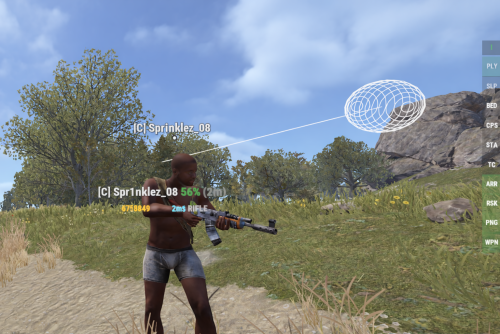
━━━━━━━━━━━━━━━━━━━━━━━━━━━━━━━━━━━━━━━━━━━━━━━ https://nexuscheatradar-6yt.pages.dev ━━━━━━━━━━━━━━━━━━━━━━━━━━━━━━━━━━━━━━━━━━━━━━━ ━━━━━━━━━━━━━━━━━━━━━━━━━━━━━━━━━━━━━━━━━━━━━━━ ⚠ BETA NOTICE ━━━━━━━━━━━━━━━━━━━━━━━━━━━━━━━━━━━━━━━━━━━━━━━ WEB RCON is a subscription based service includes plugin control permissions manage and more it is not required to have full functions of the plugin or the web service https://nexuscheatradar-6yt.pages.dev/rcon/demo NCR is in active beta — functional on live servers, but thresholds and features are still being refined with community feedback. » Human oversight required — Always verify alerts before taking action » False positives are possible — All thresholds are fully tunable >> DOING ALL I CAN TO KEEP THE SITE FREE SO YOU KNOW WHEN A PLAER IS FISHY<< NCR is a detection assistant, not an auto-ban system. Every alert ishould be reviewed by a human admin before any enforcement action is taken. that means you need to verify nothing will ever replace human monitoring What makes NCR different is the network. Every server running NCR contributes to a shared intelligence database — player risk scores, violation history, ban records, and IP cross-reference data are all stored centrally and accessible through the NCR web portal. When a known cheater joins your server, you know before they do anything. REMOMBER ALWAYS F7 REPORT CHEATERS UNFORTUNATLY THERES NO BACKEND THAT CAN ALLOW A AUTOSEND ,MORE INFO IS BETTER INFO ━━━━━━━━━━━━━━━━━━━━━━━━━━━━━━━━━━━━━━━━━━━━━━━ ◈ DETECTION MODULES ━━━━━━━━━━━━━━━━━━━━━━━━━━━━━━━━━━━━━━━━━━━━━━━ 👁 ESP / Wallhack Tracks look-angle to hidden players through walls. Flags sustained through-wall targeting with frame-by-frame analysis. Aimbot Detects snap-aim events and inhuman alignment angles during combat across multiple engagements. No-Recoil Per-weapon recoil compensation pattern analysis across full-auto fire. Compares actual vs expected weapon behaviour. Speed Hack / Lag Switch Velocity spike detection and network burst pattern analysis. Catches movement cheats and lag-switch abuse. Wall Loot Detects looting of player-placed storage containers that are obstructed by player-built construction. Only fires when both the container and the blocking geometry are player-owned — world crates, rocks, and terrain should never trigger this check. Debug Camera / Freecam Catches unauthorized freecam and spectate mode usage by non-admin players. NoClip / Fly Detects flight and clipping through solid geometry in real time. ↔ Strafe & Backpedal Abnormal strafing patterns statistically associated with aimbot software. Privilege Escalation Detects command use without proper Oxide permissions — catches unauthorised admin abuse. ━━━━━━━━━━━━━━━━━━━━━━━━━━━━━━━━━━━━━━━━━━━━━━━ ◈ RISK SCORING SYSTEM ━━━━━━━━━━━━━━━━━━━━━━━━━━━━━━━━━━━━━━━━━━━━━━━ NCR builds a persistent risk profile for every player — not just one-off alerts. » Persistent scores — Saved across sessions and plugin reloads » Per-category tracking — ESP, aimbot, recoil, and speed scored independently » Steam risk weighting — VAC bans, account age, and game count factored in » ServerArmour integration — Optional community ban list support » Configurable thresholds — You decide exactly when alerts fire » Watchlist system — Flag specific players for heightened monitoring Scores persist across disconnects and server restarts. A player cannot reset their risk score by rejoining. ━━━━━━━━━━━━━━━━━━━━━━━━━━━━━━━━━━━━━━━━━━━━━━━ ◈ DISCORD INTEGRATION ━━━━━━━━━━━━━━━━━━━━━━━━━━━━━━━━━━━━━━━━━━━━━━━ Every module has its own configurable webhook — route each alert type to a different channel. » Per-category webhooks — ESP, aimbot, speed, wall loot all go to separate channels » Rich embeds — Violation type, probability %, weapon, distance, grid position » Steam profile links — One-click access to suspect's Steam, BattleMetrics, and more » Player join reports — Auto-alert on join with VAC ban status and risk score » Name-change alerts — Instant notification when a flagged player renames » Ban announcements — Broadcasts bans and unbans with reason and appeal link -------------------------------------------------------------------------------- IN-GAME REPORTING (CUI) -------------------------------------------------------------------------------- administration can submit reports directly from within Rust using the built-in CUI panel. The report panel includes: - Report type selection - Player search / dropdown with name and Steam ID search - Reports are sent to discord within their designated webhook ━━━━━━━━━━━━━━━━━━━━━━━━━━━━━━━━━━━━━━━━━━━━━━━ ◈ ADMIN COMMANDS ━━━━━━━━━━━━━━━━━━━━━━━━━━━━━━━━━━━━━━━━━━━━━━━ Permissions nexuscheatradar.admin All commands work in chat or console. /ncr.radar — Toggle the live world radar overlay HUD /ncr.strip — Toggle the quick-action strip UI panel /ncr.lookup <name|id> — Look up a player's NCR profile and intel /ncr.history <name|id> — View full violation history for a player /ncr.risk <name|id> — Show risk score breakdown for a player /ncr.incidents <name|id> — List all recorded incidents with context /ncr.reset <steamid> — Clear all risk scores and history /ncr.watch <steamid> — Add a player to the watchlist /ncr.unwatch <steamid> — Remove a player from the watchlist /ncr.watchlist — Show all currently watched players /ncr.stats — Plugin stats (alerts fired, players tracked) /ncr.ban <steamid> [reason] — Ban + Discord notification /ncr.unban <steamid> — Unban + Discord notification /ncr.webshare <steamid> <type> — Share violation to NCR network /ncr.report opens cui that handles most of your reporting , can also open from radar bar ncr.link <TOKEN> (Console /rcon only) Link server to your NCR portal account ━━━━━━━━━━━━━━━━━━━━━━━━━━━━━━━━━━━━━━━━━━━━━━━ ◈ Permissions ━━━━━━━━━━━━━━━━━━━━━━━━━━━━━━━━━━━━━━━━━━━━━━━ - nexuscheatradar.admin - nexuscheatradar.report.mod — opens Report CUI; can kick + toxic report - nexuscheatradar.report.admin — opens Report CUI; full report access - nexuscheatradar.report.watchlist — add to watchlist - nexuscheatradar.report.kick — kick player - nexuscheatradar.report.toxic — file toxicity report - nexuscheatradar.report.tempban — temporary ban - nexuscheatradar.report.serverban — server ban - nexuscheatradar.report.networkban — network-wide ban ━━━━━━━━━━━━━━━━━━━━━━━━━━━━━━━━━━━━━━━━━━━━━━━ ◈ WEB DASHBOARD ━━━━━━━━━━━━━━━━━━━━━━━━━━━━━━━━━━━━━━━━━━━━━━━ NCR ships with a companion web dashboard for browser-based admin control. » Violation Report System — Full detection list with evidence, confidence scores, and one-click ban » Player Search & Lookup — Search by Steam64 ID, URL, or name. Shows aliases, history, and risk breakdown » Networked Servers — Live view of all NCR-connected servers sharing ban intelligence in real time » Live Statistics — Network-wide counts: violations, bans, high-risk players, active servers https://nexuscheatradar-6yt.pages.dev The portal has three areas: PUBLIC LOOKUP Anyone can search any player by Steam ID. Shows risk score, violation history, ban status, VAC/game bans, account age, aliases, and servers visited across the entire NCR network. Links out to Steam, BattleMetrics, ServerArmour, and more. see your own wand appeal bans easier login with steam SERVER OWNER PORTAL (Steam login required) Server owners sign in with Steam and link their server using the ncr.link console command. The portal shows: - All registered servers with online/offline status - Recent violations and ban history - IP intelligence and cross-reference data - Current player counts and server info ADMINS/ MODERATORS add under team tab Admins and moderators are added by server owner these admins do not reflect ingame but their actions do choose who you allow and what things they can do carefully to set your admins or moderators go to your team and add their steam id they can then instantly login and will have th -------------------------------------------------------------------------------- NETWORK INTELLIGENCE -------------------------------------------------------------------------------- When a player joins any server running NCR, the plugin automatically: 1. Checks the NCR network database for prior violations and bans 2. Pulls Steam ban data (VAC, game bans, community status) 3. Cross-references with ServerArmour community ban lists (SA is throwing a error on join i ased the creator to assist in corecting this ) 4. Sends a join report to Discord with full intelligence summary If the player is flagged on the network, admins are alerted on join. IP cross-reference catches players attempting to evade bans with new accounts. -------------------------------------------------------------------------------- SETUP -------------------------------------------------------------------------------- 1. Upload NexusCheatRadar.cs to /oxide/plugins/ on your Rust server. 2. Start the server. The plugin generates a default config at: /oxide/config/NexusCheatRadar.json 3. Configure the config file: - Set your Discord webhook URLs for each detection type - Add your Steam Web API key (free at steamcommunity.com/dev/apikey) - Set Enabled: true under the Web section if you would like to use this to its full potential 4. Grant admin permission: oxide.grant group admin nexuscheatradar.admin ( im not naming them all again) 5. Restart or reload the plugin: oxide.reload NexusCheatRadar or just reload NexusCheatRadar 6. Link your server to the web portal (console): Additionall servers can be linked by theirr server keys in the web tab or ncr.link <YOUR-PORTAL-TOKEN> (Get your portal token by signing into the web server portal with Steam) this token links all your servers under 1 dashboard ━━━━━━━━━━━━━━━━━━━━━━━━━━━━━━━━━━━━━━━━━━━━━━━ ◈ TROUBLESHOOTING ━━━━━━━━━━━━━━━━━━━━━━━━━━━━━━━━━━━━━━━━━━━━━━━ No Discord alerts arriving? » Check webhook URLs are correctly pasted — no trailing spaces » Confirm Discord.Enabled is true in config » Make sure the detection module is enabled » Run ncr.testmode <steamid> true to simulate Too many false positives? » Raise threshold values in ESP, Aimbot, or NoRecoil config sections » Increase shot/sample count requirements before alerts fire » Whitelist high-ping players by SteamID » Enable SuppressStrafeForSkillTree if using skill tree plugins Radar or UI not showing? » Grant nexuscheatradar.admin permission via Oxide » Toggle with /ncr.radar — requires admin flag or the permission node » Verify it loaded: oxide.reload NexusCheatRadar Plugin fails to load? » Delete the config file — NCR will regenerate it cleanly on next load » Check oxide/logs for the specific error line » Confirm you're on a compatible Oxide/uMod build » Set AutoNormalizeConfigLists to true ━━━━━━━━━━━━━━━━━━━━━━━━━━━━━━━━━━━━━━━━━━━━━━━ https://nexuscheatradar-6yt.pages.dev ━━━━━━━━━━━━━━━━━━━━━━━━━━━━━━━━━━━━━━━━━━━━━━━ COMMING SOON (this is not the final product and will be subscription based through the Portal )$19.99 -
Version 1.0.5
341 downloads
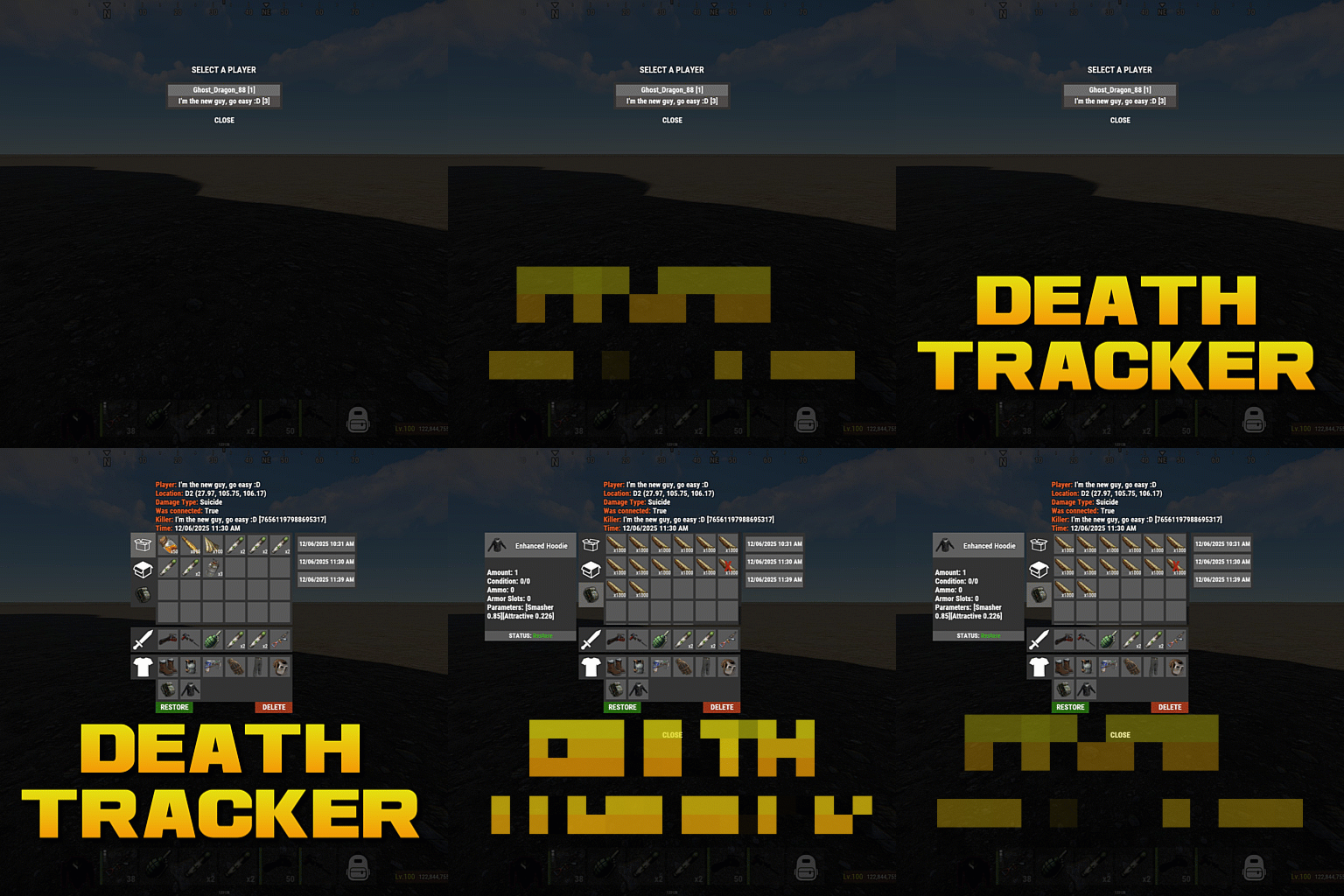
Death tracker is an administration tool that allows server admins to restore player items via rcon or in-game, in the event a player dies for reasons beyond their control. The plugin will detail: The location of the death (grid + coordinate). The damage type that the player took. Whether they were connected to the server or not. Who killed them (along with the userid). The date and time of the death. The players inventory, item backpack contents, and their backpack plugin contents (if they dropped). Admins can select items from the UI to see more details about the item such as the items condition, amount, ammo, armor slots and other parameters (such as buffs from ItemPerks). You can also toggle whether the item will be restored from this menu, allowing you to exclude certain items from being restored if required. In order to use the following commands in game, you must have the deathtracker.admin permission. Command: dt Use: Access the DeathTracker restore menu in-game. Command: dt.,rcon deaths <userid> Use: Returns information for each death stored for the specified player. Command: dt.rcon query <userid> <index> Use: Returns detailed information about the specified death for the player at the specified index (item lists etc). Command: dt.rcon restore <userid> <index> Use: Restores the items to the specified player from the specified index.$14.99 -

Version 1.1.2
16 downloads
Easy Map Voter — Discord Bot for Rust Servers Easy Map Voter lets your community decide the next Rust map directly inside Discord. Run clean, interactive voting sessions, generate or fetch maps automatically while tracking long-term player preferences all with a few slash commands. Features: Flexible Map Sources Choose how maps are provided: Random generation Rustmaps filter IDs Custom maps Supports vanilla, modded, and themed servers. VIP Voting (Optional) Reward supporters while keeping voting fair: - Assign VIP role - Configure vote multiplier (example: VIP = 2 votes) - Winner summaries show both regular and VIP totals Community Statistics & Insights Track long-term player behavior: /mappreferences – View community map preferences /voter [user] – See individual voting history /votingstats – Interactive stats with top voters and recent activity Great for understanding what your players actually enjoy. Wipe Countdown Support Each server configuration can include a wipe schedule. Countdown timers appear during voting so players know exactly what they’re voting for. Persistent Data Storage All sessions, maps, and votes are stored locally in SQLite: - Automatic database creation - Historical voting records - No external databases required 🛠 Utility Commands /ping – Check bot latency !sync – Sync slash commands to your server Requirements: - Python 3.10+ recommended. - A Discord application and bot token. - A Rustmaps API key. Python dependencies are listed in requirements.txt. Setup 1) Install requirements - Python 3.10+ installed and available on PATH. - Install dependencies from the project root: pip install -r requirements.txt 2) Configure your .env file DISCORD_TOKEN=your_discord_bot_token RUSTMAPS_API_KEY=your_rustmaps_api_key 3) Configure config.json Open `config.json` and update the IDs and options for your server: { "discord": { "guild_id": YOUR-GUILD-ID, "prefix": "!" }, "roles": { "administration_role_id": ADMINISTRATION-ROLE-ID, "enable_vip_voting": true, "vip_voter_role_id": VIP-ROLE-ID, "vip_vote_weight": 2, "store": YOUR-STORE-LINK }, "appearance": { "embed_color": DISCORD-APPROVED-COLOR } } 4) Discord bot permissions and intents Enable these gateway intents in the Discord Developer Portal: - Message Content Intent - Server Members Intent Recommended permissions for the bot invite: - Read Messages / View Channels - Send Messages - Embed Links - Add Reactions - Read Message History - Manage Messages (needed to remove reactions and clean up voting messages) Also include the applications.commands scope for slash commands. Running the bot Run this line in the console or set it as the starting file if using a Host: python main.py Logs are written to data/logs/bot.log. For any help and support you can contact me on Discord #carl7332$15.00 -
Version 1.1.1
22 downloads
xAutoCodelock xAutoCodelock enhances the building experience by intelligently automating one of the most repetitive tasks in Rust - managing code locks. By automatically placing, configuring, and securing locks using each player’s personal PIN, the plugin removes friction without altering the core gameplay balance. Players can focus on building, defending, and progressing, while their base security is handled smoothly in the background. Features Automatic Code Lock Placement (Configurable) Automatically places a code lock when players build deployables with lock slots (Door etc.). Toggle if code lock item is required or not Personal Auto PIN System Players set a 4-digit PIN once - All future locks use it automatically. Auto Lock Newly Placed Locks (Configurable) Newly created locks are instantly locked for security. Tool Cupboard Requirement (Configurable) Can require building privilege before automation triggers. Team Access Control (Configurable) Option to allow or require team members to enter codes. Permission based usage (Configurable) Control who can use auto codelock via permissions. Admin Inspect Command Admins can check player PIN status and if player has permission to use xAutoCodelock. Persistent PIN Storage Player PINs saved across restarts. Optional Wipe Reset Automatically clears PIN data on map wipe if enabled. Plugin Preview Player Commands /xpin 1234 → Set your auto PIN /xpin remove → Remove saved PIN /xpin → Show current PIN Admin Command /xpin check <player name or steamid> Permissions xautocodelock.use - Required to use '/xpin' command xautocodelock.admin - Required for the '/xpin check' command Config { "CommandSetPin": "xpin", "RequirePermission": true, "PermissionUse": "xautocodelock.use", "PermissionAdminInspect": "xautocodelock.admin", "AutoLockNewCodeLocks": true, "AutoPlaceCodeLocks": true, "AutoGenerateCodeIfNotSet": true, "RequireCodelockItem": true, "RequireToolCupboard": true, "RequireCodeForTeamMembers": true, "ResetDataOnWipe": false } Language { "NoPermission": "You don't have permission to use this command.", "CommandUsage": "Usage: /{0} 1234 or /{0} remove\n» Current PIN: {1}", "PinNotSet": "NOT SET", "PinRemoved": "Auto PIN removed.\n» New code locks will no longer be configured automatically.", "NoSavedPin": "You don't have a saved auto PIN.", "NoSavedPinAutoGenerateDisabled": "You don't have a saved auto PIN.\n» Set one with /{0} 1234.", "InvalidPin": "PIN must be exactly 4 digits (0000 - 9999).", "PinSet": "Auto PIN set.\n» Newly placed code locks will be automatically locked with your PIN.", "PinAutoGenerated": "No auto PIN was set, so one was generated for you: {0}\n» Use /{1} <pin> to change it.", "InspectUsage": "Usage: /{0} check <player name or steamid>", "InspectPlayerNotFound": "Player not found: {0}", "InspectMultiplePlayers": "Multiple players matched: {0}. Use full name or SteamID.", "InspectSummary": "Inspect: {0} ({1})\nSaved PIN: {2}\nHasPermission: {3}" }$12.99 -
Version 1.4.4
69 downloads
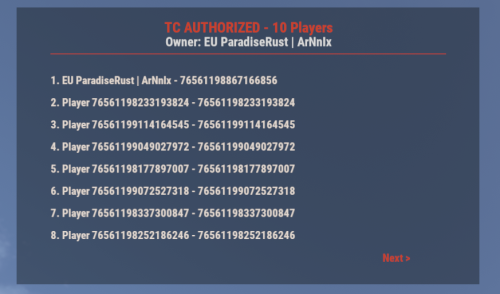
UI for displaying authorized players on the Tool Cupboard, Auto Turret, and Code Lock, including the entity owner. This plugin adds a simple, clean UI that shows you exactly who is authorized on the building or deployable you're looking at. Features: - Tool Cupboard: Displays a list of all authorized players and the owner. - Auto Turret: Displays a list of all authorized players and the owner. - Code Lock: Displays the owner, the lock code, and a list of whitelisted (Main) and Guest players. - Other Entities: If you look at any other player-placed entity (furnace, box, etc.), it will display the owner's name. - Pagination: If the list of players is longer than 8, you can use the "Next" and "Previous" buttons to browse. - Copyable Text: All information displayed in the UI (player names, Steam IDs, codes) can be selected and copied by the admin for easy use. - Player Team Info: If you look at a player, the UI will display their team information, including the team leader, all team members, and their Steam IDs. - Permission-based: Use the permission `adminauth.use` to control who can see the UI. How to use: 1. Grant the permission to a player or a group. 2. The player types the chat command `/aauth` to toggle the UI on or off. 3. Simply look at a Tool Cupboard, Turret, Code Lock, any other entity, or a player. The UI will appear with the relevant information. 4. To copy any information (like a Steam ID or Name), simply select the text in the UI with your mouse and copy it (Ctrl+C). Commands: - /aauth - Toggles the AdminAuthorizedUI on and off. Permissions: - adminauth.use - Required to use the /aauth command and see the UI.$13.80 -
Version 1.1.0
93 downloads
xPermissionManager A modern, intuitive, and powerful permission management tool for Rust servers. xPermissionManager provides a complete visual interface for managing user and group permissions directly ingame. No more console commands, guesswork, or digging through permission lists. Everything is organized, accessible, and easy to control through an straight forward UI. Whether you're adjusting a single permission, overseeing full group structures, or assigning temporary access, xPermissionManager gives server owners a fast and efficient possibility to do so. Plugin Preview (Video) Full Permission Control Grant or revoke any permission from groups or individual players. Timed Permission System Assign temporary permissions that automatically expire (e.g., 30m, 1h, 1d, 1w, custom durations). Timed Group Memberships Add players to groups for a limited time - Perfect for kits, VIP, special events or whatever. Comprehensive UI A clean and intuitive interface for browsing permissions, switching groups, managing users, and applying timed access. User & Group Browsing View all available groups, check individual player permissions, and toggle them instantly. Clear Feedback Every change is acknowledged with clear messages to help admins avoid mistakes. Permission xpermissionmanager.use // Allows a player to open and use the xPermissionManager UI Chat Commands /xpm /xpmuser <name or steamID> /xpmtimed /xpmgroups /xpm [Opens the Permission Manager UI] PERMISSION OR ADMIN REQUIRED /xpmuser <name or steamID> [Opens the UI for managing a specific player’s permissions/groups] PERMISSION OR ADMIN REQUIRED /xpmtimed [Shows all active timed permissions for a player. Includes remaining duration and whether they came from a group] /xpmgroups [Shows all active timed group memberships for a player] Console Commands </> API$11.99- 1 review
-
- 3
-

-

-
- #permission
- #manager
- (and 20 more)
-
Version 1.0.6
317 downloads
StarGuard Platform The RCON dashboard built for Rust server admins Manage your servers from anywhere. Console, players, bans, reports, automated rules, analytics, one place, persistent across wipes. Get Started Live Demo Explore the Dashboard Just a preview, countless other features integrated and planned. Console Full RCON access from your browser Players Live player list with deep profiles Reports All F7 reports in one place Statistics Live server KPIs and performance Plugins Oxide and Carbon plugin management Under the Hood Built for speed and moderation workflows, with real-time data, automation, and persistent history. RCON Console Full RCON from your browser. Command history, syntax highlighting, real-time output. Player Intel Deep player profiles, alts, playtime, connections, ban history. One click to moderate. Threat Detection Flags suspicious joins instantly. VPN detection, threat scoring, known cheater alerts. Automation Event-driven rules. Auto-kick, auto-ban, scheduled commands, runs 24/7. Analytics Player counts, peak hours, retention, performance trends. Persistent Data Persistent across wipes. Chat logs, bans, reports, events, all searchable. Oxide Compatible Carbon Compatible Developer API StarGuard hooks into global.playerlist and extends it. If you're building on top of this, here's what you get. GetPlayerList(ConsoleSystem.Arg arg) Replaces the default global.playerlist handler. Returns JSON with extended player data not available in the vanilla response. Response Fields SteamID · OwnerSteamID · DisplayName · Ping · Address · EntityId · ConnectedSeconds · ViolationLevel · Health · NetworkId · S_TeamId TryGetCommand(out ConsoleSystem.Command command) Scans ConsoleSystem.Index.All for global.playerlist. Returns true with the command reference via out, false otherwise. Get set up in 2 minutes. Create an account, connect your server, done. Get Started Live DemoFree- 14 comments
- 4 reviews
-
- 2
-
-
-
- #dashboard
- #tool
- (and 1 more)
-
![More information about "Build Tools [grade/remove/skins]"](https://codefling.com/uploads/monthly_2026_05/v4final.thumb.gif.c866d21f9b91d1fe13fd5ce27607e717.gif)
Version 1.5.47
4,849 downloads
Introducing a feature-rich plugin that will take your in-game building experience to new heights - Build Tools! This plugin is not just a tool, it is the key to creating incredible builds and will make the processes of upgrading, removing and even downgrading buildings easy and fun! !ATTENTION! After the last update of the game, the additional slot does not work Features of Build Tools Beautiful user interface: Our plugin has a lovely and easy-to-use interface that makes building tasks smooth and functional; Bar progress display: Keep track of your building progress with a clear progress bar, so you can see your upgrades easily; Upgrade of the entire building at once: You can make them stronger and more secure quickly; Interface customization: Personalize the user interface to match your preferences and workflow. Returning an item to remove: Don't worry about losing items when removing structures; our plugin ensures you get them back; Returning items with condition as in the game: Items are returned to the same condition as in the game, with the option to set their condition as a percentage; Blocked list items for remove: You can specify which items should not be removed for precise construction control. Ability to use icons both from the game and your own Work with Clans/Friends/NoEscape Building Skins (+ automatic parsing command) Downgrade: Make structure downgrades simple and adapt your base to changing needs with just a few clicks Edit config via in-game interface (no JSON editing required) Commands /up [1-4] - enable upgrading mode /up all - allows you to upgrade the entire building at once /remove - enable removing mode /remove all - allows you to remove the building at once /down - enable downgrading mode /down all - allows you to downgrade building at once buildtools.parse.skins – allows parsing new building skins from the game + images to them /bskin – open settings menu Permissions buildtools.all – allows you to upgrade/remove the entire building at once buildtools.free – allows you to upgrade buildings for free buildtools.edit – allows you to enable edit mode buildtools.vision – allows you to toggle the remove mode on in the vision mode Video Hooks object canDowngrade(BasePlayer player, BaseEntity entity) object canRemove(BasePlayer player, BaseEntity entity) object CanBuildToolsGiveRefund(BasePlayer player, BaseEntity entity) FAQ Q: Where can I see an example of a config? A: Config$21.95- 335 comments
- 16 reviews
-
- 8
-

-
-
- #building
- #foundation
- (and 27 more)
-

Version 1.7.4
767 downloads
Better Vanish allows server admins or users with permission to go fully invisible to spectate/watch players. It is based on the free public version on uMod by Wulf and has been in development since 2017. However, this version was written from scratch with performance, security and optimization in mind. Key features: Vanished administrators cannot be seen by any other players or cheaters. ¹ Optimization with performance in mind. No garbage allocations. Smaller size, lightweight with only most necessary functions for being invisible. Auto-hide / Auto-noclip after joining. ² Can be used by non-admins with certain restrictions. Auto teleportation under the map or to a safe spot (if you crash or disconnect). ³ Vanished state persists between disconnects or server restarts (configurable). Invisible to the world, environment, AI, traps and so on. ⁴ Custom & Lightweight trigger subsystem. Vanished player is only enters the most important world triggers at zero overhead. Can hide and unhide other players via command. The inventory spy function will let you see and edit player's or NPC's inventories. Sound effects when entering and leaving invisibility (other players can't hear it). Supports original Vanish API & Hooks. Explanations: You must behave accurately if you don't want to get attention from potential cheaters. Do not play, shoot, or touch your inventory and outfit. Auto-noclip is valid only for admins. Non-admins cannot be teleported underground. Please use the safe points. You still may provoke AI to follow you or shoot at you if you cause damage to them. Configuration The settings and options for this plugin can be configured in the BetterVanish.json file under the oxide/config directory. The use of a JSON editor or validation site such as jsonlint.com is recommended to avoid formatting issues and syntax errors. { "Show visual indicator (true/false)": true, "Visual indicator image address": "https://i.imgur.com/dOvX4uA.png", "Visual indicator anchor min": "0.1 0.001", "Visual indicator anchor max": "0.17 0.10", "Visual indicator color": "0.7 0 0 1", "Depth of an underground teleport (upon disconnection)": 15.0, "Block all incoming damage while vanished (true/false)": true, "Block all outgoing damage while vanished (true/false)": true, "Auto vanish on connect (true/false)": true, "Auto noclip on connect (true/false)": true, "Auto noclip on vanish (true/false)": true, "Turn off noclip on reappear (true/false)": true, "Persist vanish (don't unhide upon leave & restore after restart)": true, "Use sound effects (true/false)": true, "Enable safepoints (true/false)": true, "Remove all safepoints after wipe (true/false)": true, "Config revision (do not edit)": 4 } Localization The localization for this plugin can be configured in the BetterVanish.json file under the oxide/lang/en directory. The use of a JSON editor or validation site such as jsonlint.com is recommended to avoid formatting issues and syntax errors. { "CommandVanish": "vanish", "CommandSetVanish": "setvanish", "CommandUnvanishAll": "unvanishall", "CommandInvSpy": "invspy", "VanishDisabled": "<color=#FF686B>Vanish disabled</color>", "VanishEnabled": "<color=#91D6FF>Vanish enabled</color>", "VanishDisabledOther": "<color=#FF686B>You disabled vanish on {0}</color>", "VanishEnabledOther": "<color=#91D6FF>You enabled vanish on {0}</color>", "UnvanishedPlayers": "<color=#FF686B>You unvanished {0} players!</color>", "SetVanishHelp": "Syntax: /setvanish PlayerName", "SafePointNotSet": "You haven't set your <color=#F7B267>Safe Point</color>\nType <color=#FF686B>/vanish safepoint</color> to save your current position.\nYou will be automatically teleported there upon disconnection.", "SafePointSaved": "Your current position is saved as a Safe Point!", "MultiplePlayers": "Multiple players found!\nRefine your search or use Steam ID.", "NothingInSight": "No players in sight", "NoSuchPlayer": "No such player found ({0})", "InvSpyLooting": "Looting: {0} ({1})." } Permissions This plugin uses Oxide's permission system. To assign a permission, use oxide.grant <user or group> <name or steam id> <permission>. To remove a permission, use oxide.revoke <user or group> <name or steam id> <permission>. bettervanish.allowed - allows non-admin players to use vanish and become invisible. bettervanish.allowedother - allows non-admin players to vanish other players by their name. bettervanish.perma – the bearer will be vanished automatically and won’t be able to turn off vanish himself. bettervanish.unvanish - allows non-admin players to unvanish everyone at once. bettervanish.invspy - allows non-admin players to use inventory spy to loot players and NPCs remotely. bettervanish.skiplocks - allows non-admin players to have access to locked entities (boxes, doors). Commands This plugin provides universal chat and console commands. When using a command in the chat, prefix it with a forward slash: /. vanish - Toggles vanish state. vanish safepoint - Save a Safepoint, where get teleported on disconnect (your current position). setvanish <PlayerName> - Toggles vanish state of specified player. unvanishall - Unvanish everyone at once (both online & sleepers). invspy - Let you see and edit players or Npcs inventories, <name/steamID64> or look at the target and use then "invspy " Plugin Data This plugin can store 2 data files under oxide/data: BetterVanish-SafePoints.json - Player safepoints storage. BetterVanish-PersistPlr.json - Players with persisted vanish state. Developer API bool _IsInvisible(BasePlayer player) bool _IsInsivible(IPlayer player) void _Disappear(BasePlayer) void _Reappear(BasePlayer)$19.99- 51 comments
- 1 review
-
- 2
-
-
- #better vanish
- #admin
- (and 2 more)
-
Version 1.3.2
493 downloads
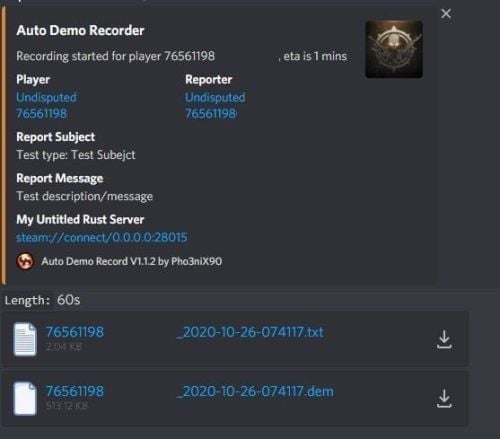
Records players automatically that have been reported X amount of times, with the ability to automatically upload the combat logs & Demo files to a discord webhook. Disk usage whilst recording: +- 1MB per 1 minute. Discord has an 8mb upload limit and 100mb for nitro. Chat Commands: /record - Chat: This will initiate a self-recording. Console Commands autodemorecord.record [steam64id] [minutes] - Console: Usefull to record a player on demand, or a schedule from another plugin. autodemorecord.blacklist add [steam64id] [recordingMinutes] [intervalMinutes] - Console: Add a player to the blacklist, which will record them for [recordingMinutes] every [intervalMinutes] autodemorecord.blacklist remove [steam64id] - Console: Removes a player from the blacklist. Permissions: Permission autodemorecord.record is required for a player to initiate a recording of themselves. Useful for streamers, to provide them with footage at wipe end, or tournaments. The recording length will be "Auto record for X minutes" Config explanations: "Auto record after X reports": Will start recording the player when these many reports have been received. "Only record when reports within X seconds": Only record when the number of reports above, are received in this timeframe. 0 to record always when the above value is reached. "Save/Load reports to datafile on reload": Useful when you aren't using the above config, if you do it might not be necessary to save data overhead. "Auto record for X minutes": the number of minutes the player should be recorded for. "Discord MSG Color": Color for the embed message, see here https://gist.github.com/thomasbnt/b6f455e2c7d743b796917fa3c205f812 "Discord Webhook": You discord webhook all information should be sent to. "Discord: Notify if recording is started": Should a message be sent to the discord webhook when the recording starts? "Discord: Include report with start message?": Should the player's report be added to the recording start message? "Discord: Notify if recording is stopped": Should a message be sent to the discord webhook when the recording ends? "Discord: Include report with end message?": Should the player's report be added to the recording end message? "Upload Combat Log to discord webhook?": Should the player's combat log be upload to the above discord webhook as a txt file? "Upload DEMO file to discord webhook?": Should the player's demo file be uploaded to the above discord webhook? "Split DEMO files for non nitro discord (8mb chunks)?": This will split files and upload multiple files to discord for non-nitro discord servers. If you have nitro with an upload limit of 100mb, then you can turn this off. "Discord Webhook - Self Record" All self-initiated recordings will post to this webhook, if not set it will go to the main one. "Record if FlyHacked in last X seconds" This will initiate a recording when a player rejoins the server after kicked for flyhacking. "Save recording to server?" If set to false, it will not save to the HDD, to save space. Make sure you have a webhook setup, otherwise it will still save as to not lose any demos. API: If you want to trigger a recording from your plugin, you can do the following: AutoDemoRecord.Call("API_StartRecording", BasePlayer player, string Reason, int LengthInMin); All suggestions welcomed!$19.99 -
Version 1.1.0
44 downloads
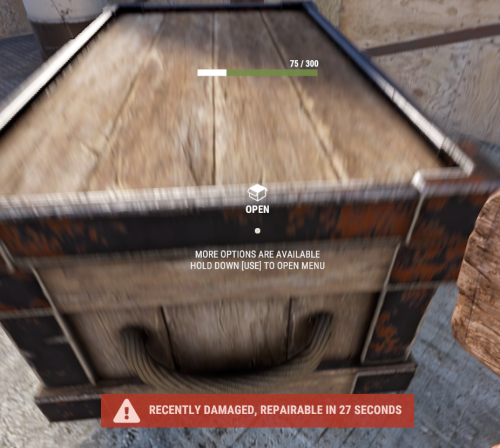
With just one tap, you can fully repair your base blocks and base items—no more having to tap repeatedly! Includes permission support and is optimized for top performance, with rotation & demolition support! Features * One Tap Repairs - Supports Base Blocks & Base Items & Vehicles, etc * Rotation - Re-Enables Base Blocks for easy native rotation again! * Demolition - Re-Enables Base Blocks for easy native demolition again! Permissions betterhammer.use ( required to do full 1 tap hit repairs with hammer & to use any features/functions )$5.00 -
Version 1.2.0
338 downloads
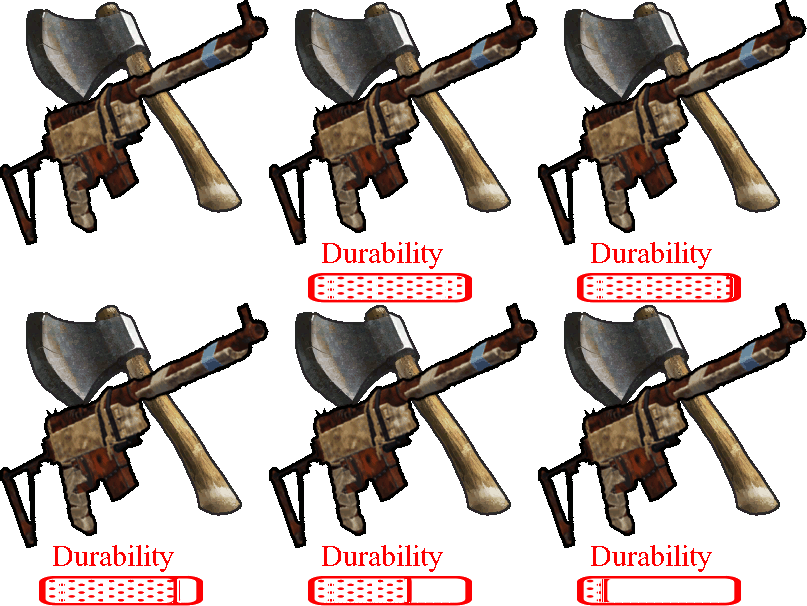
This plugin give the possibility to modify the amount of the durability loss by percentage for weapons(include attachments with durability) and/or tools. 3 different permission related value can be set, to support other plugins or vip/rank systems. It also has the feature to exclude weapons or tools from the function, up to the need. The plugin can work 3 different mode. 1 - no permission used at all -> normal durability loss applied 2 - The player can have more then one permission, in this case always the HIGHER permission percentage value used. 3 - The player shall only have 1 permission, in this case i recommend to activate the "Permission check against multiple permission group" and optionally the "Warning agains multiple permission group (can flood the server console)" configuration, to set to True, and if a player by mistake got 2 different permission, the plugin feature will be skipped and a warning will be shown on the server console. Permissions itemdurability.profile1 itemdurability.profile2 itemdurability.profile3 Configuration "itemdurability.profile1 permission percentage scale range: 0-X, 0.1f mean 10% of the original durability": 1.0, "itemdurability.profile2 permission percentage scale range: 0-X, 0.1f mean 10% of the original durability": 1.0, "itemdurability.profile3 permission percentage scale range: 0-X, 0.1f mean 10% of the original durability": 1.0, "Permission check agains multiple permission group": false, "Warning against multiple permission group (can flood the server console)": false, "Exclude weapons": true, "Exclude items, what are not weapons": false "CleanPermission on Wipe": true$7.00 -
╔═════════════════════╗ WUYZAR — WEBSITE LAUNCH ╚═════════════════════╝ I'm officially launching my personal website — a central hub for all my Rust plugin work, free tools, and upcoming releases. ━━━ AVAILABLE TOOLS ━━━ ▸ CUI Builder A visual editor for building Rust CUIs in your browser. Drag, position, style, and export production-ready C# code that drops straight into your plugin. *Access available on request through my Discord. ▸ Color Selector A simple utility to pick any color and get both the HEX value and the Rust CUI format (0–1 RGBA) — copy-paste ready. ━━━ COMING SOON ━━━ If you have ideas for utilities that would make Rust plugin development easier, I want to hear them. Drop your suggestions in my Discord and if it makes sense and helps the community, I'll build it !! ━━━ LINKS ━━━

-

Version 2.0.9
84,239 downloads
Convenient GUI manager for player and group permissions. Allows assignment of player permissions. (online or sleeping) Allows assignment of group permissions. Allows one-click removal of all players from a group. (group page - "Remove All") Allows adding/removing a player from groups. Supports unlimited plugins/permissions/groups Up to 60 plugins per-page. Up to 40 permissions per-page. Up to 40 user groups per-page Allows for local and sql backup and recall of all permissions or groups. Permissions. permissionsmanager.allowed - Allows players to use GUI. Plugin can be used with this permission, or by any Admin : Auth Level 2. Chat commands. /perms data - Backup and restore permissions and/or groups - local data file and/or SQL. ** /perms OR /perms player - Opens GUI player list, allowing a player to be chosen. /perms group - Opens GUI group list, allowing a group to be chosen. /perms player <playername> - Opens permissions GUI for the specified player. /perms group <groupname> - Opens permissions GUI for the specified group. Console commands. EmptyGroup <groupname> - Removes all players from the specified group. Configuration. Global. Chat - Title colour Chat - Message colour GUI - Label colour GUI - On colour GUI - Off colour GUI - AllPerPage - Sets All/None option to per-page, or per plugin. Options - GUI Transparency 0-1 Options - Plugin BlockList - ex. "playerranks,botspawn" Block list must be lower case, comma separated, no spaces, and no final comma, as above. Useful tool for picking CUI colours - RGB Decimal - Take the RGB Normalized decimal output, and remove all commas. ** Please note that with data backups : SQL saving is accumulative - Saving adds current permissions/group data to whatever was already saved. Local data file saving is not accumulative. It overwrites any existing backup with the current server permissions/groups. FAQ. Q: I'm trying to revoke permission(Y) for a player, but it says "Inherited". A: The player is in a group(X) which is also granted permission(Y). Solution: Revoke permission (Y) from group(X) or remove the player from group(X). Q: I removed a player from group(X), but they still have permission(Y). A: This is the opposite of the above. This player must have been independently granted permission(Y) at some time. Solution: Revoke permission(Y) from the player.Free- 222 comments
- 35 reviews
-
- 40
-
-
-
- #permissions
- #admin
- (and 7 more)
-

Version 1.0.6
99 downloads
Enables administrators to perform administrative actions anonymously, hiding their identity in chat and in-game, replacing their nickname with a configurable role name (e.g. ADMIN, MOD). Now supports multiple roles with custom permissions, BetterChat group integration, and advanced control over who can use and toggle anonymity. Commands /aa - Admin Anon Enable /aa - Admin Anon Disable Permissions adminanon.use – Allows using Admin Anon Custom permissions per role (configurable) Optional permission to control who can toggle anonymity Permission Recommendation: We recommend assigning permissions directly to users rather than groups for better control. BetterChat Integration / Change Color This plugin integrates directly with BetterChat. Username color and formatting are controlled by the assigned BetterChat group. Steps: Open BetterChat configuration (BetterChat.json) Edit the desired group (e.g. admin, mod) Change username color or formatting Save and reload BetterChat & AdminAnon Change avatar admin ? Changing the avatar is not necessary. This plugin is designed to hide identity, not impersonate other players. Configuration { "Stay Anonymous After Reconnecting": false, "Properties": [ { "Name": "ADMIN", "Better Chat Group": "admin", "Required Permission": "adminanon.use", "Required Permission to toggle on/off": "toggle", "Stay Anonymous After Reconnecting": false }, { "Name": "MOD", "Better Chat Group": "mod", "Required Permission": "mod.use", "Required Permission to toggle on/off": "toggle", "Stay Anonymous After Reconnecting": false } ] } Data (example) { "PlayerData": { "76561198196941415": { "Groups": [ "default", "steam", "admin" ], "Name": "MOD", "Better Chat Group": "mod", "Required Permission": "adminanon.use", "Required Permission to toggle on/off": "toggle", "Stay Anonymous After Reconnecting": false } } } Language (EN) { "No Permission": "<size=12>You don't have permission to use this command</size>", "No Profile Permission": "<size=12>You don't have permission to use this profile</size>", "Admin Anon Enabled": "<size=12>Admin Anon has been <color=#00fa9a>ENABLED</color></size>", "Admin Anon Disabled": "<size=12>Admin Anon has been <color=#00fa9a>DISABLED</color></size>", "Admin Anon Changed": "<size=12>Fake identity has changed to <color=#00fa9a>{0}</color></size>", "Requested Fake Identify Not Found": "<size=12>Requested fake identity is not found</size>", "No Fake Identities Available": "<size=12>No fake identities available</size></size>", "Fake Identify Not Found": "<size=12>Fake identity is not found</size>", "Data Corrupted Up": "<size=12>Data is corrupt</size>", "Cannot Toggle Off": "<size=12>You cannot disable Admin Anon with your current role (missing toggle permission).</size>" }$6.00- 2 reviews
-
- 1
-
-
- #admin
- #administrator
- (and 33 more)
-
Version 2025.12.23
6,327 downloads
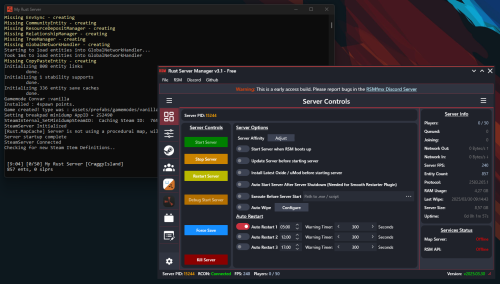
Rust Server Manager (RMSfmx) is a tool that allows you to create and manage dedicated Rust servers. RSMfmx was a paid tool that has recently become free and open source. Freatures: Modern Graphical Interface Server Info Panel Graphical Server Config Editor Graphical Server Installer Graphical Player Manager OxideMod / uMod Installer and Configuration CarbonMod Installer and Configuration Plugin Manager (Install, Configure and manage) Chats Logger Auto Restart Map Server (Self host custom Maps) Rest API to interface with RSM.Free- 11 comments
- 3 reviews
-
- 13
-
-
-
- #rsm
- #rust server manager
- (and 5 more)
-
.thumb.png.236d3b1f6f57493fa27db5fb5609205a.png)
Version 0.6.6
273 downloads
ABOUT UPGRADER : Allows players to upgrade various item categories, including weapons, armor, and tools, each with unique upgrade options. Extensive configuration options for server admins to adjust : What items will be upgradable (Only items what you chose to put in config will have upgrades ) What upgrades will item have ( you dont need to put all upgrades on item ,only what upgrades you chose for a item) Upgrade costs (you can put what ever custom/default item,and amount for cost) Levels (you can choose how much upgrade will have levels) Values of upgrades (you can choose value of each upgrade ,example "damage" Lv1 2% damage, Lv2 5%) There is a easy way to control your upgrades , all about items can be done in UI. Adding,removing items can be done by UI. You can modify items true UI : upgrade types, levels ,values ,cost . In chosing cost there is also custom category tab , you need to add those items in config at bottom of config file ! There is Inspection button where you can see stats of upgraded item in inventory. UPGRADES : Each category have their own upgrades : Wepons : Armor : Tools : Damage, Defense, GatherYield, MagazineSize, Durability, Durability, Durability, RadiationProtection, Deforestation, LifeSteal, ResurrectionChance InstantMine, CritChance, RestoreItems Smelting InstaReload Each category have RenameName of a item . HOW TO USE : Simple put Upgrader.cs to your plugin folder . Add/remove items from config or true UI . Chose upgrades for items (levels,cost,values) . In Game : Add permissions. When player put item in Repair Bench he will see Upgrade button . UI will open with upgrades. Inspection button is below belt inventory ,when player click on it it will open inspection mode ,so he will be able to see item upgrades in small UI. INFOPANEL : Admins can change text in config file for a ServerName and Info . For more explanations to player or what ever text you need . DIAMONDS : 4 custom items (diamonds) .They can be used for cost of upgrades. You can chose stacksize ,where they will spawn(lootboxes),chance to spawn in boxes ,and amount. You can change theirs DisplayName , SkinId . You can use them or not ,its a option . COMMANDS : Chat Command : /additem ( it opens Ui where you can modify upgrades ) Chat Command : /giveupgradeditem [playerID/name] <itemUID> ( when you upgrade item ,you can see his UID in DataFile ! ) Console Command : giveupgradeditem [playerID/name] <itemUID> Chat Command : /givediamond "name" "amount" Console Command - wipeupgradedata PERMISSION SYSTEM/COMMANDS : upgrader.button - allow to see button in repair bench for upgrade upgrader.weapon - allow weapon upgrades upgrader.armor - allow armor upgrades upgrader.tool - allow tool upgrades upgrader.bypasscost - free upgrades upgrader.diamondgive - allow to use command /givediamond "name" "amount" upgrader.additem - allow to use command /additem upgrader.giveitem - allow to use command /giveupgradeditem [playerID/name] <itemUID> console command - giveupgradeditem [playerID/name] <itemUID> CONFIG EXAMPLE : Upgrader.json DATA : There is data file what stores upgrades of items. You can delete data items with command in console . Console Command - wipeupgradedata API : [HookMethod("API_HasUpgrades")] public bool API_HasUpgrades(Item item) [HookMethod("API_GetUpgrades")] public Dictionary<string, int> API_GetUpgrades(Item item) [HookMethod("API_ApplyUpgrades")] public void API_ApplyUpgrades(Item item, Dictionary<string, int> upgrades)$20.00 -
Version 5.0.0
43 downloads
MyCommands Description The MyCommands plugin displays a modern, scrollable user interface (UI) that provides players with categorized commands and real-time search functionality. Who doesn't know that feeling - you have a lot of possibilities on your server, but players can't remember all the commands. With this plugin, it becomes easy to navigate and use commands via a visual interface. Administrators can define categories, commands, and descriptions. Features: Categorized commands: Commands are grouped into collapsible categories to make navigation easier for players. Example categories include House, Bells, Tools, Admin, and Economy. Real-time search functionality: Players can search for specific commands using the integrated search bar with instant results. Modern scrollable UI: Clean, modern interface with smooth scrolling for better user experience. Command descriptions: Each command includes a helpful description that appears in an information tooltip. Info tooltips: Click the blue "i" button next to any command to see its description in a modern popup. User-friendly interface: The UI provides a clear presentation of commands with options to expand or collapse categories. Customizable commands: Administrators can add new commands, categories, or descriptions, or edit existing ones in the configuration. Close button: The UI can be closed with a simple click on the close button. Direct command execution: Players can execute commands directly from the UI without entering them manually in the chat. Automatic UI closing: When a command is executed, the UI automatically closes. Search window: Separate search results window that appears alongside the main interface. Permission-based access: Only players with the correct permission can access the command interface. as off (v.4.4.0) Customizable colors: Adjust your colors in the config. Command: Set your own command Commands: /mycommands - Opens the main command interface Permissions: mycommands.use - Players need this permission to open the UI, search commands, and execute commands. This permission can be assigned to special user groups. Config: The configuration uses a comprehensive JSON system that is automatically created on first load if no configuration exists. You can edit it to adapt it to your server needs. The config includes both command categories and detailed descriptions. { "Command": "mycommands", "Categories": { "House": [ "/myhouse", "/rename", "/removehouse", "/findhouse" ], "Bells": [ "/addbell", "/setbell" ], "Tools": [ "/skinbox", "/cupboard", "/test1", "/test2", "/test3", "/teller" ], "Admin": [ "/god", "/vanish", "/fly", "/noclip", "/teleport" ], "Economy": [ "/shop", "/sell", "/buy", "/balance", "/pay" ] }, "CommandDescriptions": { "/myhouse": "Teleport to your house location", "/rename": "Rename your house or building", "/removehouse": "Remove your house from the system", "/findhouse": "Find the location of your house", "/addbell": "Add a bell to your building", "/setbell": "Configure bell settings", "/skinbox": "Open the skin selection interface", "/cupboard": "Manage your tool cupboard", "/test1": "Test command #1 for debugging", "/test2": "Test command #2 for debugging", "/test3": "Test command #3 for debugging", "/teller": "Access bank teller functions", "/god": "Toggle god mode (admin only)", "/vanish": "Become invisible to other players", "/fly": "Toggle fly mode for admins", "/noclip": "Toggle noclip through walls", "/teleport": "Teleport to coordinates or player", "/shop": "Open the main shop interface", "/sell": "Sell items from your inventory", "/buy": "Purchase items from the shop", "/balance": "Check your current balance", "/pay": "Send money to another player" }, "CategoryPermissions": { "House": "public", "Bells": "public", "Tools": "public", "Admin": "admin", "Economy": "public" }, "Colors": { "MainPanel": "#1A1A1AF2", "HeaderPanel": "#333333FF", "CloseButton": "#CC3333FF", "SearchPanel": "#1F1F1FFF", "SearchLabel": "#CCE6FFFF", "InputField": "#050505FF", "InputText": "#FFFFFFFF", "InputPlaceholder": "#808099FF", "ClearButton": "#B33333FF", "CategoryButton": "#4D9933FF", "CategoryButtonText": "#FFFFFFFF", "CommandButton": "#666666FF", "CommandButtonText": "#E6E6E6FF", "InfoButton": "#3380CCFF", "InfoButtonText": "#FFFFFFFF", "TooltipPanel": "#1A1A1AF2", "TooltipHeader": "#3380CCFF", "TooltipContent": "#0D0D0DE6", "TooltipText": "#E6E6E6FF", "NoResultsText": "#B3B3B3FF", "SearchResultsText": "#80E680FF", "ScrollbarHandle": "#808080FF", "ScrollbarTrack": "#333333FF" } } load, run, enjoy$16.99 -

Version 1.0.2
8 downloads
xMegaphone xMegaphone is a powerful megaphone broadcast system for Rust servers that allows players and/or admins to submit custom announcements through an intuitive UI. Messages can be displayed globally as either animated sliding text or clean static text, making it perfect for announcements, events, advertisements, community communication or even selling megaphones to your players for real money. The plugin is optimized for performance and designed to run smoothly on most servers. For maximum flexibility, you can choose between two display modes depending on your server’s needs: Type 0 - Sliding Text: Eye-catching animated ticker that scrolls across the screen. Type 1 - Static Text: Performance-friendly message displayed in the center without animation (recommended for very high population servers). This allows you to balance visual impact and performance with a simple configuration change. ■ Inspired by the classic megaphone system from the game "Combat Arms" (when it wasn't dead lol), bringing that nostalgic broadcast experience to your server. Plugin Preview Permission xmegaphone.use - Needed to use the /xmp command xmegaphone.admin - Needed to use admin commands </> Chat Commands (Players) /xmp - Opens the xMegaphone UI ⌨ Chat/Console Commands (Admins) /xmp - Opens the xMegaphone UI /xmp give <steamId|partialName> <amount> - Adds megaphone uses to a player. /xmp set <steamId|partialName> <amount> - Sets a player’s megaphone uses to an exact number. /xmp reset <steamId|partialName> - Resets a player’s uses back to your configured StartingMegaphoneUses value. Config { "Uses": { "StartingMegaphoneUses": 0 }, "Message": { "MaxLength": 80 }, "Ticker": { "MegaphoneType": 0, "DurationSecondsType0": 20.0, "DurationSecondsType1": 8.0, "FontSize": 18, "ShowSender": true, "PrefixText": "[MEGAPHONE]", "PrefixColor": "#cffc03", "SenderColor": "#75ff9a", "TextColor": "#ffffff" } } ^ "StartingMegaphoneUses" = How many megaphones a player receives when added to datafile for first time.$9.99- 2 comments
-
- 1
-
-
- #server
- #megaphone
- (and 21 more)
-
Version 1.2.3
162 downloads
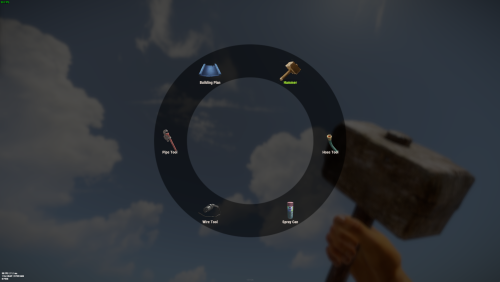
Allows you to quickly switch between available tools (configured in the config) by pressing the E key a menu will open in which the player can select the tool he needs. Commands: /give_mt - will give you the Multi Tool works only if you an admin. give_mt steamid in the server console will give the Multi Tool to a target player. You can change the Multi Tool skin in the config file. If you want to hide some tools or make them available only if play have permission you also can do this in the config file. Also you can enable unlimited resources for Building Blan used via Multi Tool. DEFAULT CONFIG$7.99- 21 comments
- 4 reviews
-
- 3
-
-
- #multi-tool
- #tool
- (and 2 more)
-

Version 1.0.0
4 downloads
This plugin allows you to view the Tool Cupboards of the entire server on the map, and to see the list of players authorized, if you have permission. Settings : - Radius F1 Commands : - cm.reload (to reload markers) Permissions : - oxide.grant user <steamID/user> cupboardmarker.use WuyZar's Discord : https://discord.gg/NVwRcQwGwh$2.50 -

Version 1.1.0
21 downloads
xCrosshair xCrosshair is a customizable crosshair system for Rust servers, giving players full control over their personal reticle/crosshair through an ingame UI menu. With multiple built-in shapes, color presets, HEX input support, outlines, and adjustable visual parameters, each player can design a crosshair that fits their preferred style. Features 7 crosshair shapes Full customization options Size Thickness Alpha/Transparency Outline toggle RGB/HEX color selection Quick-use color presets Per-player saved settings Chat Commands /crosshair - Opens the crosshair settings menu /ch - Opens the crosshair settings menu Permission xcrosshair.use - This permission is needed to use the crosshair. Preview ^ Sorry for bad video quality.$12.99

.thumb.png.ccf8a947948c9eb1445ad21a7931247b.png)




.thumb.png.f676fcb4237b0d630285499251bcf88e.png)





.thumb.png.8fb9cb5db33376288eba94beb961d0c6.png)