Search the Community
Showing results for tags 'admin'.
-
Version 1.0.0
3 downloads
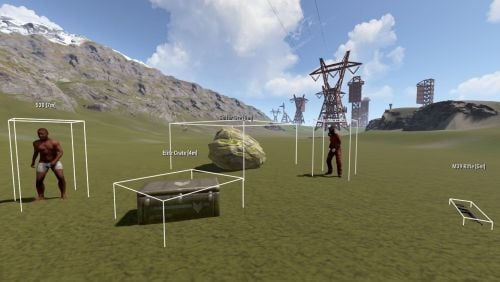
AdminUltimateVision is a powerful ESP (Extra Sensory Perception) plugin designed for Rust server administrators. This plugin provides real-time visualization of various entities on the server, making server management and monitoring significantly easier. With its intuitive interface and customizable settings, administrators can quickly locate players, NPCs, loot containers, dropped items, ores, and corpses within a specified range. Key Features Entity Visualization Players: Track all online players with their names and distances NPCs: Monitor scientists, bandits, peacekeepers, and other NPCs Animals: Visualize bears, wolves, boars, stags, chickens, horses, and other wildlife Loot Containers: Locate crates, barrels, elite crates, airdrops, toolboxes, and bags Dropped Items: Find items dropped by players on the ground Ores: Discover sulfur ore, metal ore, and stone ore deposits Corpses: Track player corpses with their original player names User Interface Clean, compact menu design that doesn't obstruct gameplay Toggle buttons for each entity category Real-time distance display (optional) 3D bounding boxes around entities (optional) Adjustable render distance (50m - 500m) Easy-to-use reset function Customizable Settings Render Distance: Adjust from 50 to 500 meters in 25m increments Box Display: Toggle 3D wireframe boxes around entities Distance Display: Show/hide distance information in labels Category Filtering: Enable/disable specific entity types Performance Optimization: Efficient update system to minimize server impact Commands Chat Commands /atool - Opens the main AdminUltimateVision interface /avision - Alternative command to open the interface Console Commands (Automatic) The plugin automatically handles all console commands through the UI. No manual console input required. How to Use 1. Opening the Interface Type /atool or /avision in chat The compact menu will appear on the right side of your screen 2. Configuring Entity Types Click on any category button to toggle visibility: PLAYERS - Show/hide online players NPC - Show/hide NPCs and animals LOOT - Show/hide loot containers ITEMS - Show/hide dropped items ORES - Show/hide ore deposits CORPSES - Show/hide player corpses 3. Adjusting Display Options BOXES - Toggle 3D wireframe boxes around entities DISTANCE - Toggle distance information in entity labels 4. Setting Render Distance Use + and - buttons to adjust render distance Range: 50m to 500m (increments of 25m) Higher distances may impact performance 5. Resetting Settings Click RESET to restore default settings Click CLOSE to close the interface Tips and Best Practices Performance Tips Start Small: Begin with a lower render distance (100-150m) and increase as needed Selective Viewing: Only enable categories you currently need to reduce visual clutter Regular Resets: Use the reset function if the interface becomes unresponsive Usage Scenarios Player Monitoring: Track player movements and locations during events Loot Management: Locate and manage loot spawns across the map Resource Tracking: Find ore deposits for base planning Cleanup Operations: Locate and remove abandoned items and corpses Event Management: Monitor NPC spawns during server events Troubleshooting Nothing Visible: Ensure at least one category is enabled and render distance is appropriate Performance Issues: Reduce render distance or disable unnecessary categories UI Not Responding: Use the reset function or restart the plugin Advanced Usage Combine Categories: Enable multiple categories for comprehensive area monitoring Distance Optimization: Adjust render distance based on your current task Box Visualization: Use boxes for precise entity location and size reference Configuration The plugin includes several configurable options in the config file: { "DefaultRenderDistance": 150.0, "MaxRenderDistance": 500.0, "MinRenderDistance": 50.0, "UpdateRate": 0.05, "EnableBoxes": true, "EnableDistanceDisplay": true } Permissions Admin Only: This plugin requires admin privileges to use Automatically checks for admin status before allowing access Compatibility Rust Version: Compatible with current Rust builds Server Impact: Minimal performance impact with optimized update system Client Side: No client-side modifications required AdminUltimateVision.json$1.99 -
Version 1.4.7
5,096 downloads
Manage your Rust server easier and more efficiently with the AdminMenu plugin. Track players, interact with them, edit their data and permissions, as well as change server convars and manage plugins. Features: Menu retains its state after closing, you won't lose everything you did before. Ability to fully translate the menu into any language. Large range of permissions for each action, will allow you to flexibly customize the admin menu for each group of administrators. Quick menu that allows you to perform quick actions Full list of players with the ability to filter by online, offline, admins and moderators. Also has a frame of different colors depending on the level of authorization. Wide range of information and actions for the selected player. Editing convars with search. Has a complete list of editable convars with descriptions for some of them. Extensive issue menu by category, with easy management of name, skin and amount (manual, +1, +100, +1000, +10000). Plugin management menu. It is possible to reload, unload or load a plugin easily and quickly. Updates occur in real time. Ability to create your own custom buttons that execute several commands Quick Start: You install the plugin in the plugins folder. Give yourself the adminmenu.fullaccess permission. Commands, use one of your choice, one for the player and one for the admin group: o.grant user [name or steamid] adminmenu.fullaccess o.grant group admin adminmenu.fullaccess Press the X button (swap seat button) or type adminmenu in the console. Enjoy Useful stuff: You can quickly open a player in the admin menu. To do this, point at the player and press X. You don't have to hover over the player exactly, you will be able to open players within a certain radius of the place you are looking at. CUSTOM BUTTONS Custom buttons are buttons that when pressed will execute commands on behalf of the administrator, commands can be several, below will be the details. At the moment, custom buttons can be created in two places: in the quick menu and in the menu when selecting a player. These places are separated in the config. Button Fields: "Execution as server" - Call the command on behalf of the server, not the administrator "Label" - Text that will be on the button, for each such inscription creates a field in the lang file, accordingly you can translate this text into several languages. "Commands" - Array of commands that will be executed on behalf of the administrator. Chat commands require a special entry, see examples. "Permission"- permission to display and use the button. You need to write the permission that will be after "adminmenu.". Example: if you enter the permission "test" the permission will be adminmenu.test "Position" - The location for the button, the first number is responsible for the row number, the second for the position within the row, starts from 0.There are limits of locations, if you have gone beyond the limit - the button will not be displayed. Common Tags: {adminUID} - administrator's id. {position} - administrator coordinates (underfoot) {view_position} - the position where the administrator is looking (can be used for spawning or something similar) {view_direction_forward} - forward view direction of the administrator {view_direction_backward} - the direction the administrator is looking backwards {view_direction_left} - direction of the administrator’s view to the left {view_direction_right} - administrator’s view direction to the right Tags for target only: {steamid}, {steamID}, {userID}, {STEAMID}, {USERID} - mean the same thing, namely the id of the selected player. {target_position} - target coordinates (underfoot) Example of commands: chat.say \"/{chat command}\" vanish ban {steamID} teleport {steamID} {adminUID} More information about the grant menu: The grant menu includes the full list of items including hidden items as well as custom items created by the CustomItemDefinitions library. The menu can be accessed from the navigation or from the menu of the selected player. When issuing itself has categories. Search works in any registry by any part of the name or short name. Has a page system at any stage. More information about the buttons in the Quick Menu: [Teleport to 0 0 0] - Teleport to coordinates 0 0 0. Requires adminmenu.quickmenu.teleportto000 permission [Teleport to Deathpoint] - Teleport to your deathpoint. Requires adminmenu.quickmenu.teleporttodeath permission [Teleport to Spawn point] - Teleport to a random spawn point. Requires adminmenu.quickmenu.teleporttospawnpoint permission [Kill Self] - Kill Self, kills even when immortal. Does not require permission. [Heal Self] - Fully heal yourself. Requires adminmenu.quickmenu.healself permission [Call Heli] - Call Helicopter to yourself (arrives in time). Requires adminmenu.quickmenu.helicall permission [Spawn Bradley] - Spawn bradley on yourself. Requires adminmenu.quickmenu.spawnbradley permission More information about the buttons in the menu of the selected player: [Teleport Self To] - Teleport yourself to the selected player. Requires adminmenu.userinfo.teleportselfto permission [Teleport To Self] - Teleport the selected player to yourself. Requires adminmenu.userinfo.teleporttoself permission [Teleport To Auth] - Teleportation to random authorization (TC). Requires adminmenu.userinfo.teleporttoauth permission [Teleport to Deathpoint] - Teleportation to a player's deathpoint. Requires adminmenu.userinfo.teleporttodeath permission [Heal] - Full healing, including metabolism. Requires adminmenu.userinfo.fullheal permission [Heal 50%] - Half healing. Requires adminmenu.userinfo.halfheal permission. [View Inventory] - View and edit player's inventory. Requires adminmenu.userinfo.viewinv permission [Strip Inventory] - Clear player's inventory. Requires adminmenu.userinfo.stripinventory permission [Unlock Blueprints] - Unlock all Blueprints. Requires adminmenu.userinfo.unlockblueprints permission [Revoke Blueprints] - Reset all Blueprints. Requires adminmenu.userinfo.revokeblueprints permission. [Kill] - Kill a player. Requires adminmenu.userinfo.kill permission [Kick] - Kick a player. Requires adminmenu.userinfo.kick permission [Ban] - Ban a player. Requires adminmenu.userinfo.ban permission More information about the buttons in the menu of the selected group: [Remove Group] - Remove group, has confirmation. Requires adminmenu.groupinfo.removegroup permission [Clone Group] - Clone group with the ability to copy users. Requires adminmenu.groupinfo.clonegroup permission Permissions: adminmenu.use - Ability to use admin menu with basic set. Open tab quick menu (each button has its own permission, without permissions is present only kill yourself button) and the list of players. adminmenu.fullaccess - Full access to all functions without the need for each permission, includes also adminmenu.use. It is recommended to give only to the main administrators. adminmenu.quickmenu.teleportto000 - Access to the button in the quick menu, teleportation to coordinates 0 0 0 0. adminmenu.quickmenu.teleporttodeath - Access to the button in the quick menu, teleportation to the point of your death. adminmenu.quickmenu.teleporttospawnpoint - Access to the button in the quick menu, teleportation to a random spawn point. adminmenu.quickmenu.healself - Access button in quickmenu, heal yourself completely. adminmenu.quickmenu.helicall - Access to the button in the quick menu, call a helicopter to yourself (arrives in time). adminmenu.quickmenu.spawnbradley - Access button in quickmenu, spawn bradley. adminmenu.userinfo.teleportselfto - Access to the button in the menu of the selected player, teleportation to the selected player. adminmenu.userinfo.teleporttoself - Access to the button in the menu of the selected player, teleport the selected player to himself. adminmenu.userinfo.teleporttoauth - Access to the button in the menu of the selected player, teleportation to random authorization (TC). adminmenu.userinfo.teleporttodeath - Access to the button in the menu of the selected player, teleportation to the place of death of the player. adminmenu.userinfo.fullheal - Access to the button in the menu of the selected player, full healing, including metabolism. adminmenu.userinfo.halfheal - Access to the button in the menu of the selected player, half healing. adminmenu.userinfo.viewinv - Access to the button in the selected player's menu, view and edit the player's inventory. adminmenu.userinfo.stripinventory - Access to the button in the menu of the selected player, clear the player's inventory. adminmenu.userinfo.unlockblueprints - Access the button in the menu of the selected player, unlock all drafts. adminmenu.userinfo.revokeblueprints - Access to the button in the menu of the selected player, reset all drafts. adminmenu.userinfo.kill - Access the button in the selected player's menu to kill the player. adminmenu.userinfo.kick - Access the button in the selected player's menu to kick the player. adminmenu.userinfo.ban - Access to the button in the menu of the selected player, ban the player. adminmenu.groupinfo.removegroup - Access to the button in the menu of the selected group, the ability to remove the group. adminmenu.groupinfo.clonegroup - Access to the button in the menu of the selected group, the ability to clone the group. adminmenu.convars - View and edit convars. adminmenu.permissionmanager - View and edit permissions in groups, player groups, create, delete and clone groups (requires additional permissions from these buttons). adminmenu.pluginmanager - Access to plugin management, reloading, unloading, loading plugins. adminmenu.give - Access to give resources, as well as yourself and the selected player.$30.00 -
Version 2.2.4
3,288 downloads
Admin Map is an innovative plugin for the game of Rust, designed to make server administration easier and improve the quality of the gaming experience. Focused on optimization and functionality, this plugin provides admins with the tools to effectively control players, minimizing the negative impact on the server and other participants. Main features: Interactive map with players: Admin Map provides server admins with a detailed and user-friendly map showing the positions of all players. This allows admins to easily monitor player activity and movements, and quickly detect suspicious activity. Large variety of different admin map layers: - Marker, - Text , - Sleeper, - TC, - Stash, - Sleeping Bag Quick Commands on Players: The plugin allows admins to perform quick actions on players directly from the map. Send messages, punish or help players in real time, minimizing reaction time and increasing interaction efficiency. Minimal server load: One of the key features of Admin Map is its low server load. All processing takes place solely on the client side, which means that the plugin will not slow down the server or create additional delays for players. This makes it an ideal choice even for servers with high traffic. Ease of use: The plugin's intuitive user interface provides admins with easy access to functionality. Navigating the map, sending commands and monitoring players is done with minimal effort, making server administration easy. Customization: Admin Map provides admins with the option to customize the functionality to suit their needs. Scanning area, available commands, buttons, permissions and other options. Hardcore bypass: Admins will be able to access the map on servers with the hardcore game mode installed. After permission is granted, it is necessary to rejoin the server Support in RUST+: You will be able to view players online on the map directly in your phone without going to the server! Admin Map is an innovative solution that combines convenience, functionality and optimization. It provides administrators with tools to effectively manage players without negatively impacting gameplay and other server participants. The Admin Map plugin is an essential asset for any Rust server administrator looking to create a comfortable and safe gaming environment. Permissions: adminmap.allow - for use adminmap and hardcore bypass adminmap.<button perm> - any permissions specified in the button settings adminmap.teleport2marker - teleportation by marker via CTRL+RMB adminmap.invis - hide player from the player map adminmap.rust+ - enable rust+ admin map adminmap.rust+.invis - hide from rust+ admin map (recommended in case of giving the map to players) Commands: /amap - show sidebar /amap off - disable everything and hide the sidebar Color designations on the cupboards map: Default Config: { "Auto show sidebar panel": true, "Open the admin menu instead of the action menu": false, "Text Map Settings": { "Font size": 8.0, "Use color generation for teams?": true, "Color for team": "ffaf4d", "Color for solo player": "9bd92f", "Color for sleeper": "404040" }, "Command Buttons": [ { "Permission (adminmap.<perm>)": "", "Label": "TP", "Command": "teleport {steamid}", "Color": "1 1 1 1" }, { "Permission (adminmap.<perm>)": "", "Label": "TP2ME", "Command": "teleport {steamid} {admin.steamid}", "Color": "1 1 1 1" }, { "Permission (adminmap.<perm>)": "", "Label": "INV", "Command": "/viewinv {username}", "Color": "1 1 1 1" }, { "Permission (adminmap.<perm>)": "", "Label": "SPECTATE", "Command": "spectate {steamid}", "Color": "1 1 1 1" }, { "Permission (adminmap.<perm>)": "", "Label": "KILL", "Command": "kill {steamid}", "Color": "0.9 0.1 0.25 1" }, { "Permission (adminmap.<perm>)": "", "Label": "KICK", "Command": "kick {steamid}", "Color": "0.9 0.1 0.25 1" }, { "Permission (adminmap.<perm>)": "", "Label": "SHOW\nTEAMMATES", "Command": "adminmap.cmd show_player_teammates {steamid}", "Color": "1 1 1 1" }, { "Permission (adminmap.<perm>)": "", "Label": "SHOW\nPRIVLIDGES", "Command": "adminmap.cmd show_player_privlidges {steamid}", "Color": "1 1 1 1" }, { "Permission (adminmap.<perm>)": "", "Label": "SHOW\nSLEEPING\nBAGS", "Command": "adminmap.cmd show_player_sleepingbags {steamid}", "Color": "1 1 1 1" }, { "Permission (adminmap.<perm>)": "", "Label": "SHOW\nSTASHES", "Command": "adminmap.cmd show_player_stashes {steamid}", "Color": "1 1 1 1" } ] } Button Library: Give item to player for AdminMenu by k1lly0u | Minimum required version 1.0.1 { "Permission (adminmap.<perm>)": "", "Label": "GIVE", "Command": "adminmenu.callback {steamid}.4;adminmenu.callback {steamid}.4", "Color": "1 1 1 1" } Permanent ban { "Permission (adminmap.<perm>)": "", "Label": "BAN", "Command": "ban {steamid}", "Color": "1 0 0 1" } View backpack (for Backpack Pro) { "Permission (adminmap.<perm>)": "", "Label": "Backpack", "Command": "/b {steamid}", "Color": "1 1 1 1" } View backpack (for Backpacks plugin from uMod) { "Permission (adminmap.<perm>)": "", "Label": "Backpack", "Command": "viewbackpack {steamid}", "Color": "1 1 1 1" } Spectate { "Permission (adminmap.<perm>)": "", "Label": "SPECTATE", "Command": "spectate {steamid}", "Color": "1 1 1 1" } If you want to add buttons here, message me on my discord server$20.00 -
![More information about "FileWatcher [OXIDE | CARBON]"](https://codefling.com/uploads/monthly_2026_05/FileWatcher_Icon.thumb.png.0d5136604efcaf154697fab21688c4d7.png)
Version 2.0.0
13 downloads
Description FileWatcher monitors your server’s config and lang JSON files and automatically reloads the affected plugin when changes are detected. This is aimed at faster iteration while developing or tuning plugins — edit JSON, save, and the plugin reloads itself. Features Config + Lang monitoring - Watches */config/*.json - Watches */lang/**.json (including subfolders) Safe reload behavior - Debounce (1s): prevents multiple reloads while a file is still being written - Reload cooldown (20s): prevents reload loops and spam - Ignore list: exclude specific plugins from being reloaded - Always ignores FileWatcher itself Stability - If the watcher throws errors, it auto-restarts itself after 5 seconds Debug mode - Optional debug output for watcher init, file changes, cooldown/debounce decisions, etc. Commands /fwstatus Shows watcher status (Config/Lang on/off) and ignored count. Admin only. Permissions No Oxide permission is used. Access is gated by player.IsAdmin. Config { "Watch config folder": true, "Watch lang folder": true, "Ignored plugins": [ "PermissionManager" // This is an example. ], "Debug mode": false } load, run, enjoy$3.55 -
Version 1.9.0
227 downloads
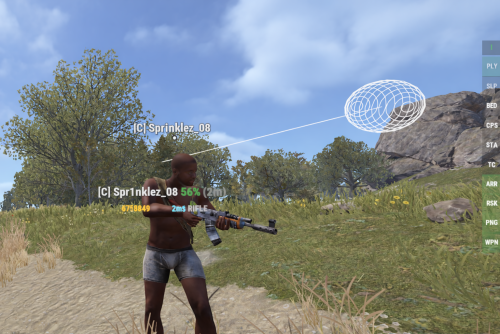
━━━━━━━━━━━━━━━━━━━━━━━━━━━━━━━━━━━━━━━━━━━━━━━ https://nexuscheatradar-6yt.pages.dev ━━━━━━━━━━━━━━━━━━━━━━━━━━━━━━━━━━━━━━━━━━━━━━━ ━━━━━━━━━━━━━━━━━━━━━━━━━━━━━━━━━━━━━━━━━━━━━━━ ⚠ BETA NOTICE ━━━━━━━━━━━━━━━━━━━━━━━━━━━━━━━━━━━━━━━━━━━━━━━ WEB RCON is a subscription based service includes plugin control permissions manage and more it is not required to have full functions of the plugin or the web service https://nexuscheatradar-6yt.pages.dev/rcon/demo NCR is in active beta — functional on live servers, but thresholds and features are still being refined with community feedback. » Human oversight required — Always verify alerts before taking action » False positives are possible — All thresholds are fully tunable >> DOING ALL I CAN TO KEEP THE SITE FREE SO YOU KNOW WHEN A PLAER IS FISHY<< NCR is a detection assistant, not an auto-ban system. Every alert ishould be reviewed by a human admin before any enforcement action is taken. that means you need to verify nothing will ever replace human monitoring What makes NCR different is the network. Every server running NCR contributes to a shared intelligence database — player risk scores, violation history, ban records, and IP cross-reference data are all stored centrally and accessible through the NCR web portal. When a known cheater joins your server, you know before they do anything. REMOMBER ALWAYS F7 REPORT CHEATERS UNFORTUNATLY THERES NO BACKEND THAT CAN ALLOW A AUTOSEND ,MORE INFO IS BETTER INFO ━━━━━━━━━━━━━━━━━━━━━━━━━━━━━━━━━━━━━━━━━━━━━━━ ◈ DETECTION MODULES ━━━━━━━━━━━━━━━━━━━━━━━━━━━━━━━━━━━━━━━━━━━━━━━ 👁 ESP / Wallhack Tracks look-angle to hidden players through walls. Flags sustained through-wall targeting with frame-by-frame analysis. Aimbot Detects snap-aim events and inhuman alignment angles during combat across multiple engagements. No-Recoil Per-weapon recoil compensation pattern analysis across full-auto fire. Compares actual vs expected weapon behaviour. Speed Hack / Lag Switch Velocity spike detection and network burst pattern analysis. Catches movement cheats and lag-switch abuse. Wall Loot Detects looting of player-placed storage containers that are obstructed by player-built construction. Only fires when both the container and the blocking geometry are player-owned — world crates, rocks, and terrain should never trigger this check. Debug Camera / Freecam Catches unauthorized freecam and spectate mode usage by non-admin players. NoClip / Fly Detects flight and clipping through solid geometry in real time. ↔ Strafe & Backpedal Abnormal strafing patterns statistically associated with aimbot software. Privilege Escalation Detects command use without proper Oxide permissions — catches unauthorised admin abuse. ━━━━━━━━━━━━━━━━━━━━━━━━━━━━━━━━━━━━━━━━━━━━━━━ ◈ RISK SCORING SYSTEM ━━━━━━━━━━━━━━━━━━━━━━━━━━━━━━━━━━━━━━━━━━━━━━━ NCR builds a persistent risk profile for every player — not just one-off alerts. » Persistent scores — Saved across sessions and plugin reloads » Per-category tracking — ESP, aimbot, recoil, and speed scored independently » Steam risk weighting — VAC bans, account age, and game count factored in » ServerArmour integration — Optional community ban list support » Configurable thresholds — You decide exactly when alerts fire » Watchlist system — Flag specific players for heightened monitoring Scores persist across disconnects and server restarts. A player cannot reset their risk score by rejoining. ━━━━━━━━━━━━━━━━━━━━━━━━━━━━━━━━━━━━━━━━━━━━━━━ ◈ DISCORD INTEGRATION ━━━━━━━━━━━━━━━━━━━━━━━━━━━━━━━━━━━━━━━━━━━━━━━ Every module has its own configurable webhook — route each alert type to a different channel. » Per-category webhooks — ESP, aimbot, speed, wall loot all go to separate channels » Rich embeds — Violation type, probability %, weapon, distance, grid position » Steam profile links — One-click access to suspect's Steam, BattleMetrics, and more » Player join reports — Auto-alert on join with VAC ban status and risk score » Name-change alerts — Instant notification when a flagged player renames » Ban announcements — Broadcasts bans and unbans with reason and appeal link -------------------------------------------------------------------------------- IN-GAME REPORTING (CUI) -------------------------------------------------------------------------------- administration can submit reports directly from within Rust using the built-in CUI panel. The report panel includes: - Report type selection - Player search / dropdown with name and Steam ID search - Reports are sent to discord within their designated webhook ━━━━━━━━━━━━━━━━━━━━━━━━━━━━━━━━━━━━━━━━━━━━━━━ ◈ ADMIN COMMANDS ━━━━━━━━━━━━━━━━━━━━━━━━━━━━━━━━━━━━━━━━━━━━━━━ Permissions nexuscheatradar.admin All commands work in chat or console. /ncr.radar — Toggle the live world radar overlay HUD /ncr.strip — Toggle the quick-action strip UI panel /ncr.lookup <name|id> — Look up a player's NCR profile and intel /ncr.history <name|id> — View full violation history for a player /ncr.risk <name|id> — Show risk score breakdown for a player /ncr.incidents <name|id> — List all recorded incidents with context /ncr.reset <steamid> — Clear all risk scores and history /ncr.watch <steamid> — Add a player to the watchlist /ncr.unwatch <steamid> — Remove a player from the watchlist /ncr.watchlist — Show all currently watched players /ncr.stats — Plugin stats (alerts fired, players tracked) /ncr.ban <steamid> [reason] — Ban + Discord notification /ncr.unban <steamid> — Unban + Discord notification /ncr.webshare <steamid> <type> — Share violation to NCR network /ncr.report opens cui that handles most of your reporting , can also open from radar bar ncr.link <TOKEN> (Console /rcon only) Link server to your NCR portal account ━━━━━━━━━━━━━━━━━━━━━━━━━━━━━━━━━━━━━━━━━━━━━━━ ◈ Permissions ━━━━━━━━━━━━━━━━━━━━━━━━━━━━━━━━━━━━━━━━━━━━━━━ - nexuscheatradar.admin - nexuscheatradar.report.mod — opens Report CUI; can kick + toxic report - nexuscheatradar.report.admin — opens Report CUI; full report access - nexuscheatradar.report.watchlist — add to watchlist - nexuscheatradar.report.kick — kick player - nexuscheatradar.report.toxic — file toxicity report - nexuscheatradar.report.tempban — temporary ban - nexuscheatradar.report.serverban — server ban - nexuscheatradar.report.networkban — network-wide ban ━━━━━━━━━━━━━━━━━━━━━━━━━━━━━━━━━━━━━━━━━━━━━━━ ◈ WEB DASHBOARD ━━━━━━━━━━━━━━━━━━━━━━━━━━━━━━━━━━━━━━━━━━━━━━━ NCR ships with a companion web dashboard for browser-based admin control. » Violation Report System — Full detection list with evidence, confidence scores, and one-click ban » Player Search & Lookup — Search by Steam64 ID, URL, or name. Shows aliases, history, and risk breakdown » Networked Servers — Live view of all NCR-connected servers sharing ban intelligence in real time » Live Statistics — Network-wide counts: violations, bans, high-risk players, active servers https://nexuscheatradar-6yt.pages.dev The portal has three areas: PUBLIC LOOKUP Anyone can search any player by Steam ID. Shows risk score, violation history, ban status, VAC/game bans, account age, aliases, and servers visited across the entire NCR network. Links out to Steam, BattleMetrics, ServerArmour, and more. see your own wand appeal bans easier login with steam SERVER OWNER PORTAL (Steam login required) Server owners sign in with Steam and link their server using the ncr.link console command. The portal shows: - All registered servers with online/offline status - Recent violations and ban history - IP intelligence and cross-reference data - Current player counts and server info ADMINS/ MODERATORS add under team tab Admins and moderators are added by server owner these admins do not reflect ingame but their actions do choose who you allow and what things they can do carefully to set your admins or moderators go to your team and add their steam id they can then instantly login and will have th -------------------------------------------------------------------------------- NETWORK INTELLIGENCE -------------------------------------------------------------------------------- When a player joins any server running NCR, the plugin automatically: 1. Checks the NCR network database for prior violations and bans 2. Pulls Steam ban data (VAC, game bans, community status) 3. Cross-references with ServerArmour community ban lists (SA is throwing a error on join i ased the creator to assist in corecting this ) 4. Sends a join report to Discord with full intelligence summary If the player is flagged on the network, admins are alerted on join. IP cross-reference catches players attempting to evade bans with new accounts. -------------------------------------------------------------------------------- SETUP -------------------------------------------------------------------------------- 1. Upload NexusCheatRadar.cs to /oxide/plugins/ on your Rust server. 2. Start the server. The plugin generates a default config at: /oxide/config/NexusCheatRadar.json 3. Configure the config file: - Set your Discord webhook URLs for each detection type - Add your Steam Web API key (free at steamcommunity.com/dev/apikey) - Set Enabled: true under the Web section if you would like to use this to its full potential 4. Grant admin permission: oxide.grant group admin nexuscheatradar.admin ( im not naming them all again) 5. Restart or reload the plugin: oxide.reload NexusCheatRadar or just reload NexusCheatRadar 6. Link your server to the web portal (console): Additionall servers can be linked by theirr server keys in the web tab or ncr.link <YOUR-PORTAL-TOKEN> (Get your portal token by signing into the web server portal with Steam) this token links all your servers under 1 dashboard ━━━━━━━━━━━━━━━━━━━━━━━━━━━━━━━━━━━━━━━━━━━━━━━ ◈ TROUBLESHOOTING ━━━━━━━━━━━━━━━━━━━━━━━━━━━━━━━━━━━━━━━━━━━━━━━ No Discord alerts arriving? » Check webhook URLs are correctly pasted — no trailing spaces » Confirm Discord.Enabled is true in config » Make sure the detection module is enabled » Run ncr.testmode <steamid> true to simulate Too many false positives? » Raise threshold values in ESP, Aimbot, or NoRecoil config sections » Increase shot/sample count requirements before alerts fire » Whitelist high-ping players by SteamID » Enable SuppressStrafeForSkillTree if using skill tree plugins Radar or UI not showing? » Grant nexuscheatradar.admin permission via Oxide » Toggle with /ncr.radar — requires admin flag or the permission node » Verify it loaded: oxide.reload NexusCheatRadar Plugin fails to load? » Delete the config file — NCR will regenerate it cleanly on next load » Check oxide/logs for the specific error line » Confirm you're on a compatible Oxide/uMod build » Set AutoNormalizeConfigLists to true ━━━━━━━━━━━━━━━━━━━━━━━━━━━━━━━━━━━━━━━━━━━━━━━ https://nexuscheatradar-6yt.pages.dev ━━━━━━━━━━━━━━━━━━━━━━━━━━━━━━━━━━━━━━━━━━━━━━━ COMMING SOON (this is not the final product and will be subscription based through the Portal )$19.99 -

Version 1.0.5
53 downloads
AdminWarn is designed for situations where players clearly violate server rules or require a direct and serious warning. With the latest update, an optional popup warning mode has been added alongside the mandatory acknowledgment GUI. This allows admins to send clean, non-intrusive messages displayed at the top of the screen. News: To avoid disrupting gameplay (such as PvP), you can use: /warnpopup <SteamID> <message> /warnpopupall <message> The core purpose of AdminWarn remains unchanged: forcing players to acknowledge warnings. Each mandatory warning includes a single confirmation button, ensuring the player has read and accepted it. Acknowledgment events are tracked via Discord webhook logs, including whether the warning was confirmed while the player was online or after reconnecting. AdminWarn is built for manual use only. It is not an automated warning system. All warnings are intentionally sent by admins using commands. At the same time, the system works intelligently in the background: - Warnings sent to offline players are stored and automatically shown when they next join, even days later. - For online players, warnings remain active until acknowledged, then are automatically cleared. - All data is fully wipe-aware and automatically cleaned on server wipes. Each warning includes built-in in-game sound effects. No external or custom audio files are used. This is not a chat message. Warnings are delivered as visual UI elements that require acknowledgment or appear as optional popup notifications. Even if a player closes the game, mandatory warnings will reappear on the next login until confirmed. No movement restrictions are applied. Warnings can be sent via: - RCON - Server console - In-game admin console (F1) Performance: AdminWarn is built with an optimized and efficient code structure, making its presence virtually unnoticeable on the server. It runs smoothly during long uptimes and maintains stable hook memory and performance values under normal server conditions. Wipe Behavior: - Restarts: Data preserved (approved warnings are auto-deleted for data optimization) - Server wipe: All warning data automatically cleared - No manual cleanup needed (Most of the time, it is not necessary) Commands Chat & Rcon: Note: Player names are not unique and may include different alphabets or special characters. To avoid ambiguity, using Steam64ID is strongly recommended when sending warnings. warn <SteamID> <message> warn <PlayerName> <message> warn <SteamID1>,<SteamID2>,<SteamID3> <message> warn <Name1>,<Name2>,<Name3> <message> warnall <message> warnpopup <SteamID> <message> warnpopup <PlayerName> <message> warnpopup <SteamID1>,<SteamID2>,<SteamID3> <message> warnpopup <Name1>,<Name2>,<Name3> <message> warnpopupall <message> Permissions Oxide/Carbon oxide.grant group admin adminwarn.admin c.grant group admin adminwarn.admin Discord Webhook Logging - Player name/steamid and SteamURL - Warning message / Timestamp - Read status (online/after reconnect) - Logs warning sending - Logs individual warning acknowledgements AdminWarnLangEn.jsonAdminWarnDefaultConfig.json$17.99- 8 comments
- 1 review
-
- 1
-

-
- #admin
- #admin tools
- (and 47 more)
-
Version 1.0.5
341 downloads
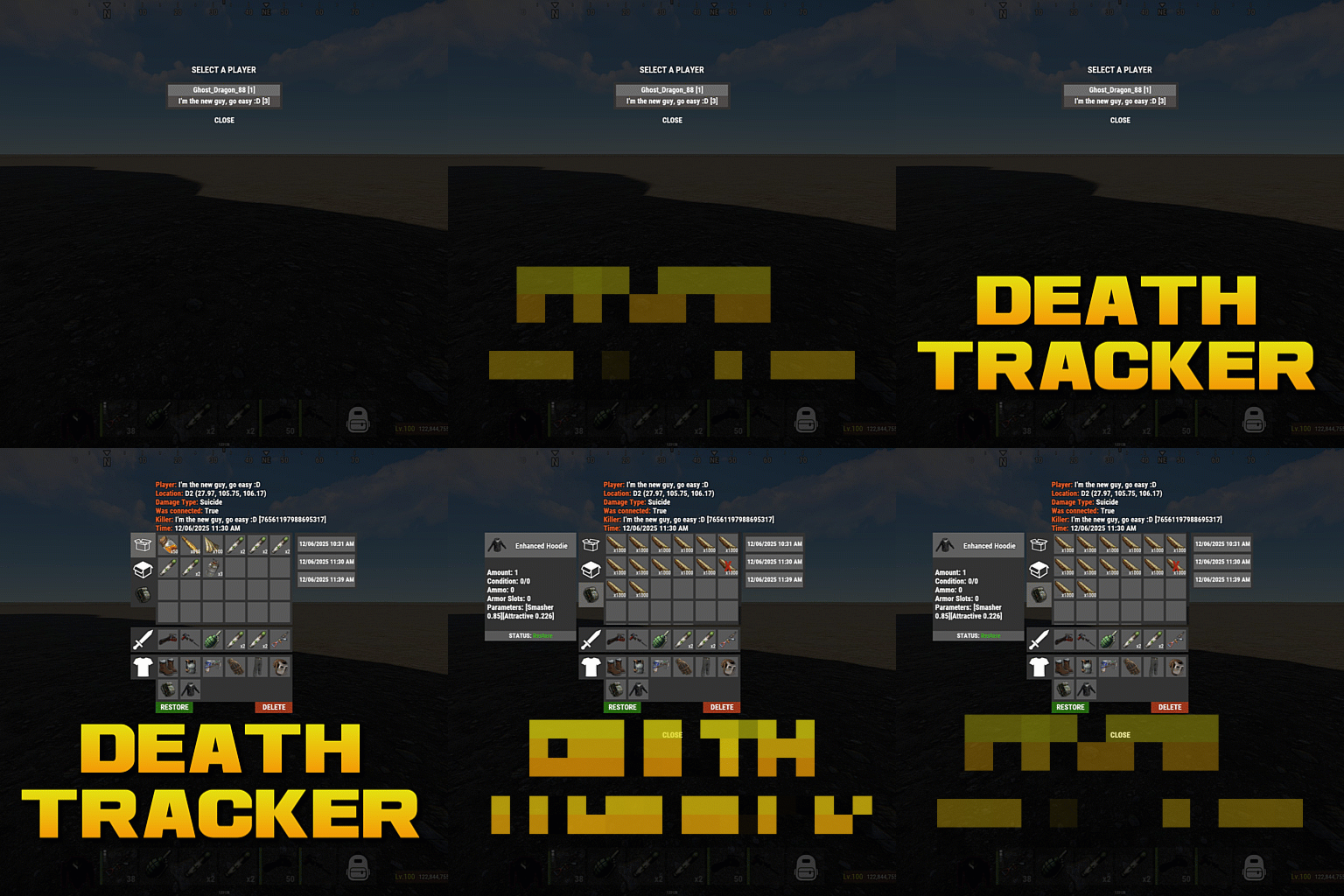
Death tracker is an administration tool that allows server admins to restore player items via rcon or in-game, in the event a player dies for reasons beyond their control. The plugin will detail: The location of the death (grid + coordinate). The damage type that the player took. Whether they were connected to the server or not. Who killed them (along with the userid). The date and time of the death. The players inventory, item backpack contents, and their backpack plugin contents (if they dropped). Admins can select items from the UI to see more details about the item such as the items condition, amount, ammo, armor slots and other parameters (such as buffs from ItemPerks). You can also toggle whether the item will be restored from this menu, allowing you to exclude certain items from being restored if required. In order to use the following commands in game, you must have the deathtracker.admin permission. Command: dt Use: Access the DeathTracker restore menu in-game. Command: dt.,rcon deaths <userid> Use: Returns information for each death stored for the specified player. Command: dt.rcon query <userid> <index> Use: Returns detailed information about the specified death for the player at the specified index (item lists etc). Command: dt.rcon restore <userid> <index> Use: Restores the items to the specified player from the specified index.$14.99 -
Version 1.3.2
162 downloads
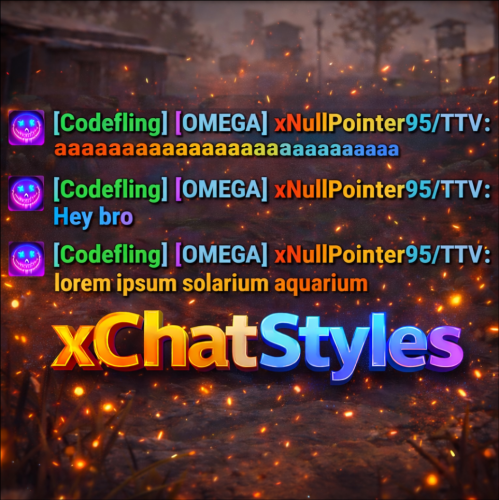
xChatStyles xChatStyles adds smooth gradient colors to player names, prefixes, and chat messages, giving your server a premium, modern look without clutter or spam. It’s clean, readable, and designed to enhance chat - not overpower it. It lets you customize how players appear in chat using animated-looking color gradients. Perfect for VIPs, staff, donators, or special roles. No flashy UI. No complicated setup. Just beautiful chat. Features Gradient Names & Messages Smooth color gradients instead of flat colors, but you can also use a solid color Player names Chat messages Prefixes (VIP, Admin, etc.) Looks great without hurting readability Styled Mentions (@PLAYERNAME) Multiple Prefix Support Players can have more than one prefix Each prefix can have its own color style Great for VIP & Donator Perks Instantly makes VIP ranks feel premium Visual reward without gameplay imbalance Easy to sell as a cosmetic perk Trade System for Prefixes (REQUIRES Economics if you want to use trade feature) Server Friendly No lag or spam Optimized to run smoothly on live servers Works quietly in the background Supports permission-based style, not just permanent chat style. xChatStyles Web Editor Plugin Preview Permissions (Custom Tab) xchatstyles.customtab - Ability to see the "Custom" Tab in /xcs xchatstyles.customprefix - Ability to see and select "Prefix" in "Custom" Tab xchatstyles.custommessagecolor - Ability to see and select "Message" in "Custom" Tab xchatstyles.customusernamecolor - Ability to see and select "Username" in "Custom" Tab Chat Commands (Player) /xcs - Opens the Ui /xcs <PLAYERNAME/STEMAID> - Opens the Ui with the view of the target player and you can remove owned styles from that user. Chat & Console Commands (Admin) /* Add chat styles without permission */ /addprefix <STEAMID> <PREFIXNAME> <#HEX> <#HEX> <#HEX>... /addmessagecolor <STEAMID> <#HEX> <#HEX> <#HEX>... /addusernamecolor <STEAMID> <#HEX> <#HEX> <#HEX>... /addall <STEAMID> <PREFIXNAME> <#HEX> <#HEX> <#HEX>... [This will add a prefix with provided color(s), message style with provided color(s) and username style with provided color(s) with just 1 command.] /* Add chat styles without permission */ /* Add chat styles WITH permission */ /addprefix <xchatstyles.PERMISSIONNAME> <PrefixName> <#HEX> <#HEX> <#HEX> ... /addall <xchatstyles.PERMISSIONNAME> <PrefixName> <#HEX> <#HEX> <#HEX> ... /addmessagecolor <xchatstyles.PERMISSIONNAME> <#HEX> <#HEX> <#HEX> ... /addusernamecolor <xchatstyles.PERMISSIONNAME> <#HEX> <#HEX> <#HEX> ... /* Add chat styles WITH permission */ ---> As long as the player has permission, they can select it with /xcs ---> Automatically removed when permission is revoked ---> Permission-Based ChatStyles has (Permission) indicator in /xcs ---> The permission must start with 'xchatstyles.*'. Example: /addall <xchatstyles.vip> VIP <#HEX> <#HEX> <#HEX> ... /*********************************************************************************************************/ /* Use 1 #HEX Color (Example: #fcba03) for a single color, use multiple #HEX Colors for a color gradient */ /* */ /* Example: /addprefix 76561198412496844 OMEGA #32a852 #71a67f */ /* */ /*********************************************************************************************************/ /removeprefix <steamid> <index|PrefixName> /removemessagecolor <steamid> <index> /removeusernamecolor <steamid> <index> Recommended Plugin for >TIMED< PERMISSION: Config { "MaxPrefixes": 3, "DefaultUsernameColor": "#55aaff", "DefaultMessageColor": "#ffffff", "DefaultSize": 15, "AllowSelectingDuplicatePrefixNames": true, "NotifyOnStyleReceived": true, "PrefixBrackets": "[]", "ShowPrefixBracketsWithSizeTag": true, "Trade": { "AllowTrading": false, "PlayerCanSellPermissionBasedPrefix": false, "UseCurrencySign": true, "CurrencySign": "$", "AnnounceNewPrefixSaleGlobally": true, "AnnouncePrefixPriceUpdateGlobally": true }, "PermissionStyles": {} }$24.99 -
Version 1.1.1
22 downloads
xAutoCodelock xAutoCodelock enhances the building experience by intelligently automating one of the most repetitive tasks in Rust - managing code locks. By automatically placing, configuring, and securing locks using each player’s personal PIN, the plugin removes friction without altering the core gameplay balance. Players can focus on building, defending, and progressing, while their base security is handled smoothly in the background. Features Automatic Code Lock Placement (Configurable) Automatically places a code lock when players build deployables with lock slots (Door etc.). Toggle if code lock item is required or not Personal Auto PIN System Players set a 4-digit PIN once - All future locks use it automatically. Auto Lock Newly Placed Locks (Configurable) Newly created locks are instantly locked for security. Tool Cupboard Requirement (Configurable) Can require building privilege before automation triggers. Team Access Control (Configurable) Option to allow or require team members to enter codes. Permission based usage (Configurable) Control who can use auto codelock via permissions. Admin Inspect Command Admins can check player PIN status and if player has permission to use xAutoCodelock. Persistent PIN Storage Player PINs saved across restarts. Optional Wipe Reset Automatically clears PIN data on map wipe if enabled. Plugin Preview Player Commands /xpin 1234 → Set your auto PIN /xpin remove → Remove saved PIN /xpin → Show current PIN Admin Command /xpin check <player name or steamid> Permissions xautocodelock.use - Required to use '/xpin' command xautocodelock.admin - Required for the '/xpin check' command Config { "CommandSetPin": "xpin", "RequirePermission": true, "PermissionUse": "xautocodelock.use", "PermissionAdminInspect": "xautocodelock.admin", "AutoLockNewCodeLocks": true, "AutoPlaceCodeLocks": true, "AutoGenerateCodeIfNotSet": true, "RequireCodelockItem": true, "RequireToolCupboard": true, "RequireCodeForTeamMembers": true, "ResetDataOnWipe": false } Language { "NoPermission": "You don't have permission to use this command.", "CommandUsage": "Usage: /{0} 1234 or /{0} remove\n» Current PIN: {1}", "PinNotSet": "NOT SET", "PinRemoved": "Auto PIN removed.\n» New code locks will no longer be configured automatically.", "NoSavedPin": "You don't have a saved auto PIN.", "NoSavedPinAutoGenerateDisabled": "You don't have a saved auto PIN.\n» Set one with /{0} 1234.", "InvalidPin": "PIN must be exactly 4 digits (0000 - 9999).", "PinSet": "Auto PIN set.\n» Newly placed code locks will be automatically locked with your PIN.", "PinAutoGenerated": "No auto PIN was set, so one was generated for you: {0}\n» Use /{1} <pin> to change it.", "InspectUsage": "Usage: /{0} check <player name or steamid>", "InspectPlayerNotFound": "Player not found: {0}", "InspectMultiplePlayers": "Multiple players matched: {0}. Use full name or SteamID.", "InspectSummary": "Inspect: {0} ({1})\nSaved PIN: {2}\nHasPermission: {3}" }$12.99 -
Version 2.0.5
5,868 downloads
UltimateLocker - Lock Everything, Auto Lock & Auto Closing UltimateLocker - Lock Everything, Auto Lock & Auto Closing, allows you to place Code Locks/Key Lock on Vehicles, Furnaces, Weapon Racks, Turrets, Mining Quarry, Pump Jack, Motorbike, Motorbike With Sidecar, Pedal Bike, Pedal Trike, Deployable Items, Naval Deep Sea, Drawing / Signs and much more. Support for: Storage Box Pack DLC (https://rust.facepunch.com/news/shipshape#StorageBoxPackDLC) Plus you can decide whether to automatically position the code locks, with many configurations and share locks with your clan/team members. You can also enable automatic closing by positioning door closers automatically or manually, change the closing delay time and decide on which entities to enable it. Place Code Lock wherever you want, Auto Lock and Auto Closing with a single plugin, 3 plugin in 1. You can decide which entities to enable Code Lock on or Door Closer. Block any entity you want, including electrical, industrial, crafting, research, farming, etc. It has commands for administrators to lock, unlock and remove Code Locks/Key Lock. Include support for new CodeLock: Flight Control Codelock and option to automatically use the Flight Control Codelock skin. IMPORTANT: Added the ability to also place Key Locks, in addition to Code Locks. Place Code Lock/Key Lock wherever you want with a single plugin: Vehicle Locks Motorbike, Motorbike With Sidecar, Pedal Bike, Pedal Trike Naval Deep Sea Storage Box Pack DLC (https://rust.facepunch.com/news/shipshape#StorageBoxPackDLC) Drawing / Signs Rust item lock Windows Lock Automatic lock closing when dismount of the vehicle Code Lock support for Medieval entities: Mounted Ballista, Battering Ram, Catapult, Siege Tower, Ballista Medieval entities block usage: opening/closing doors, reloading/firing ammo, mounting, driving, pushing, pulling, etc... Furnaces, Refineries, and more Weapon Rack Lock Block any entity you want, including electrical, industrial, crafting, research, farming, etc. Farming Lock Electricity Lock / Electrical Lock Industrial Lock Construction Lock Mining Quarry, Pump Jack Items Lock Trap Lock Turrets Lock Misc Lock Fun Lock Deployable Lock And so on... VIDEO EXAMPLE Below you can see an example video on how to use the plugin. AUTO LOCK ---------------------------------------------------------------------------------------------------- AUTO CLOSER ---------------------------------------------------------------------------------------------------- AUTO CLOSER - PROXIMITY SYSTEM ---------------------------------------------------------------------------------------------------- EXAMPLES OF OPERATION/USE: Some examples of how the plugin works when there is a Code Lock/Key Lock to which you do not have access: Usage block/loot furnaces, refineries, electric furnaces, water dispensers, industrial conveyor, industrial crafter, car lift, elevator, small generator, metal shop front, dropbox, mail box, vending machine, etc... Usage block: workbench, research table, repair table, computer station, mixing table, etc... Device Identifier: If the Auto Turrets, CCTV Camera, PTZ CCTV Camera, etc..., are locked with Code Lock/Key Lock, you cannot access them remotely if you do not have access to Code lock/Key Lock, even if you know the identification number. Block use and loot of vehicles, including horses Block use and loot of vehicles, including Motorbike, Motorbike With Sidecar, Pedal Bike, Pedal Trike. Automatic lock closing when dismount of the vehicle Code Lock support for Medieval entities: Mounted Ballista, Battering Ram, Catapult, Siege Tower, Ballista Medieval entities block usage: opening/closing doors, reloading/firing ammo, mounting, driving, pushing, pulling, etc... Block use and loot of: Mining Quarry, Pump Jack. Auto Turret authorization lock, rotation, attack mode, remote control, lock to change identification ID. Locking loot and usafe of SAM Site. Lock to change camera identification ID and remote control. Block personal Quarry Mining usage and loot FARM: fertilizer container block, sowing block, harvesting/cutting plants and clone, or harvesting dead plants, composter lock, Beehive lock, Chicken Coop lock, Cooking Workbench lock, Planter Box lock, etc... Weapon rack: weapons storage and collection block, weapon reloading, weapon exchange. Blocking the insertion and removal of electrical cables and pipes from the various components. Blocking the use of electrical components: switching on/off switches, switches, buttons, changing timer duration and much more... Blocking use and frequency change of transceiver components, RF Broadcaster, RF Receiver. Blocking the use of some entertainment objects such as the piano, drums, boom box, arcade games, etc... Block fun objects such as Strobe Light, Laser Light, Sound Light, Neon Sign, etc... And much more, with new items that will be added in future releases or at your suggestion via a request for support or comment ---------------------------------------------------------------------------------------------------- AUTO LOCK: The plugin integrates an automatic positioning system for Code Lock or Key Lock. Using the /al, /autolock or /codelock command the player can manage all the settings: Sharing locks with clan/team members. Create a code lock pin and/or update all your codelock pins with 1 click. Create a Guest pin for your Code Lock and/or update all Guest pins of your code locks with 1 click. Enable the ability to use Key Locks, if you do not have Code Locks in your inventory. Streamer mode: to hide the display of the Code Lock pin on the screen. In addition, there will be many other options that can be enabled/disabled. These options will be available based on how the plugin has been configured. For example: has the ability to place the code lock on the furnaces been enabled? Then there will be the option to enable and/or disable the automatic positioning of the locks on the furnaces. And so on for all the other configurations. And many other new features and features that will arrive with the next plugin updates. ---------- AUTO CLOSING (DOOR CLOSER): The plugin integrates a system for automatic closing, of various entities. The player can change the settings through a simple and intuitive interface and apply these settings automatically or manually. Using the /ac , /autoclose or /autocloser command and by pressing the button "Auto Closing Settings" the player can manage all the settings: ---------------------------------------------------------------------------------------------------- PROXIMITY SYSTEM: The plugin integrates a system for automatic closing, of various entities. A Proximity System is available for automatic door closing. This system allows you to quickly and easily change the automatic door closing settings. There are three modes: An icon appears when you approach a door with automatic closing enabled. Using a combination of buttons. Both modes. Some example images: ---------------------------------------------------------------------------------------------------- CODE LOCK AUTO SKIN: The plugin allows you to automatically change the code lock skin, automatically switching the skin to the Flight Control Codelock skin. To use this feature, the player must own the DLC. DLC ownership check can be bypassed via configuration or permission (⚠ Only allowed on creative/test servers, otherwise you violate Facepunch’s TOS! ⚠) CONFIGURATION "Disable ownership checking on DLC/Skins. (⚠ Only allowed on creative/test servers, otherwise you violate Facepunch's TOS! ⚠) Default false": false PERMISSION ultimatelocker.bypass.dlc_skin_required - Permission to bypass DLC or Skin ownership checks. With this permission, you can use DLC or Skins you don’t own. PERMISSIONS: ultimatelocker.use - Allows you to use the plugin to place Code Locks/Key Locks. ultimatelocker.admin - Allows you to execute some commands reserved for administrators. ultimatelocker.bypass.lock_deploy_vehicle_check - Allows you to bypass these controls when deploying the lock on vehicles: Requires Building Privilege to place Code Locks Requires Building Privilege to place Code Locks in unowned vehicles Allow deployment of Code Lock in unowned vehicles ultimatelocker.bypass.force - Allows you to bypass Code Locks/Key Locks. (FOR ADMIN USE!!!) ultimatelocker.bypass.dlc_skin_required - Permission to bypass DLC or Skin ownership checks. With this permission, you can use DLC or Skins you don’t own. ultimatelocker.autolock.enabled - This role is required to be able to use the automatic positioning system of Code Lock or Key Lock. ultimatelocker.autolock.nolockrequired - With this role you do not need to have the Code Lock in your inventory, the Code Lock will be placed even if you do not have one. ultimatelocker.autoclosing.enabled - This role is required to be able to use the automatic closing system, Door Closer. COMMANDS FOR PLAYERS Commands can be typed in chat (by putting the / character in front of the command), or from console. /autolock or /codelock -- Open Auto Lock/Auto Closing settings UI. /locker -- Command to add lock manually. /closer -- Command to add door closer manually. /uncloser -- Command to remove door closer manually. /ual -- Toggle Auto Lock. Command to enable/disable auto lock. /uad -- Toggle Auto Closer. Command to enable/disable automatic closing. /ul code <code> -- Change the Code Lock code of the entity you are looking at, if you own the entity or if it belongs to a clan/team member. /ul codeall <code> -- Change the Code Lock code on all entities owned by the player. /ul ctime <time> -- Set the closing delay time (seconds) for the Door you are looking at. ---------- COMMANDS FOR ADMIN Commands can be typed in chat (by putting the / character in front of the command), or from console. To use these commands you must have the role: ultimatelocker.admin /ul unlock -- Unlock the Code Lock/Key Lock of the entity you are watching. /ul unlockall <steamID> -- Unlock all player Code Locks/Key Locks. /ul lock -- Lock the Code Lock/Key Lock of the entity you are watching. /ul lockall <steamID> -- Lock all player Code Locks/Key Locks. /ul remove -- Removes the Code Lock/Key Lock of the entity you are watching. /ul removeall <steamID> -- Removes all player Code Locks/Key Locks. /ul code <code> -- Change the Code Lock code of the entity you are looking at. Instead of <code> you must insert the new code. Must consist of 4 numbers. /ul codeall <code> <steamID> -- Change the Code Lock code on all entities owned by the player. You must pass the steamID of the player whose code you want to change instead of the <steamID>. Instead of <code> you must insert the new code. Must consist of 4 numbers. /ul show -- Shows the Code Lock code of the entity you are looking at. -------------------- NB: To use these commands you must set the configuration AllowAdminToBypassCodeLock to be set to true or have the role ultimatelocker.bypass.force. -------------------- Commands can be added or modified in the configuration file: /oxide/config/UltimateLocker.json CLAN/TEAM If the player is part of a clan/team, he can block, unlock or remove Code Locks/Key Locks placed by other teammates, if enabled in the configurations. CONFIGURATION The settings and options can be configured in the UltimateLocker under the config directory. The use of an editor and validator is recommended to avoid formatting issues and syntax errors. { "TimeZone": "Europe/London", "ChatPrefix": "UltimateLocker", "AllowAdminToBypassCodeLock (Allows admin to bypass Code Lock without using commands). Default False.)": false, "Disable ownership checking on DLC/Skins. (⚠ Only allowed on creative/test servers, otherwise you violate Facepunch's TOS! ⚠) Default false": false, "Chat Command": [ "ul", "ultimatelocker" ], "Skin Blacklist Configuration": { "Lock: Block lock for entity with this skin": [], "Door Closer: Block door closer for entity with this skin": [] }, "Proximity System": { "Show UI when player is near a door with Door Closer. Default false": false, "Show UI when pressing key. Default true": true, "Button to show UI: 1 (MMB - middle mouse button) - 2 (SHIFT + MMB) - 3 (CTRL + MMB). Default 2": 2 }, "Auto Lock Configuration": { "Chat Command": [ "al", "autolock", "codelock" ], "Toggle Auto Lock - Chat Command": "ual", "Add Lock manually - Chat Command": "locker", "Use only Key Lock. [true] to allow only Key Lock. [false] to allow both Key Lock and Code Lock. (Default: FALSE)": false, "RESYNC DEFAULT SETTINGS for all players. If set to [true], resets all player settings to the default settings configured. Once the settings are reset, the parameter will automatically be reset to false. (Default: FALSE)": false, "FORCE SHARE LOCKS WITH CLAN/TEAM MEMBERS. [true] to force all players to share locks with clan/team members. [false] to force all players to NOT share locks with clan/team members. [null] to use the player's default settings by UI. (Default: null)": null, "Auto Lock Category Configuration": { "Is automatic lock enabled on Doors enabled.": true, "Is automatic lock enabled on Windows enabled.": true, "Is automatic lock enabled on Boxes enabled.": true, "Is automatic lock enabled on Storage Container enabled.": true, "Is automatic lock enabled on Lockers enabled.": true, "Is automatic lock enabled on TC (Cupboards) enabled.": true, "Is automatic lock enabled on Vehicles enabled.": true, "Is automatic lock enabled on Medieval entity enabled.": true, "Is automatic lock enabled on Furnace enabled.": true, "Is automatic lock enabled on Vending Machine enabled.": true, "Is automatic lock enabled on Composter enabled.": true, "Is automatic lock enabled on Mixing Table enabled.": true, "Is automatic lock enabled on Planter enabled.": true, "Is automatic lock enabled on Auto Turret enabled.": true, "Is automatic lock enabled on SAM Site enabled.": true, "Is automatic lock enabled on Traps enabled.": true, "Is automatic lock enabled on Weapon Rack enabled.": true, "Is automatic lock enabled on Stash enabled.": true, "Is automatic lock enabled on Neon Sign enabled.": true, "Is automatic lock enabled on Other Custom Entities enabled.": true, "Is automatic lock enabled on Other Lockable Entities enabled.": true }, "Player default settings": { "Allow automatic lock placement by default. (Default: TRUE)": true, "Allow automatic placement of Key Locks if there are no Code Locks in the inventory. (Default: TRUE)": true, "Allow Guest Code by default. (Default: FALSE)": false, "Allow automatic Share locks with clan/team members by default. (Default: TRUE)": true, "Enable streamer mode by default. (Default: FALSE)": false, "Allow automatic lock on Doors by default. (Default: TRUE)": true, "Allow automatic lock on Boxes by default. (Default: FALSE)": false, "Allow automatic lock on Storage Container by default. (Default: FALSE)": false, "Allow automatic lock on Lockers by default. (Default: TRUE)": true, "Allow automatic lock on TC (Cupboards) by default. (Default: TRUE)": true, "Allow automatic lock on Vehicle by default. (Default: TRUE)": true, "Allow automatic lock closing when dismount of the vehicle by default. (Default: TRUE)": true, "Allow automatic lock on Medieval entity by default. (Default: FALSE)": false, "Allow automatic lock on Furnace by default. (Default: FALSE)": false, "Allow automatic lock on Vending Machine by default. (Default: FALSE)": false, "Allow automatic lock on Composter by default. (Default: FALSE)": false, "Allow automatic lock on Mixing Table by default. (Default: FALSE)": false, "Allow automatic lock on Planter by default. (Default: FALSE)": false, "Allow automatic lock on Auto Turret by default. (Default: FALSE)": false, "Allow automatic lock on SAM Site by default. (Default: FALSE)": false, "Allow automatic lock on Traps by default. (Default: FALSE)": false, "Allow automatic lock on Weapon Rack by default. (Default: TRUE)": true, "Allow automatic lock on Stash by default. (Default: FALSE)": false, "Allow automatic lock on Neon Sign by default. (Default: FALSE)": false, "Allow automatic lock on Other Lockable Entities by default. (Default: FALSE)": false, "Allow automatic lock on Other Custom Entities by default. (Default: FALSE)": false }, "Player Auto Closing default settings": { "Allow automatic closing by default. (Default: FALSE)": false, "Allow automatic closing of Door by default. (Default: FALSE)": false, "Allow automatic closing of Double Door by default. (Default: FALSE)": false, "Allow automatic closing of Window by default. (Default: FALSE)": false, "Allow automatic closing of Garage by default. (Default: FALSE)": false, "Allow automatic closing of Ladder Hatch by default. (Default: FALSE)": false, "Allow automatic closing of External Gate by default. (Default: FALSE)": false, "Allow automatic closing of Fence Gate by default. (Default: FALSE)": false, "Allow automatic closing of Legacy Wood Shelter Door by default. (Default: FALSE)": false } }, "Auto Closing Configuration": { "Chat Command": [ "ac", "autoclose", "autocloser" ], "Toggle Auto Closer - Chat Command": "uad", "Add Door Closer manually - Chat Command": "closer", "Remove Door Closer manually - Chat Command": "uncloser", "Enable automatic closing of Door. (Default: FALSE)": false, "Enable automatic closing of Double Door. (Default: FALSE)": false, "Enable automatic closing of Window. (Default: FALSE)": false, "Enable automatic closing of Garage. (Default: FALSE)": false, "Enable automatic closing of Ladder Hatch. (Default: FALSE)": false, "Enable automatic closing of External Gate. (Default: FALSE)": false, "Enable automatic closing of Fence Gate. (Default: FALSE)": false, "Enable automatic closing of Legacy Wood Shelter Door. (Default: FALSE)": false, "Minimum Closing Delay Time. (Default: 10 seconds)": 10, "Maximum Closing Delay Time. (Default: 60 seconds)": 60, "Default Closing Delay Time. (Default: 30 seconds)": 30 }, "Requires Building Privilege to place Code Locks. (Default: TRUE)": true, "Requires Building Privilege to place Code Locks in unowned vehicles. (Default: FALSE)": false, "Allow deployment of Code Lock in vehicles owned by other players. (Default: FALSE)": false, "Allow deployment of Code Lock in unowned vehicles. (Default: TRUE)": true, "Auto claim unowned vehicles when deploying locks. (Default: FALSE)": false, "Auto replace vehicle ownership when deploying locks. (Default: FALSE)": false, "Allow pushing vehicles blocked by the Code Lock (Default: TRUE)": true, "Allow pushing vehicles blocked by the Code Lock if present in your Building Privilege. (Default: TRUE)": true, "Set player as owner when placing a Mining Quarry or Pump Jack (also static). (Default: TRUE)": true, "Enable Lock": { "Vehicles": [ { "ItemName": "Minicopter", "EnableLock": true, "PrefabName": "assets/content/vehicles/minicopter/minicopter.entity.prefab", "RequiredPermission": [ "" ] }, { "ItemName": "Scrap Transport Helicopter", "EnableLock": true, "PrefabName": "assets/content/vehicles/scrap heli carrier/scraptransporthelicopter.prefab", "RequiredPermission": [ "" ] }, { "ItemName": "Attack Helicopter", "EnableLock": true, "PrefabName": "assets/content/vehicles/attackhelicopter/attackhelicopter.entity.prefab", "RequiredPermission": [ "" ] }, { "ItemName": "Armored / Hot Air Balloon", "EnableLock": true, "PrefabName": "assets/prefabs/deployable/hot air balloon/hotairballoon.prefab", "RequiredPermission": [ "" ] }, { "ItemName": "Row Boat", "EnableLock": true, "PrefabName": "assets/content/vehicles/boats/rowboat/rowboat.prefab", "RequiredPermission": [ "" ] }, { "ItemName": "RHIB", "EnableLock": true, "PrefabName": "assets/content/vehicles/boats/rhib/rhib.prefab", "RequiredPermission": [ "" ] }, { "ItemName": "Tugboat", "EnableLock": true, "PrefabName": "assets/content/vehicles/boats/tugboat/tugboat.prefab", "RequiredPermission": [ "" ] }, { "ItemName": "Submarinesolo", "EnableLock": true, "PrefabName": "assets/content/vehicles/submarine/submarinesolo.entity.prefab", "RequiredPermission": [ "" ] }, { "ItemName": "Submarine Duo", "EnableLock": true, "PrefabName": "assets/content/vehicles/submarine/submarineduo.entity.prefab", "RequiredPermission": [ "" ] }, { "ItemName": "Horse", "EnableLock": true, "PrefabName": "assets/rust.ai/nextai/testridablehorse.prefab", "RequiredPermission": [ "" ] }, { "ItemName": "Tomaha Snowmobile", "EnableLock": true, "PrefabName": "assets/content/vehicles/snowmobiles/tomahasnowmobile.prefab", "RequiredPermission": [ "" ] }, { "ItemName": "Snowmobile", "EnableLock": true, "PrefabName": "assets/content/vehicles/snowmobiles/snowmobile.prefab", "RequiredPermission": [ "" ] }, { "ItemName": "Sedan", "EnableLock": true, "PrefabName": "assets/content/vehicles/sedan_a/sedantest.entity.prefab", "RequiredPermission": [ "" ] }, { "ItemName": "2 Module Car", "EnableLock": true, "PrefabName": "assets/content/vehicles/modularcar/2module_car_spawned.entity.prefab", "RequiredPermission": [ "" ] }, { "ItemName": "3 Module Car", "EnableLock": true, "PrefabName": "assets/content/vehicles/modularcar/3module_car_spawned.entity.prefab", "RequiredPermission": [ "" ] }, { "ItemName": "4 Module Car", "EnableLock": true, "PrefabName": "assets/content/vehicles/modularcar/4module_car_spawned.entity.prefab", "RequiredPermission": [ "" ] } ], "Deployables": [ { "ItemName": "Large Furnace", "EnableLock": true, "PrefabName": "assets/prefabs/deployable/furnace.large/furnace.large.prefab", "RequiredPermission": [ "" ] }, { "ItemName": "Furnace", "EnableLock": true, "PrefabName": "assets/prefabs/deployable/furnace/furnace.prefab", "RequiredPermission": [ "" ] }, { "ItemName": "Legacy Furnace", "EnableLock": true, "PrefabName": "assets/prefabs/deployable/legacyfurnace/legacy_furnace.prefab", "RequiredPermission": [ "" ] }, { "ItemName": "Refinery", "EnableLock": true, "PrefabName": "assets/prefabs/deployable/oil refinery/refinery_small_deployed.prefab", "RequiredPermission": [ "" ] }, { "ItemName": "Electric Furnace", "EnableLock": true, "PrefabName": "assets/prefabs/deployable/playerioents/electricfurnace/electricfurnace.deployed.prefab", "RequiredPermission": [ "" ] }, { "ItemName": "Stone Fireplace", "EnableLock": true, "PrefabName": "assets/prefabs/deployable/fireplace/fireplace.deployed.prefab", "RequiredPermission": [ "" ] }, { "ItemName": "BBQ", "EnableLock": true, "PrefabName": "assets/prefabs/deployable/bbq/bbq.deployed.prefab", "RequiredPermission": [ "" ] }, { "ItemName": "Hobo Barrel", "EnableLock": true, "PrefabName": "assets/prefabs/misc/twitch/hobobarrel/hobobarrel.deployed.prefab", "RequiredPermission": [ "" ] }, { "ItemName": "Storage Barrel B", "EnableLock": true, "PrefabName": "assets/prefabs/misc/decor_dlc/storagebarrel/storage_barrel_b.prefab", "RequiredPermission": [ "" ] }, { "ItemName": "Storage Barrel C", "EnableLock": true, "PrefabName": "assets/prefabs/misc/decor_dlc/storagebarrel/storage_barrel_c.prefab", "RequiredPermission": [ "" ] }, ............ ] }, "VersionNumber": { "Major": 1, "Minor": 6, "Patch": 0 } } TimeZone: Default: Europe/London ChatPrefix: -- Chat message prefix. Skin Blacklist Configuration: Skins that are not allowed for auto-lock or auto-close can be entered here. If the entity has one of these skins, auto-lock or auto-close will not work. "Skin Blacklist Configuration": { "Lock: Block lock for entity with this skin": [], "Door Closer: Block door closer for entity with this skin": [] }, AllowAdminToBypassCodeLock (Allows admin to bypass Code Locks/Key Locks without using commands). Default FALSE. Disable ownership checking on DLC/Skins. (⚠ Only allowed on creative/test servers, otherwise you violate Facepunch’s TOS! ⚠): Disable DLC/Skin ownership check, to be used only on CREATIVE or TEST servers. Using this option on PVP or PVE servers will result in a warning or ban from the Rust server list by Facepunch. Default false Chat Command: Here you can add, edit or delete Commands can be typed in chat (by putting the / character in front of the command), or from console. Requires Building Privilege to place Code Locks: Requires Building Privilege to place Code Locks/Key Lock. Default: TRUE Requires Building Privilege to place Code Locks in unowned vehicles: Requires Building Privilege to place Code Locks/Key Lock in unowned vehicles. Default: FALSE Allow deployment of Code Lock in vehicles owned by other players: Allow deployment of Code Lock in vehicles owned by other players. Default: FALSE Allow deployment of Code Lock in unowned vehicles: Allow deployment of Code Lock in unowned vehicles. Default: TRUE Auto claim unowned vehicles when deploying locks: Auto claim unowned vehicles when deploying locks. Default FALSE Auto replace vehicle ownership when deploying locks: Auto replace vehicle ownership when deploying locks. Default FALSE Allow pushing vehicles blocked by the Code Lock: Allow pushing vehicles/horses blocked by the Code Lock. Default: TRUE Sets player as owner when placing a Mining Quarry or Pump Jack (also static): Set the player as owner of the Mining Quarry or Pump Jack placed (also those statistics). Default: TRUE Allow pushing vehicles blocked by the Code Lock if present in your Building Privilege: Allow pushing vehicles/horses blocked by the code lock if present in the player's building authorization zone. Default: TRUE Enable Lock: Here you can set which entities to enable, on which you can place a Code Lock/Key Lock. ItemName: The name of the entity EnableLock: Whether or not to enable Code Lock/Key Lock placement for this entity. RequiredPermission: Here you can specify the roles required to be able to insert a Code Lock/Key Lock in the entities enabled in the configuration. You can specify 1 or more roles, and as long as the player has at least one of these roles he can enter the Code Lock/Key Lock. Here you can specify the roles required to be able to insert a Code Lock/Key Lock in the entities enabled in the configuration. You can specify 1 or more roles, and as long as the player has at least one of these roles he can enter the Code Lock/Key Lock. When you enter a role, a server-side role will be created which must then be assigned to the player, here are some examples. "RequiredPermission”: [ "vip_1”]: In this case the ultimatelocker.vip_1 role will be created, it will be necessary to assign this role to the player to enable the insertion of the Code Lock/Key Lock in the configured entity. "RequiredPermission”: [ "user_1”, "vip_2” ]: In this case the ultimatelocker.user_1 and ultimatelocker.vip_2 roles will be created and it will be necessary to assign one of these roles to the player (or even both) to enable the insertion of the Code Lock/Key Lock in the configured entity. The role name must respect certain parameters and can only contain these alphanumeric characters: a-z A-Z 0-9 . _ – Any unsupported characters will be removed, the space character will be replaced by the _ character. AUTO LOCK - CONFIGURATION Chat Command: Here you can specify 1 or more commands to open the UI for Auto Lock settings Add Lock manually -- Chat Command: Command to add lock manually. Default /locker Use only Key Lock. [true] to allow only Key Lock. [false] to allow both Key Lock and Code Lock-- If [true] allow only Key Lock. [false] to allow both Key Lock and Code Lock. Default FALSE If set to true, only new codelocks placed will not be shared, old codelocks will remain shared (if they were shared) RESYNC DEFAULT SETTINGS for all players. If set to [true], resets all player settings to the default settings configured. Once the settings are reset, the parameter will automatically be reset to false: Default settings are applied only 1 time, when the player runs the plugin for the first time. With this option you can reset all default settings for all players, useful when you change a default setting and want it to be applied to all players. The field must be set to true and the plugin restarted, at the end of the restart all players will have the new default settings that have been configured and the parameter is reset to false, for successful reuses. Default false FORCE SHARE LOCKS WITH CLAN/TEAM MEMBERS. [true] to force all players to share locks with clan/team members. [false] to force all players to NOT share locks with clan/team members. [null] to use the player's default settings by UI: This setting allows you to choose how to handle automatic sharing of locks with clan/team members. Default null true: If set to true, locks will be automatically shared with all clan/team members. The player will not be able to change this setting from the plugin UI. false: If set to false, locks will NOT be automatically shared with all clan/team members. The player will not be able to change this setting from the plugin UI. null: If set to null, the player will be able to enable or disable automatic lock sharing with clan/team members, via the plugin UI. -------------------- Auto Lock Category Configuration: This configuration allows you to enable or disable auto-lock regardless of the enabled entities. You can enable/disable auto-lock for each category: Is automatic lock enabled on Doors enabled: Default true Is automatic lock enabled on Windows enabled: Default true Is automatic lock enabled on Boxes enabled: Default true Is automatic lock enabled on Storage Container enabled: Default true Is automatic lock enabled on Lockers enabled: Default true Is automatic lock enabled on TC (Cupboards) enabled: Default true Is automatic lock enabled on Vehicles enabled: Default true Is automatic lock enabled on Naval Deep Sea: Default true Is automatic lock enabled on Medieval entity enabled: Default true Is automatic lock enabled on Furnace enabled: Default true Is automatic lock enabled on Vending Machine enabled: Default true Is automatic lock enabled on Composter enabled: Default true Is automatic lock enabled on Mixing Table enabled: Default true Is automatic lock enabled on Planter enabled: Default true Is automatic lock enabled on Auto Turret enabled: Default true Is automatic lock enabled on SAM Site enabled: Default true Is automatic lock enabled on Traps enabled: Default true Is automatic lock enabled on Weapon Rack enabled: Default true Is automatic lock enabled on Stash enabled: Default true Is automatic lock enabled on Neon Sign enabled: Default true Is automatic lock enabled on Sign / Drawing: Default true Is automatic lock enabled on Other Custom Entities enabled: Default true Is automatic lock enabled on Other Lockable Entities enabled: Default true -------------------- Player default settings: Allow automatic …. …. by default: The settings that start with "Allow automatic …. …. by default", are the basic settings once the Auto Lock system is enabled. EXAMPLE: If you have Auto Lock enabled and have the setting "Allow automatic lock on Doors by default = true", then it will be set to automatically place the code lock /key lock on doors by default. After that the player can change this setting via the UI. This applies to all basic "allow configuration properties”. -------------------- Allow automatic lock closing when dismount of the vehicle by default.: If the vehicle has a lock, the lock will be automatically closed when you dismount the vehicle, so as to avoid leaving vehicles open and potentially stolen. Default TRUE AUTO CLOSING (DOOR CLOSER) - CONFIGURATION Add Door Closer manually -- Chat Command: Command to add door closer manually. Default /closer Remove Door Closer manually – Chat Command: Command to remove door closer manually. Default /uncloser Enable automatic closing of Door. (Default: FALSE): Enable automatic closing for Single Doors. Permission is still required: ultimatelocker.autoclosing.enabled Enable automatic closing of Double Door. (Default: FALSE): Enable automatic closing for Double Doors. Permission is still required: ultimatelocker.autoclosing.enabled Enable automatic closing of Window. (Default: FALSE): Enable automatic closing for Windows. Permission is still required: ultimatelocker.autoclosing.enabled Enable automatic closing of Garage. (Default: FALSE): Enable automatic closing for Garage. Permission is still required: ultimatelocker.autoclosing.enabled Enable automatic closing of Ladder Hatch. (Default: FALSE): Enable automatic closing for Ladder Hatch. Permission is still required: ultimatelocker.autoclosing.enabled Enable automatic closing of External Gate. (Default: FALSE): Enable automatic closing for External Gate. Permission is still required: ultimatelocker.autoclosing.enabled Enable automatic closing of Fence Gate. (Default: FALSE): Enable automatic closing for Fence Gate. Permission is still required: ultimatelocker.autoclosing.enabled Enable automatic closing of Legacy Wood Shelter Door. (Default: FALSE): Enable automatic closing for Legacy Wood Shelter Door. Permission is still required: ultimatelocker.autoclosing.enabled Minimum Closing Delay Time. (Default: 10 seconds): Minimum delay time usable for automatic closing, Door Closer. Maximum Closing Delay Time. (Default: 60 seconds): Maximum delay time that can be used for automatic closing, Door Closer. Default Closing Delay Time. (Default: 30 seconds): Default delay time for automatic closing, Door Closer. -------------------- Player Auto Closing default settings: Allow automatic closing .... .... by default: The settings that start with "Allow automatic closing .... .... by default", are the basic settings once the Auto Closing system is enabled. EXAMPLE: If you have set "Allow automatic closing of Door by default. (Default: FALSE)": true", automatic closing for doors will be applied automatically. PROXIMITY SYSTEM - CONFIGURATION Show UI when player is near a door with Door Closer: If set to true, an icon appears in the top right corner when you approach a door with auto-closing enabled. This opens a menu to change the door's auto-closing behavior via the UI. Default false Show UI when pressing key: If set to true, allows to open the UI for modifying the automatic door closing via a key combination. Default true Button to show UI: 1 (MMB - middle mouse button) - 2 (SHIFT + MMB) - 3 (CTRL + MMB): Key combinations to use to open the UI for modifying the automatic door closing. Default 2 LOCALIZATION The plugin, therefore the automatic messages and statistics, are translated into the following languages: English Italian Spanish French German Dutch Turkish Russian Ukrainian Chinese (Simplified -- zh-CN) Chinese (Traditional -- zh-TW) Translation files are located in the /oxide/lang folder, here is an example of a /oxide/lang/en/UltimateLocker.json translation file. You can add translations for other languages by adding them to the folder: /oxide/lang AVAILABLE ENTITIES VEHICLES: Minicopter, Scrap Transport Helicopter, Attack Helicopter, Armored / Hot Air Balloon, Kayak, Row Boat, RHIB, Tugboat, Submarine Solo, Submarine Duo, Horse, Tomaha Snowmobile, Snowmobile, Sedan, 2 Module Car, 3 Module Car, 4 Module Car, Motorbike, Motorbike With Sidecar, Pedal Bike, Pedal Trike, Mounted Ballista, Battering Ram, Catapult, Siege Tower, Ballista DEPLOYABLES: Wood Storage Box, Large Wood Box, Ammo Storage Box, Armor Storage Box, Charcoal Storage Box, Clothing Storage Box, Comps Storage Box, Explosives Storage Box, Food Storage Box, Guns Storage Box, Meds Storage Box, Metal Storage Box, Ore Storage Box, Scrap Storage Box, Stone Storage Box, Sulfur Storage Box, Tools Storage Box, Wood Storage Box, Large Furnace, Furnace, Legacy Furnace, Refinery, Electric Furnace, Stone Fireplace, BBQ, Hobo Barrel, Medieval Large Wood Box, Storage Barrel B, Storage Barrel C, Black Box, Abyss Horizontal Storage Tank, Abyss Vertical Storage Tank, Bamboo Barrel, Wicker Barrel, Krieg Storage Crates, Krieg Storage Barrel, RHIB Storage, Boat Building Station, Steering Wheel, Sail, Small Boat Engine, Anchor, Cannon, Small Ramp, Wall Cabinet, Clothing Mannequin, Metal Shop Front, Dropbox, Mail Box, Vending Machine, Computer Station, Twitch Rivals Desk, Mixing Table, Composter, Small Planter Box, Large Planter Box, Minecart Planter, Bath Tub Planter, Rail Road Planter, Hitch & Trough, Small Water Catcher, Large Water Catcher, Water Barrel, Powered Water Purifier, Fluid Switch & Pump, Repair Bench, Research Table, Workbench Level 1, Workbench Level 2, Workbench Level 3, Button, Switch, Smart Switch, Timer, Small Generator, SAM Site, Auto Turret, Flame Turret, Shotgun Trap, Modular Car Lift, Snow Machine, Fogger-3000, Elevator, Mining Quarry, Pump Jack, Tall Weapon Rack, Horizontal Weapon Rack, Wide Weapon Rack, Weapon Rack Stand, Frontier Bolts Single Item Rack, Frontier Horseshoe Single Item Rack, Frontier Horns Single Item Rack, Small Stash, Chippy Arcade Game, Strobe Light, Laser Light, Sound Light, Small Neon Sign, Medium Neon Sign, Large Neon Sign, Medium Animated Neon Sign, Large Animated Neon Sign, Artist Canvas Small, Artist Canvas Large, Artist Canvas Standing, Artist Canvas XL, Artist Canvas XXL, Light-Up Frame Large, Light-Up Frame XL, Light-Up Frame XXL, Light-Up Frame Small, Light-Up Frame Standing, Ornate Frame Small, Ornate Frame Standing, Ornate Frame large, Ornate Frame XL, Ornate Frame XXL, Shutter Frame Small, Shutter Frame large, Shutter Frame XL, Shutter Frame XXL, Paintable Window, Portable Easel, Search Light, CCTV Camera, PTZ CCTV Camera, RF Broadcaster, RF Receiver, Industrial Conveyor, Industrial Crafter, Wheelbarrow Piano, Junkyard Drum Kit, Boom Box, Chinese Lantern, Chinese Lantern White, Tuna Can Lamp, Lantern, Camp Fire, Cursed Cauldron, Skull Fire Pit, Jack O Lantern Angry, Jack O Lantern Happy, Wood Shutters, Triangle Planter Box, Triangle Rail Road Planter, Single Plant Pot, Beehive, Chicken Coop, Cooking Workbench, Engineering Workbench, Hopper. NEW ENTITIES New entities will be added with future releases. If you want to request the addition of a specific entity, feel free to open a support request and it will be added to the plugin. ENTITY IMAGE PREVIEW VEHICLES: Minicopter Scrap Transport Helicopter Attack Helicopter Hot Air Balloon Armored Hot Air Balloon Kayak Row Boat RHIB Tugboat Submarine Solo Submarine Duo Horse Snowmobile Tomaha Snowmobile Sedan 2 Module Car 3 Module Car 4 Module Car Motorbike Motorbike With Sidecar Pedal Bike Pedal Trike Mounted Ballista Battering Ram Catapult Siege Tower Ballista DEPLOYABLES: Wood Storage Box Large Wood Box Ammo Storage Box Armor Storage Box Charcoal Storage Box Clothing Storage Box Comps Storage Box Explosives Storage Box Food Storage Box Guns Storage Box Meds Storage Box Metal Storage Box Ore Storage Box Scrap Storage Box Stone Storage Box Sulfur Storage Box Tools Storage Box Wood Storage Box Large Furnace Furnace Legacy Furnace Small Oil Refinery Electric Furnace Stone Fireplace Barbeque (BBQ) Hobo Barrel Storage Barrel Vertical Storage Barrel Horizontal Metal Shop Front Drop Box Abyss Horizontal Storage Tank Abyss Vertical Storage Tank Bamboo Barrel Wicker Barrel Black Box Wall Cabinet Clothing Mannequin Krieg Storage Crates Krieg Storage Barrel Boat Building Station Steering Wheel Sail Small Boat Engine Anchor Cannon Small Ramp Mail Box Vending Machine Computer Station Twitch Rivals Desk Mixing Table Composter Small Planter Box Large Planter Box Minecart Planter Bath Tub Planter Rail Road Planter Hitch & Trough Triangle Planter Box Triangle Rail Road Planter Single Plant Pot Beehive Chicken Coop Cooking Workbench Engineering Workbench Hopper Small Water Catcher Large Water Catcher Water Barrel Powered Water Purifier Fluid Switch & Pump Repair Bench Research Table Workbench Level 1 Workbench Level 2 Workbench Level 3 Button Switch Smart Switch Timer Small Generator SAM Site Auto Turret Flame Turret Shotgun Trap Modular Car Lift Snow Machine Fogger-3000 Elevator Mining Quarry Pump Jack RHIB Storage Wood Shutters Medieval Large Wood Box Tall Weapon Rack Horizontal Weapon Rack Wide Weapon Rack Weapon Rack Stand Frontier Bolts Single Item Rack Frontier Horseshoe Single Item Rack Frontier Horns Single Item Rack Small Stash Chippy Arcade Game Strobe Light Laser Light Sound Light Small Neon Sign Medium Neon Sign Large Neon Sign Medium Animated Neon Sign Large Animated Neon Sign Search Light CCTV Camera PTZ CCTV Camera RF Broadcaster RF Receiver Industrial Conveyor Industrial Crafter Wheelbarrow Piano Junkyard Drum Kit Boom Box Chinese Lantern Chinese Lantern White Tuna Can Lamp Lantern Camp Fire Cursed Cauldron Skull Fire Pit Jack O Lantern Angry Jack O Lantern Happy Artist Canvas Small Artist Canvas Large Artist Canvas Standing Artist Canvas XL Artist Canvas XXL Light-Up Frame Large Light-Up Frame XL Light-Up Frame XXL Light-Up Frame Small Light-Up Frame Standing Ornate Frame Small Ornate Frame Standing Ornate Frame large Ornate Frame XL Ornate Frame XXL Shutter Frame Small Shutter Frame large Shutter Frame XL Shutter Frame XXL Paintable Window Portable Easel$10.99 -
.thumb.png.9044ce3f654eaeb9ed17a0e1eb3ebc46.png)
Version 2.0.0
12 downloads
Advanced BattleMetrics Ticket System Table of Contents Overview Key Features BattleMetrics Features Snippet System Database Requirements Installation Windows Linux / Pterodactyl Setting Up the Bot FAQ Terms and Conditions ──────────────────────────────────────── Overview The Advanced BattleMetrics Ticket System is a powerful, fully supported Discord ticket bot built with Rust server communities in mind, it integrates directly with BattleMetrics, Steam and Echo to give your staff everything they need right inside the ticket without switching between tools or tabs during high volume situations. Built on a stable MySQL base and fully compatible with both Simple Link and standard MySQL based Discord and Steam linking systems, it is designed to work with your existing setup with minimal friction and a short setup time. All configuration is done through clean YAML files with inline comments explaining every field, no more guessing what a setting does or hunting through JSON for the right key. Full 24/7 support is available via our Discord server at discord.gg/reecepage, which also includes video tutorials and text based guides in a dedicated tutorials section. ──────────────────────────────────────── Key Features Modal Ticket Questions — Passive ticket creation through custom modal forms, collecting the right information before a ticket is even opened. Up to 10 Ticket Types — Each with its own custom styles, permissions, questions, channel name template and options for a wide variety of support categories. Custom Channel Names — Per ticket type channel name templates using tokens like {username}, {id}, {type} and {emoji}, sanitised and length enforced automatically. Allow Multiple Tickets — Configure per ticket type whether a user can have multiple open tickets simultaneously, useful for player reports and general inquiries. MySQL Database — Fully MySQL based infrastructure, supports Simple Link and standard MySQL Discord and Steam linking systems. Pending Channel — Tickets do not open automatically, staff can accept or deny incoming tickets to prevent spam and keep things organised. Pending Ticket Timeout — Automatically denies pending tickets left unreviewed for too long, configurable timer, notifies the user and logs the denial. Inactivity Auto-Close — Tickets with no activity for a configurable number of hours are automatically closed with a transcript generated before deletion. Ticket Cooldown — Prevents users from immediately resubmitting after a denial, configurable cooldown timer in minutes. Ticket Rate Alerts — If too many tickets are submitted within a short window the logs channel receives an alert, configurable threshold and time window. Ticket Claiming — Staff can claim and unclaim tickets using /claim or the buttons on the pinned embed, the pinned info embed updates in real time to show who is handling the ticket. Ticket Transfer — /transfer @staffmember hands a ticket off to another staff member, updates the claimed state and pings them in the channel. Ticket Reopen — /reopen @user recreates a ticket channel from closed history, posts the original form answers and context, notifies the user. Ticket Priority — /priority sets none, low, medium, high or urgent priority, the pinned embed color changes to reflect the level immediately. Close Reason Templates — /closetemplate lets staff save common close reasons, they appear as autocomplete suggestions in /close for faster, more consistent closings. Ticket History — /history @user shows the last ten closed tickets for any user including type, close reason, who closed it and the original form answers. DM Fallback Channel — If a user has their DMs closed the bot does not error, it creates a private channel visible only to them and the bot which acts as their inbox, all messages that would normally go to DMs appear there instead. Echo Integration — Full API integration with Echo, one of the leading cheater detection tools for Rust. Staff Statistics — /statistics get and /statistics leaderboard give a detailed view of staff performance with role-colored embeds. Snippet System — Staff with the right permissions can create, delete and use custom snippets for faster responses. HTML Transcripts — Generated on every ticket close, sent to a dedicated transcripts channel with opening and closing info and user mentions. Customisable Permissions — Different ticket types can be restricted to specific staff roles, per type accept, deny and Echo scan permissions. Ban and Blacklist System — /ban add and /ban remove to block specific users from creating tickets entirely. Application Commands — /m for custom message replies, /sm for hidden messages, /attachment for sending files without needing external links. Security Measures — Non-image file attachments are sent as links rather than files to prevent accidental malware execution. Activity Logs Channel — A dedicated logs channel receives clean activity events covering accepts, denials, closes, claims, transfers, priority changes and snippet management. Errors stay in console and file logs only. YAML Configuration — All config files are YAML with inline comments throughout, no JSON knowledge required. Rate-Limit Protection — Constant rate-limit tracking with RPM logging so you can monitor request volume at a glance. ──────────────────────────────────────── BattleMetrics Features Full Combat Log pulled directly into the ticket from the BattleMetrics activity API — no RCON triggers or commandID configuration required. Clan and team activity extracted from the activity stream covering join, leave, create and kick events — no RCON setup needed. BattleMetrics bans paginated across multiple embeds for players with large ban histories, flagged bans highlighted with a warning icon and a red embed color. Org server history shown in its own paginated embeds, up to six servers per page, with online status, playtime and last seen for each. Player notes pulled directly from BattleMetrics and uploaded as a text file for easy reference inside the ticket. K/D ratio, F7 reports and hour breakdowns all sourced from the activity feed, broken down by today and all time. See what server the user is currently on and how long they have spent on your organisation's servers for quicker and more relevant support. ──────────────────────────────────────── Snippet System Use /snippets get {identifier} to retrieve and preview any snippet. Use /snippets create {identifier} {output} to create a new snippet and improve response speed. Use /snippets delete {identifier} to remove unwanted snippets. Default snippets seeded from snippets.yaml use the updatable flag to control whether they can be deleted via Discord. Default snippets can be configured and customised directly from snippets.yaml, many free configurations are included out of the box. ──────────────────────────────────────── Database The system uses MySQL as its base database, it is reliable, fast and easy to manage, it fully supports both Simple Link and standard MySQL based Discord and Steam linking systems so it should work with your existing setup with very little configuration needed. Run setup.sql once to create the base tables, then run setup_additions.sql to add the feature tables for history, claims, cooldowns, close reason templates and priority tracking. ──────────────────────────────────────── Requirements Node.js 18.18+ — Required Discord Bot Token — Required MySQL Database — Required YAML config editing (comments provided) — Required BattleMetrics API Token — Optional Steam API Token — Optional Simple Link or MySQL Linking System — Optional Full support is available for Pterodactyl Panels running on OVHcloud VPS and similar setups. ──────────────────────────────────────── Installation Make sure to follow each step carefully, if you run into issues specific to your OS version or environment please reach out on our Discord server at discord.gg/reecepage. Windows 1. Download the zip and unpack it to your desired location. 2. Edit the YAML config files to your specifications — config.yaml, tickets.yaml, snippets.yaml. 3. Copy .env.example to .env and fill in your Discord token, database credentials and any API keys. 4. Run the start.bat file to automatically install all npm modules and start the bot. Built-in error restart handling is included. Linux / Pterodactyl (UNIX/Mac — No ARM CPU Support) 1. Download the zip and unpack it to your desired location. 2. Copy .env.example to .env and fill in your values. 3. Run npm install to install all npm modules. 4. Install PM2 by running npm install -g pm2, start the bot with pm2 start index.js --name abmts and monitor logs with pm2 logs. ──────────────────────────────────────── Setting Up the Bot After creating your bot application on the Discord Developer Portal at discord.com/developers/applications, make sure you have enabled all Privileged Gateway Intents under the Bot section in the sidebar. Use the link below to invite the bot to your server with the correct permissions, replace {APPLICATION_ID} with your Bot Application ID found under General Information in the Developer Portal. https://discord.com/api/oauth2/authorize?client_id={APPLICATION_ID}&permissions=2147871824&scope=bot applications.commands ──────────────────────────────────────── FAQ Where do I get support? Join our Discord server at discord.gg/reecepage, we offer 24/7 support including video tutorials, text guides and direct ticket support. Is there developer support? Yes, free developer support is available 24/7 on our Discord server. How do I customise bot messages and responses? All user facing messages are in locale.yaml, every string has an inline comment explaining what it is for and where it appears. How do I customise the create a ticket embed? Edit the createTicketDescription and createATicketTitle values in locale.yaml, or set createTicketEmbed to false in config.yaml to manage the channel yourself. Can I use a dropdown instead of buttons for ticket creation? Yes, set createTicketStyle to dropdown in config.yaml. Add a description field to each ticket type in tickets.yaml for the select menu subtitle. Can users have multiple tickets open at the same time? Yes, set allowMultiple: true on the relevant ticket type in tickets.yaml.$60.00 -
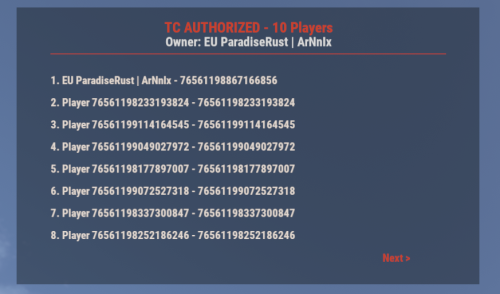
Version 1.4.4
69 downloads
UI for displaying authorized players on the Tool Cupboard, Auto Turret, and Code Lock, including the entity owner. This plugin adds a simple, clean UI that shows you exactly who is authorized on the building or deployable you're looking at. Features: - Tool Cupboard: Displays a list of all authorized players and the owner. - Auto Turret: Displays a list of all authorized players and the owner. - Code Lock: Displays the owner, the lock code, and a list of whitelisted (Main) and Guest players. - Other Entities: If you look at any other player-placed entity (furnace, box, etc.), it will display the owner's name. - Pagination: If the list of players is longer than 8, you can use the "Next" and "Previous" buttons to browse. - Copyable Text: All information displayed in the UI (player names, Steam IDs, codes) can be selected and copied by the admin for easy use. - Player Team Info: If you look at a player, the UI will display their team information, including the team leader, all team members, and their Steam IDs. - Permission-based: Use the permission `adminauth.use` to control who can see the UI. How to use: 1. Grant the permission to a player or a group. 2. The player types the chat command `/aauth` to toggle the UI on or off. 3. Simply look at a Tool Cupboard, Turret, Code Lock, any other entity, or a player. The UI will appear with the relevant information. 4. To copy any information (like a Steam ID or Name), simply select the text in the UI with your mouse and copy it (Ctrl+C). Commands: - /aauth - Toggles the AdminAuthorizedUI on and off. Permissions: - adminauth.use - Required to use the /aauth command and see the UI.$13.80 -

Version 1.0.2
295 downloads
Allows players to drop their entire inventory (Main, Belt, and Wear containers) via a command. Admins can forcefully drop any player's inventory. This plugin is highly configurable, allowing control over permissions, cooldowns, broadcast messages, and item drop behaviour. Permissions dropinventory.use - Grants the ability for players to use the /drop command to drop their own inventory. dropinventory.cooldown.bypass - Allows players to bypass the cooldown period when using the /drop command. dropinventory.admin - Grants access to admin commands like /drop.admin to drop the inventory of any player. Commands Player Command: /drop - Allows players to drop their entire inventory (Main, Belt, Wear containers) if they have permission (dropinventory.use). - Cooldown: Players can use the command again after the cooldown period, unless they have the dropinventory.cooldown.bypass permission. Admin Commands: /drop.admin <all | belt | wear | main> <playername/steamid> - Allows an admin to drop another player's inventory. Admins must have the dropinventory.admin permission. - Admin will receive confirmation, and the target player will be notified. Console Command: drop.admin <all | belt | wear | main> <playername/steamid> Equivalent to the chat admin command, but used in the server console. Configuration Broadcast Settings - Chat Prefix: Prefix for all messages shown in chat (e.g., <color=#FF0000>[DropInv]</color>). - Use Chat Message: Whether messages are broadcast via in-game chat. - Use Game Tip Message: Whether to use in-game game tip notifications. Drop Settings - Sound Effect: A sound effect played when items are dropped. - Drop Velocity: The velocity at which items are thrown when dropped. - Drop Main Container: Whether the main inventory should be dropped. - Drop Wear Container: Whether the wear container (armor) should be dropped. - Drop Belt Container: Whether the belt (hotbar) items should be dropped. Command Settings - Chat Command Cooldown: The cooldown time (in seconds) for players using /drop. - Player Chat Command: The command players can use to drop their inventory. - Admin Chat Command: The chat command that admins can use to drop another player's inventory. - Admin Console Command: The console command that admins can use to drop another player's inventory. Default Configuration { "Broadcast Settings": { "Chat Prefix": "<color=#FF0000>[DropInv]</color> ", "Use Chat Message": true, "Use Game Tip Message": true }, "Drop Inventory Settings": { "Sound Effect": "assets/bundled/prefabs/fx/gestures/drink_vomit.prefab", "Drop Velocity": 5, "Drop Main Container": true, "Drop Wear Container": true, "Drop Belt Container": true }, "Command Settings": { "Chat Command Cooldown": 60, "Player Chat Command": "drop", "Admin Chat Command": "drop.admin", "Admin Console Command": "drop.admin" }, "Version": { "Major": 1, "Minor": 0, "Patch": 1 } } Default Language { "Cooldown": "Drop is on cooldown. Time remaining: <color=#FF0000>{0}</color> seconds.", "DropAll": "Your Main, Belt and Wear items have been dropped.", "DropMain": "Your Main items have been dropped.", "DropBelt": "Your Belt items have been dropped.", "DropWear": "Your Wear items have been dropped.", "DropMainBelt": "Your Main and Belt items have been dropped.", "DropMainWear": "Your Main and Wear items have been dropped.", "DropBeltWear": "Your Belt and Wear items have been dropped.", "NoContainers": "No containers are enabled for dropping items.", "AdminDroppedItems": "Your items were dropped by an admin.", "AdminDroppedItemsReply": "You dropped (Player: <color=#FF0000>{0}</color>) Items.", "NoPermission": "You don't have permission to use this command.", "AdminCommandUsage": "Usage: /drop.admin <playername or steamid>", "PlayerNotFound": "Player not found or multiple players found matching the name or ID provided.", "Restrained": "You Can Not Use This Command While Restrained" }Free -
Version 2024.5.2.1658
321 downloads
SAVE 13% WHEN BUYING THE BUNDLE NOW SUPPORTING PROCGEN AND CUSTOM URL BASED MAPS ! This plugin will allow you to setup automatic server wipes without requiring external scripts. This plugin is very useful for any server owner but I'm positive that it will be really useful for those hosting providers running panel based game instances where you do not have full access to customize the server or the provided wipe tool is very limited. You should have a look at the suggested plugins for Oxidation's Scheduler which is a perfect fit for a fully in-game automatic wipe process. The plugin also allows you to set a list of seeds that will be used at server wipe to select the new map seed. You can define as many different wipe types as you'd like on the config file like so: This example is for a "forced" wipe. In order to execute the wipe type on the rcon console "wipe forced". "Forced": { "Restart": 120, "Message": "A server wipe is being executed, we'll be back shortly", "Game": { "Blueprints": true, "Logs": true, "Map": true, "PlayerDeaths": true, "PlayerIdentities": true, "PlayerStates": true, "PlayerTokens": true }, "Plugins": { "Convalence": true, "Data": true, "Groups": true, "Language": true, "Logs": true, "Users": true }, "Files": [ "my/custom/path/this_file_will_be_deleted.json" ], "Blacklist": [ "carbon/data/this_file_will_never_be_deleted.json" ] } This example is for a "weekly" wipe. In order to execute the wipe type on the rcon console "wipe weekly". "Weekly": { "Restart": 120, "Message": "A server wipe is being executed, we'll be back shortly", "Game": { "Blueprints": false, "Logs": true, "Map": true, "PlayerDeaths": true, "PlayerIdentities": false, "PlayerStates": true, "PlayerTokens": false }, "Plugins": { "Convalence": false, "Data": true, "Groups": false, "Language": true, "Logs": true, "Users": false }, "Files": [ "my/custom/path/this_file_will_be_deleted.json" ], "Blacklist": [ "carbon/data/this_file_will_never_be_deleted.json" ] } This is a standalone Harmony patch, Oxide installation is optional. Copy the Oxidation.Wiper.X.dll file into your HarmonyMods folder and restart your server. At the first server start after installing the patch a new configuration file Oxidation.Wiper.json will be created at the HarmonyMods folder. What is Harmony ? Harmony is a library for patching .NET code during runtime, it directly manipulates game code (CIL) without any additional abstraction layer such as Oxide. The direct patching of the game's byte code allows more performant modding as developers no longer need to rely on third party code, events or hooks to build custom functionality.$4.99 -
Version 1.3.5
269 downloads
This plugin adds logs of players action and convenient control panel for viewing them. Features Logs KIlls + Destruction of buildings (detailed description of the killed / destroyed, distance and what killed 'weapon, damage type etc.') Death (detailed description of the killer, the distance and how player was killed 'weapon, damage type etc.') Respawn (location of respawn and on the sleeping bag or not) Teams (create, invite, accept, leave) Loot (crates, personal boxes, wounded players and all other "lootable" entities) Authorization (in code locks, tool cups, turrets) Construction (everything that builds) Transport (the moment of boarding the transport) Convenient and functional control panel Convenient search for online players Search by name or steam ID throughout the database The ability to conveniently select the date and time, as well as view individual categories of logs Teleport to the log location and its visualization (available only for admins) The history of searching and viewing profiles Save of all the nicknames of the player with whom he logged into the server The first and last connection The database is optimized as much as possible, the data is split, which allows you to store a large number of logs for a long time The ability to clear the database on wipe and players who have not logged on server for a long time, in automatic mode The ability to turn off the log globally and turn it on for certain players Filters for logs The plugin is fully localized for EN and RU languages Permission admineye.usemenu - for open and use panel Command /ae - for open panel Time Zones Time zone its different time between 0 UTC and player time UTC. You need add to configuration all time zones of your admins in seconds. How do it? Go to site UTC Time Standart select city, then you will get the difference in hours behind its + ahead its - Then you need multiply hours to second ( -6 * 3600 ) Done - its difference between zones. Write in config "Washington" : -21600 Then administrator must select (only once) his zone in menu "Time Zones", else plugin use default time zone config Discord At first you must create and copy discord Webhook, then paste url at config (you can use different channels) if you want change color, choose Colors, copy 0xNNNNNN, then paste Here, copy number and paste at config ^_^ Filters If you dont want use filters, set it EMPTY If you want have specific logs, then add short prefabs names to filter EX. For kills - player, scientistnpc_bradley, wall and etc. For loots - names of crates, names of looting ents and etc. For auths - turrets, toolcups For builts - wall, floor and other deployeble entities TEST SERVER Join our test server to view and experience all our unique features yourself! Copy the IP Address below to start playing! connect 194.147.90.147:28015 Future plans Add console commands for search logs Add discord support for send logs (implemented) Add more logs I am waiting for your suggestions for improvement in the discussions Video Config { "Main settings": { "Enable delete all data on wipe": false, "Delete old players data every X hours [0 - off](It works on server startup or plugin reload)": 40, "After how many days the player's data is considered old": 14, "Time zone difference in seconds (set automatically by server zone)": 10800.0, "Time zone of counties (in seconds)": { "New York": -18000, "Moscow": 10800, "Berlin": 3600, "Paris": 3600, "Canberra": 39600, "London": 0, "Beijing": 28800, "Rome": 3600, "Washington": -21600 }, "Permission for use menu": "admineye.usemenu" }, "Log settings": { "Enable logging of kill for all": true, "Enable logging of death for all": true, "Enable logging of respawn for all": true, "Enable logging of team for all": true, "Enable logging of loot for all": true, "Enable logging of auth for all": true, "Enable logging of buildings for all": true, "Enable logging of mount for all": true, "Discord webhooks for logs": { "kills": { "Webhook url": "", "Color": 15105570 }, "deaths": { "Webhook url": "", "Color": 15548997 }, "respawns": { "Webhook url": "", "Color": 2067276 }, "teams": { "Webhook url": "", "Color": 3066993 }, "loots": { "Webhook url": "", "Color": 3447003 }, "auths": { "Webhook url": "", "Color": 9807270 }, "builts": { "Webhook url": "", "Color": 15658993 }, "mounts": { "Webhook url": "", "Color": 10181046 } } }, "Config version": { "Major": 1, "Minor": 2, "Patch": 0 } }$20.00 -
Version 1.1.0
93 downloads
xPermissionManager A modern, intuitive, and powerful permission management tool for Rust servers. xPermissionManager provides a complete visual interface for managing user and group permissions directly ingame. No more console commands, guesswork, or digging through permission lists. Everything is organized, accessible, and easy to control through an straight forward UI. Whether you're adjusting a single permission, overseeing full group structures, or assigning temporary access, xPermissionManager gives server owners a fast and efficient possibility to do so. Plugin Preview (Video) Full Permission Control Grant or revoke any permission from groups or individual players. Timed Permission System Assign temporary permissions that automatically expire (e.g., 30m, 1h, 1d, 1w, custom durations). Timed Group Memberships Add players to groups for a limited time - Perfect for kits, VIP, special events or whatever. Comprehensive UI A clean and intuitive interface for browsing permissions, switching groups, managing users, and applying timed access. User & Group Browsing View all available groups, check individual player permissions, and toggle them instantly. Clear Feedback Every change is acknowledged with clear messages to help admins avoid mistakes. Permission xpermissionmanager.use // Allows a player to open and use the xPermissionManager UI Chat Commands /xpm /xpmuser <name or steamID> /xpmtimed /xpmgroups /xpm [Opens the Permission Manager UI] PERMISSION OR ADMIN REQUIRED /xpmuser <name or steamID> [Opens the UI for managing a specific player’s permissions/groups] PERMISSION OR ADMIN REQUIRED /xpmtimed [Shows all active timed permissions for a player. Includes remaining duration and whether they came from a group] /xpmgroups [Shows all active timed group memberships for a player] Console Commands </> API$11.99- 1 review
-
- 3
-
-

-
- #permission
- #manager
- (and 20 more)
-

Version 2.2.1
47 downloads
Play To Win A complete, COMMUNTIY SERVER SAFE configurable playtime-based reward and VIP progression system for Rust. Features ✔ Awards points automatically as players stay online ✔ Players redeem free VIP via a command ✔ Custom VIP duration ✔ /points to show stats, playtime & VIP ✔ Info & Settings GUI ✔ Force-expire free VIP (single or all) DISCORD LOGGING TEMPORARILY REMOVED FOR IMPROVEMENTS, WILL BE FIXED SOON Commands: /freevip - claim freevip or check progress /points - check stats / points amount /awardpoints (name) (amount) - give points to a player /expirevip (player) - expire a player's free VIP admin permission: playtowin.admin$7.49- 15 comments
- 1 review
-
- 1
-
-
- #vip
- #community
- (and 3 more)
-

Version 1.7.4
767 downloads
Better Vanish allows server admins or users with permission to go fully invisible to spectate/watch players. It is based on the free public version on uMod by Wulf and has been in development since 2017. However, this version was written from scratch with performance, security and optimization in mind. Key features: Vanished administrators cannot be seen by any other players or cheaters. ¹ Optimization with performance in mind. No garbage allocations. Smaller size, lightweight with only most necessary functions for being invisible. Auto-hide / Auto-noclip after joining. ² Can be used by non-admins with certain restrictions. Auto teleportation under the map or to a safe spot (if you crash or disconnect). ³ Vanished state persists between disconnects or server restarts (configurable). Invisible to the world, environment, AI, traps and so on. ⁴ Custom & Lightweight trigger subsystem. Vanished player is only enters the most important world triggers at zero overhead. Can hide and unhide other players via command. The inventory spy function will let you see and edit player's or NPC's inventories. Sound effects when entering and leaving invisibility (other players can't hear it). Supports original Vanish API & Hooks. Explanations: You must behave accurately if you don't want to get attention from potential cheaters. Do not play, shoot, or touch your inventory and outfit. Auto-noclip is valid only for admins. Non-admins cannot be teleported underground. Please use the safe points. You still may provoke AI to follow you or shoot at you if you cause damage to them. Configuration The settings and options for this plugin can be configured in the BetterVanish.json file under the oxide/config directory. The use of a JSON editor or validation site such as jsonlint.com is recommended to avoid formatting issues and syntax errors. { "Show visual indicator (true/false)": true, "Visual indicator image address": "https://i.imgur.com/dOvX4uA.png", "Visual indicator anchor min": "0.1 0.001", "Visual indicator anchor max": "0.17 0.10", "Visual indicator color": "0.7 0 0 1", "Depth of an underground teleport (upon disconnection)": 15.0, "Block all incoming damage while vanished (true/false)": true, "Block all outgoing damage while vanished (true/false)": true, "Auto vanish on connect (true/false)": true, "Auto noclip on connect (true/false)": true, "Auto noclip on vanish (true/false)": true, "Turn off noclip on reappear (true/false)": true, "Persist vanish (don't unhide upon leave & restore after restart)": true, "Use sound effects (true/false)": true, "Enable safepoints (true/false)": true, "Remove all safepoints after wipe (true/false)": true, "Config revision (do not edit)": 4 } Localization The localization for this plugin can be configured in the BetterVanish.json file under the oxide/lang/en directory. The use of a JSON editor or validation site such as jsonlint.com is recommended to avoid formatting issues and syntax errors. { "CommandVanish": "vanish", "CommandSetVanish": "setvanish", "CommandUnvanishAll": "unvanishall", "CommandInvSpy": "invspy", "VanishDisabled": "<color=#FF686B>Vanish disabled</color>", "VanishEnabled": "<color=#91D6FF>Vanish enabled</color>", "VanishDisabledOther": "<color=#FF686B>You disabled vanish on {0}</color>", "VanishEnabledOther": "<color=#91D6FF>You enabled vanish on {0}</color>", "UnvanishedPlayers": "<color=#FF686B>You unvanished {0} players!</color>", "SetVanishHelp": "Syntax: /setvanish PlayerName", "SafePointNotSet": "You haven't set your <color=#F7B267>Safe Point</color>\nType <color=#FF686B>/vanish safepoint</color> to save your current position.\nYou will be automatically teleported there upon disconnection.", "SafePointSaved": "Your current position is saved as a Safe Point!", "MultiplePlayers": "Multiple players found!\nRefine your search or use Steam ID.", "NothingInSight": "No players in sight", "NoSuchPlayer": "No such player found ({0})", "InvSpyLooting": "Looting: {0} ({1})." } Permissions This plugin uses Oxide's permission system. To assign a permission, use oxide.grant <user or group> <name or steam id> <permission>. To remove a permission, use oxide.revoke <user or group> <name or steam id> <permission>. bettervanish.allowed - allows non-admin players to use vanish and become invisible. bettervanish.allowedother - allows non-admin players to vanish other players by their name. bettervanish.perma – the bearer will be vanished automatically and won’t be able to turn off vanish himself. bettervanish.unvanish - allows non-admin players to unvanish everyone at once. bettervanish.invspy - allows non-admin players to use inventory spy to loot players and NPCs remotely. bettervanish.skiplocks - allows non-admin players to have access to locked entities (boxes, doors). Commands This plugin provides universal chat and console commands. When using a command in the chat, prefix it with a forward slash: /. vanish - Toggles vanish state. vanish safepoint - Save a Safepoint, where get teleported on disconnect (your current position). setvanish <PlayerName> - Toggles vanish state of specified player. unvanishall - Unvanish everyone at once (both online & sleepers). invspy - Let you see and edit players or Npcs inventories, <name/steamID64> or look at the target and use then "invspy " Plugin Data This plugin can store 2 data files under oxide/data: BetterVanish-SafePoints.json - Player safepoints storage. BetterVanish-PersistPlr.json - Players with persisted vanish state. Developer API bool _IsInvisible(BasePlayer player) bool _IsInsivible(IPlayer player) void _Disappear(BasePlayer) void _Reappear(BasePlayer)$19.99- 51 comments
- 1 review
-
- 2
-

-
- #better vanish
- #admin
- (and 2 more)
-
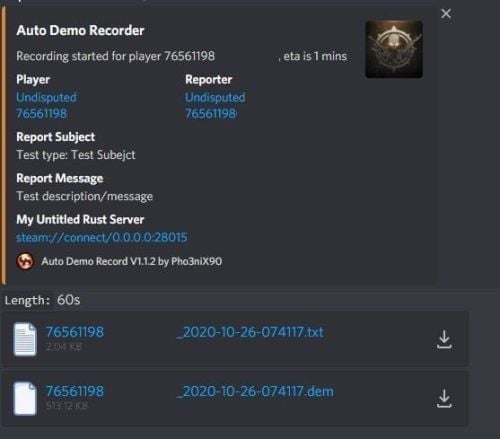
Version 1.3.2
493 downloads
Records players automatically that have been reported X amount of times, with the ability to automatically upload the combat logs & Demo files to a discord webhook. Disk usage whilst recording: +- 1MB per 1 minute. Discord has an 8mb upload limit and 100mb for nitro. Chat Commands: /record - Chat: This will initiate a self-recording. Console Commands autodemorecord.record [steam64id] [minutes] - Console: Usefull to record a player on demand, or a schedule from another plugin. autodemorecord.blacklist add [steam64id] [recordingMinutes] [intervalMinutes] - Console: Add a player to the blacklist, which will record them for [recordingMinutes] every [intervalMinutes] autodemorecord.blacklist remove [steam64id] - Console: Removes a player from the blacklist. Permissions: Permission autodemorecord.record is required for a player to initiate a recording of themselves. Useful for streamers, to provide them with footage at wipe end, or tournaments. The recording length will be "Auto record for X minutes" Config explanations: "Auto record after X reports": Will start recording the player when these many reports have been received. "Only record when reports within X seconds": Only record when the number of reports above, are received in this timeframe. 0 to record always when the above value is reached. "Save/Load reports to datafile on reload": Useful when you aren't using the above config, if you do it might not be necessary to save data overhead. "Auto record for X minutes": the number of minutes the player should be recorded for. "Discord MSG Color": Color for the embed message, see here https://gist.github.com/thomasbnt/b6f455e2c7d743b796917fa3c205f812 "Discord Webhook": You discord webhook all information should be sent to. "Discord: Notify if recording is started": Should a message be sent to the discord webhook when the recording starts? "Discord: Include report with start message?": Should the player's report be added to the recording start message? "Discord: Notify if recording is stopped": Should a message be sent to the discord webhook when the recording ends? "Discord: Include report with end message?": Should the player's report be added to the recording end message? "Upload Combat Log to discord webhook?": Should the player's combat log be upload to the above discord webhook as a txt file? "Upload DEMO file to discord webhook?": Should the player's demo file be uploaded to the above discord webhook? "Split DEMO files for non nitro discord (8mb chunks)?": This will split files and upload multiple files to discord for non-nitro discord servers. If you have nitro with an upload limit of 100mb, then you can turn this off. "Discord Webhook - Self Record" All self-initiated recordings will post to this webhook, if not set it will go to the main one. "Record if FlyHacked in last X seconds" This will initiate a recording when a player rejoins the server after kicked for flyhacking. "Save recording to server?" If set to false, it will not save to the HDD, to save space. Make sure you have a webhook setup, otherwise it will still save as to not lose any demos. API: If you want to trigger a recording from your plugin, you can do the following: AutoDemoRecord.Call("API_StartRecording", BasePlayer player, string Reason, int LengthInMin); All suggestions welcomed!$19.99 -

Version 2.0.1
1,413 downloads
Introducing Total Control – The Ultimate Rust Server Admin Tool Total Control is a powerful full GUI admin plugin for Rust servers. Whether you run hardcore PvP or relaxed PvE, Total Control gives you complete live control over every major system directly in-game, with zero config files or reloading after changes. Dynamic Schedule System: •Plan your entire wipe and let the plugin do the work for you. •Create up to 5 scheduled sets (plus the default) Automatically change gather rates, stack sizes, smelting, rewards, PvE/PvP mode, raid protection, and more at exact dates and times. •Use real-world time or server time. •Enable only the pages you want for each set everything else stays on your default settings. •Run your server exactly how you want. Gather Rates & Stack Sizes: •Full control over every item (ore, plants, crates, quarries, excavator, etc.) Quick multiplier buttons or type exact values. •Category multipliers with individual item overrides. •Add or remove any item instantly with chat commands. Smelting & Cooking: •Adjust speed, charcoal output, fuel usage, and resource output for every furnace type. •Full control over the Mixing Table and Cooking Workbench. Rewards System: •Reward players for gathering, killing animals/NPCs/players, destroying barrels, emptying crates, Bradley/Heli loot, and playtime. •Support for Scrap, Economics, and ServerRewards (use any or all three) Optional UI Notify integration with custom message styles. Settings Page: •Auto or voted night skip. Time freeze, custom day/night lengths, and server date. •PvE/PvP mode switching (manual or timed). •Full raid protection (manual or timed). •Offline raid protection (with adjustable cooldown timer). •Option to disable shotgun traps, flame turrets, auto turrets, and SAM sites. Any admin with the correct permission can open the Total Control GUI with /tc and modify everything, without requiring data file access or plugin reload. Ideal for administrators worldwide. Permissions & Commands: Permission: TotalControl.OpenGui Chat Commands: /tc Open the GUI /addgather <shortname> /removegather <shortname> Add/Remove items to GatherRates page. /addstack <shortname> /removestack <shortname> Add/Remove items to StackSize page. /addreward <shortname or prefab> /removereward <shortname or prefab> Add/Remove items to Rewards page. (Shortnames list: https://www.corrosionhour.com/rust-item-list) Join the Community Stay up to date, get support, make suggestions, report bugs, or promote your server. https://discord.gg/AkwHUs8Qma$29.99 -
Version 0.2.3
176 downloads
DemoPro: The Anti Cheat That Works DemoPro turns F7 reports into a single evidence bundle with timeline markers + jump points, so you can jump straight to the key moments fast. It captures footage Before / during / after the f7 report is made Cheaters can’t hide from this system — no more relying on outdated anti-cheat plugins. This is clear video evidence that makes decisions easier, faster, and fairer. 100% accurate, No False Positives Key Features Converts **F7 reports** into a single evidence bundle Records BEFORE, DURING, and AFTER every F7 report. You NEVER miss what happens. Saves you and your admins loads of time. No more wasting hours spectating players Smart sorts demos with Timeline markers + jump points to reach key moments fast Private portal access for you and your admins with **Steam sign-in** Assignments, notes, outcomes (keeps reviews organised) Server-friendly: all data is stored off-site on your account, not on your game server, keeping things lightweight and smooth. Can be use as a content tool, you can make cinematic videos from the demos you receive. Fully compatible with all Rust server setups. Proof it works: join our Discord and check out the #cheater-clips channel https://discord.gg/2DCfVFFgvW 7-day free trial: https://rustdemopro.com RustAdmin Integration: https://www.rustadmin.com Visual snippet of recoil mapping with each attack in timeline Shareable filtered portal links Discord ban feed + global portal search Redesign the portal + dashboard for a more modern and fluid feel New portal is now live Future Updates AI Integration Introduce an AI/ML system that analyses demo files to learn the difference between normal players behaviour vs a cheaters behaviour All Seeing Eye An AI powered monitoring layer that automatically flags suspicious players and triggers evidence capture without relying on F7 reports. Set Up Guide Step 1 — Create Your DemoPro Space Sign in at https://rustdemopro.com using your Steam account Create your community space Choose monthly or annual billing (includes a 7-day free trial) Step 2 — Install the Harmony Mod Copy the DLL into: server_root/HarmonyMods/ Start the server once to generate: server_root/HarmonyConfig/ (this contains the config) After editing the config, run: rdm.reloadcfg to apply changes Step 3 — Connect Your Server In the portal, generate a Server Key Paste the key into the plugin config Make sure uploads are enabled in the config Reload the config, enter this command in your console rdm.reloadcfg Step 4 — Reports Create Cases When an in-game report (F7) happens, DemoPro automatically builds an evidence bundle The bundle is uploaded to your portal as a case for review Step 5 — Review & Decide Open the case, assign it, and add notes Download the bundle, jump to the timeline markers Mark the outcome as Reviewed (Clear) or Reviewed (Cheating) with notes for your team If you need any help setting up DemoPro, please open a ticket on our Discord. How it works Server records players in 15-minute chunks with ~30 minutes rolling history. When someone is F7 reported, Demo Pro grabs the “before” buffer and keeps recording. 15 minutes later it adds the “after” clip and uploads everything to the portal. If a player disconnects/reconnects, chunk lengths can be shorter than 15 minutes—that’s normal. Portal statuses Players reported → Clip uploaded → Needs Review → Admin downloads → Admin reviews → Mark result Needs Review — new or reset incidents. Downloaded (Needs Review) — someone pulled the bundle but hasn’t finished. Reviewed — Clear / Reviewed — Cheating — finished decisions. Opening & assigning a report Click Open on a card to see details. Assign it to yourself immediately and add notes as you investigate. Set the review state to Reviewed (Clear) or Reviewed (Cheating) when done. Assignments and outcomes keep other moderators from duplicating work. Finding the action fast Timeline dots: hits/shots, kills, report moment. Use the event feed to jump to notable damage or kill events. Report marker shows where the F7 report landed inside the clip. Downloading the bundle Use Download bundle for a ZIP containing .dem files and a README. The README points to the first demo and the timestamp to jump to—start there. Clip lengths can vary if players disconnect; that’s expected. Load demos into Rust Copy the suggested .dem into C:\Program Files (x86)\Steam\steamapps\common\Rust\demos. If the demos folder doesn’t exist, create it (restart Rust once if needed). Playing + controls From Rust main menu, open the Demo browser, refresh, pick the file, and play. Use Alt to toggle cursor, Tab for UI, and debugcamera to free-fly. Cycle nearby players with Spacebar; pause/rewind/fast-forward as needed. Review guidance Use the README timestamps as a starting point; check other demos if nothing obvious. If cheating is confirmed: capture proof, upload to the usual place, mark Reviewed (Cheating), and leave clear notes. If clean: mark Reviewed (Clear) and add a quick note (e.g., desync, valid prefire). long story short, when someone f7 reports, you can get a clip, you replay in rust of exactly why, and it shows footage before and during the report. For tips and useful keybinds to help you get the most out of DemoPro, check out the dedicated channels in our Discord. Discord: https://discord.gg/2DCfVFFgvW Website: https://rustdemopro.com/ Youtube: https://www.youtube.com/@RustDemoPro Cheater VideosFree- 5 comments
- 5 reviews
-
- 2
-
-
- #anticheat
- #demo
- (and 5 more)
-
Version 2.0.4
23 downloads
AdminTrollToolZ: Revolutionize Your Rust Server Administration AdminTrollToolZ is the definitive, feature-rich Oxide plugin designed to give server administrators unprecedented control and flexibility over their Rust environment. Stop juggling multiple commands and plugins—get everything you need in one powerful, easy-to-use User Interface (UI). Key Features & Functionality: - Comprehensive Player Management: - Detailed Player Profiles: View all critical player info: Bans, last chat messages, recent commands, country, and past names. - Real-time Inventory Control: View, clear, or drop a player's inventory and backpack contents instantly (requires Backpacks plugin). - Player Status Modification: Freeze/Unfreeze movement (requires Freeze plugin), grant God Mode (Invulnerable), modify Metabolism (health, hydration, calories), and instantly grant or clear all Blueprints. - Rule Enforcement: Kick, Ban, Mute/Unmute players directly from the UI, with configurable ban durations. Implement a Warning System with in-game chat and Discord notifications. Server & Plugin Control: - Dynamic Convar Management: Search and modify virtually any server Convar setting on the fly. - Plugin Management: Easily Reload or Unload other Oxide plugins without console access. - Team Control: Effortlessly manage player teams—add/remove members, change team leaders. - Wipe Management: Includes integrated functionality for handling data wipes and timers (via WipeZ plugin). Advanced Admin Tools: - Admin Radar: Toggle visibility for online/sleeper players, boxes, turrets, TCs, loot, NPCs, and more. - Entity Spawning: Spawn specified entities near a target player. - Troll/Fun Features: Drop the item a player is holding, apply various Effects, or change the server time (Turn Day/Night - requires NightVision plugin). Economy & Rewards Integration: - Full support for Economics, ServerRewards, and SkillTree (requires respective plugins) to easily add, subtract, or clear player currency/skill values. - Kits Support: Quickly add configured kits to target players (requires Kits plugin). AdminTrollToolZ is built for performance and reliability, ensuring that all features work seamlessly. It features automatic Player Data (PD) saving and a utility to clear old PD files, keeping your server clean. Upgrade your administrative capabilities today and keep your community safe, managed, and engaged! Config: { "Kick player if have VAC BAN?": false, "Kick message (VAC BAN)": "You cannot enter if you have a VAC ban!", "Kick player if have GAME BAN?": false, "Kick message (GAME BAN)": "You cannot enter if you have a GAME ban!", "Your API KEY": "", "Time zone difference hours (+)": 0, "Log commands?": true, "Ban time in hour:": 4, "Contact: (BAN / KICK message)": "Discord link", "Enable Economic.cs plugin?": true, "Enable ServerRewards.cs plugin?": true, "Enable SkillTree.cs plugin?": true, "Enable Backpacks.cs plugin?": true, "Enable Freeze.cs plugin?": true, "Enable NightVision.cs plugin?": true, "Enable RaidableBases s plugin?": true, "RaidableBases banned permission name?": "raidablebases.banned", "Enable Kits.cs plugin?": true, "Kit chat command": "kit", "Kit names (list)": [], "Discord (logs) Hook (empty = disable)": "", "Discord (logs) embed hex color": "#ff00ff", "Discord (player connect) Hook (empty = disable)": "", "Discord (player connect) Show Vac/Game ban in message?": true, "Discord (player connect) embed hex color": "#00ff00", "Discord (player connect) text": "Connected", "Discord (player disconnect) Hook (empty = disable)": "", "Discord (player disconnect) embed hex color": "#ff0000", "Discord (player disconnect) text": "Disconnected", "Discord (player name change) Hook (empty = disable)": "", "Discord (player name change) embed hex color": "#ffff00", "Discord (player name change) text": "Disply name changed", "Discord (global chat) Hook (empty = disable)": "", "Discord (global chat) embed hex color": "#ffffff", "Discord (player team chat) Hook (empty = disable)": "", "Discord (player team chat) embed hex color": "#00ff00", "Discord (/pm chat) Hook (empty = disable)": "", "Discord (/pm) embed hex color": "#ffffff", "Discord (Server online) Hook (empty = disable)": "", "Discord (Server online) embed hex color": "#00ff00", "Discord (Server online) title": "Server online!", "Discord (Server online) text": "Come and join!\nIP: (your ip and port)", "Discord (Server offline) Hook (empty = disable)": "", "Discord (Server offline) embed hex color": "#ff0000", "Discord (Server offline) title": "Server offline!", "Discord (Server offline) text": "Please allow time for the system to start! Sorry for any inconvenience!", "Discord (Server online) image": "", "Discord (Server offline) image": "", "Player names blacklist": [ "name 1", "name 2", "name 3" ], "Does the player get kicked out if the name is on the 'Player names blacklist'?": false, "(Chat word) blacklist": [ "word 1", "word 2", "word 3" ], "Discord (Chat blacklist messages) Hook (empty = disable)": "", "Discord (Chat word) embed hex color": "#ff0000", "Discord (WIPE) Hook (empty = disable)": "", "Discord (WIPE) embed hex color": "#ff4488", "Discord (WIPE) text": "The map has been wiped!\nNew map size: {size}\nAvailable monuments:\n{list}", "Country auto-ban": false, "Country auto-ban LIST: ": [], "[WIPE Whitelist] Only those with IDs on the list can join until they are unlocked with the command after Wipe": false, "[WIPE Whitelist] unlock command": "canjoin", "[WIPE Whitelist] players id": [ "900000000000", "900000000001", "900000000002" ], "[WIPE Whitelist] Discord hook, where you notify the players": "", "[WIPE Whitelist] Discord message embed color in hex": "#ffff00", "[WIPE Whitelist] Discord message to players (Can't join)": "The server has started and its preparation has begun! We will notify you when you can join! We ask for your patience, and you can join soon!", "[WIPE Whitelist] Discord message to players (Can join)": "The server has opened for connection! We wish you a good game!", "[WIPE Whitelist] Kick message": "You can join soon!", "[Player REPORT] Discord hook, where send player report": "", "[Player REPORT] Discord player report embed color in hex": "#ff0000", "[Player DATA] Delete player data file if older than (days)": 60 } Chat command /adminz /zedit (change entity variables what you look) /zedith (change entity variables what in your hand) /zeditp (change entity variables your player character) These should only be used by experts, as they can cause server crashes! Language: 31 file Permissions - AdminTrollToolZ.Can.OpenUI - AdminTrollToolZ.MarkerTeleport - AdminTrollToolZ.Voice.Disable - AdminTrollToolZ.Use.All - AdminTrollToolZ.Use.SpawnEntity - AdminTrollToolZ.Use.Metabolism - AdminTrollToolZ.BlockAllCommands //you cannot use AdminTrollTool commands on these players - AdminTrollToolZ.Use.Spectate - AdminTrollToolZ.Use.KickPlayer - AdminTrollToolZ.Use.BanPlayer - AdminTrollToolZ.Use.Effects - AdminTrollToolZ.Use.Teleport - AdminTrollToolZ.Use.MuteFromChat - AdminTrollToolZ.Use.ViewPlayerInv - AdminTrollToolZ.Use.Blueprint - AdminTrollToolZ.Use.Damage - AdminTrollToolZ.Use.Godmode - AdminTrollToolZ.Use.Build - AdminTrollToolZ.Use.DropWeaponInhand - AdminTrollToolZ.Use.Freeze - AdminTrollToolZ.Use.ViewBackpack - AdminTrollToolZ.Use.Economics - AdminTrollToolZ.Use.ServerRewards - AdminTrollToolZ.Use.SkillTree - AdminTrollToolZ.Use.BlockRaidbases - AdminTrollToolZ.Use.Nightvision - AdminTrollToolZ.Use.ADDKIT - AdminTrollToolZ.PLAYER.GODMODE.ON //only use this permission with AdminTrollTool UI ("Invulnerable on") - AdminTrollToolZ.PLAYER.DAMAGE.OFF //only use this permission with AdminTrollTool UI ("Damage off") - AdminTrollToolZ.PLAYER.BUILD.BLOCK //only use this permission with AdminTrollTool UI ("Construction blocking") Build-in Discord embed sender – Server online / offline / wiped – Player Chat: blacklist worlds + warning (in.game + discord) – Player name change – all AdminTrollToolZ log (discord + log directory) Logs all activity + Discord sender option in config! Used plugins: * Economics * ServerRewards * SkillTree * Backpacks * Freeze * NightVision * RaidableBases * Kits * WipeZ I guarantee the functionality of the plugin as described. However, I cannot take responsibility for conflicts or issues arising from incompatibility with third-party plugins or themes. Please take this into account before purchasing. I will list all known compatibility details in the product description.$30.00 -
Version 2.0.0
87 downloads
Bring Rust monuments to life with cinematic, high-intensity combat events. Armed Deployment dynamically delivers a Bradley APC, heavy scientists, and a hackable locked crate to any location you choose, all inserted by an immersive Chinook deployment sequence. Watch as a Chinook approaches the target zone, descends, deploys hostile forces, and extracts — creating a truly memorable server event that feels built into the game rather than scripted. Players must eliminate all threats and destroy the Bradley APC before they can claim the locked crate and its rewards. Features • Spawn deployments anywhere on the map • Cinematic Chinook delivery and extraction • Heavy Scientists with controlled roaming • Bradley APC with movement blocking • Hackable Locked Crate rewards • Dynamic deployment radius and map marker • Server-side UI progress tracking • Automatic cleanup and despawn timers • Admin-controlled start and cancellation • Automated deployments with configurable intervals • Fully configurable values Chat Commands (Admin Only) /adpanel Toggles the Armed Deployment admin UI panel Permissions ArmedDeployment.admin Required to start, cancel, or automate Armed Deployments Configuration { "Auto": false, "AutoMin": 60, "RandMon": true, "ManLoc": { "X": 0, "Y": 0, "Z": 0 }, "Mons": { "airfield": true, "trainyard": true, "powerplant": true, "military_tunnel": true, "launch_site": true, "water_treatment": true, "dome": true, "satellite": true, "junkyard": true, "excavator": false, "harbor": true, "arctic_base": true, "lighthouse": false, "gas_station": false, "supermarket": false, "mining_outpost": false, "sewer_branch": false, "oil_rig_small": false, "oil_rig_large": false }, "SciCnt": 12, "BradCnt": 1, "EvtRad": 150, "MaxAttempts": 10, "ChApproachH": 80, "ChApproachD": 400, "ChSpeed": 25, "ChHoverH": 15, "ChDescentH": 50, "ChExitD": 500, "MinClearH": 40, "ObstacleRad": 30, "MonSearchRad": 80 } Default values are optimized for performance and cinematic impact. Notes This plugin is designed to feel vanilla-friendly, cinematic, and performance-aware. It works especially well on servers that want high-risk, high-reward PvP encounters without relying on random world events. Feedback, suggestions, and feature requests are always welcome. Created by CodeBrothers Check out our other work on Codefling$29.99 -
.thumb.gif.931694ee6af9534dc6d23b0aec6390f5.gif)
Version 2.2.2
328 downloads
Auto Ban / Report Ban – Premium Edition AutoBan Enhanced is the ultimate plugin for Rust server administrators who want to keep their community safe, fair, and fun. This premium edition builds on the original AutoBan system with new advanced moderation tools, smarter automation, and seamless integrations with Discord. Key Features Automatic Weighted Banning Players are automatically banned once they reach a configurable number of weighted reports. Trusted players, moderators, or admins can have higher report weights for faster action. Playtime Requirement (NEW) Players must have a minimum amount of playtime (configurable, default 2h) before submitting reports, preventing abuse from fresh accounts. Mass Reporting Protection Includes cooldowns, per-hour limits, and unique report tracking to prevent abuse of the reporting system. Full F7 Integration Captures and processes in-game reports (F7), with optional keyword scanning for valid reasons. Player-Friendly Reporting System Players can submit reports via chat commands or a guided reason menu for consistency. Customizable Ban Durations Supports human-readable ban times like 30m, 4h, 7d, or permanent. Ban History & Report Logs New commands to view report history and a structured audit log of admin actions. Progressive Punishments (optional) Configure warnings, mutes, or bans at different thresholds. Discord Integration with Embeds Sends clean, embedded messages for reports and bans, including player info, reasons, timestamps, and expiration. Ignored Players & Permissions Protect admins and whitelisted users from automated bans. Export & Data Storage Export reports to JSON for external review or backups. Granular Permissions Fine-grained control over who can report, view, ban, unban, reset, or audit. Usage: Chat Commands /report <username> – start a report (shows menu if no reason given). /report <username> <reason> – report with reason directly. /reportreason <number> – pick a reason from the menu. /AB.viewreports – view all current reports (requires permission). /AB.history <userid> – view detailed history of a player’s reports. /AB.auditlog [N] – view last N admin/audit actions. /AB.showbans – view all bans. /AB.unban <userid> – unban a player. /AB.resetreports <userid> – reset reports for a player. /AB.exportreports – export reports to a JSON datastore. 🛠 Console Commands AB.getreports – list all reports in console. AB.getbans – list all bans in console. AB.resetreportsConsole <userid> – reset reports via console. AB.ban <userid> <reason> – manually ban a player. AB.unban <userid> – manually unban a player. Oxide / Carbon Permissions AutoBan.report – allow reporting via F7. AutoBan.chatreport – allow reporting via chat. AutoBan.viewreports – view all reports. AutoBan.ignore – player immune to auto-bans. AutoBan.ban – manually ban players. AutoBan.unban – manually unban players. AutoBan.viewbans – view all bans. AutoBan.resetreports – reset player reports. AutoBan.trusted – weighted reporter (e.g., counts x2). AutoBan.mod – stronger weighted reporter (e.g., counts x3). Example Config { "Max reports till user gets banned (weighted)": 5, "Reason given to banned user": "You have been reported too many times and have been banned for precautionary measures. An admin will review this suspension soon.", "Valid reasons": ["cheating", "aimbot", "hacking", "esp", "teaming", "racism", "griefing", "walling", "doorcamping", "spawn killing"], "Valid report types": ["cheat", "abusive", "name", "spam"], "Scan type of F7 reports": true, "Broadcast ban to chat": true, "Ignored Players": { "76561198000000000": "Admin" }, "Timer for broadcasting bans to admins and console": 820, "Send bans to users with the AutoBan.viewbans permission": false, "Send reports to URL": false, "URL to send reports to": "http://example.com", "Send reports to Discord": true, "Send bans to Discord": true, "Discord Reports Webhook URL": "http://example.com/reports", "Discord Bans Webhook URL": "http://example.com/bans", "Ban Duration": "72h", "Max reports a player can submit per hour": 3, "Max reports a player can receive per hour": 5, "Cooldown between reports from the same player in minutes": 10, "Weighted report permissions": { "AutoBan.trusted": 2,"AutoBan.mod": 3 }, "Use Discord embeds for webhooks": true, "Max lines per chat response to avoid spam": 8, "Minimum playtime (in minutes) required to file a report": 120 } With AutoBan Enhanced, you get automated moderation, better transparency, and flexible punishment systems, freeing up admins to focus on building community instead of fighting cheaters.$25.00 -

.thumb.png.ccf8a947948c9eb1445ad21a7931247b.png)


.thumb.png.fd415e6a279abcb86097c1d6ea9f77b2.png)
.thumb.png.f676fcb4237b0d630285499251bcf88e.png)