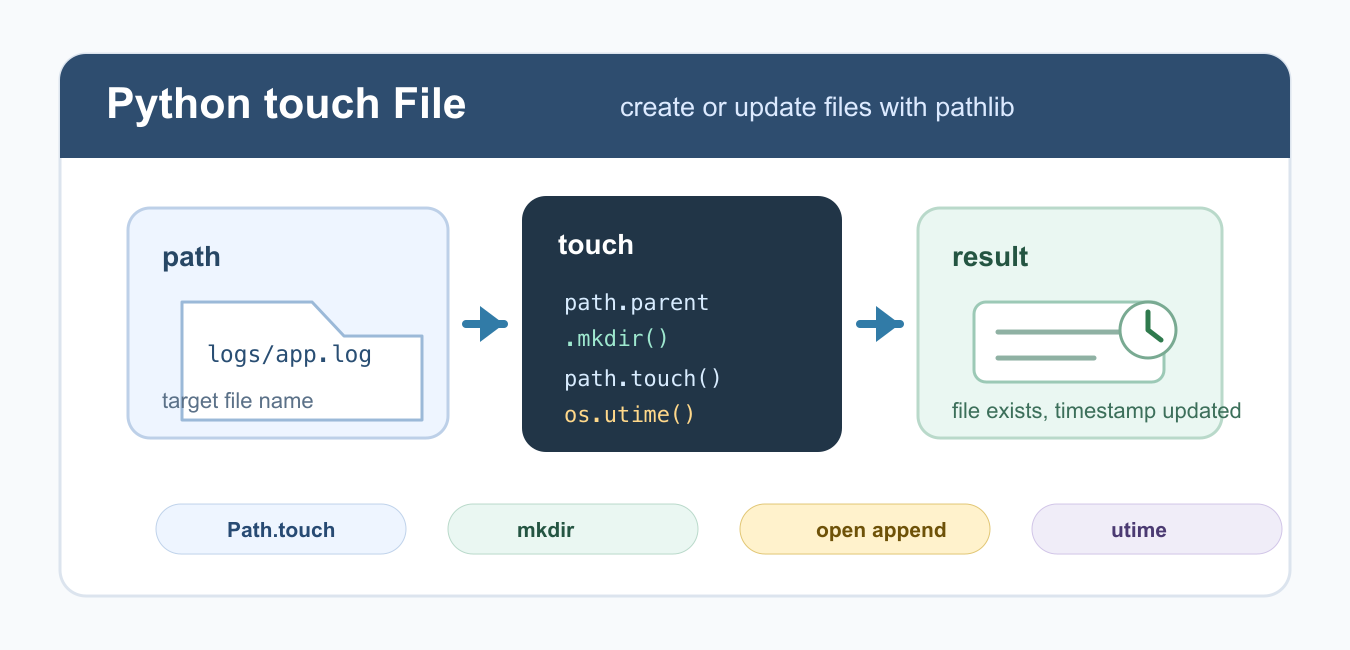
Quick answer: Use pathlib.Path.touch() to create an empty file or update an existing file’s timestamps without truncating its contents. Decide whether the file may already exist, create parent directories explicitly, and use os.utime() only when a specific timestamp is part of the contract.
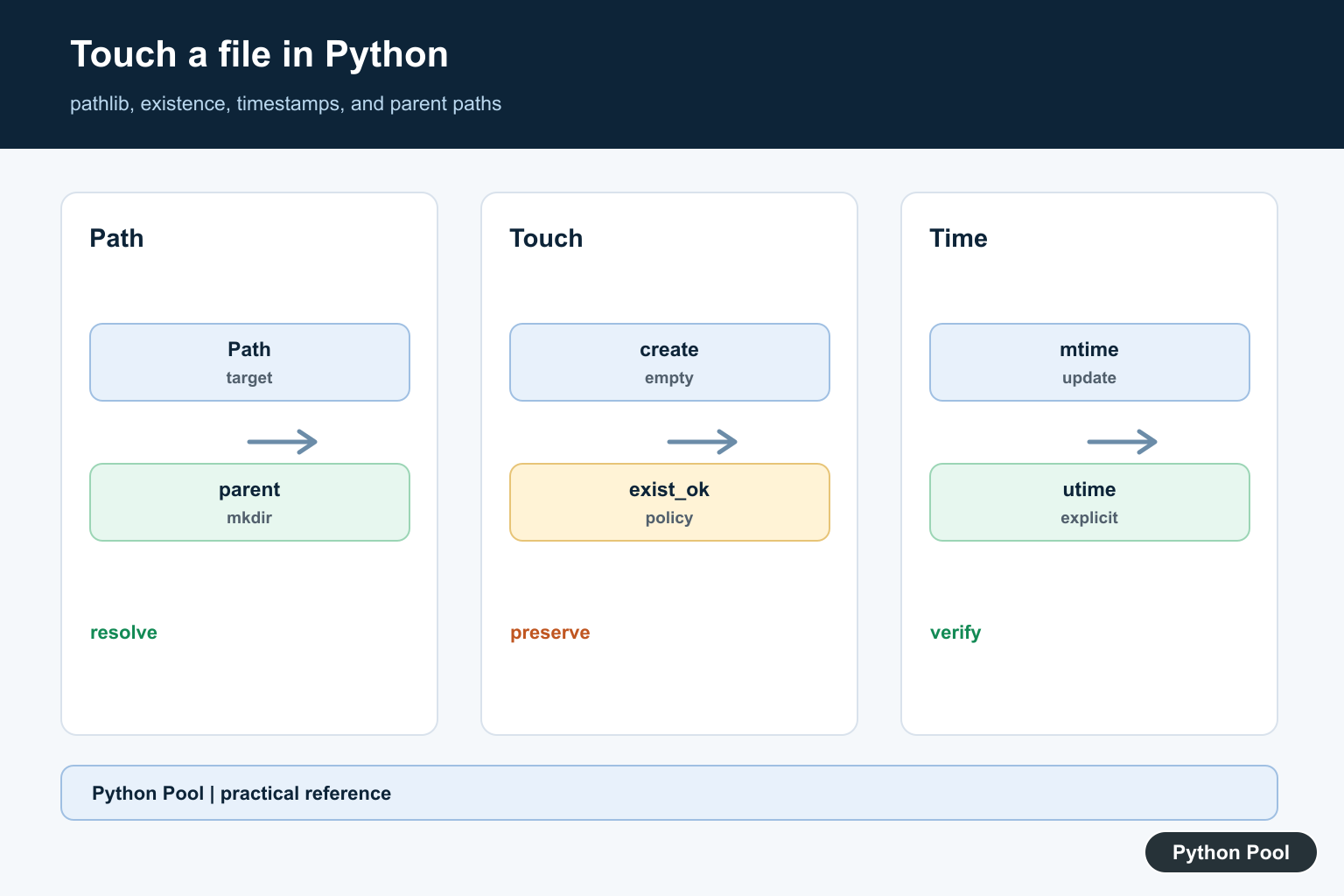
A touch file operation creates an empty file when the path is missing or updates the file’s modified time when it already exists. In Python, the cleanest way to do that is pathlib.Path.touch(). It gives you readable path handling, works on Windows, macOS, and Linux, and avoids the shell-specific touch command.
Use a Python touch file pattern when a script needs a marker file, a placeholder output, a log file, or a timestamp that says a job ran. If your next step is reading or writing real content, pair it with the checks from checking whether a file exists in Python so the script handles missing paths deliberately.
A touched file can still be zero bytes. That is normal: the purpose is to guarantee that a path exists or that its timestamp changed. Treat the touch step as file preparation, not as a substitute for writing the final data.
Use pathlib Path.touch()
Path.touch() is the direct Python equivalent of touching a file. By default it creates the file if it does not exist and updates the modification time if it does. The parent folder must already exist, so create it first when your path includes directories.
from pathlib import Path

path = Path("logs/app.log")
path.parent.mkdir(parents=True, exist_ok=True)
path.touch(exist_ok=True)

print(path.exists())
The parents=True option creates missing intermediate directories, while exist_ok=True prevents an error if the folder already exists. That keeps the file creation step repeatable for scheduled jobs and small automation scripts.
Update an Existing File Timestamp
Calling touch() on an existing file does not erase the file. It updates the access and modification times, which is useful for cache invalidation, status markers, and simple build scripts.
from pathlib import Path

status_file = Path("build/last-run.txt")
status_file.parent.mkdir(parents=True, exist_ok=True)
status_file.touch()

print(status_file.stat().st_mtime)
If you need to inspect related files in the same folder, combine this with Python directory listing logic. That makes it easier to touch one file, then scan the folder for generated outputs.
Create Only When the File Is New
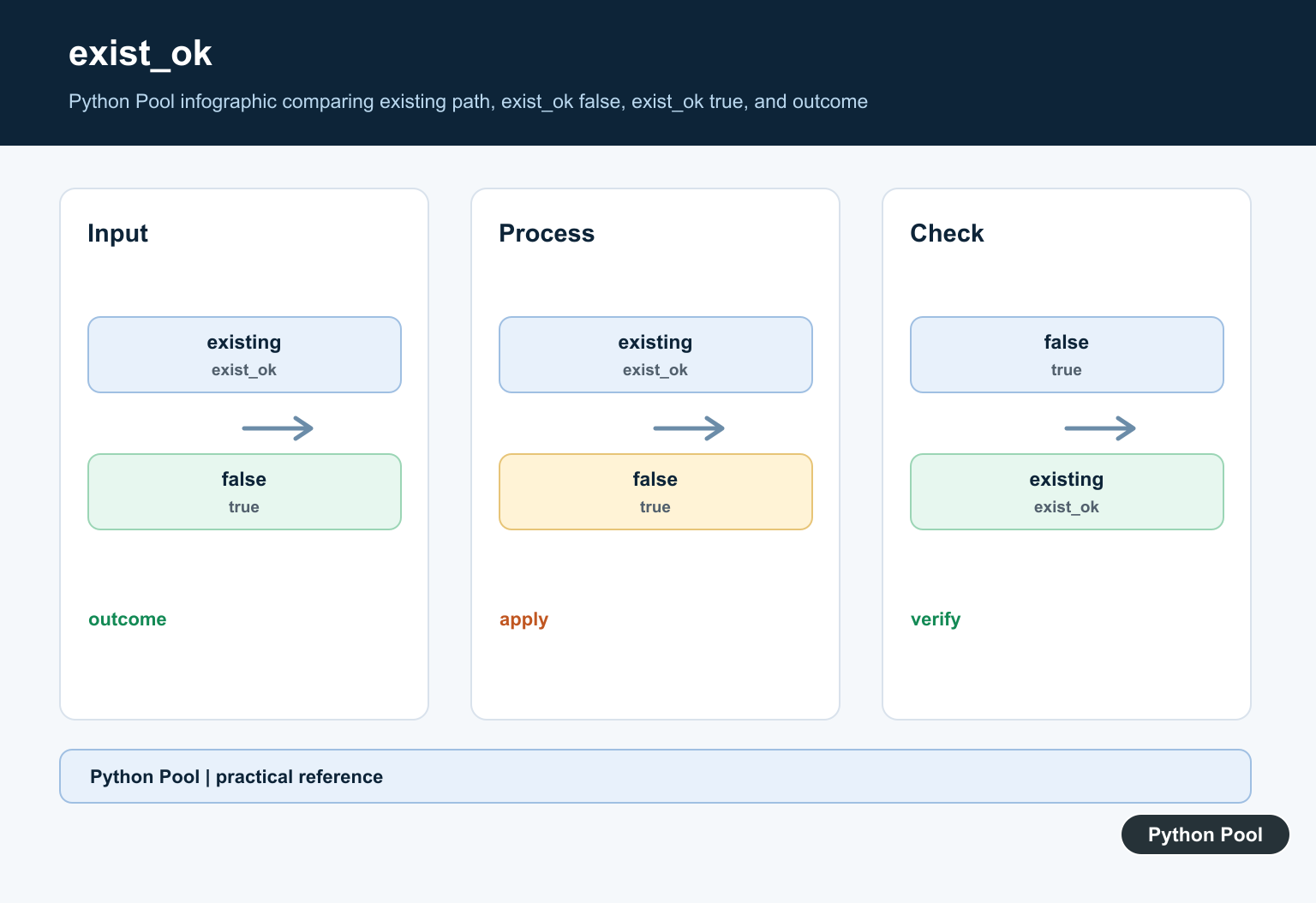
Sometimes a script should create a marker file only once. Set exist_ok=False when overwriting the timestamp would hide a workflow problem. If the file is already present, Python raises FileExistsError.
from pathlib import Path

report = Path("reports/today.txt")
report.parent.mkdir(parents=True, exist_ok=True)

try:
    report.touch(exist_ok=False)
except FileExistsError:
    print("Already exists; choose a new file name")
This is safer for reports, lock files, and one-time exports where an existing file means the job has already run or a human should review the previous output.

Touch a File With open()
You can also create a file by opening it in append mode and closing it immediately. This is helpful when the next operation will use a file object anyway. For new scripts, Path.touch() is usually clearer, but append mode is still a practical fallback.
from pathlib import Path

path = Path("notes/todo.txt")
path.parent.mkdir(parents=True, exist_ok=True)

with path.open("a", encoding="utf-8"):
    pass
Append mode does not truncate existing content. If you plan to read the file after creating it, the guide on reading files line by line in Python is a useful next step.
Set a Specific Timestamp With os.utime()
Path.touch() uses the current time. When you need a specific timestamp, create the file first and then call os.utime(). The two values passed to os.utime() are access time and modification time, expressed as Unix timestamps.
from pathlib import Path
import os
import time

path = Path("logs/app.log")
path.touch()

two_hours_ago = time.time() - 2 * 60 * 60
os.utime(path, (two_hours_ago, two_hours_ago))
This pattern is useful in tests, migration scripts, and file cleanup tools that compare modified times. If your script later removes temporary files, review how to delete files in Python so missing-file errors are handled cleanly.
Reusable touch_file() Helper
For repeated use, wrap the behavior in a small function. Returning the Path object keeps the caller free to inspect, write, delete, or log the file afterward.
from pathlib import Path

def touch_file(filename):
    path = Path(filename)
    path.parent.mkdir(parents=True, exist_ok=True)
    path.touch(exist_ok=True)
    return path

created = touch_file("output/result.txt")
print(created.resolve())
Keep the helper small. It should create parent directories, touch the target, and return the path. Add separate validation only when the calling code has a specific rule, such as rejecting directories or refusing to update existing report files.
Common Mistakes
The most common mistake is touching a nested file before the parent directory exists. Another is assuming touch() writes content; it only creates an empty file or updates timestamps. A third mistake is using exist_ok=False when the intended behavior is simply to refresh the timestamp of an existing file.
For most Python projects, use Path.touch() with mkdir(parents=True, exist_ok=True). Use open(..., "a") when append-mode file handling is already part of the workflow, and use os.utime() only when you need exact timestamp control.
References
- Python documentation for Path.touch()
- Python documentation for Path.mkdir()
- Python documentation for open()
- Python documentation for os.utime()
Use Path.touch() For The Common Case
Path.touch() creates the final file if it does not exist and updates its access and modification times when it does. The default existence behavior can raise FileExistsError, while exist_ok=True makes an existing target acceptable. Pick the behavior that matches the caller’s race and error policy.

Create Parent Directories Explicitly
touch() does not generally create missing parents. Call parent.mkdir(parents=True, exist_ok=True) when a cache or output tree may not exist, and validate or resolve the target path before creating directories so an external name cannot escape the intended root.
Do Not Confuse Touch With Write
Opening a file with write mode can truncate it, while touch preserves the existing content. Use Path.write_text or write_bytes when replacing content is intended, and use touch when the operation is only a presence marker or timestamp update.

Set Timestamps With A Separate Policy
os.utime() can set access and modification times explicitly, but filesystem resolution and timezone representation affect what is observed later. Use a timezone-aware or epoch-based policy at the boundary and verify the result within the precision the filesystem supports.
Handle Permissions And Symlinks
A target may be a symlink, read-only file, or path on a different filesystem. Decide whether following symlinks is acceptable, catch permission and parent errors, and do not treat a successful timestamp update as proof that a later writer can access the same path.
Test Creation And Reruns
Test missing and existing files, existing content, missing parents, read-only directories, repeated calls, relative and absolute paths, and concurrent callers. Assert content preservation and the exact existence policy rather than checking only that a path appears.
The official Path.touch reference documents creation and exist_ok. The os.utime reference covers explicit timestamps. Related guidance includes filesystem tests.
For related filesystem boundaries, compare existence checks, temporary paths, and file copying when choosing a safe creation policy.
Frequently Asked Questions
How do I touch a file in Python?
Create a pathlib.Path and call path.touch(), optionally passing exist_ok=True when an existing file is acceptable.
Does Path.touch() overwrite file contents?
No. It creates an empty file if needed or updates timestamps on an existing file without truncating its contents.
How do I create missing parent directories?
Create the parent path with mkdir(parents=True, exist_ok=True) before calling touch(), and validate that the target is inside an intended directory.
How do I set a specific file timestamp?
Use os.utime() with an explicit time policy after creating or selecting the file, and account for filesystem timestamp resolution.

Nice