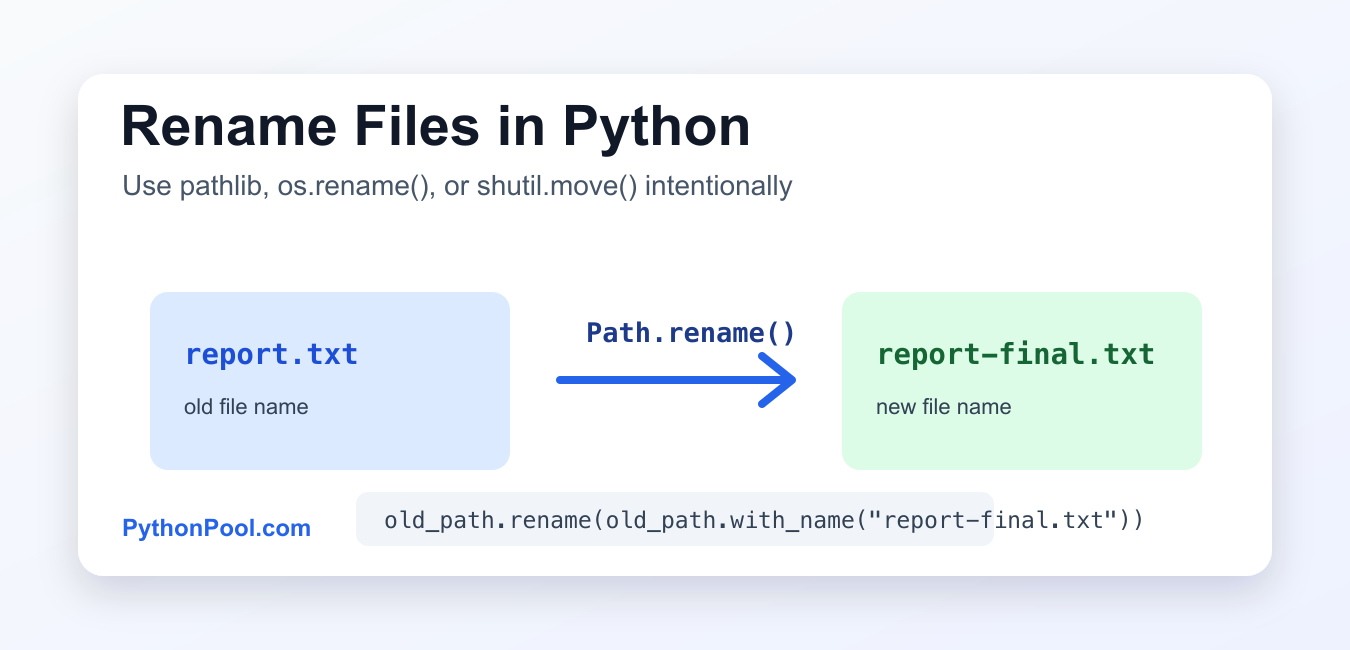
Quick answer: Use Path.rename() for a clear same-filesystem rename, os.replace() when an existing destination should be replaced, and shutil.move() when the operation may cross filesystems or involve directories.
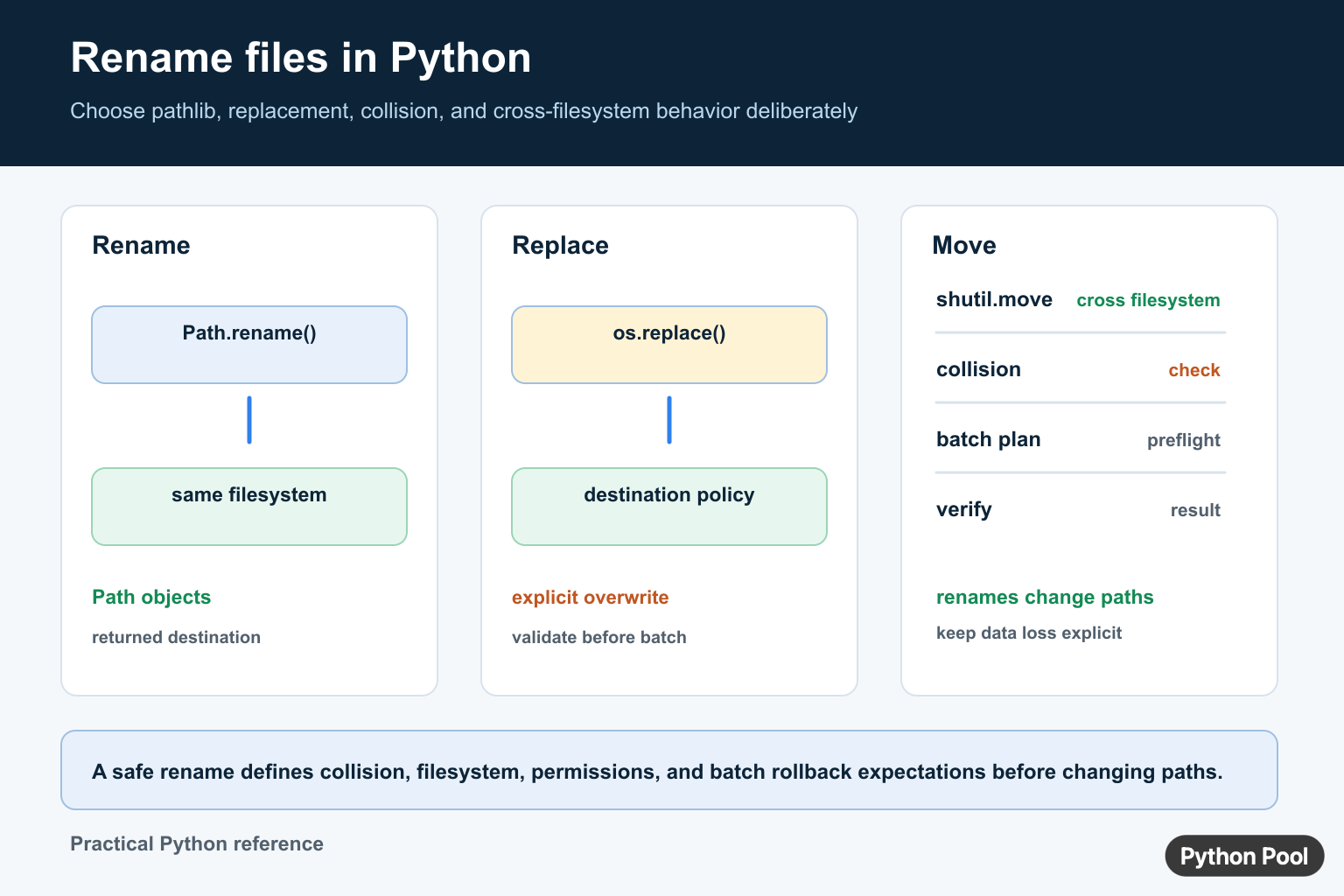
You can rename files in Python with pathlib.Path.rename() or os.rename(). Both rename a path on the filesystem. For moving files across directories with higher-level behavior, use shutil.move().
For new code, pathlib is usually the clearest option because it lets you build paths without manually joining strings.
Rename one file with pathlib
from pathlib import Path

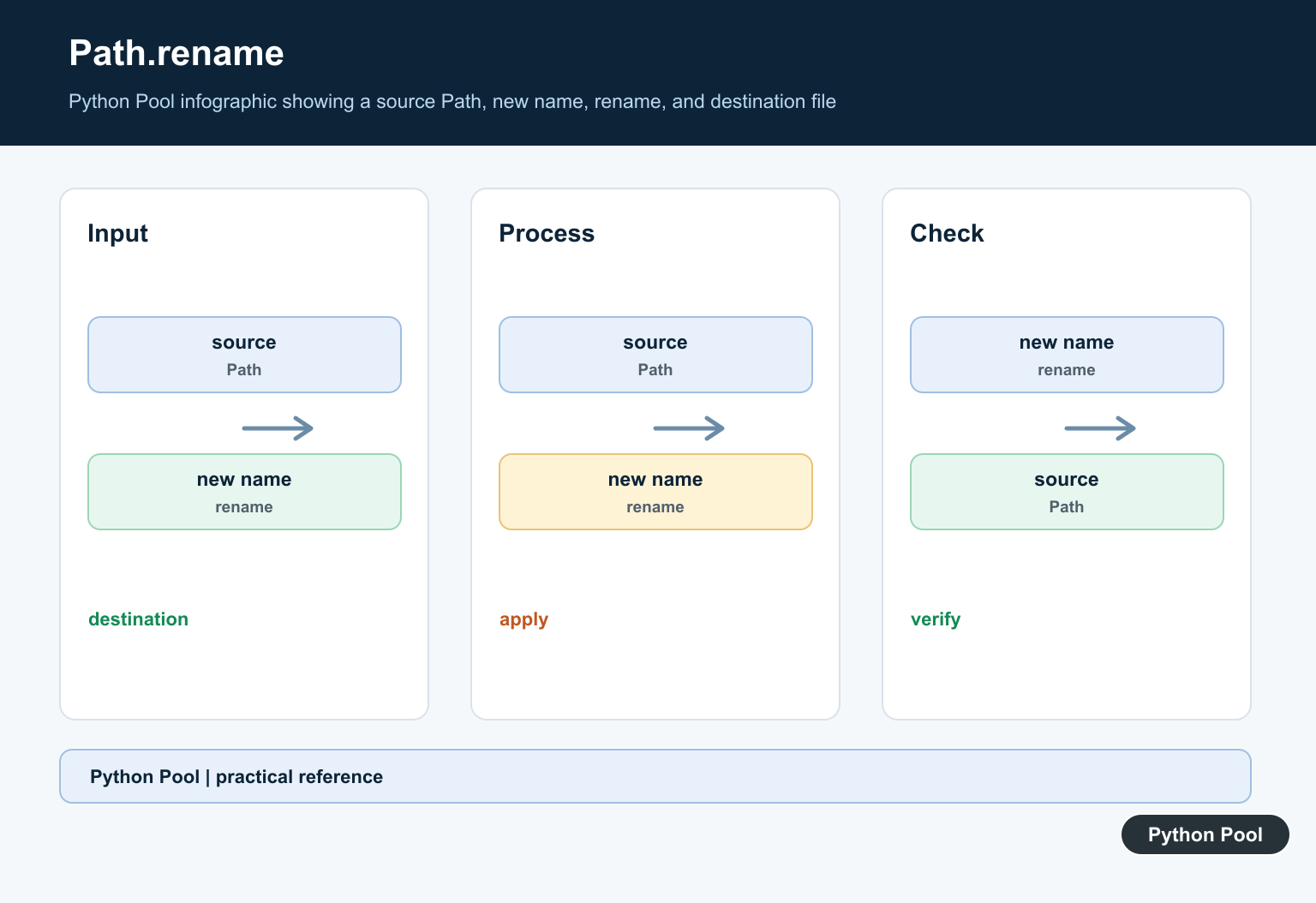
old_path = Path("report.txt")
new_path = old_path.with_name("report-final.txt")
old_path.rename(new_path)
with_name() keeps the same folder and changes only the file name. After the call, report.txt no longer exists and report-final.txt points to the same file content.
Rename one file with os.rename()
import os

os.rename("draft.txt", "final.txt")
os.rename(src, dst) works with strings, bytes, and path-like objects. It is a direct filesystem rename. If the destination already exists, behavior can differ by operating system, so check first when overwrites would be dangerous.
Use os.replace() when overwrite is intended
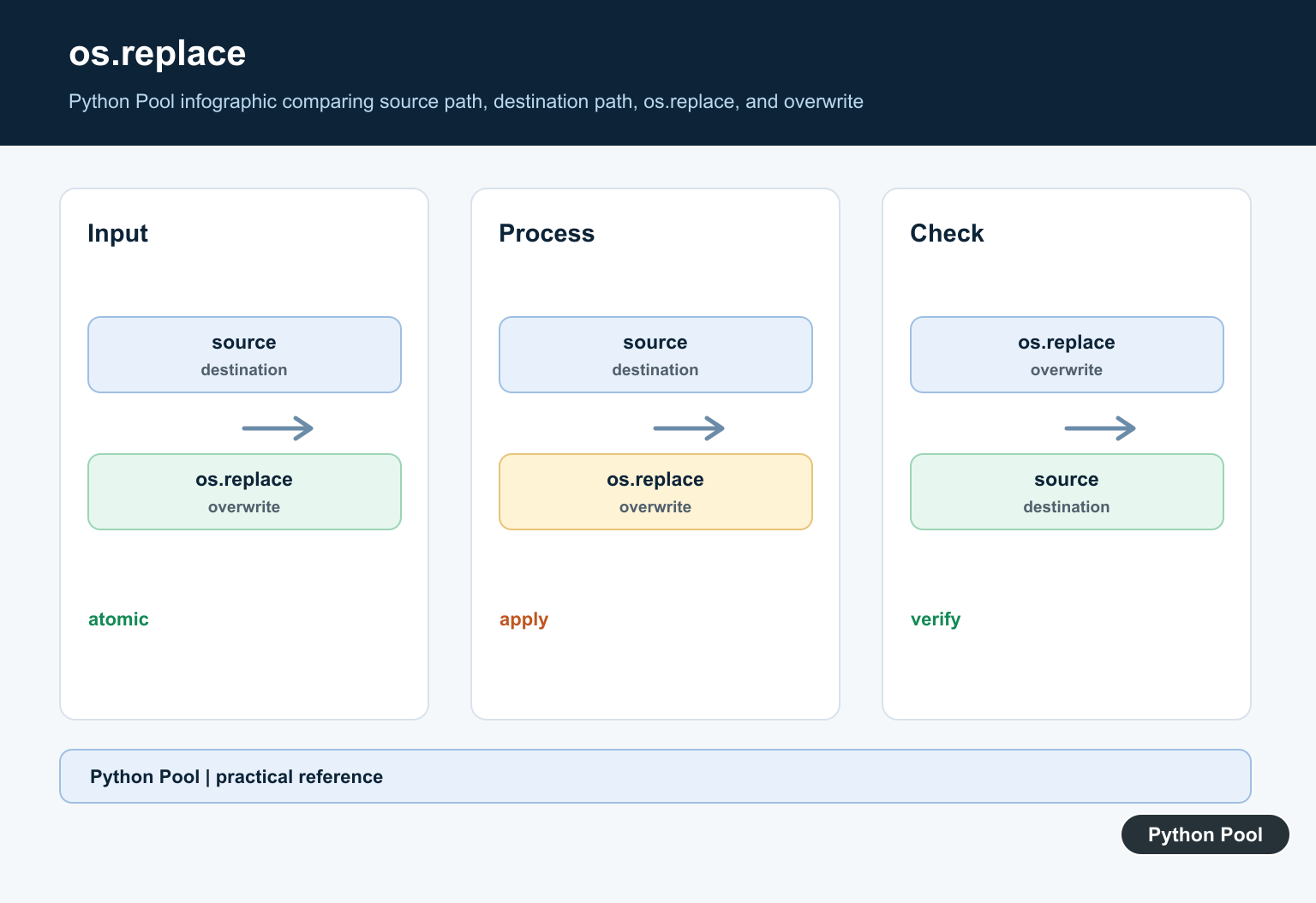
If replacing an existing destination is the intended behavior, use os.replace() so the code says that clearly:
import os

os.replace("new-report.txt", "report.txt")
This is better than relying on platform-specific overwrite behavior from os.rename().
Batch rename files in a folder
Use Path.glob() when you need to rename several matching files:
from pathlib import Path

folder = Path("reports")

for path in folder.glob("*.txt"):
    path.rename(path.with_name("archived-" + path.name))
This renames every .txt file in the reports folder by adding the archived- prefix.
Check before renaming
from pathlib import Path

old_path = Path("report.txt")
new_path = Path("report-final.txt")

if not old_path.exists():
    raise FileNotFoundError(old_path)
if new_path.exists():
    raise FileExistsError(new_path)

old_path.rename(new_path)
These checks prevent two common mistakes: renaming a missing source and accidentally overwriting an existing destination.
Rename vs move
Renaming changes the path name. Moving changes the location, and may also change the name. For moving to another folder, shutil.move() is usually easier to read:
from pathlib import Path
from shutil import move

source = Path("report.txt")
archive = Path("archive")
archive.mkdir(exist_ok=True)

move(str(source), str(archive / source.name))
Use Path.rename() or os.rename() for simple renames. Use shutil.move() when the operation is a move workflow.
Common errors
FileNotFoundError: the source path is wrong or the current working directory is not what you expect.FileExistsError: your safety check found that the destination already exists.PermissionError: the process does not have permission, or another application is using the file.- Wrong extension: renaming
.jpgto.pngchanges the file name, not the image format.
Renaming extensions does not convert file formats
Renaming a file changes its path and filename only. It does not rewrite the file’s contents. If you rename image.jpg to image.png, Python updates the name on disk, but the image data is still JPEG data unless you open it with an image library and save it again in PNG format.
This matters when a script uses suffixes to organize files. Use Path.with_suffix() when you only want to change the extension text, and use a format-aware library when you need a real conversion.
from pathlib import Path

old_path = Path("image.jpg")
new_path = old_path.with_suffix(".png")
old_path.rename(new_path)
The same rule applies to documents, archives, and data files. A rename can make a filename match your naming convention, but it cannot repair a corrupt file or transform one file type into another.
Use absolute paths while debugging
Many rename errors come from running the script in a different working directory than expected. A relative path such as report.txt is resolved from the current working directory, not necessarily from the folder where the Python file is stored.
When Python says the source file does not exist, print both the working directory and the resolved path before changing the rename logic. That quick check usually shows whether the script is looking in the wrong folder.
from pathlib import Path

path = Path("report.txt")
print(Path.cwd())
print(path.resolve())
For production scripts, prefer building paths from a known base directory instead of relying on where the command was launched. That makes batch renames and scheduled jobs much more predictable.
Common rename errors to check first
If a rename still fails after the paths look correct, check the exact exception before changing the code. FileNotFoundError usually means the source path is wrong or the parent folder was not created. FileExistsError can happen on platforms where the destination already exists. PermissionError often means the file is open in another program, the script lacks write access, or the target directory is protected.
A reliable rename script should validate both sides of the operation. Confirm that the source exists, create the destination folder when needed, and decide whether overwriting is allowed. Use Path.rename() or os.rename() when a normal rename is enough, os.replace() when replacing an existing file is intentional, and shutil.move() when the destination may be on another filesystem.
Related Python guides
- Python shutil.move()
- Python shutil module
- Copy file using Python
- Delete a file in Python
- Get current directory in Python
- Get filename without extension in Python
Official references
- Python os.rename documentation
- Python os.replace documentation
- Python Path.rename documentation
- Python Path.with_name documentation
- Python shutil.move documentation
Conclusion
To rename files in Python, use Path.rename() for readable modern code or os.rename() for direct filesystem calls. Check that the source exists, avoid accidental overwrites, and use shutil.move() when the task is really moving a file to another folder.
Rename With pathlib
Path.rename() expresses a file rename without string concatenation. Build the destination as a Path, check the source and collision policy, then use the returned path for later work. A rename usually stays on the same filesystem, so it is normally a metadata operation rather than a full copy.
from pathlib import Path

source = Path("reports/draft.csv")
target = source.with_name("final.csv")
if target.exists():
    raise FileExistsError(target)
source.rename(target)
print(target)
Choose Replacement And Cross-Filesystem Policies
Use os.replace() when the contract explicitly allows replacing the destination and the platform supports the desired atomic replacement behavior. If the destination must never be overwritten, check it and handle the race or use an operation designed for exclusive creation. Use shutil.move() when a move may need to copy across filesystems, and verify the result before deleting any source data.
For batch renames, calculate and validate every destination before making the first change. That prevents one collision halfway through a rename plan from leaving a partially transformed directory.
Frequently Asked Questions
How do I rename a file in Python?
Use pathlib.Path.rename() with a destination Path, after checking that the source exists and applying your collision policy.
Does Path.rename() overwrite an existing file?
Destination behavior depends on the operating system and operation contract, so check the destination and use an explicit replacement policy when overwriting is intended.
What is the difference between os.rename() and os.replace()?
os.replace() explicitly replaces an existing destination, while os.rename() should be chosen with platform and collision behavior in mind.
How do I move a file across filesystems?
Use shutil.move() when a move may cross filesystems or involve directory handling, then verify the destination before treating the operation as complete.
