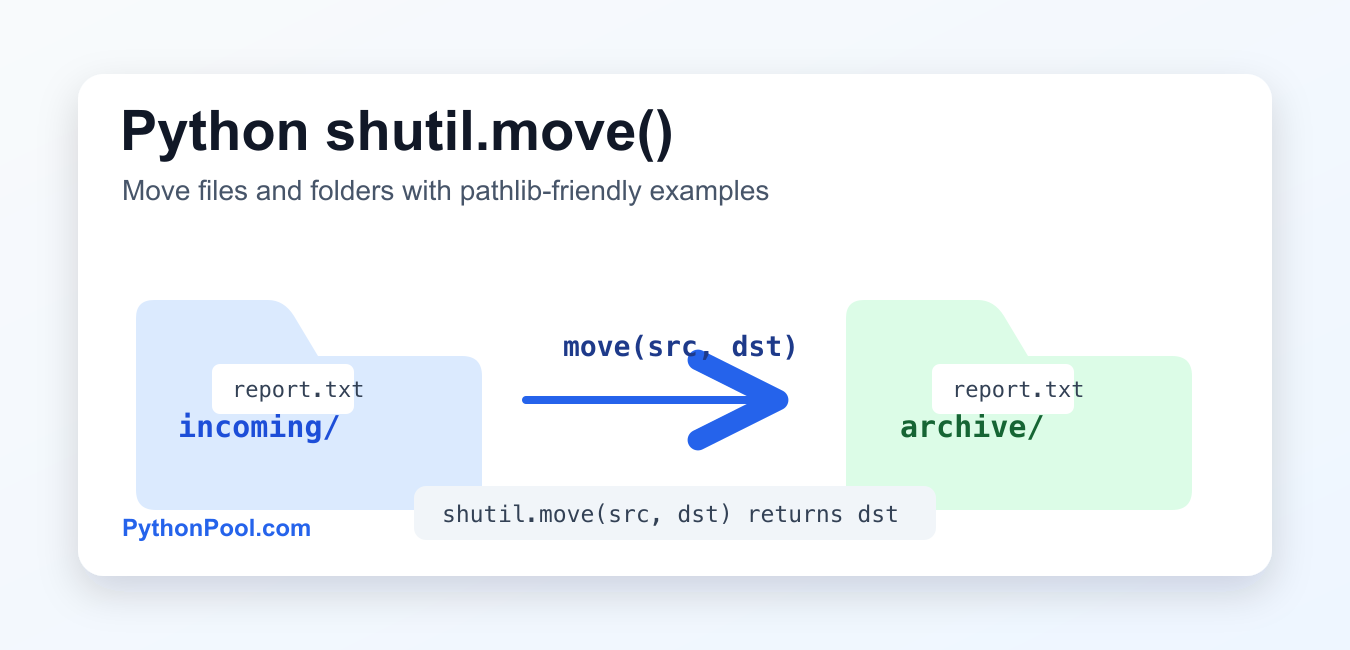
Quick answer: shutil.move() moves a file or directory and returns the destination path. It can use a same-filesystem rename, or copy the source and remove it when a rename is not possible, so a production move should validate the source, make the destination policy explicit, and preserve enough information to recover from a partial failure.
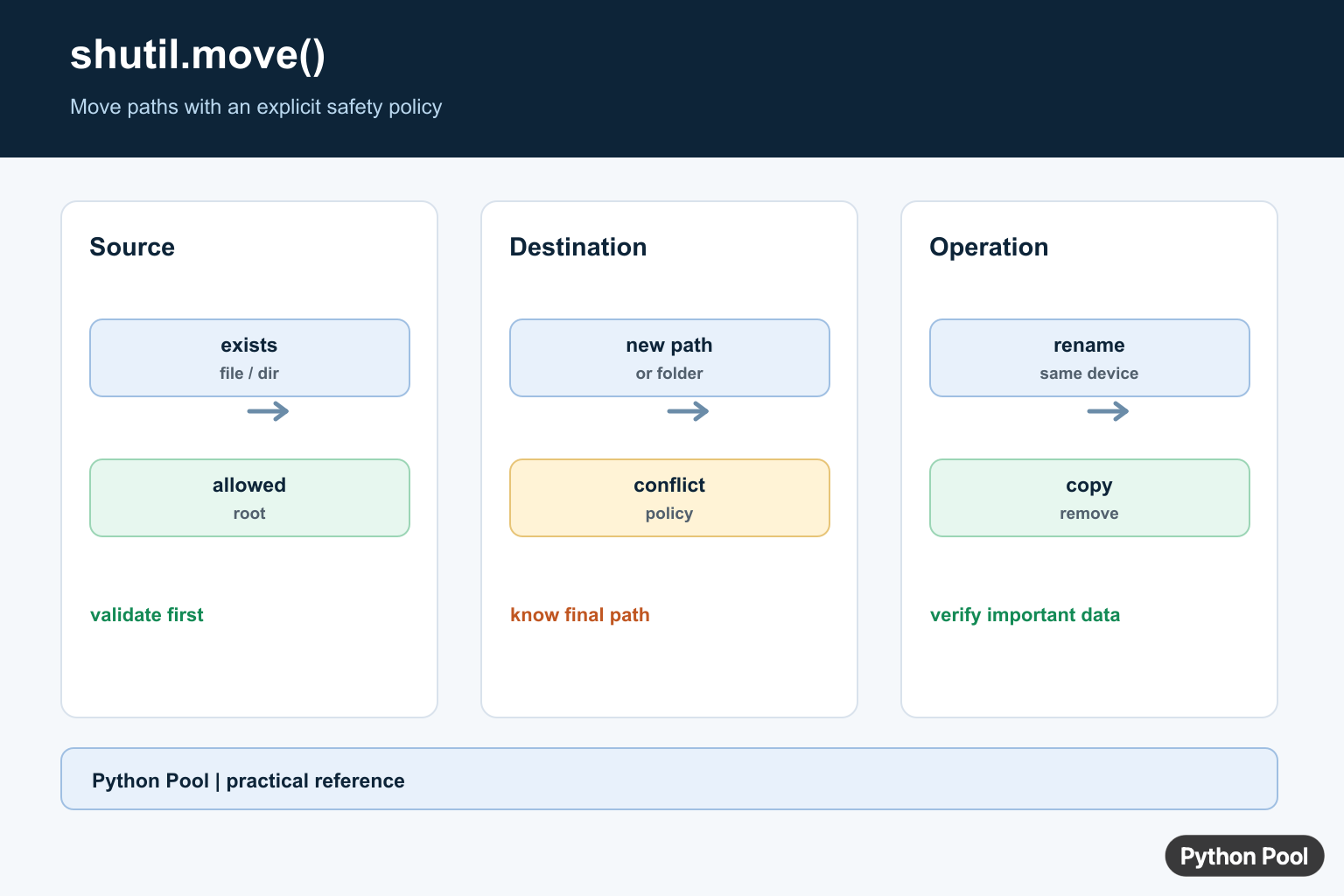
Python shutil.move() moves a file or directory from one path to another. It is part of the standard-library shutil module and is useful when you need higher-level file operations than a simple rename.
The function accepts source and destination paths, then returns the final destination path as a string. If the move crosses filesystems, shutil.move() may copy the data and remove the original, using copy2 by default for file metadata.
shutil.move syntax
shutil.move(src, dst, copy_function=shutil.copy2)src: source file or directory path.dst: destination path or destination directory.copy_function: function used when copying is needed. The default isshutil.copy2.
If dst is an existing directory, the source is moved inside that directory. If dst is a full file path, the source is moved or renamed to that exact path.
Move one file
from pathlib import Path
from shutil import move

source = Path("incoming/report.txt")
destination = Path("archive") / source.name

result = move(str(source), str(destination))
print(result)
This moves incoming/report.txt to archive/report.txt. The call removes the original source file after the destination is created.
Move a directory
from pathlib import Path
from shutil import move

source_dir = Path("source")
done_dir = Path("done")

result = move(str(source_dir), str(done_dir))
print(result)
If done does not exist, the source directory is moved and renamed to done. If the destination already exists as a directory, the source directory is moved inside it.
Move matching files with glob
shutil.move() moves one source path at a time. To move several matching files, loop over Path.glob():
from pathlib import Path
from shutil import move

incoming = Path("incoming")
archive = Path("archive")
archive.mkdir(exist_ok=True)

for path in incoming.glob("*.csv"):
    move(str(path), str(archive / path.name))
This example moves every CSV file from incoming to archive and leaves non-CSV files alone.
shutil.move vs os.rename
os.rename() is a lower-level rename operation. It is often fast when the source and destination are on the same filesystem, but it is less convenient when you want high-level copy-and-remove behavior across filesystems.
shutil.move() is usually the better default for scripts because it handles files, directories, and cross-filesystem moves with one API. Use os.rename() when you specifically want rename semantics and already know the operation is valid for your platform and filesystem.
Overwrite and destination rules
- If the destination is an existing directory, the source is moved into that directory.
- If the destination file path exists, behavior depends on the operating system and file type. Avoid accidental overwrites by checking
Path.exists()first. - If a directory destination conflicts with an existing path, Python raises an error instead of silently merging everything.
- If another process has the file open, Windows can raise a permission or sharing error.
Safer move helper
from pathlib import Path
from shutil import move


def safe_move(src, dst):
    src_path = Path(src)
    dst_path = Path(dst)
    if not src_path.exists():
        raise FileNotFoundError(src_path)
    if dst_path.exists():
        raise FileExistsError(dst_path)
    return move(str(src_path), str(dst_path))
This helper is intentionally strict: it refuses to move missing sources and refuses to overwrite existing destinations.
Common errors and fixes
FileNotFoundError means the source path does not exist from the current working directory. Print Path.cwd() or use absolute paths while debugging. PermissionError usually means the process does not have access to the file or another program is locking it.
On Windows, moving an open file can fail with a sharing error. Close the file handle before moving it, and avoid moving a file that is still open in another application. On Linux and macOS, permissions and destination ownership are more common causes.
For cross-filesystem moves, remember that shutil.move() may copy and then delete the source. That can be slower than a same-filesystem rename, and it can fail if the destination filesystem runs out of space. For important data, verify the destination before deleting backups.
Pathlib and string paths
Modern Python functions increasingly accept path-like objects, but converting Path objects with str() keeps examples compatible and explicit. The important part is to build paths with Path or the / operator instead of hand-writing separators such as \ or / inside long strings.
destination = archive / source.name
move(str(source), str(destination))
This avoids common path bugs when the same script runs on different operating systems.
Related Python guides
- Python shutil module
- Python shutil.rmtree()
- Python rename file
- Copy file using Python
- Delete a file in Python
- Get current directory in Python
Official references
- Python shutil.move documentation
- Python shutil.copy2 documentation
- Python os.rename documentation
- Python pathlib documentation
Conclusion
Use shutil.move() when you need a clear standard-library way to move files or folders. Pass full destination paths when you want precise results, check for existing destinations before overwriting, and use Path.glob() when you need to move a batch of matching files.
Move A File And Capture The Result
Pass source and destination as path-like values. If the destination is an existing directory, the source is placed inside it; otherwise the destination can become the new name. Capture the return value instead of reconstructing the final path from assumptions.
from pathlib import Path
import shutil

source = Path("reports/today.csv")
target_dir = Path("archive")
target_dir.mkdir(exist_ok=True)
result = shutil.move(source, target_dir)
print("moved to", result)
Validate Before Changing Data
A move is a filesystem mutation. Check that the source exists, decide whether symlinks are allowed, and resolve the destination policy before invoking it. For user-controlled paths, constrain the operation to an allowed root and reject traversal outside that root.
from pathlib import Path

source = Path("reports/today.csv")
destination = Path("archive/today.csv")
if not source.is_file():
    raise FileNotFoundError(source)
if destination.exists():
    raise FileExistsError(destination)
destination.parent.mkdir(parents=True, exist_ok=True)
Understand Files, Directories, And Devices
The function handles directories as well as files, but an existing destination directory changes the resulting path. Across filesystems, shutil may copy and then remove rather than perform an atomic rename. Do not promise atomicity for a move that crosses devices, and test permissions and available space.
import shutil

usage = shutil.disk_usage(".")
print("free bytes:", usage.free)

# Treat a cross-device move as a workflow that needs recovery logging.
try:
    final_path = shutil.move("input.bin", "backup/input.bin")
except OSError as error:
    print("move failed:", error)
    raise
Make Moves Recoverable
For important data, record the source, intended destination, timestamp, and outcome. A copy-plus-delete operation can fail after the copy or during source removal, so verify the destination and retain a recovery path. Use a temporary destination and checksum when integrity matters more than speed.
from pathlib import Path
import hashlib
import shutil

def digest(path):
    value = hashlib.sha256()
    with Path(path).open("rb") as stream:
        for chunk in iter(lambda: stream.read(1024 * 1024), b""):
            value.update(chunk)
    return value.hexdigest()

before = digest("input.bin")
final_path = shutil.move("input.bin", "backup/input.bin")
assert digest(final_path) == before
The Python shutil.move() reference defines destination handling, return values, and the copy/remove behavior used when rename cannot work. Use copying patterns only when they match the data-safety policy of the application.
For related filesystem operations, compare copying files with shutil, the shutil reference guide, and creating or touching files before choosing a move and recovery policy.
Frequently Asked Questions
What does shutil.move() do?
It moves a file or directory to a destination and returns the resulting path; depending on the filesystem and destination it may rename or copy and remove.
Does shutil.move() overwrite files?
Its behavior depends on the destination and underlying operation, so check whether a target exists and apply an explicit overwrite policy when data loss matters.
Can shutil.move() move a directory?
Yes. It can move directories, but a directory destination and an existing path can change the resulting location, so inspect the final path.
Why does shutil.move() fail?
Common causes include a missing source, an invalid destination, permissions, a non-empty conflicting directory, or a cross-device operation that cannot complete.

What are the exceptions that these two methods can throw?
According to source code, it throws Error, OSError, and PermissionError. You can check here.