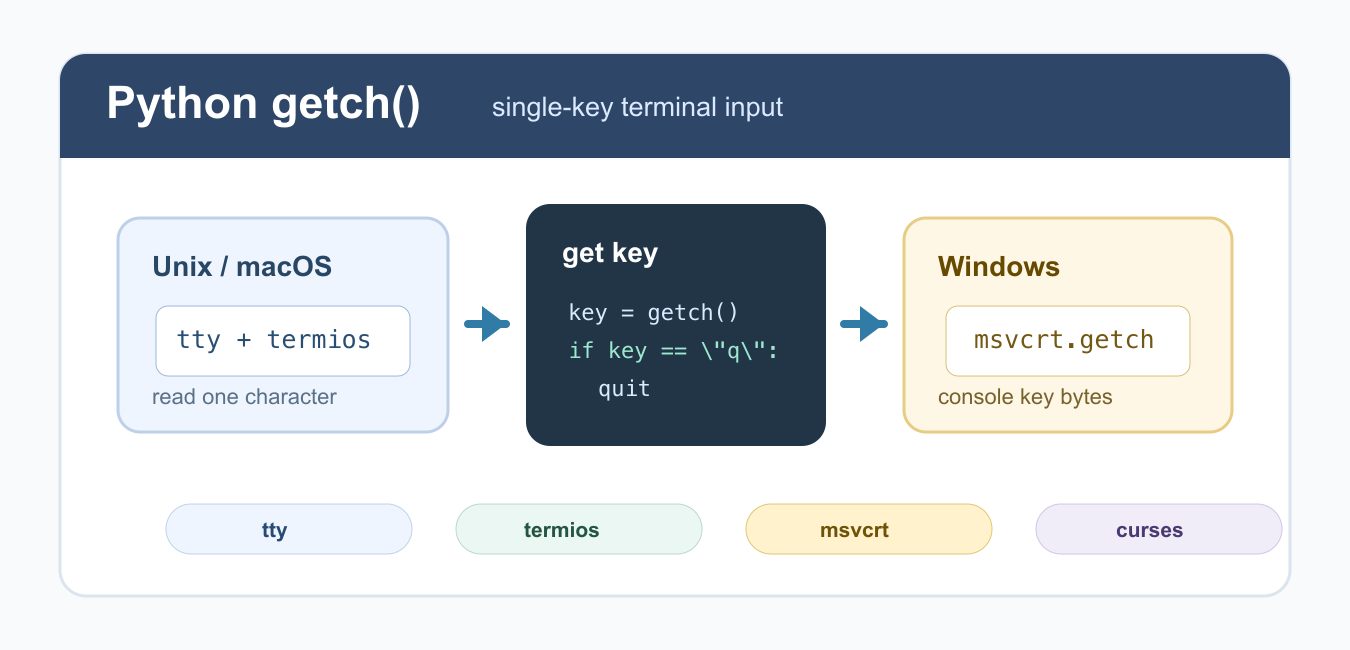
Quick answer: Reading one key without Enter is platform-specific. On Windows, msvcrt.getwch can read a console character; on Unix-like systems, termios and tty can temporarily switch the terminal to raw or cbreak mode. Always restore the original terminal settings in a finally block, and use a higher-level UI library when the program needs portable menus, resize handling, or non-terminal input.
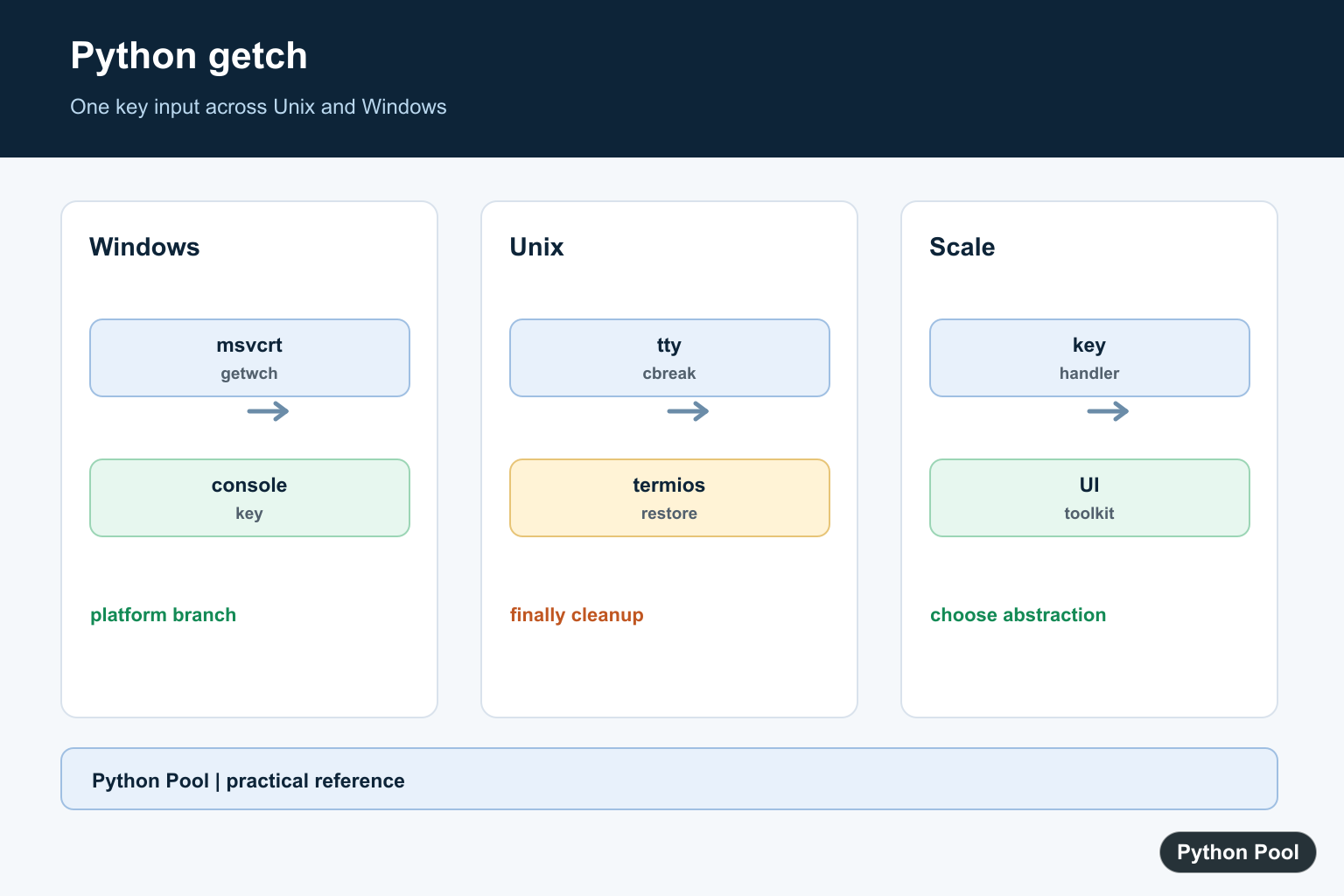
A Python getch-style function reads one key from the terminal without waiting for the user to press Enter. Python does not provide one single cross-platform getch() function in the standard library, but you can build the behavior with tty and termios on Unix/macOS or msvcrt on Windows.
This is different from input(). The input() function reads a full line after Enter is pressed, while getch-style code reads a single key immediately. That makes it useful for terminal menus, shortcuts, simple games, and command-line tools where a single key should trigger an action.
Because terminal input is platform-specific, the safest approach is to choose the implementation that matches the operating system. The official Python docs for tty, termios, and msvcrt are the most reliable references. Code that reads raw keys should also be tested in the real terminal where it will run, because IDE consoles and notebooks often behave differently.
Unix and macOS getch() with tty
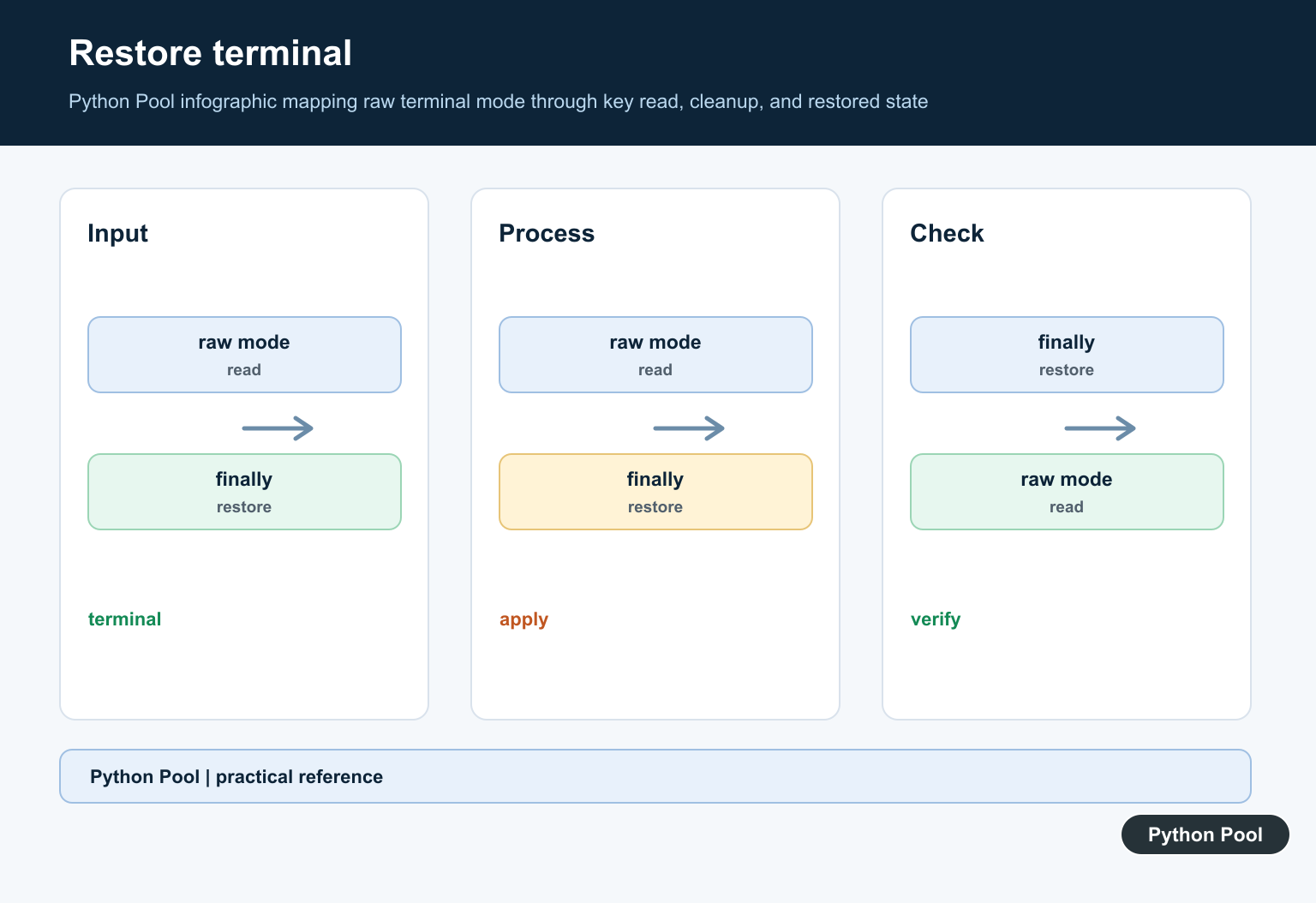
On Unix-like systems, temporarily switch the terminal into raw mode, read one character from sys.stdin, and then restore the original terminal settings. Restoring the settings is important; otherwise the terminal can behave strangely after the script exits.
import sys
import termios
import tty


def getch_unix():
    file_descriptor = sys.stdin.fileno()
    old_settings = termios.tcgetattr(file_descriptor)
    try:
        tty.setraw(file_descriptor)
        return sys.stdin.read(1)
    finally:
        termios.tcsetattr(file_descriptor, termios.TCSADRAIN, old_settings)


key = getch_unix()
print(f"You pressed: {key!r}")
The finally block runs even if an error occurs, so the terminal settings are restored. This pattern is better than leaving raw mode enabled by accident. It depends on sys.stdin being attached to a real terminal. If the script is receiving piped input, raw key reading is usually the wrong tool.
Windows getch() with msvcrt
On Windows, use msvcrt.getch(). It returns bytes, so decode the value when you want a string. Keep the decoding simple if you only care about basic letter keys.
import msvcrt


def getch_windows():
    return msvcrt.getch().decode("utf-8", errors="ignore")


key = getch_windows()
print(f"You pressed: {key!r}")
msvcrt is only available on Windows. Do not import it unconditionally in code that must run on Linux or macOS. Keep the platform-specific import inside a Windows branch or a Windows-only module. This prevents import errors before your program has a chance to choose the correct path.
A Small Cross-Platform Wrapper
You can choose the correct implementation at runtime with os.name. This keeps calling code simple while still using the right terminal API for each platform.
import os


if os.name == "nt":
    import msvcrt

    def getch():
        return msvcrt.getch().decode("utf-8", errors="ignore")
else:
    import sys
    import termios
    import tty

    def getch():
        file_descriptor = sys.stdin.fileno()
        old_settings = termios.tcgetattr(file_descriptor)
        try:
            tty.setraw(file_descriptor)
            return sys.stdin.read(1)
        finally:
            termios.tcsetattr(file_descriptor, termios.TCSADRAIN, old_settings)


print(getch())
This wrapper is good for simple terminal tools. If your program needs advanced cursor movement, function keys, colors, or full-screen terminal UI, use curses instead of growing a custom input layer. A wrapper also makes your application code easier to read because the platform checks stay in one place.
Use getch() in a Loop
A common pattern is to read keys until the user presses a quit key. Keep the loop small and make each key action explicit. This is easier to maintain than hiding many actions inside nested conditions.
def run_menu(read_key):
    while True:
        key = read_key()
        if key == "q":
            print("quit")
            break
        if key == "h":
            print("help")
        else:
            print(f"unknown key: {key!r}")
This design also makes testing easier. The loop accepts a read_key function, so you can pass a fake function in tests instead of requiring real keyboard input. For example, a test can pass a function that returns "h" and then "q".
Handle Arrow Keys Carefully
Arrow keys are not always a single normal character. On Windows, msvcrt.getch() may return a prefix byte, followed by another byte that identifies the key. On Unix terminals, arrow keys often arrive as escape sequences.
import msvcrt


key = msvcrt.getch()
prefixes = (bytes([0]), bytes([224]))
if key in prefixes:
    key = key + msvcrt.getch()

print(key)
If arrow keys matter, test on the target operating system and terminal. For larger terminal applications, the official curses documentation is a better starting point than manually parsing every escape sequence. You can also consider higher-level libraries, but confirm their platform support before depending on them.
When input() Is Better
Use input() when the user should type a full value such as a name, number, command, or file path. Use getch-style input when a single key should perform an immediate action. Choosing the simpler input model usually makes command-line tools easier to understand.
name = input("Enter your name: ")
print(f"Hello, {name}")
For line-based input, see the read input from stdin guide. For hidden password prompts, use Python getpass instead of a getch function. If the user interrupts a terminal program, the KeyboardInterrupt guide explains the related exception.
Best Practice
Use tty and termios for Unix/macOS terminal key reads, msvcrt.getch() for Windows console key reads, and curses for full terminal interfaces. Always restore terminal settings after raw mode. Avoid mixing platform-specific code into unrelated modules; if the input helper grows, move it into its own file. The import pattern is similar to other modular Python code, such as importing classes from another file. getch handles terminal input; Pystyle Python Guide: Build Terminal UI Output covers the complementary output side with color, alignment, and terminal UI styling.
Read A Key On Windows
msvcrt is part of the Windows Python runtime and can read a wide character from a console. This branch should only be imported or executed on Windows so a Unix process does not fail during module import.
import msvcrt

key = msvcrt.getwch()
print("received:", repr(key))
Read A Key On Unix
Unix terminals normally use line buffering. Save the current attributes, switch to cbreak mode for one read, and restore the attributes even when the read or caller raises an exception.
import sys
import termios
import tty


def getch_unix():
    descriptor = sys.stdin.fileno()
    previous = termios.tcgetattr(descriptor)
    try:
        tty.setcbreak(descriptor)
        return sys.stdin.read(1)
    finally:
        termios.tcsetattr(descriptor, termios.TCSADRAIN, previous)
Choose The Platform At Runtime
A small wrapper can choose the platform implementation, but it should still document that stdin must be an interactive terminal. Piped input, IDE consoles, and redirected files may not support the same operations.
import os


def getch():
    if os.name == "nt":
        import msvcrt
        return msvcrt.getwch()
    return getch_unix()

print(os.name)
Prefer A Higher-Level Interface For Larger Apps
Single-key reads are useful for a tiny prompt, but full-screen applications need input decoding, redraws, resize events, and cleanup. Consider curses, prompt_toolkit, or a GUI toolkit when the interaction grows beyond one key.
def handle_key(key):
    actions = {"q": "quit", "h": "help"}
    return actions.get(key, "unknown")

print(handle_key("h"))
Python documents the Windows msvcrt console functions and Unix tty/termios modules separately. Related references include input behavior, user input, and interactive terminal examples.
For related interactive input, compare input behavior, user input, and terminal interaction when a one-key reader is not enough.
Frequently Asked Questions
What does getch do in Python?
It reads one key from an interactive terminal without requiring the user to press Enter.
Is there a built-in cross-platform getch function?
Python has platform-specific terminal APIs rather than one universal getch function, so choose an implementation for the operating system.
How do I read one key on Windows?
msvcrt.getwch or getch can read a key from a Windows console without switching Unix terminal modes.
Why must terminal settings be restored?
Leaving a Unix terminal in raw mode can make the shell behave incorrectly after the program exits.
