

How to add a waitlist to Framer
Add a waitlist to a Framer site with the LaunchList plugin, the LaunchList component, an Embed component, or your own Framer form that sends its signups to LaunchList.
What the LaunchList plugin is, and when Framer's own form is enough, is on the Framer waitlist plugin page. This guide is the setup: four ways in, each step, and the fixes. Start with the plugin. Pick with one question: do you want our form, or your own Framer form?
| If you want | Use |
|---|---|
| The form exactly as you designed it in LaunchList, inserted for you | The LaunchList plugin |
| The same form, added from the Marketplace and dragged on yourself | The LaunchList component |
| The same form, pasted into an Embed component as code | The Embed component |
| The form you already built with Framer's form tools | Your own Framer form |
Use the LaunchList plugin#
The LaunchList plugin places the LaunchList component on your page and fills in its settings. It runs on every Framer plan, including free.
- In Framer, open the LaunchList plugin from the Marketplace.
- Choose Form, Widget or Updates.
- In LaunchList, open Embed & API and choose the Your website tab. Copy your form's ID, which looks like
frm_8Kd2Qm4Rp9, and paste it in. For Widget or Updates, paste your project's public name instead. - Click Insert.
- Publish the site.
To swap the form, widget or project of one you already inserted, select it, open the plugin and click Update selected. Colors, fields, steps and the after-signup behavior are edited on the form in LaunchList, not in Framer. Referral codes are picked up on every page with no extra setup.
Framer's canvas can show a placeholder rather than the live form. Publish, or open the preview, then submit a real address. The signup appears in Audience within a second.
Use the LaunchList component#
The plugin places this same component. To add it by hand, get it from the Framer Marketplace. It runs on every Framer plan, including free.
- Open the Marketplace listing and add the component to your project. It then appears in your Assets.
- Drag it from your Assets onto a page.
- In the component's panel, set Show to Form.
- Paste your form's ID into Form ID.
- Publish the site.
| Show | Also set |
|---|---|
| Form | Form ID |
| Updates | Project, your project's public name in LaunchList |
| Widget | Project, and Widget: Signup counter, Leaderboard, Milestone or Countdown |
The component has no style settings. Its look is the design you pick in the LaunchList form editor, under Design.
Use the Embed component#
To paste code instead, use Framer's Embed component, which renders raw HTML: the form needs two lines in it. The Embed component is on every Framer plan, including free.
Copy your embed snippet#
- In LaunchList, open Embed & API and choose the Your website tab.
- Under What is your site built with?, choose Framer. Pick your form if you have more than one; the Inline snippet is the one shown.
- Copy the snippet.
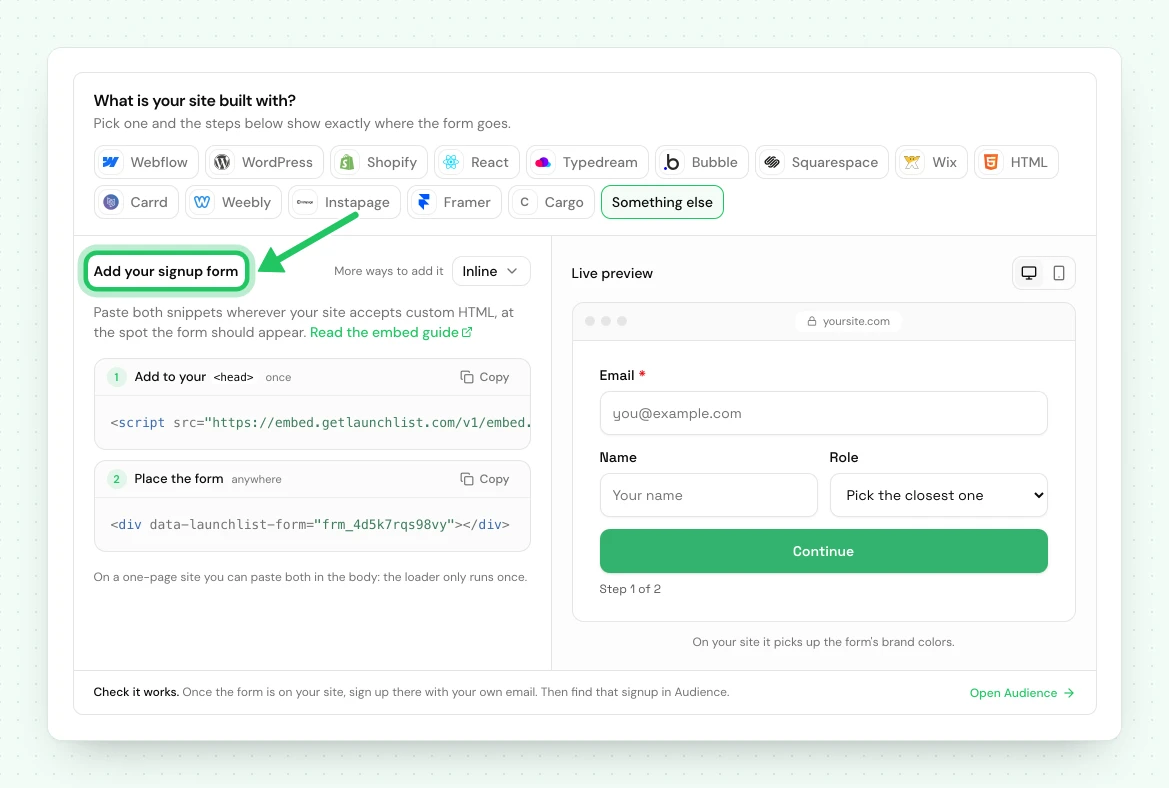
<!-- frm_8Kd2Qm4Rp9 is an example ID; use your own from Embed & API → Your website -->
<div data-launchlist-form="frm_8Kd2Qm4Rp9"></div>
<script src="https://embed.getlaunchlist.com/v1/embed.js" async></script>
Add the Embed component#
- On the Framer canvas, press Insert and search for Embed.
- Drag it where the form should sit.
- In the right panel, set Type to HTML.
- Paste the snippet into the code box.
Choose what happens after signup#
This is set on the form in LaunchList, not in Framer. After someone signs up, the form can open your status page, go to a page, or show a message in place with their position and referral link.
Updates and widgets#
The live signup counter, the leaderboard and your published updates go in the same way, each in its own Embed with its own snippet:
<div data-launchlist-widget="counter" data-project="acme"></div>
<script src="https://embed.getlaunchlist.com/v1/embed.js" async></script>
<div data-launchlist-updates="acme"></div>
<script src="https://embed.getlaunchlist.com/v1/embed.js" async></script>
Replace acme with your project's slug. The overview
lists every widget and its options.
Publish and test#
Framer's canvas shows a placeholder rather than the live form. Publish, or open the preview, then submit a real address. The signup appears in Audience within a second.
Using a Framer code component instead#
If you already work in code components, mount the form yourself rather than using an Embed:
import { useEffect } from 'react';

export default function Waitlist() {
    useEffect(() => {
        window.LaunchList?.mount('#waitlist', { form: 'frm_8Kd2Qm4Rp9' });
    }, []);

    return <div id="waitlist" />;
}
The loader still has to be on the page once. Add it under Site Settings → General → Custom
Code → End of <head> tag, which needs a paid Framer plan.
Keep your own Framer form#
A form built with Framer's form tools can stay. Framer posts each submission to a LaunchList webhook, and LaunchList processes it like a signup from any other channel.
Send the signups to LaunchList#
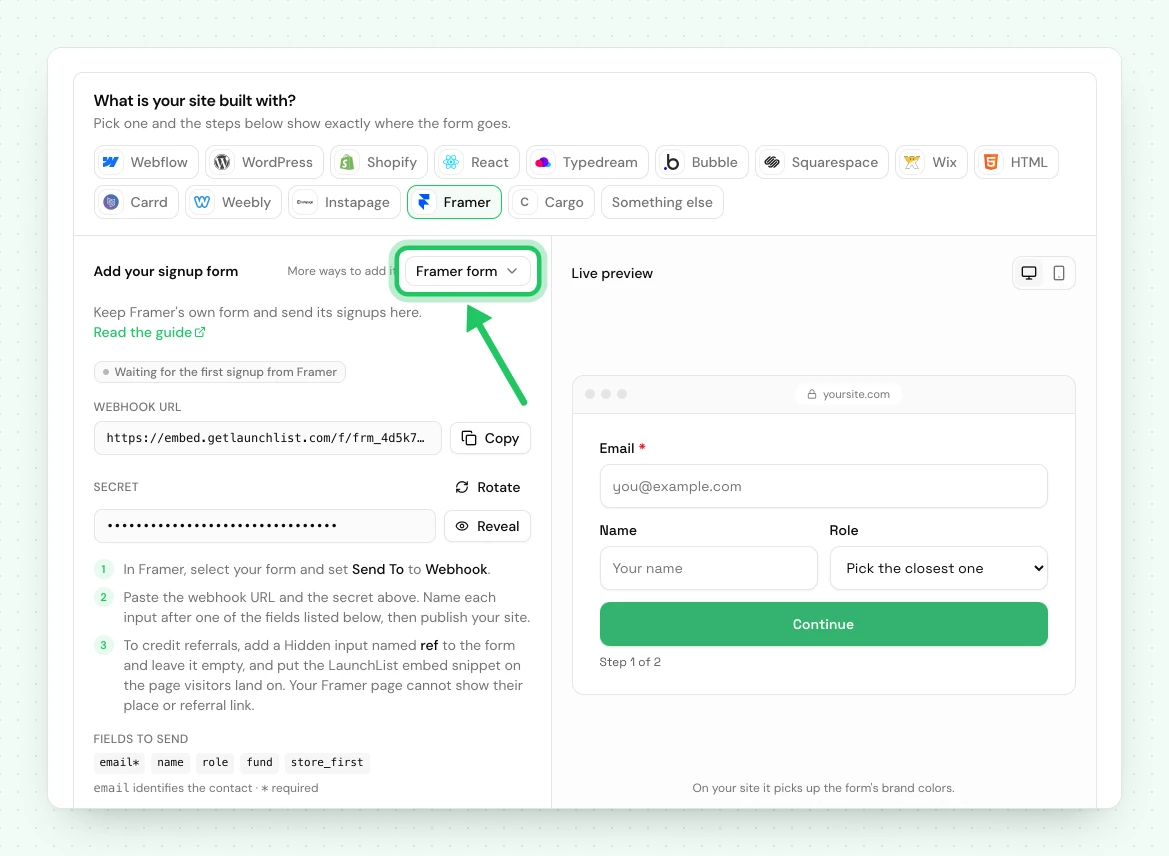
- In LaunchList, open Embed & API, choose the Your website tab and pick the Framer form method.
- Copy the Webhook URL. Press Reveal next to Secret and copy that too. Only members who can manage integrations see the secret.
- In Framer, select your form and set Send To to Webhook.
- Paste the URL and the secret.
- Name each input after the matching field on your LaunchList form, for example
email. Capitalization does not matter. - Publish. The Framer form panel in LaunchList changes to Receiving signups from Framer once the first signed signup arrives.
LaunchList refuses any request that is not signed with your secret. If you rotate the secret, the old one keeps working for 24 hours, so paste the new one into Framer before then.
Credit referrals#
A referral link carries a code in the address, such as ?ref=abc123. For a signup to be credited, the
form has to send that code back.
- In Framer, add an input to the form and set its type to Hidden. Use Framer's Hidden input setting, not a visible input with its visibility turned off.
- Name it exactly
refand leave it empty. Without it, referrals are not credited. - Optionally add more Hidden inputs, also left empty, to record where the signup came from:
utm_source,utm_medium,utm_campaign,utm_term,utm_content, and_urlfor the page the person signed up on. - Put the LaunchList script on the page. It fills those empty inputs just before the form submits.
The script is the line from your embed snippet:
<script src="https://embed.getlaunchlist.com/v1/embed.js" async></script>
Add it with an Embed that holds only this line, which works on the free Framer plan, or under Site Settings → General → Custom Code, which covers every page but needs a paid Framer plan.
Referrals across pages#
The script remembers a visitor's ?ref= code and UTM tags in their browser for 90 days, on any page
it runs on. So a referral that lands on your homepage still counts when the visitor signs up on
another page. Put the script on the page visitors land on from a referral link as well as on the page
with the form. It also keeps working when your Framer site moves between pages without a reload.
What your own form cannot do#
With Send To set to Webhook, the request to LaunchList comes from Framer, not from the visitor's browser, and its response never reaches your page. So the visitor's position and referral link cannot appear there: Framer shows its own success message or redirect. Any email your LaunchList form sends still goes out. For the position and referral link on the page, use the LaunchList plugin.
If something is not working#
| What you see | What to do |
|---|---|
| The form is cut off or scrolls inside a box | Set the Embed component height to Fit Content. |
| Nothing renders on the published site | Check the Embed Type is HTML, not URL. |
| The form shows twice | The form's <div> is on the page twice; each renders its own form. Remove the duplicate. A repeated loader script is harmless. |
| It works in preview but not on the custom domain | Republish after connecting the domain. Framer does not re-run embeds on domain changes. |
| Signups from my own Framer form are not arriving | Check the Send To webhook URL matches the one in LaunchList and the secret was pasted whole. Publish again after any change. |
| A referral was not credited | Check the form has a Hidden input named exactly ref, left empty, and that the LaunchList script is on the page the visitor landed on from the link. |
Using the classic LaunchList dashboard#
A waitlist made in the classic LaunchList dashboard has its own snippet: a <div class="launchlist-widget"> with widget.js in an Embed component. That snippet
keeps working for now and sends signups to the classic dashboard's waitlist, not to a project here.
A classic form key does not work with the snippet on this page.
To bring that waitlist here, import it into a project, then replace the classic snippet on your Framer site with the one from Embed & API → Your website. Your signups are copied, and the classic waitlist is not changed.
Next: add a live signup counter beside the form, or read every way to integrate.
Common questions
Does adding a waitlist to Framer need a paid plan?
Not for our form. The LaunchList plugin and component work on every Framer plan, and so does the Embed component, which is available on every Framer plan including free, so a LaunchList form works without upgrading. If you keep your own Framer form, the script that credits referrals can also go in an Embed on the free plan. Adding it to every page at once through Site Settings → Custom Code needs a paid Framer plan.
Why is my Framer embed cut off or scrolling?
The Embed component has a fixed height by default. Set its height to Fit Content so it grows with the form instead of clipping it.
Can I use my own Framer-designed form with LaunchList?
Yes. In LaunchList, open Embed & API, choose Your website and then the Framer form method. Set your Framer form to send to the webhook URL shown there, with its secret. A signup from a Framer form goes through the same checks as any other. The one trade-off is that your page cannot show the person their position or referral link, because Framer sends the signup, not the visitor's browser.
Do referrals work with my own Framer form?
Yes, with two things in place. Add a Hidden input named exactly ref to the form, and put the LaunchList script on the page visitors land on from a referral link.
