

Slack
Connect LaunchList to your Slack workspace and a channel gets each new signup, your milestones and an optional daily or weekly digest. On the Launch plan and the Grow plan.
Get the LaunchList app on Slack
LaunchList is an official Slack app. Install it in your Slack workspace, choose a channel for each project, and that channel gets the project's new signups, its milestones and, if you want one, a daily or weekly digest. It is on the Launch plan and the Grow plan.
Connect Slack#
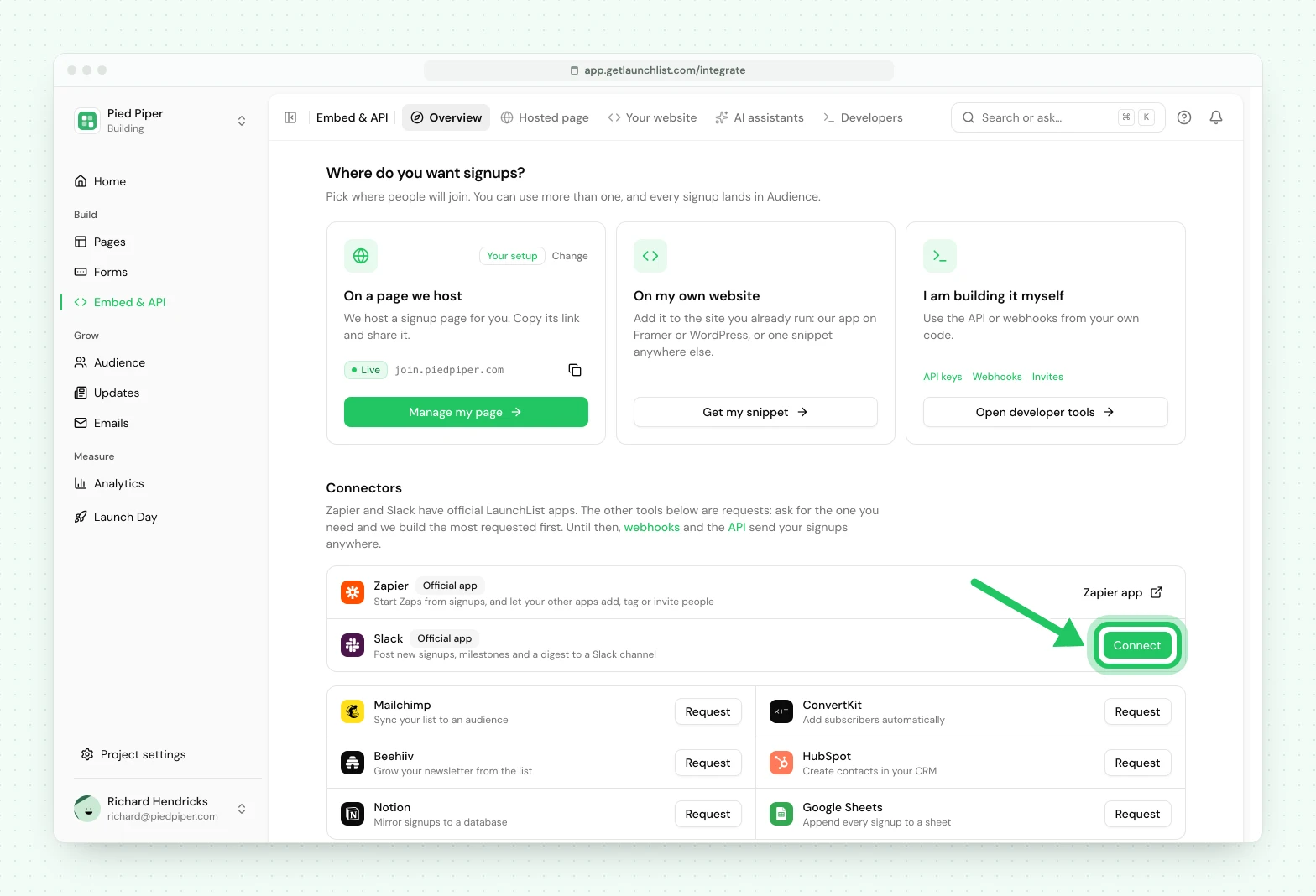
- Open the project, then Embed & API, and find Slack under Connectors.
- Press Connect. Slack asks you to pick a workspace and approve the app.
- Back in LaunchList, the Slack settings open on Choose a channel. Pick a channel and press Save.
- Press Send test to check it posts.
Later, the settings button on the Slack row opens the same settings: the channel (Change picks another), the switches below, the signup message and Disconnect. The signup message sits under Each new signup, the switch that posts it, as a small copy of the card filled in with your latest signup: the headline and the first few lines, as they post in your channel.
One Slack workspace connects to one LaunchList workspace, and a Slack workspace already connected to another LaunchList workspace is refused, never moved. Each project posts to one channel. Only people who can manage integrations see Connectors and the Slack settings.
Private channels#
Public channels work right away. A private channel appears in the list only once LaunchList is in it. In Slack, open that channel and type:
/invite @LaunchList
Then press Refresh in the channel list and choose it.
What gets posted#
| Message | When |
|---|---|
| Each new signup | Every new signup. A repeat signup, or a test contact, does not post. |
| Milestones | When the list reaches 10, 100, 1,000 signups and more. |
| Digest | Optional, daily or weekly at 08:00 UTC. Skipped when there were no signups. |
| Test message | When you press Send test, in the Slack settings or in the message editor. |
Each of these has its own setting on the project (the digest is Off, Daily or Weekly), and Post to Slack pauses all of them while keeping your choices.
The hourly cap#
A busy launch would otherwise fill the channel. LaunchList posts up to 10 single signups an hour for each project. Past that, the rest roll into one summary, which posts when the hour is up.
Customize the message#
In the Slack settings, click the Signup message card under Each new signup (or its Edit button). You see the card itself, in your channel, filled in with your latest signup (or a sample before your first one), and you change it right there. Nothing changes until you press Save.
-
Headline. Click it and type. Type
@to drop in a value, such as the name, the source or a form answer; it shows as this signup's actual value. The headline is bold by default; the bold button and Cmd+B change that. -
Details. Each line below reads like Source: Launch page. Click a label to rename it, drag a line by its handle to move it (or focus the handle and use Space and the arrow keys), or remove it. Add detail offers the values not shown yet, the answers to your form's questions, and a line of your own text.
-
Templates. The Templates menu at the top starts you from Standard (the default), Short (one line: who joined) or Detailed (every detail and every form answer). Choosing Standard is how you go back to the default.
-
Send test. Posts the card as it is now, your unsaved changes included, to the channel, marked as a test message so nobody there takes it for a real signup. It uses your latest signup, or a made-up one before your first. Nothing is saved until you press Save.
The arrow at the top goes back to the Slack settings, and asks first if you have unsaved changes.
A line whose values are all empty for a signup is left out, so a line like Country: never posts with nothing
after it. In the editor that line reads "none". A line without fields always shows. Every card ends with when they signed up and an Open in LaunchList
button. Links, @channel, @here and mentions you type stay plain text, so a message never pings anyone.
Milestones and digests keep their own wording.
Names, email addresses, referrers and form answers follow the rule below. Where they are hidden, a name reads "Someone" and an answer "(hidden)" in a line that has something else to show, and a line with only hidden fields is left out. The card shows those lines with a lock and the field's name ("Name hidden"), and says why under the card, so you see what really posts in your channel.
Test messages#
Send test, under the signup message in the Slack settings, posts your signup message to the channel as a test, filled in with your latest signup, while Each new signup is on. With it off, it posts a short test that only checks messages arrive. Send test in the message editor posts the card as you are editing it. A test card starts with "Test from LaunchList", follows the same rule for names and email addresses as a real card, and is deleted like one if that signup is erased. You can send one test every few seconds.
Names and email addresses#
Names and email addresses appear only in a private channel that is not shared with another organization. In a public channel, or one shared through Slack Connect, a message shows where a signup came from and never who it is. LaunchList checks the channel when you save it, and again before it names anyone if the last check is old, including when you open the message editor or send a test. If Slack does not confirm the channel, it leaves names out and says so.
In a private channel you can turn Names and email addresses off too.
If something breaks#
LaunchList tells you in the app and by email when it can no longer post:
- LaunchList was removed from the channel.
- The channel was archived or deleted.
- Only some members can post in the channel, and LaunchList is not one of them.
- Slack revoked access, or the app was uninstalled from your Slack workspace.
The Slack row says what happened and what to do, such as inviting LaunchList back or pressing Connect again. Signups keep being collected as usual. Only the Slack messages pause.
Erasure and disconnecting#
When you erase a signup, LaunchList deletes its Slack messages about them where Slack lets it. If Slack refuses for some, the Slack settings show how many, so you can delete them in Slack yourself.
Disconnect stops posting for every project in the workspace and forgets their channels. Messages already in Slack stay there, and after a disconnect we can no longer delete them if a signup is erased. You can also remove the app from inside Slack.
Plans#
The Slack app is on the Launch plan and the Grow plan. On the Free plan and the Collect plan, the Slack row offers the upgrade in place of Connect.
If you move to a plan without it, LaunchList stops posting and keeps your channel and settings, and Disconnect still works. Move back to the Launch plan or the Grow plan and posting starts again. Messages from the time in between are not sent later, and erasing a signup still deletes our Slack messages about them.
Slack through a webhook instead#
The app covers signups, milestones and digests, on the Launch plan and the Grow plan. On any plan, or to post other events, or a message laid out your own way, send a LaunchList webhook to Zapier, Make or n8n and add a Slack step.
- In the tool, start with its webhook trigger and copy the URL.
- In LaunchList, open Embed & API, then Developers, then Webhooks, and press New endpoint.
- Subscribe to the events you want, send a test, and add a Slack step that uses its fields.
A Slack incoming webhook cannot be the endpoint itself: it only accepts a body with a text or blocks
field, in Slack's own format. Put a tool or a small relay of your own in between.
Next#
- Webhooks: every event and the signature
- The REST API: for reading and writing rather than reacting
Common questions
Does LaunchList have a Slack integration?
Yes. LaunchList is an official app you install in your Slack workspace. Open Embed & API, find Slack under Connectors, press Connect, and choose a channel for each project. It is on the Launch plan and the Grow plan.
Which plans include the Slack app?
The Launch plan and the Grow plan. On the Free plan and the Collect plan, a webhook sent to Zapier, Make or n8n can still post to Slack.
How do I get a Slack message when someone joins my waitlist?
Connect Slack from Embed & API, under Connectors. Choose a channel for the project and each new signup posts there. Press Send test to check the channel works.
Why can't LaunchList post to my private channel?
A private channel only appears once LaunchList is in it. In Slack, open the channel and type /invite @LaunchList, then refresh the list in LaunchList and choose the channel.
Will a launch flood the channel?
No. LaunchList posts up to 10 single signups an hour for each project. After that, one summary posts when the hour is up.
Are names and email addresses posted to Slack?
Only in a private channel that is not shared with another organization, and you can hide them there too. In any other channel a message shows where a signup came from, never who it is.
What happens if the channel stops working?
If LaunchList is removed from the channel, the channel is archived or Slack's access is revoked, you are told in the app and by email. Signups keep being collected as usual.
What happens to Slack messages when I erase a signup?
We delete our messages about that signup where Slack lets us. Messages already posted before you disconnected Slack, we can no longer delete.
Can I change what a Slack signup message says?
Yes. In the Slack settings, click the signup message under Each new signup. You edit the card itself, filled in with your latest signup: change the headline, add, rename, reorder or remove details such as the source or a form answer, or start from a template.
Can I send signups to Slack without the app?
Yes. A webhook sent to Zapier, Make or n8n can post to Slack too, which is useful for other events or a layout of your own. A Slack incoming webhook will not work directly, because it only accepts Slack's own message format.
