

Customizing a widget
Change what a widget shows, how it counts, and how it looks, all from the widget editor rather than from CSS.
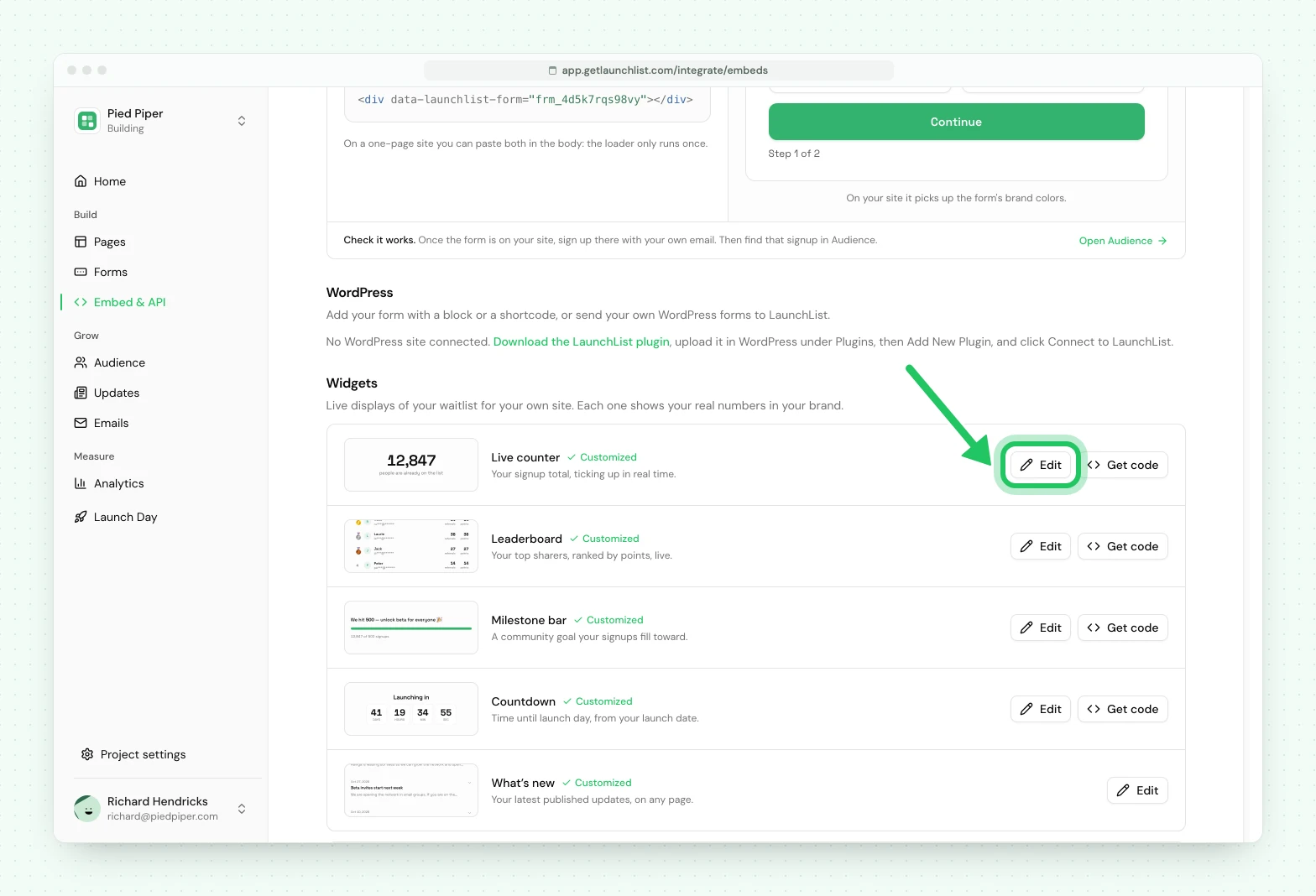
Open Embed & API → Your website, scroll to Widgets, and press Customize (or Edit) on a widget to open the widget editor. It is one panel with two sections, Elements and Design, and the number's source is the Data source field inside the element that shows it. Widgets are configured there, not in CSS. That trade is deliberate: it means a widget looks the same everywhere it is embedded, and a CSS change on someone else's site can never break it.
What the number counts#
A widget has one data axis: its source. That is either everyone, or a single slice of your audience along one dimension.
- Whole audience. Your whole live signup total. The default, and what most widgets want.
- One slice. A dimension and a value: country, source, stage, status or identifier type.
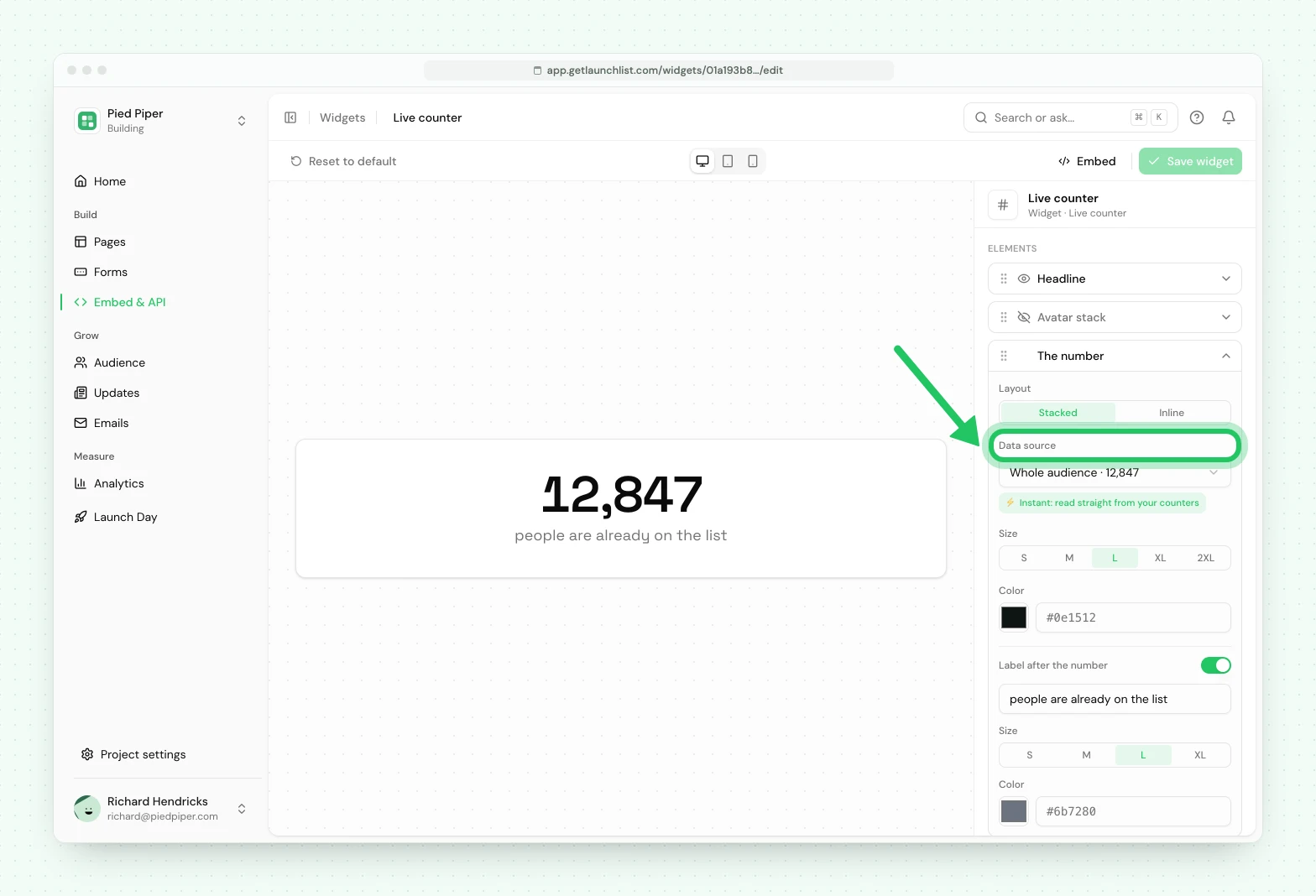
So "everyone who ever joined" and "everyone whose status is subscribed" are the same widget with different sources. Slices are instant because they read a counter we already keep, rather than scanning your audience.
The look#
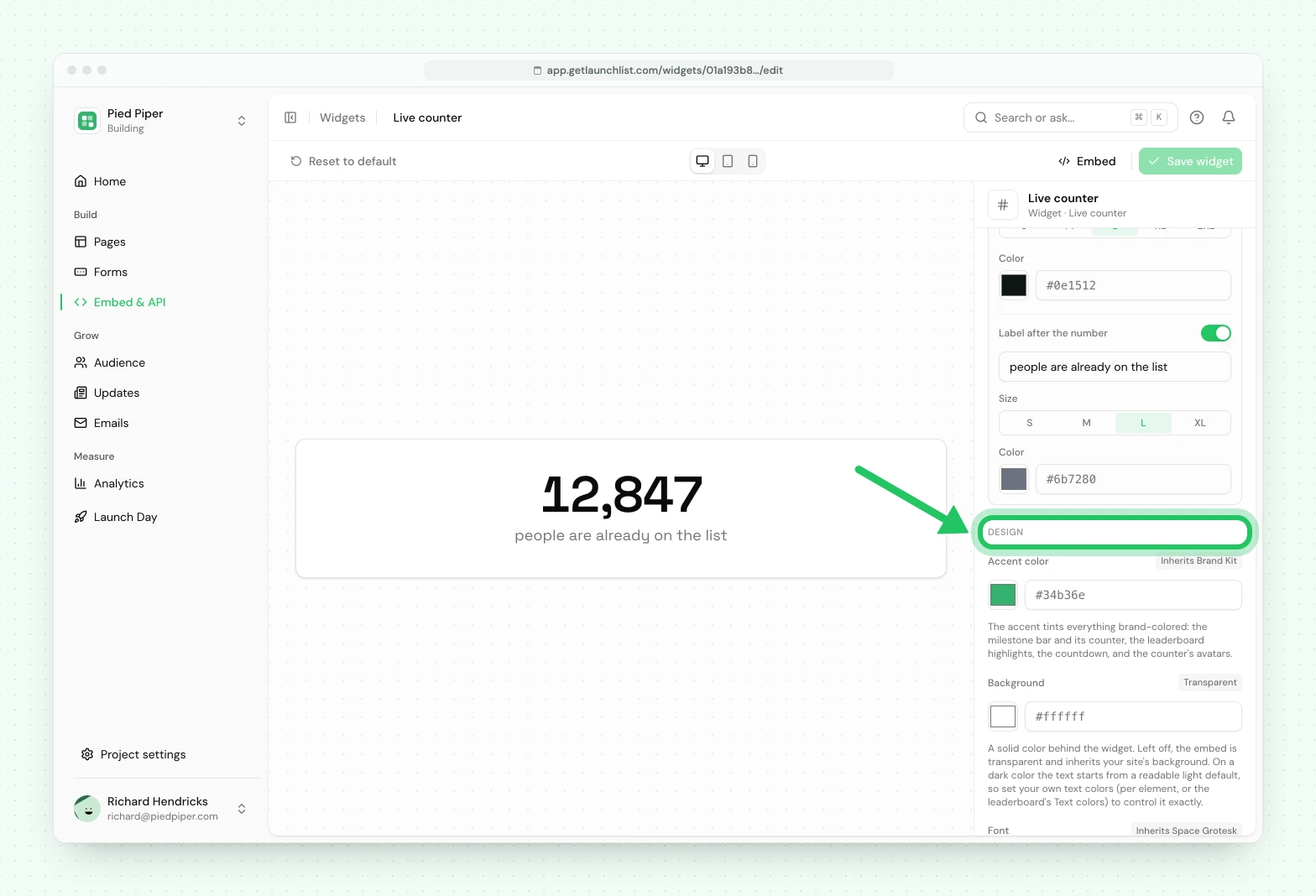
Every widget inherits your Project settings → Branding: colors, font, corner radius. Change the brand and every widget on every site follows, with nothing to re-paste.
Per widget you can also set, under Design and Elements:
- Accent color. Override the brand color for one widget.
- Background. Transparent by default, so it sits on any surface. Set a solid or tinted background and the text color follows automatically for contrast.
- Font. Override the brand font for one widget, if it is going somewhere with a different typeface.
- Elements. Drag to reorder or switch off the pieces (the number, the label, the avatars).
The counter's avatar stack#
The counter can show a row of faces beside its number, which is what makes a total read as people rather than as a statistic. It is an element like any other, so you can hide it, reorder it, or set how many show, from one to eight.
Two styles:
- Dots. Anonymous circles in your accent color. No letters, nothing from your audience.
- Initials. Monograms. Either a neutral generic set, or the first letter of your most recent signups. Initials only, never names, and never photos or addresses.
The leaderboard composes each row separately: an avatar, the name, a masked handle, referrals and, when points and referrals diverge, points. Turn any of them off to reveal less. Rank and score alone is a valid, fully anonymous board.
Saved widgets#
A widget you configure is saved as an instance, so you embed that widget rather than re-specifying options in markup each time. Change it once and every embed of it updates.
The data-* attributes still work for per-embed overrides when the same widget needs to read
slightly differently on two sites.
Next#
- Adding a widget
- Your hosted launch page, which can render the same blocks natively
Common questions
Can I change the colors of a LaunchList widget?
Yes, from your Branding settings, which every widget follows. Widgets render in a shadow root so your own site's CSS cannot reach them, which is what stops a site restyle breaking them.
Can a widget count something other than total signups?
Yes. Point its source at one slice of your audience instead of everyone: a country, a traffic source, a pipeline stage, a status such as subscribed, or an identifier type.
Why can I not style a widget with my own CSS?
Widgets render inside a shadow root, which isolates them in both directions. Your CSS cannot break the widget, and the widget cannot leak styles into your page.
