Search the Community
Showing results for tags 'menu'.
-
Version 1.0.0
5 downloads
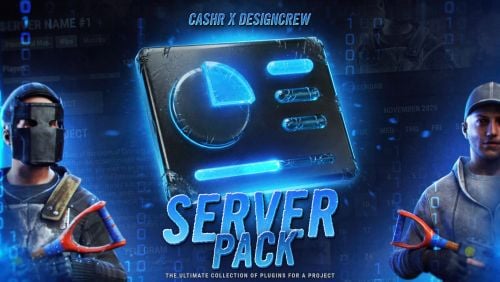
CASHR × Design Crew · Rust plugin Rust server menu A complete in-game menu for your Rust server: server info, battle pass, cases and cart. One product, ready to install. 6 sections One system Install without a coder 01 / Why you need it One purchase. The whole menu. Usually a server owner builds a menu piece by piece: one coder for the info panel, another for the battle pass, a third for cases. Here it all comes as one product. 01 Everything in one menu Info, rules, plugins, wipe calendar, battle pass, cases, statistics and cart in a single interface. 02 Built as one system Every screen is made together in one style, so the sections fit each other. 03 No extra coders No need to hire different developers and wait for each of them. One purchase covers the whole menu. 04 Install it yourself Upload the files, fill in the config and the menu is live. No outside help needed. 02 / Main page Server info The first screen players see. Everything about your server in one place. 1 Server header Name, map type, wipe tags and a live online bar 120/250. The header banner is easy to replace with your own. 2 About, rules, plugins Three tabs with text blocks. Rules open as an accordion. 3 Wipe calendar Month view with colored days, so players know when the next wipe is. 4 Social links Discord, Store and Other cards with your descriptions. 5 Bottom navigation Six sections, scroll arrows, active tab in red. 03 / Battle pass Battle pass A season progression that brings players back to the server every day. 1 Premium banner Promo block with a buy button right in the header. 2 Reward preview Selected item with its amount and a Get item button. 3 Daily & weekly missions Tasks with XP rewards and progress for each one. 4 XP progress The season bar shows how far the player is: 20100 / 30000 XP. 5 Tier track Free and premium rewards, claimed items get a check mark. 04 / Cases Case shop A case store with art for every type. Players see the price and how many they own. 1 Cases & inventory Two tabs: the shop and the player items, 0/20 slots. 2 Balance The current balance is always visible in the corner. 3 Case card Art, name, $5 price and how many cases the player has. 4 Room for more Scrollable grid, add as many case types as you need. 05 / Cases · Case page Open a case Everything about one case on a single screen: what is inside, open it or buy more. 1 Description Case name and a short text about it. 2 Open button Big case art, amount and a green Open button. 3 Open several at once Pick from 1 to 5 cases and open them in one go. 4 Buy right here Buy for $5 and pick the amount without leaving the page. 5 Loot list Every possible item with an icon and a rarity strip. 06 / Cart Cart Bought items wait here until the player takes them in game. 1 Header Section title and a short hint for the player. 2 Item cells Every purchase shows the item, its name and amount. 3 Clear statuses Green when received, red when the inventory has no space. 4 Big grid Scroll through all purchases, nothing gets lost. 07 / All-in-one Why build it piece by piece? The usual way ✕ A separate coder for every section ✕ Different styles that do not match ✕ Plugins from different authors can conflict ✕ You pay each coder separately This menu ✓ Six sections in one product ✓ One style across every screen ✓ Built as one system ✓ One payment, install it yourself 08 / Installation Set it up yourself No coder needed. Three steps and the menu is on your server. 01 Download Get the files right after the purchase. 02 Upload Put the plugin and the images on your server. 03 Configure Write your server name, links, prices and cases in the config. CASHR × Design Crew · Rust server menu$149.99 -

Version 0.1.5
70 downloads
What is it? A nice user-friendly warning system Usage When someone is breaking rules or trolling others just warn them, you can also set a command that will be executed through server console that will get executed upon reachin certain amount of warnings (can be configured in cfg) Permissions warnmenu.use -- Gives you full control to operate the WarnMenu Chat command /warn -- Opens the WarnMenu /warn "Name/SteamID" "Warning reason" -- Warns the specified player with your reason /warnmenu.save -- Force the plugin to write the data from memory to the data file /wmessage <NameOrID | * > <message> - Shows a gametip message (Doesn't count as a warning) to specific player or to all players when you put * instead of the name Data files All Data files can be located at: \oxide\data\WarnMenu\warns There you can find all the warnings for each player Features WarnMenu features * Online Tab - In this tab you can easily select any online player that you want to warn * Search All Tab - Once you open this tab, there you can see all the players and browse in them * Find player Tab - When you click on the button you will be able to search for a specific player using his Name or SteamID Warn Types * CUI-Based - A CUI warning message will pop-up on player's screen when he gets warned * Chat-Based - A chat message will pop-up in player's chat when he gets warned Executable commands * On reaching certain amount of warnings, you can make the server execute a command on a player(configurable in cfg) F.e.: "1": "say {0} just reached 1 warning! SHAME on him!", "3": "kick {0} Kicked for reaching 3 warnings", Localization { "Syntax": "Commands:\n/report (Opens Reporter GUI)", "CUI Online": "Online Players", "CUI Player": "Player: {0}", "CUI SteamID": "SteamID64: {0}", "CUI Warnings": "Warnings: <color=#8f1919>{0}</color>", "CUI NewWarn": "New\nWarning", "CUI WarningID": "Warning ID: {0}", "CUI WarnedBy": "Warned by: {0}", "CUI Date": "Date: {0}", "CUI Reason": "Reason: \n{0}", "CUI Remove": "Remove", "CUI Close": "close", "CUI Warn": "Warn", "CUI WarnAddMenuPlayer": "Warning for\n<color=#d43939>{0}</color>", "CUI SearchAll": "Search All", "CUI SelectPlayer": "Select a player to warn:", "CUI Find": "Find player", "CUI Find2": "Select", "CUI Find3": "Find player:\n(steamID/Name)", "CUI CantFindPlayer": "Couldn't find the player\nsearching argument: {0}", "CUI FoundPlayer": "Found player: {0}", "CUI Refresh": "Refresh", "CantFindPlayer": "Couldn't find that player", "WarnMessage": "Warned: <color=#8f1919>{0}</color>\nReason: {1}", "JoinMessage": "{0} has joined with <color=#8f1919>{1}</color> warnings", "WarnReceive": "You have received a <color=#8f1919>warning</color>\nBy: {0}\nReason: {1}", "CUI WarnReceive": "<color=#8f1919>Warning</color>\nreceived", "CUI WarnReceive2": "By: {0}\nReason: {1}", "Message Syntax": "/wmessage <player|*> <message>", "No Player": "Couldn't find player with that name", "CUI WarnAddMenuClans": "Warning for clan\n<color=#d43939>{0}</color>", "CUI Clans": "Clans", "SyntaxClan": "Syntax: /warn.clan (p | g) (clan tag) (reason)", "ClansNotLoaded": "Clans plugin is not loaded!", "ClanNotFound": "Couldn't find a clan with that tag!", "ClanWarnedGlobal": "{0} clan has been warned: {1}", "CUI isGlobal": "Global announce?\n{0}", "CUI ClansNot": "Clans plugin is not loaded!" } Configuration { "Announce on join with warnings?(to admins)": true, "Execute commands on reaching count:": { "Enabled?": true, "(Format: 5 : mute {0}) where 5 is number of warns and {0} is player's id": { "5": "example.command {0}", "7": "example.command {0}", "10": "example.command {0}" } }, "Warn message settings": { "Text-based warn message?": true, "CUI-based warn message?": true, "How long until CUI message gets removed (secs)": 5.0 }, "Audio settings": { "Enable audio on warning?": true, "Audio path": "assets/content/nexus/ferry/effects/nexus-ferry-departure-horn.prefab" }, "Highlight settings": { "Enabled?": true, "Minimum amount of warns to highlight": 3 }, "wMessage settings": { "Audio path": "assets/content/nexus/ferry/effects/nexus-ferry-departure-horn.prefab", "Time before disappear": 10.0 }, "Discord (clan)": { "Webhook url": "WEBHOOK", "Enabled?": true }, "Discord (player)": { "Webhook url": "WEBHOOK", "Enabled?": true } }$10.00 -
Version 1.5.6
2,001 downloads
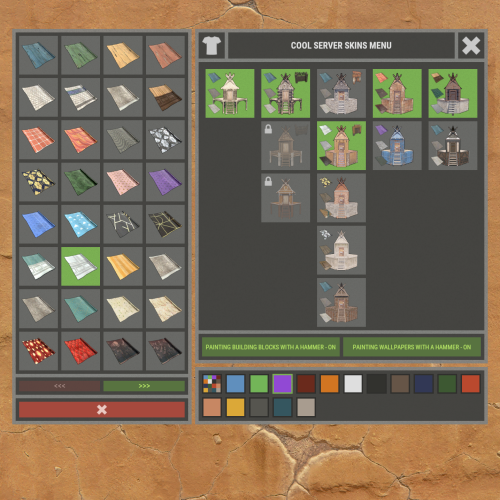
XBuildingSkinMenu - building block skins menu for your server. - Optimization of the interface for different monitor resolutions. - Storing player data in - oxide/data/XDataSystem/XBuildingSkinMenu - There is a lang ru/en/uk/es. - Sound effects when interacting with the menu. - Possibility to allow only the owner of the cupboard to paint the building blocks of the house. - Possibility to paint building blocks only when authorized in the cupboard. - Possibility to paint building blocks with a hit of a hammer. [ Each player can turn on/off in the main menu for convenience. ] - Possibility to paint building blocks when upgraded. - Possibility to use effects when painting. - Possibility to paint each house separately. [ You can paint an unlimited number of houses at the same time. ] - Plugin support - BGrade and IQGradeRemove. - Chat messages about the started/completed of painting the house. [ The number of painted building blocks. ] - Chat messages about the started/completed of painting items/constructions inside the house. [ The number of painted items/constructions. ] - Chat messages: the house is already being painted - items/constructions in the house are already being painted. - To paint the containers, the color chosen by the player through the Spray can is used. - UI button for easy transition from the XBuildingSkinMenu menu to the XSkinMenu menu. [ And vice versa. ] - Possibility to choose color in UI. - Automatic replenishment of the configuration with new skins of building blocks. - Permissions for each skin. - Automatically reset selected skins from a player, if revoke away their permission. Permissions xbuildingskinmenu.use - access to plugin functionality. [ Skins menu, hammer, building. ] xbuildingskinmenu.painting - access to paint the entire house through the cupboard. xbuildingskinmenu.simpleblock - access to paint high Walls/Gates. [ Hammer hit only. ] xbuildingskinmenu.entity - access to painting items/constructions inside the house. [ Requires XSkinMenu plugin version 1.1.14 and above. ] xbuildingskinmenu.default - default permission for skins. Commands /bskin - open the building block skins menu. API ulong GetBuildingSkin(BasePlayer player, string grade) - returns the skin of the building block selected by the player. ulong GetBuildingSkin(BasePlayer player, BuildingGrade.Enum grade) - returns the skin of the building block selected by the player. ulong GetBuildingSkin(BasePlayer player, BuildingBlock block) - returns the skin of the building block selected by the player. Config { "General setting": { "Automatically add actual skins of building blocks to the configuration": true, "Only the owner of the cupboard can start painting the house": false, "Use effects when painting home": true, "Use effects when painting items/constructions in the house": true, "Use effects when painting building blocks by hitting a hammer": false, "Enable painting of items/constructions in the house using player skins from the XSkinMenu plugin": false, "Skins for buildings": { "Wood": { "0": { "ImageURL": "", "Permission": "" } }, "Stone": { "0": { "ImageURL": "", "Permission": "" }, "10220": { "ImageURL": "", "Permission": "xbuildingskinmenu.default" }, "10223": { "ImageURL": "", "Permission": "xbuildingskinmenu.default" }, "10225": { "ImageURL": "", "Permission": "xbuildingskinmenu.default" } }, "Metal": { "0": { "ImageURL": "", "Permission": "" }, "10221": { "ImageURL": "", "Permission": "xbuildingskinmenu.default" } }, "TopTier": { "0": { "ImageURL": "", "Permission": "" } } }, "Default skins for new players": { "Wood": 0, "Stone": 0, "Metal": 0, "TopTier": 0 } }, "GUI setting": { "Close the menu by tapping on an empty area of the screen": false, "Material_background_0": "assets/icons/greyout.mat", "Color_background_0": "0 0 0 0", "Color_background_1": "0.517 0.521 0.509 0.95", "Color_background_2": "0.217 0.221 0.209 0.95", "Skin background color": "0.517 0.521 0.509 0.5", "Background color of the selected skin": "0.53 0.77 0.35 0.8", "Close button (icon) color": "1 1 1 0.75", "Color of buttons in cupboard": "0.35 0.45 0.25 1", "Button text color in cupboard": "0.75 0.95 0.41 1", "Hammer button color - On": "0.35 0.45 0.25 1", "Hammer button text color - On": "0.75 0.95 0.41 1", "Hammer button color - Off": "0.65 0.29 0.24 1", "Hammer button text color - Off": "0.92 0.79 0.76 1", "AnchorMin - button 1": "0.5 0", "AnchorMax - button 1": "0.5 0", "OffsetMin - button 1": "395 621.5", "OffsetMax - button 1": "572.5 641.5", "AnchorMin - button 2": "0.5 0", "AnchorMax - button 2": "0.5 0", "OffsetMin - button 2": "395 646.5", "OffsetMax - button 2": "572.5 666.5" } }$18.99 -
Version 1.4.12
6,841 downloads
Manage your Rust server easier and more efficiently with the AdminMenu plugin. Track players, interact with them, edit their data and permissions, as well as change server convars and manage plugins. Features: Menu retains its state after closing, you won't lose everything you did before. Ability to fully translate the menu into any language. Large range of permissions for each action, will allow you to flexibly customize the admin menu for each group of administrators. Quick menu that allows you to perform quick actions Full list of players with the ability to filter by online, offline, admins and moderators. Also has a frame of different colors depending on the level of authorization. Wide range of information and actions for the selected player. Editing convars with search. Has a complete list of editable convars with descriptions for some of them. Extensive issue menu by category, with easy management of name, skin and amount (manual, +1, +100, +1000, +10000). Plugin management menu. It is possible to reload, unload or load a plugin easily and quickly. Updates occur in real time. Ability to create your own custom buttons that execute several commands Quick Start: You install the plugin in the plugins folder. Give yourself the adminmenu.fullaccess permission. Commands, use one of your choice, one for the player and one for the admin group: o.grant user [name or steamid] adminmenu.fullaccess o.grant group admin adminmenu.fullaccess Press the X button (swap seat button) or type adminmenu in the console. Enjoy Useful stuff: You can quickly open a player in the admin menu. To do this, point at the player and press X. You don't have to hover over the player exactly, you will be able to open players within a certain radius of the place you are looking at. CUSTOM BUTTONS Custom buttons are buttons that when pressed will execute commands on behalf of the administrator, commands can be several, below will be the details. At the moment, custom buttons can be created in two places: in the quick menu and in the menu when selecting a player. These places are separated in the config. Button Fields: "Execution as server" - Call the command on behalf of the server, not the administrator "Label" - Text that will be on the button, for each such inscription creates a field in the lang file, accordingly you can translate this text into several languages. "Commands" - Array of commands that will be executed on behalf of the administrator. Chat commands require a special entry, see examples. "Permission"- permission to display and use the button. You need to write the permission that will be after "adminmenu.". Example: if you enter the permission "test" the permission will be adminmenu.test "Position" - The location for the button, the first number is responsible for the row number, the second for the position within the row, starts from 0.There are limits of locations, if you have gone beyond the limit - the button will not be displayed. Common Tags: {adminUID} - administrator's id. {position} - administrator coordinates (underfoot) {view_position} - the position where the administrator is looking (can be used for spawning or something similar) {view_direction_forward} - forward view direction of the administrator {view_direction_backward} - the direction the administrator is looking backwards {view_direction_left} - direction of the administrator’s view to the left {view_direction_right} - administrator’s view direction to the right Tags for target only: {steamid}, {steamID}, {userID}, {STEAMID}, {USERID} - mean the same thing, namely the id of the selected player. {target_position} - target coordinates (underfoot) Example of commands: chat.say \"/{chat command}\" vanish ban {steamID} teleport {steamID} {adminUID} More information about the grant menu: The grant menu includes the full list of items including hidden items as well as custom items created by the CustomItemDefinitions library. The menu can be accessed from the navigation or from the menu of the selected player. When issuing itself has categories. Search works in any registry by any part of the name or short name. Has a page system at any stage. More information about the buttons in the Quick Menu: [Teleport to 0 0 0] - Teleport to coordinates 0 0 0. Requires adminmenu.quickmenu.teleportto000 permission [Teleport to Deathpoint] - Teleport to your deathpoint. Requires adminmenu.quickmenu.teleporttodeath permission [Teleport to Spawn point] - Teleport to a random spawn point. Requires adminmenu.quickmenu.teleporttospawnpoint permission [Kill Self] - Kill Self, kills even when immortal. Does not require permission. [Heal Self] - Fully heal yourself. Requires adminmenu.quickmenu.healself permission [Call Heli] - Call Helicopter to yourself (arrives in time). Requires adminmenu.quickmenu.helicall permission [Spawn Bradley] - Spawn bradley on yourself. Requires adminmenu.quickmenu.spawnbradley permission More information about the buttons in the menu of the selected player: [Teleport Self To] - Teleport yourself to the selected player. Requires adminmenu.userinfo.teleportselfto permission [Teleport To Self] - Teleport the selected player to yourself. Requires adminmenu.userinfo.teleporttoself permission [Teleport To Auth] - Teleportation to random authorization (TC). Requires adminmenu.userinfo.teleporttoauth permission [Teleport to Deathpoint] - Teleportation to a player's deathpoint. Requires adminmenu.userinfo.teleporttodeath permission [Heal] - Full healing, including metabolism. Requires adminmenu.userinfo.fullheal permission [Heal 50%] - Half healing. Requires adminmenu.userinfo.halfheal permission. [View Inventory] - View and edit player's inventory. Requires adminmenu.userinfo.viewinv permission [Strip Inventory] - Clear player's inventory. Requires adminmenu.userinfo.stripinventory permission [Unlock Blueprints] - Unlock all Blueprints. Requires adminmenu.userinfo.unlockblueprints permission [Revoke Blueprints] - Reset all Blueprints. Requires adminmenu.userinfo.revokeblueprints permission. [Kill] - Kill a player. Requires adminmenu.userinfo.kill permission [Kick] - Kick a player. Requires adminmenu.userinfo.kick permission [Ban] - Ban a player. Requires adminmenu.userinfo.ban permission More information about the buttons in the menu of the selected group: [Remove Group] - Remove group, has confirmation. Requires adminmenu.groupinfo.removegroup permission [Clone Group] - Clone group with the ability to copy users. Requires adminmenu.groupinfo.clonegroup permission Permissions: adminmenu.use - Ability to use admin menu with basic set. Open tab quick menu (each button has its own permission, without permissions is present only kill yourself button) and the list of players. adminmenu.fullaccess - Full access to all functions without the need for each permission, includes also adminmenu.use. It is recommended to give only to the main administrators. adminmenu.quickmenu.teleportto000 - Access to the button in the quick menu, teleportation to coordinates 0 0 0 0. adminmenu.quickmenu.teleporttodeath - Access to the button in the quick menu, teleportation to the point of your death. adminmenu.quickmenu.teleporttospawnpoint - Access to the button in the quick menu, teleportation to a random spawn point. adminmenu.quickmenu.healself - Access button in quickmenu, heal yourself completely. adminmenu.quickmenu.helicall - Access to the button in the quick menu, call a helicopter to yourself (arrives in time). adminmenu.quickmenu.spawnbradley - Access button in quickmenu, spawn bradley. adminmenu.userinfo.teleportselfto - Access to the button in the menu of the selected player, teleportation to the selected player. adminmenu.userinfo.teleporttoself - Access to the button in the menu of the selected player, teleport the selected player to himself. adminmenu.userinfo.teleporttoauth - Access to the button in the menu of the selected player, teleportation to random authorization (TC). adminmenu.userinfo.teleporttodeath - Access to the button in the menu of the selected player, teleportation to the place of death of the player. adminmenu.userinfo.fullheal - Access to the button in the menu of the selected player, full healing, including metabolism. adminmenu.userinfo.halfheal - Access to the button in the menu of the selected player, half healing. adminmenu.userinfo.viewinv - Access to the button in the selected player's menu, view and edit the player's inventory. adminmenu.userinfo.stripinventory - Access to the button in the menu of the selected player, clear the player's inventory. adminmenu.userinfo.unlockblueprints - Access the button in the menu of the selected player, unlock all drafts. adminmenu.userinfo.revokeblueprints - Access to the button in the menu of the selected player, reset all drafts. adminmenu.userinfo.kill - Access the button in the selected player's menu to kill the player. adminmenu.userinfo.kick - Access the button in the selected player's menu to kick the player. adminmenu.userinfo.ban - Access to the button in the menu of the selected player, ban the player. adminmenu.groupinfo.removegroup - Access to the button in the menu of the selected group, the ability to remove the group. adminmenu.groupinfo.clonegroup - Access to the button in the menu of the selected group, the ability to clone the group. adminmenu.convars - View and edit convars. adminmenu.permissionmanager - View and edit permissions in groups, player groups, create, delete and clone groups (requires additional permissions from these buttons). adminmenu.pluginmanager - Access to plugin management, reloading, unloading, loading plugins. adminmenu.give - Access to give resources, as well as yourself and the selected player.$30.00 -
Version 1.0.3
9 downloads
APMenuButtons - is a lightweight HUD host for server menus. Instead of every plugin drawing its own floating button, you collect them in one clean expandable panel. Players tap the open button → see a grid of icons → each button runs a command (`chat.say /shop`, console, etc.). Admins set up everything in game: move the panel, resize buttons, edit the list, lock buttons behind permissions, and save layouts for later. Permissions apmenubuttons.use — use the HUD menu apmenubuttons.admin — open the admin editor apmenubuttons.btn.<name> — optional per-button access Commands /apmenu.open — toggle expanded menu (use) /apmenu.close — close menu (use) /apmenu — open admin editor (admin) /apmenu.settings — same as /apmenu (admin) /apmenu.reloadimages — reload PNG icons (admin) API (for developers) bool API_AddButton(string id, string text, string command, string imageName = "", string color = "", int order = 0, string permission = ""); bool API_RemoveButton(string id); void API_Refresh(BasePlayer player);$8.00 -
Version 2.0.6
4,751 downloads
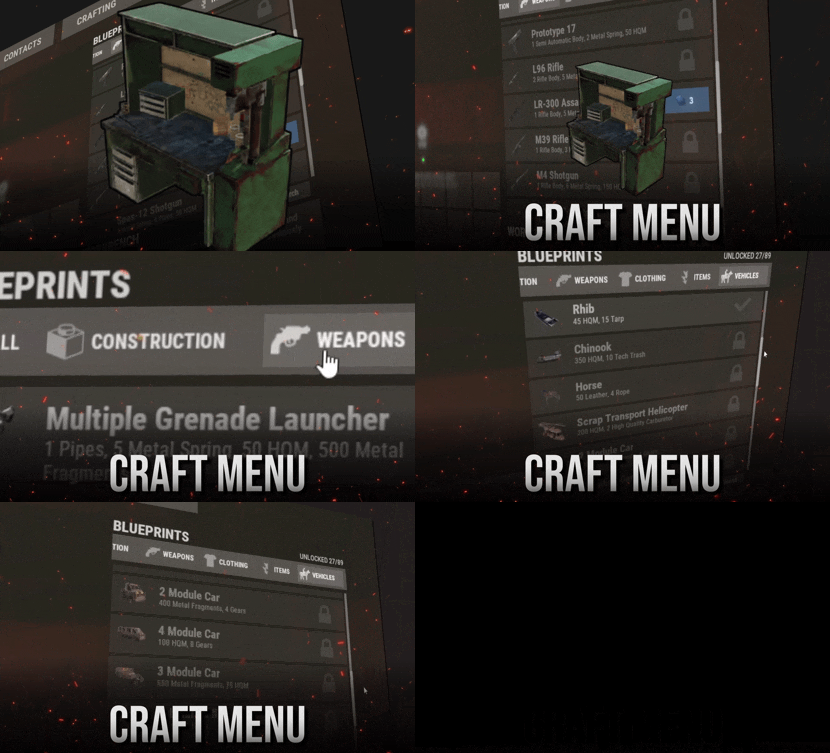
DISCORD · SUPPORT & CUSTOM REQUESTS RustPlugins ● 1,200 members Bug reports, setup questions, or custom development? Reach out to us on Discord. Join Discord Features Your own blueprints, right at the workbench. Players research and craft custom items in a menu that looks like Rust's own crafting screen. That includes uncraftable vanilla items, skinned custom items, vehicles, and deployables. Feels like vanilla Players open a workbench and the menu is there, with categories, search, and a crafting queue they can reorder. Players never need to type a command. Any item, any recipe For each blueprint you set the name, icon, skin, category, tier, research cost, ingredients, craft time, and craft limit. Ingredients can be skinned custom items. Web editor, no JSON Build blueprints in the browser and copy the share code. Run one command in game and the server downloads the config and applies it. You don't need to restart or reload. One-click import Running Portable Vehicles or Place Anything? Pick their items from a list and they become blueprints with the right skin and tier. Click an item again to remove it. Getting Started Up and running in four steps 1 Install Drop CraftMenu.cs into your plugins folder. The config comes with a set of normally uncraftable items, so the menu works right away. 2 Grant the permission DON'T SKIP Players without this permission see the normal workbench. oxide.grant group default craftmenu.use 3 Open a workbench Players see blueprints for that bench's tier and every tier below it. Higher-tier blueprints are marked TIER REQUIRED. 4 Research, then craft Players research each blueprint once. By default it costs scrap at tier 1, basic fragments at tier 2, and advanced fragments at tier 3. Optional plugins: Image Library lets you use image URLs for icons, and Rust Translation API shows ingredient names in each player's language. Permissions Who can do what craftmenu.use Shows the menu at workbenches. Every player who should use CraftMenu needs it. craftmenu.import Opens the Portable Vehicles and Place Anything import menu. Admins have it automatically. craftmenu.config Imports and exports the config with share codes. Admins have it automatically. craftmenu.<category> Lets the player craft from one category, for example craftmenu.vehicles. These only exist when category permissions are turned on. Commands For admins only Players never need these. Tags show where each command works. CONFIG & IMPORT /craftmenu import CHAT Opens the import menu for Portable Vehicles and Place Anything items. /craftmenu export CHAT Shows your current config in a copyable field so you can paste it into the web editor. craftmenu config <code> CHAT CONSOLE Downloads a config from the web editor and applies it immediately. PLAYER BLUEPRINTS craftmenu_admin wipeall CHAT CONSOLE Removes every player's unlocked blueprints. In chat, use /craftmenu wipeall. craftmenu_admin wipe <steamid> CHAT CONSOLE Removes one player's unlocked blueprints. In chat, use /craftmenu wipe. craftmenu_admin unlock <steamid> CHAT CONSOLE Unlocks every blueprint for one player. In chat, use /craftmenu unlock. Configuration Main settings worth knowing Wipe Blueprints at Map Wipe Resets all research on a new map. Off by default. Maximum items in queue How many timed crafts one player can queue at once. The default is 10. Default maximum amount per craft The highest amount per craft. The default is 99, and each blueprint can override it. Categories The category tabs and their icons. Icons can be Rust asset paths, or URLs when Image Library is on. Permissions required for each category Puts each category behind its own permission. Use it for VIP-only items. Admins ignore research and craft costs Lets admins test new blueprints without collecting the resources. Translate resource item names Shows ingredient names in each player's language. Requires Rust Translation API. Sound Effects Plays click and craft sounds in the menu. On by default. FAQ Frequently asked questions Q. Players open a workbench but the menu doesn't show. Why? They're missing craftmenu.use. Grant it to the default group. The menu also stays hidden on the workbench upgrade screen, which is expected. Q. How do I edit blueprints without touching JSON? Use the web editor at tools.rustplugins.net/craftmenu and copy the share code. Then run /craftmenu config <code> in game. To keep editing your live config, run /craftmenu export first and paste the result into the editor. Q. How do I give an item a custom icon? Icons come from skin IDs. Upload your image as a Workshop skin with SkinUploader.zip, then put the skin ID on the blueprint. The crafted item gets that skin too. Q. Can custom items be crafting ingredients? Yes. In the blueprint's resources, use the item's skin ID instead of a shortname. CraftMenu then only accepts items with that exact skin. Q. How do craft times work? A blueprint with a craft time of 0 crafts instantly. Anything above 0 goes into a queue that works like Rust's own: players can cancel jobs or move them to the front. A player's queue is cleared when they die or disconnect. Q. Can I make some items VIP only? Yes. Put them in their own category, turn on category permissions, and grant craftmenu.<category> to your VIP group. Other players still see the items but can't craft them. Q. Do unlocked blueprints carry over between wipes? By default, yes. Turn on Wipe Blueprints at Map Wipe to reset them with each new map. You can also wipe them manually with craftmenu_admin wipeall. Have more questions? Reach out to us on Discord if you need support or have a custom request.$17.99 -
Version 1.5.85
10,777 downloads
UltimateLeaderboard is a leaderboard system for Rust servers. It tracks a wide range of player statistics: kills and deaths, resources gathered, items crafted, structures built and more. UltimateLeaderboard has a sleek, customizable interface, works with popular plugins and puts your players' achievements on display. Features of Ultimate Leaderboard Track a wide variety of player statistics, including kills, deaths, resources gathered, items crafted, structures built, and more. Fully customizable leaderboard: choose which stats to display and match it to your server's style. A clear, good-looking interface where players view their stats and compare rankings. Integration with plugins like ServerPanel for displays and Notify/UINotify for in-game alerts. Flexible data storage options: choose between JSON, SQLite, or MySQL to suit your server's needs. Two reward systems: post-wipe awards that give actual items, kits, and money to top players when they connect, plus an optional companion plugin UltimateLeaderboardTop for real-time privilege management based on current rankings. Players can pick up their awards on demand with a claim command instead of receiving them on connect. Scheduled top announcements, posted to chat and to a Discord webhook. Custom Titles system that automatically displays achievement-based chat titles for top performers (requires BetterChat plugin). Optimized for performance, so it runs smoothly even with many players and a lot of data. Configurable templates. Optional real-time database updates for integrations (e.g., Discord Bot). Showcase Fullscreen Template ServerPanel V1 (V1.1) ServerPanel V2 Video Overview Commands /leaderboard or /stats - Opens the leaderboard interface for players to view stats and rankings. /leaderboard <steamid> - Opens another player's profile (requires ultimateleaderboard.profile permission). /leaderboard.hide - Allows players to hide themselves from the leaderboard (requires ultimateleaderboard.hide.self permission). /claimreward or /claim - Lets players collect awards that are waiting for them. Disabled by default; turn it on under Awards → Claim Reward in the config, where you can also rename the commands. leaderboard.manage hide <steamid> - Console command to hide a player from the leaderboard (server console only). leaderboard.wipe - Console command to reset all leaderboard data (server console only). leaderboard.migrate <migration_id> - Console command to perform database migrations (server console only). Available: leaderboard.migrate 1: adds HiddenFromLeaderboard column to PlayerStats table (upgrade from v1.1.7 to v1.1.8) leaderboard.migrate 2: migrates BodyHits data to the new format (upgrade to v1.5.10) leaderboard.find.short.prefab <search_term> - Console command to search for prefabs containing the specified search term (server console only). Useful for finding correct prefab names for configuration. leaderboard.manage - Console command to manage player statistics (server console only). Use leaderboard.manage help for detailed usage information. Permissions ultimateleaderboard.use - grants players access to leaderboard commands and interface. This one is optional: it is whatever name you put in Permission to use plugin in the config, and an empty value leaves the leaderboard open to everyone. ultimateleaderboard.profile - allows players to view other players' profiles using the leaderboard command. ultimateleaderboard.hide.self - allows players to hide themselves from the leaderboard using the /leaderboard.hide command. ultimateleaderboard.ignore.titles - stops the plugin from giving this player a custom chat title. Tabs, categories, and award categories each take their own permission field in the config, so you can lock individual parts of the interface to a group without touching the permissions above. Web Config Editor Manage the UltimateLeaderboard settings in our web config editor. You change the config in a browser form instead of editing files on the server by hand. P.S. The web config editor is open to members of the "UltimateLeaderboard" group in our Discord server. Join at https://discord.gg/mevent and ask for the group. FAQ Q: How do I install UltimateLeaderboard? A: Download the UltimateLeaderboard.cs file, place it in your oxide/plugins directory, and restart your server or reload the plugin using the Oxide command oxide.reload UltimateLeaderboard. Q: Can I choose which statistics to track and display? A: Yes. Tracked statistics and leaderboard displays are set in the configuration file, where you can enable or disable specific stats like kills, resources, or events to suit your server. Q: What data storage options are available? A: UltimateLeaderboard supports JSON, SQLite, and MySQL. You select the storage method in the config file, which suits both small and large servers. Q: How do I set up the awards system? A: In the configuration file, define award categories (e.g., most kills, top gatherer) and their criteria. The plugin tracks and assigns awards to top players automatically based on your settings. Q: Where can I configure the UI? A: The UI is built from templates. Use configurable templates stored at oxide/data/UltimateLeaderboard/Templates. Q: What languages does the plugin come in? A: The archive ships English and Russian files in the lang folder. Copy them to oxide/lang (or carbon/lang for Carbon) and the plugin picks up each player's client language. Any text you edit in those files is kept on reload, and new keys from an update are added around it. Q: What happens to the data on a server wipe? A: By default, data wipes with a new save file, but you can disable this in the config (Wipe data on new save) to persist stats across wipes if desired. Q: How do I add UltimateLeaderboard to the ServerPanel menu? A: Follow these steps: 1. Open ServerPanel menu in-game and click "+ADD CATEGORY" button 2. Set these exact parameters: Type: Plugin Plugin Name: UltimateLeaderboard Plugin Hook: API_OpenPlugin 3. Click "SAVE" button to create the category Q: I see black images with Rust logo or get error 429 when loading images. What should I do? A: These issues occur when there are problems downloading images from the internet. The UltimateLeaderboard plugin sends images to ImageLibrary but is not responsible for the downloading process itself. Error 429 typically occurs due to rate limits imposed by image hosting services like Imgur (see HTTP 429 documentation for more details). To fix this, enable Offline Image Mode, which uses local images instead: Enable the mode in config: Open "oxide/config/UltimateLeaderboard.json" (or "carbon/config/UltimateLeaderboard.json" for Carbon) Set "Enable Offline Image Mode": true Set up the images: Create folder "TheMevent" in "oxide/data" (or "carbon/data" for Carbon) Download PluginsStorage (click "CODE" → "Download ZIP") Extract the ZIP and copy all contents to the "TheMevent" folder Reload the plugin: Type o.reload UltimateLeaderboard (Oxide) or c.reload UltimateLeaderboard (Carbon) Note: If you want to add your own custom images, place them in the "TheMevent" folder and reference them with the "TheMevent/" prefix. For example: "TheMevent/Icon1.png", "TheMevent/MyCustomIcon.jpg", etc. Q: What's the difference between UltimateLeaderboard awards and UltimateLeaderboardTop? A: UltimateLeaderboardTop is a companion plugin that automatically manages player privileges based on leaderboard positions. Main Plugin Awards: Gives actual rewards (kits, money, commands) to top players after the wipe. Rewards are given once, when the player connects. UltimateLeaderboardTop: Continuously manages privileges (VIP groups, permissions) as players enter/exit top positions in real-time. To display awards in UI while using UltimateLeaderboardTop: Configure awards in UltimateLeaderboard config Configure awards in UltimateLeaderboardTop config Set "Automatically give rewards after the wipe": false Q: Can UltimateLeaderboardTop give items/kits to players? A: No, UltimateLeaderboardTop is designed only for reversible actions (permissions, groups, etc.). Since items can't be taken back from players when they leave top positions, item rewards are not supported. Use the main plugin's awards system for item rewards instead. Q: How do I configure rewards for top players? A: There are two reward systems available: UltimateLeaderboard Awards (Post-Wipe Rewards): Configure in the main plugin's config file under "Awards": Set award categories (e.g., "Most Kills", "Top Gatherer") Define criteria: loot type, prefab, and minimum amount required Set rewards: commands to execute (give items, kits, money, etc.) Awards are given once when top players connect after a wipe UltimateLeaderboardTop (Real-time Privileges): Configure in UltimateLeaderboardTop.json: Set leaderboard types to monitor (kills, points, playtime, etc.) Define top positions (1st, 2nd, 3rd, etc.) Configure "Enter place commands" (given when player reaches position) Configure "Exit place commands" (executed when player loses position) Use for permissions, groups, temporary privileges Example UltimateLeaderboardTop configuration: { "Loot type": "Kill", "Prefab": "kills", "Places settings": { "1": { "Enter place commands": ["o.usergroup add %steamid% vip"], "Exit place commands": ["o.usergroup remove %steamid% vip"] } } } Q: What are Custom Titles and how do they work? A: Custom Titles automatically display achievement-based titles in chat for top players. For example, top killers get "[Killer]" title, top builders get "[Builder]" title, etc. Requires BetterChat plugin to work. Titles are updated automatically based on leaderboard positions and can be configured with priority system and limits. Q: Why don't I see my statistics updated immediately on the leaderboard? A: The leaderboard is cached and refreshes periodically (the interval is configurable) to keep server load low. Statistics may take a few minutes to appear on the leaderboard after the action. Caching keeps the server running smoothly even with many players and a lot of tracked statistics. Q: How can I track multiple similar items or entities with one statistic? A: You can combine multiple prefabs using the pipe symbol | in the prefab field. For example, to track all types of scientists as one "NPC Kills" statistic, use: npc_tunneldweller|npc_underwaterdweller|scientistnpc_arena|scientistnpc_bradley. This is useful for grouping similar items, resources, or entities into a single tracked category. Q: How do I find the correct prefab names for items, entities, or events? A: There are several ways to find prefab names: In-game console command: Use leaderboard.find.short.prefab <search_term> in the server console to search for prefabs containing your search term. For example: leaderboard.find.short.prefab scientist will show all prefabs containing "scientist". F1 console spawn command: In-game, open F1 console and use the spawn command to see available entity prefabs. Type spawn followed by part of the name to see matching options. Item shortnames: For items, use their shortname (e.g., "stones", "metal.ore", "wood"). You can find these by examining items in your inventory or using item-related commands. Plugin documentation: Check the "Custom Prefabs" and "Available Loot Types" sections in this plugin's description for full lists of supported prefabs and loot types. Q: How can I output the sum of all values by type of statistics (for example, all kills, all loot collected)? A: Use the prefab total_sum for the desired LootType. For example, to show the total number of all player kills, specify the LootType Kill and the prefab total_sum in the column or block settings. It works for any type: Kill, Gather, Craft, Event, and others. Q: How does the leaderboard scoring system work? A: The leaderboard uses a points-based scoring system. Points are earned from in-game actions, and each action has: Loot Type - The category of action (e.g., Kill, Gather, Construction, Craft, Event) Prefab/Short Name - The specific item or entity (e.g., "kills", "stones", "helicopter", "supply_drop") Score Value - The points awarded for this action (configured in Loot Settings) When a player performs an action: The plugin looks up the score for that action type + prefab combination Multiplies the score by the action value (usually 1 per action) Adds it to the player's total Points Example scores (from config): Player kills: +1.0 point per kill Deaths: -1.0 point per death Gathering stone: +0.1 point per stone Supply drop looted: +3.0 points Bradley crate: +5.0 points Helicopter kill: +15.0 points Bradley kill: +10.0 points How to become top player: Perform actions that have scores configured in Loot Settings Accumulate the most total Points The leaderboard ranks players by their Points value (or other tracked stats) Q: What award types are available and how do I configure them? A: UltimateLeaderboard supports 7 award types: Command - Execute console commands. Supports %steamid% placeholder. Use | to separate multiple commands. Example: "Command (%steamid%)": "inventory.giveto %steamid% rifle.ak 1|oxide.usergroup add %steamid% vip" Kit - Give kits from Kits plugin. Requires Kits plugin to be loaded. Example: "Type": "Kit", "Kit Name": "vip_starter" ServerRewards - Add reward points. Requires ServerRewards plugin. Example: "Type": "ServerRewards", "Amount": 1000 Economics - Deposit money via Economics plugin. Example: "Type": "Economics", "Amount": 5000 BankSystem - Deposit money to player's bank account. Example: "Type": "BankSystem", "Amount": 2500 GameStores - Add balance via GameStoresRUST plugin. Example: "Type": "GameStores", "Amount": 100 MoscowOVH - Add balance via RustStore plugin (Moscow OVH integration). Example: "Type": "MoscowOVH", "Amount": 50 Custom Prefabs UltimateLeaderboard supports custom prefabs for detailed statistics tracking and display: total_play_time - Total playtime (in seconds) current_playtime - Current session duration kdr - Kill/Death ratio points - Internal points system longest_kill_distance - Longest kill distance record total_hits - Total player hits total_resources - Total resources gathered total_items_crafted - Items crafted events_won - Event victories structures_built - Structures built upgrades_performed - Building upgrades name/nickname - Player display name clan_tag - Player clan tag formatted_total_playtime - Human-readable playtime (Xd Xh Xm) kd - K/D formatted as "Kills/Deaths" favorite_resource - Most gathered resource favorite_crafted_item - Most crafted item favorite_event - Most won event favorite_building_material - Preferred building material favorite_weapon - Most used weapon total_quests_completed - Total completed quests total_sum - Sum of all values for the selected LootType. For example, using total_sum with LootType Kill will show the total number of all kills for the player (across all kill categories). Works for any LootType: Kill, Gather, Craft, Event, etc. Available Loot Types None Construction Medical Event Available prefabs: Convoy Sputnik Caravan GasStationEvent AirEvent SatDishEvent Triangulation WaterEvent HarborEvent FerryTerminalEvent ArcticBaseEvent JunkyardEvent SupermarketEvent PowerPlantEvent ArmoredTrainEvent SurvivalArena KillBoss PaintballTeam PaintballFFA GunGame ZombieInfection TugboatPirates SpaceEvent AbandonedBase DungeonEvent FlyingCargoEvent AirfieldEvent FishingContest CargoPlaneCrash GuardedCrate OperationFortress F15CrashEvent Shipwreck LighthouseEvent ZigguratEvent HeavyExcavatorEvent Gather Kill Available custom prefabs: helisignals_{skin} - Tracks helicopter kills from HeliSignals (e.g., "helisignals_2920175997") bradleydrops_{skin} - Tracks bradley kills from BradleyDrops (e.g., "bradleydrops_2905355269") roadbradley_{profile} - Tracks bradley kills from RoadBradley (e.g., "roadbradley_easy") helicopter - Tracks helicopter kills Custom NPC support: horde_npc - For NPCs from ZombieHorde plugin raidbase_npc - For NPCs from Raidable Bases plugin For NPCs from NpcSpawn use NPC name as key (BossMonster, BetterNpc, NPCs from events, etc.) Other entity prefabs can be found in-game by using the "spawn" command in the F1 console Consume Raid Death Available custom prefabs: Custom NPC support: horde_npc - For NPCs from ZombieHorde plugin raidbase_npc - For NPCs from Raidable Bases plugin For NPCs from NpcSpawn use NPC name as key (BossMonster, BetterNpc, NPCs from events, etc.) Craft Crate LootItems Fishing Puzzle Available prefabs: keycard_1 keycard_2 keycard_3 Custom Upgrade ShotFired ExplosiveUsed RecycleItem BodyHits WeaponUsed RaidableBases Available prefabs: easy medium hard expert nightmare RaidableBoats Available prefabs: easy medium hard nightmare Economy Available prefabs: ShoppyStock Economics IQEconomic Quest EconomyBalance Available prefabs: Economics ServerRewards BankSystem IQEconomic Gambling Available prefabs: BlackjackDeposit BlackjackWon SlotDeposit SlotWon PockerDeposit PockerWon WheelDeposit WheelWon SkillTree Available prefabs: xp - Experience points earned level - Skill tree level reached Trivia MixingTable API for Developers UltimateLeaderboard has an API for integration with other plugins: Methods JArray API_GetUltimateLeaderboardUsers(int offset, int limit, int? columnIndex = null) - Get leaderboard users with pagination float API_GetPlayerStat(ulong playerId, string lootType, string shortname) - Get specific player statistic bool API_IsHiddenFromLeaderboard(ulong playerId) - Check if player is hidden from leaderboard void API_OnItemGather(ulong player, string shortname, int amount) - Add gather statistics for a player void API_OnEventWin(ulong userID, string eventName, int amount = 1) - Record event wins for a player void API_GetTopPlayers(int lootType, string prefab, int limit, Action<JObject> callback) - Get the top players for a loot type and prefab; the result arrives in the callback bool API_HasPendingRewards(ulong playerId) - Check whether a player has awards waiting to be collected bool API_ClaimRewards(BasePlayer player) - Give a player the awards waiting for them Hooks void OnUltimateLeaderboardContent(BasePlayer player, string categoryType, CuiElementContainer container) - Called when displaying custom category content void OnUltimateLeaderboardCached() - Called when leaderboard data is cached and ready object CanUltimateLeaderboardAddPoints(ulong userId, string lootType, string prefab, float points) - Called before points are added to a player. Return a non-null value to block the points; the statistic itself is still recorded. lootType is the LootType name, for example "Kill", "Gather" or "Crate".$45.00- 72 comments
- 26 reviews
-
- 10
-

-

-
- #ultimateleaderboard
- #leaderboard
- (and 22 more)
-

Version 1.2.12
1,533 downloads
The HUD Info Panel System is a customizable HUD for your Rust server that players can adjust to their liking. It shows server stats and running events in a clean, simple design, and other plugins can connect to it through the API. There are enough settings to fit any play style. Features of HUD Info Panel System Fully customizable HUD panels with drag-and-drop positioning Real-time tracking of 24+ server events and entities Built-in economics display (supports Economics/ServerRewards) Custom button system with image/command binding Dynamic event icons with color customization Multi-anchor positioning (UpperLeft/UpperRight) Automatic panel hiding system Optimized for performance Showcase Commands /panel hide - hide panel /panel show - show panel Permissions The plugin registers permissions for different features and settings. Players need the matching permission to use a given customization option. Panel Anchors UpperLeft UpperRight API Other plugins can report the status of a custom event through an API method. Here is an example call from another plugin: public class EmptyPlugin : RustPlugin { [PluginReference] private Plugin PanelSystem; private void OnServerInitialized() { EventChangeStatus("UserNotify", true); } private void Unload() { EventChangeStatus("UserNotify", false); } private void EventChangeStatus(string key, bool spawned) { PanelSystem.Call("OnEventChangeStatus", key, spawned); } } And the corresponding configuration in PanelSystem: { "Enabled": true, "Image": "https://i.imgur.com/asflpJe.png", "Permission": "", "Type": 7, "Panel Settings": { "Enabled": true, "Permission": "", "Switch": true, "Color": true, "Size": true }, "Size Settings": { "Sizes": [ { "Size": 25.0, "Lang Key": "sizeBig", "Permission": "" }, { "Size": 20.0, "Lang Key": "sizeMedium", "Permission": "" }, { "Size": 15.0, "Lang Key": "sizeSmall", "Permission": "" } ], "Default Size (index)": 0 }, "Color Settings": { "Default Active Color ID": 0, "Default Inactive Color ID": 2 }, "Key (MUST BE UNIQUE)": "UserNotify" } Available Panel Types The HUD Info Panel System has these panel types for server stats and events: Online Sleepers Time CH47 Helicopter Bradley Airdrop Economics Custom CargoShip Button WipeBlock Convoy ArmoredTrain Sputnik SpaceEvent AirEvent ArcticBaseEvent GasStationEvent ShipwreckEvent HarborEvent JunkyardEvent SatDishEvent WaterEvent PowerPlantEvent KillBoss TravellingVendor Caravan DungeonEvents Web Config Editor Manage the PanelSystem settings in our web config editor. You change the config in a browser form instead of editing files on the server by hand. P.S. The web config editor is open to members of the "PanelSystem" group in our Discord server. Join at https://discord.gg/mevent and ask for the group. FAQ Q: How do I make the buttons hide when I click on the logo? A: In the logo settings, specify the command to hide the buttons (panelsystem.buttons). Example: https://pastebin.com/Ksggh718$21.95 -
Version 1.0.8
175 downloads
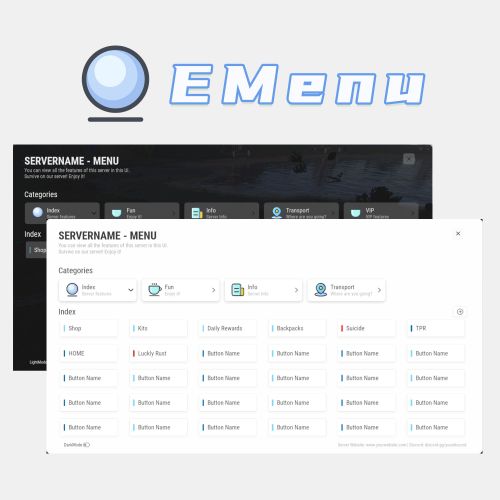
A Beautiful Server Menu UI, allows for unlimited categories and buttons customization. Features Supports Light and Dark Mode. Allows players to input custom parameters. Allows players to input command arguments manually. Supports adding an unlimited of categories and buttons. Categories and buttons can be configured with permissions, ensuring that only players with the permissions can access them. Support console or chat commands. Support for command running on the server. Commands ChatCommands /menu - Open EMenu ConsoleCommands emenu.open - Open EMenu Config { "Title": "SERVERNAME - MENU", "Description": "You can view all the features of this server in this UI.\nSurvive on our server! Enjoy it!", "Bottom Description": "Server Website: www.yourwebsite.com | Discord: discord.gg/yourdisocrd", "Open Commands": [ "/menu", "emenuopen" ], "Quickly open the UI(0=None|1=MiddleMouse|2=CtrlAndMiddle|3=ShiftAndMiddle)": false, "Default UI Mode (true = dark, false = light)": false, "Button Category List": [ { "Category Title": "Index", "Category Description": "Server features", "Category Icon": "https://i.imgur.com/sAeRp8j.png", "Category Permission": "", "Button List": [ { "Button Name": "Shop", "Button Lable Color": "#7AD9FF", "Button Command": "/shop", "Button Permission": "", "Button Description (For Input UI)": "", "Players Input Args": false, "Server Run Command": false, "Default Input Args": "" }, { "Button Name": "Kits", "Button Lable Color": "#7AD9FF", "Button Command": "/kit", "Button Permission": "", "Button Description (For Input UI)": "", "Players Input Args": false, "Server Run Command": false, "Default Input Args": "" }, { "Button Name": "Daily Rewards", "Button Lable Color": "#7AD9FF", "Button Command": "/daily", "Button Permission": "", "Button Description (For Input UI)": "", "Players Input Args": false, "Server Run Command": false, "Default Input Args": "" }, { "Button Name": "Backpacks", "Button Lable Color": "#7AD9FF", "Button Command": "/backpacks", "Button Permission": "", "Button Description (For Input UI)": "", "Players Input Args": false, "Server Run Command": false, "Default Input Args": "" }, { "Button Name": "Suicide", "Button Lable Color": "#ff0000", "Button Command": "kill", "Button Permission": "", "Button Description (For Input UI)": "", "Players Input Args": false, "Server Run Command": false, "Default Input Args": "" } ] }, { "Category Title": "Fun", "Category Description": "Enjoy it!", "Category Icon": "https://i.imgur.com/qmw5cNL.png", "Category Permission": "", "Button List": [ { "Button Name": "Luckly Rust", "Button Lable Color": "#0B72B2", "Button Command": "/lr", "Button Permission": "", "Button Description (For Input UI)": "", "Players Input Args": false, "Server Run Command": false, "Default Input Args": "" } ] }, { "Category Title": "Info", "Category Description": "Server Info", "Category Icon": "https://i.imgur.com/uQKMAT2.png", "Category Permission": "", "Button List": [ { "Button Name": "Info", "Button Lable Color": "#0B72B2", "Button Command": "/info", "Button Permission": "", "Button Description (For Input UI)": "", "Players Input Args": false, "Server Run Command": false, "Default Input Args": "" }, { "Button Name": "WelcomePanel", "Button Lable Color": "#0B72B2", "Button Command": "/welcome", "Button Permission": "", "Button Description (For Input UI)": "", "Players Input Args": false, "Server Run Command": false, "Default Input Args": "" } ] }, { "Category Title": "Transport", "Category Description": "Where are you going?", "Category Icon": "https://i.imgur.com/Wsqh9J6.png", "Category Permission": "", "Button List": [ { "Button Name": "TPR", "Button Lable Color": "#0B72B2", "Button Command": "/tpr %ARGS%", "Button Permission": "", "Button Description (For Input UI)": "Please enter the name of the player", "Players Input Args": true, "Server Run Command": false, "Default Input Args": "" }, { "Button Name": "HOME", "Button Lable Color": "#0B72B2", "Button Command": "/home %ARGS%", "Button Permission": "", "Button Description (For Input UI)": "Please enter the name of the home", "Players Input Args": true, "Server Run Command": false, "Default Input Args": "" } ] }, { "Category Title": "VIP", "Category Description": "VIP features", "Category Icon": "https://i.imgur.com/qmw5cNL.png", "Category Permission": "EMenu.vip", "Button List": [ { "Button Name": "Vip Shop", "Button Lable Color": "#7AD9FF", "Button Command": "/vipshop", "Button Permission": "", "Players Input Args": false, "Server Run Command": false, "Default Input Args": "" }, { "Button Name": "Bank", "Button Lable Color": "#7AD9FF", "Button Command": "/bank", "Button Permission": "", "Players Input Args": false, "Server Run Command": false, "Default Input Args": "" } ] } ] } Title - The title displayed in UI. Description - The description displayed in UI. Bottom Description - The description displayed at the bottom of UI. Open Commands - Command to open UI. Start with / for chat commands Quick Open (Press the middle mouse) - If enabled, players can use the middle mouse button to quickly open the Menu UI. When enabled, a toggle button is displayed in the UI for players to switch on and off this feature. Button Category List: Category Title - Category Title Category Description - Category Description Category Icon - Category icon, Png Url Category Permission - Permissions required to access this category If leave blank, no permission is required. Button List: Button Name - Button Name Button Lable Color - Button Lable Color (HEX) Button Command - Command run by button Start with / to run a chat command, otherwise it is a console command If "Players Input Args" is set to true, you should use "%ARGS%" to represent the arguments input by the players. If "Server Run Command" is set to true, you can use "%STEAMID%", "%PLAYERNAME%", "%PLAYER.POS.X%", "%PLAYER.POS.Y%", and "%PLAYER.POS.Z%" as variables. Button Permission - Permissions required to access this button If leave blank, no permission is required. Players Input Args - set to "true," it allows players to input arguments manually. It will open a UI for players to input arguments. Server Run Command - true = Server, false = Client If the command still starts with /, it will still run as a chat command Default Input Args - Default input arguments.$32.99 -
Version 1.0.1
100 downloads
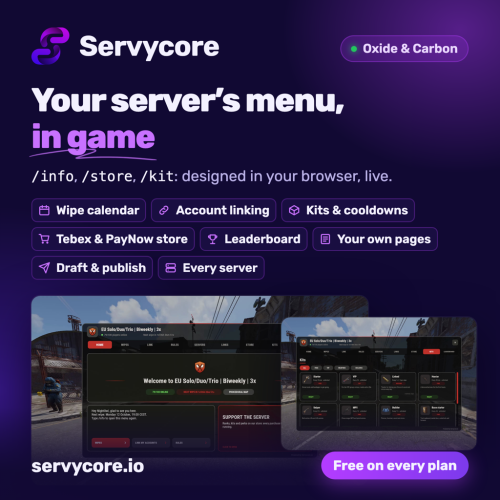
Warning Requires a free Servycore account (servycore.io you design the menu in the Servycore panel and publish it, this plugin shows it in game. Install it from Servycore, which sets it up for you: Control Center > your server > Plugins & Groups > Servycore In-game UI (Servycore needs host access to the server: Pterodactyl, Pelican, WISP, AMP or SFTP). Servycore on Codefling Your server's menu, right in the game. Players type /info and get your wipes, account linking, rules, servers, store, kits and leaderboard, in your colours with your logo. Every page has its own chat commands (/wipe, /store, /kit, /link, /top…), and the menu can open at a player's first connection. Designed in your browser, published live. No file to edit and no JSON: presets with 13 ready-made looks, your logo, a top or side navbar, your own pages (text, images, links, numbered rules, two columns), several menus (/info for the server, /store for a shop menu) and pages that open alone. Change one server only, keep a draft, publish when it is ready: the servers get it within seconds. History keeps the published versions. Kits. Up to 24 kits with categories, cooldowns, uses per wipe and a lock after each wipe, for everyone or for some Oxide / Carbon groups and permissions. Fill a kit from your own inventory, make one in game with /kit create, or bring yours over from uMod's Kits plugin. The plugin keeps the cooldowns and resets them at every wipe. Live pages. The next wipe and the coming ones as a calendar, the player's linked accounts and linking rewards (updated live), your network with a copyable connect command, your Tebex or PayNow store and your blog: links and products open as QR codes players scan with their phone. Nothing is bought in game. Chat in game. Every Servycore message (menu, automations, announcements, wipe countdown) can show your network's icon (the avatar of a Steam account you pick) and the server's name. Good to know Facepunch only allows an in-game UI on servers listed Modded, which Oxide and Carbon do by default. The menu answers its chat commands first: when another plugin has the same one (/kit of Kits, /info of a welcome panel), the editor tells you before you publish. Console: servycore.ui status, servycore.ui reload. Permissions: servycoreingameui.admin (admin kits, /kit create), servycoreingameui.kit.<key>. Every Servycore plan has it, Free included, with every page. A page that shows a feature of your plan follows it: the Leaderboard page needs the leaderboard (from Basic), the Store page your website's store, the News page its blog. Guide: In-game UI · How to add an in-game UI to a Rust server · Live demo · DiscordFree-
- 1
-
-
- #in-game ui
- #info panel
- (and 15 more)
-
Version 1.2.13
1,125 downloads
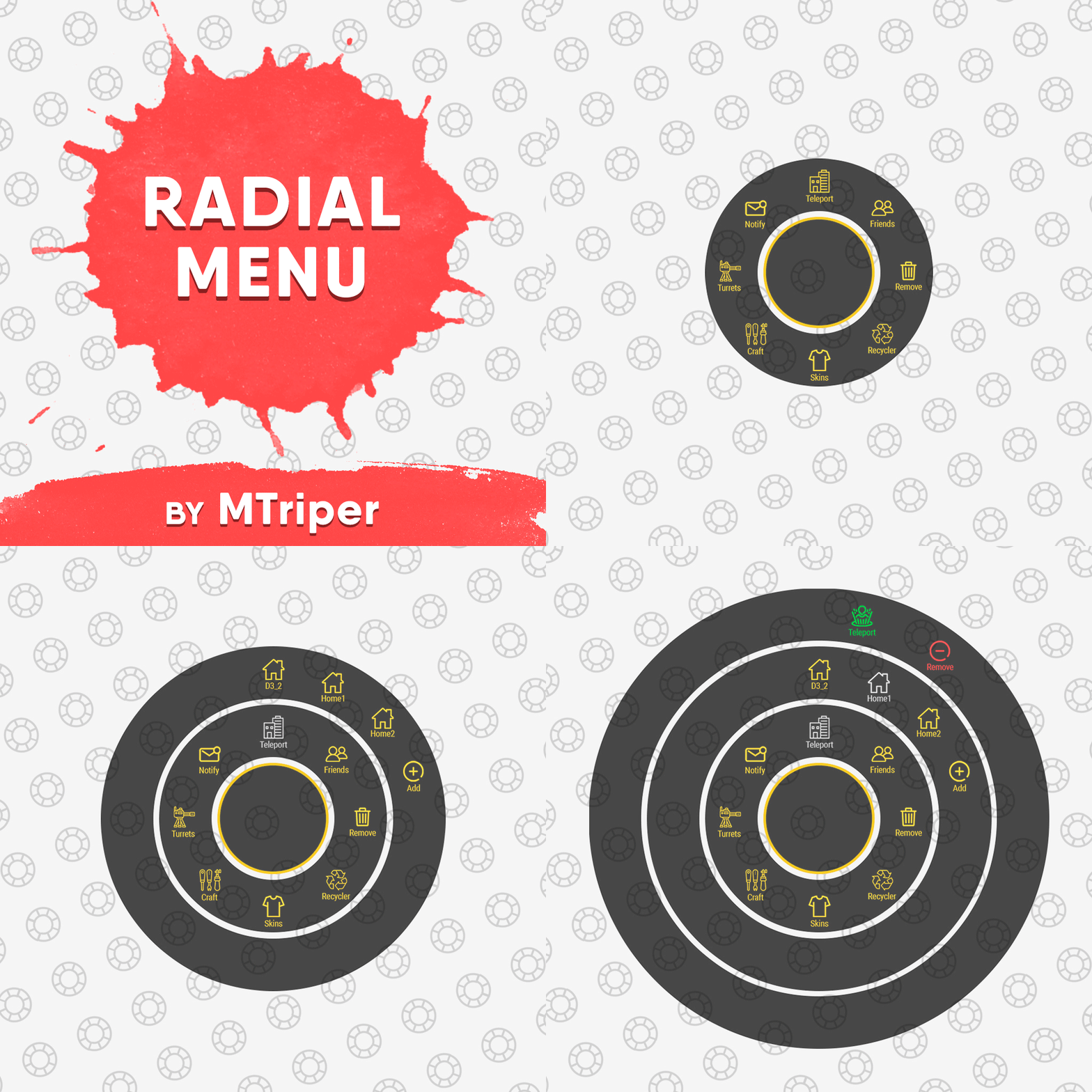
The radial menu is a customizable quick access panel with all popular and frequently used server commands. It makes it a lot easier and faster to interact with various server mechanics, be it teleportation, trades, setting house points and various panels. Features Allows to almost completely eliminate the manual entry of commands by the player. Automatic calculation and arrangement of any number of sections/subsections on a circle. Several display effects. Tracks a press of the MMB or on command (can be keyed to the same MMB). Checks for the privileges of a particular command, before executing it. Ability to use your own panel images. Full customization of the location and scale of icons and panel. Support for popular plugins (NTeleportation, TeleportGUI, Clans, Friends and Rust teams). Executing console or chat commands. General settings Track MMB presses to open a radial menu? - if the player has a MMB bind, the plugin will not open the Radial Menu. The command to open the radial menu - you can use both the command and the MMB tracking. When using MMB tracking and the command at the same time: If a player has a MMB bind, his bind will be executed when he clicks on it, and the Radial Menu will not open. If there is no bind, the player can use both the command and the MMB press. Upload images to players when they connect? - when a player connects to the server, the plugin will automatically download 3 images of menu rings to his client. This avoids displaying black rectangles when opening the menu while the plugin is downloading the images to the client. Section/Subsection settings The plugin has main sections (level 1), subsections at level 1 (level 2) and subsections at level 2 (level 3). Section name - the name of the section, which is displayed under the icon. Enable this section? – on/off section. Section permission [required] - permission required for the plugin to work (without dots). Add "_add" to the end of the name so that the plugin does not register or check permissions for child subsections. Section icon - direct link to the icon (recommended size 64x64). Fill icon with color below? - Completely fills the icon with the color set below. Inactive/active section color [HEX or Unity RGBA] - The plugin supports 2 types of colors: HEX (e.g. "#57de54" or "#57de54ff") and Unity RGBA ("0.34 0.87 0.33 1"). Command executed on behalf of the player - if you do not have subsections in this section, the command (without the "/" if chat) that will be executed for that player is specified here. You can specify multiple commands using commas (e.g. "radar ui, vanish, adminpanel hide"). If there are subsections in this section, the command is not specified. Specify %steamid% or %username% so that the plugin replaces them with the data of the player on whose behalf the command is executed. Command type - Where to run this command: true - chat, false - console. Permissions for above command - if the command above is specified, you can specify the privileges of that command in this field (e.g. "removertool.normal, removertool.structure, removertool.external"). The plugin will check if the player has these privileges before executing the command. Show this section only to those with permissions above? - allows to draw the section automatically (without giving permissions to this plugin) if the player has command permissions. Show this section even to those who don't have permissions? - forcibly displays the section to all players, even those who do not have privileges to it (if you click on it, a message about lack of permissions will be displayed in chat). Subsections layout [n - number] - this setting is responsible for how subsections are arranged. 0 - automatically. Suppose you have 10 subsections, then 360 degrees / 10 subsections = 36 degrees. The plugin will automatically position the 10 subsections every 36 degrees (clockwise, starting from the top). n - from the beginning. The plugin will arrange the subsections clockwise, starting from the top, not automatically, but in a certain step. For example, you have 3 subsections, but you do not want them to be automatically scattered all around the circle, you want them to be displayed at the top, with some small step, this step will be calculated due to the conditional number of subsections n (for example, 15). Now 360 degrees / 15 conditional subsections = 24 degrees, then your 3 subsections will be positioned from the beginning and there will be 24 degrees between them. -n - from the active item. The plugin will arrange the subsections relative to the active section. For example, you have 3 subsections, but you don't want them to be automatically scattered all around the circle, and you also don't want them to be arranged in some clockwise, starting from the top. By choosing this type of arrangement, the subsections will be located in the same place as the active section, in the increments you specify. It works the same way as above, only n is specified with a minus sign (for example, -15, the minus is needed for the plugin to understand what type of arrangement to use). All examples of the layout of the subsections are present in the standard config. Permissions It may be unclear how permissions work in this plugin. Let's figure it out with a simple example from the standard config. It's not hard to figure out that this is the home point section of the standard config. To exclude identical names of permissions the plugin converts them to this form. Because of the large number of permissions generated by the plugin, there are mechanics for reducing them. If you add "_all" to any section, in the "permission" field, the plugin will not register the permissions of child subsections. For example, if the player has the permission "_homes_all", then all displayed houses, all commands (add, remove, etc.), in general everything that belongs to the section "_homes_all" will obey and is checked by the permission "radialmenu._homes_all". The "permission" fields of the child sections still have to be filled in for the plugin to work. I strongly recommend using the "Permissions Manager" plugin to set privileges for players or groups. It draws a simple interface, through which it is very easy to add or remove permissions. Teleportation The plugin supports work with teleportation plugins (set/remove/teleport to home point) NTeleportation, TeleportGUI and Teleportation by OxideBro (for RU server owners). To do this, in the main section (level 1), you must specify the permission of the "_homes" section, this is necessary for the plugin to understand that it will work with the teleport plugin. Next, in the subsection "_homes" (level 2) you must add the MAXIMUM number of displayed house points, for example 5. If the player has more house points than this number, then only the first 5 will be displayed, if less, then all of them will be displayed. For each such point, you must set its unique name, which begins with "home_n", where "n" is any unique number or word (e.g. home_1, home_2, etc.). In addition to the house points here you can place a section with the establishment of the house point, its name should be "home_add", and the command "home add {0}" (command your plugin teleport), where {0} - the name of the new house point, the plugin itself will set it relative to the square in which the player at the moment is (for example D3, if there are several in the square, then D3h1, D3h2, etc.). After that, in the subsections (level 3) of each such house point, you can specify commands relating specifically to it. For example: "home {0}", "home remove {0}" or any other commands, where {0} is the name of the specific house, the plugin itself will substitute it when executing the command. If you find all of the above complicated, you can take a look at the standard config as an example. Friends The plugin supports work with plugins Friends, Clans by k1lly0u and Rust teams. Here everything is set up similar to Teleportation. But for the plugin to understand what to work with, in the main section (level 1) you must specify one of the three options: "_teammates" - the plugin will work with Rust teams "_friends" - the plugin will work with the Friends plugin "_clans" - the plugin will work with the Clans plugin In subsections (level 2) you must add the MAXIMUM number of displayed friends, for example 8. If the player has more friends than this number, then only the first 8 will be displayed, if less, then all of them will be displayed. For each friend you must set its unique name, which begins with "friend_n", where "n" is any unique number or word (for example friend_1, friend_2, etc.). After that, in the subsections (level 3) of each friend you can specify commands specific to him. For example: "tpr {0}", "trade {0}" or any other commands, where {0} is the nickname of the player, the plugin itself will substitute it when executing the command. An example of the configuration of this section is also present in the standard config. Plugin Config Example of plugin configuration in English Example of plugin configuration in Russian. If you need Russian config, open it (RadialMenu.cs) before loading the plugin, and at the top set the variable "isRus = true". Then save and upload this file to your server.$15.00 -
Version 1.6.0
239 downloads
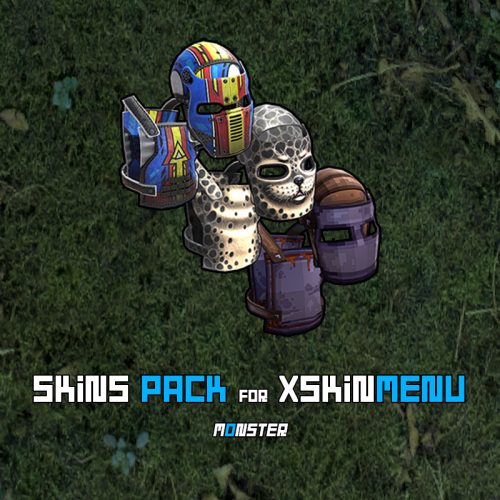
This is not a plugin! This is a Community Skins Pack for the XSkinMenu plugin in .json format. - You can also use this skins Pack in other plugins. This Pack will be actively supported and updated. New skins will be gradually added to it, and broken or removed skins will be deleted. We are aware of and remember Facepunch new rules, which prohibit us from giving players free access to Facepunch content. Therefore, this Pack will help you quickly and efficiently replace paid content from Facepunch. What will happen if skins from this Pack are approved and added to the game? - No problem! The XSkinMenu plugin automatically checks and removes such skins from the main Skins.json file. How do I use this skins Pack? - Installing this skins Pack takes less than a minute, and we have two options for doing so. - Go to the root folder of the plugin data --> oxide/data/XDataSystem/XSkinMenu: Option 1. Unload the XSkinMenu plugin. Download this Pack and replace the contents of the main Skins.json file with the contents of this skins Pack. Load the XSkinMenu plugin. ( This option is ideal for those who do not add/remove skins. ) Option 2. Simply download this Pack and move the file to the root folder of the plugin data. Use the console command "xskin_import_file FileName" (where FileName is the name of the downloaded file). The plugin will automatically read the Pack file, check the validity of the skins, and add them to the main Skins.json file. The plugin ignores duplicate skins/items. Therefore, after updating this Pack (or when installing the Pack for the first time) and performing Option 2, only those skins that are not yet in the main Skins.json file will be added. - When this Pack is updated, repeat one of the options again. You should know and remember that community skins are not cached in the game client and are not loaded instantly like Facepunch content. Each player will need some time to download community skins to their PC. (Skins are downloaded automatically after interacting with the XSkinMenu plugin UI.) Once these community skins have been downloaded to the players PC, they will be able to use them quite quickly in the future, as the skins files will already be on their PC and can be quickly cached by the game client. Also, a very large number of community skins (especially 10,000 or more) can have a negative impact on the performance of your server and your players clients. However, this Pack contains less than 10,000 skins (namely ~5,200 skins as of today) and they have all been checked, so there will be no problems.$11.49- 6 comments
-
- 2
-
-
-
- #xskinmenu
- #skin
- (and 9 more)
-
Version 1.8.8
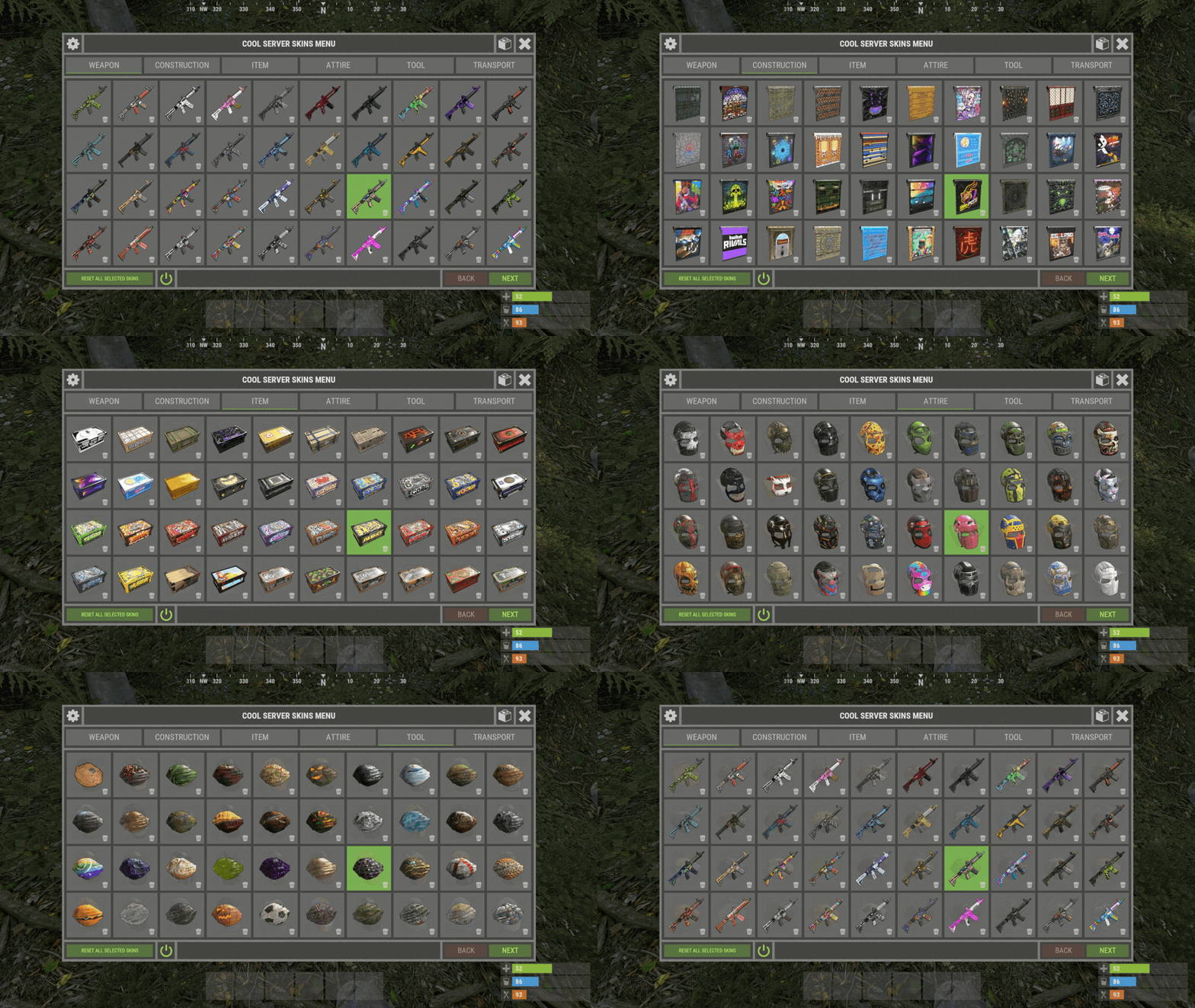
5,836 downloads
XSkinMenu - beautiful menu of skins for your server. - Optimization of the interface for different monitor resolutions. - Storing player data in - oxide/data/XDataSystem/XSkinMenu - There is a lang ru/en/uk/es. - Sound effects when interacting with the menu. - Setting up item categories. - Setting skins for each item. - Blacklist of skins. You cannot change the skin of an item if it has a skin from the black list. [ For example: fire gloves, fire ax ] - The ability to change skins for items in inventory, when crafting, when removing a skin and on installed items/constructions. - The ability to change the skin of items/constructions installed by a friend. - The ability to change the skin on the active item. [ The item the player is holding ] - Automatic change of skins after entering the player's inventory. [ You can customize skins once and run with them ] - Ability to change skins for items after the player respawns. - Ability to display selected skins on the main page. - The player can customize the menu/skins. - Custom menu/skins customization by permishenes. - Console commands for easy setting of items and skins. - Setting up UI layers for easy interaction with the menu. - Convenient removal of skins through the UI. [ Both admin and player ] - Logs for loading/reloading skins in the server console. [ Can be disabled in config ] - Setting default skins. When a player enters the server and he is not in the data, the skins specified in the config will be automatically selected for him. You can force the same skins for all players. For example skins of your project. To prevent the player from choosing a different skin, simply do not give permission for it. - Automatic reload of images after wipe. [ To fix a common problem with dark squares in images after a wipe. ] - The ability to customize Admin/Vip skins. Access to them is by permission only. [ They are not available to ordinary players. If the player picks up an item with a skin that they don't have access to, the item will simply reset its skin. ] - The ability to move item skins from regular to VIP, from VIP to regular, etc. in the UI. - The ability to add/remove collections of skins from the Steam workshop. - Button to enable/disable UI admin functionality. [ For comfort. ] - UI button for easy transition from the XSkinMenu menu to the XBuildingSkinMenu menu. [ And vice versa. ] - Display item/skin pages. [ Can be disabled in the config. ] - The ability to use skins with a spray can. - The ability to enable/disable sound effects in the menu. - The ability to change item skins when picked up by the player. - The ability to select UI configuration: Default menu. Comfort menu. - Skin kits. [ Default and personal. ] - Default kits are customized in the config. Personal kits are created by the player himself. [ Sets can be completely disabled. ] - Ability to delete personal kits. - The ability to see all the skins of the kit. - Three ways to apply skin kits: Only change the skins in the inventory. Only install skins in the menu. Change the skins in the inventory + Install skins in the menu. - Ability to zoom in on skins. [ It's easy to see the skin. ] - Displaying the name of skins. - Skin search. [ Name or ID ] - Ability to add a skin/collection via UI. - Item redirection. [ Item -> DLC, DLC -> DLC, DLC -> Item ] - Ability to allow players to use skins from their Steam inventory if those skins are on the Admin/VIP list. Permissions xskinmenu.use - access to the menu. xskinmenu.setting - access to settings. xskinmenu.craft - access to changing the skin when crafting. xskinmenu.entity - access to change the skin of installed items/constructions. xskinmenu.item - access to change the skin on the active item. xskinmenu.inventory - access to change skins in the inventory. [ When the player selects a skin from the menu. ] xskinmenu.give - access to automatically change skins for items that enter the player inventory by any means. xskinmenu.pickup - access to automatically change skins on items picked up by the player. xskinmenu.skinchange - access to skin selection/removal of selected skins. [ On the menu. ] xskinmenu.spraycan - access to the use of skins through a spray can. xskinmenu.playeradd - access to add skin/collection via UI. xskinmenu.defaultkits - access to default skin kits. xskinmenu.customkits - access to personal skin kits. xskinmenu.kitN - number of personal sets. [ Settings in config. ] xskinmenu.adminskins - access to Admin skins. xskinmenu.vipskins - access to VIP skins. xskinmenu.admin - access to admin functionality. Commands /skin - open the skins menu. /skinkit - open the skin kits menu. /skinentity - change the skin of an installed item/construction. [ The player must approach the object and write a command. ] /skinitem - change the skin on the active item. [ The player must hold the object in his hands and write the command. ] skinimage_reload - reload all images. skinimage_stop - stop loading/reloading images. xskin2 add2 000000 ... - add several(maximum 15) skins, without specifying a shortname. xskin2 remove2 000000 ... - remove several(maximum 15) skins, without specifying a shortname. [ Automatic shortnames detection. ] xskin add <item shortname> <skinID> - add a new skin to the list of item skins. xskin remove <item shortname> <skinID> - remove a skin from the list of skins of an item. xskin list <item shortname> - see a list of item skins. xskin clearlist <item shortname> - clear the list of item skins. xskin_c addcollection 000000 - add a collection of skins from the steam workshop. xskin_c removecollection 000000 - remove a collection of skins from the steam workshop. [ There is a check for repetition and emptiness of lists ] API private void AddToBlacklist(ulong skinID, string pluginName) - to add the skin to the blacklist. private void AddToBlacklist(List<ulong> skinIDs, string pluginName) - to add a list of skins to the blacklist. Config { "Steam settings": { "Steam API Key": "" }, "General settings": { "Generate/Check and add new skins accepted by developers or made for twitch drops": true, "Generate/Check and add new skins added by developers [ For example, a skin for hazmatsuit ]": false, "Propagate blacklisted skins to repair bench": true, "Forbid changing the skin of an item that is not in the config": false, "Change skins to items after player respawns": true, "Enable default skin kits": true, "Enable personal skin kits": true, "1.1 Reset Admin skins from items if they are used by a player without permission": true, "1.2 Do not reset Admin skin if the player has it in the Steam inventory": true, "2.1 Reset Vip skins from items if they are used by a player without permission": true, "2.2 Do not reset Vip skin if the player has it in the Steam inventory": true, "List of commands to open the menu - 1": [ "skin" ], "List of commands to open the menu - 2": [ "skinkit" ], "List of commands to open the menu - 3": [ "skinentity" ], "List of commands to open the menu - 4": [ "skinitem" ], "Blacklist of skins that cannot be changed. [ For example: fire gloves, fire hatchet ]": [ 1742796979, 841106268 ], "List Admin skins": { "rifle.ak": [ 2428514763, 2431899986, 2802928155, 2551895055, 2957212973, 2976404884 ], "smg.mp5": [ 2468526014, 2966579723, 2590028692, 2354313222, 2558124512, 2432107615, 2351278756 ], "metal.facemask": [ 2976455803, 2972755707, 2960187815, 2963852242, 2462021937, 1658894467, 1539950759 ] }, "List Vip skins": { "hatchet": [ 2940068053, 2891473448, 1567848320, 1414450116, 1306286667, 1277610054, 1679923378 ], "pickaxe": [ 2940068876, 1672711156, 1624825406, 2637131316, 2837147224, 2775081117 ], "box.wooden.large": [ 1686318599, 1651859603, 1566044873, 1547157690, 1882223552, 2068573115, 2388451898 ] } }, "Default player settings": { "Change item skin in inventory after selecting skin in menu": true, "Change item skin in inventory after removing skin in menu": true, "Change skin on installed items/constructions [ /skinentity ]": true, "Allow friends to change the skin on items/constructions you installed [ /skinentity ]": true, "Change item skin when it is placed in the inventory by any means": true, "Change item skin only when pickup": false, "Do not reset item skin for which no skin is selected when it enters the inventory": false, "Change item skin when crafting": true, "Use skins with a spray can": true, "Enable sound effects in the menu [ Clicks ]": true, "[ True - Comfort menu | False - Default menu ]": false }, "Default skin kits setting": { "Blackout": { "metal.facemask": 2105454370, "metal.plate.torso": 2105505757, "hoodie": 2080975449, "pants": 2080977144, "shoes.boots": 2090776132, "coffeecan.helmet": 2120618167, "roadsign.jacket": 2120615642, "roadsign.kilt": 2120628865, "roadsign.gloves": 2530894213, "burlap.gloves": 2090790324, "jacket": 2137516645, "rifle.l96": 2473291137, "rifle.ak": 2128372674, "rifle.lr300": 2151920583, "rifle.bolt": 2363806432, "rifle.semiauto": 2267956984, "smg.mp5": 2887642987, "smg.thompson": 2393671891, "smg.2": 2879438786, "crossbow": 2178956071, "bow.hunting": 2192571819 }, "Whiteout": { "metal.facemask": 2432948498, "metal.plate.torso": 2432947351, "hoodie": 2416648557, "pants": 2416647256, "shoes.boots": 2752873720, "coffeecan.helmet": 2503956851, "roadsign.jacket": 2503955663, "roadsign.kilt": 2469019097, "roadsign.gloves": 2469031994 }, "Forest Raiders": { "metal.facemask": 2551475709, "metal.plate.torso": 2551474093, "hoodie": 2563940111, "pants": 2563935722, "shoes.boots": 2575506021, "coffeecan.helmet": 2570227850, "roadsign.jacket": 2570233552, "roadsign.kilt": 2570237224, "roadsign.gloves": 2575539874 }, "Desert Raiders": { "metal.facemask": 2475428991, "metal.plate.torso": 2475407123, "hoodie": 2503910428, "pants": 2503903214, "shoes.boots": 2510093391, "coffeecan.helmet": 2496517898, "roadsign.jacket": 2496520042, "roadsign.kilt": 2496523983, "roadsign.gloves": 2510097681, "rifle.ak": 2525948777, "smg.thompson": 2537687634, "rifle.semiauto": 2522121227 } }, "Permissions settings. Maximum number of personal skin kits": { "xskinmenu.kit12": 12, "xskinmenu.kit9": 9, "xskinmenu.kit6": 6, "xskinmenu.kit3": 3 }, "GUI settings": { "Layer UI - [ Overlay - above inventory | Hud - under inventory (to view installed skins without closing the menu) ]": "Overlay", "Refresh UI page after skin selection": true, "Refresh UI page after skin removal": true, "Display selected skins on homepage": false, "Display button to reset, all selected skins": true, "Display pages": true, "Close the menu by tapping on an empty area of the screen": false, "Icon - Kits": "assets/icons/clothing.png", "Icon - XBuildingSkinMenu": "assets/icons/construction.png", "Icon - Zoom": "assets/icons/add.png", "Material_background_0": "assets/icons/greyout.mat", "Color_background_0": "0 0 0 0", "Color_background_1": "0.517 0.521 0.509 0.95", "Color_background_2": "0.217 0.221 0.209 0.95", "Color_background_3": "0.1 0.1 0.1 0.975", "Color_background_4": "0.257 0.261 0.249 1", "Active category color": "0.53 0.77 0.35 0.8", "Inactive category color": "0 0 0 0", "Category button color": "0.517 0.521 0.509 0.5", "Settings buttons color": "0.517 0.521 0.509 0.5", "Button color (icons)": "1 1 1 0.75", "Item/skin block color": "0.517 0.521 0.509 0.5", "Selected skin block color": "0.53 0.77 0.35 0.8", "Active next/reset button color": "0.35 0.45 0.25 1", "Color of inactive next/reset button": "0.35 0.45 0.25 0.4", "Next/reset active button text color": "0.75 0.95 0.41 1", "Text color of inactive next/reset button": "0.75 0.95 0.41 0.4", "Active back button color": "0.65 0.29 0.24 1", "Back button color": "0.65 0.29 0.24 0.4", "Active back button text color": "0.92 0.79 0.76 1", "Back button text color": "0.92 0.79 0.76 0.4" }, "Menu settings": { "Enabled parameter icon": "assets/icons/check.png", "Disabled parameter icon": "assets/icons/close.png", "Enabled parameter color": "0.53 0.77 0.35 0.8", "Disabled parameter color": "1 0.4 0.35 0.8" }, "Category settings - [ Item shortname | Default item skin ]": { "weapon": { "gun.water": 0, "pistol.revolver": 0, "pistol.semiauto": 0, "pistol.python": 0, "pistol.eoka": 0, "shotgun.waterpipe": 0, "shotgun.double": 0, "shotgun.pump": 0, "bow.hunting": 0, "crossbow": 0, "grenade.f1": 0, "smg.2": 0, "smg.thompson": 0, "smg.mp5": 0, "rifle.ak": 0, "rifle.lr300": 0, "lmg.m249": 0, "rocket.launcher": 0, "rifle.semiauto": 0, "rifle.m39": 0, "rifle.bolt": 0, "rifle.l96": 0, "longsword": 0, "salvaged.sword": 0, "mace": 0, "knife.combat": 0, "bone.club": 0, "knife.bone": 0 }, "construction": { "wall.frame.garagedoor": 0, "door.double.hinged.toptier": 0, "door.double.hinged.metal": 0, "door.double.hinged.wood": 0, "door.hinged.toptier": 0, "door.hinged.metal": 0, "door.hinged.wood": 0, "barricade.concrete": 0, "barricade.sandbags": 0 }, "item": { "locker": 0, "vending.machine": 0, "fridge": 0, "furnace": 0, "table": 0, "chair": 0, "box.wooden.large": 0, "box.wooden": 0, "rug.bear": 0, "rug": 0, "sleepingbag": 0, "water.purifier": 0, "target.reactive": 0, "sled": 0, "discofloor": 0, "paddlingpool": 0, "innertube": 0, "boogieboard": 0, "beachtowel": 0, "beachparasol": 0, "beachchair": 0, "skull.trophy": 0, "skullspikes": 0, "skylantern": 0 }, "attire": { "metal.facemask": 0, "coffeecan.helmet": 0, "riot.helmet": 0, "bucket.helmet": 0, "deer.skull.mask": 0, "twitch.headset": 0, "sunglasses": 0, "mask.balaclava": 0, "burlap.headwrap": 0, "hat.miner": 0, "hat.beenie": 0, "hat.boonie": 0, "hat.cap": 0, "mask.bandana": 0, "metal.plate.torso": 0, "roadsign.jacket": 0, "roadsign.kilt": 0, "roadsign.gloves": 0, "burlap.gloves": 0, "attire.hide.poncho": 0, "jacket.snow": 0, "jacket": 0, "tshirt.long": 0, "hazmatsuit": 0, "hoodie": 0, "shirt.collared": 0, "tshirt": 0, "burlap.shirt": 0, "attire.hide.vest": 0, "shirt.tanktop": 0, "attire.hide.helterneck": 0, "pants": 0, "burlap.trousers": 0, "pants.shorts": 0, "attire.hide.pants": 0, "attire.hide.skirt": 0, "shoes.boots": 0, "burlap.shoes": 0, "attire.hide.boots": 0 }, "tool": { "fun.guitar": 0, "jackhammer": 0, "icepick.salvaged": 0, "pickaxe": 0, "stone.pickaxe": 0, "rock": 0, "hatchet": 0, "stonehatchet": 0, "explosive.satchel": 0, "hammer": 0, "torch": 0 }, "transport": { "snowmobile": 0 } } }$33.99 -
Version 1.0.2
33 downloads
MLRS Green Theme for Server Panel by Simil3x Turn your Rust server interface into a tactical command terminal! This UI is inspired by the in-game MLRS system and classic DOS-style aesthetics. ⚙ Features ● Ready-to-use JSON configuration - no coding required ● Complete visual redesign of the Server Panel UI ● Authentic MLRS/DOS-style layout with terminal-like visuals ● Displays player name, SteamID, coordinates, and players count ● Server info panel with wipe schedule and color highlights ● Fast navigation tabs: Home, Server Binds, Rules, Commands ● Interactive Discord and website links (easy to copy) ● Scalable layout with multi-page support Installation 1. Download the provided .zip archive 2. Extract its contents into your server’s oxide folder 3. Restart the plugin Done - your new interface is now active! 🛠 Editable Without Coding Easily customize content in-game with the Server Panel’s intuitive editor - no need to modify JSON files manually. Need a Custom UI? Looking for a completely unique design? I offer full-service UI development for Rust plugins - from concept and Figma prototypes to game-ready implementation. Contact Discord: Simil3x Telegram: @Simil3x_dm ✔ Compatibility Fully compatible with the latest version of the Server Panel plugin. Easy setup - instant results. After purchase, contact me on Discord or Telegram to insert your server name into the template.$16.99 -

Version 1.1.4
1,748 downloads
Loading Messages is a high-performance plugin that features customizable loading panel messages with adjustable display times and icons. Custom Messages for Queued and Loading Players Language Support - Display messages in local languages Loading Messages on Respawn and Teleport Loading Screens Configurable Display Time per Message High Performance Plugin! Loading Messages has three main message types: Queued - When a player is in the server queue Joining - When a player is joining the server Loading - The loading screen displayed when a player is teleporting or in a pending gamemode state Each custom type allows for options including icon ID, next message display time & message content. You can also use the placeholder {{PLAYERNAME}} in any message to display the player name inside a loading message. New Lines - if you want to have text displayed over two lines the only way to achieve this is by using a lot of spaces to split a single line in two. Loading Messages can use the following rich text tags - color, b, u, and i To display local languages set: "Use Language Support": true in you configuration. Custom languages will only be displayed after the first time a user connects to the server. Add multiple languages in the configuration listing: "Lang Messages": { "es-ES": { "Queue Messages": [ { "iconID": "0", "NextMessageTime": 5.0, "Message": "Estás en la cola" }, { "iconID": "0", "NextMessageTime": 5.0, "Message": "Por favor espera" }, { "iconID": "0", "NextMessageTime": 5.0, "Message": "Reporta tramposos usando f7" } ] } } You can see a list of most of the icons by going to https://fontawesome.com/icons.$9.99- 47 comments
- 7 reviews
-
- 4
-
-
-
- #loading messages
- #loading
- (and 15 more)
-
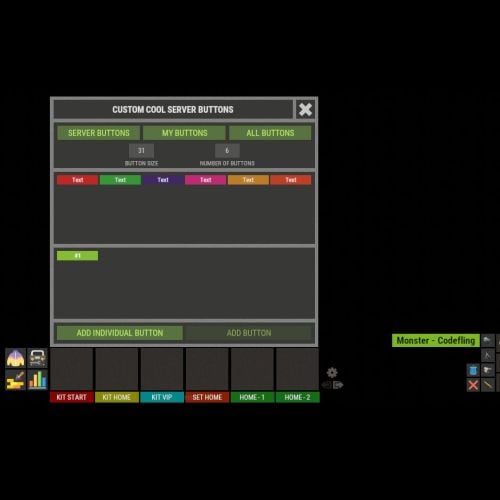
Version 1.1.0
461 downloads
XFastButtons - custom buttons for your server. - Optimization of the interface for different monitor resolutions. - Storing player data in - oxide/data/XDataSystem/XFastButtons - There is a lang ru/en/uk/es. - Sound effects when interacting with the menu. - Various settings for buttons. [ Font, Text, Command, Image, Color, Size, Coordinates, Parent Layer ] - A handy list of buttons under the slots. - Easy and fast selection of coordinates. [ AnchorMin, AnchorMax, OffsetMin, OffsetMax ] - Customize the list of server images. [ For server logo, etc. ]. - Customize the image list. [ For button creation by the player. ]. - Customize the list of button colors. [ For button creation by the player. ]. - The player can hide server/my buttons using the settings menu. - The player can create his own buttons and place them on the screen as he wishes. - Ability to limit the number of buttons created by a player. - Ability to create buttons with commands (chat and console) that have multiple arguments. [ /kit vip, /home 1, /sethome 1 - etc. ] - Ability to edit already created buttons. - Ability to delete created buttons. - Ability to undo changes. [ Convenient preview while editing/creating a button. ]. - Ability to create any number of server(admin) buttons by permissions. - Ability to hide/show buttons when the player interacts with containers or mounted prefabs(chair, transport, etc.) [ Configure in config. ]. - A button can execute multiple commands in sequence. Use the "|" separator. [ chat.say /kit|chat.say /report ] - Placeholders for commands: %ID% --> Player SteamID. %POS% --> Player coordinates. - By default, the plugin has a few customized buttons, a list of images, and a list of colors. Permissions xfastbuttons.settings - access to basic settings. xfastbuttons.use - access to create/edit/delete buttons. [ Regular players cannot create/edit/delete server(admin) buttons in any way! ] Config { "General setting": { "Maximum number of buttons a player can create": 6, "Maximum number of individual buttons a player can create": 5, "List of containers - buttons will react to open/close container. [ Leave the list empty to extend this to all containers. Or set null to disable this feature. ]": null, "List of mountable prefabs (chair, transport, etc) - buttons will react to interaction with the prefab. [ Leave the list empty to apply this to all prefabs. Or set null to disable this feature. ]": [ ......... ], "List of server buttons - [ You can only configure parameters - Text, Command, Color, Font ]": [ ......... ], "List of server buttons by permissions - [ You can only configure parameters - Text, Command, Color, Font ]": { ......... }, "List of individual server buttons - [ You can configure all parameters ]": [ ......... ], "List of individual server buttons by permissions - [ You can configure all parameters ]": { ......... } }, "GUI setting": { "Color_background_1": "0.517 0.521 0.509 1", "Color_background_2": "0.217 0.221 0.209 1", "Close button (icon) color": "1 1 1 0.75", "Server image list - [ These images are not available to players ]": { ......... }, "Image list - [ These images are available for players to select ]": { ......... }, "List of button colors": [ ......... ] } }$18.99 -
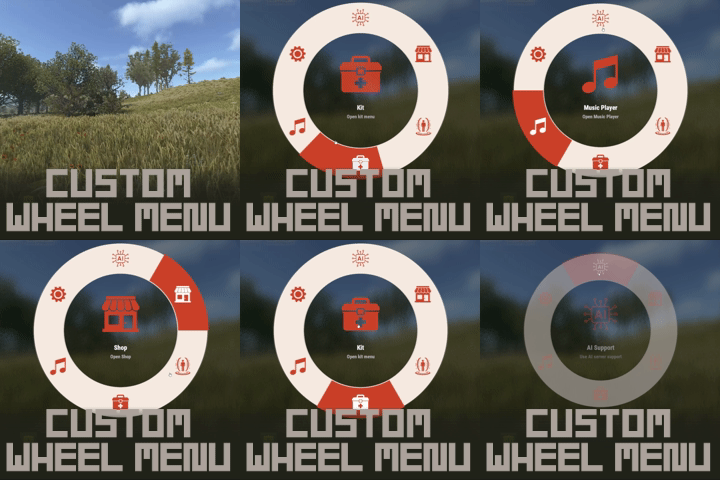
Version 1.1.2
29 downloads
Custom Wheel Menu Transform your server's most frequently used chat commands into a sophisticated wheel menu. Each player can create their own custom command shortcut wheel. Both the wheel system and the Pie system are available, allowing you to switch modes to suit your play style. Wheel Mode : No selection function on mouseover. The first click displays a command summary, and the second click executes the command. Pie UI Mode : Works with mouseover functionality, just like the official RUST system. wheel UI Both the wheel system and the Pie system are available, allowing you to switch modes to suit your play style. The mode can be switched from the wheel settings. Wheel Mode : No selection function on mouseover. The first click displays a command summary, and the second click executes the command. Better animation and design than Pie UI; the UI closes when clicked outside the button area. Requires double-clicking each time an action is executed. Pie UI Mode : Works with mouseover functionality, just like the official RUST system. Clicking outside the button area executes the selected command. Requires clicking the × button each time to close. 5 assignable slots + 1 settings slot A 6-slot wheel: 5 slots players can freely assign, plus a dedicated settings slot to manage them. Per-player customization Each player picks which command goes in which slot. Assignments are saved to a data file and persist across server restarts. Card-based settings panel All admin-configured commands are displayed as icon + name + description cards in a scrollable 4-column grid. Empty slots show a clear "+" indicator. Fully configurable - Wheel center image, selection indicator, settings icon, and settings background — all set via external image URLs - Unlimited command entries, each with a display name, executed command, icon URL, and description Built to work as a hub Any chat command from any plugin can be registered. Multi-language out of the box English, Japanese, Russian, Ukrainian, French, and Traditional Chinese UI strings included, auto-matching your server's language setting. How to use wheel menu 1. By typing "/cw" in chat or the F1 console command "cwmenu", the wheel will appear in the center of the screen. 2. Move the mouse to highlight a slot, then select it again (or confirm) to run the command assigned to it. There is no function to select while hovering. The first click displays a summary of the command, and the second click executes it. How to setting slot S.electing the 6th slot (the gear icon) opens the settings panel. 2. In the settings panel, click one of the 5 slots at the bottom to select it, then click a command card above to assign it to that slot. - Clicking the same command again unassigns it. - The small "×" button on each slot clears it directly. 3. Use the back button to return to the wheel, or click the close button / outside the wheel to close the menu. Chat Command /cw - Open Custom Whell Menu F1 Console Command cwmenu - Open Custom Whell Menu If you frequently use this wheel menu, we recommend binding the command "cwmenu" to a key. To do this, open the F1 console and enter the following: Example: bind [key] cwmenu - Bind to the B key: bind b cwmenu - Bind to the N key: bind n cwmenu This setting must be configured by each individual player. The default configuration is an example. After installing the plugin, you will need to configure the commands you use and their corresponding icon images. Several icon samples are included with the plugin download, and you can use those as well. If you are creating your own original icon, it needs to be a square, white icon with a transparent background, and in PNG format. { "WheelImageUrl": "https://i.imgur.com/zmZ5NCC.png", "IndicatorImageUrl": "https://i.imgur.com/8v9Xz6y.png", "SettingsIconUrl": "https://i.imgur.com/BZYRfsG.png", "SettingsBackgroundUrl": "https://i.imgur.com/WMefGKk.jpg", "Commands": [ { "DisplayName": "Kit", "Command": "/kit", "IconUrl": "https://i.imgur.com/ln8rfJm.png", "Description": "Open kit menu" }, { "DisplayName": "Shop", "Command": "/sp", "IconUrl": "https://i.imgur.com/YKUQvRg.png", "Description": "Open Shop" }, { "DisplayName": "Teleport", "Command": "/tp", "IconUrl": "https://i.imgur.com/9f9PiKs.png", "Description": "Use teleport" }, { "DisplayName": "Fish Encyclopedia", "Command": "/fish", "IconUrl": "https://i.imgur.com/KI6nEai.png", "Description": "Open fish encyclopedia" }, { "DisplayName": "Casino Slot", "Command": "/slot", "IconUrl": "https://i.imgur.com/TRaBdjD.png", "Description": "Play casino slot game" }, { "DisplayName": "Music Player", "Command": "/snd", "IconUrl": "https://i.imgur.com/G7ZMwoy.png", "Description": "Open Music Player" }, { "DisplayName": "AI Support", "Command": "/ai", "IconUrl": "https://i.imgur.com/p6OhM1C.png", "Description": "Use AI server support" } ] } VOID / NINJA WORKS DISCORD : https://discord.gg/U8uxePjSyA MADE IN JAPAN$20.00-
- 1
-
-
- #rust
- #facepunch
- (and 9 more)
-
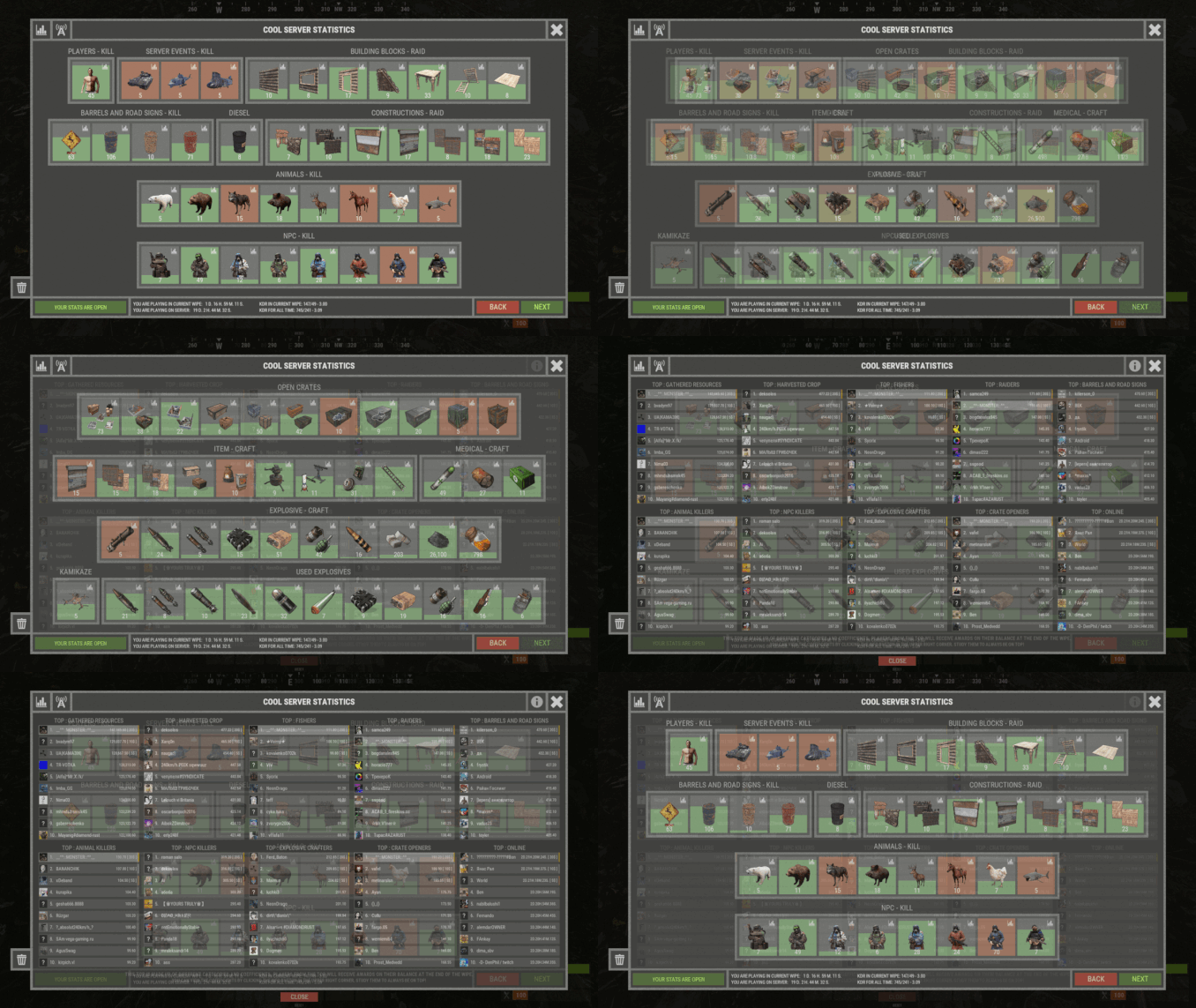
Version 2.1.21
807 downloads
XStatistics - statistics for your server. - Optimization of the interface for different monitor resolutions. - Storing player data in - oxide/data/XDataSystem/XStatistics or MySQL or SQLite. - There is a lang ru/en/uk/es. - Sound effects when interacting with the menu. - UI settings in the configuration. - Display TOPs in game chat. - Ability to customize the privacy of the default statistics. - Ability to delete a player's stats after they have been banned. - Ability to customize grades of building blocks. [ To be recorded in statistics. ] - Ability to add a player to the blacklist. [ Player's statistics will not be displayed in the TOPs and will not be available to other players. ] - Ability to use MySQL or SQLite database. - Ability to automatically give awards and clear data after a WIPE. [ Settings in the configuration. ] [ Plugin economics or any other. Also [ RU ] GameStores. ] - A player can hide/open his statistics. [ Need permission. ] - A player can view the statistics of other players. [ Need permission. ] - A player can reset their statistics to zero. [ Need permission. ] - The player can view the entire list of players and search. [ Need permission. ] - Creating an unlimited number of categories, subcategories and pages. - Creating custom TOPs, coefficients and awards. [ Unlimited number. ] - Various admin commands to manage player statistics. - Support and compatibility with many plugins. - Server events (Bradley, Chinook, and Patrol Helicopter) count as stats for the player who did the most damage. - Checking OwnerID of Building blocks, Constructions and other entities. - Ability to create a Global TOP of your project. [ For this purpose it is enough to enter MySQL data and server name into the configuration.] [ This TOP can be disabled in the configuration and only the TOP players of the server can be used. Or you can use two TOPs at the same time! ] - Ability to use pages for categories with subcategories. - Administrator Mode. [ View hidden player stats, open player search and more ]. - Automatic deletion of statistics of players who have not logged connection the server for N days. - Ability for players to disable messages with the TOP players in chat. If your server is visited by more than 500 players, it is recommended to use SQLite or MySQL. Statistics were tested on a server with 120 online and 5000 players in the database. Excellent result on optimization. To display player avatars you need to customize the configuration of the ImageLibrary plugin! What are the statistics at this point? Global TOP data is manually deleted from the MySQL database. [ It is important that the servers are turned off so that online players data is not written to the database ]. Or after all servers are wiped, run the command - player_stats_reset globaldata null - on one of the servers. [ Also take into account the servers parameters, for a fair TOP they should be the same! ] Shortnames to customize statistics Permissions xstatistics.use - access to the statistics menu. xstatistics.top - access to the TOPs of subcategories. xstatistics.coefficients - access to view the coefficients. xstatistics.player - access to view player statistics, player list and player search. xstatistics.resetwipe - access to the ability for a player to reset his statistics - WIPE. xstatistics.resetall - access to the ability for a player to reset his statistics - ALL TIME. xstatistics.shstats - access to the ability to hide/open your statistics. [ If the permission has been revoked, the statistics privacy will automatically change to default. ] xstatistics.admin - access to admin mode. Commands /stat, /stats, /statistic, /statistics - to open the statistics menu. [ Commands can be changed in the config. ] Server console --- Admin commands. stats_ct <customTopName> - to see the top players. [ Custom TOP. ] stats_t <subcategoryName> - to see the top players. [ TOP subcategory. ] player_stats_reset statswipe <steamID> - to reset a player stats to zero - WIPE. player_stats_reset statsall <steamID> - to reset a player stats to zero - ALL TIME. player_stats_reset all <steamID> - to reset a player stats to zero - WIPE and ALL TIME. player_stats_reset global <steamID> - delete a player from the database Global TOP. [ Player must be offline! ] player_stats_reset globaldata null - Delete data from a table in a MySQL database - Global TOP. [ Use this command after all of your servers have been wiped. ] [ The command can be used on any of the Global TOP servers. ] player_actstats global true/false - change statistics privacy for all players. player_actstats <steamID> true/false - change statistics privacy for a player. stats_give_award - start giving out awards for TOPs. stats_clear_data_wipe - to clear all statistics - WIPE. [ Same as after a server wipe ] API - void API_AddSubcategoryValue(BasePlayer player, string subcategoryName, long amount) - Add a value for the subcategory. player - must be online and not equal to null. - void API_SetSubcategoryValue(BasePlayer player, string subcategoryName, long amount) - Set a value for the subcategory. player - must be online and not equal to null. - bool API_CheckForSubcategory(ulong userID, string subcategoryName) - Check if a subcategory exists. - long API_GetSubcategoryValue(ulong userID, string subcategoryName) - Get the subcategory value. Config$45.99 -

Version 1.2.6
206 downloads
Beautiful minimalist design and easy customization EVERYTHING Forget about figuring out the interface, the plugin will do everything by itself, with the design you want! Event status, online, sleepers, balance and more..... 3 modes that change by clicking on the logo UI buttons for interacting with the server and other plugins The hint function will help players understand how to use some plugins. when you click on any button, the plugin menu will show, BUT you can customize the tooltip on the button, this is how it looks like BUTTONS UNDER INVENTORY you can add them as many as you like (the plugin will adjust them to the game inventory itself), with any color and inscription SCREENSHOTS OF CLIENTS COMMANDS: panelswitch - hide the panel. Functionality of the elements ("Element function" parameter in the information setting"): "Online" - displays online servers "Sleepers" - displays the number of sleepers "Time" - displays game time "Queue" - displays the players in the server queue "Balance" - displays the balance of the player who opened the panel (do not forget to set the parameter "Economic Integration") Config: { "Interface customization": { "Logo button": { "Anchors": "0 1", "OffsetMin": "0 -54", "OffsetMax": "54 0", "LOGO IMAGE": "https://i.ibb.co/Mdgc993/Logo.png" }, "Layer one (panel with information)": { "Panel component settings": { "Customizing the top of the panel": { "Event panel settings": [ { "Picture": "https://i.ibb.co/j9XrTVwh/cheenook.png", "Event(chinook, cargo, bradley, heli)": "chinook", "Active event color": "#c6f725", "Сolor of inactive event": "#ffffff" }, { "Picture": "https://i.ibb.co/FkWxgpST/heli.png", "Event(chinook, cargo, bradley, heli)": "heli", "Active event color": "#c6f725", "Сolor of inactive event": "#ffffff" }, { "Picture": "https://i.ibb.co/KxZDkM7v/cargo.png", "Event(chinook, cargo, bradley, heli)": "cargo", "Active event color": "#c6f725", "Сolor of inactive event": "#ffffff" }, { "Picture": "https://i.ibb.co/cSswP7rj/tank.png", "Event(chinook, cargo, bradley, heli)": "bradley", "Active event color": "#c6f725", "Сolor of inactive event": "#ffffff" } ], "Inscription on the panel (label)": "MgPanel", "Label font": "robotocondensed-bold.ttf", "Label Text Color": "#ffffff", "Label font size": 18, "The length of the element with the label.": 90, "Color Stripe": "#ffffff", "Include a strip between blocks of information?": true, "Enable horizontal stripe?": true, "Padding between event indicators": 1, "Space between server name and events": 10 }, "Setting the bottom of the panel (online sleepers, etc.)": [ { "Element function": "Online", "Picture": "https://i.ibb.co/9HDG6qrF/online.png", "Color picture": "#ffffff", "Text color": "#ffffff", "Text size": 17, "Element length": 55, "Font": "robotocondensed-bold.ttf" }, { "Element function": "Sleepers", "Picture": "https://i.ibb.co/w5RPfwD/ZZZ.png", "Color picture": "#ffffff", "Text color": "#ffffff", "Text size": 17, "Element length": 55, "Font": "robotocondensed-bold.ttf" }, { "Element function": "Time", "Picture": "https://i.ibb.co/GXbHHDy/clock.png", "Color picture": "#ffffff", "Text color": "#ffffff", "Text size": 17, "Element length": 75, "Font": "robotocondensed-bold.ttf" } ] }, "Global size scale": 1.0, "Panel anchors (depends on logo position)": "1 0.5", "Panel height": 23, "Enable the panel Image?": false, "Panel Image": "https://i.ibb.co/QF5hxk1H/backimage.png" }, "Button Customization": { "Hint Setting": { "Tip size (auto-tuning)": 1.0, "Picture Background": "https://i.ibb.co/JjrpB2jb/window.png", "Header Text Color": "#000000", "Headler font": "robotocondensed-regular.ttf", "Body text color": "#7e7f85", "Text font": "robotocondensed-regular.ttf", "URL color": "#000000", "URL font": "robotocondensed-bold.ttf" }, "Buttons": [ { "Picture": "https://i.ibb.co/5hFSbTPB/report.png", "Text": "REPORT", "Font": "robotocondensed-bold.ttf", "Executable command": "chat.say /report", "Enable tooltip for this button?": false, "Tip title text": "", "Tip main text": "", "URL that can be copied (if not needed, leave the field blank)": "" }, { "Picture": "https://i.ibb.co/JwjGVL2W/store.png", "Text": "STORE", "Font": "robotocondensed-bold.ttf", "Executable command": "chat.say /store", "Enable tooltip for this button?": true, "Tip title text": "SERVER`S SHOP", "Tip main text": "To donate you need to go to our website!", "URL that can be copied (if not needed, leave the field blank)": "codefling.com/plugins/mgpanel-easy-customizable" } ], "Buttons under the hotbar": [ { "Text": "KITS", "Command": "chat.say /kit", "Button color": "#09c452", "Font": "robotocondensed-bold.ttf", "Text Color": "#020001" }, { "Text": "BACKPACK", "Command": "chat.say /BACKPACK", "Button color": "#145c0b", "Font": "robotocondensed-bold.ttf", "Text Color": "#020001" } ], "Anchors of the top point at the first button": "0.5 0", "Button Width": "22", "Under Hotbar buttons background": "https://i.ibb.co/rK70x5fW/plate.png" } }, "More settings": { "Economic Integration": { "Use economy plugin?": false, "Economy plugin name": "IQEconomic", "API Hook for getting balance in int": "API_GET_BALANCE" } } }$7.99 -
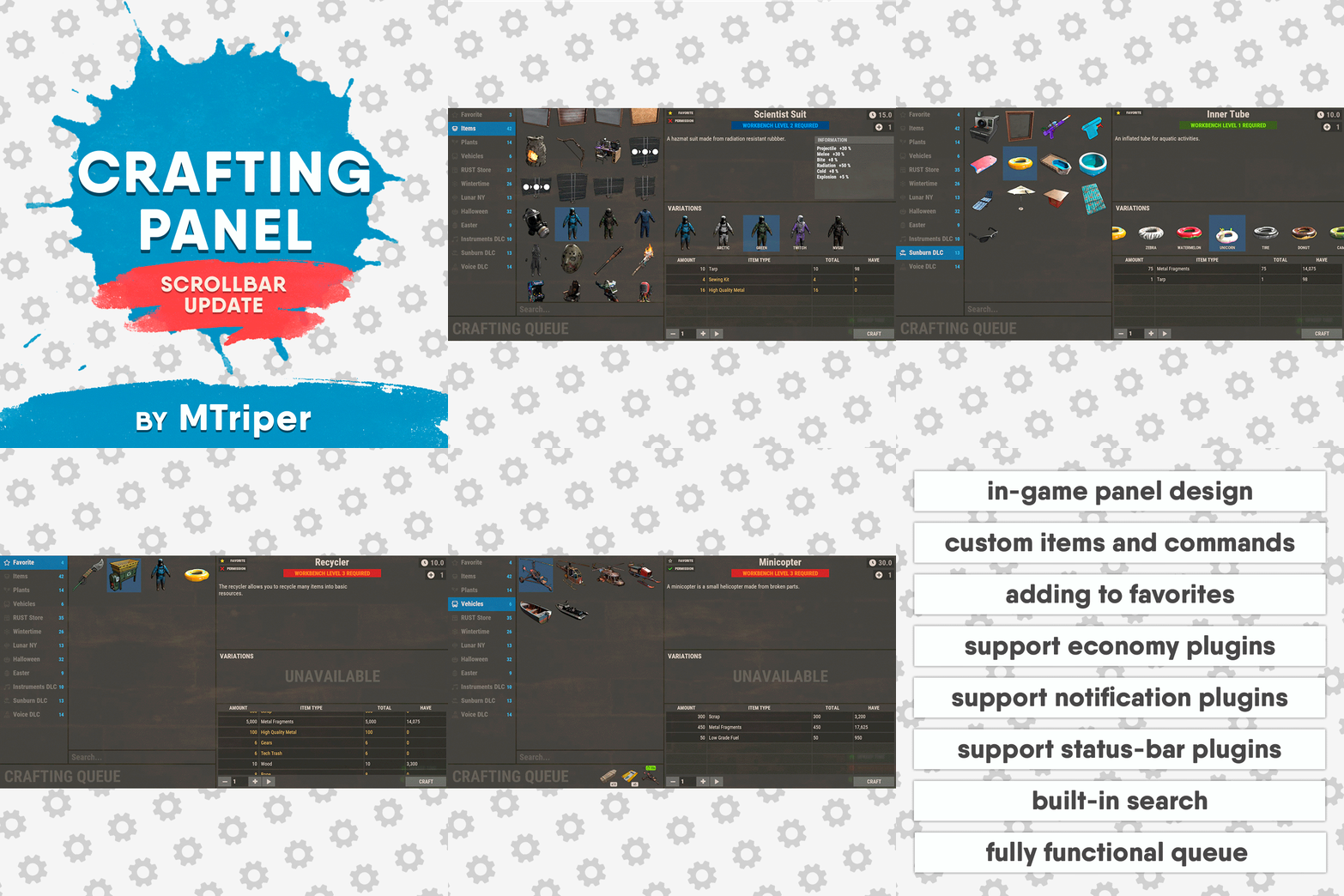
Version 1.3.5
690 downloads
This plugin provides a beautiful and convenient crafting panel for your server. Its design and mechanics are as similar as possible to the in-game Rust crafting panel. Add crafting of any custom items, commands, permissions and anything else you like. Features The design is ~90% similar to the design of Rust's in-game crafting panel. Support for any custom items and commands. Ability to unlock all DLC items in the in-game crafting menu. The plugin only registers permissions for items that you have specified to it. Thus, preventing the creation of a large number of permissions. Customizable sound effects, notifications in the status bar on the right, and text notifications in popular plugins. The plugin can take and give out items from inventory, game backpack and Backpacks plugin, depending on the fullness of any of them. Ability to add item variations (just look at the screenshots). Supports work with skill plugins. Supports work with economy plugins. The player can choose whether to craft or buy an item. Add items to favorites, built-in search, fully functional queue and more. Scrollbar support. Ability to use item crafting cooldown. *All the sections and items shown in the screenshots are an example of configuring the plugin. You will need to create sections yourself and add items there. Supported plugins: SkillTree - allows you to use bonuses such as: Craft_Speed, Craft_Refund, Craft_Duplicate. Also allows you to give bonuses when crafting and take away when crafting is canceled. Backpacks - plugin can take and give items in an additional backpack. ItemRetriever - plugin can take crafting ingredients from all containers that are connected to the player (including inventory, game backpack, Backpacks plugin, and any other plugin that uses ItemRetriever as Suppliers). Player DLC API - plugin allows you to check whether an item or skin belongs to a specific player. ZLevelsRemastered - allows you to use the craft speed bonus. Economics, ServerRewards, IQEconomic - these plugins are used to purchase items with the currency of these plugins. Notify, GUIAnnouncements, NCP - these plugins are used to display notifications. SimpleStatus, AdvancedStatus - these plugins are used to display notifications in the status bar at the bottom right of the screen. Permissions The plugin has immutable and generated permissions. The immutable ones include: craftingpanel._use – is responsible for opening the panel. If there is no permission, the panel will not open. craftingpanel._admin – give this permission only to administrators. It adds an additional "Give yourself" button to get items from the panel for free. This permission is also needed to use the givecraft command (about it below). craftingpanel._instant – all player crafts will be instant. craftingpanel._death – crafting queue will not be reset when the player dies. craftingpanel._disconnect – when a player leaves the server, the craft queue will not be reset. craftingpanel._economics – allows you to purchase items for the currency of the selected economy plugin. If the player does not have permission, the cost panel will still be displayed, but the player will not be able to make a purchase. craftingpanel._workbench - allows you to reduce crafting time by having a workbench of a higher level than necessary for crafting. craftingpanel._bonuses – allows the player to access the crafting bonuses from the "Crafting bonuses" section. craftingpanel._unlockdlc - if a player has this permission, he can craft all DLC items in the in-game crafting menu. If you revoke this permission, all DLC items will become unavailable again. craftingpanel._nocooldown - allows you to disable the cooldown of all items. The generated permissions are created by the plugin itself, here's how it works: craftingpanel.section.vehicles- this is permission for the "vehicles" section. craftingpanel.vehicles.minicopter - this is permission for the item "minicopter" in the "vehicles" section. craftingpanel.vehicles.snowmobile.tomaha - this is permission for the item "snowmobile" in the "vehicles" section and in "tomaha" variation. Commands givecraft steamid/nickname section item 5 skin steamid/nickname – steamid or nickname of your choice. section – section name from the Section permission [required] field. item – item name from the Item permission [required] field. 5 – how much of the current item to give out (craft multiplier). skin - name of the item from the Ingredients section, Item permission [required] fields. All arguments of this command are required. If your item has an empty "Variations" section or you want a default item, specify "default" in place of skin. resetcooldowns steamid/nickname section item - resets the cooldown of a specific item from a specific player. resetcooldowns steamid/nickname - resets the cooldown of all items from a specific player. resetcooldowns all section item - resets the cooldown of a specific item for all players resetcooldowns all - resets the cooldown of all items from all players steamid/nickname – steamid or nickname of your choice. section – section name from the Section permission [required] field. item – item name from the Item permission [required] field. General settings Allow panel scaling when the interface is scaled? - if this setting is enabled, the craft panel will be resized depending on the game interface scale (setting "user interface scale"). If the setting is disabled, the panel will always be the same size, regardless of the player interface scale. Remember the last selected section and item? - plugin will remember the last selected section, item and variation the next time the panel is opened by the player. Enable multilingual mode? – if your server has players from different countries, this mode allows you to customize translation for other languages. When you enable this mode, the plugin will write all the data that needs to be translated to the lang - file. These include: section names, item names, item descriptions, item properties, item variation names, and ingredient names. The lang - file consists of a pair: key - value. The key is a unique name, with the help of which the plugin understands what phrase to use. Section translation: section.*section permission* – key template for section name translation. For example: "section.favorite": "Favorite" – Favorite section. Translation of item information: *section permission*.*item permission*.name – key template for item name translation. For example: "sunburn.innertube.name": "Inner Tube" – item name. *section permission*.*item permission*.description – key template for item description translation. For example: "sunburn.innertube.description": " Inflatable lap for water fun." – item description. *section permission*.*item permission*.properties – key template for item properties translation. For example: "sunburn.innertube.properties ": "Any properties ..." – item properties. *section permission*.*item permission*.variations.*variation permission* – key template for variation name translation. For example: "sunburn.innertube.variations.zebra": "ZEBRA" – variation name. Translation of ingredient names: *ingredient shortname *.*ingredient skinId* - key template for ingredient name translation. For example: "wood.0": "Wood" – ingredient name. Use the PlayerDLCAPI plugin to check whether items and skins belong to the player? – The plugin will check each item and skin in the panel for belonging to the player (i.e. whether they are in his Steam inventory). Allow work with the Backpacks plugin? – plugin can take and give items in an additional backpack (Backpacks by WhiteThunder). Allow work with the ItemRetriever plugin? – this plugin provides advanced functionality for interacting with player containers: If the ItemRetriever plugin is enabled, the CraftingPanel will take crafting ingredients from all containers that are connected to the player (including inventory, game backpack, Backpacks plugin, and any other plugin that uses ItemRetriever as Suppliers). If the ItemRetriever plugin is disabled, the CraftingPanel will take items with the next priority (if the item is not found, it goes to the next container): Backpacks plugin (if enabled) -> game backpack -> inventory. The CraftingPanel plugin is fully in charge of giving out items (since ItemRetriever only allows you to take items from the player), it gives out items with the next priority (if the container is full, it moves on to the next one): inventory -> game backpack -> Backpacks plugin (if enabled) -> drop item. Reset cooldown on crafting items for all players during the wipe? - the plugin will reset all cooldowns when the server is wiped. Delete player data from the Data file if they have not logged into the server for so many days – this setting is added to prevent the plugin from keeping in memory the settings of all players who have ever visited your server. Effect at the start/end/canceling – game effects that will be played at the start of crafting/completion of crafting/cancellation of crafting (effects list, plugin for playing effects). Specify a plugin to work with the economy – specify one plugin from the list or leave the field empty to disable work with economy. Crafting bonuses This section allows you to customize crafting bonuses when using one of the supported plugins. Each of these plugins has its own settings. Amount of experience will depend on crafting time? – if this setting is disabled, then the given/taken experience will be the same (which are specified in the settings above). If this setting is enabled, the experience will be calculated using the following formula: calculated experience = crafting time * experience from the settings above. It should be taken into account that to calculate the experience for a crafted item, the full crafting time is taken (which is specified in the item's setting), and to calculate the experience for crafting cancellation, the time left to create the item is taken. The ZLevelsRemastered plugin does not have a full-fledged api for interaction with crafting bonuses, so the work with it is not fully implemented (no rewards are given in economy plugins, permission of this plugin is not taken into account, etc.). Notification settings Notification type (Chat, GameTips, Notify, GUIAnnouncements) – if this section is enabled, you must specify the type/plugin to notify the player of different warnings. Chat – notification to regular chat. GameTips – notification in the in-game Rust tooltips (blue or red at the bottom of the screen). Notify – notification in the Notify plugin by Mevent. GUIAnnouncements – notification in the GUIAnnouncements plugin by JoeSheep. Just below that are the customization fields for the specific type of notification. Game Status Settings Game status is a notification that is shown at the bottom right of the screen (like in-game crafting). The plugin can show 3 types of game status: Current craft – it's the blue panel with the gear. It is displayed while the crafting process is in progress. Giving item – it's the green panel with the down arrow. It is displayed when a player is given a craft item. Dropping item – it's the red panel with the cross. It is displayed when the items given by the plugin do not fit in the inventory and drop out near the player. Crafting Panel working with Rust's in-game status and two plugins (SimpleStatus, AdvancedStatus) that have slightly advanced features. Rust – is the in-game status built into the game. It does not require any additional plugins, but it cannot show the Current craft (blue panel with a gear). SimpleStatus – this plugin displays customizable statuses. It can show Current craft and Giving item. But cannot display Dropping item due to limitations in its operation. AdvancedStatus - this plugin displays customizable statuses. It works with all of the above status types. Section settings Section name – the displayed section name on the menu button. Section permission [required] – be sure to fill in these fields and make sure they are all unique. Because it is by this field that the plugin understands which section it is currently working with. If you specify "favorite" here, the plugin will use this section to display the player's favorite items (don't add items to it, the plugin will delete them anyway). Register this permission? – if enabled, the plugin will register a permission with the above name. In this case this section will be shown only to those players who have this permission. Section item settings Item name [required] – required field. The name of the item is displayed only in this plugin. If you need to create an item with the same name, you will find this setting below. Item permission [required] – required field. Make sure that each item in the section has a unique field. Because by this field the plugin understands which item in the current section it is currently working with. Register this permission? - if enabled, the plugin will register permission with the above name. Keep in mind that the current item will still be shown to all players, but they will not be able to craft it (this is also notified by the icon on the top left of the information section). Item description – item description, is not passed to the item when crafting, only displayed in the panel of this plugin. Item properties – if the item has some characteristics (e.g., damage, radiation protection, etc.) you can specify them here. This data is displayed in a separate panel in the information section of the item. Item shortname – if you are using the command as a craft result, leave this field empty. Check this item with the PlayerDLCAPI plugin? - this setting disables the verification of the item by the Player DLC API plugin. Create an item with the default name (true) or the above name (false)? – if true, the plugin will create an item with the default game name (which refers to the current shortname), otherwise it will set the name from the Item name field. Item skinId – if the item is custom, specify the required skinId, otherwise set it to 0. Item image [optional] – if as a result of craft, you have to execute some command, you can specify a link to a picture related to this command. Console commands executed after crafting (%steamid%, %username%, %amount%) [optional] – if you need to execute some commands as a result of crafting, you can list them with commas in this field. In the command you can specify %steamid% and %username%, the plugin will replace them with the data of the current player. The plugin can also replace %amount% with the amount per craft (next setting). If the command gives some custom game item and you know its shortname and skinid you can specify them in the fields above. This way you don't need to additionally save the image of this item to the hosting and specify its link. Amount per craft – number of items given out per craft. Max craft multiplier - maximum allowable craft multiplier. The craft multiplier (selected by the player in the Ingredients section) is how many times an item will be dispensed or how many times commands will be executed. If Amount per craft = 3, and the player chose multiplier = 2, he will receive 2 * 3 = 6 items. Crafting time [sec] – time to craft the item. It can be set to 0, then the item will be crafted instantly. Show notification in game status (if they are enabled)? – if a command from another plugin is used to give a custom item and that plugin displays game status, duplication of game statuses may occur. Therefore, it is possible to disable the display of game status for a particular item. Keep in mind that this only disables the Giving item status. Apply craft bonuses (if they are enabled)? – allows you to apply craft bonuses (from the "Crafting bonuses" section) to this item. Crafting cost in the economy plugin [0 - disable] – the value of the current item in your economy server currency. The customization works if you specified one of the supported economy plugins at the beginning. Item Variation settings In the in-game Rust crafting panel this section is called Skins, here it is called Variations. This is done because here it can include not only skins, but any items or commands related to the parent item. For example, you have several modular car presets, with different types of modules, but they are all related to modular cars. Therefore, you can specify them in one item - "Modular car". The settings in this section are similar to the parent item, except for the crafting ingredients. They will be the same as the parent item. Item Ingredient settings Resource name [required] – required field. Is used to display the name of the ingredient in the plugin panel (it is not taken into account when taking ingredients from the player). When canceling the craft, the plugin can set this ingredient to the specified name, you will find this setting below. Use this resource in ingredients? – enables or disables this resource for use in ingredients. Resource shortname [required] – required field. Shortname of the item that the plugin will look for from the player for crafting. Resource skinId – if it's a custom item, give its skinId, otherwise set it to 0. Return an item with the default name (true) or the above name (false)? – when the craft is canceled, if true, the plugin will create an ingredient with the default game name (which refers to the current shortname), otherwise it will set the name from the Resource name field. Plugin Config Example of plugin configuration in English: Example of plugin configuration in Russian. If you need Russian config, open it (CraftingPanel.cs) before loading the plugin, and at the top set the variable "isRus = true". Then save and upload this file to your server$30.00- 146 comments
- 2 reviews
-
- 8
-
-
-
- #craft
- #craft menu
- (and 17 more)
-
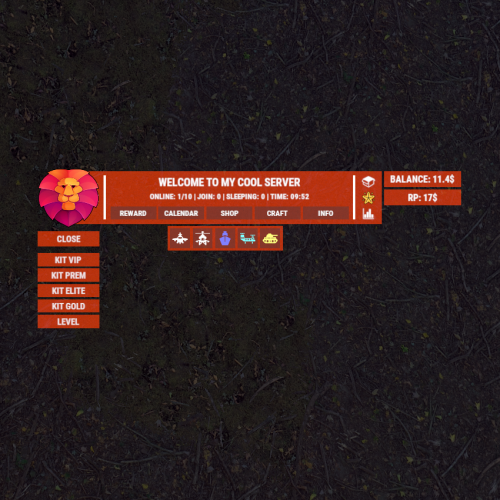
Version 1.1.15
454 downloads
XMenu - beautiful menu for your server. - Optimization of the interface for different monitor resolutions. - There is a lang ru/en/uk/es. - Sound effects when interacting with the menu. - Refresh the information in the menu [ Refresh only the open menu ]. - Customize menu colors. - Customize menu buttons. - Shift menu for active missions. - Information display [ Online | Sleepers | Joins | Time ]. - Display of events [ Airplane, Helicopter, Ship, Chinook, Tank ]. - Displaying information of other plugins [ For example: balance of the in-game store or economy ]. - Dropdown menu with additional buttons. - The ability to completely remove the menu/logo from the screen on command. - The ability to display player coordinates/grid. -> Overview - YouTube <- Permissions xmenu.usecmd - access to the use of a command that removes the menu/logo from the screen. Commands /uimenu on/off - completely remove the menu/logo from the screen. Menu mirror reflection. [ Upper right corner of the screen ] Config: ---------------------------------- "Settings logo": { "Link to the logo image": "https://i.ibb.co/DKnnQw0/Hh7W3hz.png", "Logo color": "1 1 1 1", "Logo material": "assets/icons/greyout.mat", "Logo - AnchorMin": "1 1", "Logo - AnchorMax": "1 1", "Logo - OffsetMin": "-80 -78", "Logo - OffsetMax": "-10 -8", "Move logo - OffsetMin": "-80 -178", "Move logo - OffsetMax": "-10 -108" }, "Settings menu": { "Menu color": "1 0.27 0 0.5", "Menu material": "assets/icons/greyout.mat", "Button color": "0.217 0.221 0.209 0.75", "Button text color": "1 1 1 1", "Side line color": "1 1 1 1", "Button text size": 9, "Close the menu after pressing one of the buttons": false, "Move the menu/logo when the mission is active": false, "Menu - AnchorMin": "1 1", "Menu - AnchorMax": "1 1", "Menu - OffsetMin": "-400 -72.5", "Menu - OffsetMax": "-45 -12.5", "Move menu - OffsetMin": "-400 -172.5", "Move menu - OffsetMax": "-45 -112.5", "Plugin info - AnchorMin": "1 1", "Plugin info - AnchorMax": "1 1", "Plugin info - OffsetMin": "-445 -60", "Plugin info - OffsetMax": "-357.5 0", "Events - AnchorMin": "0 1", "Events - AnchorMax": "0 1", "Events - OffsetMin": "112.25 -90", "Events - OffsetMax": "242.75 -62.5", "Coordinates - AnchorMin": "1 0", "Coordinates - AnchorMax": "1 0", "Coordinates - OffsetMin": "-355 -29.5", "Coordinates - OffsetMax": "-244.75 -2", "Grid - AnchorMin": "1 0", "Grid - AnchorMax": "1 0", "Grid - OffsetMin": "-110.5 -29.5", "Grid - OffsetMax": "-83 -2" }, Plugin code: ---------------------------------- 676 - AnchorMin = "1 1", AnchorMax = "1 1", OffsetMin = "-42.5 -55", OffsetMax = "-40 -5" 682 - AnchorMin = "1 1", AnchorMax = "1 1", OffsetMin = "-325 -55", OffsetMax = "-322.5 -5" 694 - AnchorMin = "0.5 0.5", AnchorMax = "0.5 0.5", OffsetMin = $"{offset - 5} -25", OffsetMax = $"{offset + 47} -10" 715 - AnchorMin = "0.5 0.5", AnchorMax = "0.5 0.5", OffsetMin = $"-170 {offset - 14.25}", OffsetMax = $"-155 {offset + 0.75}" 728 - AnchorMin = "0.5 0.5", AnchorMax = "0.5 0.5", OffsetMin = $"-170 {offset - 14.25}", OffsetMax = $"-155 {offset + 0.75}" 803 - AnchorMin = "1 1", AnchorMax = "1 1", OffsetMin = "-318 -40", OffsetMax = "-47.5 -5" Example of setting information for other plugins. "Configuring information for other plugins. [ Hooks with parameter type - player(BasePlayer) | userID(ulong) ]": [ { "Plugin name": "XShop", "Method name(API)": "API_GetBalance", "Hook parameter type - [ player | userID ]": "player" }, { "Plugin name": "XLevels", "Method name(API)": "API_GetLevel", "Hook parameter type - [ player | userID ]": "player" }, { "Plugin name": "IQEconomic", "Method name(API)": "API_GET_BALANCE", "Hook parameter type - [ player | userID ]": "userID" }, { "Plugin name": "Economics", "Method name(API)": "Balance", "Hook parameter type - [ player | userID ]": "userID" }, { "Plugin name": "ServerRewards", "Method name(API)": "CheckPoints", "Hook parameter type - [ player | userID ]": "userID" } ] Config { "General settings": { "Open menu after connection": false, "Display information of other plugins": false, "Show events": true, "Show grid": true, "Show coordinates": true, "Update menu [ Only the open menu is updated ]": false, "Update information of other plugins [ Updates only when the menu is open ]": false, "Open menu refresh interval": 12.5, "Fake online from the plugin - [ Default - 0 | IQFakeActive - 1 | FGS - 2] - ( Displayed only in the panel and nowhere else )": 0, "Time format - [ HH:mm - 24:00 | hh:mm tt - 12:00 ]": "HH:mm" }, "Settings logo": { "Link to the logo image": "https://i.ibb.co/DKnnQw0/Hh7W3hz.png", "Logo color": "1 1 1 1", "Logo material": "assets/icons/greyout.mat", "Logo - AnchorMin": "0 1", "Logo - AnchorMax": "0 1", "Logo - OffsetMin": "10 -78", "Logo - OffsetMax": "80 -8", "Move logo - OffsetMin": "10 -178", "Move logo - OffsetMax": "80 -108" }, "Settings menu": { "Menu color": "1 0.27 0 0.5", "Menu material": "assets/icons/greyout.mat", "Button color": "0.217 0.221 0.209 0.75", "Button text color": "1 1 1 1", "Side line color": "1 1 1 1", "Button text size": 9, "Close the menu after pressing one of the buttons": false, "Move the menu/logo when the mission is active": false, "Menu - AnchorMin": "0 1", "Menu - AnchorMax": "0 1", "Menu - OffsetMin": "45 -72.5", "Menu - OffsetMax": "400 -12.5", "Move menu - OffsetMin": "45 -172.5", "Move menu - OffsetMax": "400 -112.5", "Plugin info - AnchorMin": "0 1", "Plugin info - AnchorMax": "0 1", "Plugin info - OffsetMin": "357.5 -60", "Plugin info - OffsetMax": "445 0", "Events - AnchorMin": "0 1", "Events - AnchorMax": "0 1", "Events - OffsetMin": "112.25 -90", "Events - OffsetMax": "242.75 -62.5", "Coordinates - AnchorMin": "0 0", "Coordinates - AnchorMax": "0 0", "Coordinates - OffsetMin": "244.75 -29.5", "Coordinates - OffsetMax": "355 -2", "Grid - AnchorMin": "0 0", "Grid - AnchorMax": "0 0", "Grid - OffsetMin": "83 -29.5", "Grid - OffsetMax": "110.5 -2" }, "Settings buttons [ Key_text | Command ] - [ Text setting in oxide/lang ]": { "REWARD": "chat.say /reward", "CALENDAR": "chat.say /calendar", "SHOP": "chat.say /s", "CRAFT": "chat.say /craft", "INFO": "chat.say /info" }, "Dropdown buttons - [ Key_text | Command ] - [ Text setting in oxide/lang ]": { "KIT_VIP": "chat.say /kit vip", "KIT_PREM": "chat.say /kit premium", "KIT_ELITE": "chat.say /kit elite", "KIT_GOLD": "chat.say /kit gold", "LEVEL": "chat.say /level" }, "Settings additional buttons": [ { "Command": "store", "Link to image from internet": "", "Link to icon from the game": "assets/icons/open.png" }, { "Command": "chat.say /s", "Link to image from internet": "https://i.ibb.co/ykDPJ4B/GRZseo8.png", "Link to icon from the game": "assets/icons/community_servers.png" }, { "Command": "chat.say /stats", "Link to image from internet": "", "Link to icon from the game": "assets/icons/market.png" } ], "Settings events": { "Event menu color": "1 0.27 0 0.5", "Event menu material": "assets/icons/greyout.mat", "Event icons background color": "0.217 0.221 0.209 0.75", "Setting up event icons": { "CargoPlane": { "Link to event image": "https://i.ibb.co/m6Fvdn1/01.png", "Active event color": "1 0.5 0.5 1", "Inactive event color": "1 1 1 1" }, "BaseHelicopter": { "Link to event image": "https://i.ibb.co/Sf0w95T/03.png", "Active event color": "1 0.5 1 1", "Inactive event color": "1 1 1 1" }, "CargoShip": { "Link to event image": "https://i.ibb.co/LvRq2X3/02.png", "Active event color": "0.5 0.5 1 1", "Inactive event color": "1 1 1 1" }, "CH47Helicopter": { "Link to event image": "https://i.ibb.co/DCcp6Td/04.png", "Active event color": "0.5 1 1 1", "Inactive event color": "1 1 1 1" }, "BradleyAPC": { "Link to event image": "https://i.ibb.co/5L6qYR4/05.png", "Active event color": "1 1 0.5 1", "Inactive event color": "1 1 1 1" } } }, "Configuring information for other plugins. [ Hooks with parameter type - player(BasePlayer) | userID(ulong) ]": [ { "Plugin name": "XShop", "Method name(API)": "API_GetBalance", "Hook parameter type - [ player | userID ]": "player" }, { "Plugin name": "XLevels", "Method name(API)": "API_GetLevel", "Hook parameter type - [ player | userID ]": "player" } ] }$10.49- 48 comments
- 2 reviews
-
- 4
-
-
- #panel
- #infopanel
- (and 6 more)
-
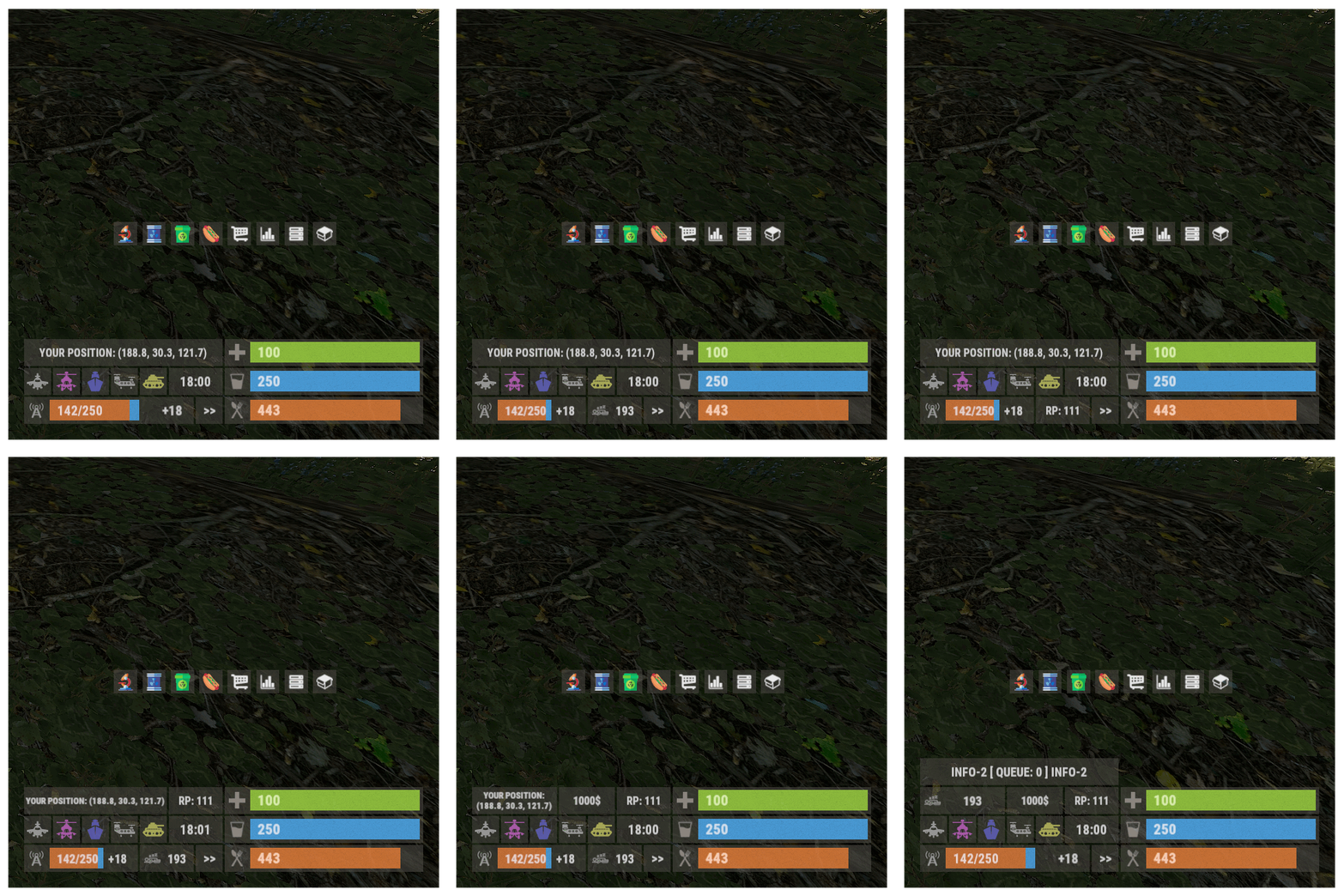
Version 1.1.2
1,056 downloads
XPanelPlus - beautiful info-panel for your server. - Optimization of the interface for different monitor resolutions. - Sound effects when interacting with the panel. - Display of information [ Online | Joins | Time | Sleepers ]. - Display of events [ Airplane, Helicopter, Ship, Chinook, Tank ]. - Display of text information. [ List of messages ] + [ Online | Joins | Time | Sleepers | Queue | Player coordinates ] [ Two options for the location of UI text information ] - Displaying the balance of the economy plugin. [ Economics | IQEconomic ] + [ ServerRewards ] - Ability to hide the panel/button. - Ability to completely remove the panel and buttons from the screen - chat command: /uipanel on/off - Ability to customize panel elements. - The ability to issue access to the panel by permission. - Automatic opening/closing of the panel when issuing/removing a permission to a player. - The panel is automatically hidden when the player is using a computer station, drone or CCTV camera. - Beautiful custom buttons. Settings for the location of the panel on the left side of the screen. Config ---------------------------------------- "GUI settings": { "AnchorMin - panel online": "0 0", "AnchorMax - panel online": "0 0", "OffsetMin - panel online": "210 16", "OffsetMax - panel online": "374 42", "OffsetMax - panel online [ When the Economics/ServerRewards balance panel or the sleep panel is enabled ]": "320 42", "AnchorMin - panel SkillTree": "0 0", "AnchorMax - panel SkillTree": "0 0", "OffsetMin - panel SkillTree": "210 100", "OffsetMax - panel SkillTree": "402 126", "AnchorMin - panel ServerRewards": "0 0", "AnchorMax - panel ServerRewards": "0 0", "OffsetMin - panel ServerRewards": "322 16", "OffsetMax - panel ServerRewards": "374 42", "AnchorMin - panel Economics": "0 0", "AnchorMax - panel Economics": "0 0", "OffsetMin - panel Economics": "322 16", "OffsetMax - panel Economics": "374 42", "AnchorMin - panel events": "0 0", "AnchorMax - panel events": "0 0", "OffsetMin - panel events": "210 44", "OffsetMax - panel events": "402 70", "AnchorMin - panel info": "0 0", "AnchorMax - panel info": "0 0", "OffsetMin - panel info": "210 72", "OffsetMax - panel info": "402 98", "AnchorMin - panel sleep": "1 0", "AnchorMax - panel sleep": "1 1", "OffsetMin - panel sleep": "2 0", "OffsetMax - panel sleep": "54 0", "AnchorMin - minimize button": "0 0", "AnchorMax - minimize button": "0 0", "OffsetMin - minimize button": "376 16", "OffsetMax - minimize button": "402 42", "AnchorMin - buttons": "1 1", "AnchorMax - buttons": "1 1", "OffsetMin - buttons": "0 0", "OffsetMax - buttons": "0 0", "Online progress color": "0.7886275 0.4476471 0.2184314 0.92921569", "Connecting progress color": "0.2986275 0.6076471 0.8384314 0.92921569", "SkillTree progress color": "0.7 0.7 0 0.4", "Panel color": "0.9686275 0.9176471 0.8784314 0.02921569", "Time text size": 13, "Online text size": 13, "ServerRewards balance text size": 11, "Economics balance text size": 11, "Message text size in panel": 11, "Message text size under slots": 12 }, Permissions xpanelplus.use - allow the panel to be used. xpanelplus.usecmd - access to the use of a command that removes the panel and buttons from the screen. Commands /uipanel on/off - completely remove the panel and buttons from the screen. Config { "General settings": { "Enable panel with UI messages": true, "UI message locations - [ True - in the panel above the events | False - under fast slots ]": true, "Enable panel with events and time": true, "Enable panel with SkillTree": false, "SkillTree panel variant. [ True - total XP | False - XP per current level ]": false, "Enable panel with ServerRewards balance": false, "Enable panel with Economics balance": false, "Display economics plugin balance [ True - Economics | False - IQEconomic ]": true, "Enable panel with online": true, "Enable panel with sleep": true, "Enable time in panel": true, "Add the number of queue to the number of connecting players": false, "Enable buttons": true, "List of UI messages": [ "INFO-0 [ ONLINE: {0}/{1} ] INFO-0", "YOUR POSITION: pos", "INFO-1 [ JOINING: {2} ] INFO-1", "INFO-2 [ QUEUE: {3} ] INFO-2", "YOUR POSITION: pos", "INFO-3 [ TIME: {4} ] INFO-3", "INFO-4 [ SLEEPING: {5} ] INFO-4", "YOUR POSITION: pos" ], "Panel update interval with UI messages": 7.5, "Panel update interval with events and time": 20.0, "Panel update interval with online": 12.5, "Panel update interval with ServerRewards balance": 15.0, "Time format - [ HH:mm - 24:00 | hh:mm tt - 12:00 ]": "HH:mm", }, "GUI settings": { "AnchorMin - panel online": "1 0", "AnchorMax - panel online": "1 0", "OffsetMin - panel online": "-402 16", "OffsetMax - panel online": "-238 42", "OffsetMax - panel online [ When the Economics/ServerRewards balance panel or the sleep panel is enabled ]": "-292 42", "AnchorMin - panel SkillTree": "1 0", "AnchorMax - panel SkillTree": "1 0", "OffsetMin - panel SkillTree": "-402 100", "OffsetMax - panel SkillTree": "-210 126", "AnchorMin - panel ServerRewards": "1 0", "AnchorMax - panel ServerRewards": "1 0", "OffsetMin - panel ServerRewards": "-290 16", "OffsetMax - panel ServerRewards": "-238 42", "AnchorMin - panel Economics": "1 0", "AnchorMax - panel Economics": "1 0", "OffsetMin - panel Economics": "-290 16", "OffsetMax - panel Economics": "-238 42", "AnchorMin - panel events": "1 0", "AnchorMax - panel events": "1 0", "OffsetMin - panel events": "-402 44", "OffsetMax - panel events": "-210 70", "AnchorMin - panel info": "1 0", "AnchorMax - panel info": "1 0", "OffsetMin - panel info": "-402 72", "OffsetMax - panel info": "-210 98", "AnchorMin - panel sleep": "1 0", "AnchorMax - panel sleep": "1 1", "OffsetMin - panel sleep": "2 0", "OffsetMax - panel sleep": "54 0", "AnchorMin - minimize button": "1 0", "AnchorMax - minimize button": "1 0", "OffsetMin - minimize button": "-236 16", "OffsetMax - minimize button": "-210 42", "AnchorMin - buttons": "1 1", "AnchorMax - buttons": "1 1", "OffsetMin - buttons": "0 0", "OffsetMax - buttons": "0 0", "Online progress color": "0.7886275 0.4476471 0.2184314 0.92921569", "Connecting progress color": "0.2986275 0.6076471 0.8384314 0.92921569", "SkillTree progress color": "0.7 0.7 0 0.4", "Panel color": "0.9686275 0.9176471 0.8784314 0.02921569", "Time text size": 13, "Online text size": 13, "ServerRewards balance text size": 11, "Economics balance text size": 11, "Message text size in panel": 11, "Message text size under slots": 12 }, "Event settings": { "BradleyAPC": { "Link to event image": "https://i.ibb.co/5L6qYR4/05.png", "Active event color": "1 1 0.5 0.6", "Inactive event color": "0.9 0.9 0.9 0.6" }, "CH47Helicopter": { "Link to event image": "https://i.ibb.co/DCcp6Td/04.png", "Active event color": "0.5 1 1 0.6", "Inactive event color": "0.9 0.9 0.9 0.6" }, "CargoShip": { "Link to event image": "https://i.ibb.co/LvRq2X3/02.png", "Active event color": "0.5 0.5 1 0.6", "Inactive event color": "0.9 0.9 0.9 0.6" }, "BaseHelicopter": { "Link to event image": "https://i.ibb.co/Sf0w95T/03.png", "Active event color": "1 0.5 1 0.6", "Inactive event color": "0.9 0.9 0.9 0.6" }, "CargoPlane": { "Link to event image": "https://i.ibb.co/m6Fvdn1/01.png", "Active event color": "1 0.5 0.5 0.6", "Inactive event color": "0.9 0.9 0.9 0.6" } }, "Button settings": [ { "Button color": "1 1 1 0.9", "Button background color": "0.9686275 0.9176471 0.8784314 0.02921569", "Button background material": "assets/icons/greyout.mat", "Command": "chat.say /store", "Link to image from internet": "", "Link to icon from the game": "assets/icons/open.png" }, { "Button color": "1 1 1 0.9", "Button background color": "0.9686275 0.9176471 0.8784314 0.02921569", "Button background material": "assets/icons/greyout.mat", "Command": "chat.say /kit vip", "Link to image from internet": "", "Link to icon from the game": "assets/icons/community_servers.png" }, { "Button color": "1 1 1 0.9", "Button background color": "0.9686275 0.9176471 0.8784314 0.02921569", "Button background material": "assets/icons/greyout.mat", "Command": "chat.say /kit premium", "Link to image from internet": "", "Link to icon from the game": "assets/icons/market.png" }, { "Button color": "1 1 1 0.9", "Button background color": "0.9686275 0.9176471 0.8784314 0.02921569", "Button background material": "assets/icons/greyout.mat", "Command": "chat.say /shop", "Link to image from internet": "", "Link to icon from the game": "assets/icons/store.png" }, { "Button color": "1 1 1 0.9", "Button background color": "0.9686275 0.9176471 0.8784314 0.02921569", "Button background material": "assets/icons/greyout.mat", "Command": "chat.say /command1", "Link to image from internet": "https://i.ibb.co/7RSrPHd/002.png", "Link to icon from the game": "" }, { "Button color": "1 1 1 0.9", "Button background color": "0.9686275 0.9176471 0.8784314 0.02921569", "Button background material": "assets/icons/greyout.mat", "Command": "chat.say /command2", "Link to image from internet": "https://i.ibb.co/3BF7k9h/004.png", "Link to icon from the game": "" }, { "Button color": "1 1 1 0.9", "Button background color": "0.9686275 0.9176471 0.8784314 0.02921569", "Button background material": "assets/icons/greyout.mat", "Command": "chat.say /command3", "Link to image from internet": "https://i.ibb.co/tJpxQmh/001.png", "Link to icon from the game": "" }, { "Button color": "1 1 1 0.9", "Button background color": "0.9686275 0.9176471 0.8784314 0.02921569", "Button background material": "assets/icons/greyout.mat", "Command": "chat.say /command4", "Link to image from internet": "https://i.ibb.co/J2tkN4Q/003.png", "Link to icon from the game": "" } ] }$12.99- 107 comments
- 6 reviews
-
- 7
-
-
-
- #panel
- #infopanel
- (and 5 more)
-
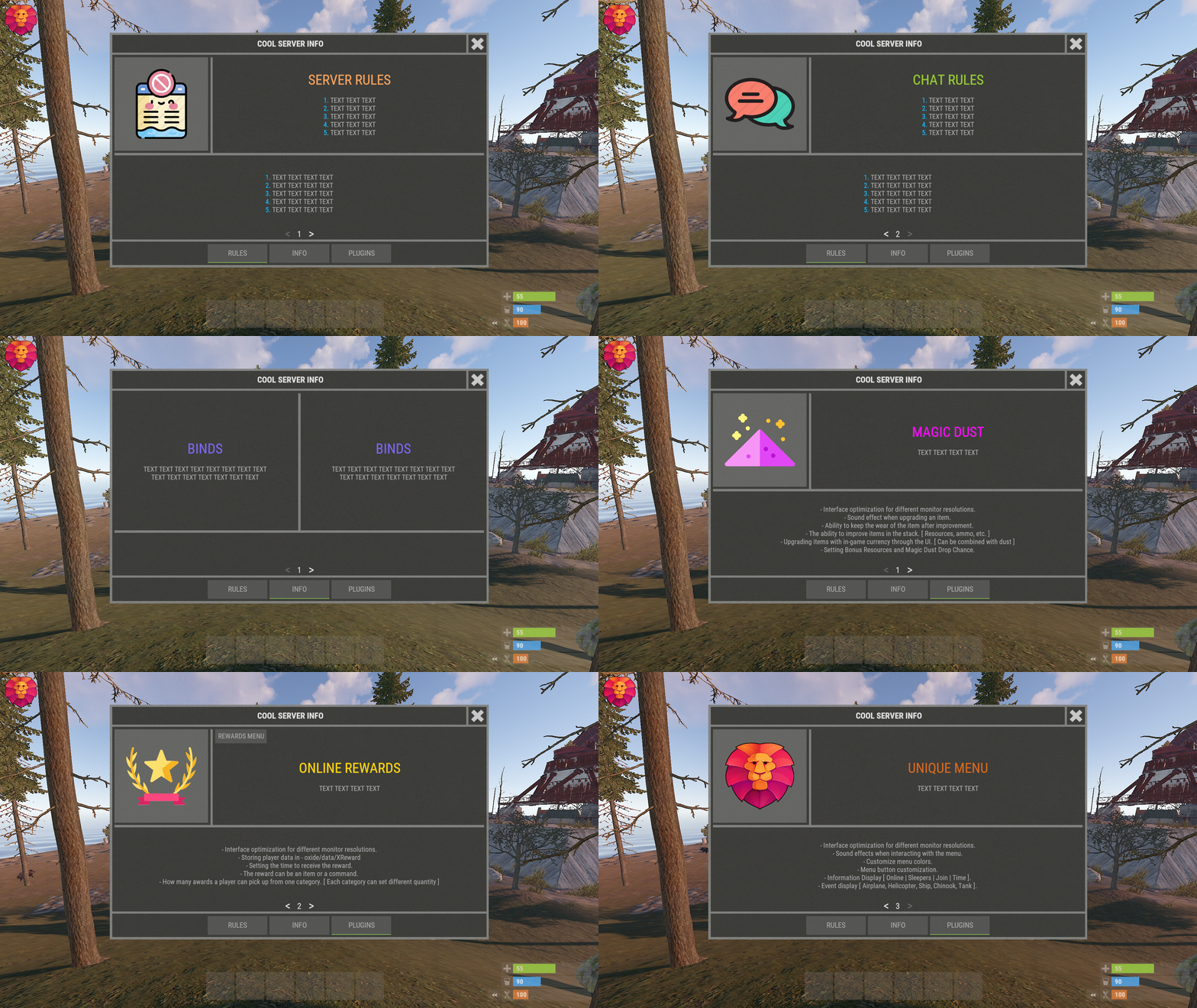
Version 1.0.8
75 downloads
XInfoMenu - beautiful info menu for your server. - Optimization of the interface for different monitor resolutions. - Storing player data in - oxide/data/XInfoMenu - There is a lang ru/en/es. - Sound effects when interacting with the menu. - Info messages in chat. - Info messages under the slots. - Custom page settings. - Ability to turn on the timer when you first connect to the server. [ The player will have to wait N times before the menu can be closed. If the player disconnects from the server before the timer expires, then everything will be restarted when reconnecting. ] - Ability to create an unlimited number of pages. - Possibility to create an unlimited number per page - [ Elements, Pictures, Texts, Buttons ] - The ability to use keyword information in the text (Text in the menu and info messages): -> Overview - YouTube <- Need to know! The menu is a constructor. You can create whatever you want. If you do not understand this, you can ask the developer for help! Keywords [ %NAME% - player name, %STEAMID% - steamid player, %ONLINE% - number of online players, %MAXPLAYERS% - number of server slots, %JOINING% - number of joining players, %QUEUED% - number of players in the queue, %SLEEPING% - number of sleeping players, %TIME% - time on the server ]. Customized configuration. { "General settings": { "Open the menu when the player joined the server -> woke up [ If the timer is off, the menu will open after each connection to the server ]": false, "Reload images after plugin reload": true, "Show page switching buttons if there is only one page in the category": true, "Cooldown menu action": 0.75, "Type of page switching buttons. True - arrows | False - numbering": true, "Enable the timer for the first connection [ The player entered the server -> woke up -> the menu opened -> waited N seconds. The menu will not open again after connecting ]": false, "Timer time (.sec)": 0 }, "Settings up chat messages": { "List of unique message names - [ Settings text in lang ]": [ "MESSAGE1.1", "MESSAGE1.2", "MESSAGE1.3" ], "Chat message interval": 300.0, "Profile steamID for custom avatar": 0, "Enable messages in chat": false }, "Settings messages under slots": { "List of unique message names - [ Settings text in lang ]": [ "MESSAGE2.1", "MESSAGE2.2", "MESSAGE2.3" ], "Message interval under slots": 30.0, "Enable messages under slots": false }, "Settings GUI": { "Background color_1": "0.517 0.521 0.509 0.95", "Background color_2": "0.217 0.221 0.209 0.95", "Background material_1": "assets/icons/greyout.mat", "Background material_2": "", "Button color": "0.517 0.521 0.509 0.5", "Active button color": "0.53 0.77 0.35 1" }, "Settings buttons and pages": { "RULES": [ { "Setting elements": [ { "Element color": "0.517 0.521 0.509 0.95", "Element material": "assets/icons/greyout.mat", "OffsetMin": "-190 -11.25", "OffsetMax": "-185 198.75" }, { "Element color": "0.517 0.521 0.509 0.95", "Element material": "assets/icons/greyout.mat", "OffsetMin": "-395 -11.25", "OffsetMax": "395 -6.25" } ], "Setting images": [ { "Unique image name": "RULES1", "Link to image": "https://i.imgur.com/esfS0N4.png", "Player avatar": false, "OffsetMin": "-395 -1.25", "OffsetMax": "-195 198.75" } ], "Setting up a block of text": [ { "Block text unique name - [ Text setting in lang ]": "RULES1.1", "OffsetMin": "-180 -1.25", "OffsetMax": "395 198.75", "TextAnchor [ Text alignment ] | 0 - 8": 4, "Text color": "0.75 0.75 0.75 0.75" }, { "Block text unique name - [ Text setting in lang ]": "RULES1.2", "OffsetMin": "-395 -169", "OffsetMax": "395 -16.75", "TextAnchor [ Text alignment ] | 0 - 8": 4, "Text color": "0.75 0.75 0.75 0.75" } ], "Setting buttons": [] }, { "Setting elements": [ { "Element color": "0.517 0.521 0.509 0.95", "Element material": "assets/icons/greyout.mat", "OffsetMin": "-190 -11.25", "OffsetMax": "-185 198.75" }, { "Element color": "0.517 0.521 0.509 0.95", "Element material": "assets/icons/greyout.mat", "OffsetMin": "-395 -11.25", "OffsetMax": "395 -6.25" } ], "Setting images": [ { "Unique image name": "RULES2", "Link to image": "https://i.imgur.com/eAgrWKP.png", "Player avatar": false, "OffsetMin": "-395 -1.25", "OffsetMax": "-195 198.75" } ], "Setting up a block of text": [ { "Block text unique name - [ Text setting in lang ]": "RULES2.1", "OffsetMin": "-180 -1.25", "OffsetMax": "395 198.75", "TextAnchor [ Text alignment ] | 0 - 8": 4, "Text color": "0.75 0.75 0.75 0.75" }, { "Block text unique name - [ Text setting in lang ]": "RULES2.2", "OffsetMin": "-395 -169", "OffsetMax": "395 -16.75", "TextAnchor [ Text alignment ] | 0 - 8": 4, "Text color": "0.75 0.75 0.75 0.75" } ], "Setting buttons": [] } ], "INFO": [ { "Setting elements": [ { "Element color": "0.517 0.521 0.509 0.95", "Element material": "assets/icons/greyout.mat", "OffsetMin": "-2.5 -100", "OffsetMax": "2.5 198.75" }, { "Element color": "0.517 0.521 0.509 0.95", "Element material": "assets/icons/greyout.mat", "OffsetMin": "-395 -100", "OffsetMax": "395 -95" } ], "Setting images": [], "Setting up a block of text": [ { "Block text unique name - [ Text setting in lang ]": "INFO2.1", "OffsetMin": "-395 -90", "OffsetMax": "-7.5 198.75", "TextAnchor [ Text alignment ] | 0 - 8": 4, "Text color": "0.75 0.75 0.75 0.75" }, { "Block text unique name - [ Text setting in lang ]": "INFO2.2", "OffsetMin": "7.5 -90", "OffsetMax": "395 198.75", "TextAnchor [ Text alignment ] | 0 - 8": 4, "Text color": "0.75 0.75 0.75 0.75" } ], "Setting buttons": [] }, { "Setting elements": [ { "Element color": "0.517 0.521 0.509 0.95", "Element material": "assets/icons/greyout.mat", "OffsetMin": "-395 12.375", "OffsetMax": "395 17.375" } ], "Setting images": [], "Setting up a block of text": [ { "Block text unique name - [ Text setting in lang ]": "INFO3.1", "OffsetMin": "-395 22.375", "OffsetMax": "395 198.75", "TextAnchor [ Text alignment ] | 0 - 8": 4, "Text color": "0.75 0.75 0.75 0.75" }, { "Block text unique name - [ Text setting in lang ]": "INFO3.2", "OffsetMin": "-395 -169", "OffsetMax": "395 7.375", "TextAnchor [ Text alignment ] | 0 - 8": 4, "Text color": "0.75 0.75 0.75 0.75" } ], "Setting buttons": [] } ], "PLUGINS": [ { "Setting elements": [ { "Element color": "0.517 0.521 0.509 0.95", "Element material": "assets/icons/greyout.mat", "OffsetMin": "-190 -11.25", "OffsetMax": "-185 198.75" }, { "Element color": "0.517 0.521 0.509 0.95", "Element material": "assets/icons/greyout.mat", "OffsetMin": "-395 -11.25", "OffsetMax": "395 -6.25" } ], "Setting images": [ { "Unique image name": "PLUGINS1", "Link to image": "https://i.imgur.com/EHlroeY.png", "Player avatar": false, "OffsetMin": "-395 -1.25", "OffsetMax": "-195 198.75" } ], "Setting up a block of text": [ { "Block text unique name - [ Text setting in lang ]": "PLUGINS1.1", "OffsetMin": "-180 -1.25", "OffsetMax": "395 198.75", "TextAnchor [ Text alignment ] | 0 - 8": 4, "Text color": "0.75 0.75 0.75 0.75" }, { "Block text unique name - [ Text setting in lang ]": "PLUGINS1.2", "OffsetMin": "-395 -169", "OffsetMax": "395 -16.75", "TextAnchor [ Text alignment ] | 0 - 8": 4, "Text color": "0.75 0.75 0.75 0.75" } ], "Setting buttons": [] }, { "Setting elements": [ { "Element color": "0.517 0.521 0.509 0.95", "Element material": "assets/icons/greyout.mat", "OffsetMin": "-190 -11.25", "OffsetMax": "-185 198.75" }, { "Element color": "0.517 0.521 0.509 0.95", "Element material": "assets/icons/greyout.mat", "OffsetMin": "-395 -11.25", "OffsetMax": "395 -6.25" } ], "Setting images": [ { "Unique image name": "PLUGINS2", "Link to image": "https://i.imgur.com/dxHezlf.png", "Player avatar": false, "OffsetMin": "-395 -1.25", "OffsetMax": "-195 198.75" } ], "Setting up a block of text": [ { "Block text unique name - [ Text setting in lang ]": "PLUGINS2.1", "OffsetMin": "-180 -1.25", "OffsetMax": "395 198.75", "TextAnchor [ Text alignment ] | 0 - 8": 4, "Text color": "0.75 0.75 0.75 0.75" }, { "Block text unique name - [ Text setting in lang ]": "PLUGINS2.2", "OffsetMin": "-395 -169", "OffsetMax": "395 -16.75", "TextAnchor [ Text alignment ] | 0 - 8": 4, "Text color": "0.75 0.75 0.75 0.75" } ], "Setting buttons": [ { "Button unique name - [ Setting text in lang ]": "PLUGINS2.1.1", "OffsetMin": "-180 168.75", "OffsetMax": "-70 198.75", "TextAnchor [ Text alignment ] | 0 - 8": 4, "Command": "chat.say /reward", "Button color": "0.517 0.521 0.509 0.5", "Text color": "0.75 0.75 0.75 0.75", "Close menu after clicking": false } ] }, { "Setting elements": [ { "Element color": "0.517 0.521 0.509 0.95", "Element material": "assets/icons/greyout.mat", "OffsetMin": "-190 -11.25", "OffsetMax": "-185 198.75" }, { "Element color": "0.517 0.521 0.509 0.95", "Element material": "assets/icons/greyout.mat", "OffsetMin": "-395 -11.25", "OffsetMax": "395 -6.25" } ], "Setting images": [ { "Unique image name": "PLUGINS3", "Link to image": "https://i.imgur.com/1bljDKO.png", "Player avatar": false, "OffsetMin": "-395 -1.25", "OffsetMax": "-195 198.75" } ], "Setting up a block of text": [ { "Block text unique name - [ Text setting in lang ]": "PLUGINS3.1", "OffsetMin": "-180 -1.25", "OffsetMax": "395 198.75", "TextAnchor [ Text alignment ] | 0 - 8": 4, "Text color": "0.75 0.75 0.75 0.75" }, { "Block text unique name - [ Text setting in lang ]": "PLUGINS3.2", "OffsetMin": "-395 -169", "OffsetMax": "395 -16.75", "TextAnchor [ Text alignment ] | 0 - 8": 4, "Text color": "0.75 0.75 0.75 0.75" } ], "Setting buttons": [] } ] } }$10.99 -
Version 1.1.2
55 downloads
Blue Theme for Server Panel by Simil3x Transform your server interface with a modern look using this clean blue-themed UI for the Server Panel plugin. Designed to enhance clarity and usability while keeping all core features intact. What's Included: ● Ready-to-use JSON configuration - no coding required ● Complete visual redesign of the Server Panel UI ● Calm blue color palette with improved contrast ● Streamlined layout with consistent spacing and alignment ● Enhanced readability for commands and settings Installation: 1. Make sure you have the latest version of the Server Panel plugin installed. 2, Use the /sp.install command and install the V5 template. 3, Download the theme archive. 4, Extract the contents of the archive into your oxide folder. 5, Reload Server Panel plugin Done - your new interface is live! Why Choose This Theme? This isn't just a recolor - it’s a full UI refresh. Every element, from headers to buttons, was rebuilt with usability and clean aesthetics in mind. Whether you're managing kits, commands, or player stats, this layout makes interactions smoother and more intuitive. You can modify content without touching JSON files, plugin includes an intuitive in-game editor. Looking for custom plugin design? Need something completely unique? I offer full-service UI design for any Rust plugin. From initial concept and Figma prototypes to final game-ready implementation - professional custom interfaces tailored to your needs. Contact me: Discord: Simil3x Telegram: @Simil3x_dm Compatible with the latest version of the Server Panel plugin. Easy installation, instant results.$16.99 -
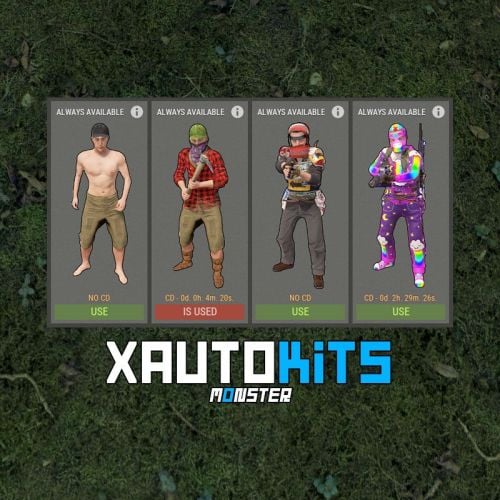
Version 1.0.1
22 downloads
XAutoKits - offers a beautiful menu of auto kits for your server, offering a seamless experience for players to access and manage their kits. What about giving kits to players? The plugin features its own system for granting kits, both temporarily and permanently. It can operate entirely on a permissions system. You can easily combine both options for flexibility. Key Features: Language Support: Switch plugin language in the code - LanguageEnglish = true. Interface Optimization: Adjusts for different monitor resolutions. Data Storage: Player data is stored in oxide/data/XDataSystem/XAutoKits. Multi-language Support: Available in Russian, English, Ukrainian, and Spanish. Sound Effects: Adds sound effects when interacting with the menu. Optimized UI Timer: Enhanced UI update timer for better performance. CoolDown Reset: Automatic reset of CoolDown after server wipe. Easy Kit Management: Create, edit, and view kits, cooldowns, items, modules, and more in the UI. UI Kit Editor: Edit kit items directly within the UI. Inventory Protection: Prevents misplacement of items in the Wear/Belt container. Chat Customization: Customize avatar and prefix for chat messages. Default Kits: Set default kits for new players and a list of kits available immediately. Kit Deletion: Specify the duration before a kit is deleted, ideal for events. CoolDown Setting: Set a CoolDown period for each kit. Inventory Check: Clears player inventory before giving an autokit. Kit Availability: Displays kit settings, including deletion time and CoolDown, in view all kits mode. Automatic Kit Selection: Players can independently select/change their automatic kit from the available ones. Custom Kit Images: Default size is 230x544, adjustable in configuration. Custom images available for an additional fee. Permissions xautokits.use - access to menu. xautokits.admin - access to admin functionality. xautokits.showall - access to the ability to view all kits. xautokits.ignorecd - allow to ignore CoolDown. Commands /ak, /autokit, /autokits - to open the autokits menu. [ Commands can be changed in the config. ] /autokit.admin setkit kitName - set the kit to the player, you are looking at. (Admin permission) xautokits_admin_kit_ccmd give steamID kitName seconds - give kit to a player. [ You can change the seconds and thus change the date of deleting the kit from the player. 0 - the kit will always be available to the player. seconds: 1000 or -1000. Automatically converted to Unix-time. ] xautokits_admin_kit_ccmd remove steamID kitName - remove a kit from a player. [ The kit will no longer be available to the player. ] xautokits_admin_kit_ccmd set steamID kitName - set the kit to player. [ The player inventory will be cleared. ] API bool API_SetPlayerKit(BasePlayer player, string setKitName) - set the kit to player. [ The player inventory will be cleared. ] bool IsAutoKit(string kitName) - check if a kit exists. double GetKitCooldown(string kitName) - get kit CoolDown. (sec.) double GetDeleteKitUnixDate(string kitName) - get date of kit deletion. (Unix-time) string GetKitImageURL(string kitName) - get link to the image of the kit. string GetKitPermission(string kitName) - get permission of the kit. void PlayerTimerRemove(BasePlayer player) - remove player from UI update timer. (Useful for custom menu) Hooks object CanUseAutoKit(BasePlayer player, string setKitName) - is called when a set is kit to a player after respawning. Returning non null will prevent this action. object CanSetAutoKit(BasePlayer player, string setKitName) - is called when a set is kit to a player using the API. Returning non null will prevent this action. Config { "General settings": { "SteamID profile for custom avatar": 0, "Chat prefix": "<size=12><color=#FFFFFF50>[</color> <color=#00FF0050>XAutoKits</color> <color=#FFFFFF50>]</color></size>\n", "The name of the default kit for new players": "", "List of kits that will be available to the player at all times - [ Will be given to the player ]": [], "List of commands to open the menu": [ "ak", "autokit", "autokits" ] }, "GUI settings": { "Color_background_1": "0.517 0.521 0.509 0.95", "Color_background_2": "0.217 0.221 0.209 0.95", "Color_background_3": "0.217 0.221 0.209 1", "Button color (icons)": "1 1 1 0.75", "Block color": "0.517 0.521 0.509 0.5", "Color of the active button next": "0.35 0.45 0.25 1", "Color of the inactive button next": "0.35 0.45 0.25 0.4", "Text color of the active button next": "0.75 0.95 0.41 1", "Text color of the inactive button next": "0.75 0.95 0.41 0.4", "Color of the active button back": "0.65 0.29 0.24 1", "Color of the inactive button back": "0.65 0.29 0.24 0.4", "Text color of the active button back": "0.92 0.79 0.76 1", "Text color of the inactive button back": "0.92 0.79 0.76 0.4", "MainIMG_OffsetMin": "16.5 -99.55", "MainIMG_OffsetMax": "-16.5 117.25", "InfoIMG_OffsetMin": "10 35", "InfoIMG_OffsetMax": "106.2 -35" } }$27.99